Buy Procreate if you want a focused digital painting workspace with a one-time purchase model [1], [6]. Choose Clip Studio Paint instead if your character designs must feed into comic layouts, multi-figure turnarounds, or vector lineart pipelines [7]. Both apps handle expressive character exploration, but they organize your workspace differently. Procreate prioritizes streamlined raster canvas work on iPadOS [5], [6]. Clip Studio Paint brings a deep desktop-style production engine to the tablet screen, complete with specialized rulers and frame tools [7].
Procreate for character illustrations and turnaround sheets
Procreate stands as the primary raster drawing tool built strictly for iPad [5], [6]. For character designers, its brush engine allows quick silhouette blocking, costume detailing, and clean tonal painting [5]. The App Store lists Procreate as a paid upfront purchase under the Graphics and Design category by Savage Interactive [6]. You don't have to manage a monthly subscription seat just to open your model sheets or sketch new poses [1], [6].
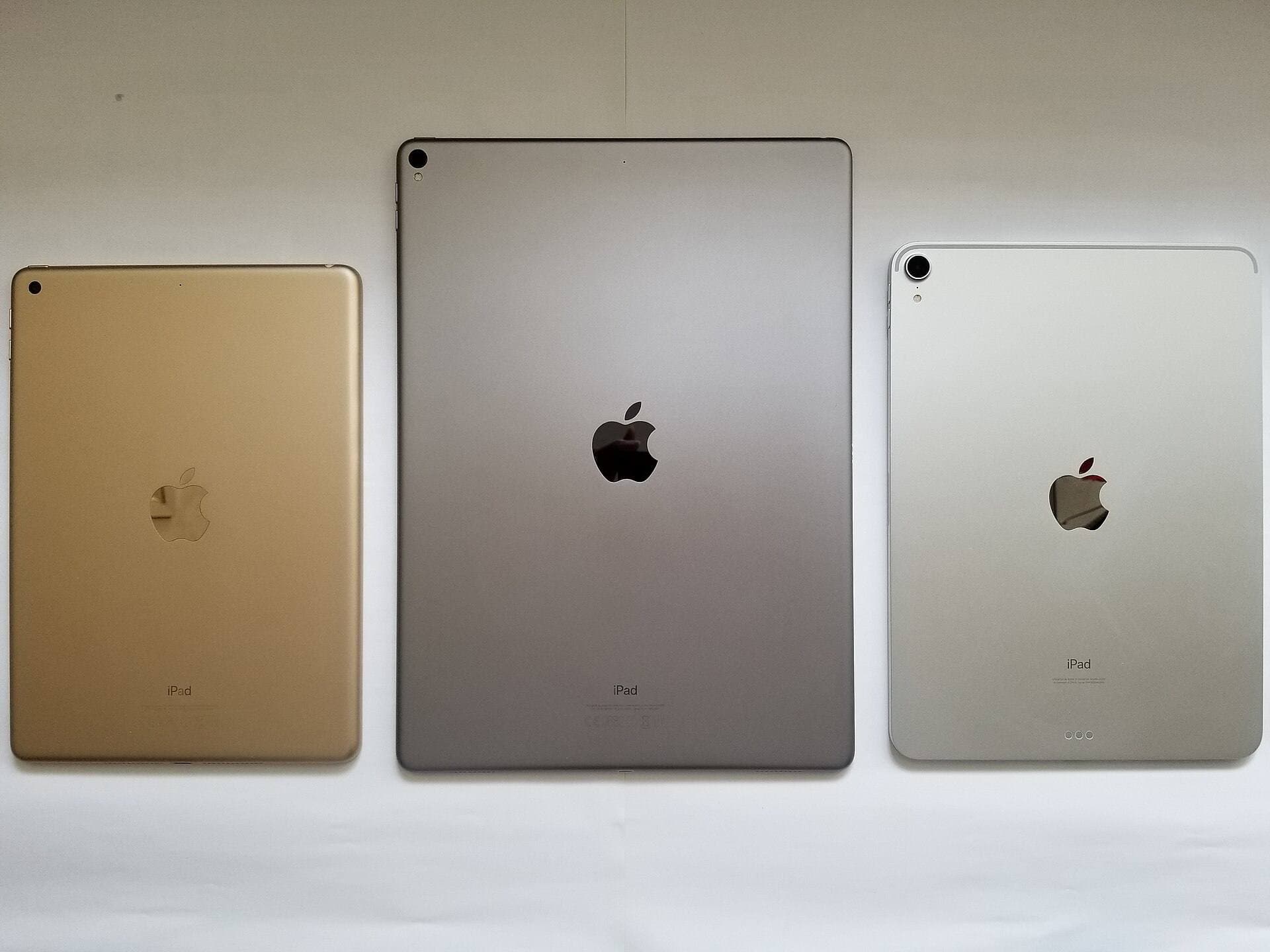
One technical constraint to consider during character production is layer management. Procreate ties maximum layer counts directly to canvas resolution and available system RAM [4]. When you build large multi-angle model sheets with front, side, and three-quarter views on an ultra-high-resolution canvas, older or lower-memory iPads enforce tighter layer caps [4]. On modern hardware such as the iPad Air with Apple silicon, you get higher memory ceilings to accommodate complex costume variations [3], [4]. If your character process relies entirely on fluid raster painting and clean brushwork, Procreate covers those needs without unnecessary desktop clutter [5], [6].
Clip Studio Paint for complex turnarounds and vector lineart
Clip Studio Paint offers distinct technical strengths for character design that pure raster apps leave out [7]. Published by CELSYS, it is available as a free download with a 30-day trial and subscription options on iPadOS [7]. The app brings deep comic creation, ruler systems, and vector drawing layers into your portable setup [1], [7].
Vector layers are especially valuable for character model sheets. In Clip Studio Paint, vector lines allow you to resize lineart without pixelation, adjust stroke thickness after the fact, and erase overlapping stray strokes cleanly up to intersections [1], [7]. If you routinely develop character model packs that transition directly into graphic novels, webtoons, or serialized production, Clip Studio Paint is built for that workflow [1], [7]. The tradeoff sits in the interface and billing. The workspace packs dozens of desktop-oriented palettes onto the iPad screen, and keeping access active requires managing an ongoing app plan [1], [7].
Free and specialized alternatives for character development
If you want to test character concepts before spending money, several capable apps offer distinct workflows on the App Store [8], [9], [10]. Adobe Fresco provides raster and vector drawing tools in a free download from Adobe Inc. [8]. It serves artists who want to blend live watercolor or oil textures into character costume exploration without paying an upfront software fee [8].
For mobile-first sketching, ibis Paint X by ibis inc. and Sketchbook by Sketchbook, Inc. both deliver complete sketching kits as free App Store downloads [9], [10]. ibis Paint X includes comprehensive manga-oriented drawing tools, screentones, and social sharing options [9]. Sketchbook focuses on a clean, minimal interface that maximizes canvas space when drafting quick gesture studies and anatomy poses on smaller screens [10].
Artists planning broad world-building or character wardrobe mood boards can also look at Concepts from TopHatch, Inc., which offers an infinite vector canvas [12]. If your pre-production involves pasting dozens of costume references, color swatches, and anatomical sketches alongside your main figure, Concepts allows endless canvas expansion [12]. Sean Brakefield's Infinite Painter provides another dedicated painting alternative with specialized perspective guides and brush customization [11].
Hardware pairing and Apple Pencil features for character art
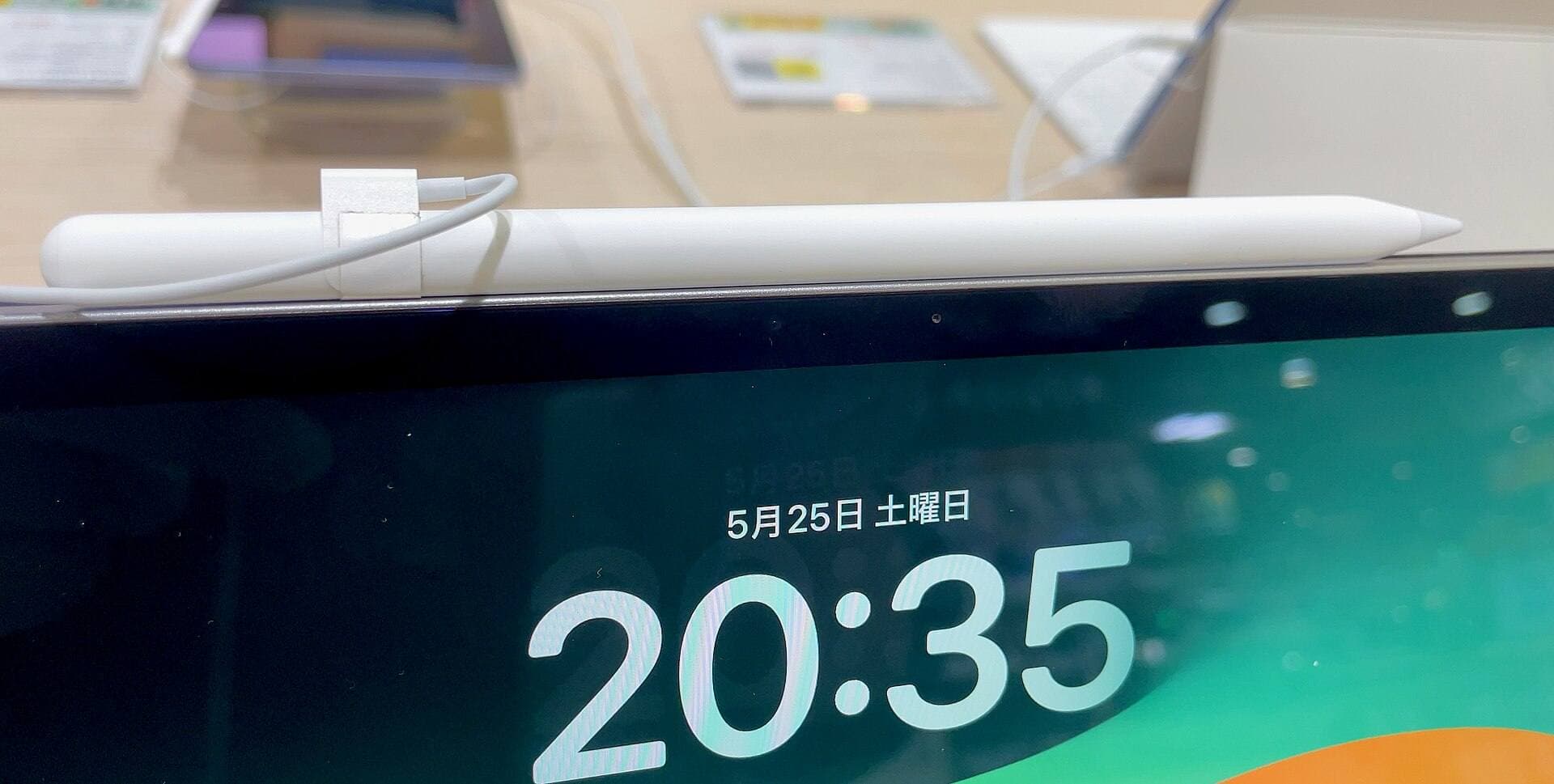
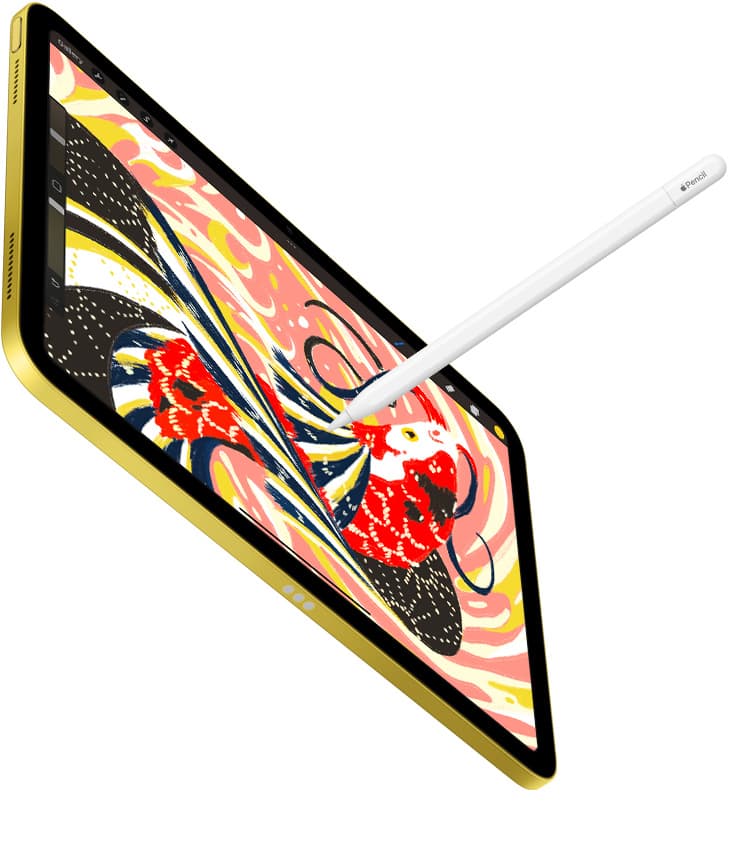
Your choice of iPad hardware directly affects how these apps handle brush input and memory headroom [2], [4]. The Apple Pencil Pro brings advanced tactile feedback, barrel roll, squeeze gestures, and hover detection to compatible iPads [2]. Squeeze allows artists to swap tools or trigger shortcut palettes quickly, while barrel roll rotates shaped brush tips smoothly as you define character hair or fabric folds [2].
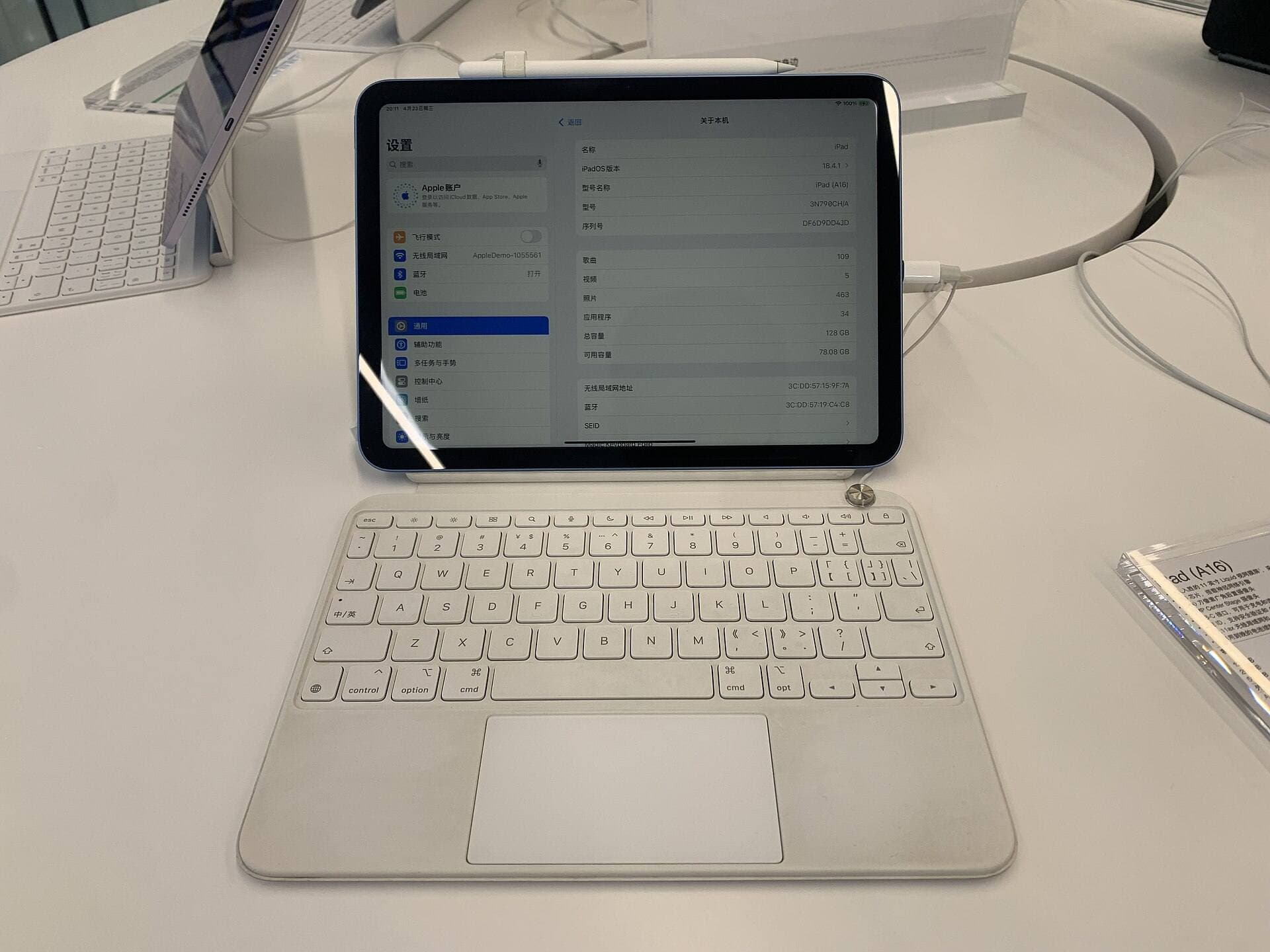
To use the Apple Pencil Pro, you need a compatible device like the iPad Air with the M4 chip [2], [3]. Apple's comparison data confirms that the Apple Pencil Pro pairs with recent Air and Pro hardware, while older or base-tier iPads rely on the Apple Pencil with USB-C or the first- and second-generation styluses [2], [3]. If you design characters with dense layers and extensive texture sets, investing in an M-series iPad Air ensures both Apple Pencil Pro support and higher layer limits in Procreate [2], [3], [4].
Bottom line
For most artists building original character sheets, Procreate is the strongest purchase thanks to its one-time payment structure and responsive raster canvas [1], [5], [6]. Buy Procreate if you want an uncluttered painting studio tailored for drawing figures, outfits, and color studies [5], [6]. Choose Clip Studio Paint instead if you require vector line manipulation, specialized rulers, or direct integration with comic pipelines [1], [7]. If you are working on modern hardware like the iPad Air with an Apple Pencil Pro, either app provides precise pressure and tilt control for detailed character creation [2], [3].
Sources
[1] https://help.procreate.com/articles/zlexav-ipad-compatibility [2] https://www.apple.com/apple-pencil/ [3] https://www.apple.com/ipad/compare/ [4] https://support.apple.com/en-us/108937 [5] https://apps.apple.com/us/app/procreate/id425073498 [6] https://apps.apple.com/us/app/id425073498 [7] https://apps.apple.com/us/app/id1262985592 [8] https://apps.apple.com/us/app/id1458660369 [9] https://apps.apple.com/us/app/id450722833 [10] https://apps.apple.com/us/app/id883738213 [11] https://apps.apple.com/us/app/id1146543227 [12] https://apps.apple.com/us/app/id560586497
Recommended gear
Procreate
apps.apple.comPro: One-time purchase
Con: iPad-only
Clip Studio Paint
apps.apple.comPro: Deep comics, vector, ruler, and animation toolset
Con: iPad plan model is less simple than Procreate
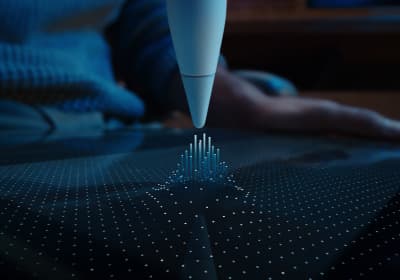
Apple Pencil Pro
amazon.comThe best Apple stylus for serious digital art workflows. Expensive, but the control upgrades are real.
Pro: Best brush-control and hover workflow
Con: Highest price in the lineup
Works only with newer iPad models. Check compatibility.
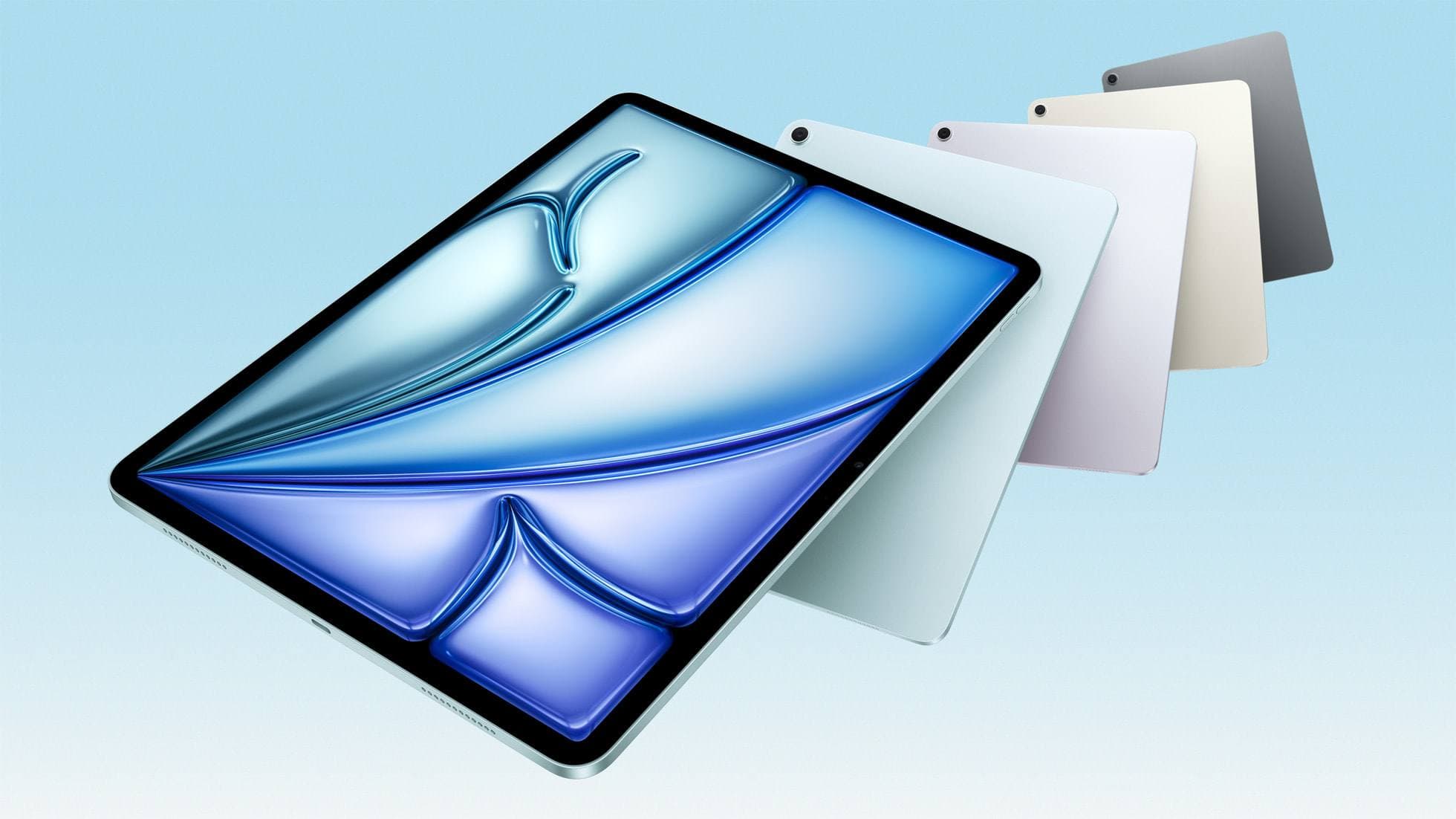
iPad Air (M4)
apple.comThe clean current Air recommendation for most serious hobby artists. Stronger buy logic than old-stock M3 when pricing is close.
Pro: Best current balance of price, headroom, and Pencil support
Con: Still 60Hz
Current Air lineup. Choose size, storage, and keyboard path before checkout.
Related buying picks
More in this collectionBuyer guide
Best iPad app for embroidery design
Procreate is the top iPad app for drawing embroidery patterns, while Clip Studio Paint and Concepts offer distinct vector and ruler alternatives.
Buyer guide
Best iPad app for comics: Clip Studio Paint vs Procreate and alternatives
Clip Studio Paint is the best overall iPad app for multi-page comics and paneling, while Procreate remains the top one-time purchase for standalone illustration.
Buyer guide
Best iPad app for figure drawing practice
Procreate is the top pick for dedicated figure drawing drills, while Clip Studio Paint suits artists needing deep multi-page anatomy study tools.
Buyer guide
Best iPad app for concept art: Procreate versus Clip Studio Paint
Procreate is the top pick for standalone raster concept sketching, while Clip Studio Paint suits complex production pipelines.