If you want to build interface mockups on a tablet, the best iPad app for UI design depends on whether you need vector layouts, rapid pencil sketching, or live team collaboration [4], [5], [6]. For comprehensive vector asset creation and UI layout on iPad, choose Affinity Designer 2 [6]. If you need a focused wireframing canvas tailored for digital interfaces across iPad, iPhone, and Mac, pick Mockup [4]. For team review and collaboration on existing projects, install the official Figma app [3]. Dedicated digital painting apps like Procreate offer raster drawing and one-time pricing, but they lack vector UI tools [1], [7].
Dedicated UI wireframing with Mockup
For designers who want to plan screens directly on an iPad touch screen, Mockup - UI/UX Design offers a specialized environment [4]. Its App Store listing highlights that Mockup helps you sketch, wireframe, and prototype apps and websites across iPad, iPhone, and Mac [4]. Because it focuses specifically on the UI and UX category, it provides an immediate starting point for roughing out user flows without forcing you to set up raw illustration documents [4].
Mockup is a free download in the Graphics & Design category [4]. Designers who frequently sketch layouts using an Apple Pencil will appreciate having an app built around early interface concepts rather than general-purpose art canvases [2], [4]. However, if your team relies heavily on synchronized cloud components or complex web handoff tokens, you'll still need to bring those assets into larger production environments later [3], [4]. Choose Mockup if your primary goal is rapid ideation and screen structure on your tablet [4]. Skip it if you need complete production vector exports with code generation [4].
Vector precision with Affinity Designer 2 and Linearity Curve
When interface layouts require pixel alignment, reusable vector paths, and iconography, full vector graphic software becomes essential [5], [6]. Affinity Designer 2 for iPad brings desktop-grade vector editing to a touch-focused interface, as Serif notes in its official App Store listing [6]. It carries an App Store rating of 4.7 out of 5 and sits in the Graphics & Design section [6]. With Affinity Designer 2, you can assemble buttons, navigation bars, and complete artboard layouts using true vector geometry [6].
Another capable vector option in the store is Linearity Curve Graphic Design [5]. The listing describes it as professional vector art and graphic design software on iPad and iPhone [5]. Linearity Curve is also a free download and holds a 4.5 rating from over 14,000 user reviews [5]. Both apps deliver the crisp lines and scalable shapes necessary for modern high-resolution screens [5], [6]. You should choose Affinity Designer 2 or Linearity Curve if you want to export scalable SVG assets or design clean interface components on iPad [5], [6]. Skip these vector editors if you only want to take loose meeting notes or create unmeasured hand sketches [8], [9].
Reviewing and collaborating with Figma on iPad
Figma remains an industry standard for collaborative user interface design, and its native iPad app lets you stay connected to cloud workspaces [3]. The Figma listing in the App Store describes its role directly: "Create, prototype, and collaborate on the go" [3]. It is a free download with a 4.6 rating across more than 20,000 reviews [3].
While the iPad app gives you mobile access to review prototypes, comment on project canvases, and make updates on the move, complex design system administration is still grounded in desktop browsers [3]. Using Figma on an iPad works best when you want to present designs to stakeholders, test mobile prototypes directly on tablet glass, or jump into collaborative design critiques [3]. Download Figma on your iPad if your team already maintains shared UI component libraries in Figma and you need mobile access [3]. Skip relying on it as a stand-alone, offline drawing tool, because it requires an online environment for team files [3].
Freeform and Concepts for early UI ideation
Before finalizing high-fidelity components, interface designers frequently map out user journeys, site architectures, and rough wireframes [8], [9]. Concepts by TopHatch is a flexible vector-based sketchbook where you can take your ideas from concept to reality, according to its App Store listing [8]. It holds a 4.7 rating and lets you map out boundless diagram layouts with vector pens [8].
Apple's Freeform app provides an alternative collaborative whiteboard canvas [9]. As stated on its App Store page, Freeform is part of Apple Creator Studio, designed to help you bring ideas to life across Apple devices [9]. Freeform is a free download in the Productivity category with hundreds of thousands of ratings [9]. Both Concepts and Freeform let you arrange reference screenshots, draw user paths, and annotate wireframe sketches freely [8], [9]. Choose Concepts if you prefer infinite vector sketch lines that scale without pixelation [8]. Choose Freeform if you want an easy, native whiteboard to gather interface references alongside teammates [9]. Skip both tools when it's time to build pixel-perfect user interface component libraries [6], [8].
Matching hardware to your UI design workflow
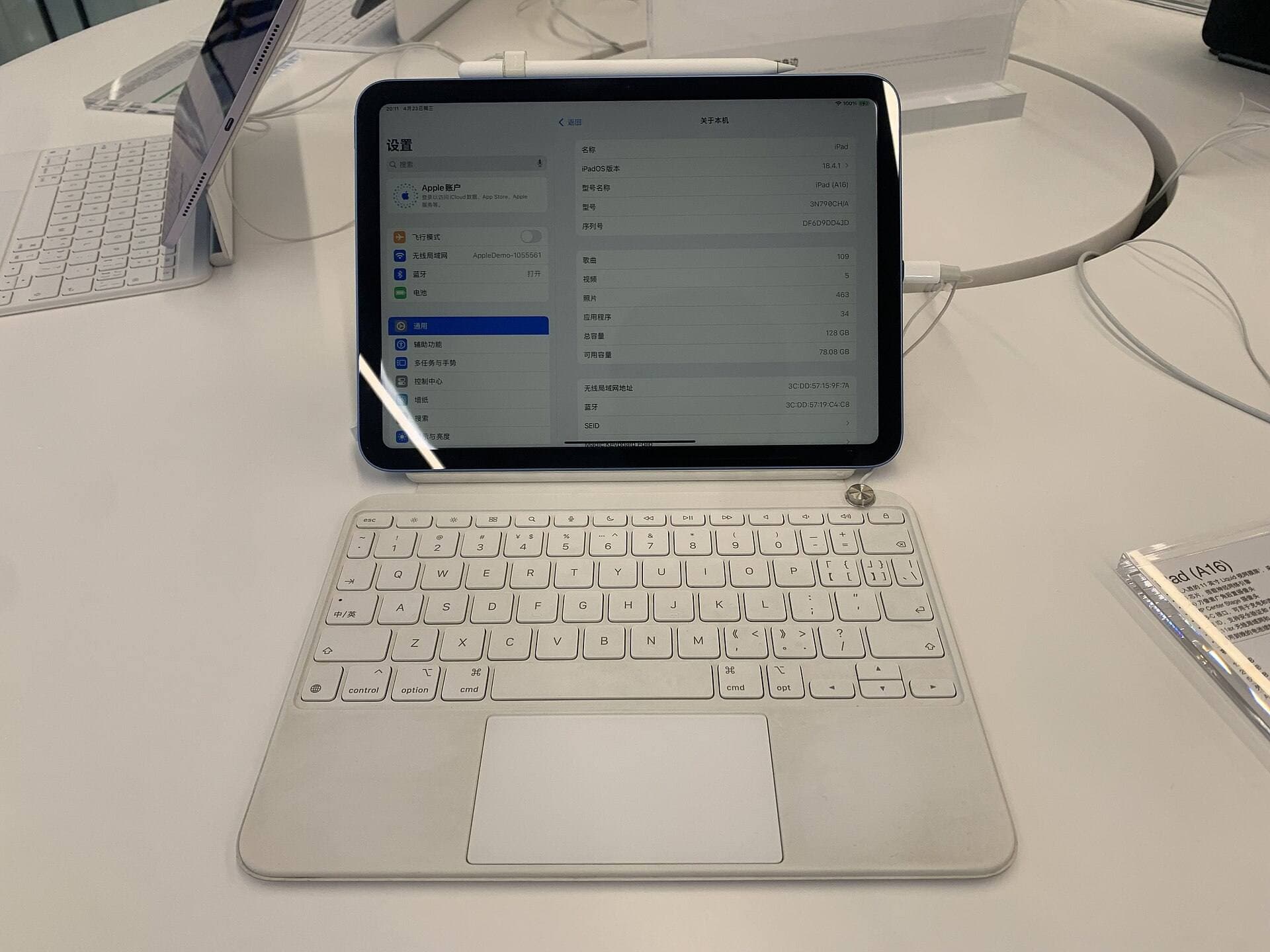
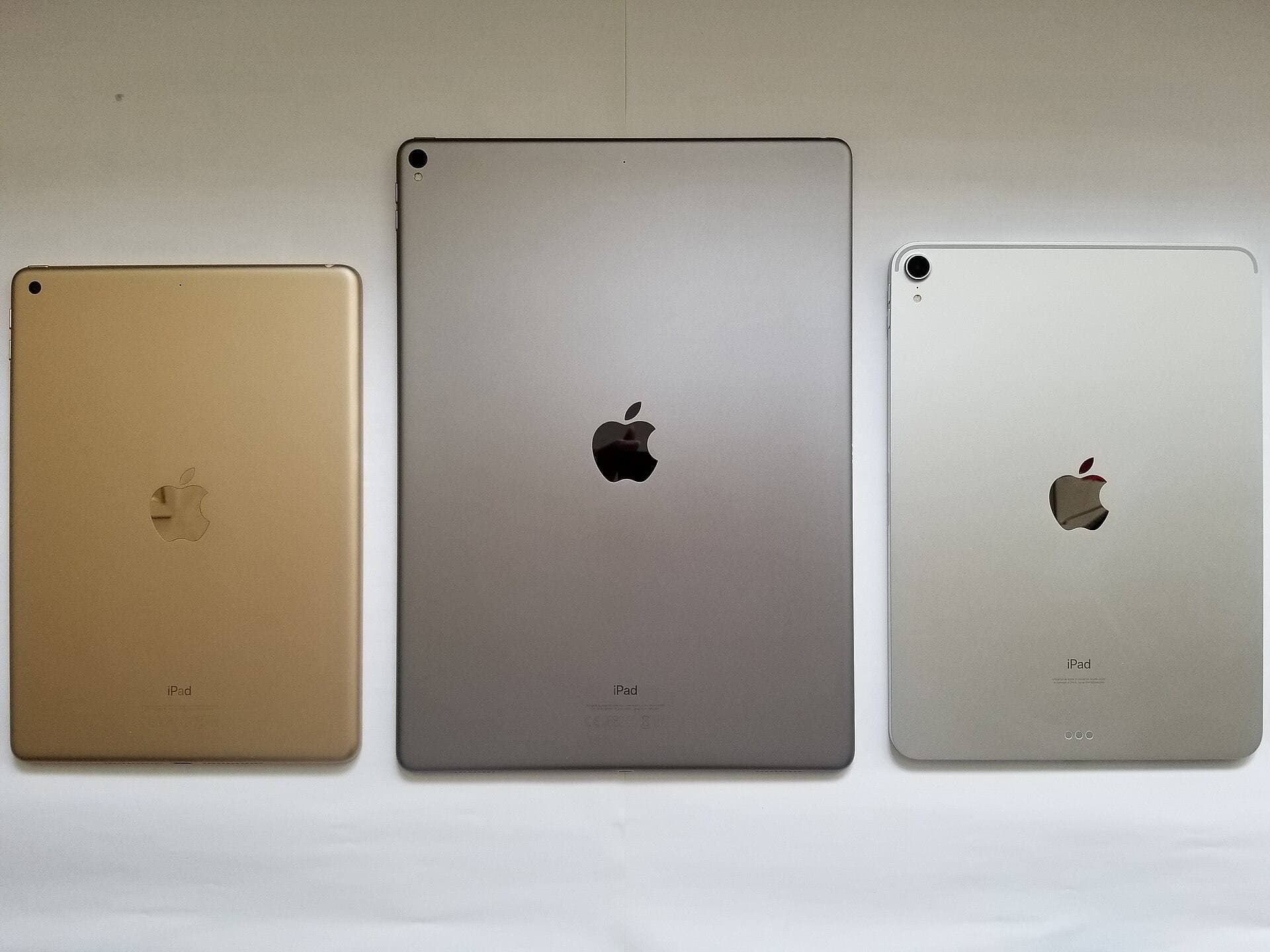
Selecting the right iPad hardware ensures your design software has enough screen space and input precision [2], [10]. The iPad Air (M4) supports the Apple Pencil Pro, giving you access to responsive drawing inputs without jumping to the top-tier Pro tablet line [2], [10]. Apple's comparison data confirms that current iPad models pair with different Pencil generations, so you'll want to verify hardware compatibility before buying accessories [2], [10], [11].
+-----------------------+-----------------------------+---------------------------+
| App                   | Primary UI design role      | App Store category        |
+-----------------------+-----------------------------+---------------------------+
| Affinity Designer 2   | Detailed vector layouts     | Graphics & Design [6]     |
| Mockup                | Screen wireframing          | Graphics & Design [4]     |
| Linearity Curve       | Vector art & assets         | Graphics & Design [5]     |
| Figma                 | Team review & prototyping   | Graphics & Design [3]     |
| Concepts              | Vector ideation & flows     | Graphics & Design [8]     |
| Freeform              | Visual planning boards      | Productivity [9]          |
+-----------------------+-----------------------------+---------------------------+
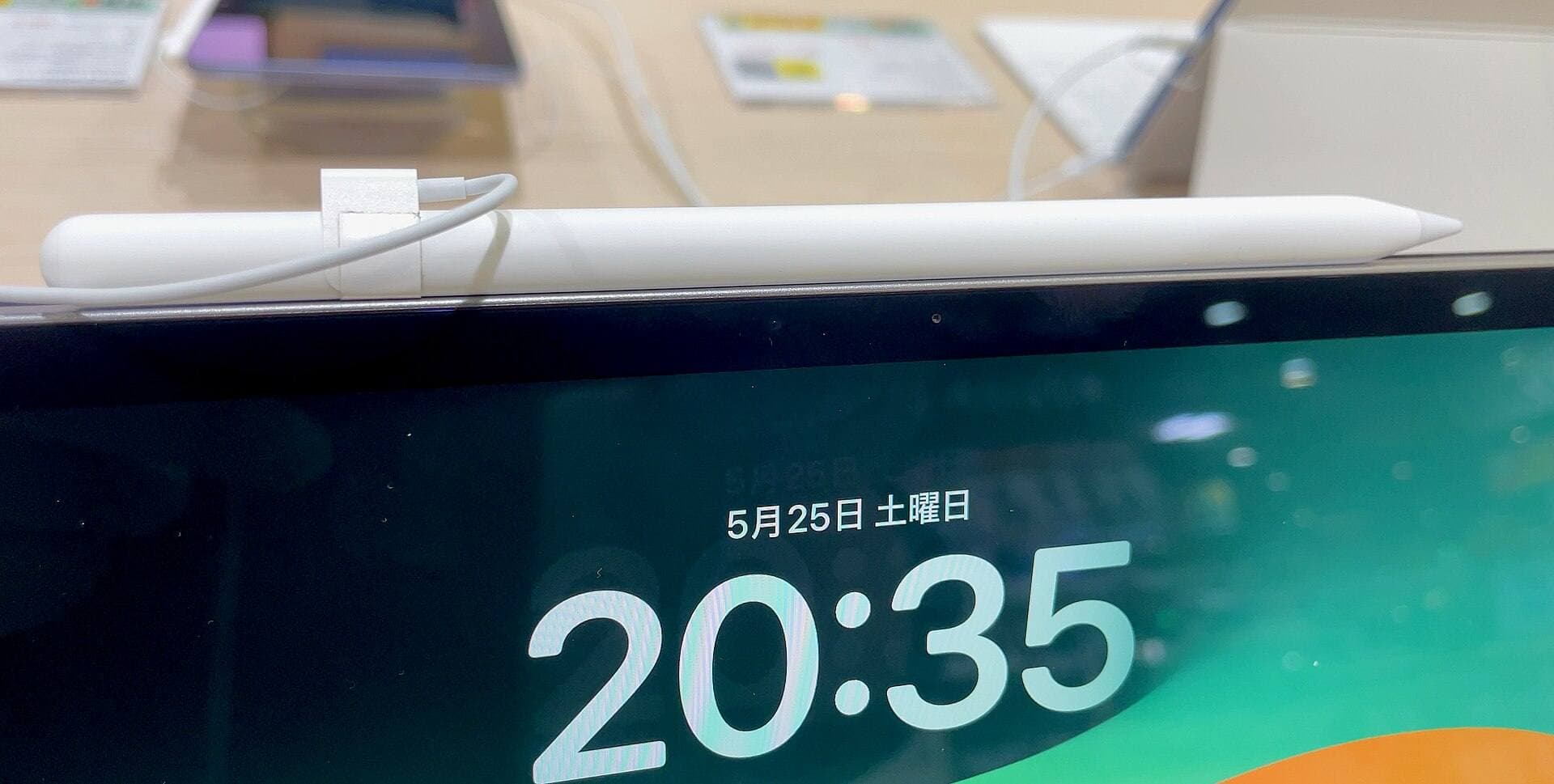
The Apple Pencil Pro offers features such as barrel roll, squeeze, haptic feedback, and hover on supported iPads [2]. Hover lets you preview tool locations before touching the glass, which assists when aligning UI elements or picking vector anchor points [2]. Digital illustration tools like Procreate provide raster sketching with one-time purchase terms, but Procreate limits canvas layer counts based on available device memory and lacks vector layout controls [1], [7], [12]. If your daily work focuses on interface boxes, typography hierarchy, and vector shapes, prioritize vector-ready apps and an Apple Pencil setup that matches your iPad model [2], [6], [10].
Bottom line
For assembling production vector interfaces on an iPad, install Affinity Designer 2 [6]. If your day revolves around rapid wireframing and user experience layout, pick Mockup [4]. Keep the free Figma app installed on your iPad to preview prototypes and collaborate with your design team on the fly [3]. Pairing these software tools with an iPad Air (M4) and Apple Pencil Pro gives you an accurate canvas for modern UI work [2], [10].
Sources
[1] https://apps.apple.com/us/app/procreate/id425073498 [2] https://www.apple.com/apple-pencil/ [3] https://apps.apple.com/us/app/id1152747299 [4] https://apps.apple.com/us/app/id1527554407 [5] https://apps.apple.com/us/app/id1219074514 [6] https://apps.apple.com/us/app/id1616833418 [7] https://help.procreate.com/articles/zlexav-ipad-compatibility [8] https://apps.apple.com/us/app/id560586497 [9] https://apps.apple.com/us/app/id6443742539 [10] https://www.apple.com/ipad/compare/ [11] https://support.apple.com/en-us/108937 [12] https://apps.apple.com/us/app/procreate/id425073498
Recommended gear
Procreate
apps.apple.comPro: One-time purchase
Con: iPad-only
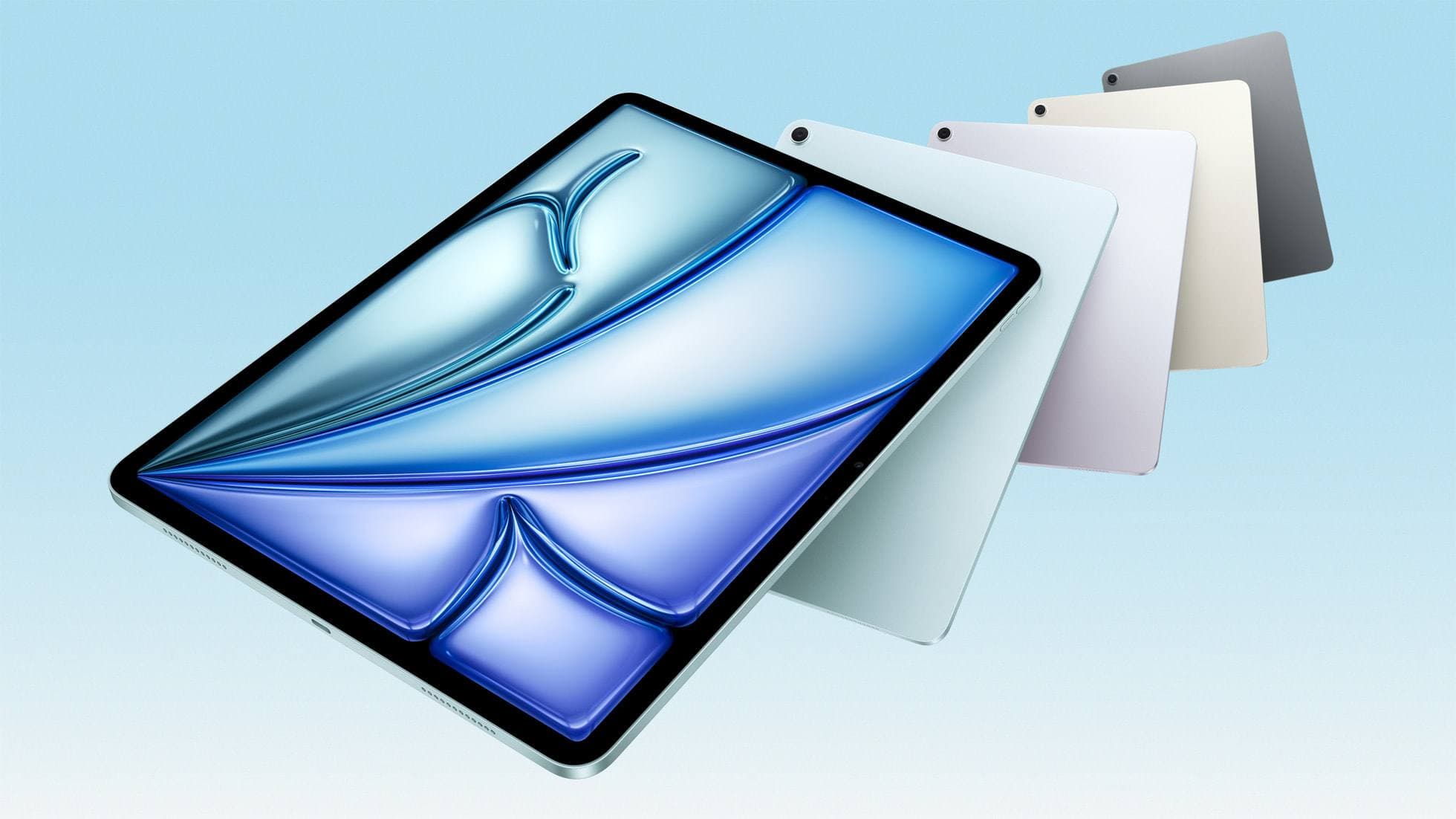
iPad Air (M4)
apple.comThe clean current Air recommendation for most serious hobby artists. Stronger buy logic than old-stock M3 when pricing is close.
Pro: Best current balance of price, headroom, and Pencil support
Con: Still 60Hz
Current Air lineup. Choose size, storage, and keyboard path before checkout.
Apple Pencil Pro
amazon.comThe best Apple stylus for serious digital art workflows. Expensive, but the control upgrades are real.
Pro: Best brush-control and hover workflow
Con: Highest price in the lineup
Works only with newer iPad models. Check compatibility.
Apple Pencil (USB-C)
amazon.comA practical low-cost Apple stylus with broad compatibility, but limited for advanced art control.
Pro: Lowest official Apple Pencil cost
Con: No pressure sensitivity for brush work
Compatible with many recent iPads. No pressure support.
Apple Pencil (2nd generation)
amazon.comStill a strong stylus on compatible iPads. Good pressure control, but compatibility is the main trap.
Pro: Pressure support without Pro pricing
Con: Not compatible with newest Pro-only iPads
Only for iPads that support 2nd generation pairing.
Related buying picks
More in this collectionBuyer guide
Best iPad app for perspective drawing
Clip Studio Paint and Procreate offer distinct approaches to vanishing points, specialized rulers, and architectural sketching on iPad.
Buyer guide
Best iPad app for hand lettering
Procreate remains the best iPad app for hand lettering, paired with dedicated vector options when you need clean outlines.
Buyer guide
Best iPad app for CAD workflows and tablet drafting
Compare the leading iPad CAD apps for solid modeling, mechanical design, architectural drafting, and stylus input.
Buyer guide
Best iPad app for surface pattern design: Procreate versus Clip Studio Paint
Choose Procreate for standalone raster pattern motifs or pick Clip Studio Paint for vector assets and complex pattern tile structures.