






If you need an Apple Pencil strictly for UI design, wireframing, and reviewing mockups, buy the Apple Pencil (USB-C) [2]. Interface design relies on clean strokes, precise tapping, and fast digital markup rather than painterly pressure sensitivity [2], [4]. If your iPad only supports the Apple Pencil (2nd generation) or you already own a newer tablet compatible with the Apple Pencil Pro, stick strictly to what matches your iPad hardware [2], [3].
Many designers assume they must purchase the top-tier stylus to draft user flows, diagram systems, or sketch interface components. That assumption leads people to spend extra money on brush mechanics they will never touch in daily layout work [2]. Your tablet model dictates your accessory choices first, so understanding which features actually assist interface layout lets you avoid unnecessary upgrades [1], [3].
Why pressure sensitivity matters very little for UI work
Digital painters and concept illustrators depend heavily on pressure sensitivity to vary stroke weight organically [2], [5]. In UI design, the goals are completely different. When you sketch wireframes, create user journey maps, or mark up design review exports, you want uniform lines, readable handwriting, and consistent box outlines [4]. Variable stroke thickness based on hand pressure can make quick UI components look uneven or messy.
Apple notes that the Apple Pencil (USB-C) lacks pressure sensitivity while retaining tilt sensitivity and pixel-perfect precision [2]. That omission is a dealbreaker for fine art in apps like Procreate [2], [5]. For product designers drafting screens, charting navigation flows, or writing sticky notes in digital whiteboards, consistent stroke width without pressure variation is actually an advantage [2], [4].
Choosing the Apple Pencil (USB-C) gives you full access to iPadOS handwriting tools and Scribble without paying for pressure sensors you don't need [2], [4]. Skip this model only if you regularly double as an illustrator, or if your specific iPad model cannot pair with or charge it conveniently [2], [3].
Shortcut gestures and how they affect wireframing speed
While pressure control isn't necessary for interface design, quick tool switching can change how smoothly you sketch. The Apple Pencil (2nd generation) includes a double-tap sensor on its flat edge [2]. Apple documents that double-tapping switches between your active drawing tool and the eraser, or toggles your color palette, depending on system settings [2], [4]. During fast whiteboarding sessions, flipping between a pen and an eraser without lifting your hand to tap an on-screen menu helps keep your focus on layout thinking [4].
Apple added even more hardware controls to the Apple Pencil Pro [2]. This model introduces a squeeze gesture, a built-in gyroscope for barrel roll, and haptic feedback [2]. When you squeeze the barrel, iPadOS brings up a tool palette directly under your stylus tip so you can change pens, stroke weights, or colors on the fly [2], [4]. The haptic motor confirms the action with a light pulse [2].
If you spend hours each day roughing out low-fidelity screens, those quick palette triggers save repeated trips to fixed screen toolbars [2], [4]. The Apple Pencil (USB-C) completely omits double-tap, squeeze, and haptic feedback [2]. If you choose the USB-C version, you must tap software toolbars directly on screen whenever you want to switch from drawing to erasing [2], [4].
The role of Apple Pencil hover in interface layout
Apple Pencil hover is supported on selected iPad models when paired with the Apple Pencil Pro, Apple Pencil (2nd generation), or Apple Pencil (USB-C) [2], [3]. Hover detects the stylus tip up to 12 mm above the display [2]. In supported drawing and note-taking interfaces, hover lets you preview the exact mark, line width, or tool size before the tip touches the glass [2], [4].
For UI designers, hover provides practical benefits during precise layout work. When positioning bounding boxes, aligning connector arrows, or placing text callouts, seeing your cursor position before making contact prevents accidental stray marks [2], [4]. It also lets you target tiny UI buttons, collapse menus, or inspector panels in desktop-class design web apps running on iPadOS [1], [4].
Because all three modern Apple Pencil options support hover when attached to a compatible iPad, you do not need to buy the most expensive stylus solely to get hover targeting [2], [3]. Your iPad hardware generation is the sole bottleneck for hover support [1], [2].
Hardware compatibility decides your stylus options
Before picking a stylus based on software workflows, check your exact iPad model, because Apple Pencils are not universally interchangeable across generations [1], [3].
According to Apple's pairing records, the Apple Pencil Pro works exclusively with newer iPad Air and iPad Pro models [2], [3]. It will not pair with or charge on older iPad Pro or iPad Air tablets, nor will it work with standard base iPad hardware [3]. Buying an Apple Pencil Pro without owning a compatible newer device leaves you with a tool that cannot connect [2], [3].
Meanwhile, the Apple Pencil (2nd generation) is restricted to specific past and current generations of the iPad Pro, iPad Air, and iPad mini that feature magnetic charging edges designed for it [1], [3]. It does not work on the newest Pro-only iPads that transitioned to the Apple Pencil Pro [2], [3].
Here is how the compatibility breaks down across standard design scenarios:
- Buy the Apple Pencil Pro if you own a compatible newer iPad Air or iPad Pro and want squeeze shortcuts and haptics for rapid tool swapping [2], [3].
- Buy the Apple Pencil (2nd generation) if you use an older supported iPad Pro, iPad Air, or iPad mini and want double-tap erasing and magnetic charging [2], [3].
- Buy the Apple Pencil (USB-C) if you use a supported base iPad or newer iPad Air and want an affordable stylus for wireframes, interface notes, and layout markup [2], [3].
- Skip the Apple Pencil Pro entirely if your iPad does not appear on Apple's supported hardware list for that model [3].
Checking Apple's official compatibility chart before buying prevents you from receiving a stylus that cannot pair or charge with your tablet [1], [3].
Bottom line
UI design on an iPad doesn't demand expensive art-focused hardware. The Apple Pencil (USB-C) provides precise stroke placement, tilt detection, and Apple Pencil hover on supported iPads without charging you for unnecessary pressure hardware [2], [3]. If you want double-tap or squeeze shortcuts to switch between layout pens and erasers without breaking your sketch flow, choose the Apple Pencil (2nd generation) or Apple Pencil Pro based strictly on which model your iPad supports [2], [3].
Sources
[1] https://www.apple.com/ipad/compare/ [2] https://www.apple.com/apple-pencil/ [3] https://support.apple.com/en-us/108937 [4] https://support.apple.com/guide/ipad/draw-with-apple-pencil-ipadc55b6c7a/ipados [5] https://help.procreate.com/procreate/handbook/5.2/interface-gestures/pencil
Recommended gear

Apple Pencil Pro
amazon.comThe best Apple stylus for serious digital art workflows. Expensive, but the control upgrades are real.
Pro: Best brush-control and hover workflow
Con: Highest price in the lineup
Works only with newer iPad models. Check compatibility.
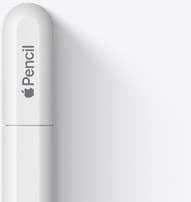
Apple Pencil (USB-C)
amazon.comA practical low-cost Apple stylus with broad compatibility, but limited for advanced art control.
Pro: Lowest official Apple Pencil cost
Con: No pressure sensitivity for brush work
Compatible with many recent iPads. No pressure support.
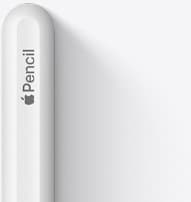
Apple Pencil (2nd generation)
amazon.comStill a strong stylus on compatible iPads. Good pressure control, but compatibility is the main trap.
Pro: Pressure support without Pro pricing
Con: Not compatible with newest Pro-only iPads
Only for iPads that support 2nd generation pairing.
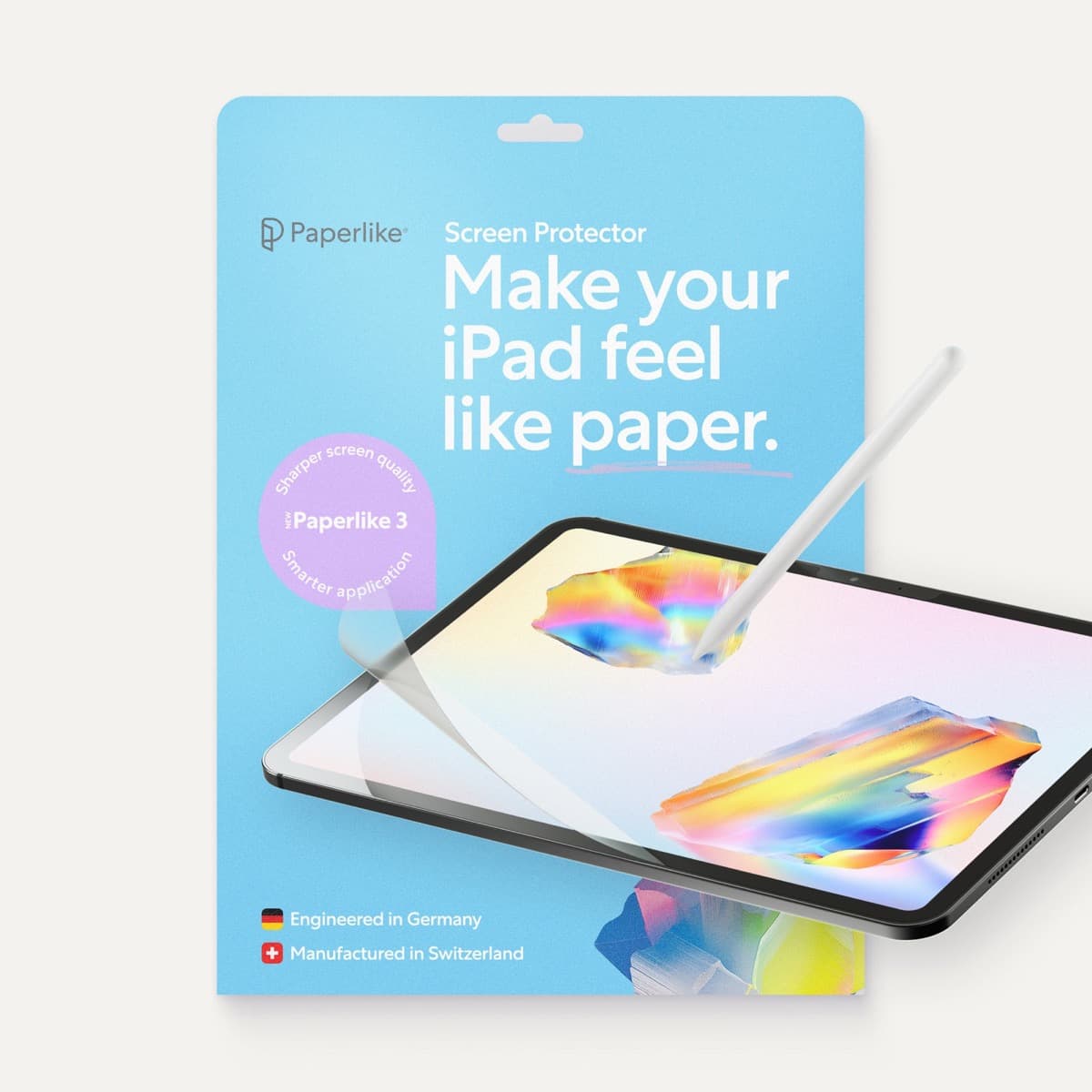
Paperlike 3 (11-inch, 2-pack)
amazon.comA strong surface-feel upgrade for drawing control. Clarity tradeoff is real and should be expected.
Pro: Adds controlled paper-feel friction
Con: Slightly reduces perceived display sharpness
11-inch fit only. Confirm generation before checkout.
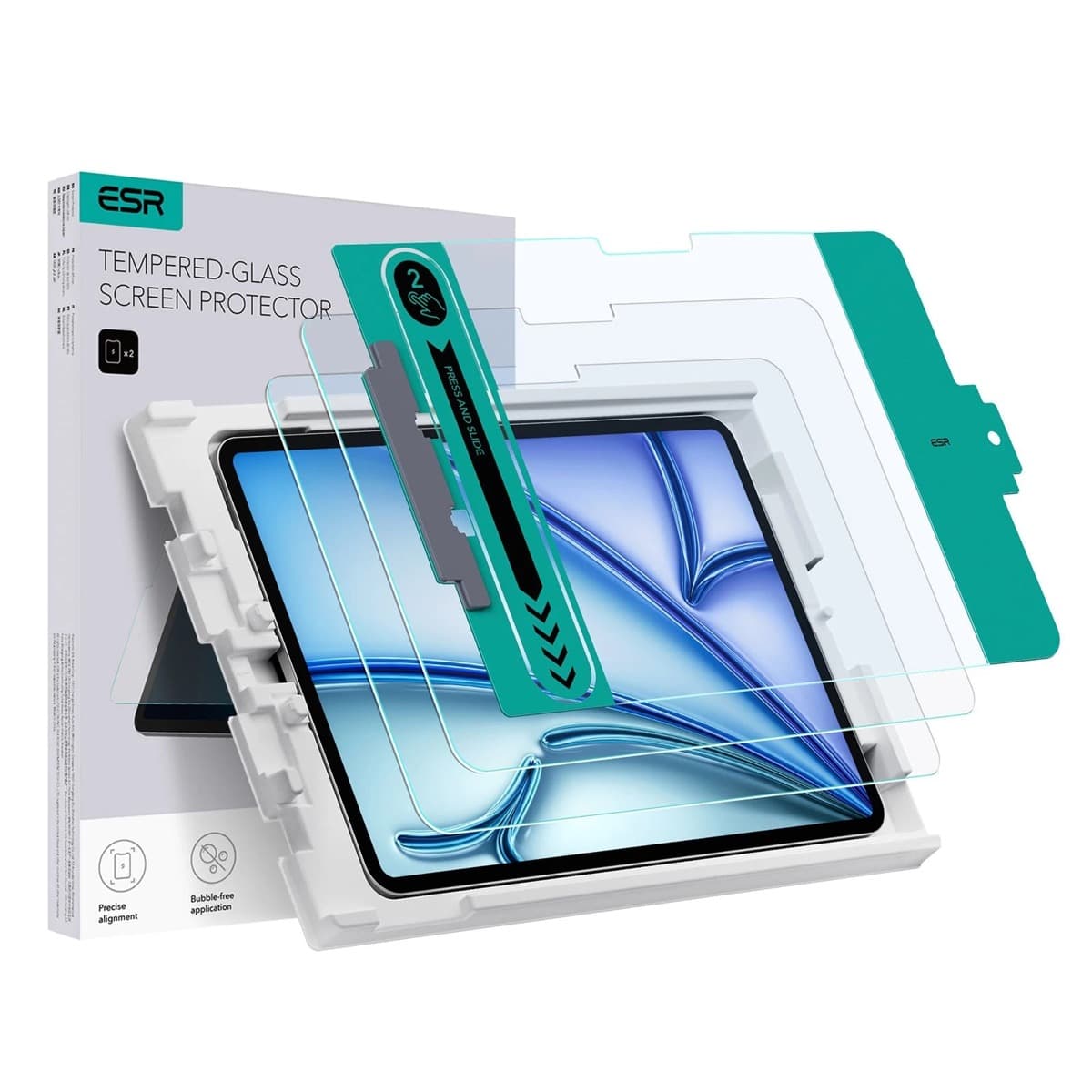
ESR Armorite Tempered Glass (11-inch)
amazon.comHigh-clarity protector with strong value. Great for visibility, less ideal for friction-seeking artists.
Pro: Very clear image with strong scratch resistance
Con: Minimal drawing friction compared with matte films
11-inch fit only. Verify exact iPad generation.
Related buying picks
More in this collectionBuyer guide
Apple Pencil for 3D sculpting: Which model should you buy?
Choose Apple Pencil Pro if your iPad supports it, keep Apple Pencil 2nd generation on older models, and skip Apple Pencil USB-C due to its lack of pressure sensitivity.
Buyer guide
Best Apple Pencil for photo editing on iPad
Choose the right Apple Pencil for retouching, masking, and color grading based on pressure sensitivity and iPad compatibility.
Buyer guide
Best Apple Pencil for pixel art: Which stylus fits your grid?
Pixel art relies on exact placement rather than pen pressure, making Apple Pencil compatibility and budget your main buying factors.
Buyer guide
Best Apple Pencil for portrait drawing: choosing the right stylus
Portrait artists need pressure sensitivity for tonal rendering, making Apple Pencil Pro or Apple Pencil 2nd generation the right choice over the entry model.