
Card readers are easy to underestimate until they become the slowest step in your ingest flow.
On iPad, import speed is controlled by three limits, not one:
- the card bus
- the reader bus
- the iPad port speed
If one part is slow, the whole chain is slow.
Fast rule set
- If your iPad is USB 3 class or better, buy a UHS-II capable reader for heavy media workflows.[1][2]
- If your iPad is USB 2 limited, expensive readers will not fully show their speed. Buy for reliability and port convenience.[3]
- If you import while charging, use a setup that keeps stable power and avoids random disconnects.
UHS-I and UHS-II in plain terms
UHS-I and UHS-II are SD interface generations. UHS-II has much higher ceiling speed, but only when card, reader, and host all support it.[4]
Practical effect:
- UHS-II card in UHS-I reader still works, but at lower speed.
- UHS-II reader on USB 2 host still works, but host becomes bottleneck.
So you buy a faster reader only when your iPad port can use it.
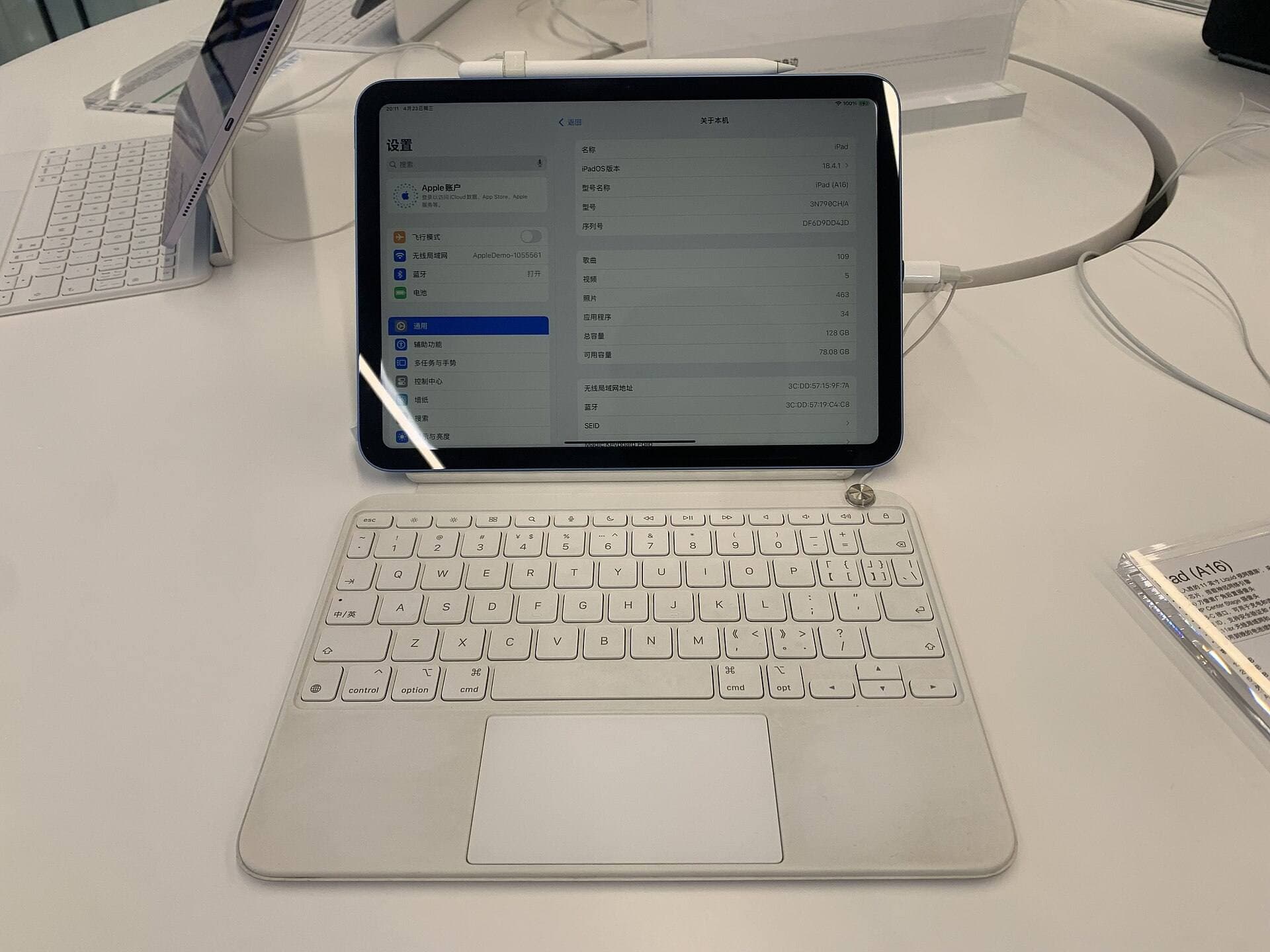
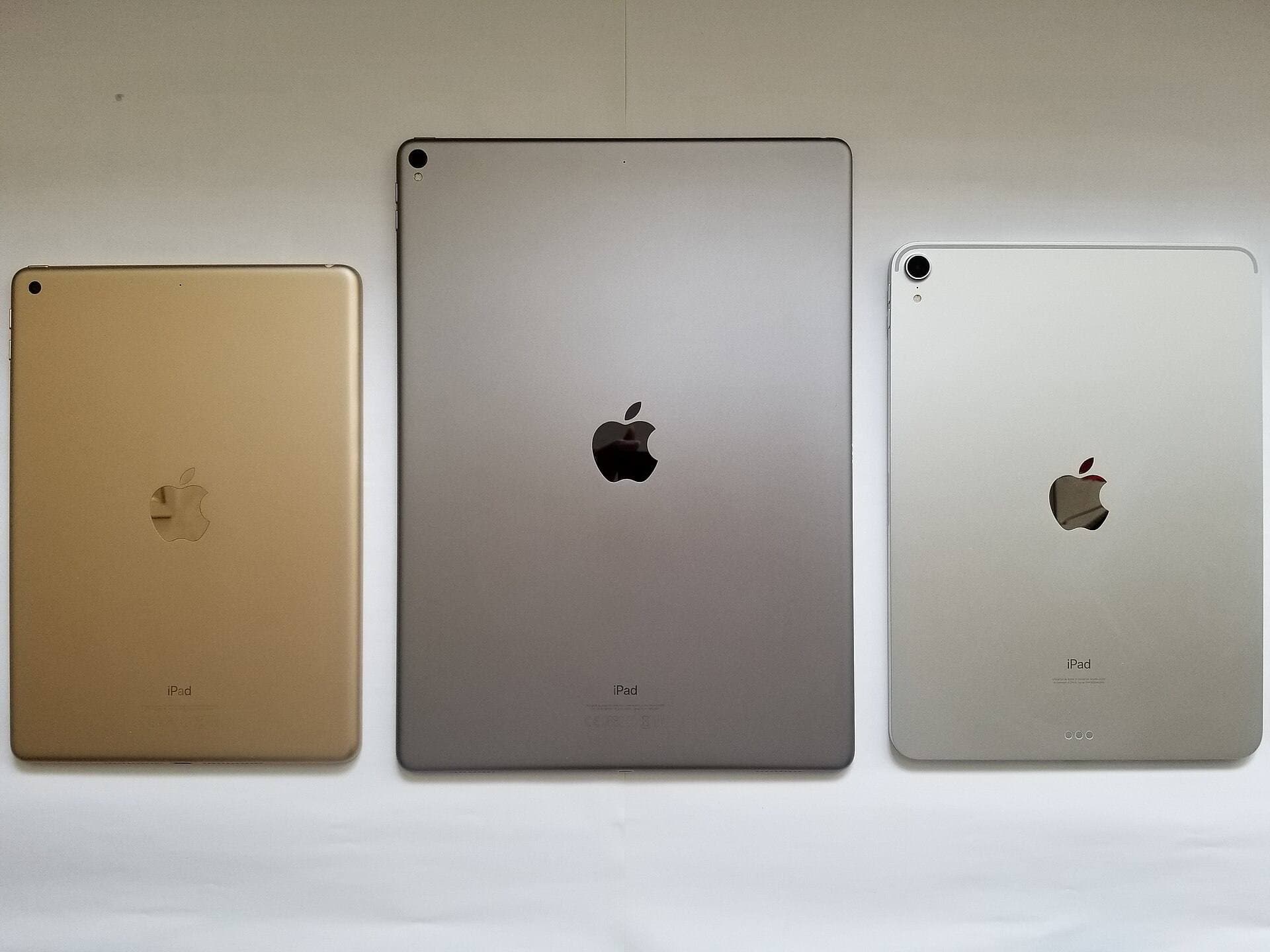
Know your iPad host limit before buying
Apple specs make this clear:
- Some iPad Pro models support Thunderbolt and USB 4 class throughput.[1]
- iPad Air models usually provide USB 3 class speeds.[2]
- Some base iPads with USB-C connector are still USB 2 limited.[3]
This is why two people can buy the same reader and report very different speed.
Dedicated reader versus hub workflow
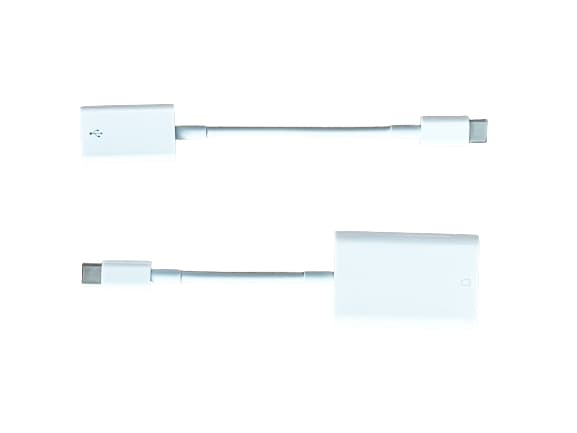
Dedicated reader
Best when:
- you want fewer variables
- you care about stable ingest behavior
- you mainly import one card at a time
Hub with card slots
Best when:
- you need simultaneous charging and ingest
- you also attach SSD, keyboard, or monitor
- you accept that many hubs still use UHS-I card slots
If your ingest days are large and frequent, a dedicated reader is usually lower friction.
Workflow that avoids import failures
Step 1: Copy entire card first
Import whole card into Files before selective edits. This protects against partial copy errors and keeps source structure intact.
Step 2: Work from copied media, not live card
Do not keep editing directly from removable card paths. Move files to internal or external SSD working folders.
Step 3: Keep power stable during long copies
Long copies plus low battery are where disconnects happen. Keep power path simple while importing.
Practical picks
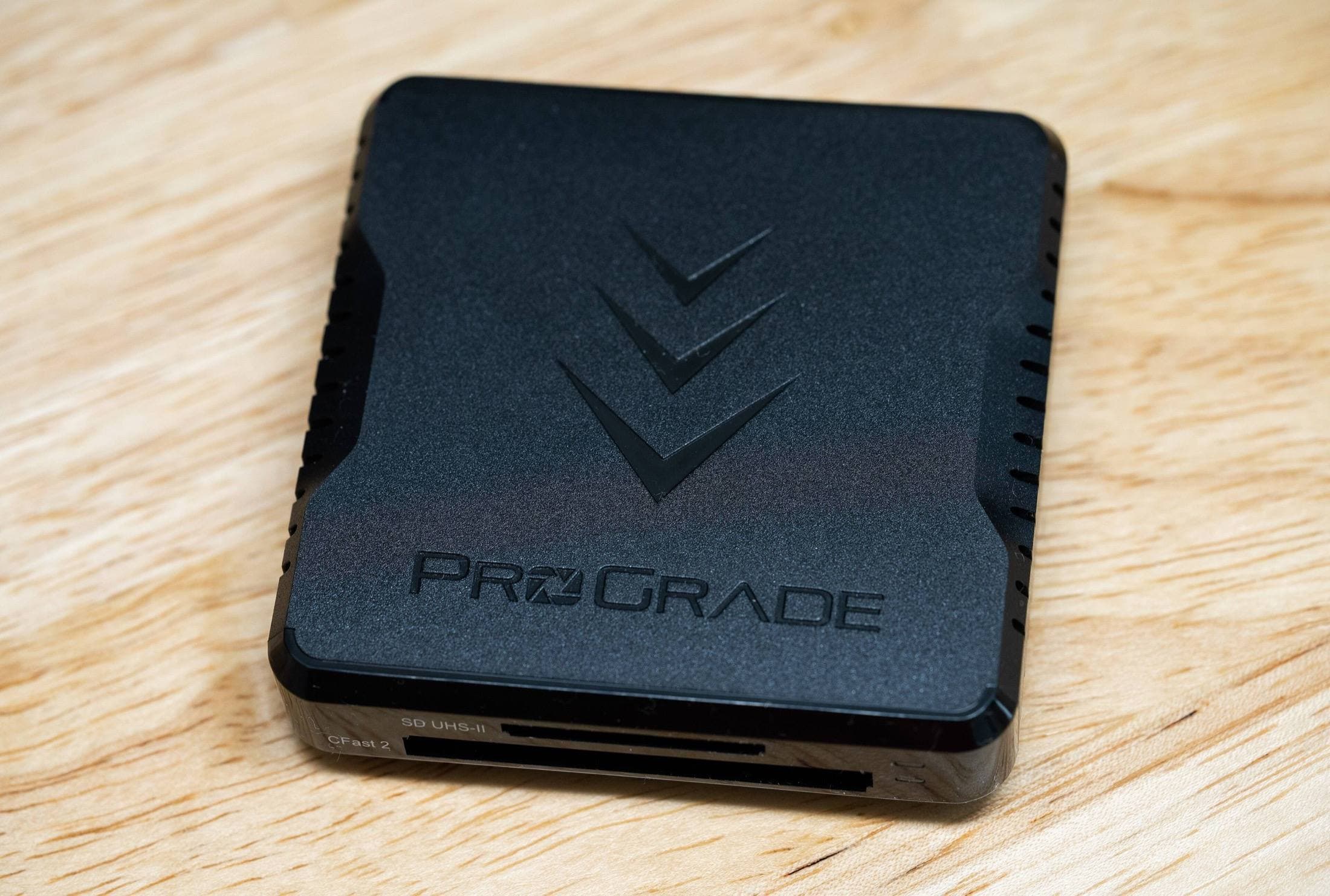
ProGrade Digital SD plus microSD reader
Good for mixed camera and drone workflows, where slot switching speed matters more than absolute smallest size.
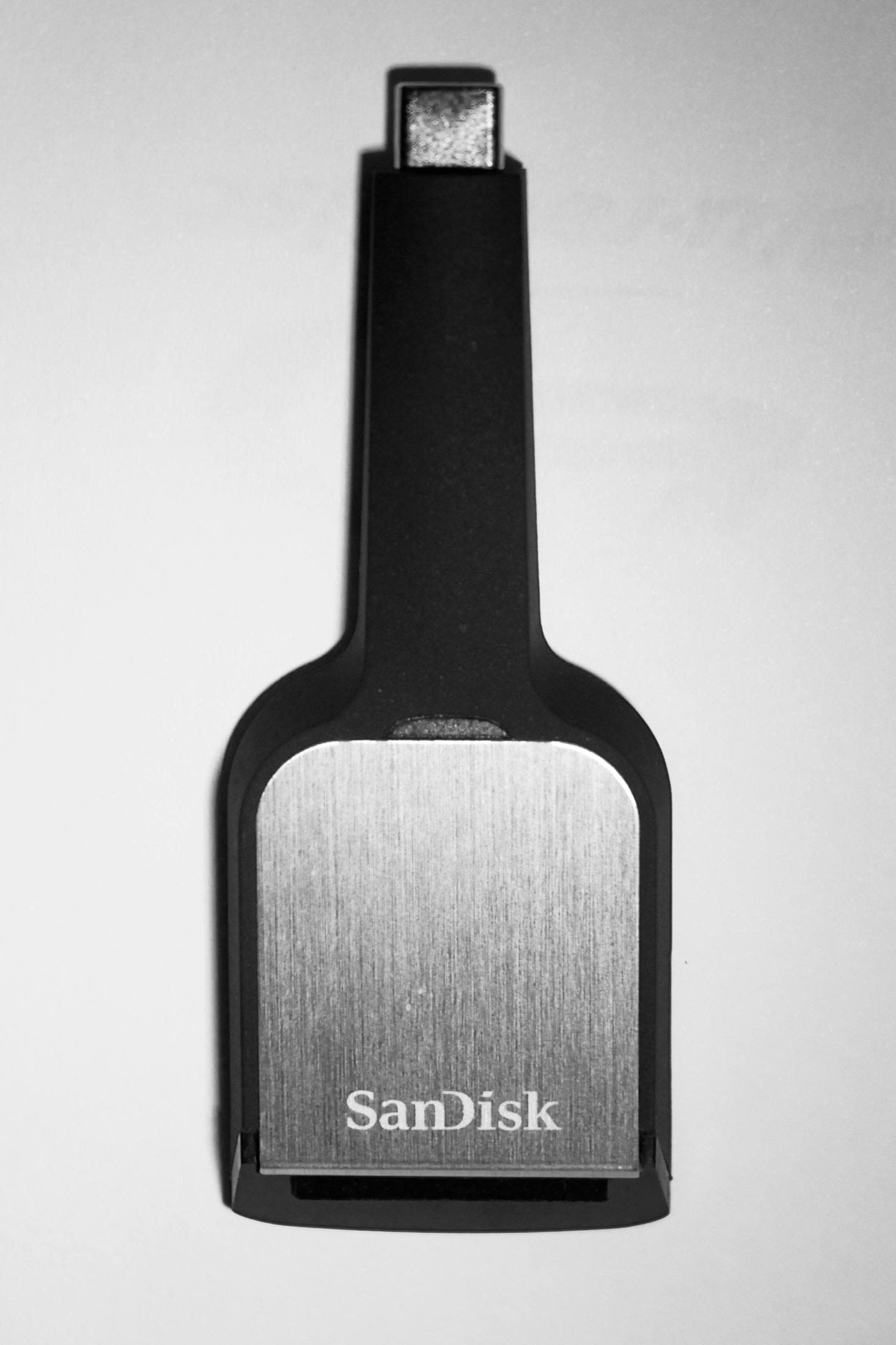
SanDisk Extreme PRO USB-C SD reader
Good for single-format SD ingest with strong consistency.
Apple USB-C to SD Card Reader
Good for stable SD ingest when you prefer minimal setup and direct compatibility.
Common mistakes
- buying by connector type only
- ignoring iPad host speed limits
- copying from damaged or nearly full cards without verification
- trusting random no-name readers for paid client workflows
Final decision policy
If you import media to iPad every week, optimize for repeatability first and peak speed second.
A reader that reliably mounts every time is more valuable than theoretical speed that appears only in ideal conditions.
<!-- depth-pass-v1 -->Practical decision framework
If you are buying for Best SD and microSD Card Readers for iPad Creators (2026), use this sequence: define your weekly use, pick the minimum gear that removes the bottleneck, then hold the setup steady for two weeks before buying anything else. This avoids high-cost accessory churn and keeps your spend tied to actual output. For Creators importing camera and drone media to iPad for editing., this usually means testing prograde-dual-slot-reader, sandisk-extreme-pro-sd-reader, and apple-usbc-sd-card-reader in real sessions before adding new parts.
Budget protection rules
Use clear rules so your cart stays profitable:
- Buy only for a repeated bottleneck, not a theoretical one.
- Keep one primary setup and one backup path, not three competing versions.
- Replace unstable components quickly; do not normalize intermittent behavior.
- Track what you used in the last two weeks and remove dead-weight gear.
These rules improve conversion quality because they align purchases with real use and reduce return-risk behavior.
14-day implementation plan
Days 1 to 4
Run your baseline setup and log the top three friction points.
Days 5 to 8
Apply one targeted fix and keep all other variables unchanged.
Days 9 to 11
Stress test in your real environment (desk, travel, and one public workspace).
Days 12 to 14
Lock the setup if friction is reduced and remove any accessory that did not materially help.
Common purchase traps
Trap 1: Buying by specification anxiety
Fix: buy for your current weekly workload and delay upgrades until constraints repeat.
Trap 2: Overpacking accessories
Fix: keep only items that save time at least three times per week.
Trap 3: No maintenance policy
Fix: do a weekly reliability check on cables, charging behavior, and attachment points.
Trap 4: Changing too many things at once
Fix: test one upgrade at a time so results stay measurable.
Extra scenario: high-pressure deadline window
For Best SD and microSD Card Readers for iPad Creators (2026), keep the lowest-risk path active when deadlines are near: stable setup, no new experimental changes, and one backup route for critical actions. This protects output velocity and reduces failure risk when timing matters most.
Extra scenario: travel or mobile environment
When working outside your main desk, reduce variables. Use your known-good kit, keep cable and power roles fixed, and avoid adding untested components mid-session. This improves consistency and protects session completion rates.
Extra scenario: handoff and collaboration
If your workflow includes sharing files or handing off assets, validate export and sync behavior before the final window. Reliability in handoff steps often matters more than small gains in tool speed.
Sources
Recommended gear
ProGrade Digital SD + microSD Reader
amazon.comPro: Dual-slot workflow convenience
Con: Higher cost than basic single-slot readers
Useful when you swap between camera SD and drone microSD daily.
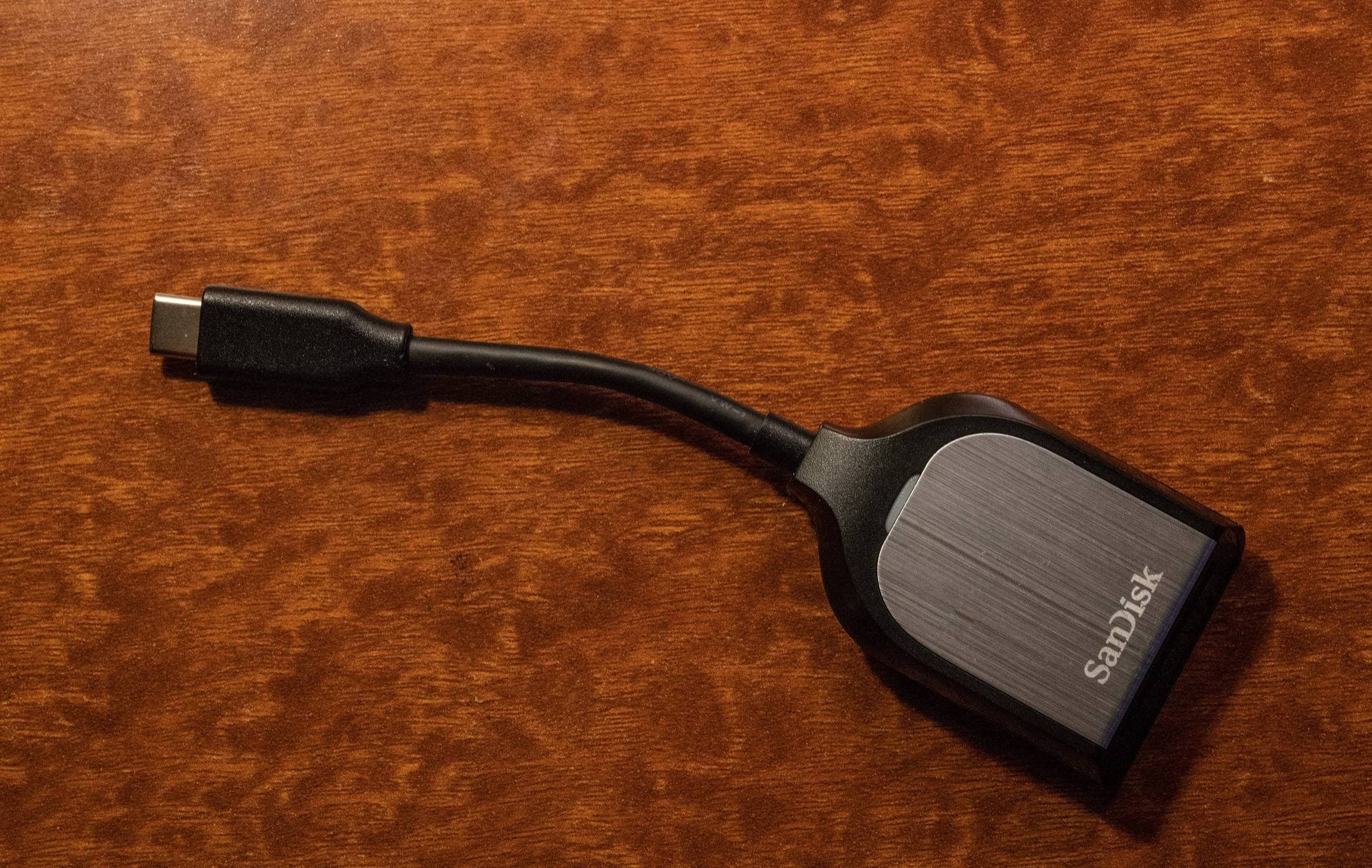
SanDisk Extreme PRO USB-C SD Reader
amazon.comPro: Reliable UHS-II import performance
Con: Single format focus
Best when your iPad supports USB 3 or faster host speeds.
Apple USB-C to SD Card Reader
apple.comPro: Strong compatibility with iPadOS import flow
Con: No built-in microSD slot
Simple and stable option for SD workflows on iPad.
Samsung T7 Portable SSD
amazon.comOne of the safest SSD buys for iPad creators. Fast, stable, and easy to trust for backup routines.
Pro: Fast and reliable backup drive
Con: Extra cable to carry
Choose capacity (1TB/2TB) based on project size.
SanDisk Extreme Portable SSD
amazon.comPro: Rugged and compact
Con: Can run hot under heavy copy
Good for large Procreate backup workflows.
Related buying picks
More in this collectionBuyer guide
Portable iPad Keyboard Travel Kit (2026): Write, Sketch, Pack Fast
How to build a portable iPad writing and sketch kit for cafes and transit, including keyboard format choices, setup flow, and compatibility checks.
Buyer guide
Travel Charging Setup for iPad Artists (2026): One-Bag Power Kit
A travel charging setup works when charger, power bank, and cables have fixed roles and you run the same simple routine at airports, hotels, and cafes.
Buyer guide
Best USB-C Cables for iPad Artists (2026): Charging, Transfer Speed, and Durability
Most USB-C cable problems come from buying by connector shape instead of charging and data requirements.
Buyer guide
Best USB-C Hubs for iPad Artists (2026): Ports, Power, and Display Stability
The best USB-C hub for iPad art work is the one that keeps power and display stable while handling your real accessory stack.