
Most iPad hub problems are not about missing ports. They are about unstable behavior under real load.
Artists run compound workflows: charging, display output, SSD transfer, audio devices, and accessory input. A hub that looks great on paper but drops signal in combined use becomes a workflow bottleneck immediately.
What a hub must do for art workflows
A good iPad hub should deliver three things consistently:
- stable power pass-through while you actively draw,
- reliable display output without random dropouts,
- predictable data transfer behavior with external drives.
If one of these fails, your session quality collapses regardless of port count.
Buy by use case, not by marketing grid
Use case: iPad + external monitor
Prioritize:
- reliable HDMI behavior,
- clean cable chain,
- enough charging headroom.
Ignore:
- niche legacy ports you never connect.
Use case: iPad + SSD backup
Prioritize:
- sustained transfer stability,
- thermal behavior under long copy operations,
- known-good data cable pairing.
Ignore:
- extra decorative features that do not improve transfer reliability.
Use case: iPad + audio/keyboard accessories
Prioritize:
- stable USB input handling,
- low disconnect probability,
- power margin with peripherals attached.
Ignore:
- maximum theoretical port count without verified load behavior.
Power pass-through realities
Hubs often advertise pass-through charging, but practical output depends on adapter, cable, and connected devices.
Key rules:
- keep charger headroom above bare minimum,
- avoid unknown low-quality cables,
- test power behavior while drawing, under real load.
Apple guidance on USB-C and charging is a useful baseline for practical setup planning.[1][2]
Display stability realities
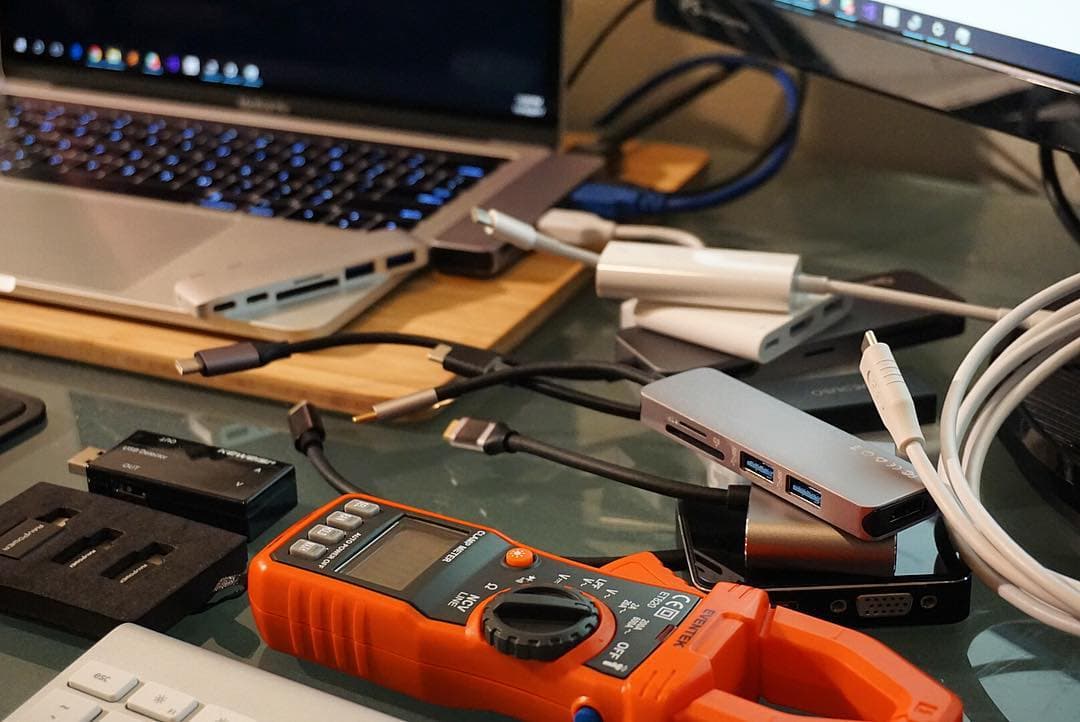
External display problems usually come from the whole chain: cable, display and hub.
To improve reliability:
- minimize adapter chaining,
- use one known-good HDMI cable,
- avoid physically stressed connector angles,
- test with your real session load.
A stable video path is part of productivity for reference-heavy workflows.
Data transfer reliability realities
If you export large projects to SSD, weak hub/cable combinations reveal themselves quickly.
Test for:
- consistent transfer throughput over large files,
- no random unmount behavior,
- no transfer corruption symptoms,
- stable behavior while device is charging.
USB-C connector shape alone does not guarantee power/data behavior. USB-IF references remain useful for understanding capability tiers.[3]
Practical picks
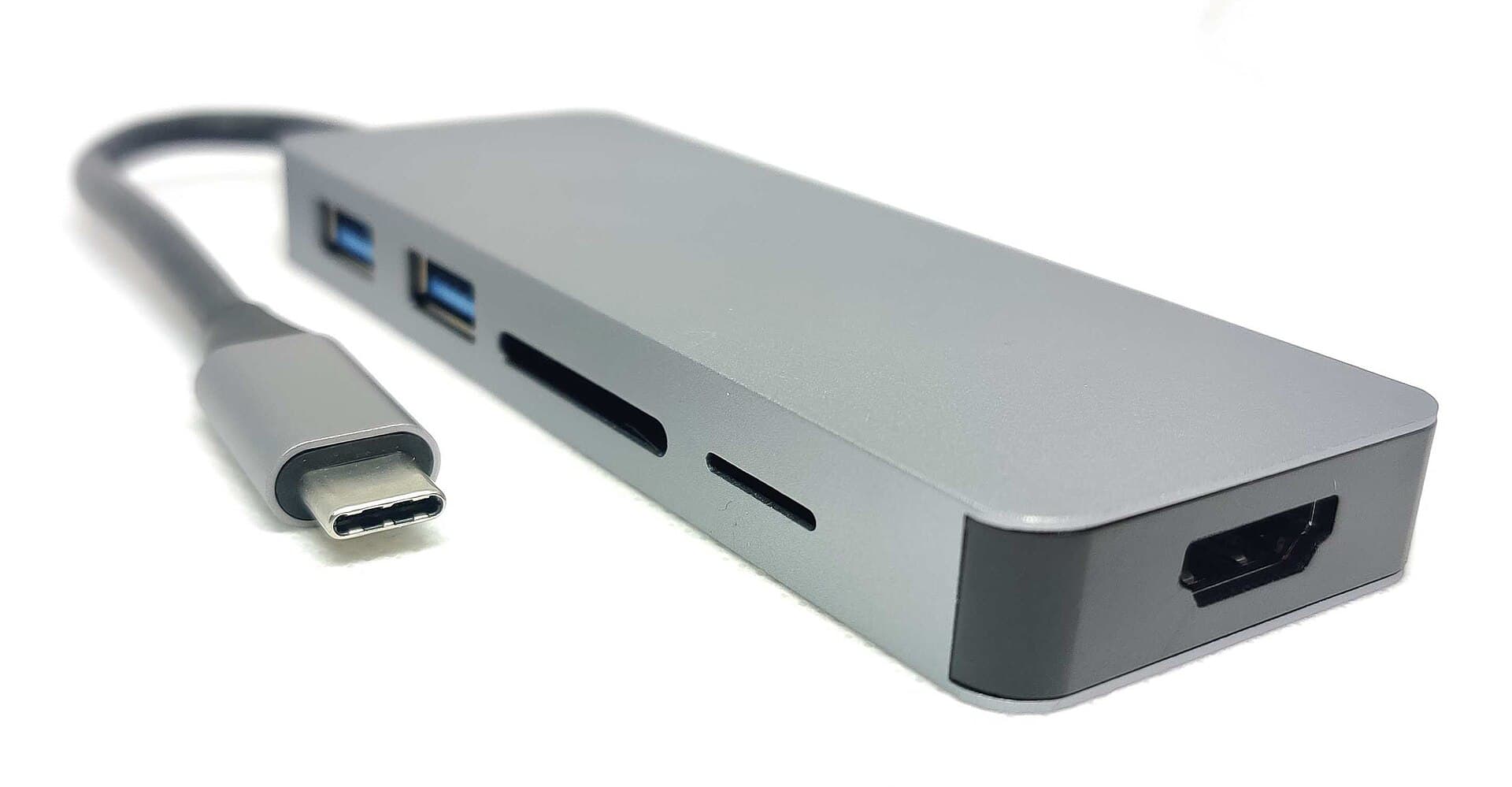
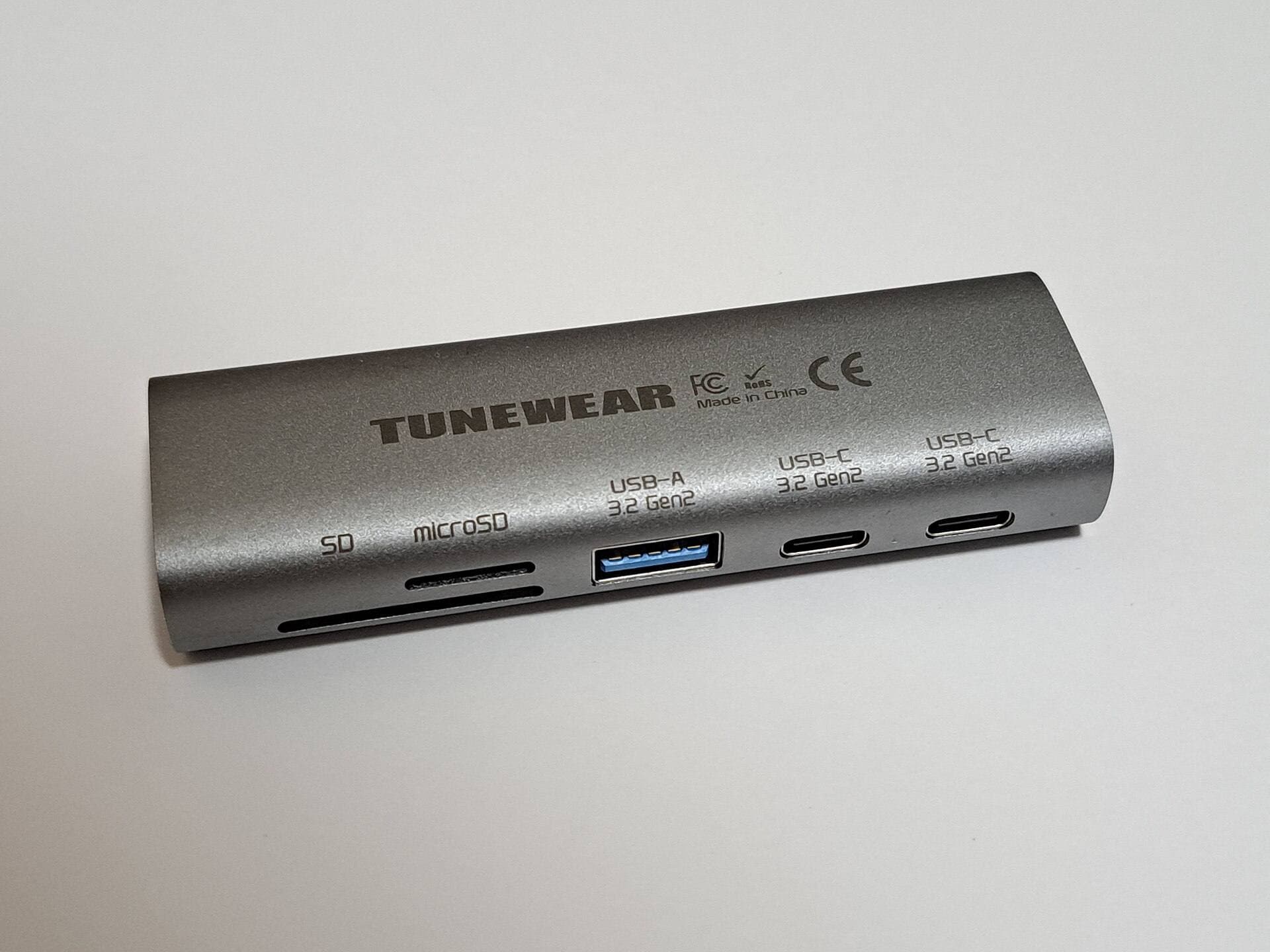
Anker 341 USB-C Hub (7-in-1)
Balanced choice for many iPad creator setups with practical port mix.
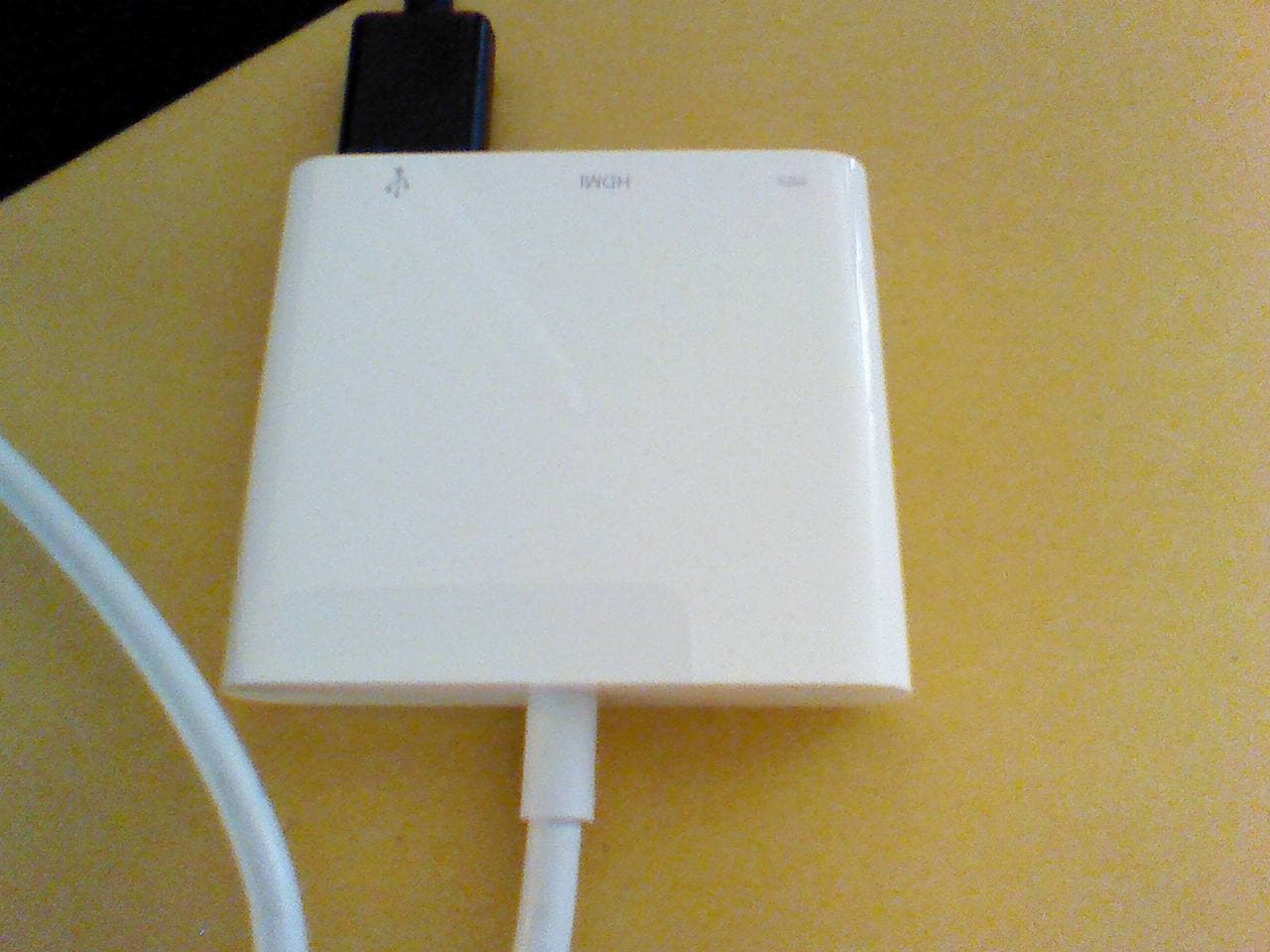
Apple USB-C Digital AV Multiport Adapter
Strong option when your primary need is HDMI plus charging with less complexity.
Samsung T7 SSD
Useful companion drive for backup and transfer workflows to validate real hub behavior.
Setup strategy that prevents most failures
- Define your weekly port needs first.
- Buy the smallest hub that covers those needs plus one margin port.
- Pair with known-good cable set.
- Run load test with charging + display + transfer.
- Keep one fallback workflow path if hub fails.
This process saves more time than chasing feature-heavy hubs blindly.
Common mistakes
Mistake 1: buying by port count
More ports can mean more points of instability if your workflow does not need them.
Mistake 2: no power margin
Minimum-wattage setups often fail under real combined load.
Mistake 3: blaming hub before cable
Cable quality can be the weak link in both display and transfer chains.
Mistake 4: no thermal awareness
Small hubs can heat up under sustained transfer/display use. Test in realistic conditions.
Mistake 5: changing too many variables at once
When troubleshooting, change one component at a time to isolate the actual fault.
Mobile vs desk hub strategy
Desk-focused setup
Use one full-featured hub, fixed cable routing, and fixed accessory layout.
Travel-focused setup
Use compact hub with only essential ports and one backup cable.
Hybrid setup
Keep one desk hub and one compact travel adapter to avoid constant unplug/repack friction.
Two-week validation plan
Days 1 to 3: baseline
Test core workflow with current setup and log failures.
Days 4 to 8: candidate hub load tests
Run charging + display + transfer combinations in real sessions.
Days 9 to 12: stress and travel test
Test on different desks/outlets and with your real cables.
Days 13 to 14: lock final setup
Keep the configuration with lowest interruption rate, not highest spec sheet score.
Simple port planning worksheet
Before buying, write down your real weekly device stack:
- iPad charging,
- external display,
- SSD backup,
- keyboard or input device,
- occasional audio accessory.
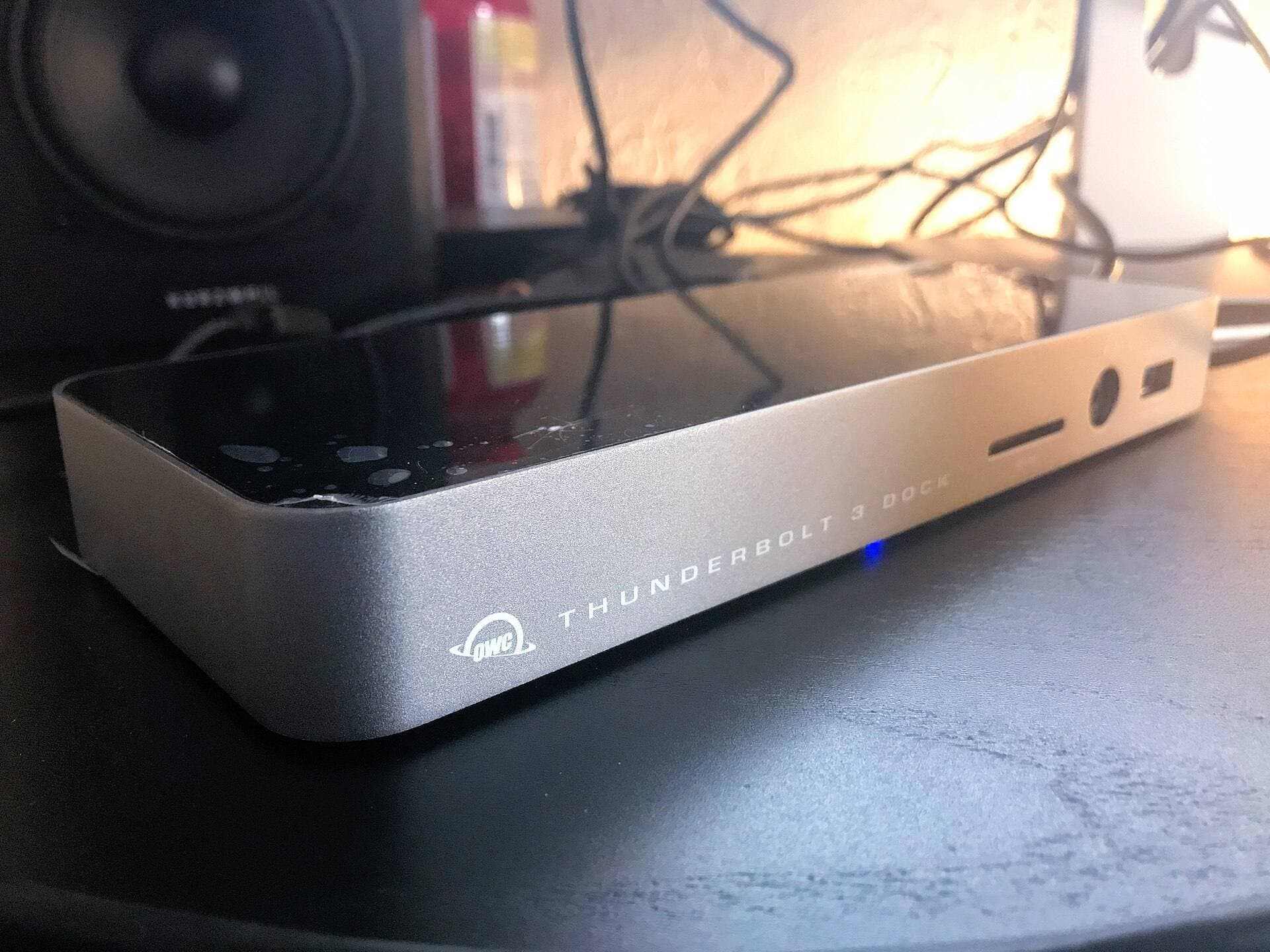
Then map each to one required port type. If your list needs only five practical ports, do not buy a 12-port dock expecting future use. Extra unused ports rarely increase reliability and can encourage cable clutter.
Troubleshooting order when a hub fails
If your setup becomes unstable, test in this order:
- cable integrity and connector fit,
- charger power margin,
- single-device hub behavior,
- full multi-device load behavior,
- alternate display or SSD path.
This order isolates failures faster than replacing the hub immediately.
Replacement triggers
Replace your hub when you observe recurring symptoms under known-good cables:
- repeat display dropouts,
- repeated SSD unmounts,
- overheating that affects performance,
- port looseness affecting connection security.
Do not normalize intermittent hub behavior. In creator workflows, intermittent failures cost more than replacement.
Product visuals
Bottom line
The best USB-C hub for iPad artists is the one that remains boring under load.
Choose a hub with the exact ports you use weekly, maintain charging headroom, and pair it with known-good cables. Stability in mixed workflows matters far more than marketing claims about maximum ports.
Sources
Recommended gear
Anker 341 USB-C Hub (7-in-1)
amazon.comA strong everyday port hub for iPad workflows. Good value and layout, with expected bandwidth limits.
Pro: Solid all-around port mix for iPad setups
Con: Not Thunderbolt bandwidth
Check host power pass-through and display output before buying.
Apple USB-C Digital AV Multiport Adapter
apple.comPro: Reliable display output with Apple hardware
Con: Higher cost than generic adapters
Best fit when you need HDMI plus charging in one compact adapter.
Samsung T7 Portable SSD
amazon.comOne of the safest SSD buys for iPad creators. Fast, stable, and easy to trust for backup routines.
Pro: Fast and reliable backup drive
Con: Extra cable to carry
Choose capacity (1TB/2TB) based on project size.
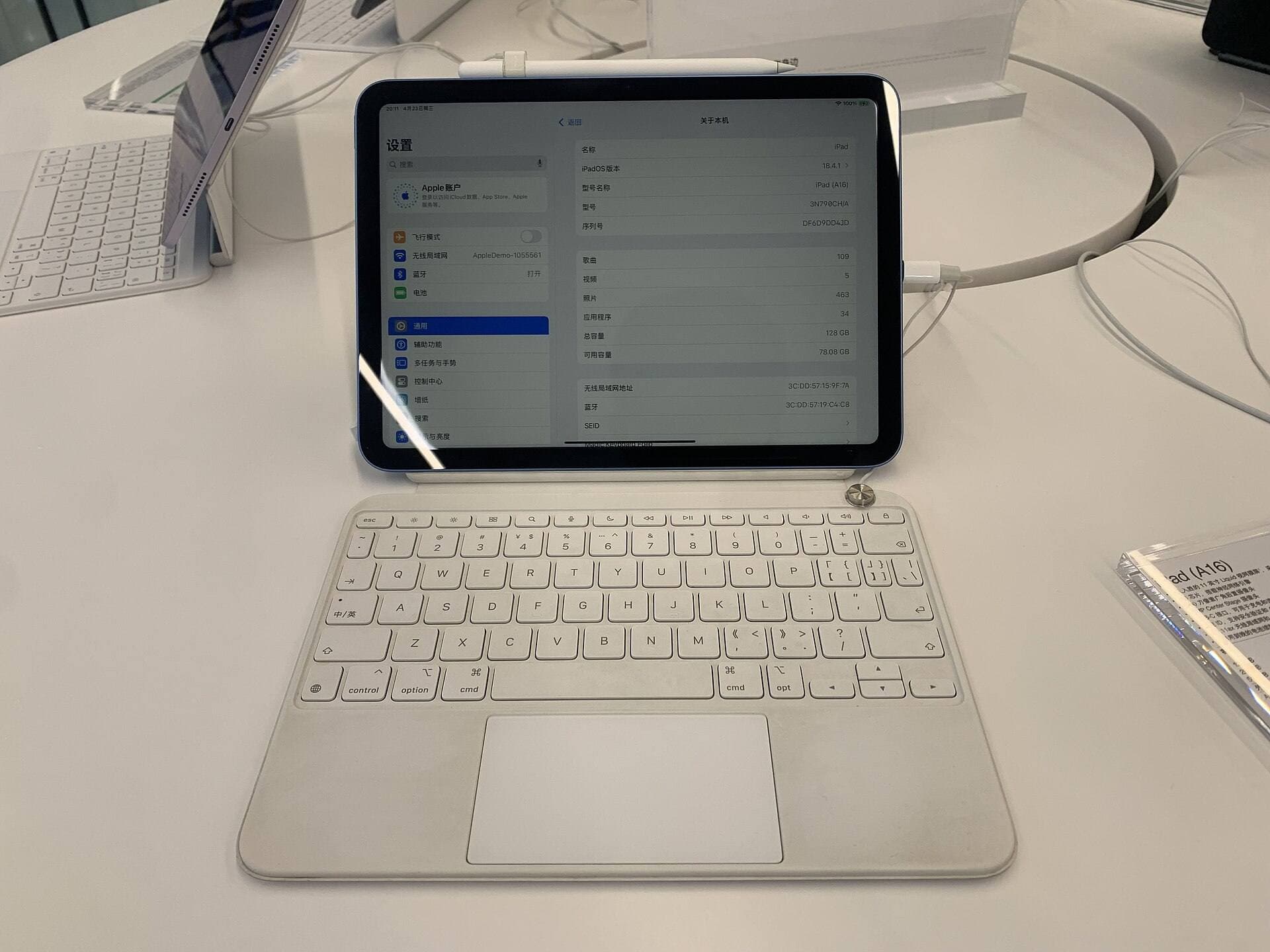
iPad (A16, 11th gen)
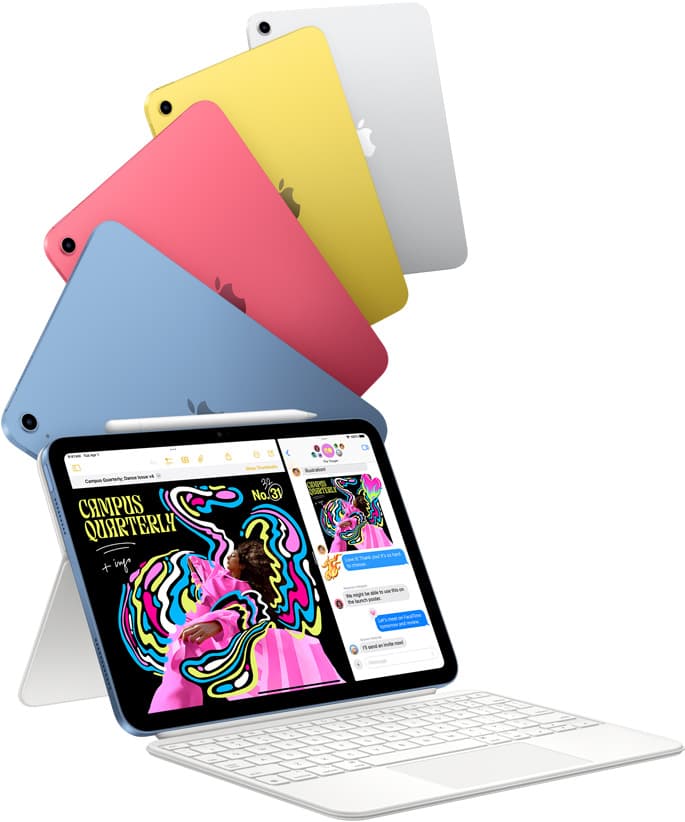
amazon.comThe best entry iPad for most artists on a budget. It is not premium, but it is very hard to beat on value.
Pro: Best value iPad right now
Con: No ProMotion display
Search opens with the exact model keywords. Verify size and storage before checkout.
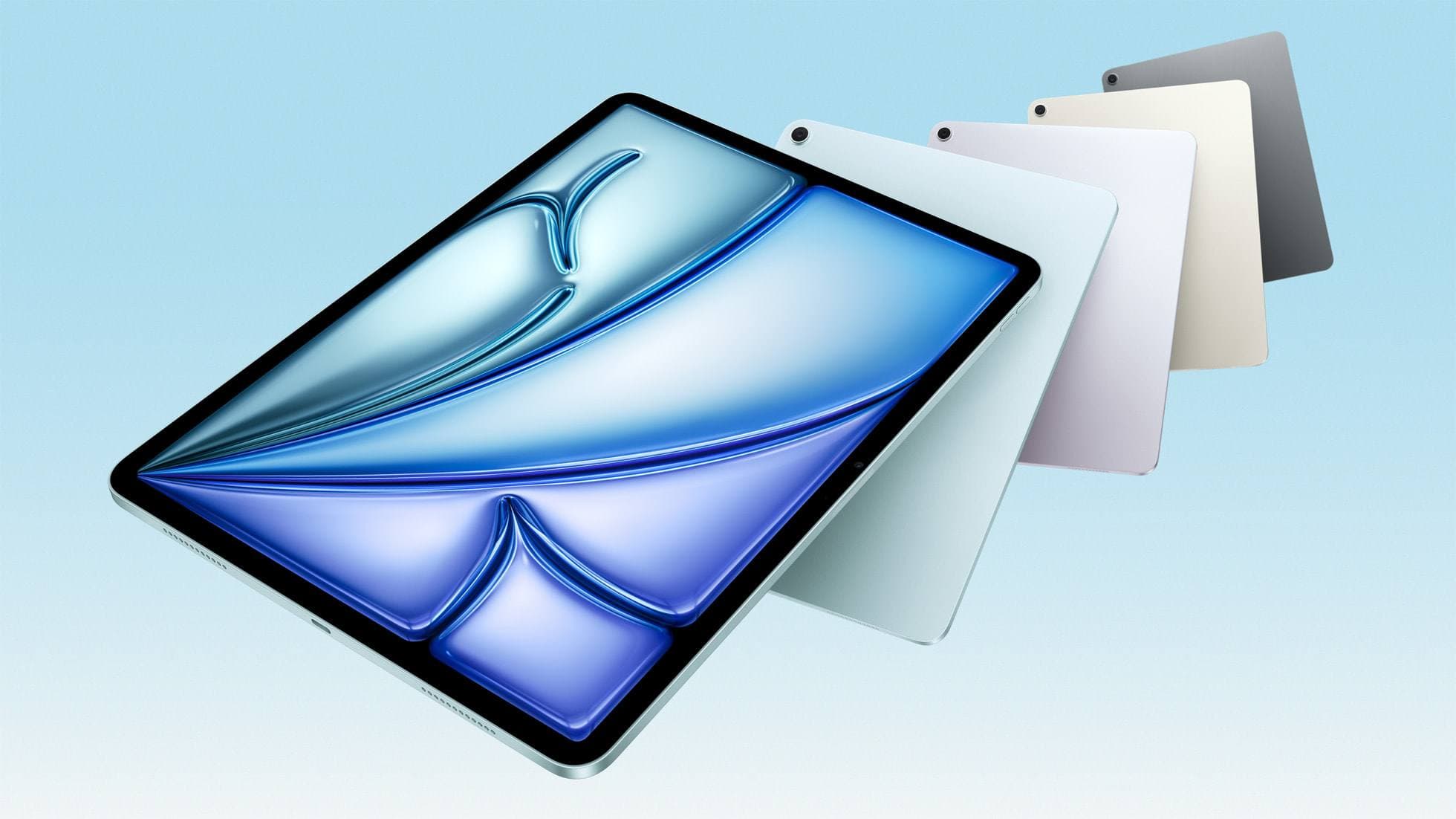
iPad Air (M4)
apple.comThe clean current Air recommendation for most serious hobby artists. Stronger buy logic than old-stock M3 when pricing is close.
Pro: Best current balance of price, headroom, and Pencil support
Con: Still 60Hz
Current Air lineup. Choose size, storage, and keyboard path before checkout.
Related buying picks
More in this collectionBuyer guide
Portable iPad Keyboard Travel Kit (2026): Write, Sketch, Pack Fast
How to build a portable iPad writing and sketch kit for cafes and transit, including keyboard format choices, setup flow, and compatibility checks.
Buyer guide
Travel Charging Setup for iPad Artists (2026): One-Bag Power Kit
A travel charging setup works when charger, power bank, and cables have fixed roles and you run the same simple routine at airports, hotels, and cafes.
Buyer guide
Best SD and microSD Card Readers for iPad Creators (2026)
Card reader speed on iPad depends on card bus, reader bus, and iPad port limits. Buy for your actual ingest workflow, not label hype.
Buyer guide
Best USB-C Cables for iPad Artists (2026): Charging, Transfer Speed, and Durability
Most USB-C cable problems come from buying by connector shape instead of charging and data requirements.