






If your Pencil work is limited to arranging and uploading assets in Cricut Design Space, buy the Apple Pencil (USB-C). Cricut documents system requirements and an image-upload workflow, while Apple lists the USB-C Pencil as the cost-first model without pressure sensitivity [1], [3], [5]. Skip the higher-tier Pencils unless you also draw pressure-sensitive lettering or illustrations in another app before importing the finished asset into Design Space [3], [5].
Cricut Design Space functionality and stylus demands
Cricut Design Space treats input primarily as vector manipulation, sizing, positioning, and cut-layer organization rather than freehand raster painting. Running the application requires an iPad operating system that meets Cricut platform requirements [1]. Within this workspace, your primary tasks include selecting vector paths, welding shapes, grouping elements, rearranging canvas objects, and clearing unwanted background fragments from imported scans.
For a workflow built around selecting, sizing, positioning, and uploading existing assets, pressure-sensitive line variation is not a purchase requirement [1], [3]. A Pencil can serve as a precise pointer, but the official Cricut pages cited here do not establish that a premium Pencil changes cutting output. Buy advanced stylus features only for the drawing work you perform outside Design Space [3], [5].
Apple Pencil (USB-C) for basic layout and weeding prep
For makers who arrange fonts, shapes, and library graphics on the Cricut canvas, the Apple Pencil (USB-C) represents the most sensible hardware purchase. Apple lists its compatible iPads, magnetic storage, and USB-C pairing and charging behavior [2], [5]. Check the exact iPad model before ordering.
Cricut's upload flow includes cleanup choices for uploaded images [3]. A Pencil can make small interface targets easier to select than a fingertip, but the source does not promise perfect cleanup or a speed advantage. Apple positions the USB-C model as the cost-first Pencil and lists the features it omits [5]. If pressure-sensitive drawing is outside your workflow, those omissions are reasonable.
When to step up to Apple Pencil (2nd generation) or Pro
Upgrading to an Apple Pencil with pressure support makes sense only if Cricut Design Space is the final step in a broader creative pipeline. Crafters frequently draw original calligraphy, custom stickers, and layered vinyl decals in dedicated illustration tools before saving them as SVG or PNG files for import [3].
If your routine involves sketching custom graphics with pressure-driven brushes, choose a pressure-capable Pencil. Apple lists pressure sensitivity and magnetic pairing and charging for the second-generation model [2], [5]. Confirm that the intended drawing app maps pressure to the stroke behavior you want.
For compatible newer hardware, Apple Pencil Pro adds squeeze, barrel roll, and haptic feedback [2], [5]. Those features can matter while creating source artwork in a supporting app. Once you export a supported file for Design Space, follow Cricut's documented upload process [3]. Choose the second-generation Pencil or Pencil Pro according to iPad compatibility and the drawing controls your source app actually supports [2], [5].
Hardware compatibility and pairing restrictions
Before picking a stylus, you must match the pen hardware to your iPad model. Apple Pencils are not universally interchangeable across device generations [2]. Purchasing an incompatible version will leave you with an accessory that cannot pair or charge.
The Apple Pencil Pro works exclusively with specific modern iPads, such as the newest iPad Air and iPad Pro lines, and will not pair with earlier generations [2]. The Apple Pencil (2nd generation) works with specific flat-edged iPad Air, iPad mini, and earlier iPad Pro tablets that support its wireless magnetic charging band, but it cannot pair with the base 10th-generation iPad or the newest Pro-only iPads [2].
The Apple Pencil (USB-C) has broader compatibility with flat-sided iPads featuring USB-C ports, pairing reliably through a simple charging cable connection [2]. In addition to selecting elements within design software, all supported Apple Pencil models allow you to take quick handwritten measurements, sketch quick cut notes, and mark up design templates directly within iPadOS system markup tools [4]. If you already own an iPad, verify the exact generation in your device settings before making a buying choice.
Use a two-question check before ordering. First, does Apple list the Pencil as compatible with the exact iPad you own or plan to buy [2]? Second, will you create pressure-sensitive source art, or only arrange and upload existing assets through Cricut's documented workflow [3], [5]? The USB-C Pencil fits the second case. A pressure-capable model fits the first only when the drawing app and brush actually use that input [5].
Also keep the Pencil decision separate from Cricut machine compatibility. Cricut's system-requirements page governs whether Design Space supports the iPad, while Apple's pages govern Pencil pairing [1], [2]. Passing one check does not prove the other, so verify both exact products before checkout.
Bottom line
Do not overspend on stylus hardware if your tablet work focuses on arranging and uploading Cricut assets. Design Space requires an iPad that meets Cricut's current software specifications [1]. Pressure-sensitive drawing should influence the purchase only when it is part of your source-art workflow [3], [5].
Choose the Apple Pencil (USB-C) if you want the cost-first official Pencil for selection, cleanup, and layout work [2], [5]. Do not assume it matches every premium-model interaction; it simply avoids paying for pressure and Pro controls that this workflow has not required. Buy the Apple Pencil (2nd generation) or Apple Pencil Pro when your source-art process uses their listed drawing features, then import a Cricut-supported file [3], [5].
Sources
[1] https://help.cricut.com/hc/en-us/articles/360009556033-System-Requirements-Design-Space [2] https://support.apple.com/en-us/108937 [3] https://help.cricut.com/hc/en-us/articles/360009556313-How-to-upload-images-into-Design-Space [4] https://support.apple.com/guide/ipad/draw-with-apple-pencil-ipadc55b6c7a/ipados [5] https://www.apple.com/apple-pencil/
Recommended gear
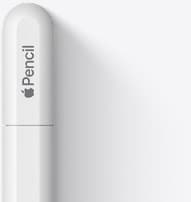
Apple Pencil (USB-C)
amazon.comA practical low-cost Apple stylus with broad compatibility, but limited for advanced art control.
Pro: Lowest official Apple Pencil cost
Con: No pressure sensitivity for brush work
Compatible with many recent iPads. No pressure support.
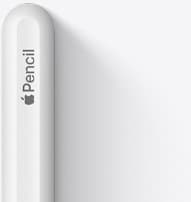
Apple Pencil (2nd generation)
amazon.comStill a strong stylus on compatible iPads. Good pressure control, but compatibility is the main trap.
Pro: Pressure support without Pro pricing
Con: Not compatible with newest Pro-only iPads
Only for iPads that support 2nd generation pairing.

Apple Pencil Pro
amazon.comThe best Apple stylus for serious digital art workflows. Expensive, but the control upgrades are real.
Pro: Best brush-control and hover workflow
Con: Highest price in the lineup
Works only with newer iPad models. Check compatibility.
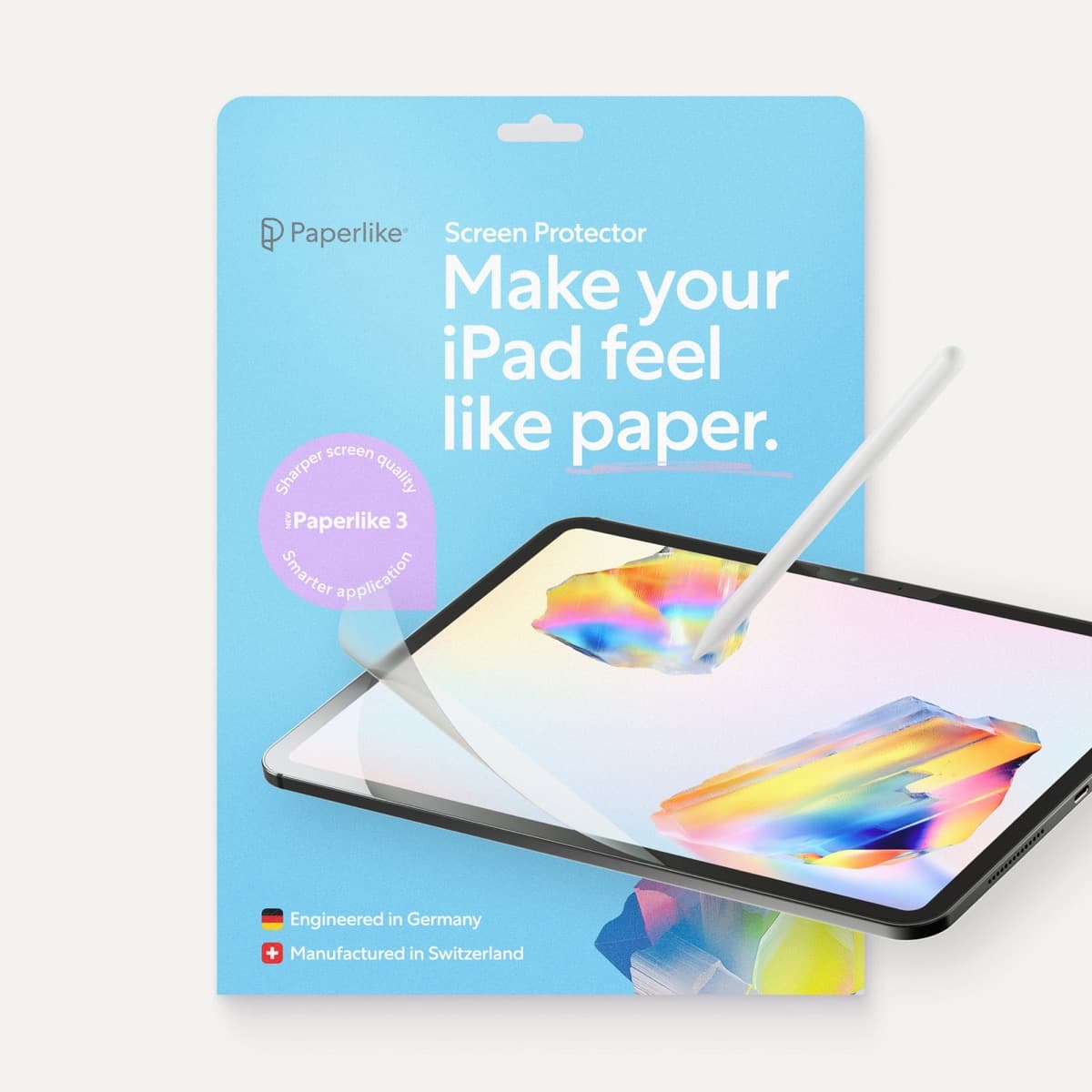
Paperlike 3 (11-inch, 2-pack)
amazon.comA strong surface-feel upgrade for drawing control. Clarity tradeoff is real and should be expected.
Pro: Adds controlled paper-feel friction
Con: Slightly reduces perceived display sharpness
11-inch fit only. Confirm generation before checkout.
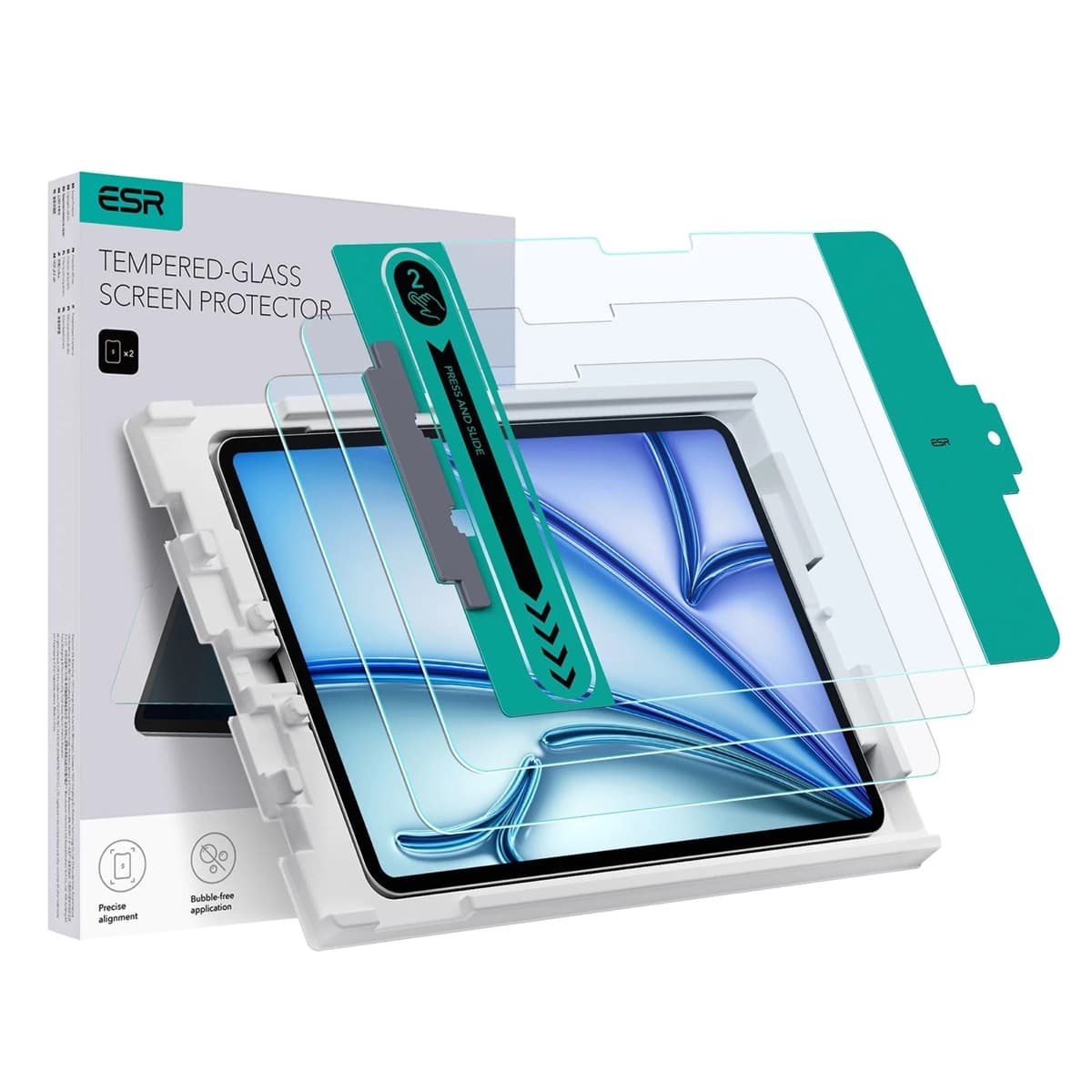
ESR Armorite Tempered Glass (11-inch)
amazon.comHigh-clarity protector with strong value. Great for visibility, less ideal for friction-seeking artists.
Pro: Very clear image with strong scratch resistance
Con: Minimal drawing friction compared with matte films
11-inch fit only. Verify exact iPad generation.
Related buying picks
More in this collectionBuyer guide
Best Apple Pencil for digital planning: How to choose
Choose the right Apple Pencil for digital planning based on your iPad model, handwriting habits, and shortcut preferences.
Buyer guide
Best Apple Pencil for manga drawing
Choose an Apple Pencil with pressure sensitivity for manga inking, matching the stylus directly to your iPad model.
Buyer guide
Choosing an Apple Pencil for logo design
Compare Apple Pencil models and drawing surfaces to find the right stylus setup for drafting logos and brand marks.
Buyer guide
Best Apple Pencil for tattoo design: which stylus should you buy?
Choose between the Apple Pencil Pro and Apple Pencil 2 based on your iPad model, and skip the USB-C version for tattooing.