If you want an Apple Pencil strictly for digital planning, buy Apple Pencil (USB-C) if your iPad supports it and you only write notes, check off habits, and fill calendar blocks [1], [2]. You can safely skip Apple Pencil Pro unless you already own a compatible iPad model and actively want squeeze shortcuts, haptic feedback, and pressure sensitivity for decorative headers [1], [2]. If your current iPad only pairs with Apple Pencil (2nd generation), keep or buy that model for magnetic wireless charging [1], [2]. Digital planning focuses on legible handwriting rather than digital painting, so you don't need to spend extra money on advanced brush dynamics [1].
Why digital planning changes your stylus priorities
Digital planners operate more like physical paper agendas than fine art canvases, which fundamentally alters the features you need in a stylus [3]. When you mark a task complete, write an appointment time, or color code an hourly schedule, you generally want a uniform pen width [1], [3]. Fine-art illustrators rely on pressure variation to blend shades and vary line weight, but heavy pressure variation can actually make small planner handwriting look uneven and messy [1].
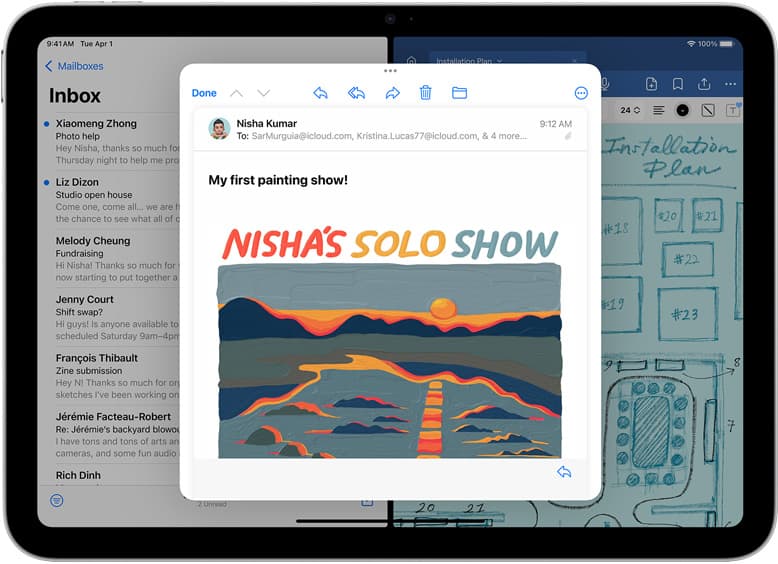
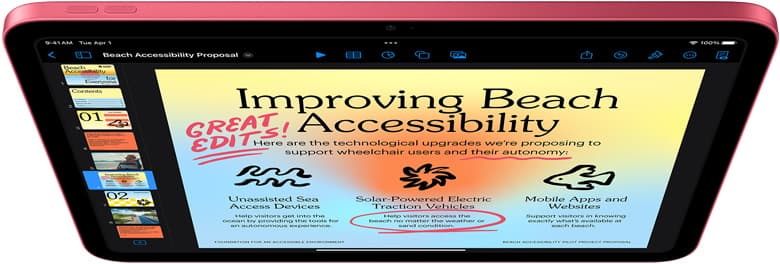
Handwriting tools in iPadOS allow you to write directly into text fields and convert handwriting to typed text using Scribble [3]. Features like Apple Pencil hover allow you to preview where your tool will land on the page before touching the glass, which assists with tight calendar boxes on supported iPad models [1], [3]. Because the core actions in planning are tapping, writing, and highlighting, raw stylus ergonomics and tool switching matter far more than deep brush dynamics [1], [3].
Apple Pencil (USB-C) for straightforward handwriting and daily logs
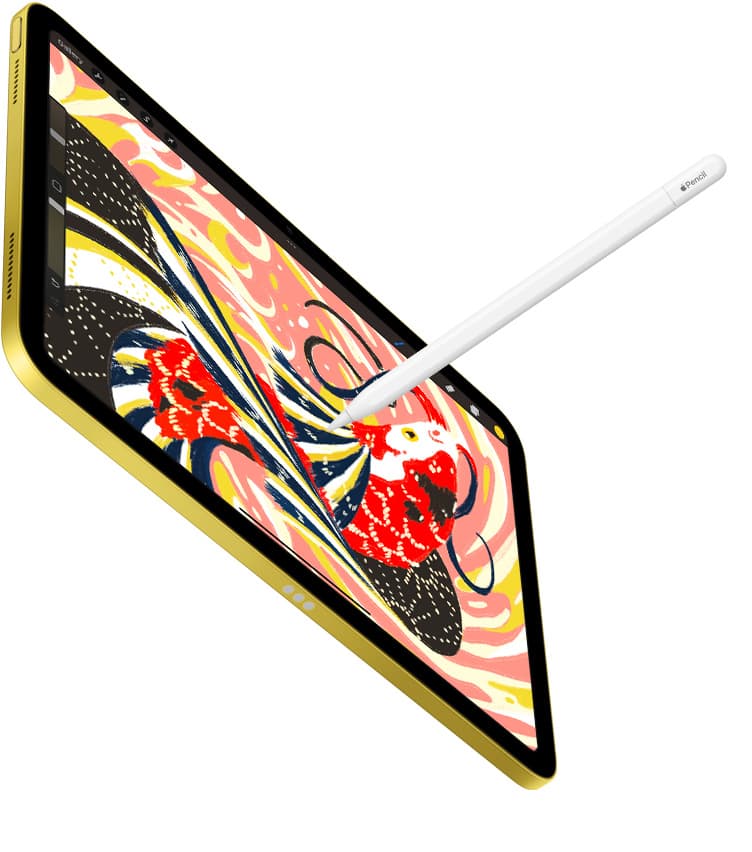
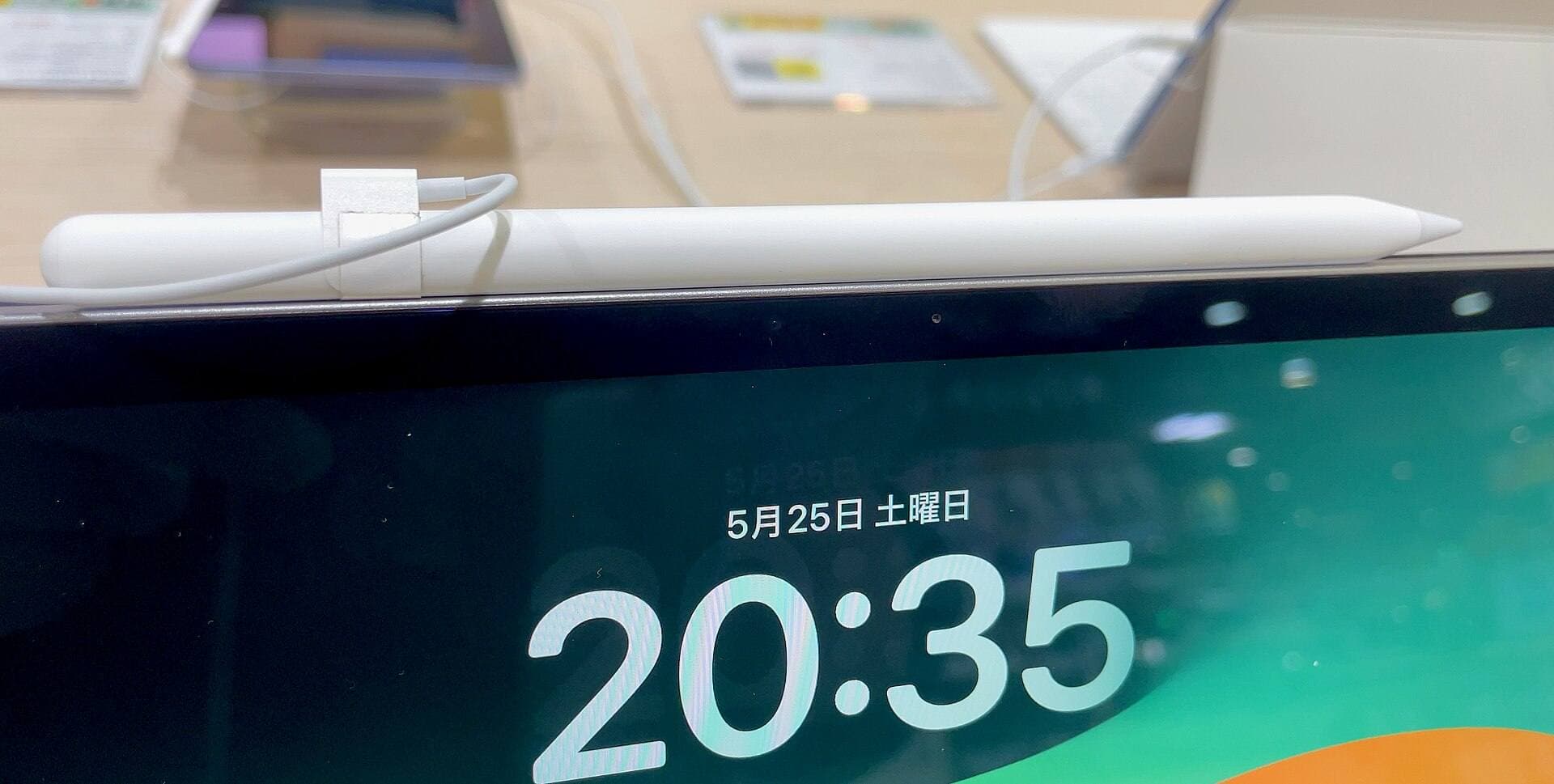
Apple Pencil (USB-C) is the most budget-conscious official stylus in Apple's lineup, and it fits digital planning workflows remarkably well [1]. It features pixel-perfect precision, low latency, and tilt sensitivity for wider shading with highlighter tools [1]. It also magnetically attaches to the side of supported iPad models for storage, though it requires a physical USB-C cable sliding open beneath its cap for pairing and recharging [1].
The primary feature missing from Apple Pencil (USB-C) is pressure sensitivity [1]. For digital painting this is a major limitation, but for digital planning it's often a benefit [1]. Your handwriting stays consistent in thickness regardless of how hard you press your hand against the tablet screen [1], [3]. It also supports Apple Pencil hover when used with compatible M2 or newer iPad models [1], [2].
You should buy Apple Pencil (USB-C) if you use a base iPad, iPad Air, or iPad Pro with a USB-C port and you don't care about wireless magnetic charging or double-tap tool toggles [1], [2]. You should skip it if you cannot stand plugging in a cable to recharge your stylus or if you create elaborate calligraphy headers that require pressure sensitivity [1].
Apple Pencil Pro and Apple Pencil (2nd generation) for pressure and quick tools
If you prefer a seamless charging workflow and rapid tool switching, Apple Pencil Pro and Apple Pencil (2nd generation) provide premium alternatives [1]. Apple Pencil (2nd generation) charges magnetically on the edge of compatible iPads and includes a double-tap gesture on the flat barrel that switches between your pen and eraser [1], [3]. That double-tap gesture speeds up planner maintenance by letting you fix mistaken appointments without reaching for an on-screen tool menu [3].
Apple Pencil Pro expands on that concept with a built-in squeeze gesture, haptic feedback, and a gyroscope for barrel roll [1]. Squeezing the lower barrel opens a contextual tool palette on your iPad display, letting you swap pen colors, select highlighters, or adjust stroke weights without moving your hand away from your daily log [1], [3]. A custom haptic engine provides a light tap to confirm gestures like squeezing or double-tapping [1]. Furthermore, Apple Pencil Pro integrates with Find My, helping you locate a misplaced stylus around your home or office desk [1].
You should buy Apple Pencil Pro if you own a compatible iPad Air (M2) or iPad Pro (M4) and want instant tool switching directly from the stylus barrel [1], [2]. You should choose Apple Pencil (2nd generation) if you own an earlier iPad Pro, iPad Air, or iPad mini that supports magnetic charging [2]. Skip both if you want to keep your accessory spending minimal, because their advanced pressure and gesture sensors aren't necessary for basic daily lists [1].
Matching your iPad model to the right Apple Pencil
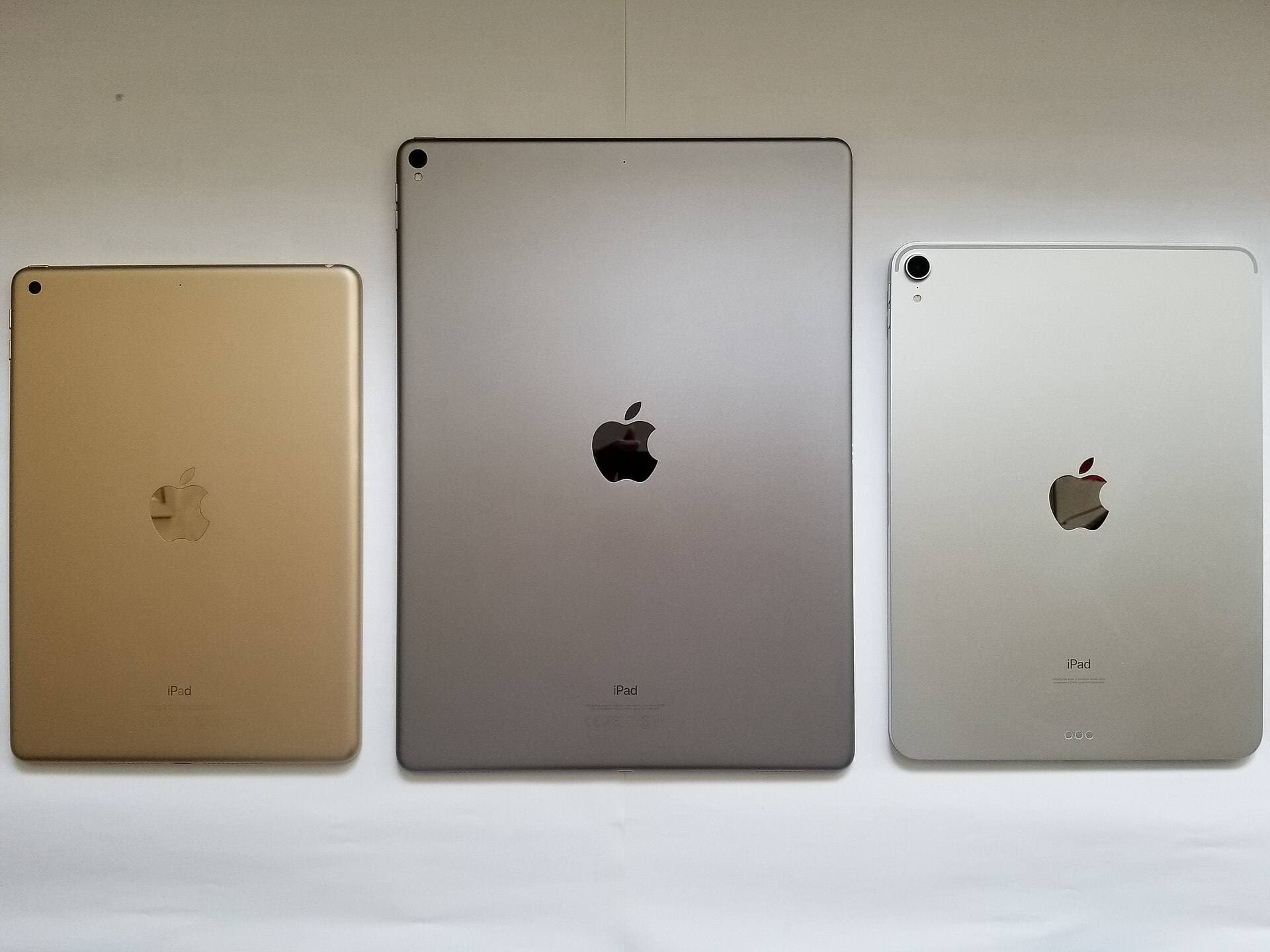
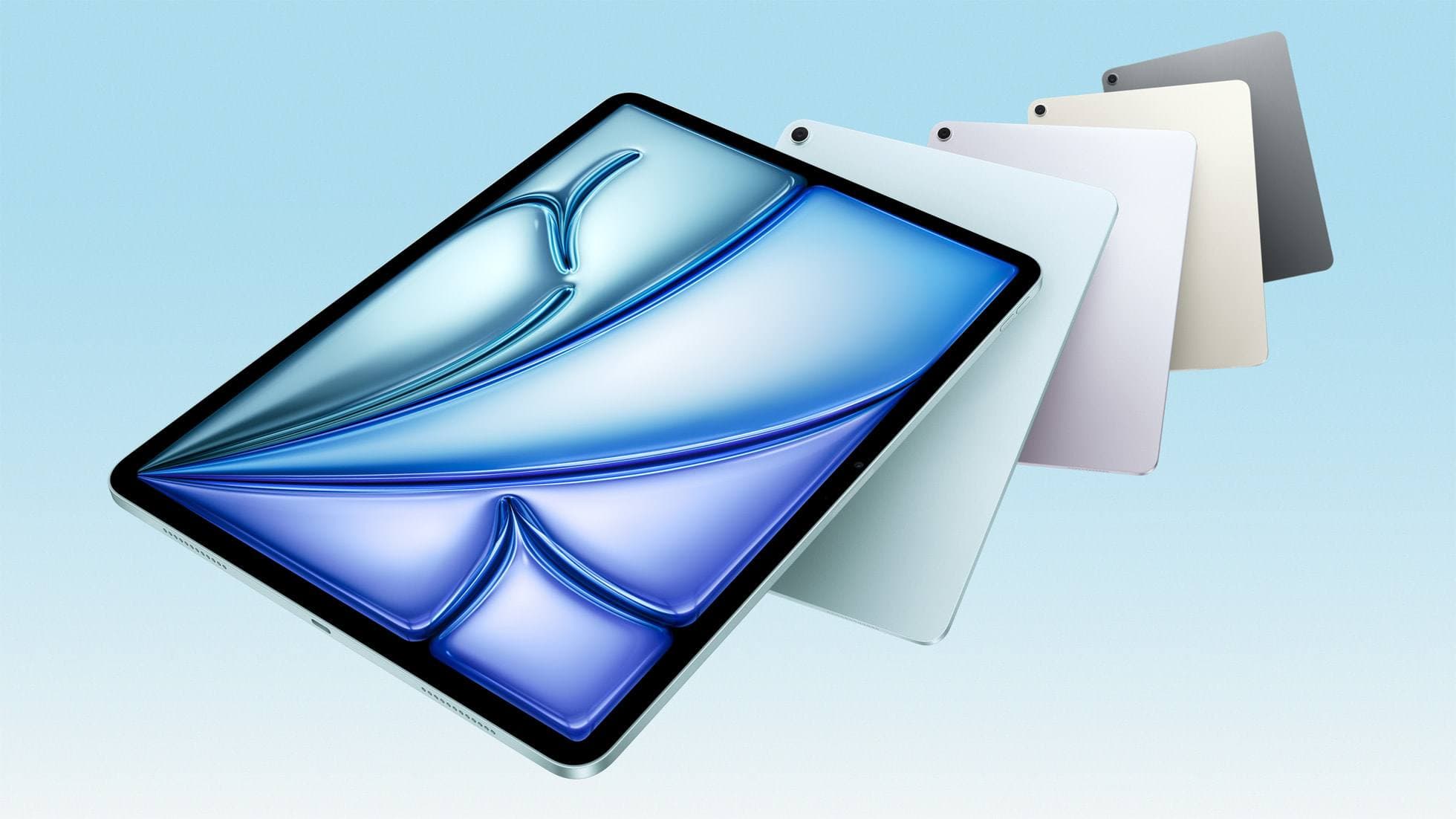
Before choosing an Apple Pencil for your planner, you must verify your exact iPad model, because Apple's stylus models aren't universally interchangeable [2]. Apple Pencil Pro works exclusively with the iPad Pro 13-inch (M4), iPad Pro 11-inch (M4), iPad Air 13-inch (M2), iPad Air 11-inch (M2), and iPad mini (A17 Pro) [2]. It will not pair or charge with older iPad Pro or iPad Air hardware [2].
Apple Pencil (2nd generation) works with older USB-C models, including iPad Pro 12.9-inch (3rd through 6th generation), iPad Pro 11-inch (1st through 4th generation), iPad Air (4th and 5th generation), and iPad mini (6th generation) [2]. Crucially, it does not work with the newer M4 iPad Pro or M2 iPad Air models [2]. Apple Pencil (USB-C) offers the widest compatibility across the modern lineup, pairing with every iPad model that features a native USB-C port [2].
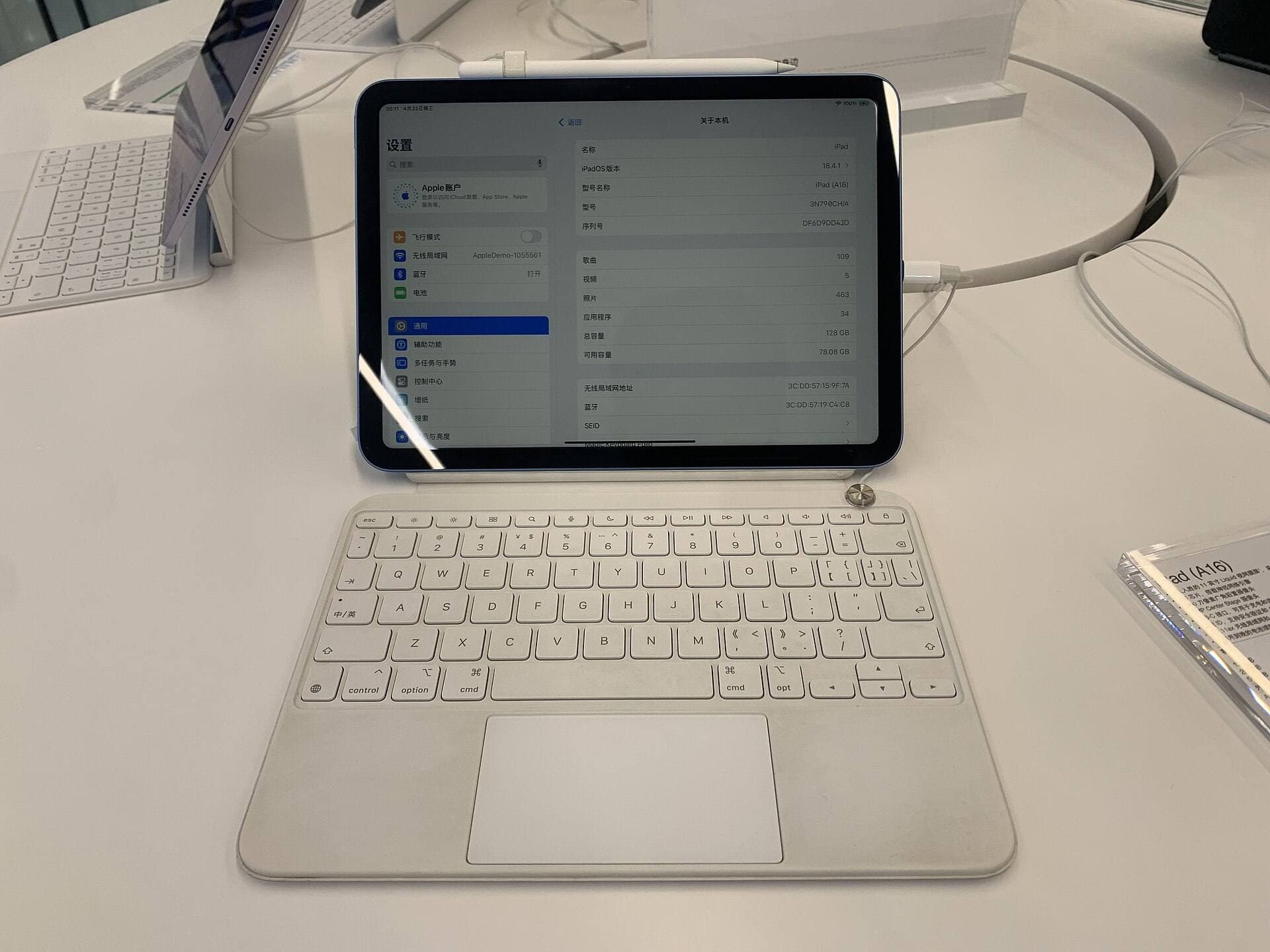
Checking Apple's official compatibility chart prevents buying an incompatible stylus [2]. If you already own an iPad Air (5th generation), your best full-featured choice is Apple Pencil (2nd generation), while a new iPad Air (M2) user wanting premium features must buy Apple Pencil Pro [2]. If you use a standard 10th generation iPad, Apple Pencil (USB-C) is the simplest supported option that avoids awkward dongle adapters [1], [2].
Adding screen texture with Paperlike for handwriting control
Writing on a bare iPad display can feel slippery because hard plastic stylus tips slide easily across smooth glass [1], [4]. For digital planners who write lengthy daily journals or small calendar entries, this lack of friction can make handwriting look loose or difficult to control [4].
Paperlike 3 is an accessory screen protector designed to add controlled friction to the iPad glass surface [4]. Paperlike claims its textured surface mimics the tactile resistance of writing on conventional paper with a pen [4]. That micro-texture offers resistance against the Apple Pencil tip, which can help stabilize letterforms and checkboxes when writing by hand [1], [4].
You should buy Paperlike if you struggle with your stylus sliding out of control on smooth glass and you spend hours writing detailed planner entries [4]. You should skip Paperlike if you watch a lot of video content or prioritize maximum screen brightness, because matte screen protectors naturally diffuse ambient light and slightly soften perceived display sharpness [4], [5]. You must also confirm your exact iPad size before buying, as protectors designed for an 11-inch screen will not fit 13-inch iPad tablets [4], [5].
Bottom line
For most people using an iPad as a digital planner, Apple Pencil (USB-C) is the most sensible purchase [1], [2]. It delivers the precise handwriting, tilt shading, and hover capabilities you need for digital organizers without charging extra for pressure sensitivity you won't use [1]. If your iPad supports wireless magnetic charging and you value fast tool switching, choose Apple Pencil Pro or Apple Pencil (2nd generation) based strictly on your tablet's hardware compatibility [1], [2]. Pair your stylus with Paperlike only if you need tactile paper friction to keep your handwriting neat [4].
Sources
[1] https://www.apple.com/apple-pencil/ [2] https://support.apple.com/en-us/108937 [3] https://support.apple.com/guide/ipad/draw-with-apple-pencil-ipadc55b6c7a/ipados [4] https://paperlike.com/products/paperlike-for-ipad [5] https://www.apple.com/ipad/compare/
Recommended gear
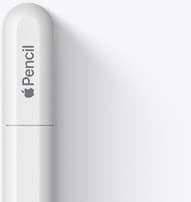
Apple Pencil (USB-C)
amazon.comA practical low-cost Apple stylus with broad compatibility, but limited for advanced art control.
Pro: Lowest official Apple Pencil cost
Con: No pressure sensitivity for brush work
Compatible with many recent iPads. No pressure support.
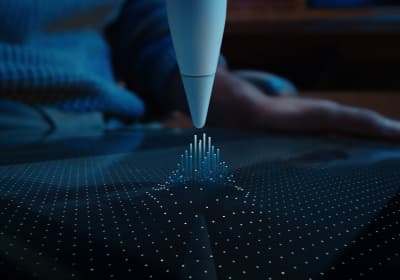
Apple Pencil Pro
amazon.comThe best Apple stylus for serious digital art workflows. Expensive, but the control upgrades are real.
Pro: Best brush-control and hover workflow
Con: Highest price in the lineup
Works only with newer iPad models. Check compatibility.
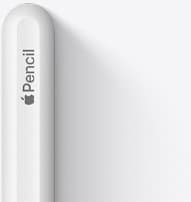
Apple Pencil (2nd generation)
amazon.comStill a strong stylus on compatible iPads. Good pressure control, but compatibility is the main trap.
Pro: Pressure support without Pro pricing
Con: Not compatible with newest Pro-only iPads
Only for iPads that support 2nd generation pairing.
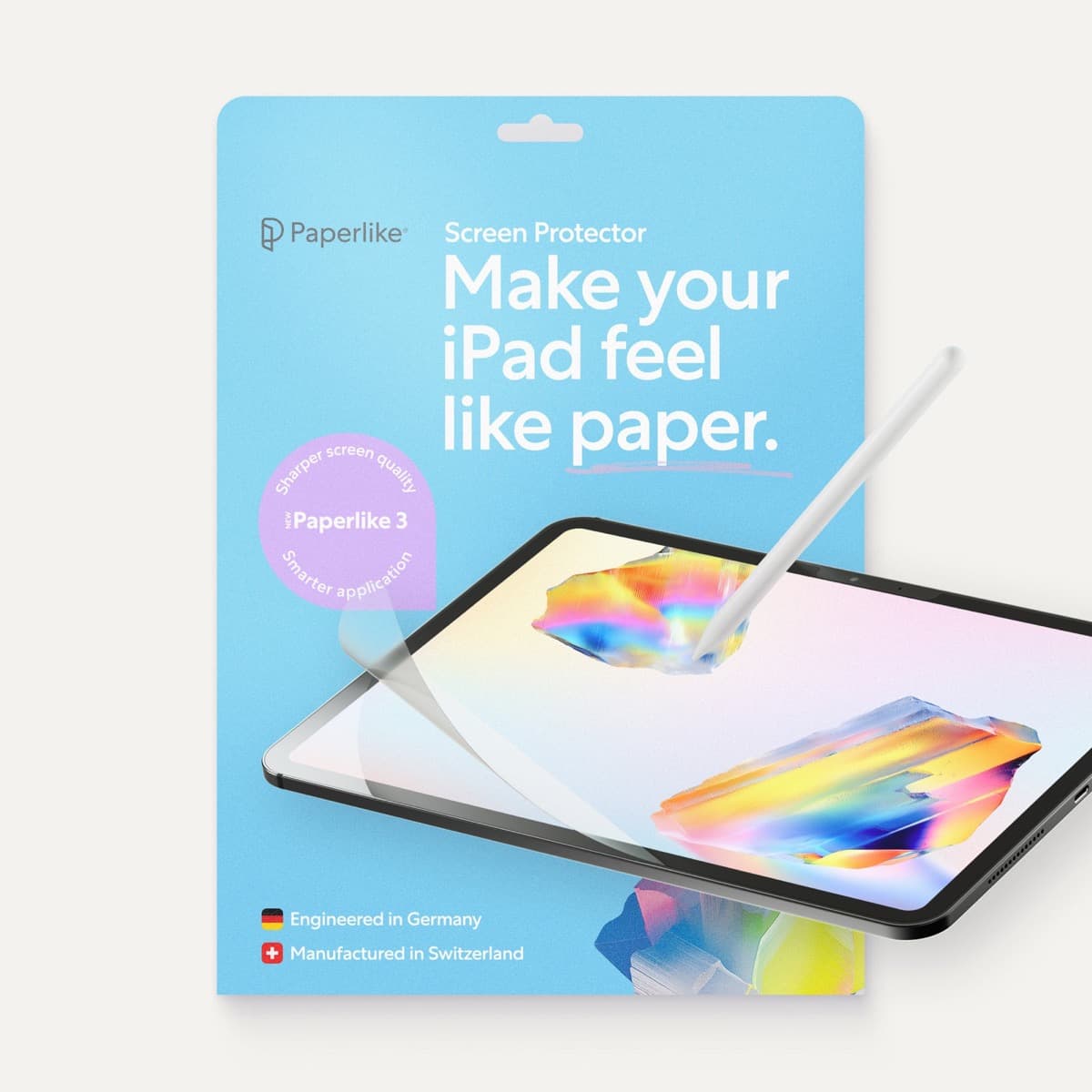
Paperlike 3 (11-inch, 2-pack)
amazon.comA strong surface-feel upgrade for drawing control. Clarity tradeoff is real and should be expected.
Pro: Adds controlled paper-feel friction
Con: Slightly reduces perceived display sharpness
11-inch fit only. Confirm generation before checkout.
Related buying picks
More in this collectionBuyer guide
Best Apple Pencil for Cricut Design Space
Cricut Design Space does not use pressure sensitivity, making the Apple Pencil (USB-C) the most practical choice unless you draw outside the app.
Buyer guide
Best Apple Pencil for lettering and calligraphy
Choose between Apple Pencil Pro, Apple Pencil 2, and Apple Pencil USB-C based on pressure sensitivity, barrel roll, and iPad compatibility.
Buyer guide
Choosing an Apple Pencil for photo retouching on iPad
Buy the Apple Pencil Pro or 2nd generation for pressure sensitivity, and skip the USB-C model for detailed photo editing.
Buyer guide
Is the Apple Pencil USB-C enough for Procreate?
The Apple Pencil (USB-C) functions in Procreate, but the lack of pressure sensitivity makes it a poor fit for expressive brushwork.