





If your Apple Pencil Pro squeeze gesture isn't working, don't return the stylus immediately. In most cases, the hardware isn't broken. Squeeze is an exclusive sensor feature on Apple Pencil Pro that requires supported iPad models, correct iPadOS gesture settings, and apps built to recognize the squeeze event [1], [2]. If you're testing squeeze in an app like Microsoft OneNote or older drawing software that hasn't implemented the tool palette API, squeezing the barrel will do nothing even when the stylus is fully connected [1], [3].
Before spending money on replacement hardware or alternative styluses, check your setup. You should keep the Apple Pencil Pro if your iPad is compatible and you want advanced gestures like squeeze and barrel roll [1], [2]. You should consider returning it or switching to the Apple Pencil (USB-C) or Apple Pencil (2nd generation) only if you own an older iPad that cannot pair with the Pro or if you don't need pressure and gesture workflows [1], [2], [3].
Checking iPad model compatibility and hardware pairing
The most basic reason squeeze won't work is an incompatible iPad model or an incomplete Bluetooth pairing. Apple Pencil Pro only works with specific newer iPad models, such as recent iPad Pro and iPad Air models designed with updated magnetic charging systems [2], [3]. Older iPads that support the Apple Pencil (2nd generation) do not support the Apple Pencil Pro at all [2], [3].
If you attach an Apple Pencil Pro to an unsupported iPad, the stylus won't pair, charge, or register any drawing strokes [2], [3]. To verify that your pencil is properly recognized, snap it onto the magnetic connector on the long edge of your iPad [1], [3]. A connection banner should appear on screen displaying the pencil name and current battery level [3]. If the battery indicator doesn't appear or remains uncharged, clean the magnetic contact surface on both the iPad chassis and the pencil barrel before testing gestures [3].
For artists who use an older iPad Pro or iPad Air that only pairs with the second-generation stylus, the Apple Pencil (2nd generation) remains the correct choice [2], [3]. That older stylus offers pressure sensitivity and a double-tap gesture, but it lacks the internal squeeze sensor, barrel roll gyroscope, and haptic feedback engine built into the Pro [1], [2]. If you bought an Apple Pencil Pro hoping to add squeeze to an older iPad model, return the stylus because firmware updates cannot bridge the physical hardware divide [2], [3].
Adjusting iPadOS squeeze settings and haptic feedback
If your Apple Pencil Pro is connected and draws normally, but squeezing the lower barrel produces no response, your iPadOS settings might be misconfigured. In iPadOS, the squeeze gesture can be customized or disabled entirely [1], [3].
Open the Settings app on your iPad and select Apple Pencil [1], [3]. Under the squeeze gesture section, verify that the toggle is enabled [1], [3]. You can set the squeeze action to open the tool palette, switch between the current tool and the eraser, switch to the previous tool, or show attributes [1], [3]. If the action is set to Off, squeezing the pencil barrel produces no on-screen reaction [3].
Another helpful setting is the squeeze sensitivity slider and haptic feedback toggle [1], [3]. Apple Pencil Pro includes a haptic motor that pulses gently when you squeeze the barrel firmly enough to register an action [1]. If haptics are turned off in Settings, you lose the tactile confirmation that tells you when your fingers applied sufficient pressure [1], [3]. Try adjusting the squeeze sensitivity to Light if you find yourself pressing too hard without triggering the menu [3]. Testing the squeeze gesture inside the Settings menu lets you confirm whether the sensor detects your grip without relying on third-party software [3].
Understanding app support limitations in OneNote and third-party tools
A frequent complaint is that the Apple Pencil Pro squeeze gesture works on the home screen or in Apple Notes, but fails completely in Microsoft OneNote or select sketching apps. This is almost always an app development issue rather than a hardware defect [1], [3].
When Apple introduced squeeze, it provided developers with an API to present contextual tool palettes or custom shortcut rings [1], [3]. Apple apps like Notes, Freeform, and Markup implement this native palette by default [3]. Creative suites like Procreate also integrate Apple Pencil hardware features, letting artists use gestures and pressure sensitivity to control their drawing canvas and brush tools [4], [5], [6].
However, productivity apps like OneNote often take time to update their custom drawing engines. When an app doesn't implement the iPadOS squeeze API, the pencil will still draw and track tilt or pressure, but squeezing the barrel won't open a tool wheel or switch to an eraser [1], [3]. To verify this, launch the native Notes app or open a screenshot in Markup [3]. Squeeze the pencil barrel firmly near your fingers. If the native tool palette pops up with a haptic click in Apple Notes, your Apple Pencil Pro hardware is working perfectly, and you must wait for the developers of your specific third-party app to release an update supporting the gesture [1], [3].
Choosing the right Apple Pencil for your workflow
If troubleshooting shows that your workflow doesn't benefit from squeeze, or if your iPad isn't compatible with Apple Pencil Pro, choosing the right model comes down to required features and tablet support [1], [2], [3].
Buy the Apple Pencil Pro if you own a compatible iPad and want the complete set of modern tools: pressure sensitivity, tilt detection, hover previews, barrel roll rotation, haptic pulses, and the squeeze shortcut [1], [2]. Digital illustrators using apps like Procreate benefit directly from having both pressure variation and rapid tool switching right on the barrel [1], [4], [6]. Squeeze allows artists to swap brushes or bring up palettes without reaching across large canvas areas [1], [3], [6].
Buy the Apple Pencil (2nd generation) if you have an iPad model from earlier generations that supports magnetic pairing but isn't compatible with Apple Pencil Pro [2], [3]. You'll get pressure sensitivity, tilt control, and double-tap tool toggling, which covers the essential needs for sketching, shading, and handwriting without needing an iPad upgrade [1], [2].
Choose the Apple Pencil (USB-C) if you only take notes, mark up documents, or navigate iPadOS and want the lowest purchase cost [2]. The USB-C model pairs via a sliding cap cable connection, attaches magnetically to compatible iPad edges for storage, and supports tilt detection and hover on select iPads [1], [2]. However, it completely lacks pressure sensitivity, squeeze, barrel roll, and double-tap gestures [1]. For users frustrated by accidental squeeze triggers or those who simply do not want gesture shortcuts, the USB-C model offers straightforward stylus input without software complexity [1], [2].
Bottom line
When your Apple Pencil Pro squeeze isn't working, check your iPadOS Settings menu first to ensure the gesture is turned on and sensitivity is calibrated [1], [3]. If the squeeze palette appears in Apple Notes but fails in OneNote, your stylus is in working order and the issue lies in third-party app support [1], [3]. Keep your Apple Pencil Pro if you have a compatible iPad and value pressure control alongside shortcut gestures [1], [2]. Only consider changing your stylus if your tablet is limited to Apple Pencil (2nd generation) pairing or if you prefer the simpler, pressure-free input of the Apple Pencil (USB-C) [1], [2], [3].
Sources
[1] https://www.apple.com/apple-pencil/ [2] https://www.apple.com/ipad/compare/ [3] https://support.apple.com/guide/ipad/draw-with-apple-pencil-ipadc55b6c7a/ipados [4] https://apps.apple.com/us/app/procreate/id425073498 [5] https://help.procreate.com/articles/zlexav-ipad-compatibility [6] https://help.procreate.com/procreate/handbook/5.2/interface-gestures/pencil
Recommended gear

Apple Pencil Pro
amazon.comThe best Apple stylus for serious digital art workflows. Expensive, but the control upgrades are real.
Pro: Best brush-control and hover workflow
Con: Highest price in the lineup
Works only with newer iPad models. Check compatibility.
Apple Pencil (2nd generation)
amazon.comStill a strong stylus on compatible iPads. Good pressure control, but compatibility is the main trap.
Pro: Pressure support without Pro pricing
Con: Not compatible with newest Pro-only iPads
Only for iPads that support 2nd generation pairing.
Apple Pencil (USB-C)
amazon.comA practical low-cost Apple stylus with broad compatibility, but limited for advanced art control.
Pro: Lowest official Apple Pencil cost
Con: No pressure sensitivity for brush work
Compatible with many recent iPads. No pressure support.
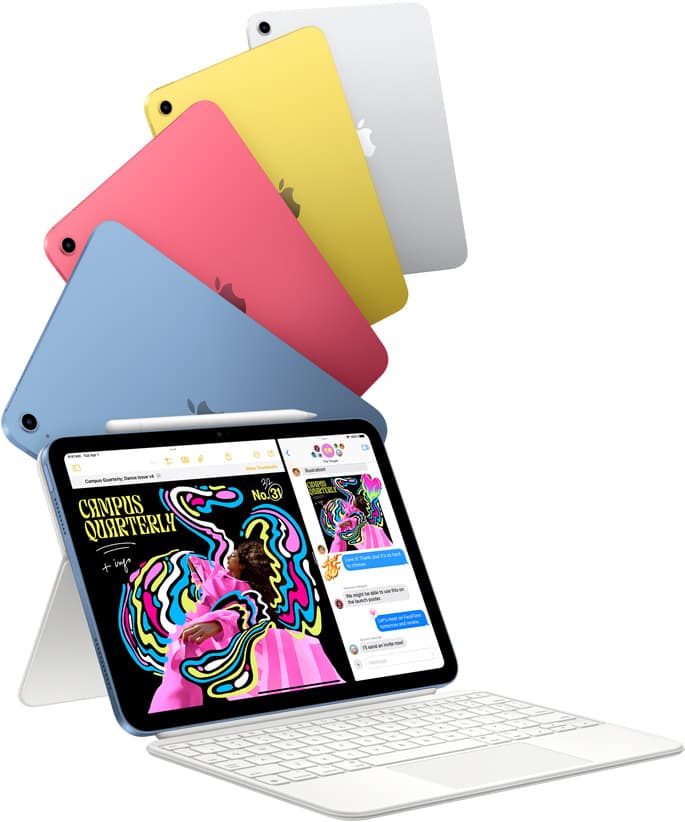
iPad (A16, 11th gen)
amazon.comThe best entry iPad for most artists on a budget. It is not premium, but it is very hard to beat on value.
Pro: Best value iPad right now
Con: No ProMotion display
Search opens with the exact model keywords. Verify size and storage before checkout.

iPad Air (M4)
apple.comThe clean current Air recommendation for most serious hobby artists. Stronger buy logic than old-stock M3 when pricing is close.
Pro: Best current balance of price, headroom, and Pencil support
Con: Still 60Hz
Current Air lineup. Choose size, storage, and keyboard path before checkout.
Related buying picks
More in this collectionBuyer guide
Apple Pencil for 3D sculpting: Which model should you buy?
Choose Apple Pencil Pro if your iPad supports it, keep Apple Pencil 2nd generation on older models, and skip Apple Pencil USB-C due to its lack of pressure sensitivity.
Buyer guide
Best Apple Pencil for animation: Pro, 2nd generation, or USB-C?
Choose the best Apple Pencil for animation based on pressure sensitivity, tool switching gestures, and your specific iPad model.
Buyer guide
Best Apple Pencil for pixel art: Which stylus fits your grid?
Pixel art relies on exact placement rather than pen pressure, making Apple Pencil compatibility and budget your main buying factors.
Buyer guide
Is the Apple Pencil USB-C enough for Procreate?
The Apple Pencil (USB-C) functions in Procreate, but the lack of pressure sensitivity makes it a poor fit for expressive brushwork.