






If you sketch logos on an iPad, buy the Apple Pencil Pro if you own a compatible recent tablet, or keep the Apple Pencil (2nd generation) if you use an existing supported model [1], [2]. Both deliver pressure sensitivity and quick tool toggles that make concept sketching fluid [1], [3]. Skip the Apple Pencil (USB-C) if you rely on pressure-driven brush work for expressive letterforms, though it works fine for pure vector tracing [1], [2]. If slick glass slows down your precision when pulling curves, add a Paperlike sheet for mechanical drag [7].
Logo design on an iPad generally splits into two phases: rough ideation and final vector execution. During ideation, you need organic control over weight, contour lines, and rapid thumbnailing. For that phase, the physical stylus in your hand dictates how natural your drafting feels. iPad compatibility strictly determines which stylus you can physically pair with your tablet, so your buying choice starts with your exact iPad model [2], [3].
Why pressure sensitivity matters for logo drafting
Pressure sensitivity is not mandatory for final geometric marks, but it is essential for the early stages of logo development [1]. When you sketch thumbnail concepts, pressure sensitivity lets you block out visual weight, experiment with calligraphic flourishes, and vary strokes without stopping to adjust software sliders [1], [5]. In raster sketching applications like Procreate, brush size and opacity track the force you apply to the screen [5], [6].
If you work extensively on hand-lettered lockups, custom logotypes, or organic brand emblems, a stylus without pressure sensitivity forces extra friction into your creative process. The Apple Pencil (USB-C) lacks pressure detection entirely [1]. While it includes tilt sensitivity for shading, every regular stroke maintains uniform weight regardless of downward force [1]. For clean wireframing and plotting vector points, uniform weight is completely acceptable. For expressive monogram explorations or dynamic brush scripts, missing pressure means you lose immediate feedback on stroke tapering and weight modulation [1], [5].
Memory management in sketching apps also affects how freely you can work across large brand boards. When drafting multi-page style guides or expansive thumbnail canvases, higher canvas dimensions reduce your available layer limits based on your iPad hardware memory [4]. Having the right stylus features ensures that each stroke on those constrained layers lands exactly as you intend [4], [6].
Apple Pencil Pro compared to Apple Pencil (2nd generation)
For designers choosing between top-tier Apple styluses, the primary dividing line is tablet generation [2], [3]. The Apple Pencil Pro works exclusively with designated recent iPads, while the Apple Pencil (2nd generation) pairs with earlier supported generations [2]. You cannot interchange them across conflicting hardware releases, so your tablet choice locks in your stylus decision [2], [3].
If your iPad supports the Apple Pencil Pro, you gain tool control features designed directly for drawing efficiency [1], [5]. The Apple Pencil Pro introduces squeeze detection, which senses a firm press along the barrel to open contextual menus without needing to tap screen buttons [1], [5]. It also incorporates haptic feedback that delivers a subtle pulse when gestures trigger, along with barrel roll gyroscopic rotation [1], [5]. Barrel roll lets you spin the physical stylus to rotate shaped brushes, which provides direct control over chisel markers, calligraphy pens, and directional inking brushes commonly used in custom letterforms [1], [5].
By contrast, the Apple Pencil (2nd generation) remains an exceptional tool for logo creators on supported iPads [1], [2]. It provides full pressure sensitivity, tilt tracking, wireless magnetic pairing and charging, and a double-tap gesture area near the tip [1], [2]. In creative apps, double-tapping switches between your active brush and the eraser or summons a color picker [5], [6]. If your current setup uses the Apple Pencil (2nd generation), upgrading your entire tablet just to access squeeze gestures or barrel roll is rarely necessary for standard vector brand projects [1], [3].
When Apple Pencil (USB-C) makes sense for vector marks
Not every logo designer draws organic, painterly marks. Many brand designers focus on rigid corporate identity systems, geometric grids, typographic layouts, and structural vector shapes. If your workflow relies on plotting anchor points, pulling bezier handles, or outlining geometric symbols, the Apple Pencil (USB-C) provides the necessary precision at the lowest price point in Apple's stylus catalog [1], [2].
Apple Pencil (USB-C) includes tilt sensitivity, sub-pixel precision, and magnetic attachment for storage [1]. It pairs via a slide-open USB-C port and does not charge wirelessly from the side of the tablet [1], [2]. On compatible iPads, it also supports Apple Pencil hover, letting you preview cursor positions and target exact nodes before your tip makes contact with the glass [1], [5]. For drafting clean architectural badges or alignment grids, hover helps verify point placement [1], [5].
However, you should skip the Apple Pencil (USB-C) if you want an all-in-one drawing instrument that handles both fluid concept art and mechanical drafting. Lacking pressure sensitivity, it makes thumbnail sketching feel flat and rigid [1]. You cannot flick a line to get a thin tail or press down to fill a bold accent stroke [1], [5]. Unless your workflow is strictly geometric or budget constraints override sketching flexibility, you will likely outgrow its input limitations quickly [1].
Screen texture and control with Paperlike
Drawing on bare iPad glass presents a low-friction surface that some designers find slippery when drawing precise arcs and straight lines. Bare glass allows the hard tip of an Apple Pencil to slide with minimal mechanical resistance [7]. When sketching logo marks where curve curvature must remain steady, this lack of drag can cause unintended wobbles in your line confidence [7].
Applying a Paperlike matte screen protector introduces controlled micro-texture between your stylus tip and the glass display [7]. The company designs its textured surface to emulate the physical resistance of paper sketchbooks, which helps stabilize your hand during delicate linework and letter carving [7]. For designers who build custom brand marks by hand, this tactile feedback can make digital sketching feel closer to traditional ink drafting [7].
The tradeoff is visual fidelity. Adding a textured matte film slightly diffuses incoming light and softens screen clarity [7]. While the matte finish reduces harsh reflections from studio lighting, it also marginally reduces apparent panel sharpness compared to pristine gloss glass [1], [7]. If you evaluate color accuracy and dense pixel grids on the same screen, consider whether you prefer maximum drawing friction or uncompromised display clarity [3], [7].
Bottom line
Your hardware compatibility dictates which Apple Pencil model you should buy, but your drawing technique determines how satisfied you will be [1], [2]. Designers working on compatible newer iPads should buy the Apple Pencil Pro to take advantage of barrel roll, squeeze shortcuts, and pressure control for expressive custom lettering [1], [5]. Designers on older supported iPad models should stick with the Apple Pencil (2nd generation), which covers core pressure sketching needs without requiring a full hardware overhaul [1], [2]. Only choose the Apple Pencil (USB-C) if your logo work is strictly geometric and you never rely on pressure sensitivity [1].
Sources
[1] https://www.apple.com/apple-pencil/ [2] https://support.apple.com/en-us/108937 [3] https://www.apple.com/ipad/compare/ [4] https://help.procreate.com/articles/zlexav-ipad-compatibility [5] https://support.apple.com/guide/ipad/draw-with-apple-pencil-ipadc55b6c7a/ipados [6] https://help.procreate.com/procreate/handbook/5.2/interface-gestures/pencil [7] https://paperlike.com/products/paperlike-for-ipad
Recommended gear

Apple Pencil Pro
amazon.comThe best Apple stylus for serious digital art workflows. Expensive, but the control upgrades are real.
Pro: Best brush-control and hover workflow
Con: Highest price in the lineup
Works only with newer iPad models. Check compatibility.
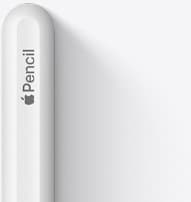
Apple Pencil (2nd generation)
amazon.comStill a strong stylus on compatible iPads. Good pressure control, but compatibility is the main trap.
Pro: Pressure support without Pro pricing
Con: Not compatible with newest Pro-only iPads
Only for iPads that support 2nd generation pairing.
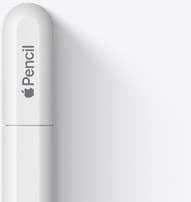
Apple Pencil (USB-C)
amazon.comA practical low-cost Apple stylus with broad compatibility, but limited for advanced art control.
Pro: Lowest official Apple Pencil cost
Con: No pressure sensitivity for brush work
Compatible with many recent iPads. No pressure support.
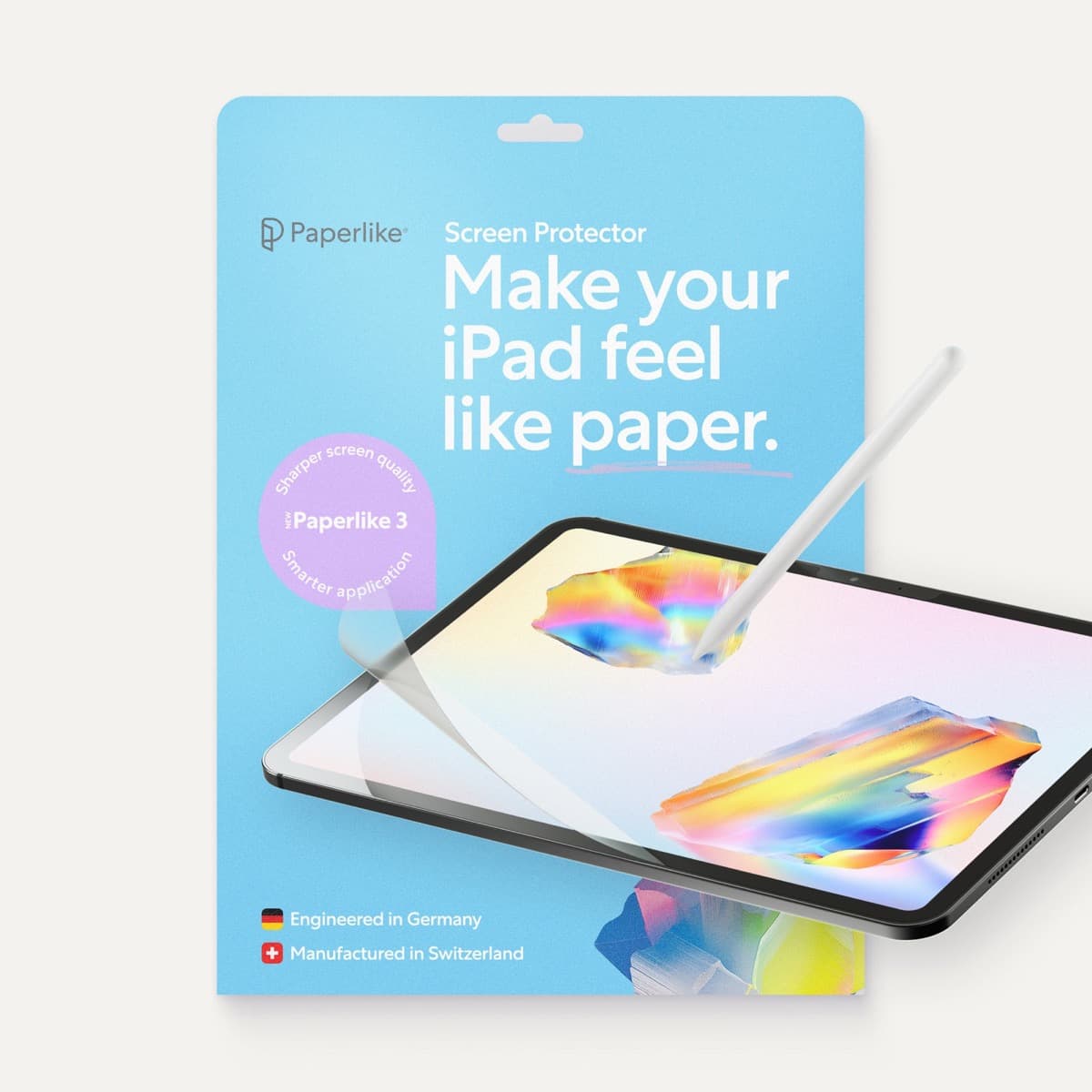
Paperlike 3 (11-inch, 2-pack)
amazon.comA strong surface-feel upgrade for drawing control. Clarity tradeoff is real and should be expected.
Pro: Adds controlled paper-feel friction
Con: Slightly reduces perceived display sharpness
11-inch fit only. Confirm generation before checkout.
Related buying picks
More in this collectionBuyer guide
Best Apple Pencil for manga drawing
Choose an Apple Pencil with pressure sensitivity for manga inking, matching the stylus directly to your iPad model.
Buyer guide
Best Apple Pencil for tattoo design: which stylus should you buy?
Choose between the Apple Pencil Pro and Apple Pencil 2 based on your iPad model, and skip the USB-C version for tattooing.
Buyer guide
Choosing the best Apple Pencil for medical illustration
Medical illustrators need pressure sensitivity and precise hardware compatibility, making the Apple Pencil Pro or 2nd generation pencil essential over the USB-C model.
Buyer guide
Best Apple Pencil for figure drawing: how to choose your stylus
Figure drawing demands reliable pressure sensitivity and stroke control, making Apple Pencil Pro or Apple Pencil 2nd generation the right choice over the USB-C model.