






If you are designing tattoo flash, pulling outlines, or building print stencils on an iPad, don't buy the Apple Pencil (USB-C). Buy the Apple Pencil Pro if your iPad supports it, or get the Apple Pencil (2nd generation) if you use a compatible earlier iPad [2], [3]. Both styluses offer pressure sensitivity and tilt control, which are mandatory for line weight modulation and whip shading [2]. The Apple Pencil (USB-C) costs less, but its lack of pressure sensitivity makes it a poor match for tattoo illustration [2].
Your actual buying path depends on which iPad model you own [1], [3]. You can't simply pick the newest stylus and expect it to connect to any tablet [3]. Below is how each tool fits into a digital tattoo workflow.
Why pressure sensitivity defines tattoo flash and linework
Tattoo linework requires precise line weight variations that mimic physical needle groupings [2]. In digital illustration apps like Procreate, brush size and opacity track the physical pressure you apply against the glass [5], [7]. Without hardware pressure detection, every stroke stays at a static width unless you stop drawing to resize the brush slider manually [7].
Apple equips both the Apple Pencil Pro and the Apple Pencil (2nd generation) with pressure sensitivity and tilt response [2]. When you tilt either stylus, supported brushes widen to produce broad sweeps, helping you sketch out background washes or soft shading [2], [6].
In contrast, Apple built the Apple Pencil (USB-C) without pressure sensitivity [2]. While Apple includes tilt detection on that model, the missing pressure sensor removes dynamic response from every inking brush [2]. That omission saves money, but it creates friction when you need an organic taper at the start and finish of a stroke [2], [7]. For tattoo design, a pressure-free stylus is an immediate dealbreaker [2].
Apple Pencil Pro versus Apple Pencil 2nd generation
The choice between the Apple Pencil Pro and the Apple Pencil (2nd generation) is decided by your iPad hardware [1], [3]. Neither stylus works across all iPad generations [3].
The Apple Pencil Pro is Apple's current flagship stylus [2]. It introduces a squeeze sensor, barrel roll orientation, and haptic feedback alongside pressure and tilt features [2], [6]. In drawing applications, squeezing the lower barrel brings up an on-screen tool palette or quick actions without tapping a menu button [6], [7]. The built-in gyroscope tracks barrel roll, which lets you rotate shaped brush tips by rolling the barrel between your fingers as you pull a stroke [2], [6]. Haptic feedback pulses faintly against your fingers when you squeeze or complete actions [2], [6]. The Apple Pencil Pro pairs and charges magnetically on compatible newer iPads [2], [3].
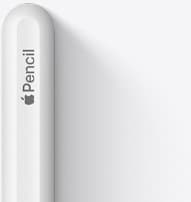
The Apple Pencil (2nd generation) remains the primary tool for many artists because it matches supported older generations of iPad Pro and iPad Air [1], [3]. It features pressure sensitivity, tilt detection, magnetic charging, and a double-tap touch surface near your grip [2], [6]. In apps like Procreate, double-tapping that surface switches between your active brush and the eraser or triggers another shortcut [6], [7]. It doesn't have barrel roll, a squeeze sensor, or built-in haptics [2].
If you already own an iPad that pairs with the Apple Pencil (2nd generation), keep your setup [1], [3]. The drawing mechanics for linework and shading remain functionally identical [2]. But if you are buying a newer iPad model that requires the Apple Pencil Pro, you will gain barrel roll and squeeze gestures without losing pressure responsiveness [2], [3].
Why you should skip Apple Pencil USB-C for tattooing
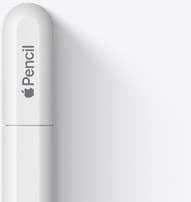
Apple created the Apple Pencil (USB-C) as a budget option that pairs across many USB-C iPad models [2], [3]. It attaches magnetically to the side of the iPad for storage, though it doesn't charge magnetically [2]. Instead, it requires sliding open a cap to connect a physical USB-C cable for charging and pairing [2].
While the Apple Pencil (USB-C) supports tilt and hover on supported displays, it omits three major tools: pressure sensitivity, the double-tap surface, and magnetic charging [2]. In tattoo drawing, losing double-tap means pausing your workflow to tap the interface to erase stray marks [6], [7]. Losing magnetic charging means keeping track of a loose cable at your drawing desk [2].
Most critically, lacking pressure sensitivity means every stroke you place has the exact same thickness regardless of how hard you push [2]. Attempting to draw stencils or script lettering without line variation turns drawing into a slow chore [2], [7]. The Apple Pencil (USB-C) is suitable for note-taking, but tattoo artists should skip it [2].
Screen texture and tactile resistance for stenciling
Drawing on bare iPad glass presents a low-friction surface that some illustrators find slick when pulling slow lines [8]. For tattoo artists transitioning from physical paper or acetate stencils, smooth glass can feel unstable during steady line pulls [8].
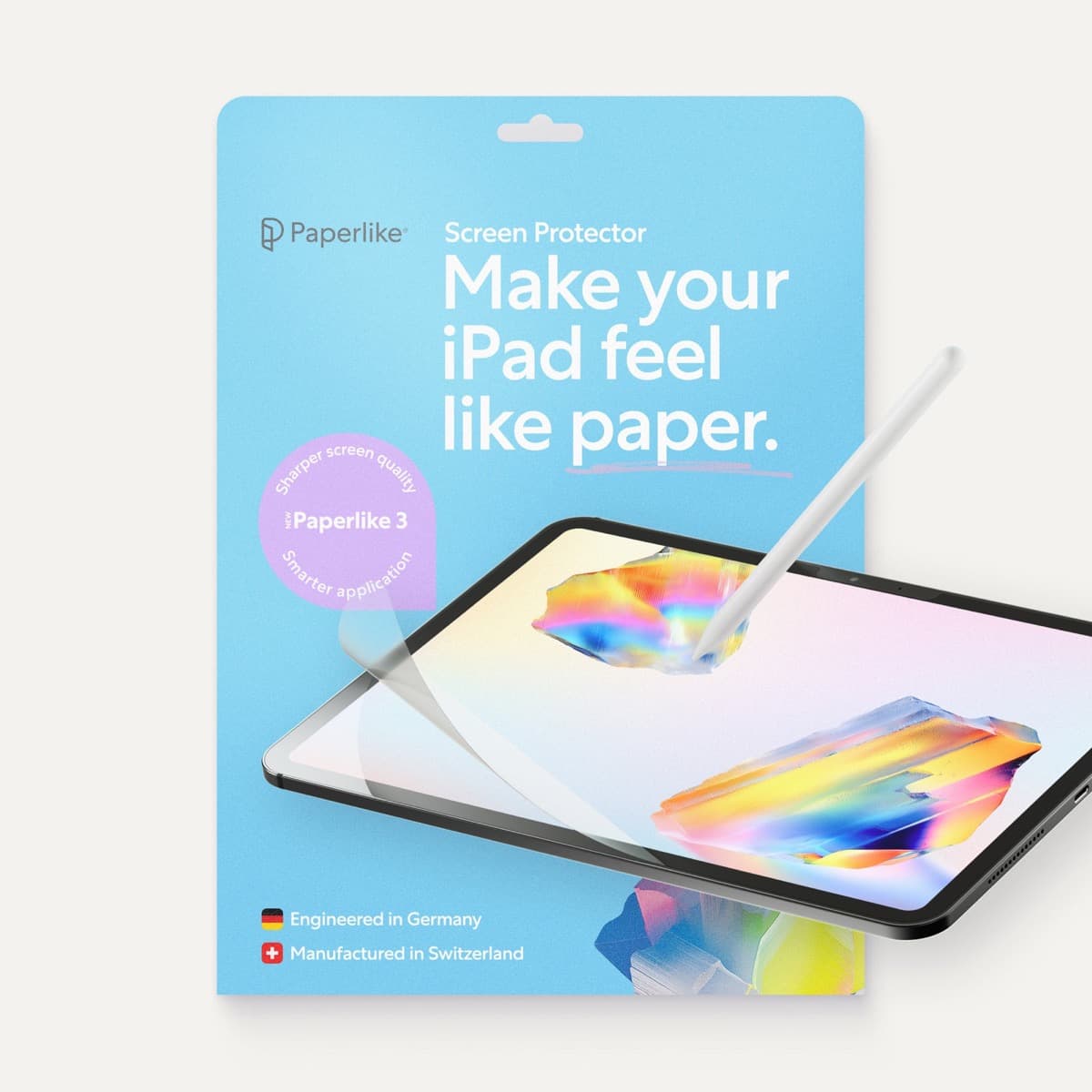
A matte screen overlay like Paperlike 3 adds physical tooth and resistance to the glass surface [8]. This textured surface provides friction against the Apple Pencil tip, offering a tactile sensation closer to traditional paper [8]. The resistance helps when controlling long, deliberate line pulls for stencil templates [8].
There is a direct tradeoff to consider before applying a textured screen protector [8]. Matte surfaces diffuse reflected light, which reduces perceived display sharpness and contrast compared to bare glass [8]. If you rely on absolute screen clarity to check color values or reference photos, you might prefer bare glass [1], [8]. But if pulling steady lines without slip is your main priority, an 11-inch Paperlike overlay balances control against clarity [8].
Choosing the right iPad pairing for your studio
Before you purchase an Apple Pencil, verify your iPad model number in your settings to confirm hardware support [1], [3]. Apple doesn't offer backwards compatibility across its stylus generations [3].
The Apple Pencil Pro pairs only with specified newer iPad models, including recent iPad Pro and iPad Air releases [1], [3]. It won't connect or charge on older iPad Pro tablets that rely on the 2nd generation stylus [3].
The Apple Pencil (2nd generation) pairs with supported iPad Pro models and selected iPad Air and iPad mini generations [1], [3]. It can't pair with the standard entry-level iPad, nor can it pair with the latest iPad models configured exclusively for the Apple Pencil Pro [3].
In addition to stylus compatibility, consider system memory when choosing an iPad for tattoo design [1], [4]. In Procreate, your available layer count is tied directly to the physical memory of your iPad and the pixel dimensions of your canvas [4]. High-resolution stencils designed for large body placements consume substantial memory, lowering the total layers you can create [4], [5]. Checking device memory and canvas needs before selecting your iPad prevents running out of layer headroom mid-project [1], [4].
Bottom line
Don't compromise on drawing mechanics when building tattoo flash and client stencils [2], [7]. If your iPad supports the Apple Pencil Pro, buy it to gain pressure sensitivity, barrel roll, and squeeze shortcuts [2], [3]. If your iPad runs with the Apple Pencil (2nd generation), keep using it with confidence, as its pressure tracking and double-tap features give you everything required for digital tattooing [2], [3], [7]. Skip the Apple Pencil (USB-C), which lacks pressure sensitivity [2]. If you want added friction on the glass while pulling lines, pair your stylus with a Paperlike screen protector [8].
Sources
[1] https://www.apple.com/ipad/compare/ [2] https://www.apple.com/apple-pencil/ [3] https://support.apple.com/en-us/108937 [4] https://help.procreate.com/articles/zlexav-ipad-compatibility [5] https://apps.apple.com/us/app/procreate/id425073498 [6] https://support.apple.com/guide/ipad/draw-with-apple-pencil-ipadc55b6c7a/ipados [7] https://help.procreate.com/procreate/handbook/5.2/interface-gestures/pencil [8] https://paperlike.com/products/paperlike-for-ipad
Recommended gear

Apple Pencil Pro
amazon.comThe best Apple stylus for serious digital art workflows. Expensive, but the control upgrades are real.
Pro: Best brush-control and hover workflow
Con: Highest price in the lineup
Works only with newer iPad models. Check compatibility.
Apple Pencil (2nd generation)
amazon.comStill a strong stylus on compatible iPads. Good pressure control, but compatibility is the main trap.
Pro: Pressure support without Pro pricing
Con: Not compatible with newest Pro-only iPads
Only for iPads that support 2nd generation pairing.
Apple Pencil (USB-C)
amazon.comA practical low-cost Apple stylus with broad compatibility, but limited for advanced art control.
Pro: Lowest official Apple Pencil cost
Con: No pressure sensitivity for brush work
Compatible with many recent iPads. No pressure support.
Paperlike 3 (11-inch, 2-pack)
amazon.comA strong surface-feel upgrade for drawing control. Clarity tradeoff is real and should be expected.
Pro: Adds controlled paper-feel friction
Con: Slightly reduces perceived display sharpness
11-inch fit only. Confirm generation before checkout.
Related buying picks
More in this collectionBuyer guide
Best Apple Pencil for manga drawing
Choose an Apple Pencil with pressure sensitivity for manga inking, matching the stylus directly to your iPad model.
Buyer guide
Choosing an Apple Pencil for logo design
Compare Apple Pencil models and drawing surfaces to find the right stylus setup for drafting logos and brand marks.
Buyer guide
Choosing the best Apple Pencil for medical illustration
Medical illustrators need pressure sensitivity and precise hardware compatibility, making the Apple Pencil Pro or 2nd generation pencil essential over the USB-C model.
Buyer guide
Best Apple Pencil for figure drawing: how to choose your stylus
Figure drawing demands reliable pressure sensitivity and stroke control, making Apple Pencil Pro or Apple Pencil 2nd generation the right choice over the USB-C model.