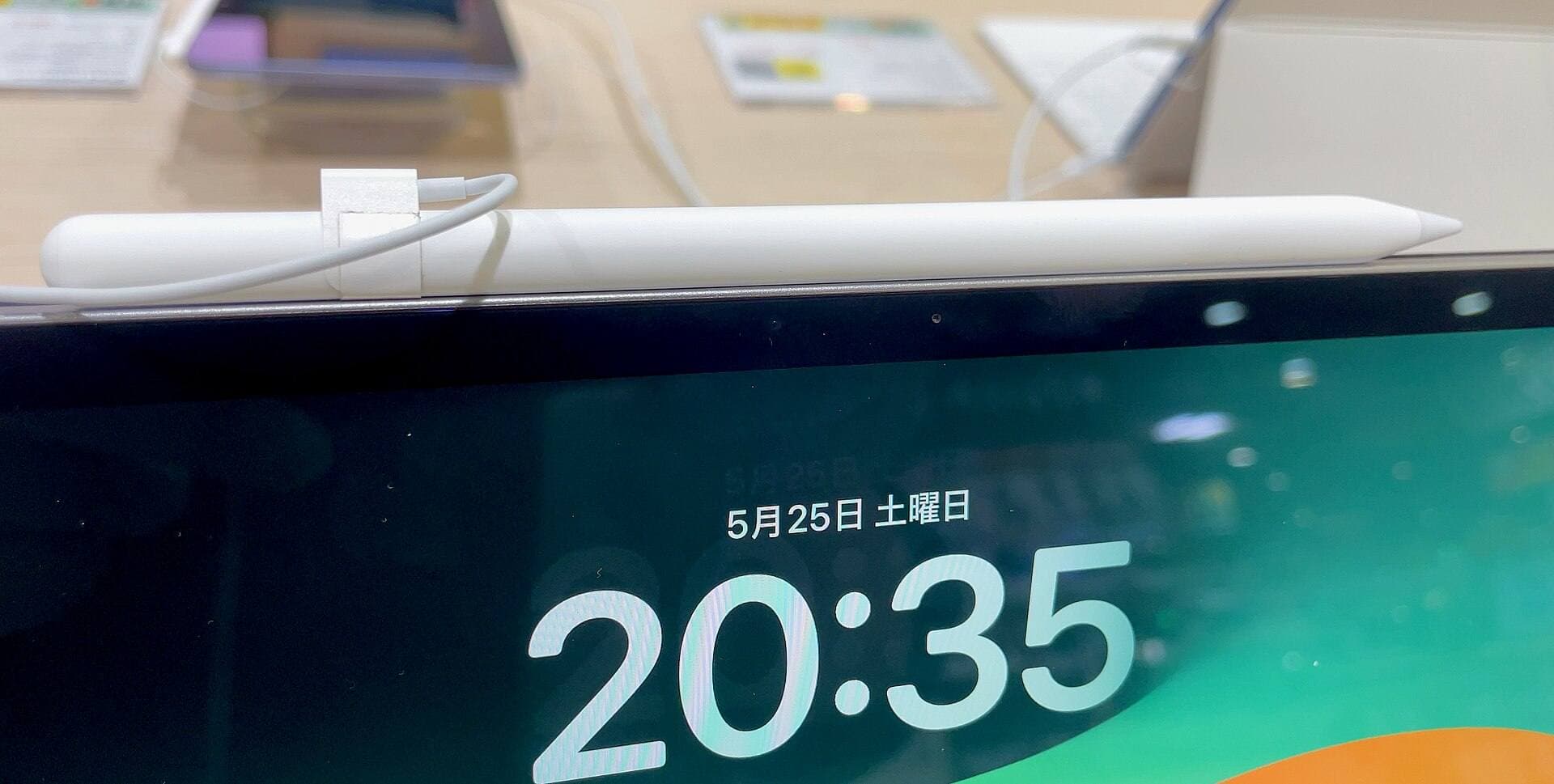
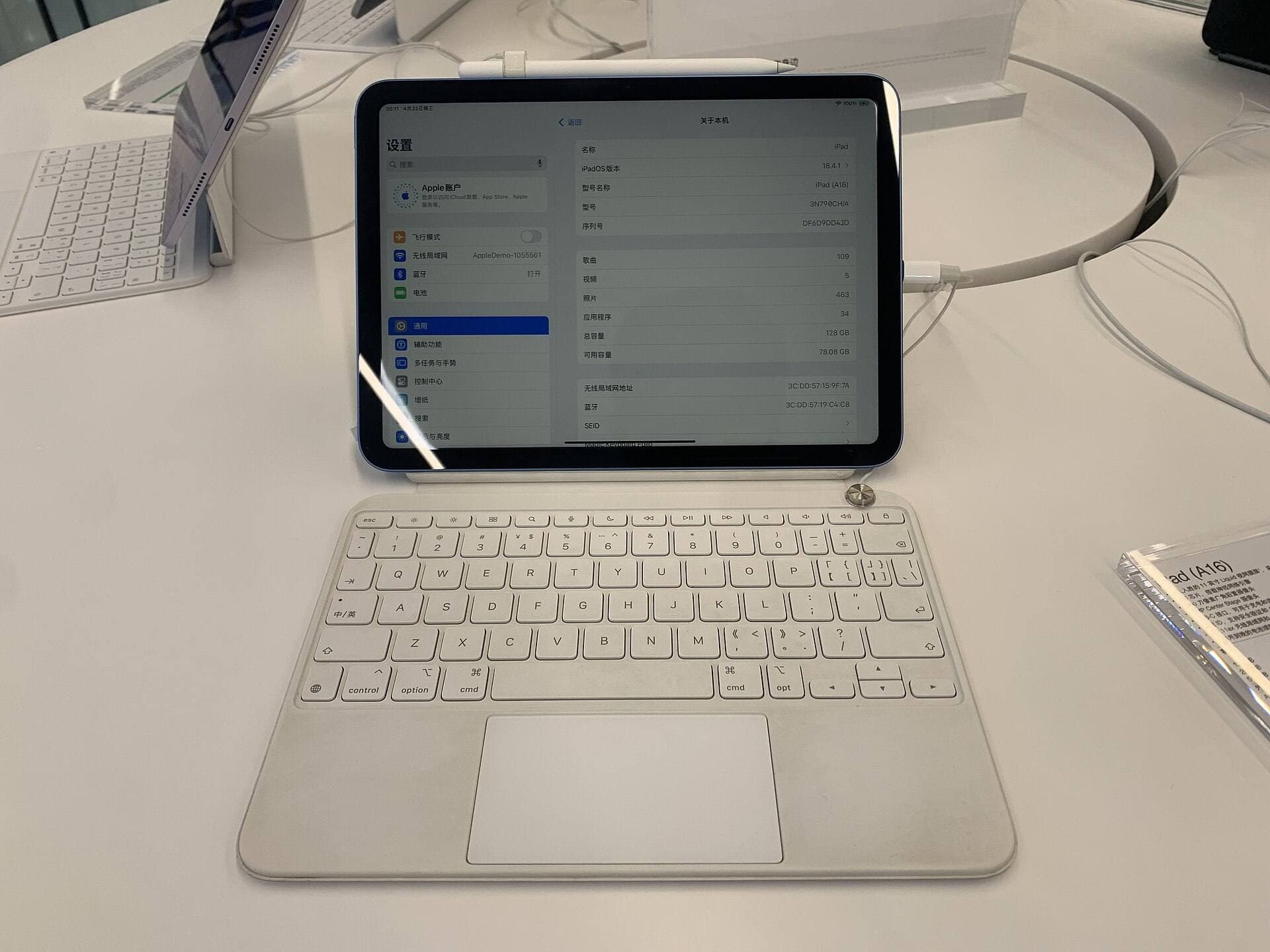
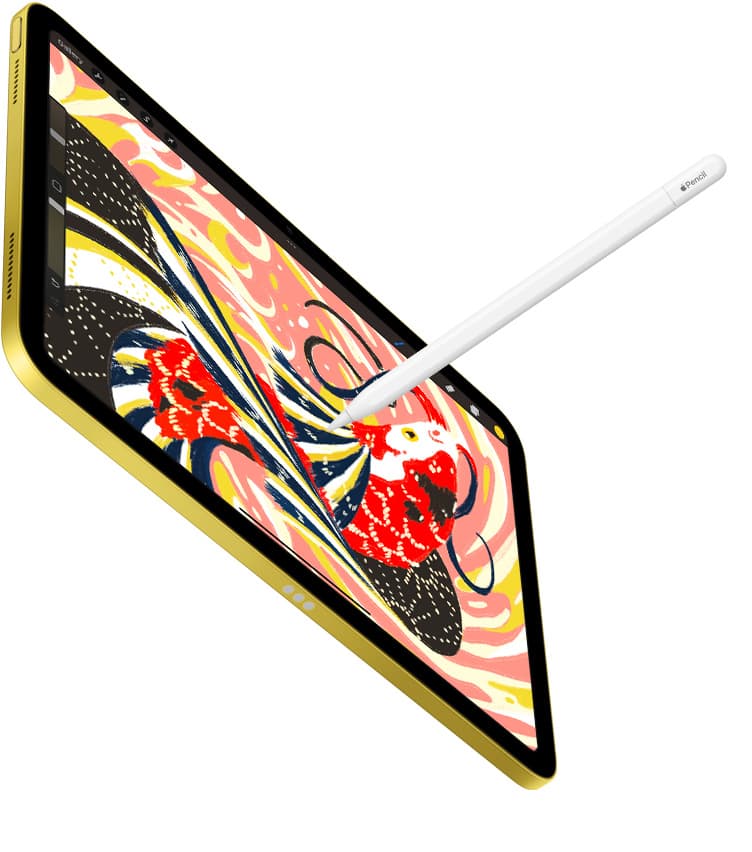
If you create brush lettering or calligraphy on an iPad, buy Apple Pencil Pro if you own a compatible newer iPad, or choose Apple Pencil (2nd generation) if your iPad supports it [2], [3]. Skip Apple Pencil (USB-C) for brush calligraphy because it lacks pressure sensitivity [2]. Lettering scripts require dynamic thick and thin stroke variation created by applying varying pressure to the tip [2], [7]. If your tablet is compatible, Apple Pencil Pro provides the most complete control suite with barrel roll, squeeze gestures, and hover [2], [6]. Adding a textured sheet like Paperlike 3 can also increase stroke stability [8].
Why pressure sensitivity dictates your lettering setup
Traditional calligraphy relies on varying downstroke width through physical pressure or nib orientation. In digital illustration, pressure sensitivity translates that physical force into line weight and opacity adjustments [2], [7]. Apple Pencil Pro and Apple Pencil (2nd generation) both feature pressure sensitivity, giving you full access to standard brush dynamics across art apps [2]. In contrast, Apple Pencil (USB-C) doesn't offer pressure sensitivity at all [2]. While Apple Pencil (USB-C) supports tilt and low latency, it can't change line width based on pressure [2]. For monoline lettering where every line maintains a uniform thickness, Apple Pencil (USB-C) works, but for traditional calligraphy and script work, it falls short [2].
Digital art software like Procreate relies heavily on pressure input to simulate responsive inking nibs, watercolor pens, and brush pens [5], [7]. Procreate allows artists to adjust pressure curves and brush size dynamics specifically for Apple Pencil hardware [5], [7]. When you use a stylus without pressure detection, you lose the fluid responsiveness required for traditional lettering drills and copperplate flourishes [2], [7]. If you plan to letter words with varying downstroke weights, choosing a pressure-sensitive stylus is non-negotiable [2].
Advanced brush control with barrel roll and squeeze
Apple Pencil Pro introduces physical control features that expand what digital calligraphers can do with specialty brushes [2], [6]. Barrel roll utilizes an internal gyroscope so the stylus recognizes rotation along its central axis [2], [6]. In compatible software, rolling the barrel rotates shaped brush tips just like turning a broad-edge calligraphic nib or flat chisel marker [2], [6]. This allows you to alter your line angle naturally as you write without needing to manually twist the iPad display [2], [6]. Apple Pencil (2nd generation) and Apple Pencil (USB-C) don't feature barrel roll [2].
Squeeze is another input option exclusive to Apple Pencil Pro [2], [6]. By pressing the lower sides of the stylus body, you can trigger software shortcuts, bring up brush palettes, or switch tools quickly [2], [6]. Apple Pencil Pro also integrates haptic feedback to confirm tool selections and squeeze actions with a subtle pulse [2], [6]. Apple Pencil (2nd generation) provides a double-tap gesture to swap between tools or invoke the eraser, but it lacks squeeze detection and haptic feedback [2], [7]. For lettering workflows where you frequently switch between inking nibs, erasers, and guide rulers, these gestures keep your workflow centered on the canvas [2], [6], [7].
Pairing your iPad model with the right stylus
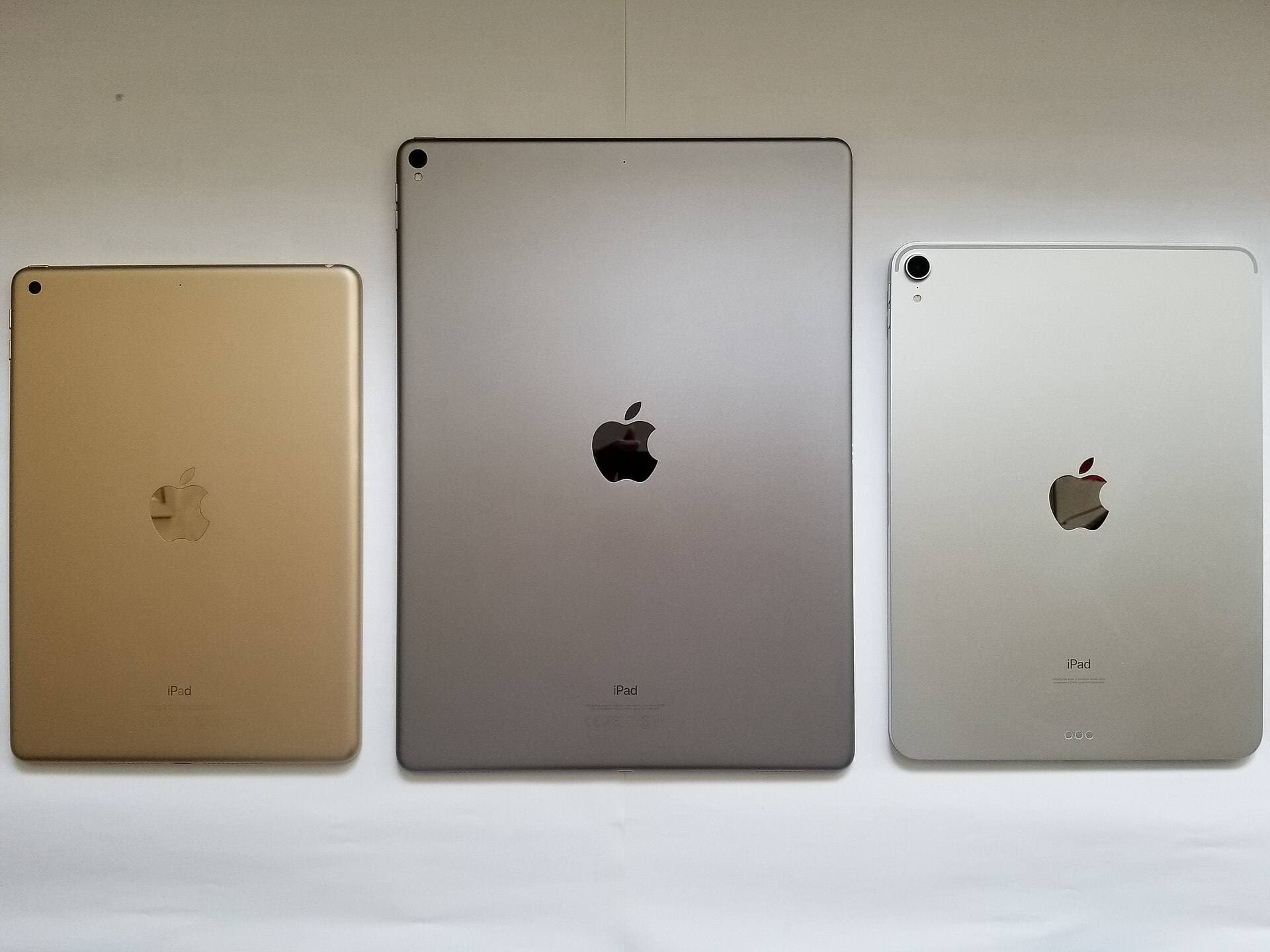
Your stylus choice is strictly governed by the specific iPad model you own or plan to purchase [1], [3]. Apple Pencil Pro works exclusively with designated recent iPad models, including compatible M4 iPad Pro and M2 iPad Air tablets [1], [3]. It can't pair or charge with older generations [3]. If you already own an older iPad Air or iPad Pro that uses Apple Pencil (2nd generation), you can't upgrade to Apple Pencil Pro without also buying a newer tablet [1], [3].
Apple Pencil (2nd generation) pairs and charges magnetically on supported previous-generation iPad Pro, iPad Air, and iPad mini models [1], [3]. For calligraphers working on those supported models, Apple Pencil (2nd generation) remains an exceptional choice because it provides identical core pressure and tilt sensitivity to the Pro model [2]. Meanwhile, Apple Pencil (USB-C) pairs with a broader selection of USB-C iPad models using a physical cable, but its lack of pressure makes it undesirable for expressive script [2], [3]. Before buying any stylus, verify your exact tablet model number against official Apple compatibility charts so you don't purchase an incompatible accessory [1], [3].
Memory and hardware choices also dictate canvas handling in lettering apps [4]. In Procreate, maximum layer limits and supported canvas sizes depend directly on available iPad hardware memory [4], [5]. If you create complex lettering compositions with multiple background textures, sketch guides, and decorative flourish layers, having sufficient system memory on supported iPad hardware keeps your project within safe layer counts [4], [5]. Checking device memory requirements helps you select a hardware setup that supports your desired canvas resolution [1], [4].
Surface friction and line control for script work
Writing on a bare iPad display presents a distinct sensory challenge because smooth glass provides almost no mechanical resistance against a hard plastic stylus tip [6], [8]. When drawing long oval loops, flourished ascenders, and steady hairline strokes, many artists find the slippery glass surface leads to wobbly lines or accidental hand slips [7], [8]. Apple Pencil hover assists by previewing brush marks and size before your nib touches the glass on supported iPad hardware, but hover doesn't alter the physical friction of the screen [2], [6].
To increase stroke control, many lettering artists apply a matte screen protector such as Paperlike 3 [8]. Paperlike uses surface texturing designed to mimic the tactile drag of paper beneath the stylus tip [8]. This added resistance gives your hand more stability when executing controlled calligraphy downstrokes and precision flourishes [8]. The tradeoff with textured films is visual clarity; matte surfaces introduce a small amount of display diffusion compared to pristine bare glass [8]. If precision stroke control matters more to you than maximum display sharpness, adding a textured protector to your 11-inch or larger iPad setup offers a meaningful physical improvement [8].
Bottom line
For serious calligraphy and lettering, pressure sensitivity is an absolute requirement that immediately eliminates Apple Pencil (USB-C) from consideration [2]. If you own a compatible recent iPad model, Apple Pencil Pro is the best purchase because its barrel roll reproduces chisel nib dynamics while squeeze gestures speed up tool changes [2], [6]. If your current tablet supports Apple Pencil (2nd generation), keep it or buy it with confidence, as its pressure tracking delivers excellent script control without forcing a tablet upgrade [2], [3]. Pair your chosen stylus with a textured screen protector like Paperlike 3 if you need physical resistance to steady your freehand flourish lines [8].
Sources
[1] https://www.apple.com/ipad/compare/ [2] https://www.apple.com/apple-pencil/ [3] https://support.apple.com/en-us/108937 [4] https://help.procreate.com/articles/zlexav-ipad-compatibility [5] https://apps.apple.com/us/app/procreate/id425073498 [6] https://support.apple.com/guide/ipad/draw-with-apple-pencil-ipadc55b6c7a/ipados [7] https://help.procreate.com/procreate/handbook/5.2/interface-gestures/pencil [8] https://paperlike.com/products/paperlike-for-ipad
Recommended gear
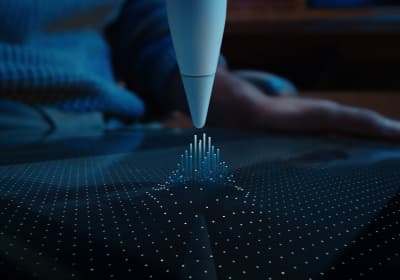
Apple Pencil Pro
amazon.comThe best Apple stylus for serious digital art workflows. Expensive, but the control upgrades are real.
Pro: Best brush-control and hover workflow
Con: Highest price in the lineup
Works only with newer iPad models. Check compatibility.
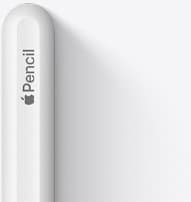
Apple Pencil (2nd generation)
amazon.comStill a strong stylus on compatible iPads. Good pressure control, but compatibility is the main trap.
Pro: Pressure support without Pro pricing
Con: Not compatible with newest Pro-only iPads
Only for iPads that support 2nd generation pairing.
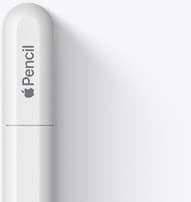
Apple Pencil (USB-C)
amazon.comA practical low-cost Apple stylus with broad compatibility, but limited for advanced art control.
Pro: Lowest official Apple Pencil cost
Con: No pressure sensitivity for brush work
Compatible with many recent iPads. No pressure support.
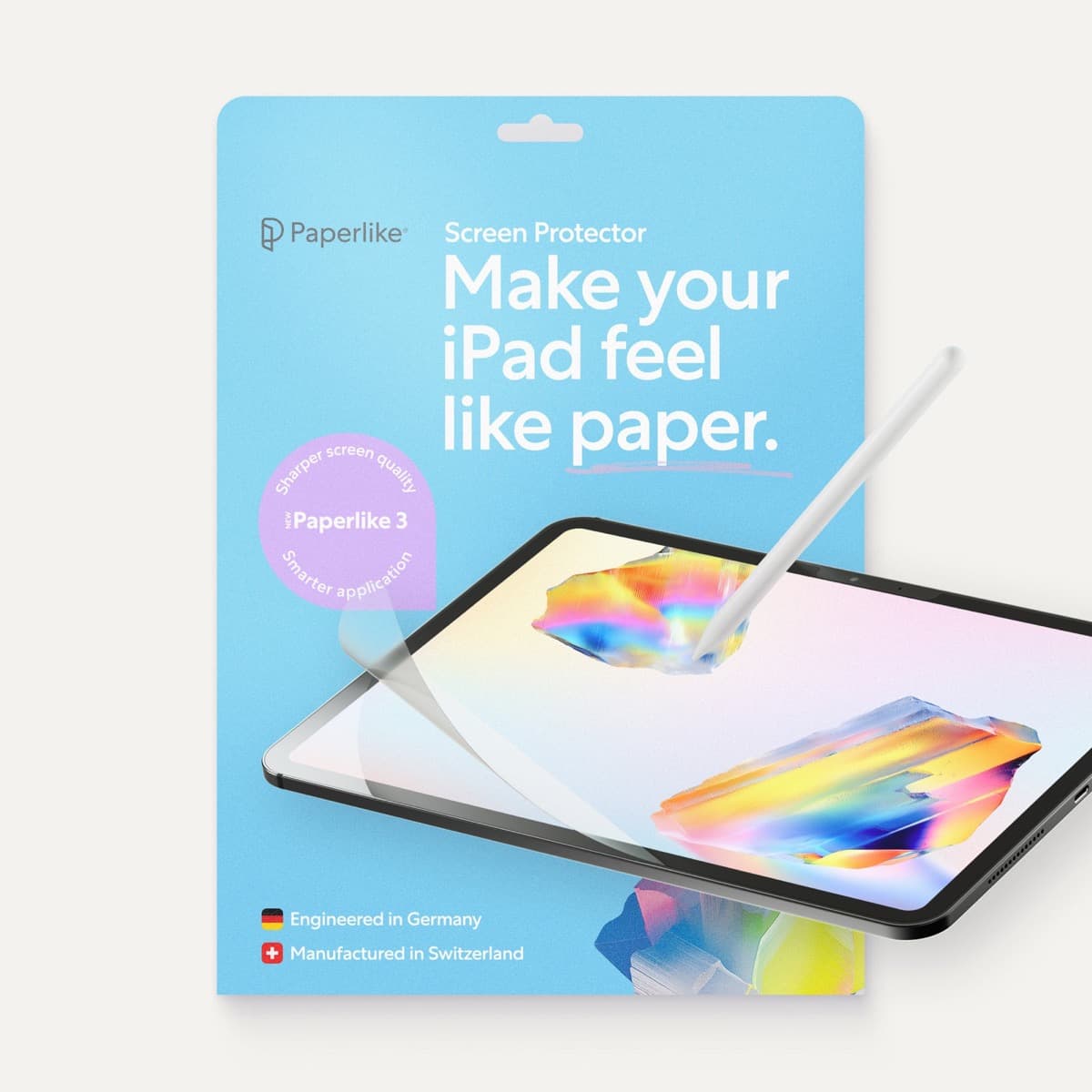
Paperlike 3 (11-inch, 2-pack)
amazon.comA strong surface-feel upgrade for drawing control. Clarity tradeoff is real and should be expected.
Pro: Adds controlled paper-feel friction
Con: Slightly reduces perceived display sharpness
11-inch fit only. Confirm generation before checkout.
Related buying picks
More in this collectionBuyer guide
Choosing an Apple Pencil for photo retouching on iPad
Buy the Apple Pencil Pro or 2nd generation for pressure sensitivity, and skip the USB-C model for detailed photo editing.
Buyer guide
Best Apple Pencil for digital planning: How to choose
Choose the right Apple Pencil for digital planning based on your iPad model, handwriting habits, and shortcut preferences.
Buyer guide
Is the Apple Pencil USB-C enough for Procreate?
The Apple Pencil (USB-C) functions in Procreate, but the lack of pressure sensitivity makes it a poor fit for expressive brushwork.
Buyer guide
Best Apple Pencil for fashion illustration: Stylus guide for designers
Choose the right Apple Pencil for fashion illustration based on pressure sensitivity, barrel roll, iPad compatibility, and screen texture.