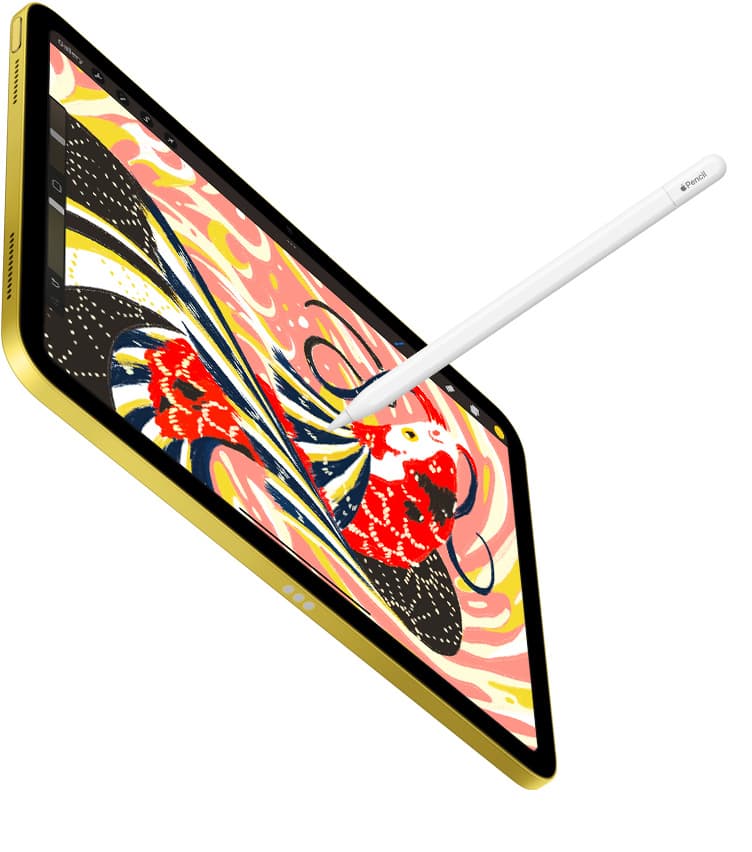
Buy the Apple Pencil Pro if your iPad is on Apple's list for it, because a picture book is thirty-odd pages of character line that needs to swell and taper, and pressure is the feature that does it [2], [3]. Keep the Apple Pencil (2nd generation) if that's what your iPad already pairs with; it has the same pressure sensitivity, and you don't lose anything that changes the finished page [2]. Use the Apple Pencil (USB-C) for dummies, page layouts, and hand lettering, and skip it as your main painting tool since Apple lists it without pressure [2].
Character line art and pressure
Children's book characters usually carry a confident outline: thick where the form turns away from the light, thin at a fingertip or a whisker. Apple lists pressure sensitivity for the Pencil Pro and the 2nd generation Pencil, and a drawing app turns that pressure into stroke width and opacity [2]. Procreate's handbook documents the Pencil settings that shape this, including the pressure curve, so a heavy-handed artist can soften the response and a light one can make it bite sooner [6].
The USB-C Pencil has tilt and no pressure, so a line comes out at a single width unless you change the brush [2]. That's workable for a dummy book or for the clean geometric style some illustrators use on purpose, and it's the lowest-cost official Pencil [2]. For an expressive ink or pencil line that reads as hand-drawn at print size, choose a pressure-capable model and let the stroke vary on its own [2], [5].
Flats, textures, and the squeeze palette
A finished spread moves between a fill brush, a texture brush, an eraser, and a color picker many times a page. On the Pencil Pro, squeeze opens a tool palette at the tip, double tap swaps tools, and barrel roll turns a shaped brush as you rotate the barrel, which suits textured brushes that mimic crayon, gouache, or cut paper [2], [5]. Apple's guide describes squeeze and barrel roll as system gestures, and Procreate's handbook shows where you assign them [5], [6].
The 2nd generation Pencil keeps double tap, which most illustrators map to the eraser, and lacks squeeze, barrel roll, and haptics [2]. In practice that means a few more taps on the toolbar per page rather than a different-looking book [2], [6]. Keep it if you already own it. Buy the Pro only when you're buying a Pencil anyway and your iPad supports it, since the gestures are a convenience rather than a change in what you can draw [2], [3].
Hover for placing details on a busy page
Spreads get busy, and placing an eye highlight or a stray leaf on a nearly finished page is where hover earns its place. The Pencil Pro supports hover on the iPads Apple lists for it, showing the brush footprint and angle before the tip touches down [2], [3], [5]. Hover also previews a shaped brush's rotation when you use barrel roll, so you see the mark before you make it [5].
The 2nd generation and USB-C Pencils don't hover [2]. You'll work the way you always have: tap, look, undo if needed. That's fine for most pages, and it's only on dense, late-stage spreads that the preview saves real time [5]. Don't upgrade an iPad for hover alone; let a Pencil Pro come with the next iPad you'd buy anyway [3].
Surface, sessions, and Paperlike
Long painting sessions on bare glass bother some illustrators and leave others unbothered. Paperlike describes its protector as adding a paper-like drawing feel and sells it in fits for specific iPad models, so you choose by exact device [7]. That feel is the vendor's claim, and the trade is a slight softening of how sharp the display looks, which you'll want to weigh if you proof color on the iPad [7].
Try a Paperlike if your line work feels skatey and you miss the tooth of paper, and skip it if you check printed color on screen and want the glass clear [7]. Either way, match the fit to the iPad before ordering, and sketch a full page on it before you decide to keep it [7].
Matching the Pencil to the iPad you have
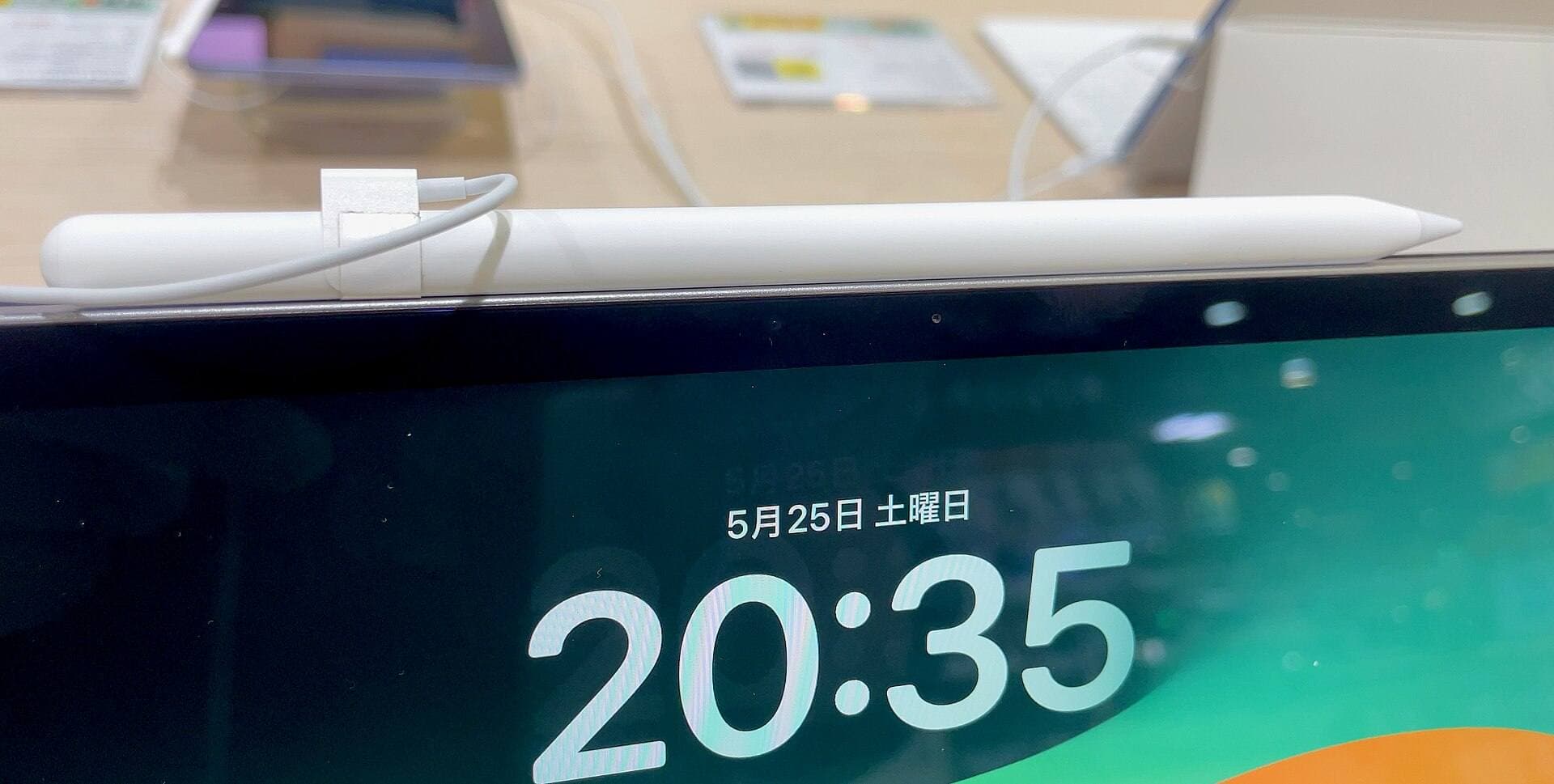
The compatibility check comes first. Apple's support page lists which Pencil pairs with which iPad, and the comparison page shows the same per model, so confirm your exact iPad before you buy any of the three [1], [3]. The Pencil Pro and the 2nd generation Pencil both pair and charge magnetically on their supported iPads, while the USB-C model pairs over a cable [2].
If your iPad takes the 2nd generation Pencil and runs the app you work in, keep that pair and put the money toward the book [3], [4]. If you're buying a new iPad for a book contract, pick one on the Pencil Pro list so hover, squeeze, and barrel roll come with it [3]. If your iPad takes only the USB-C Pencil, use it for roughs and lettering and plan on a pressure-capable setup before the final art [2], [3].
Bottom line
For children's book illustration, buy the Apple Pencil Pro when your iPad supports it: pressure for the line, squeeze and barrel roll for the texture work, hover for the late details [2], [3], [5]. Keep the Apple Pencil (2nd generation) if it already pairs with your iPad, because pressure is what shapes the page and it has it [2]. Use the Apple Pencil (USB-C) for dummies, layouts, and lettering, and skip it as your painting Pencil [2]. Add Paperlike only after you've tested the feel against bare glass [7].
Sources
[1] https://www.apple.com/ipad/compare/ [2] https://www.apple.com/apple-pencil/ [3] https://support.apple.com/en-us/108937 [4] https://apps.apple.com/us/app/procreate/id425073498 [5] https://support.apple.com/guide/ipad/draw-with-apple-pencil-ipadc55b6c7a/ipados [6] https://help.procreate.com/procreate/handbook/5.2/interface-gestures/pencil [7] https://paperlike.com/products/paperlike-for-ipad
Recommended gear
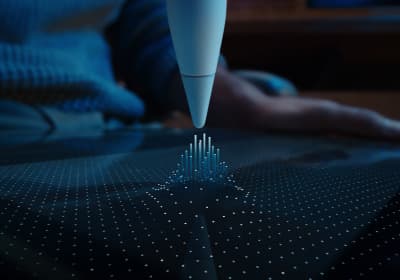
Apple Pencil Pro
amazon.comThe best Apple stylus for serious digital art workflows. Expensive, but the control upgrades are real.
Pro: Best brush-control and hover workflow
Con: Highest price in the lineup
Works only with newer iPad models. Check compatibility.
Apple Pencil (2nd generation)
amazon.comStill a strong stylus on compatible iPads. Good pressure control, but compatibility is the main trap.
Pro: Pressure support without Pro pricing
Con: Not compatible with newest Pro-only iPads
Only for iPads that support 2nd generation pairing.
Apple Pencil (USB-C)
amazon.comA practical low-cost Apple stylus with broad compatibility, but limited for advanced art control.
Pro: Lowest official Apple Pencil cost
Con: No pressure sensitivity for brush work
Compatible with many recent iPads. No pressure support.
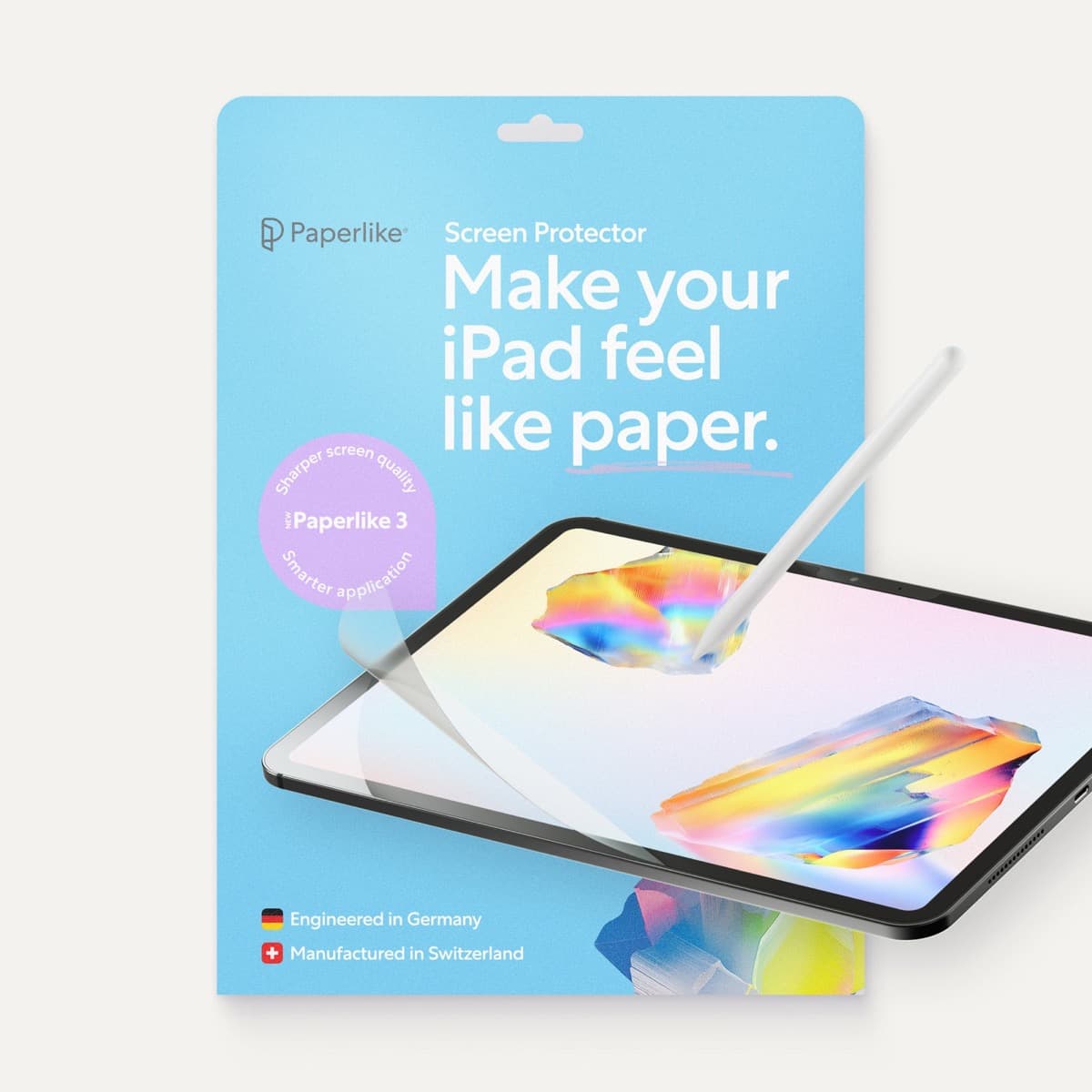
Paperlike 3 (11-inch, 2-pack)
amazon.comA strong surface-feel upgrade for drawing control. Clarity tradeoff is real and should be expected.
Pro: Adds controlled paper-feel friction
Con: Slightly reduces perceived display sharpness
11-inch fit only. Confirm generation before checkout.
Related buying picks
More in this collectionBuyer guide
Best Apple Pencil for botanical illustration: pressure, tilt, and texture
Botanical work lives on tapering lines and soft washes, so buy the Apple Pencil Pro or keep a 2nd generation Pencil and skip the USB-C model for painting.
Buyer guide
Best Apple Pencil for storyboarding: speed over finish
Storyboards want fast, legible lines more than painted finish, so the Apple Pencil (USB-C) is enough for roughs, the 2nd generation is the keeper, and the Pencil Pro is the pick when you also deliver finished frames.
Buyer guide
Best Apple Pencil for manga drawing
Choose an Apple Pencil with pressure sensitivity for manga inking, matching the stylus directly to your iPad model.
Buyer guide
Choosing the best Apple Pencil for anime drawing
Anime line art demands pressure sensitivity, making Apple Pencil Pro or the 2nd generation model essential over the USB-C option.