Buy the Apple Pencil Pro if your iPad is on Apple's compatibility list for it, and keep the Apple Pencil (2nd generation) if that's the pressure-capable model your iPad takes [2], [3]. Skip the Apple Pencil (USB-C) for botanical painting, because Apple lists it without pressure sensitivity, and a stem that can't taper or a petal wash that can't fade is exactly what you'd be giving up [2]. Add Paperlike only if you want the drag of paper under the tip and you've matched the sheet to your exact iPad [7].
Line weight: why pressure decides the Pencil
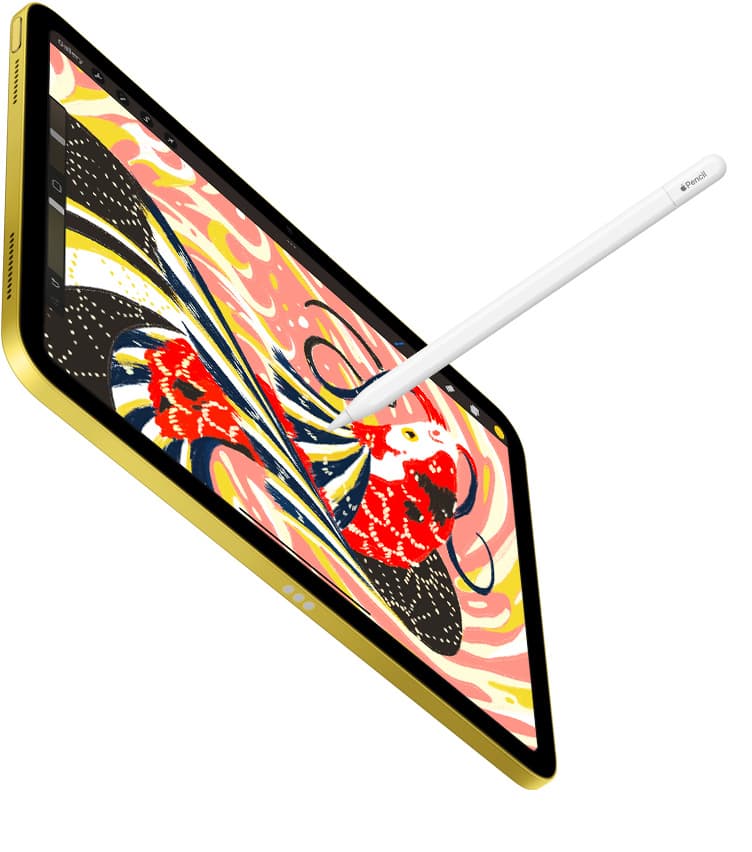
Botanical drawing is built on line that thins at a leaf tip and thickens along the shaded edge of a stem. Apple lists pressure sensitivity for the Pencil Pro and the 2nd generation Pencil, and both let a drawing app map how hard you press to the width and opacity of the stroke [2]. Procreate's Pencil settings in the handbook show how that pressure feeds the brush engine, including a pressure curve you can tune so a light touch gives you a hairline for veins and a firm one gives you a contour [6].
The USB-C Pencil supports tilt and no pressure, so every line comes out at the width the brush slider sets [2]. For a quick layout underdrawing that's fine, and for a scientific plate drawn in uniform ink it can even be a feature, but for the graphite-and-watercolor look most botanical illustrators want, it's a limit you'll feel in the first hour [2], [5]. Choose a pressure-capable model and let the brush do the tapering for you [2].
Scientific plates also lean on stippling and fine hatching for texture, and there pressure matters in a second way: a light tap gives a small dot and a firmer one a larger dot without switching brushes [6]. With the USB-C Pencil every dot is the same size, so you'd be swapping brush sizes by hand for a texture that should come from your wrist [2].
Shading and washes: tilt, hover, and barrel roll
Shading a rounded fruit or a folded leaf asks for broad, soft strokes, and that's where tilt comes in. Apple lists tilt on the Pro, the 2nd generation, and the USB-C model, so even the cheapest Pencil can lay down a wide side stroke with a shading brush [2]. Pressure is what lets that stroke fade toward the highlight, and again that's the Pro and the 2nd generation only [2].
The Pencil Pro adds hover, squeeze, and barrel roll on compatible iPads [2], [3]. Hover shows you the brush footprint before the tip lands, which helps when you're placing a stipple dot or the start of a vein on a nearly finished plate [5]. Barrel roll turns a shaped brush as you rotate the Pencil, so a flat wash brush follows the curve of a petal without you lifting and re-angling [2], [5]. Squeeze opens a tool palette at the tip, and in Procreate you choose what it does [5], [6]. None of these make the painting better by themselves, but they cut the trips to the toolbar, and on a long plate those trips add up [5].
Surface feel: does botanical work want Paperlike?
Botanical illustrators coming from paper often dislike the slide of bare glass. Paperlike markets its protector as adding a paper-like drawing feel, and it sells fits for specific iPad models, so you order by exact device rather than by screen size alone [7]. Treat that feel as a vendor claim you test rather than a measured gain [7]. The trade is a slight softening of how sharp the display looks, which matters when you're checking fine color edges on a plate meant for print [7].
Buy Paperlike if you work mostly in graphite-style brushes and want drag under the tip [7]. Skip it if you check color accuracy on screen for print and would rather keep the glass clear, and sketch on both surfaces before making it part of your default kit [7].
Matching the Pencil to your iPad
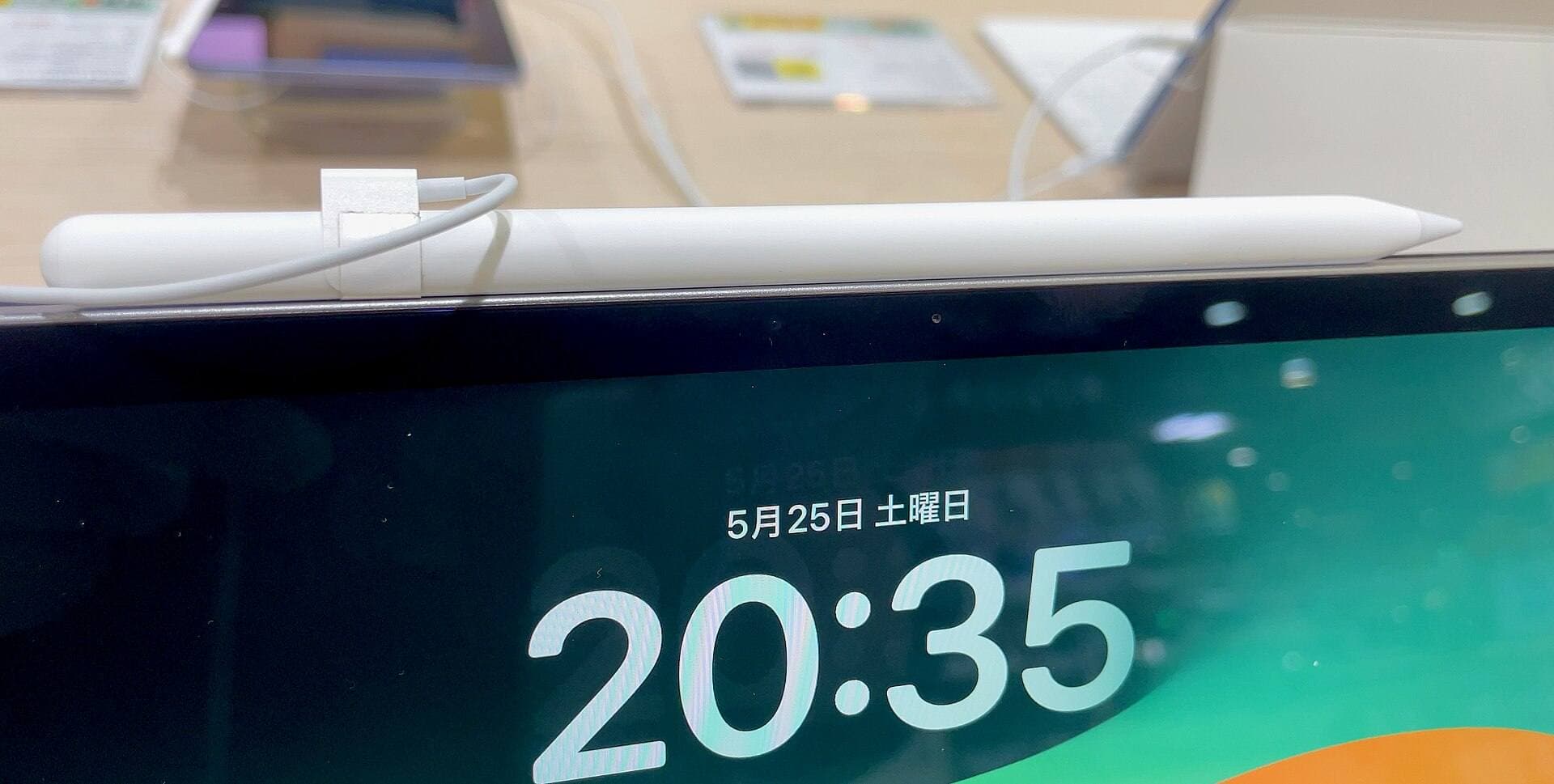
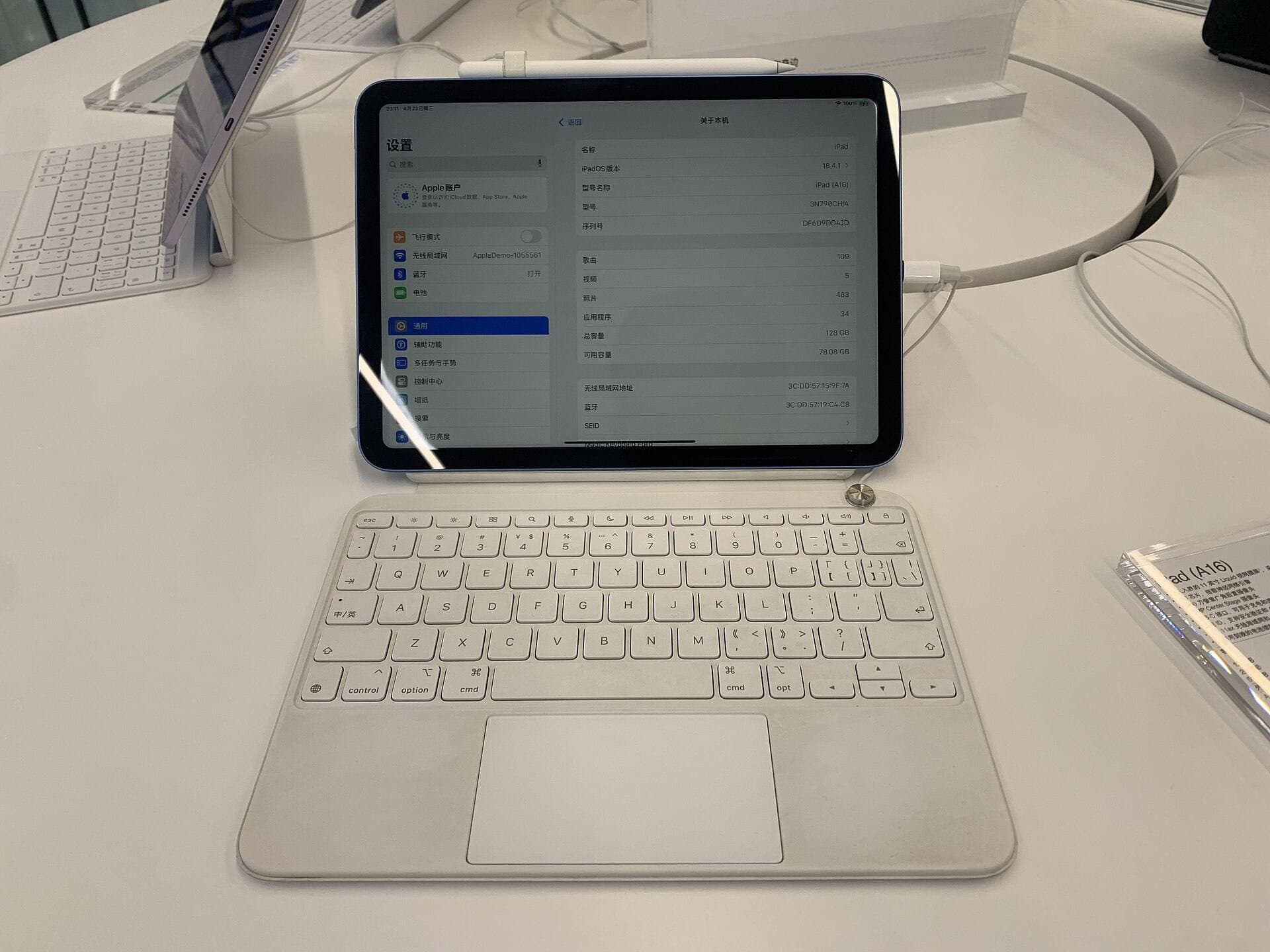
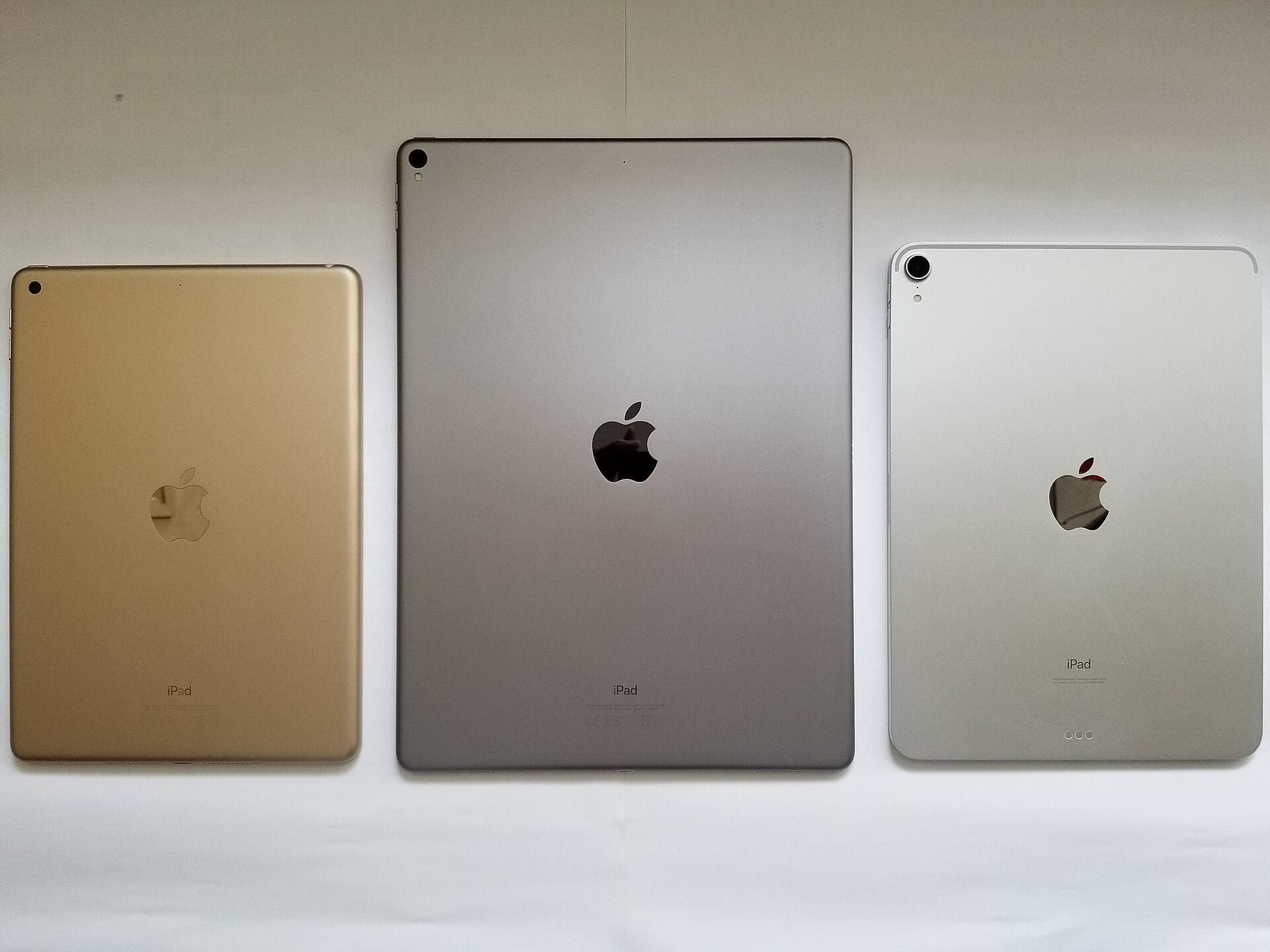
Pencil features don't matter if the Pencil won't pair, so the compatibility list comes before the feature list [3]. Apple's support page names which Pencil pairs with which iPad, and the comparison page shows the same information per model, so check your exact model in Settings against it before you buy [1], [3]. The Pencil Pro pairs and charges magnetically on the iPads that support it, and so does the 2nd generation Pencil on its own list [2], [3]. Apple's Pencil page is also where tilt, double tap, and hover are listed per model, so read it beside the compatibility list and you'll have the whole picture on one screen [2].
If your current iPad already pairs with a 2nd generation Pencil and runs Procreate with the brushes you use, keep that setup and spend the money on brush packs or a better reference lamp [3], [4]. If you're buying a new iPad for botanical work, pick one that's on the Pencil Pro list, because that's the only way to get hover and barrel roll [3]. If your iPad takes only the USB-C Pencil, use it for layout and lettering and plan an iPad change before relying on it for painted plates [2], [3].
Bottom line
For botanical illustration, buy the Apple Pencil Pro when your iPad supports it: pressure for the tapering line, tilt for shading, and hover, squeeze, and barrel roll for the long detailed sessions [2], [3], [5]. Keep the Apple Pencil (2nd generation) if that's what your iPad pairs with, because pressure is the feature that matters most and it has it [2]. Skip the Apple Pencil (USB-C) for painted plates since Apple lists it without pressure [2]. Add Paperlike only if you've tested the feel and can accept the slight softening of the display that comes with a textured sheet [7].
Sources
[1] https://www.apple.com/ipad/compare/ [2] https://www.apple.com/apple-pencil/ [3] https://support.apple.com/en-us/108937 [4] https://apps.apple.com/us/app/procreate/id425073498 [5] https://support.apple.com/guide/ipad/draw-with-apple-pencil-ipadc55b6c7a/ipados [6] https://help.procreate.com/procreate/handbook/5.2/interface-gestures/pencil [7] https://paperlike.com/products/paperlike-for-ipad
Recommended gear
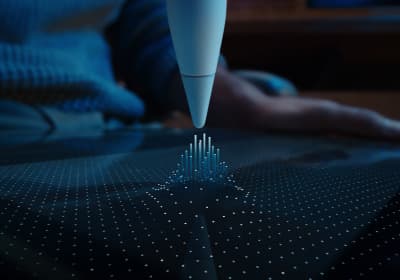
Apple Pencil Pro
amazon.comThe best Apple stylus for serious digital art workflows. Expensive, but the control upgrades are real.
Pro: Best brush-control and hover workflow
Con: Highest price in the lineup
Works only with newer iPad models. Check compatibility.
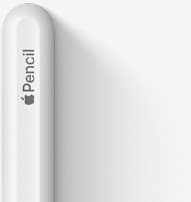
Apple Pencil (2nd generation)
amazon.comStill a strong stylus on compatible iPads. Good pressure control, but compatibility is the main trap.
Pro: Pressure support without Pro pricing
Con: Not compatible with newest Pro-only iPads
Only for iPads that support 2nd generation pairing.
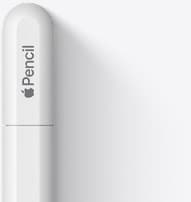
Apple Pencil (USB-C)
amazon.comA practical low-cost Apple stylus with broad compatibility, but limited for advanced art control.
Pro: Lowest official Apple Pencil cost
Con: No pressure sensitivity for brush work
Compatible with many recent iPads. No pressure support.
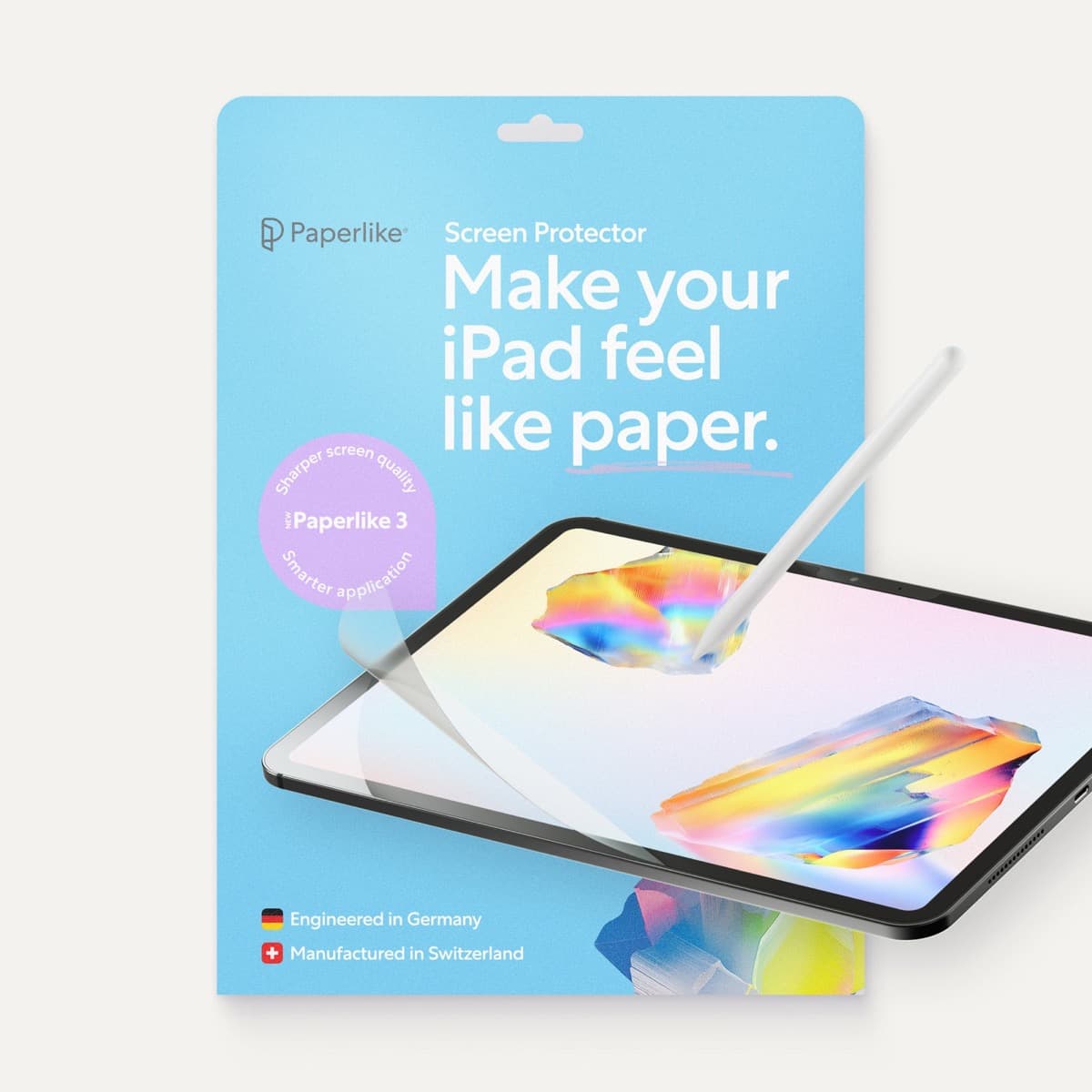
Paperlike 3 (11-inch, 2-pack)
amazon.comA strong surface-feel upgrade for drawing control. Clarity tradeoff is real and should be expected.
Pro: Adds controlled paper-feel friction
Con: Slightly reduces perceived display sharpness
11-inch fit only. Confirm generation before checkout.
Related buying picks
More in this collectionBuyer guide
Best Apple Pencil for children's book illustration
For character line art and painted spreads, buy the Apple Pencil Pro on a compatible iPad, keep a 2nd generation Pencil, and reserve the USB-C model for layouts and lettering.
Buyer guide
Best Apple Pencil for storyboarding: speed over finish
Storyboards want fast, legible lines more than painted finish, so the Apple Pencil (USB-C) is enough for roughs, the 2nd generation is the keeper, and the Pencil Pro is the pick when you also deliver finished frames.
Buyer guide
Best Apple Pencil for manga drawing
Choose an Apple Pencil with pressure sensitivity for manga inking, matching the stylus directly to your iPad model.
Buyer guide
Choosing the best Apple Pencil for anime drawing
Anime line art demands pressure sensitivity, making Apple Pencil Pro or the 2nd generation model essential over the USB-C option.