





Buy the iPad Air (M4) if you want the ideal balance of hardware capability and price for digital lettering. It supports Apple Pencil Pro, which provides barrel roll rotation for chisel pens, squeeze gestures to swap tools quickly, and full tilt and pressure sensitivity [2], [5]. If you draw high-speed flourishes or work as a high-volume commercial calligrapher, choose the iPad Pro (M5) for its 120Hz ProMotion screen [1]. Skip the base iPad (A16) if you practice broad-edge calligraphy, because entry-level hardware misses out on Apple Pencil Pro features [2]. The iPad Air delivers the exact toolset calligraphers need without requiring Pro money.
Stylus capabilities that define digital calligraphy
Calligraphy depends on deliberate line variation. Apple documents pressure, tilt, hover, squeeze, and barrel-roll capabilities across its Pencil lineup, with the available features determined by both Pencil and iPad compatibility [2], [5].
The Apple Pencil Pro introduces barrel roll, which uses an internal gyroscope to detect when you rotate the barrel of the pen between your fingers [5]. In drawing apps like Procreate, rotating the stylus turns custom brush shapes along their central axis [4], [6]. This mimics how a physical pilot parallel pen, flat watercolor brush, or chisel marker deposits ink at varying widths as you alter your grip angle. Without barrel roll, flat-nib strokes stay locked to a static angle unless you manually tilt your entire wrist or rotate the virtual canvas.
Tilt and pressure sensitivity remain essential for copperplate, modern brush script, and blackletter [5]. Apple Pencil Pro and Apple Pencil 2 register subtle variations in downward force, widening brush tracks smoothly as your hand transitions from a delicate hairline upstroke to a heavy shaded downstroke. Apple Pencil hover adds another layer of control, previewing your brush footprint and angle on the screen before the tip makes contact [5]. This allows you to plan intersecting flourishing strokes and precise baseline connections before touching the glass.
The difference Apple Pencil Pro makes for lettering
The Apple Pencil Pro works only with the compatible iPads Apple lists, including the current Air and Pro models in this comparison [1], [2]. For calligraphers, that hardware split determines whether barrel roll and squeeze are available.
Beyond barrel roll, the Apple Pencil Pro includes a squeeze sensor in the lower grip [5]. Squeezing the stylus brings up an on-screen radial palette or switches between tools without requiring you to move your hand to an interface button or tap your fingers across the glass [5], [6]. When executing repetitive typographic lines, keeping your hand anchored on the writing baseline preserves rhythm and muscle memory. The built-in haptic motor also delivers a light pulse when a squeeze or snap action engages, confirming tool changes without visual distraction [5].
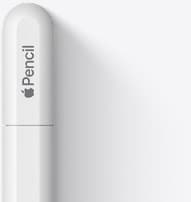
Older Apple Pencil models and the Apple Pencil (USB-C) lack these capabilities [2]. The USB-C pencil lacks pressure sensitivity entirely, making it unsuited for pointed pen script, brush lettering, and copperplate styles where stroke contrast is mandatory [2]. If you buy an iPad that cannot pair with Apple Pencil Pro, you cut yourself off from barrel roll and squeeze tools entirely [2].
Screen size and arm movement for flourishes
Lettering can involve compact letter construction as well as longer flourishing motions. Apple offers different display sizes across the iPad lineup, so your choice determines how much visible canvas remains beside the app interface [1], [4].
An 11-inch display works well for pocket journals, spot illustrations, social media quotes, and lettering on the go. However, the usable area shrinks once application toolbars, color palettes, and layer panels occupy the border of your workspace [4], [6]. When drawing ornate swashes, your wrist easily runs into the display bezel. Restricting arm movement forces you to zoom and pan the canvas frequently, breaking the continuous line velocity needed for clean, confident strokes.
The larger display option gives long strokes and reference material more visible room [1], [4]. If your lettering work takes place mostly at a desk, compare the larger Air or Pro beside the portable size using the same practice sheet. The correct size is the one that keeps your common guides and controls visible without creating a device you avoid carrying [1].
Display refresh rate and stroke latency
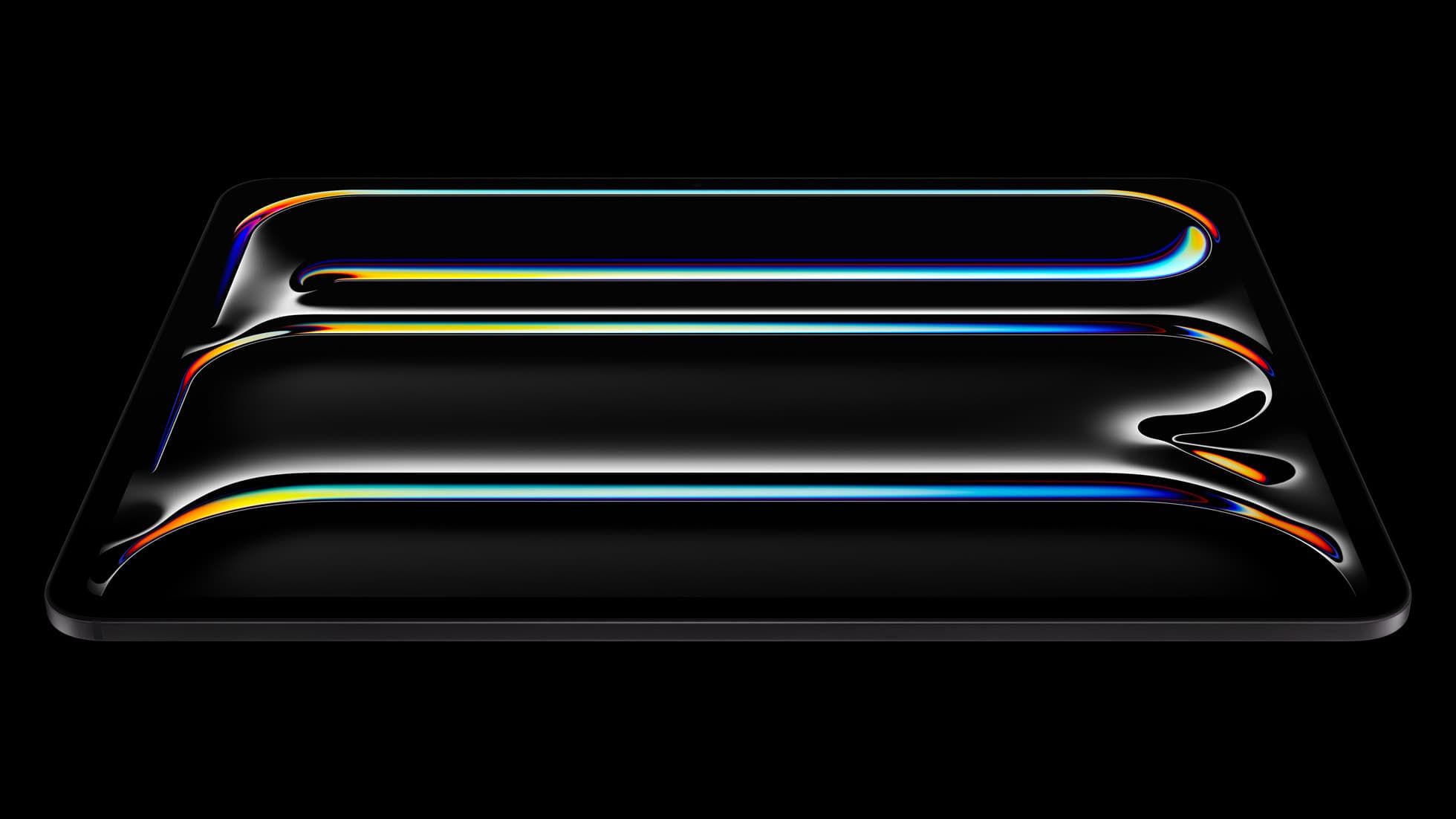
Display refresh is one part of perceived drawing feel. Apple distinguishes the ProMotion display in the Pro line from the standard Air display, but that specification alone cannot predict whether a calligrapher will value the difference [1].
The iPad Air (M4) uses a standard display, while the iPad Pro (M5) features ProMotion technology [1]. The Pro can look more fluid in motion, but do not translate refresh rate directly into a promise about app latency or drawing accuracy.
For slow, deliberate lettering, the Air may be entirely sufficient. If your style relies on sweeping flourishes, try the same strokes on an Air and a Pro before buying. Apple confirms the display difference, while your side-by-side test establishes whether it matters to your hand and app [1].
Comparing the iPad Air, iPad Pro, and base iPad
The iPad Air (M4) represents the sweet spot for nearly all lettering artists. It supports Apple Pencil Pro and comes in two display sizes [1], [2]. Procreate's compatibility guidance, rather than a broad processor claim, should decide whether your normal canvas has enough layers [3], [4]. The main tradeoff is giving up the ProMotion display [1].
The iPad Pro (M5) pairs Apple Pencil Pro support with Apple's premium display features [1], [2]. Buy it if a direct comparison shows that ProMotion materially improves your lettering experience, or if another listed Pro feature is essential. Do not buy it only because the work is commercial; the workflow requirement should justify the upgrade [1].
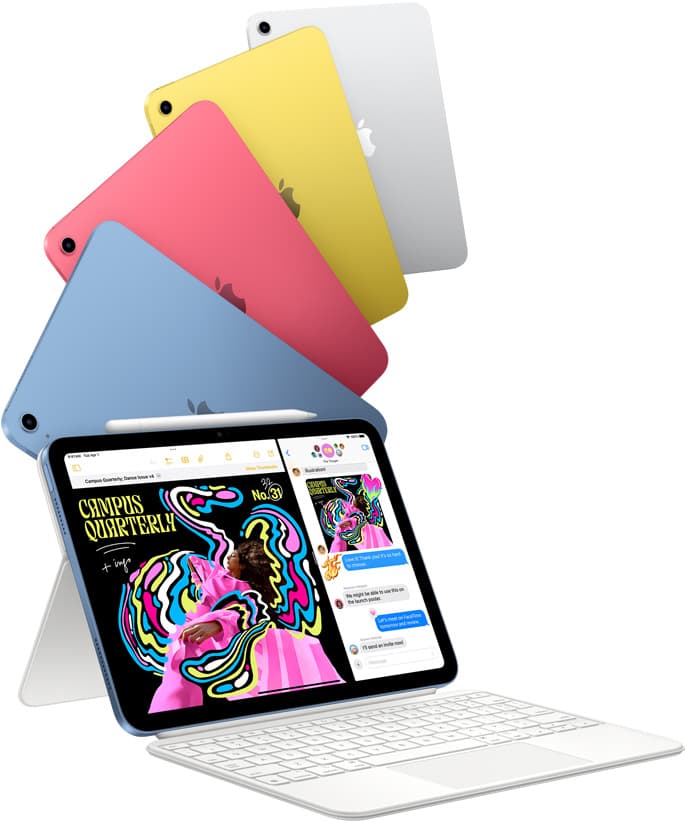
The base iPad (A16) is only appropriate for students or hobbyists on strict budgets who focus on vector type design or casual marker lettering. Because it lacks compatibility with the Apple Pencil Pro, it cannot use barrel roll or squeeze gestures [2]. Depending on the stylus paired with it, you may also lose pressure sensitivity [2]. Choose the base iPad only if total equipment cost is your primary purchasing factor, and recognize that broad-edge calligraphy styles will remain heavily limited.
Bottom line
For almost everyone studying or working in digital calligraphy, the iPad Air (M4) is the correct purchase. It unlocks the Apple Pencil Pro, giving you the barrel roll and squeeze tools required for realistic chisel nibs, flat markers, and efficient tool swapping [2], [5]. Select the 11-inch model for portability, or choose the 13-inch version if you practice sweeping flourished script [1].
Upgrade to the iPad Pro (M5) only if your budget allows and your work relies on rapid arm flourishes that benefit directly from 120Hz ProMotion tracking [1]. Skip the base iPad (A16) unless cost overrides your need for realistic nib dynamics [2].
Sources
[1] https://www.apple.com/ipad/compare/ [2] https://support.apple.com/en-us/108937 [3] https://help.procreate.com/articles/zlexav-ipad-compatibility [4] https://apps.apple.com/us/app/procreate/id425073498 [5] https://support.apple.com/guide/ipad/draw-with-apple-pencil-ipadc55b6c7a/ipados [6] https://help.procreate.com/procreate/handbook/5.2/interface-gestures/pencil
Recommended gear

iPad Air (M4)
apple.comThe clean current Air recommendation for most serious hobby artists. Stronger buy logic than old-stock M3 when pricing is close.
Pro: Best current balance of price, headroom, and Pencil support
Con: Still 60Hz
Current Air lineup. Choose size, storage, and keyboard path before checkout.
iPad Pro (M5)
amazon.comThe best iPad for drawing feel and premium workflow comfort, but many buyers still overpay for it.
Pro: Best iPad display and ProMotion feel
Con: Highest price in the lineup
Search opens with iPad Pro terms. Check year, chip, and screen size.
iPad (A16, 11th gen)
amazon.comThe best entry iPad for most artists on a budget. It is not premium, but it is very hard to beat on value.
Pro: Best value iPad right now
Con: No ProMotion display
Search opens with the exact model keywords. Verify size and storage before checkout.

Apple Pencil Pro
amazon.comThe best Apple stylus for serious digital art workflows. Expensive, but the control upgrades are real.
Pro: Best brush-control and hover workflow
Con: Highest price in the lineup
Works only with newer iPad models. Check compatibility.
Apple Pencil (USB-C)
amazon.comA practical low-cost Apple stylus with broad compatibility, but limited for advanced art control.
Pro: Lowest official Apple Pencil cost
Con: No pressure sensitivity for brush work
Compatible with many recent iPads. No pressure support.
Related buying picks
More in this collectionBuyer guide
Best iPad for digital art beginners
Get the iPad Air (M4) if you want the Apple Pencil Pro toolset, or pick the base iPad (A16) if you want a capable digital sketchpad at the lowest entry cost.
Buyer guide
Is iPad 10th gen good for Procreate?
The iPad 10th gen handles Procreate well for everyday digital art, but stylus pairing limits and base hardware shape how far you can push large files.
Buyer guide
Best iPad for storyboard artists: our buyer guide
Choose the right iPad for storyboarding based on screen size, Apple Pencil Pro features, and canvas layer limits.
Buyer guide
Best iPad for medical illustration
Choose the right iPad and Apple Pencil setup for medical illustration based on stylus precision, canvas size, and layer limits.