If you have the iPad (A16), buy the Apple Pencil (USB-C) for straightforward note-taking and sketching, or choose the Logitech Crayon (USB-C) if you'd rather skip pairing [2], [6]. Skip the Apple Pencil Pro because Apple's compatibility list doesn't include the iPad (A16) [3]. Apple's comparison marks pressure as not compatible with the USB-C model, and Logitech's listing names tilt for line weight [2], [6]. Apple also lists the Apple Pencil (1st generation) for this iPad with a USB-C to Apple Pencil Adapter, so check that model in Apple's comparison if pressure matters to you [2], [3].
Matching styluses to the iPad (A16)
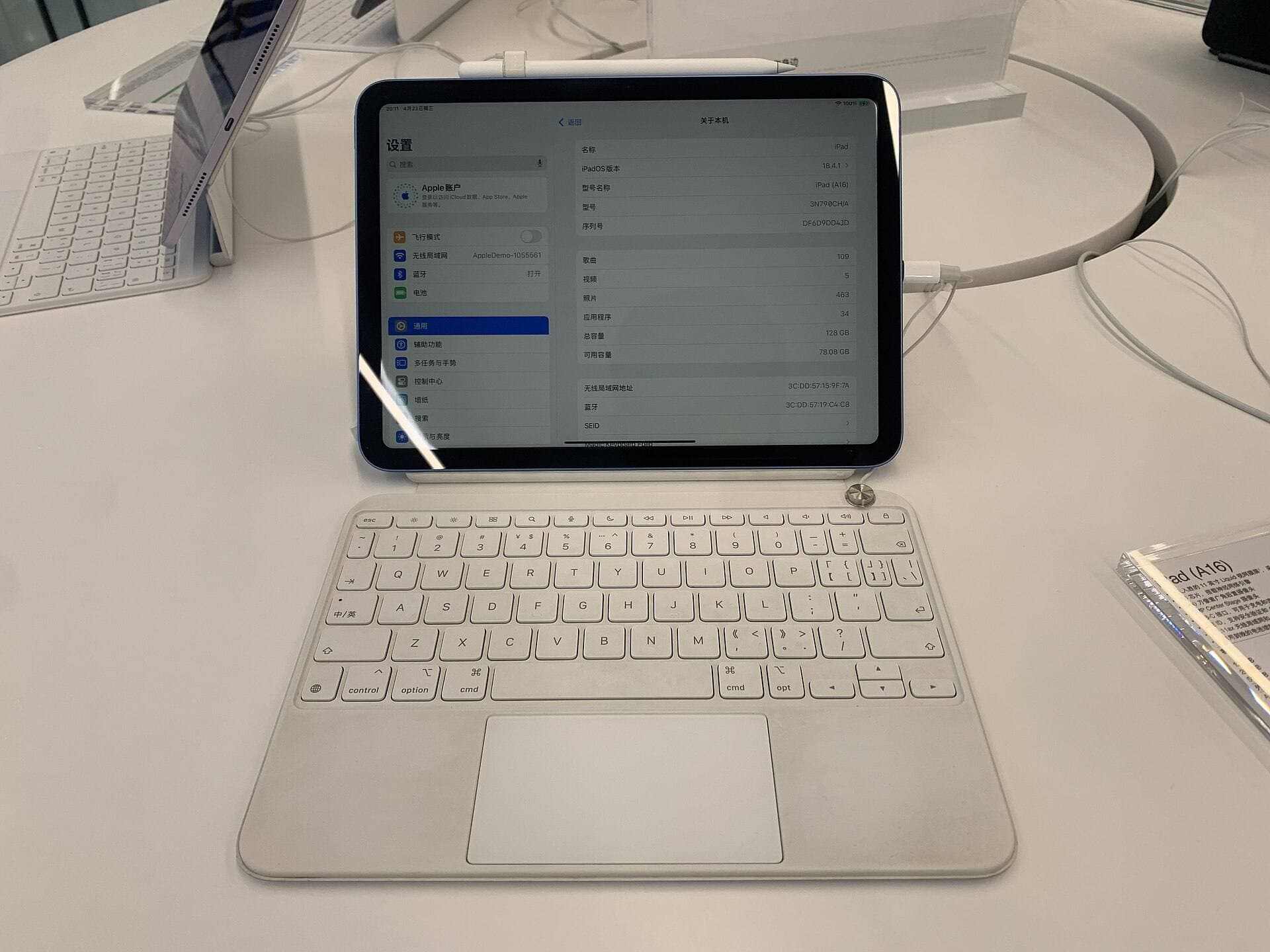
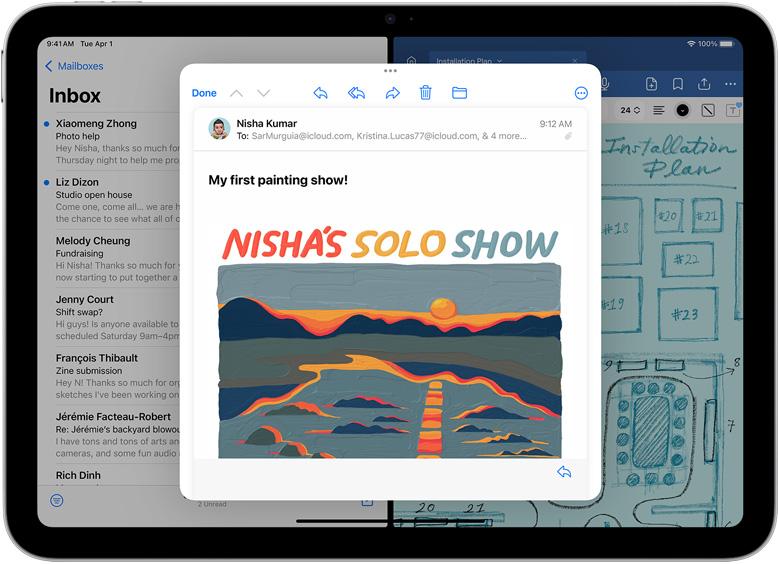
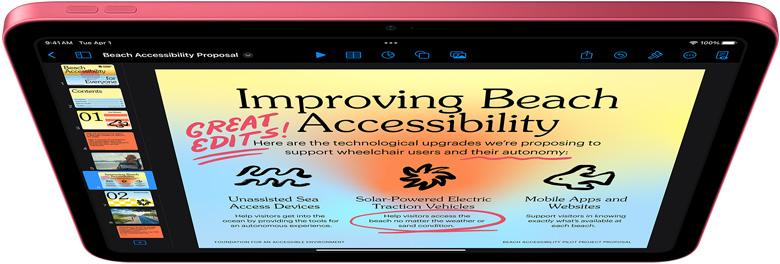
The iPad (A16) is Apple's mainstream tablet, built around the A16 chip without a ProMotion display [1]. Finding the right pen comes down to which models the iPad actually works with. Apple's compatibility page lists the Apple Pencil (USB-C) for the iPad (A16), plus the Apple Pencil (1st generation) with an adapter, and leaves out the Apple Pencil Pro and Apple Pencil (2nd generation) [3]. Buying an unsupported stylus leaves you with a tool that can't pair with the screen [3].
Third-party options like the Logitech Crayon (USB-C) expand those choices by using official Apple Pencil technology without requiring a Bluetooth pairing step [6], [7]. Apple's official store listing explicitly identifies the iPad (A16) alongside recent iPad Air and iPad Pro models as hardware that fits the Logitech Crayon [7]. This means buyers who don't want a first-party stylus have a verified alternative that works right out of the box without complicated setup menus [6], [7].
Apple Pencil (USB-C) features and daily use
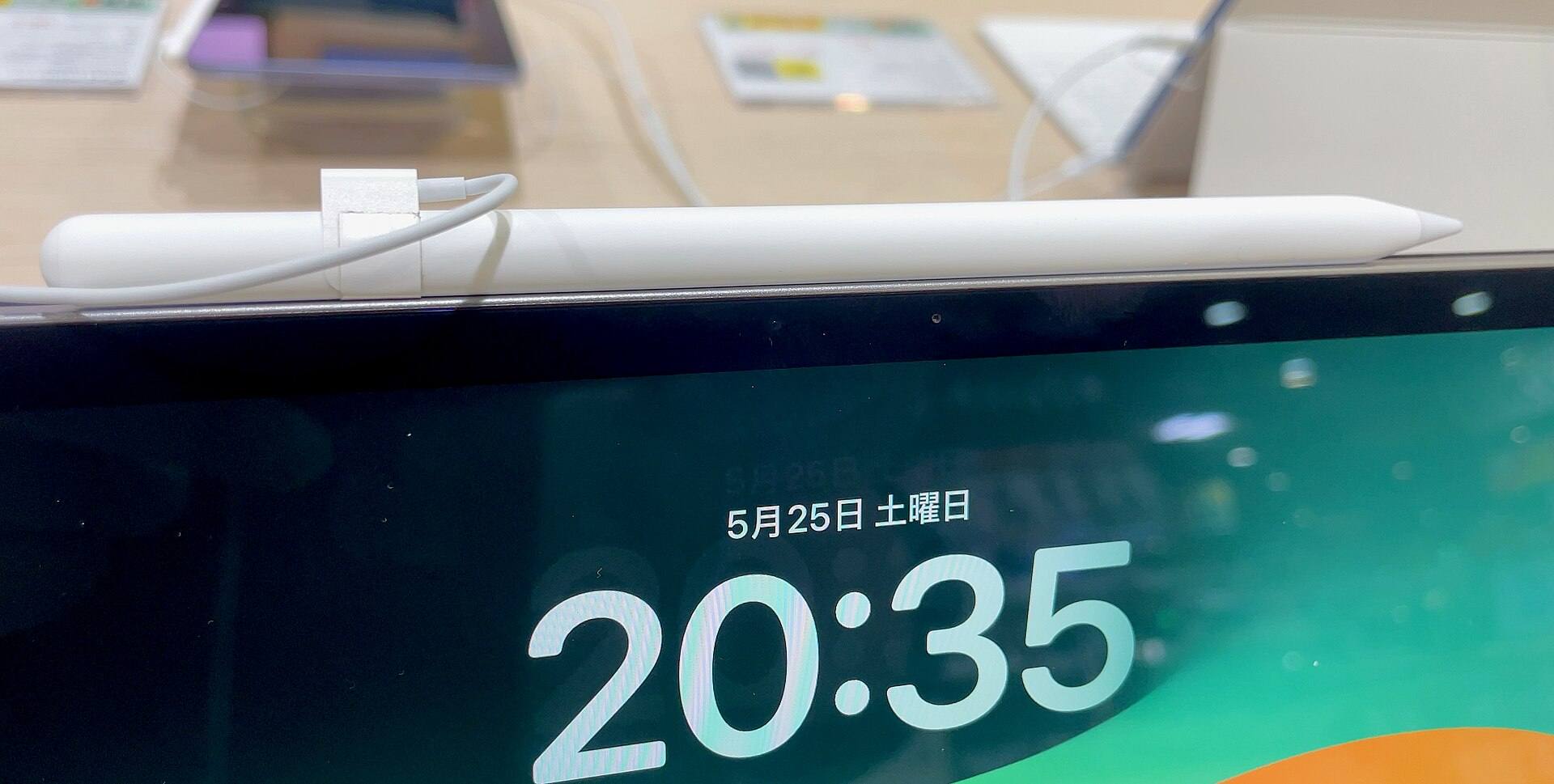
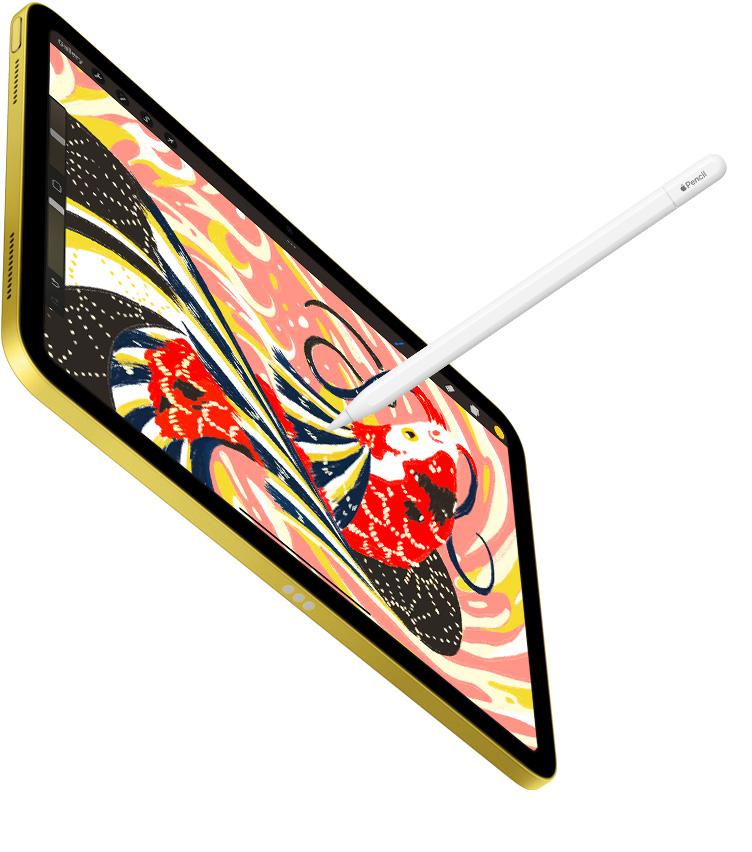
The Apple Pencil (USB-C) provides the baseline first-party experience for the iPad (A16) [1], [2]. It attaches magnetically to the flat side of the iPad for easy storage, though it doesn't charge wirelessly on this connection [2], [3]. Instead, you slide open a protective cap to reveal a USB-C port, plugging in a standard cable to restore battery power [2], [3]. For students and office workers who already carry USB-C chargers for their iPad or phone, this makes charging predictable and straightforward [1], [2].
Apple's feature comparison notes that the Apple Pencil (USB-C) supports tilt sensitivity and low latency, but it omits pressure sensitivity, double-tap gesture switching, and barrel roll [2]. When you tilt the stylus against the glass, compatible digital brushes can lay down wider strokes or shading effects [2]. However, pressing harder against the iPad display won't change your stroke opacity or line width [2]. If your daily tasks center on handwriting, annotating PDF documents, and navigating iPadOS, those missing pressure levels won't interfere with your workflow [2], [3].
Logitech Crayon as an alternative stylus
The Logitech Crayon (USB-C) is built with Apple Pencil technology [6], [7]. The difference you'll notice first is setup, because you slide the on/off button and start writing with no Bluetooth pairing step [6]. Buyers on Logitech's page also mention that its flat shape doesn't roll away, which is a customer observation and not a spec [6]. It charges over USB-C [6].
Like the Apple Pencil (USB-C), the Logitech Crayon uses tilt to adjust line thickness in compatible apps [2], [6]. Logitech's listing doesn't claim pressure sensitivity, so treat it as a tilt stylus [6]. It doesn't claim magnetic attachment either, and one reviewer on that page wished it had it, so plan on a case holder or a bag pocket [6].
Why Apple Pencil Pro won't work on iPad (A16)
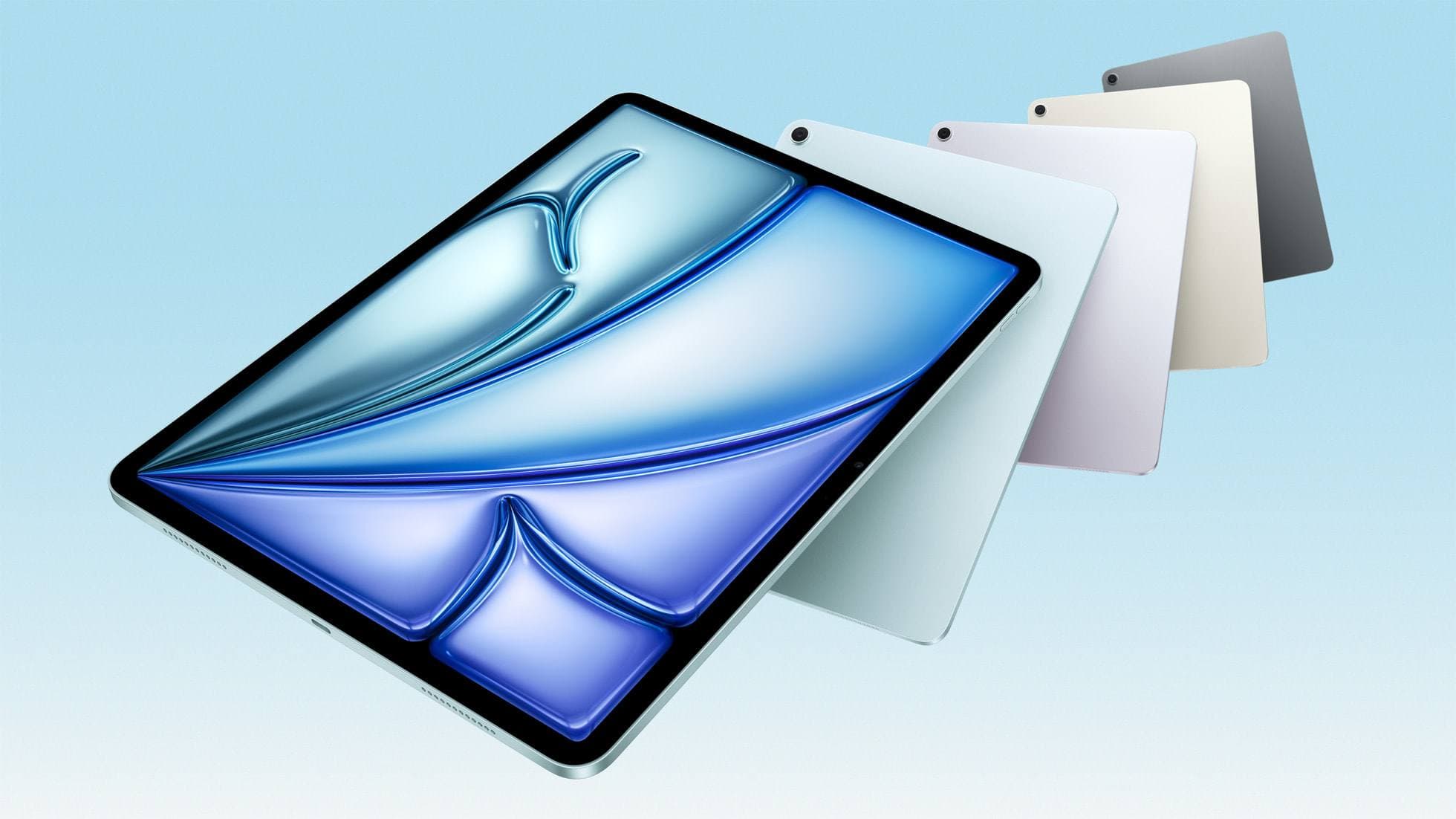
Many digital artists shopping for an iPad look at the Apple Pencil Pro because it includes advanced capabilities like pressure sensitivity, barrel roll, haptic feedback, squeeze gestures, and Apple Pencil hover [2]. However, Apple's official device compatibility lists confirm that the Apple Pencil Pro only works with specific high-end iPads, including recent iPad Pro and iPad Air releases [1], [3]. It is not compatible with the iPad (A16) [1], [3].
If you purchase an Apple Pencil Pro for an iPad (A16), you won't be able to use it, because Apple's list doesn't include this iPad [3]. Shoppers should skip the Apple Pencil Pro unless they also plan to buy an iPad Apple lists for it, such as a recent iPad Air or iPad Pro [1], [3]. Buying a stylus the iPad can't use only leads to a return [3].
Drawing workflows and pressure sensitivity limits
Digital art applications like Procreate are fully available on supported iPads, including models running current versions of iPadOS [4], [5]. Procreate calculates canvas size and layer limits based on the available RAM of the specific iPad model you use [4]. While you can install and run creative tools on an iPad (A16), the stylus hardware dictates how those digital brushes behave [2], [4], [5].
Because neither the Apple Pencil (USB-C) nor the Logitech Crayon (USB-C) is a pressure stylus, inking with either feels more like using a technical monoline pen than a traditional paintbrush [2], [6]. You adjust brush size and opacity in the app rather than letting hand pressure control the flow [2], [5]. For simple sketching, lettering, and flat coloring, that input works fine [2], [6].
Artists who depend on dynamic pressure for calligraphy, comic inking, or painterly blending will find these two styluses limiting [2]. If pressure is a must, check the Apple Pencil (1st generation) in Apple's comparison first, since it's the other Apple Pencil Apple lists for this iPad, or choose an iPad Apple lists for the Apple Pencil Pro [2], [3]. For marking up documents, journaling, or casual sketching, the iPad (A16) with the Apple Pencil (USB-C) or Logitech Crayon meets daily needs [2], [6], [7].
Bottom line
Buy the Apple Pencil (USB-C) if you want a magnetically attaching stylus for the iPad (A16) that handles note-taking and basic sketching [2], [3]. Choose the Logitech Crayon (USB-C) if you want to turn it on and write with no pairing step [6], [7]. Skip the Apple Pencil Pro because Apple's list doesn't include the iPad (A16) [3]. If your work requires pressure, check the Apple Pencil (1st generation) with its adapter, or move to an iPad that supports the Apple Pencil Pro [2], [3].
Sources
[1] https://www.apple.com/ipad/compare/ [2] https://www.apple.com/apple-pencil/ [3] https://support.apple.com/en-us/108937 [4] https://help.procreate.com/articles/zlexav-ipad-compatibility [5] https://apps.apple.com/us/app/procreate/id425073498 [6] https://www.logitech.com/en-us/shop/p/ipad-digital-pencil-crayon [7] https://www.apple.com/shop/product/hq6q2vc/a/logitech-crayon-for-ipad
Recommended gear
Logitech Crayon (USB-C)
logitech.comPro: Tilt changes line weight, charges over USB-C, no Bluetooth pairing
Con: Logitech's listing names tilt for line weight and doesn't list pressure sensitivity
Apple's listing names iPad (A16) and current iPad Air and iPad Pro models. Confirm yours before buying.
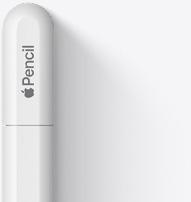
Apple Pencil (USB-C)
amazon.comA practical low-cost Apple stylus with broad compatibility, but limited for advanced art control.
Pro: Lowest official Apple Pencil cost
Con: No pressure sensitivity for brush work
Compatible with many recent iPads. No pressure support.
Apple Pencil Pro
amazon.comThe best Apple stylus for serious digital art workflows. Expensive, but the control upgrades are real.
Pro: Best brush-control and hover workflow
Con: Highest price in the lineup
Works only with newer iPad models. Check compatibility.
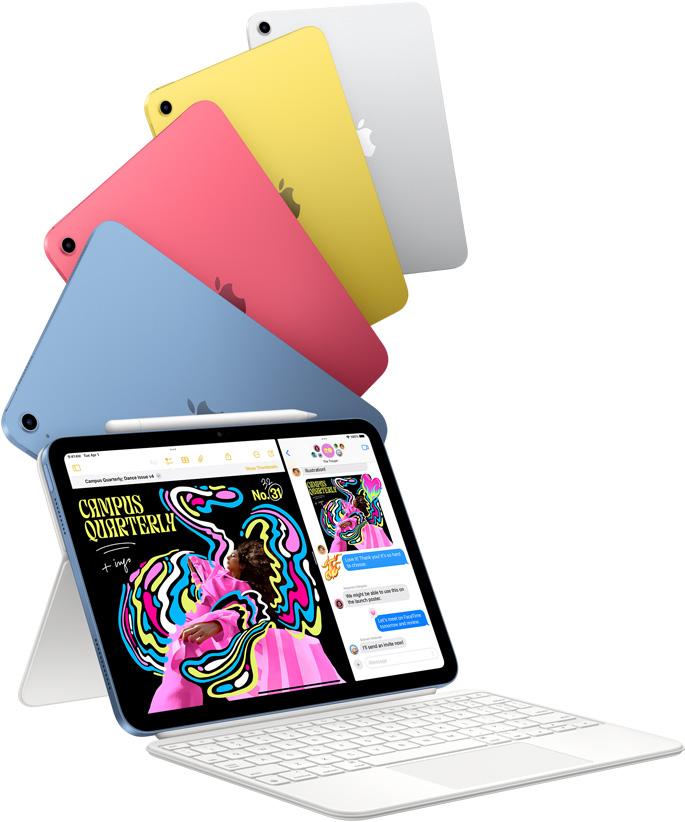
iPad (A16, 11th gen)
amazon.comThe best entry iPad for most artists on a budget. It is not premium, but it is very hard to beat on value.
Pro: Best value iPad right now
Con: No ProMotion display
Search opens with the exact model keywords. Verify size and storage before checkout.
Related buying picks
More in this collectionBuyer guide
Best Apple Pencil for UI design: wireframing, markup, and layout on iPad
Choose the Apple Pencil (USB-C) for wireframing and interface sketches, or pick the Apple Pencil Pro if your iPad supports its squeeze and haptic shortcuts.
Buyer guide
Apple Pencil for 3D sculpting: Which model should you buy?
Choose Apple Pencil Pro if your iPad supports it, keep Apple Pencil 2nd generation on older models, and skip Apple Pencil USB-C due to its lack of pressure sensitivity.
Comparison
Logitech Crayon vs Apple Pencil USB-C: Which budget stylus belongs in your bag?
Compare the Logitech Crayon and Apple Pencil USB-C to see how tilt, pairing, charging, and ergonomics shape your iPad handwriting and sketching workflow.
Buyer guide
Best Apple Pencil for photo editing on iPad
Choose the right Apple Pencil for retouching, masking, and color grading based on pressure sensitivity and iPad compatibility.