If you need an affordable iPad stylus right now, buy the Apple Pencil (USB-C) for its magnetic iPad attachment and hover on supported iPads [2], [3]. Buy the Logitech Crayon (USB-C) instead if you want a grab-and-go tool that skips Bluetooth pairing [1]. Neither lists pressure sensitivity, so skip both if you need line width driven by hand pressure [1], [2]. For note-taking, document markup, and drafting, both are reasonable picks [1], [4].
Core hardware and charging differences
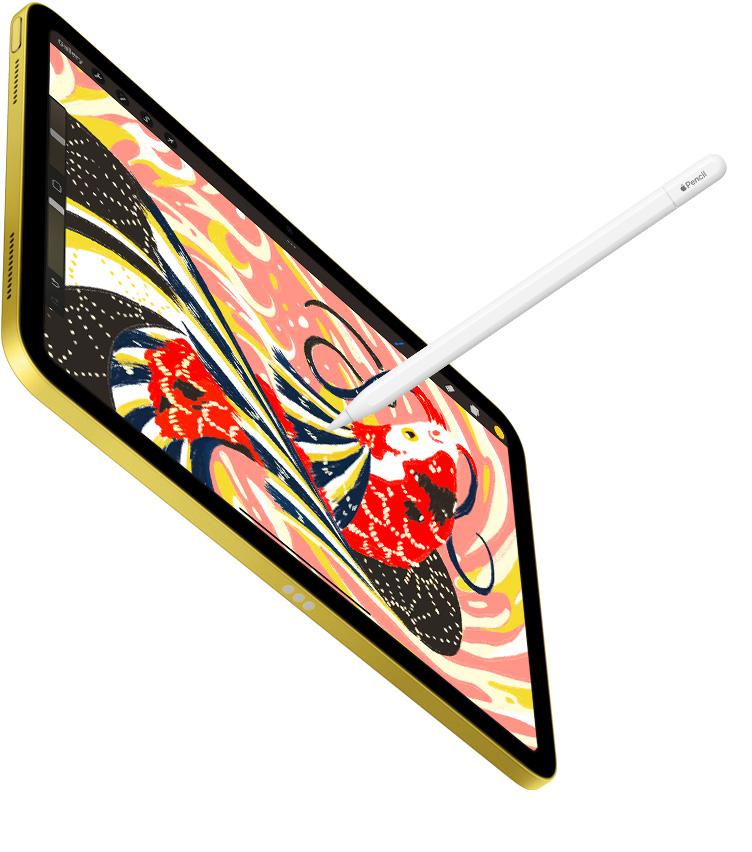
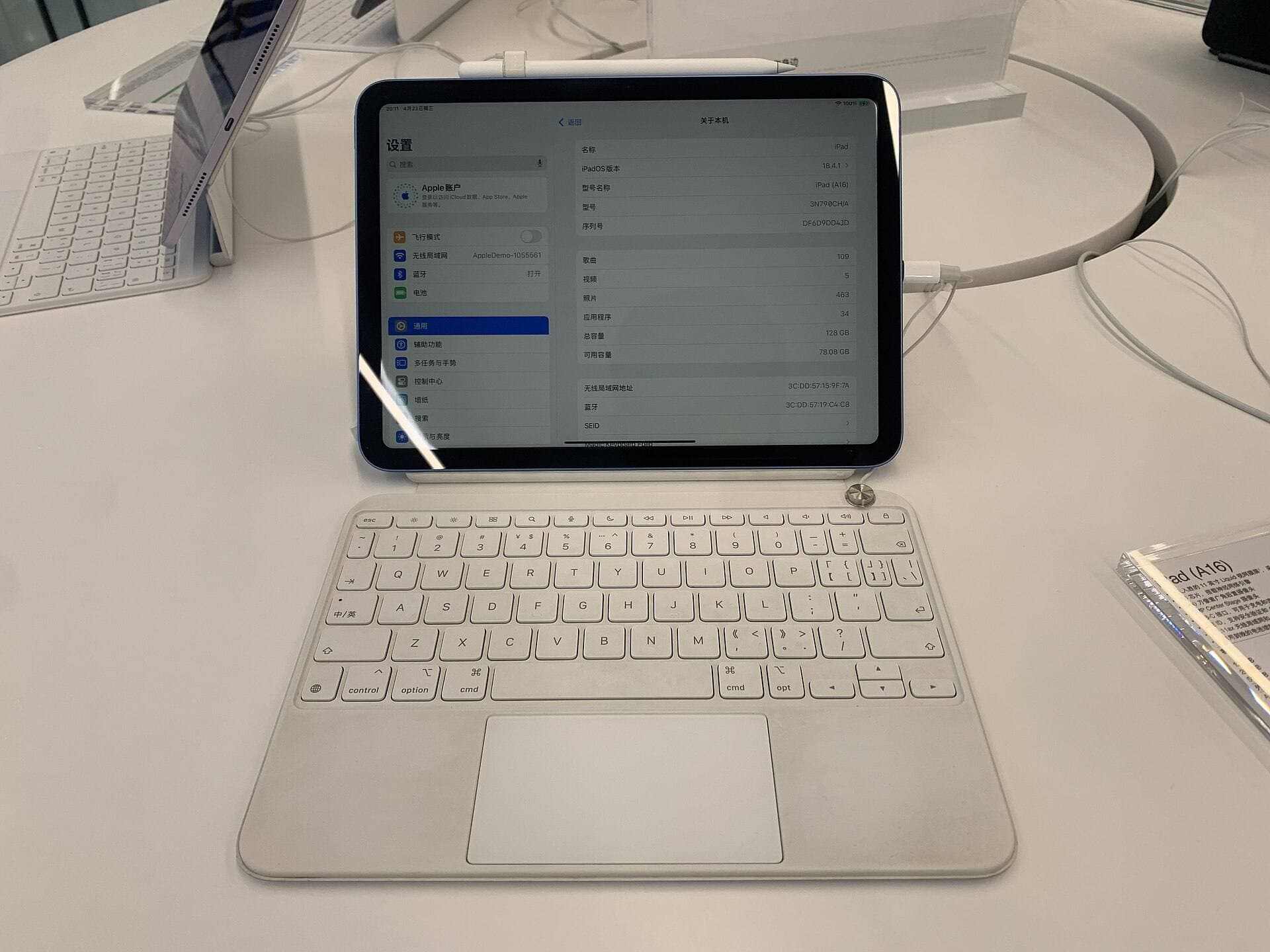
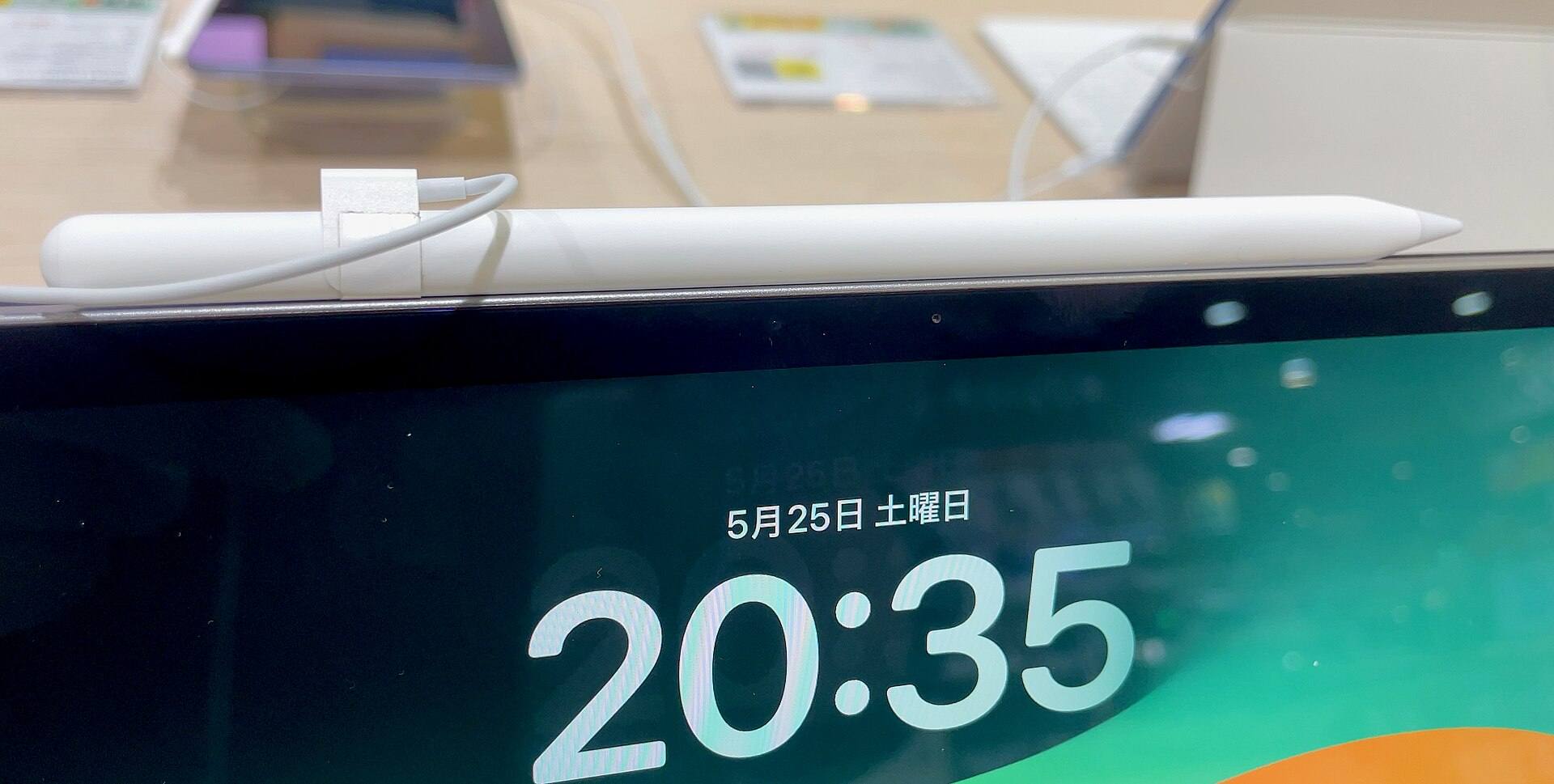
The Apple Pencil (USB-C) adopts the familiar cylindrical profile with one flat edge, echoing the footprint of Apple's flagship styluses [2]. It docks magnetically to the side of compatible iPads for tidy storage, though it doesn't charge through that magnetic contact [2], [3]. Instead, you slide open a protective cap at the tail end to reveal an integrated USB-C port for wired charging [2]. This keeps the stylus neatly parked on your tablet while in transit, even if you still reach for a cable to power it up [2].
Logitech doesn't publish a shape or magnet spec on its page, so the physical differences come from its buyers [1]. Reviewers there mention a flat body that doesn't roll off a table, and one wished it were magnetic [1]. It charges over USB-C, using the same cable as iPad Pro, iPad Air, and iPad (10th generation) [1]. Plan to carry it in a pouch, a case holder, or a pocket, because nothing in Logitech's listing says it attaches to the iPad [1].
The shape choice is personal, and neither listing settles it [1], [2]. If you like a round pencil, Apple's is the safe pick [2]. If a flat body sounds better, try one in a store if you can, since those flat-shape comments are customer reviews and not specs [1].
Pairing and daily setup friction
How these tools connect to your iPad is the clearest split between them. The Apple Pencil (USB-C) pairs with your iPad through a USB-C cable [2]. That extra step is minor when one person uses one iPad [2].
Logitech says to slide the on/off button and start writing, with no complex Bluetooth pairing [1]. Its listing covers iPads from 2018 and later, and Apple's listing for the Crayon names iPad (A16), iPad Air, and iPad Pro models [1], [4]. If your home or classroom has more than one compatible iPad, that missing pairing step is the main reason to choose it [1].
This makes the Crayon practical for shared family spaces and classrooms [1], [4]. Logitech's listing doesn't mention a battery readout on the iPad, so don't assume one [1].
Drawing and handwriting performance
Logitech says iPad supports palm rejection, so you can rest your hand on the screen while you write [1]. Apple's guide covers drawing and handwriting with Apple Pencil in supported apps [5]. Either stylus will handle everyday notes and markup in those apps [1], [5].
Line width is where expectations need managing. Apple marks pressure as not compatible with the Apple Pencil (USB-C), and Logitech's listing names tilt rather than pressure [1], [2]. For calligraphy, expressive inking, and shaded portraiture, that's a major hurdle [2]. If pressure response is mandatory for your artwork, you need a stylus that has it, such as the Apple Pencil Pro on a supported iPad [2], [3].
Both devices do feature tilt sensitivity, however [1], [2]. When you angle either stylus on its side, compatible drawing engines broaden the brush stroke, mimicking how a physical graphite pencil shades paper [1], [5]. This allows you to shade large background areas or add quick texture to sketches [1], [5]. For annotating PDFs, signing legal documents, grading papers, and scribbling bullet journals, both provide all the input precision you need [1], [5].
Hover support and advanced Pencil features
If you use a modern iPad Pro or M2 or newer iPad Air, the Apple Pencil (USB-C) supports Apple Pencil hover [2], [3]. Hover shows a preview of your brush cursor before your tip makes contact with the glass surface [2], [5]. It lets you preview color blending, brush size, and tool position in supported illustration software and interface buttons [2], [5].
Logitech's Crayon does not list hover support as a feature [1]. Artists who rely on hover cursors for precise placement should keep that in mind [1], [2]. You will not find the squeeze gesture, barrel roll, or haptic feedback of the Apple Pencil Pro on these styluses [1], [2]. Apple marks double-tap as not compatible with the USB-C model, and Logitech doesn't list it [1], [2].
For standard writing and navigational tapping, gestures and haptics are optional extras rather than essentials [2], [5]. Knowing the limits up front prevents a return later [2].
Tablet compatibility across the iPad lineup
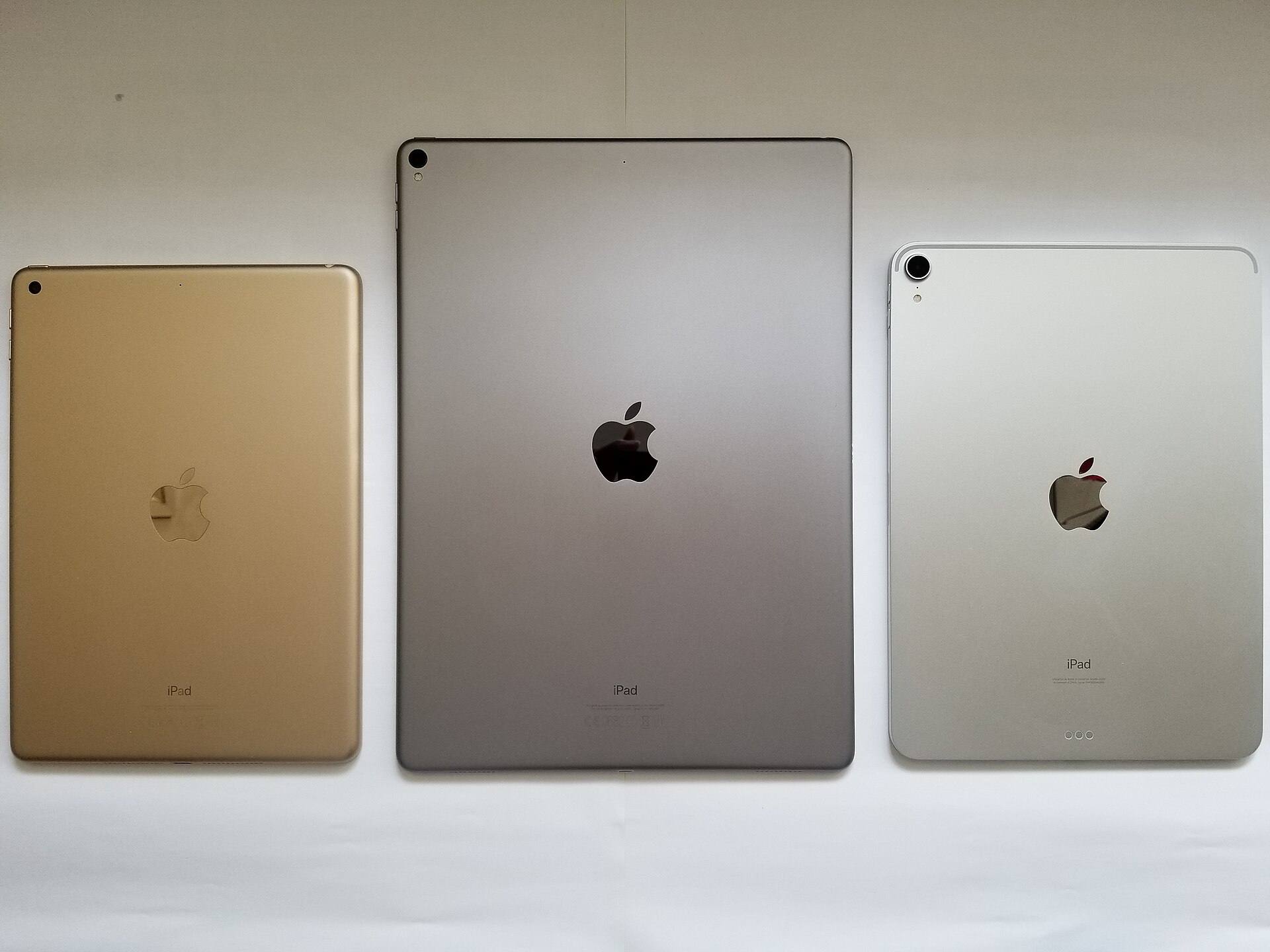
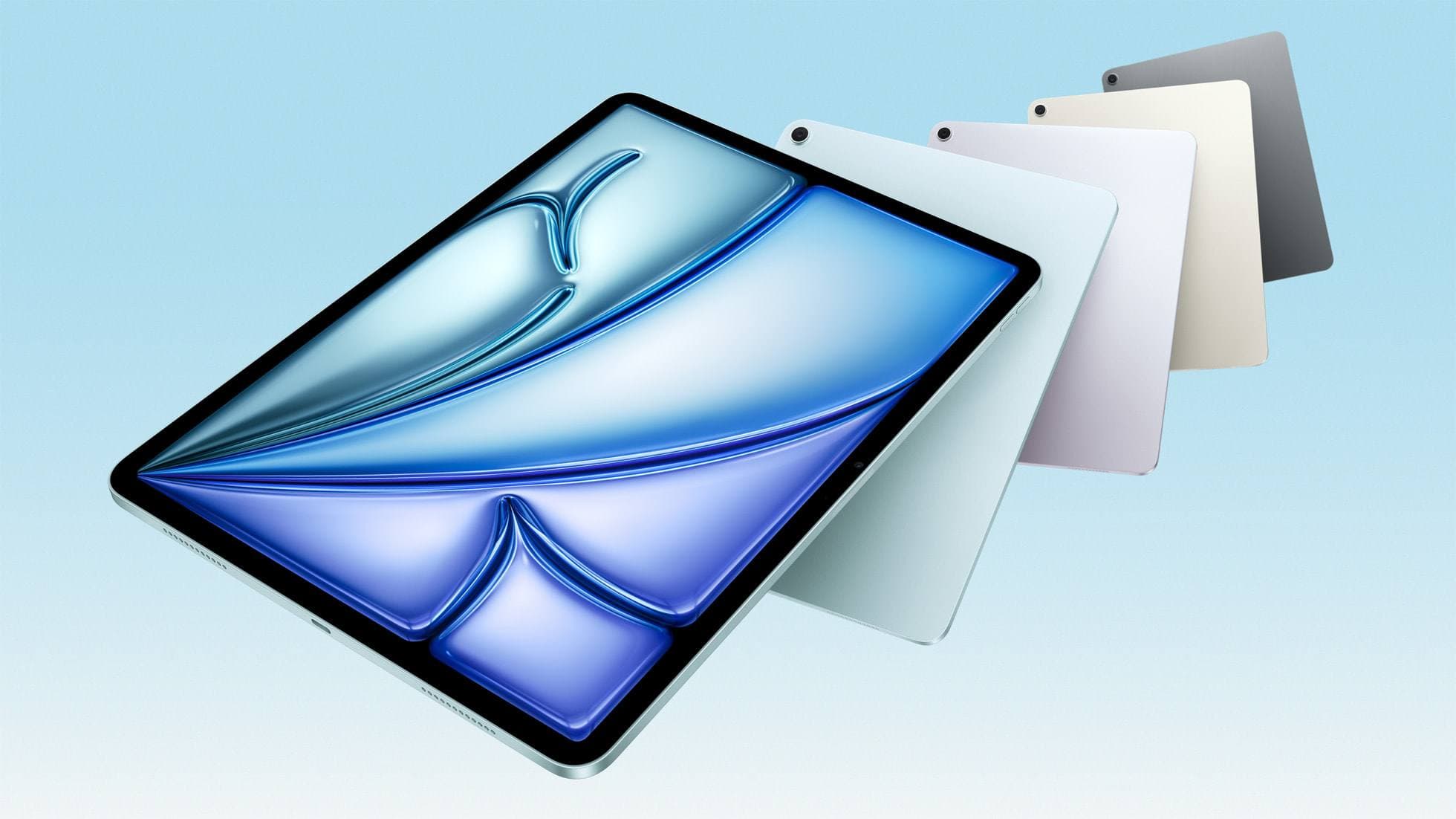
Compatibility is broad across recent iPads for both styluses [3], [4]. Apple lists the Apple Pencil (USB-C) for iPad Pro (M4 and M5), iPad Air (M2, M3, and M4), iPad (A16), iPad (10th generation), and iPad mini (A17 Pro, A20 Pro, and 6th generation), among others [3].
Logitech describes the Crayon as working with iPads from 2018 and later [1]. Apple's listing for it names iPad (A16), iPad (9th and 10th generation), iPad Air models, iPad mini (6th generation), and iPad Pro models [4]. Logitech's own meta description reads more narrowly than its product copy, so match your exact iPad against Apple's listing before ordering [1], [4].
Before ordering, check your iPad's exact model in Settings [3], [6]. If your household runs several generations of iPads, compare each one against both lists [3], [4]. If you only own a recent iPad and want a stylus that attaches to it, Apple's option fits cleanly [2], [3].
Bottom line
Choose the Apple Pencil (USB-C) if you want magnetic storage on the side of your iPad and hover preview on supported models [2], [3]. Skip it if you need pressure-sensitive brush strokes, where the Apple Pencil Pro is the safer pick [2]. Choose the Logitech Crayon (USB-C) if you want a stylus that works with no pairing step [1], [4]. Skip the Crayon if you want magnetic docking or a round pencil shape [1], [2].
Sources
[1] https://www.logitech.com/en-us/shop/p/ipad-digital-pencil-crayon [2] https://www.apple.com/apple-pencil/ [3] https://support.apple.com/en-us/108937 [4] https://www.apple.com/shop/product/hq6q2vc/a/logitech-crayon-for-ipad [5] https://support.apple.com/guide/ipad/draw-with-apple-pencil-ipadc55b6c7a/ipados [6] https://www.apple.com/ipad/compare/
Recommended gear
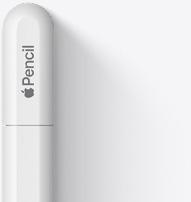
Apple Pencil (USB-C)
amazon.comA practical low-cost Apple stylus with broad compatibility, but limited for advanced art control.
Pro: Lowest official Apple Pencil cost
Con: No pressure sensitivity for brush work
Compatible with many recent iPads. No pressure support.
Logitech Crayon (USB-C)
logitech.comPro: Tilt changes line weight, charges over USB-C, no Bluetooth pairing
Con: Logitech's listing names tilt for line weight and doesn't list pressure sensitivity
Apple's listing names iPad (A16) and current iPad Air and iPad Pro models. Confirm yours before buying.
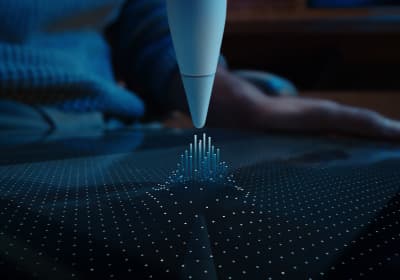
Apple Pencil Pro
amazon.comThe best Apple stylus for serious digital art workflows. Expensive, but the control upgrades are real.
Pro: Best brush-control and hover workflow
Con: Highest price in the lineup
Works only with newer iPad models. Check compatibility.
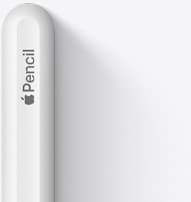
Apple Pencil (2nd generation)
amazon.comStill a strong stylus on compatible iPads. Good pressure control, but compatibility is the main trap.
Pro: Pressure support without Pro pricing
Con: Not compatible with newest Pro-only iPads
Only for iPads that support 2nd generation pairing.
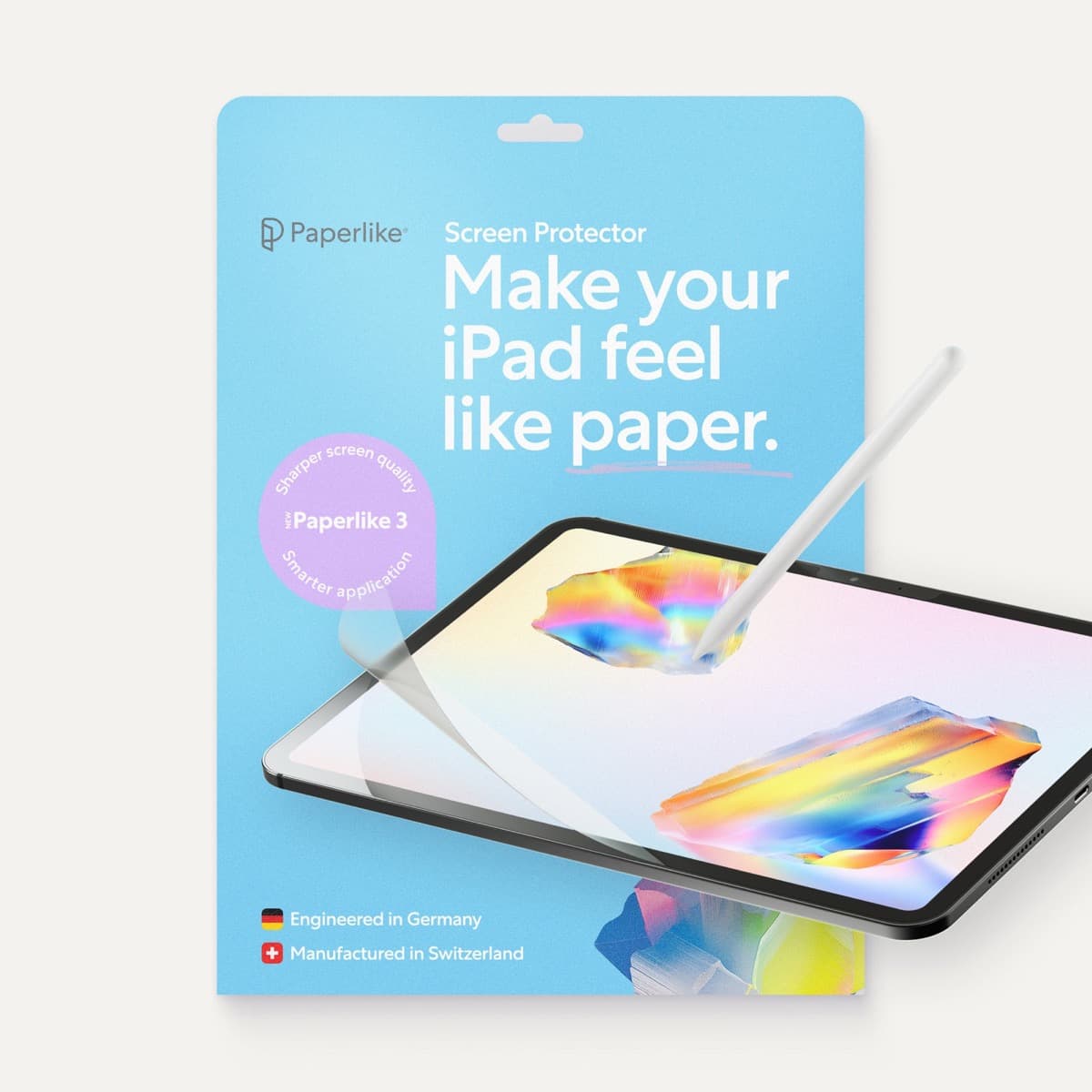
Paperlike 3 (11-inch, 2-pack)
amazon.comA strong surface-feel upgrade for drawing control. Clarity tradeoff is real and should be expected.
Pro: Adds controlled paper-feel friction
Con: Slightly reduces perceived display sharpness
11-inch fit only. Confirm generation before checkout.
Related buying picks
More in this collectionBuyer guide
The best stylus for iPad (A16)
Choose the right stylus for the iPad (A16) by comparing the Apple Pencil (USB-C) and Logitech Crayon while avoiding incompatible models.
Buyer guide
Apple Pencil for watercolor painting: which stylus to choose
Choose an Apple Pencil with pressure sensitivity for digital watercolor, and avoid flat styluses that cannot modulate pigment wash.
Buyer guide
Best Apple Pencil for lettering and calligraphy
Choose between Apple Pencil Pro, Apple Pencil 2, and Apple Pencil USB-C based on pressure sensitivity, barrel roll, and iPad compatibility.
Buyer guide
Choosing an Apple Pencil for photo retouching on iPad
Buy the Apple Pencil Pro or 2nd generation for pressure sensitivity, and skip the USB-C model for detailed photo editing.