Keep the Paperlike. The Apple Pencil draws through screen protectors as a rule, and Paperlike sells its sheet for Pencil use in fits for specific iPad models, so a Pencil that stops working after you've applied one is almost always a pairing, charge, tip, or fit problem rather than a blocked screen [2], [6]. Work through the checks below in order, and only if strokes drop on the protector and land on bare glass should you replace the sheet [6]. Don't buy another Pencil until you've confirmed yours is on Apple's compatibility list for your iPad [3].
Confirm the Pencil and the iPad are a pair
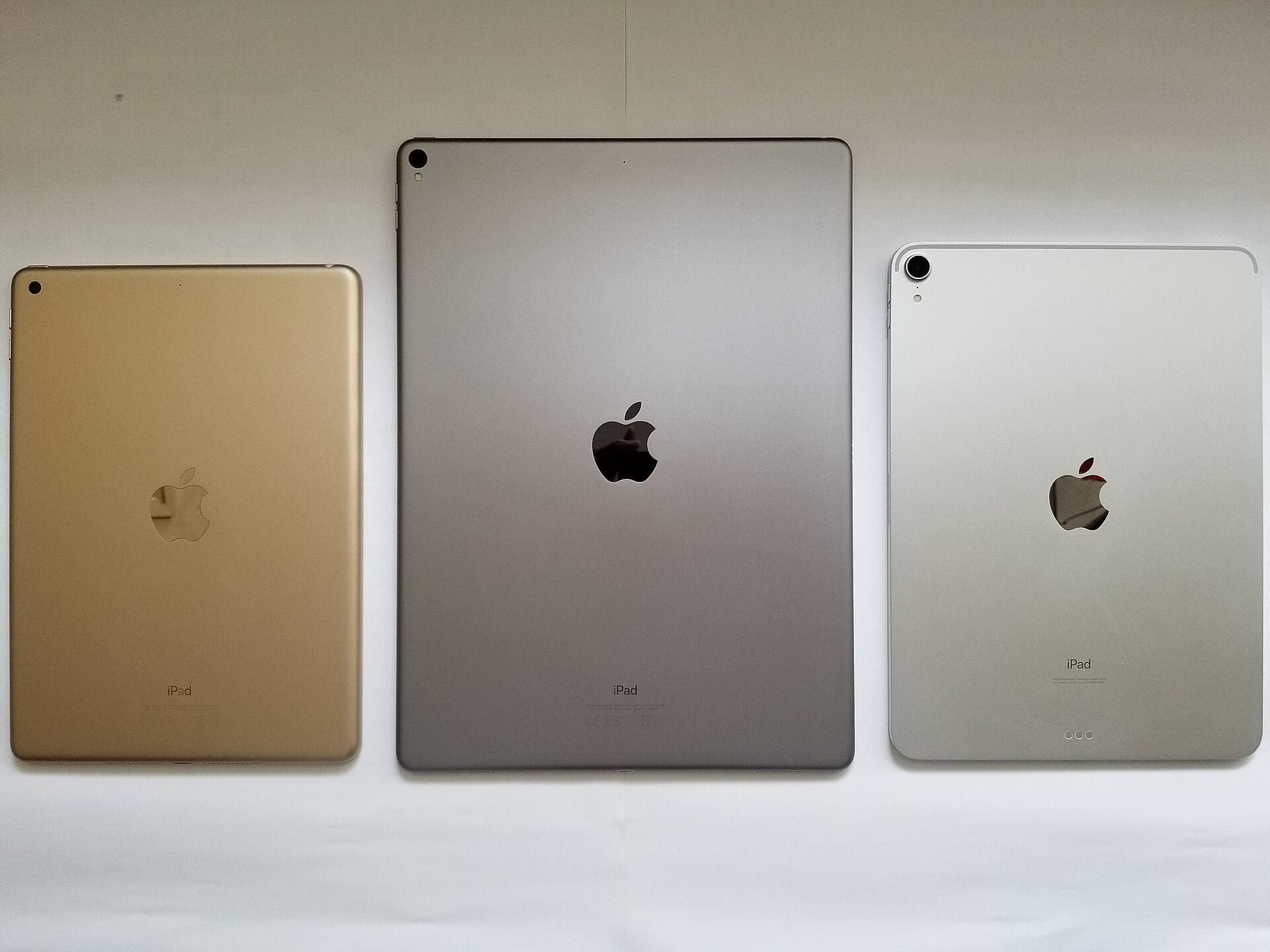
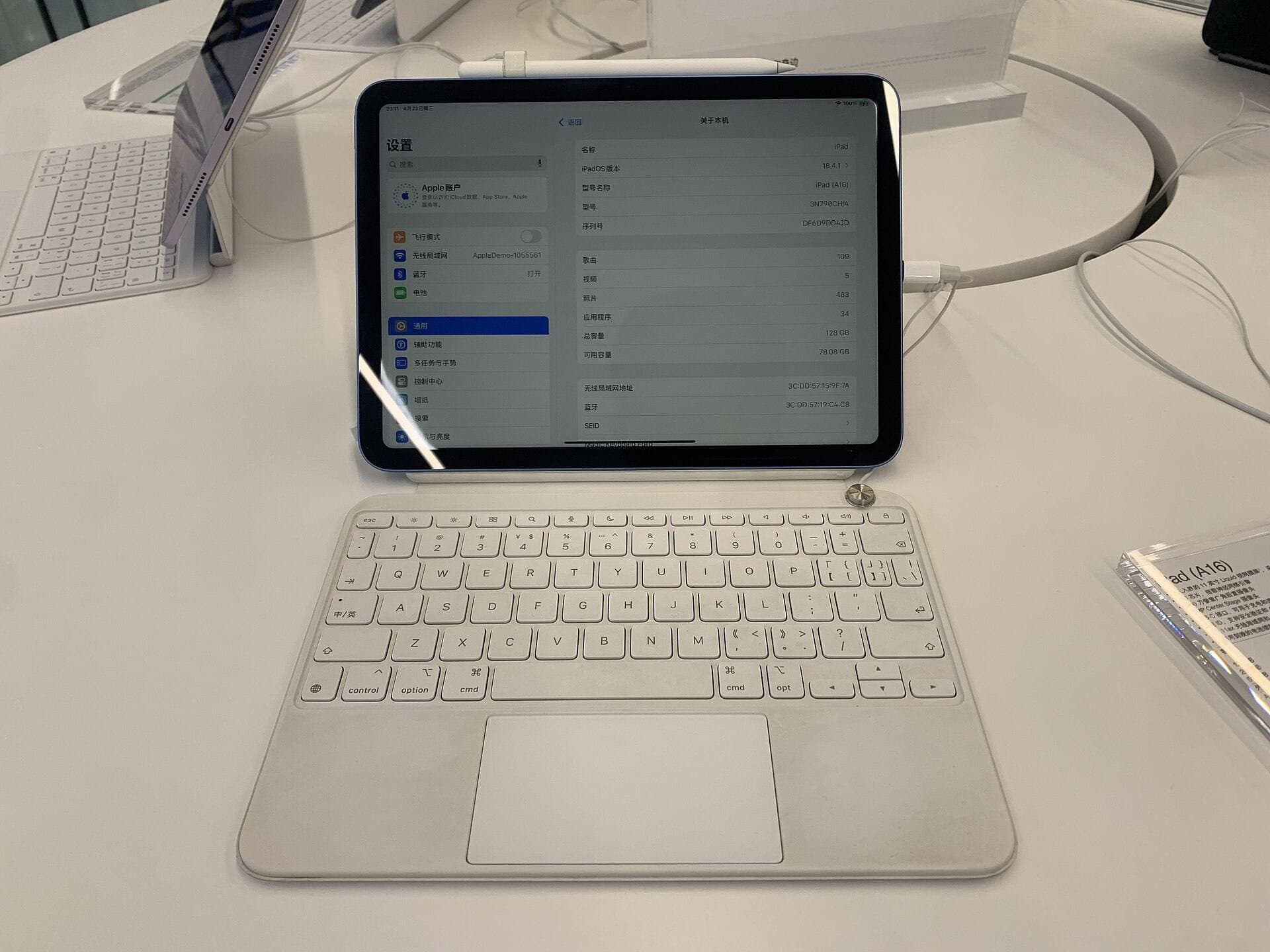
Start with compatibility, because a protector can't fix a Pencil that was never going to pair. Apple's support page lists which Pencil works with which iPad: the Pencil Pro and the 2nd generation Pencil each have their own list, and the USB-C model pairs with many recent iPads [3]. If you changed iPads around the time you applied the protector, check the exact model in Settings against that list [1], [3].
A mismatch looks like a dead Pencil: no stroke, no battery widget, nothing in Bluetooth settings [3]. If that's your case, the fix is a Pencil on the list, and the protector was a coincidence [3].
Re-pair and charge
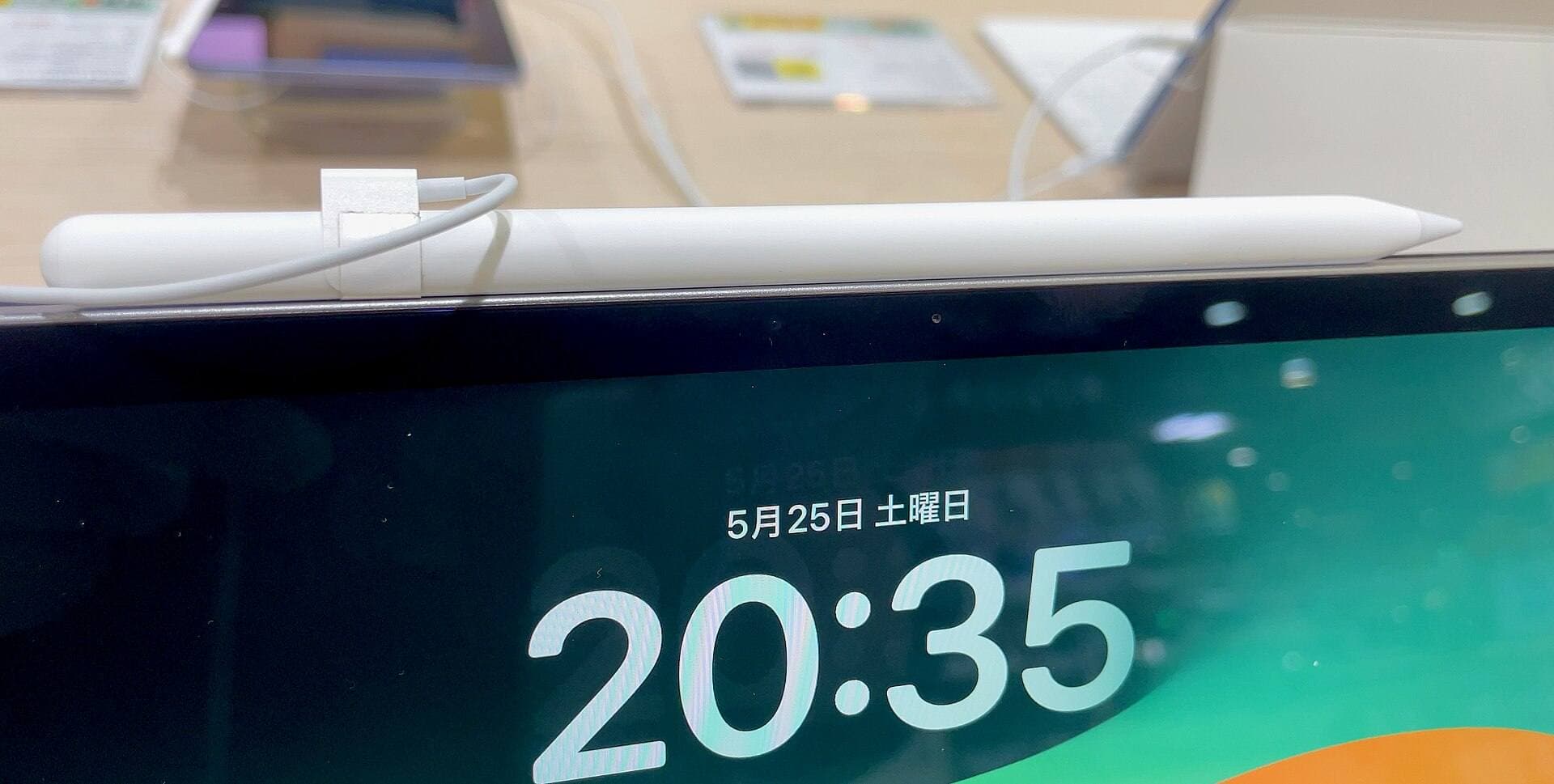
The Pencil Pro and the 2nd generation Pencil pair and charge magnetically on the iPad's edge, and the USB-C Pencil pairs and charges over a cable [2]. A Pencil that sat uncharged for weeks before you applied the protector will do nothing until it's charged, and that's the single most common version of the "stopped working after the protector" story [2].
Snap the Pencil to the magnetic edge, or plug in the USB-C model, and wait for the charge indicator [2]. Then forget the Pencil in Bluetooth settings and pair it again [2]. On a Pencil Pro you'll know pairing took when squeeze opens a palette and hover shows a cursor over the canvas, both of which Apple's guide describes [4]. If the Pencil pairs and charges but still won't draw, move on to the tip and the sheet [2].
Check the tip and the fit of the sheet
A worn or loose tip drops strokes on any surface, and a textured sheet is by design rougher than glass, so check the tip first [6]. Tighten it, and if it's visibly flattened, swap it for a spare [6]. Then look at the sheet: bubbles, dust under the edge, or a sheet cut for a different iPad size can leave a spot where the tip doesn't register [6].
Paperlike sells fits by iPad model, and the 11-inch kit is explicit that you confirm the generation before checkout [6]. A sheet for the wrong model can still stick on, and the mismatch is easy to miss until a Pencil skips near the edge [6]. If the fit is wrong, replace the sheet, and if the fit is right and the tip is new, run the bare-glass test below [6].
The bare-glass test
Peel nothing yet. First test the Pencil on an iPad without a protector, or on the part of your screen the sheet doesn't cover if there's a margin [6]. If strokes land on bare glass and drop on the Paperlike, the sheet is the cause and the fix is a correctly fitted replacement [6]. If strokes drop on both, the Pencil or the pairing is the cause and the sheet is innocent [2], [3].
If you don't have a second iPad, use the app's own canvas as the test: draw a long diagonal stroke from one corner of the screen to the other and look for gaps. A gap that always appears in the same spot points at the sheet, since a bubble or a trapped speck sits still, while gaps that move around point at the Pencil, its tip, or its charge [2], [6].
In practice the pairing step clears most of these, which is why it comes first in this guide [2]. Paperlike's claim is a paper-like feel on a sheet built to be drawn on, so a sheet that genuinely blocks a Pencil is usually a damaged or misfitted one rather than the product working as designed [6].
Settings and apps that mimic a dead Pencil
Sometimes the Pencil works and the app doesn't. In Procreate, the handbook's Pencil page documents settings like pressure curves and stabilization, and a stabilization value turned all the way up can make a stroke lag so far behind the tip that it feels dead [5]. Procreate's FAQ covers the first checks when the Pencil doesn't register in the app, and the general handbook covers the gestures you may have remapped [7], [8].
Apple's guide lists the system gestures, double tap, squeeze, barrel roll, and hover, and each can be turned off or reassigned in Settings, so a Pencil that "stopped" squeezing may simply have had the gesture disabled [4]. Check iPad Settings for the Pencil, then the app's own Pencil settings, before you blame hardware or the sheet [4], [5]. Hover deserves its own check on a Pencil Pro: Apple's guide describes the hover cursor as appearing when the tip is near the screen, and a protector doesn't change that, so a missing hover cursor is a pairing or settings symptom rather than a sheet symptom [4].
Bottom line
Keep the Paperlike and work the list: compatibility, charge and re-pair, tip and fit, then the bare-glass test [2], [3], [6]. The Pencil draws through a correctly fitted sheet, so a replacement is the answer only when bare glass works and the protector doesn't [6]. If the Pencil fails everywhere, it's a Pencil or pairing problem, and a new Pencil should be one from Apple's list for your exact iPad [3].
Sources
[1] https://www.apple.com/ipad/compare/ [2] https://www.apple.com/apple-pencil/ [3] https://support.apple.com/en-us/108937 [4] https://support.apple.com/guide/ipad/draw-with-apple-pencil-ipadc55b6c7a/ipados [5] https://help.procreate.com/procreate/handbook/5.2/interface-gestures/pencil [6] https://paperlike.com/products/paperlike-for-ipad [7] https://help.procreate.com/articles/dbgjal-procreate-faq [8] https://help.procreate.com/procreate/handbook
Recommended gear
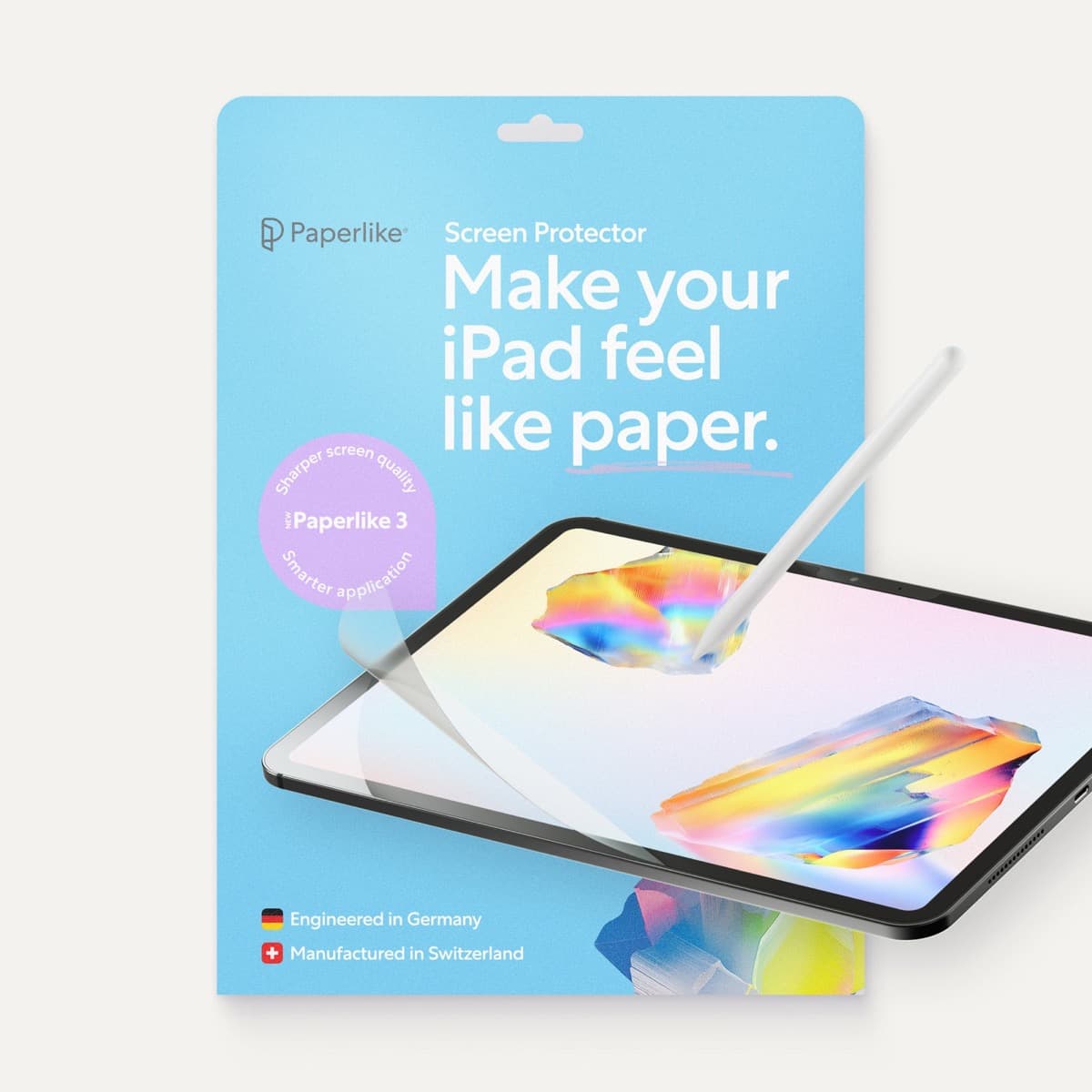
Paperlike 3 (11-inch, 2-pack)
amazon.comA strong surface-feel upgrade for drawing control. Clarity tradeoff is real and should be expected.
Pro: Adds controlled paper-feel friction
Con: Slightly reduces perceived display sharpness
11-inch fit only. Confirm generation before checkout.
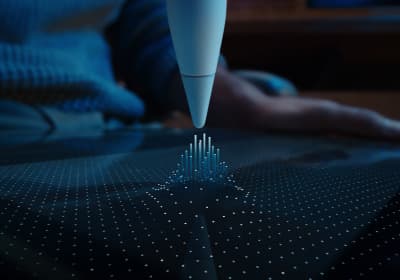
Apple Pencil Pro
amazon.comThe best Apple stylus for serious digital art workflows. Expensive, but the control upgrades are real.
Pro: Best brush-control and hover workflow
Con: Highest price in the lineup
Works only with newer iPad models. Check compatibility.
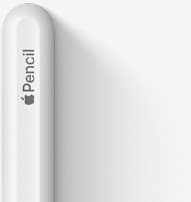
Apple Pencil (2nd generation)
amazon.comStill a strong stylus on compatible iPads. Good pressure control, but compatibility is the main trap.
Pro: Pressure support without Pro pricing
Con: Not compatible with newest Pro-only iPads
Only for iPads that support 2nd generation pairing.
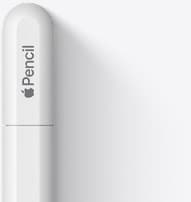
Apple Pencil (USB-C)
amazon.comA practical low-cost Apple stylus with broad compatibility, but limited for advanced art control.
Pro: Lowest official Apple Pencil cost
Con: No pressure sensitivity for brush work
Compatible with many recent iPads. No pressure support.
Related buying picks
More in this collectionComparison
Choosing between Paperlike and alternative drawing setups for iPad
Decide whether to install a textured matte screen protector like Paperlike or adapt your Apple Pencil hardware on bare glass.
Comparison
Paperlike vs Tempered Glass for iPad Drawing (2026): Which Should You Buy?
This BOFU comparison is simple: matte texture improves control, glass keeps maximum clarity. Pick by your drawing style, not hype.
Comparison
Matte vs. Glass: Does a Screen Protector Really Help You Draw Better?
There’s a specific kind of digital-art annoyance that doesn’t happen on paper: your brain says “put the line there,” your hand agrees, but the stylus tip skates a millimeter past…
Comparison
Matte vs. Glass Screen Protectors: Pros and Cons (and what you’re really buying)
Screen protectors are sold like armor, but you’re not buying armor. You’re buying a lens filter that lives on the most-touched, most-viewed object you own.