






If your iPad supports it, buy Apple Pencil Pro for animation. It combines pressure sensitivity, barrel roll, squeeze gestures, and hover, giving you total control when sketching keyframes, varying line weights, and adjusting brushes [1]. If your iPad only supports Apple Pencil (2nd generation), buy that model instead, because its pressure sensitivity and double-tap gesture handle frame-by-frame drawing without forcing an expensive tablet upgrade [1], [2]. Skip Apple Pencil (USB-C) for character animation [1]. Without pressure sensitivity, it forces you into uniform lines that limit expressive roughs and dynamic inking [1].
Animators who want a textured surface can pair their stylus with Paperlike to add friction against the slick glass [7]. Here is how to pick the right stylus for your animation desk.
Hardware compatibility dictates your stylus choice
Before you evaluate animation tools, check which Apple Pencil physically works with your tablet. Apple does not make a universal stylus that pairs with every iPad [2]. Apple Pencil Pro works exclusively with specific newer hardware, including iPad Pro models with M4 chips and iPad Air models with M2 chips [2]. If you buy Apple Pencil Pro for an older iPad, it will not charge, pair, or draw [2].
Apple Pencil (2nd generation) pairs magnetically with previous-generation iPad Pro, iPad Air, and iPad mini tablets [2]. It does not pair with newer M4 iPad Pro or M2 iPad Air models [2]. Apple Pencil (USB-C) pairs and charges via a cable with most modern iPad models featuring a USB-C port, but it lacks wireless magnetic charging [1], [2].
Because compatibility is rigid, your tablet choice often makes the initial decision for you [2]. If you already own an iPad, you must buy the stylus built for that hardware generation [2]. If you are buying a complete new animation rig, Apple Pencil Pro should be your target [1], [2].
Pressure sensitivity versus fixed-width lines in animation
Traditional hand-drawn animation relies on subtle hand pressure to rough out gestures, block in silhouettes, and trace clean line art. Apple Pencil Pro and Apple Pencil (2nd generation) both include hardware pressure sensitivity [1]. Pressing lightly lays down faint, thin pencil marks, while pressing firmly produces thick, opaque lines [1], [3].
In animation apps like Procreate Dreams, Clip Studio Paint, and Procreate, pressure sensitivity drives brush dynamics directly [4], [5], [6]. When you sketch thumbnails or blocking passes, varying your stroke weight lets you separate foreground characters from background elements without constantly stopping to tweak a line-width slider [5], [6]. During cleanup passes, tapering lines naturally at the beginning and end of each stroke creates appealing ink work across successive frames [5], [6].
Apple Pencil (USB-C) omits pressure sensitivity [1]. It includes tilt sensitivity, so shading at an angle works, but pushing harder on the screen does not change stroke opacity or thickness [1]. While storyboard artists who prefer technical, uniform pens might manage with it, frame-by-frame animators will feel restricted [1]. Trying to mimic natural stroke taper with manual size adjustments adds friction to a workflow that already demands hundreds of drawings per sequence [4], [5]. For expressive animation, choose Apple Pencil Pro or the 2nd generation model [1].
How squeeze, barrel roll, and hover change your timeline workflow
Animation workflows require constant jumping between tools: switching from rough pencil to clean ink, selecting the eraser to fix timing arcs, and adjusting color fills across timelines [4], [5]. The advanced gesture hardware on Apple Pencil Pro streamlines these repeated actions [1], [3].
Apple Pencil Pro introduces a squeeze sensor in its barrel [1]. Squeezing the pencil invokes a tool palette or contextual menu directly at your pen tip, confirmed by subtle haptic feedback [1], [3]. Instead of reaching for UI toolbars at the top of the screen in apps like Procreate Dreams, you swap brushes or select colors without moving your hand away from your drawing area [1], [3], [4]. Apple Pencil (2nd generation) offers a double-tap gesture instead, which lets you toggle between your current brush and the eraser, but it lacks the contextual flexibility and haptic response of the squeeze sensor [1], [3].
Barrel roll is another Apple Pencil Pro capability [1], [3]. By rotating the stylus between your fingers, internal gyroscopes rotate shaped brushes, such as flat markers, chisel tips, or custom rake brushes [1], [3]. In animation cleanup, barrel roll allows calligraphic strokes to turn dynamically as your hand arches across a frame [1], [3].
Both Apple Pencil Pro and Apple Pencil (2nd generation) support Apple Pencil hover on compatible iPad models [1], [2]. Hover shows a preview cursor before your tip touches the glass [1], [3]. In frame-by-frame animation, seeing your brush size, brush shape, and exact registration point above the onion-skin layer prevents mistaken marks that require immediate undoing [3], [4], [6]. Apple Pencil (USB-C) supports hover on compatible devices, but without pressure sensitivity, its utility remains limited [1].
Pairing textured screen protectors with Apple Pencil tips
Drawing on bare iPad glass presents minimal resistance, which causes some animators to overshoot lines when tracing clean frames. Applying Paperlike screen protection adds a matte, textured surface engineered to replicate the mechanical friction of paper under a stylus [7].
This tactile feedback helps when drawing repetitive in-betweens, as the slight drag makes controlling line start and stop points easier [7]. Paperlike also reduces harsh ambient light reflections on the tablet display [7]. However, the textured surface does diffuse the display slightly, reducing perceived sharpness and contrast compared to bare glass [7]. It also creates mechanical friction against the plastic tip of your Apple Pencil, meaning heavy drawing sessions will eventually wear down your stylus tip over time [7]. Animators who prioritize precise line tracking often accept that tradeoff, while artists who need pristine color accuracy for background painting may prefer drawing on bare glass [7].
Bottom line
If you own a current M4 iPad Pro or M2 iPad Air, buy Apple Pencil Pro [1], [2]. Its combination of pressure sensitivity, barrel roll, squeeze shortcutting, and haptics provides the most versatile toolset for roughing and inking animated scenes [1], [3].
If your iPad uses Apple Pencil (2nd generation), keep it or buy a replacement 2nd generation stylus with confidence [1], [2]. You get identical pressure tracking and double-tap tool toggles, keeping your frame-by-frame drawing process expressive without replacing your tablet [1], [2], [3].
Skip Apple Pencil (USB-C) if you plan to do traditional character animation [1]. Saving money upfront costs you pressure sensitivity, forcing you to draw with fixed line weights that make clean inking and dynamic sketching difficult across hundreds of frames [1].
Sources
[1] https://www.apple.com/apple-pencil/ [2] https://support.apple.com/en-us/108937 [3] https://support.apple.com/guide/ipad/draw-with-apple-pencil-ipadc55b6c7a/ipados [4] https://apps.apple.com/us/app/procreate-dreams/id1595520602 [5] https://apps.apple.com/us/app/clip-studio-paint/id1262985592 [6] https://apps.apple.com/us/app/procreate/id425073498 [7] https://paperlike.com/products/paperlike-for-ipad
Recommended gear

Apple Pencil Pro
amazon.comThe best Apple stylus for serious digital art workflows. Expensive, but the control upgrades are real.
Pro: Best brush-control and hover workflow
Con: Highest price in the lineup
Works only with newer iPad models. Check compatibility.
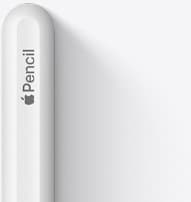
Apple Pencil (2nd generation)
amazon.comStill a strong stylus on compatible iPads. Good pressure control, but compatibility is the main trap.
Pro: Pressure support without Pro pricing
Con: Not compatible with newest Pro-only iPads
Only for iPads that support 2nd generation pairing.
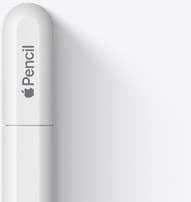
Apple Pencil (USB-C)
amazon.comA practical low-cost Apple stylus with broad compatibility, but limited for advanced art control.
Pro: Lowest official Apple Pencil cost
Con: No pressure sensitivity for brush work
Compatible with many recent iPads. No pressure support.
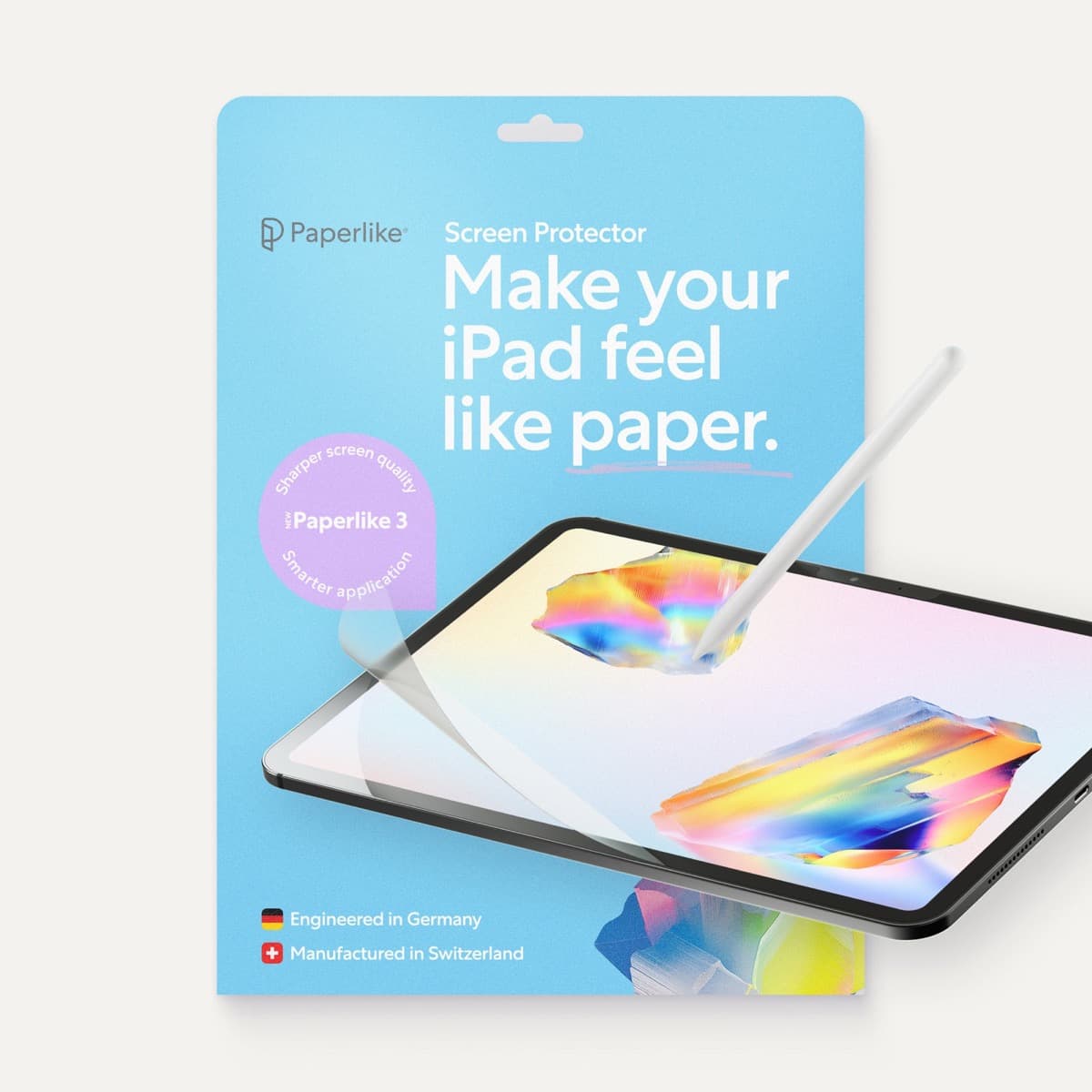
Paperlike 3 (11-inch, 2-pack)
amazon.comA strong surface-feel upgrade for drawing control. Clarity tradeoff is real and should be expected.
Pro: Adds controlled paper-feel friction
Con: Slightly reduces perceived display sharpness
11-inch fit only. Confirm generation before checkout.
Related buying picks
More in this collectionBuyer guide
Best Apple Pencil for pixel art: Which stylus fits your grid?
Pixel art relies on exact placement rather than pen pressure, making Apple Pencil compatibility and budget your main buying factors.
Buyer guide
Best Apple Pencil for architectural sketching
Pick the right Apple Pencil for architectural drafting, elevation studies, and plan redlines based on hardware compatibility and line-weight tools.
Buyer guide
Best Apple Pencil for UI design: wireframing, markup, and layout on iPad
Choose the Apple Pencil (USB-C) for wireframing and interface sketches, or pick the Apple Pencil Pro if your iPad supports its squeeze and haptic shortcuts.
Buyer guide
Best Apple Pencil for manga drawing
Choose an Apple Pencil with pressure sensitivity for manga inking, matching the stylus directly to your iPad model.