





Buy the Paperlike screen protector if you can't stand the slick glide of an Apple Pencil on smooth glass and want controlled friction for everyday sketching [1]. Skip textured films entirely if you evaluate color accuracy or screen sharpness above all else, because matte coatings diffuse light and slightly reduce perceived display sharpness [1]. For artists frustrated with line control, changing your stylus or adjusting software settings on bare glass often solves handling issues without altering your screen [2].
Many digital artists look for Paperlike alternatives because matte sheet protectors introduce visual grain or require careful alignment during installation [1]. Before choosing between textured sheets and alternative glass-based setups, you need to understand how surface friction, stylus sensors, and tablet hardware interact [1], [2].
Choosing between textured film and bare glass
Drawing on bare iPad glass gives you full panel brightness and uncompromised resolution, but the plastic stylus tip slides with almost zero mechanical drag [1], [2]. Paperlike addresses this friction deficit by adding micro-textures to a matte surface, which provides tactile resistance similar to traditional paper sketchbooks [1]. That resistance gives your hand feedback during stroke execution, making small handwriting and deliberate pencil strokes easier to control for people accustomed to analog media [1].
However, textured matte sheets come with a clear visual tradeoff [1]. The micro-beads and matte diffusion layers scatter transmitted backlight, softening sharp text and muting saturated colors across your display [1]. If you use your iPad for reviewing finished artwork, color grading, or watching video, that reduced clarity can become irritating [1]. For users who prioritize pure visual fidelity, drawing on bare glass remains the better path, even if it requires practicing stroke control on a slick surface [1], [2].
Fit is another factor to verify before buying any protective sheet [1]. Paperlike sells models tailored to specific device footprints, such as 11-inch enclosures [1]. Applying an incompatible film risks covering ambient light sensors or overlapping display bezels, so checking your exact iPad model and generation is essential before checkout [1], [3].
When the Apple Pencil Pro changes the feel equation
Many illustrators think surface drag is the only way to solve loose line work, but upgraded stylus input often provides the missing control [2]. The Apple Pencil Pro includes features that dramatically expand handling without requiring a textured film [2]. It supports squeeze gestures, barrel roll via internal gyroscopes, haptic feedback, and Apple Pencil hover [2].
Hover lets you preview your brush cursor, size, and orientation before your stylus tip ever touches the glass [2]. That visual preview eliminates guesswork on slick surfaces, helping you place lines accurately without depending on physical tooth [2]. Meanwhile, haptic feedback sends small vibrations directly into your fingers when triggering tool changes or snapping guides, introducing tactile confirmation that bare glass normally lacks [2].
Barrel roll allows you to twist the barrel to rotate shaped brushes, which changes the profile of calligraphic pens and flat markers dynamically [2]. If you use apps like Procreate that support extensive brush customization, these hardware sensors offer expressive control that no physical screen protector can replicate [2], [4]. You should buy the Apple Pencil Pro if your tablet supports it and you want maximum brush versatility [2], [3]. You should skip it if your current iPad only pairs with earlier pencil hardware [3].
Why pencil hardware matters more than texture for pressure work
If you illustrate in layered digital apps, your choice of stylus mechanism dictates your dynamic control far more than your screen finish [2], [4]. The Apple Pencil (USB-C) costs less than advanced styluses and offers tilt sensitivity, magnetic attachment, and USB-C wired charging [2]. But it completely lacks pressure sensitivity [2].
On bare glass or on a textured Paperlike sheet, the Apple Pencil (USB-C) will only register flat stroke weights unless your software brush ties width solely to tilt angle [1], [2]. That means applying variable hand force doesn't thicken your inking line or darken your shading [2]. For serious brush work in drawing programs, a lack of pressure sensitivity restricts expressive drawing regardless of surface texture [2], [4].
Buy the Apple Pencil (USB-C) if your digital work centers on taking notes, annotating documents, technical drafting, or vector tracing where uniform line weight is desired [2]. Skip the USB-C model if you paint or ink character art that demands dynamic line weights based on hand pressure [2]. When expressive mark-making is your priority, pair a pressure-capable stylus like the Apple Pencil Pro with your preferred surface instead of trying to fix stroke modulation with screen friction [1], [2].
iPad Air pairing and display considerations
Your tablet choice limits which styluses and workflows you can actually use [2], [3]. The iPad Air with the M4 chip represents an appealing middle tier for illustrators because it supports the Apple Pencil Pro without forcing you into top-tier tablet pricing [2], [3], [4]. It offers modern processing headroom for expansive multi-layer documents in illustration tools [4], [5].
In Procreate, maximum layer limits scale directly with hardware memory and canvas dimensions [5]. Using an capable host device like the M4 iPad Air allows you to build complex illustration files with dozens of working layers at high print resolutions [4], [5]. It pairs natively with both the Apple Pencil Pro and the Apple Pencil (USB-C), letting you pick your preferred stylus features [2], [3].
Still, the iPad Air display uses a 60Hz refresh rate rather than higher refresh panel technology [4]. When drawing rapid hatching marks on bare glass or textured film, the 60Hz panel refreshes at standard tablet intervals [4]. Artists who require Apple Pencil Pro compatibility and plenty of system headroom should buy the M4 iPad Air [3], [4]. Those who already own a compatible device with sufficient memory for their canvas layer requirements should keep what they have [4], [5].
Bottom line
If you struggle with stylus precision because the glass is too slippery, installing the Paperlike screen protector adds genuine mechanical resistance that stabilizes pencil lines [1]. But that friction comes at the cost of slight optical diffusion and softer screen clarity [1].
If you prefer crisp visual sharpness for media and color work, keep your bare glass screen and invest in stylus hardware instead [1], [2]. Pairing an iPad Air with an Apple Pencil Pro provides hover precision, pressure response, barrel roll, and haptic feedback that solve control problems without compromising your panel [2], [3], [4]. Buy the textured film for pure tactile resistance, or skip it to preserve pristine screen clarity while relying on advanced stylus sensors for control [1], [2].
Sources
[1] https://paperlike.com/products/paperlike-for-ipad [2] https://www.apple.com/apple-pencil/ [3] https://support.apple.com/en-us/108937 [4] https://www.apple.com/ipad/compare/ [5] https://help.procreate.com/articles/zlexav-ipad-compatibility
Recommended gear
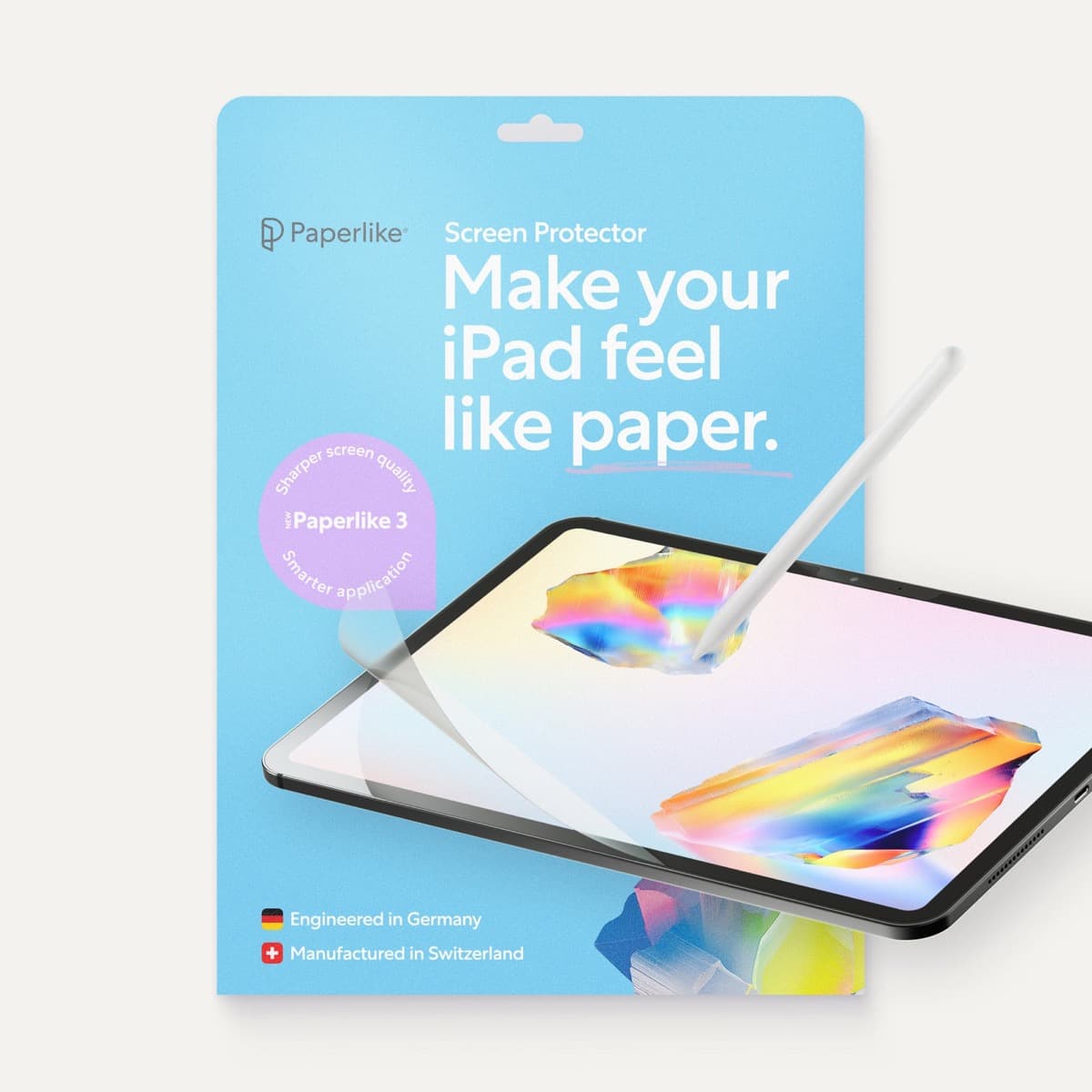
Paperlike 3 (11-inch, 2-pack)
amazon.comA strong surface-feel upgrade for drawing control. Clarity tradeoff is real and should be expected.
Pro: Adds controlled paper-feel friction
Con: Slightly reduces perceived display sharpness
11-inch fit only. Confirm generation before checkout.

Apple Pencil Pro
amazon.comThe best Apple stylus for serious digital art workflows. Expensive, but the control upgrades are real.
Pro: Best brush-control and hover workflow
Con: Highest price in the lineup
Works only with newer iPad models. Check compatibility.
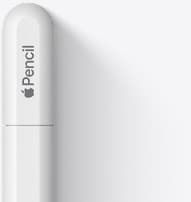
Apple Pencil (USB-C)
amazon.comA practical low-cost Apple stylus with broad compatibility, but limited for advanced art control.
Pro: Lowest official Apple Pencil cost
Con: No pressure sensitivity for brush work
Compatible with many recent iPads. No pressure support.
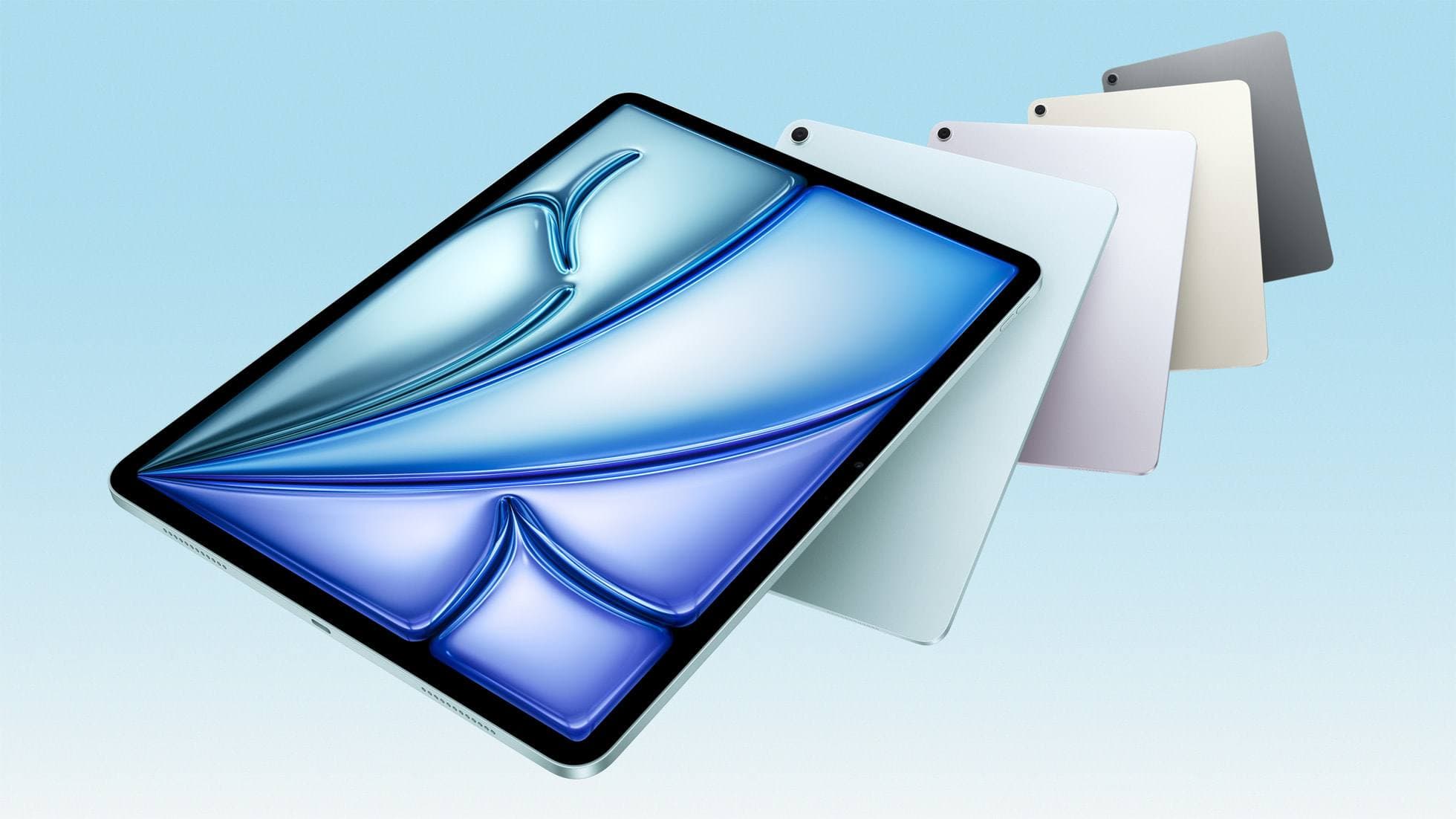
iPad Air (M4)
apple.comThe clean current Air recommendation for most serious hobby artists. Stronger buy logic than old-stock M3 when pricing is close.
Pro: Best current balance of price, headroom, and Pencil support
Con: Still 60Hz
Current Air lineup. Choose size, storage, and keyboard path before checkout.
Related buying picks
More in this collectionComparison
Paperlike vs Tempered Glass for iPad Drawing (2026): Which Should You Buy?
This BOFU comparison is simple: matte texture improves control, glass keeps maximum clarity. Pick by your drawing style, not hype.
Comparison
Matte vs. Glass: Does a Screen Protector Really Help You Draw Better?
There’s a specific kind of digital-art annoyance that doesn’t happen on paper: your brain says “put the line there,” your hand agrees, but the stylus tip skates a millimeter past…
Comparison
Matte vs. Glass Screen Protectors: Pros and Cons (and what you’re really buying)
Screen protectors are sold like armor, but you’re not buying armor. You’re buying a lens filter that lives on the most-touched, most-viewed object you own.