
External SSDs and backup routines for iPad artists in 2026
If you draw on iPad, storage gets tight fast. The first time you try to back up, the surprise is not speed. It is compatibility: some drives do not appear in Files, and some copy jobs fail in ways that are hard to notice.
This guide is practical on purpose:
- Which external SSDs make sense for iPad artists in 2026
- What works in the Files app and what fails
- A backup routine you can repeat without turning it into a project
The three rules that explain most external drive problems on iPad
Apple calls out constraints that matter more than brand or advertised speed:
- The external storage device must have only a single data partition.
- It must use a supported file system.
- Some devices, especially spinning hard drives, often need external power.
If your drive does not show up in Files, or disconnects mid copy, it is usually one of those. [1]
Your iPad port speed sets the ceiling
Your SSD can be faster than your iPad. That is normal. The port is often the bottleneck, and it affects how painful backups feel.
From Apple tech specs:
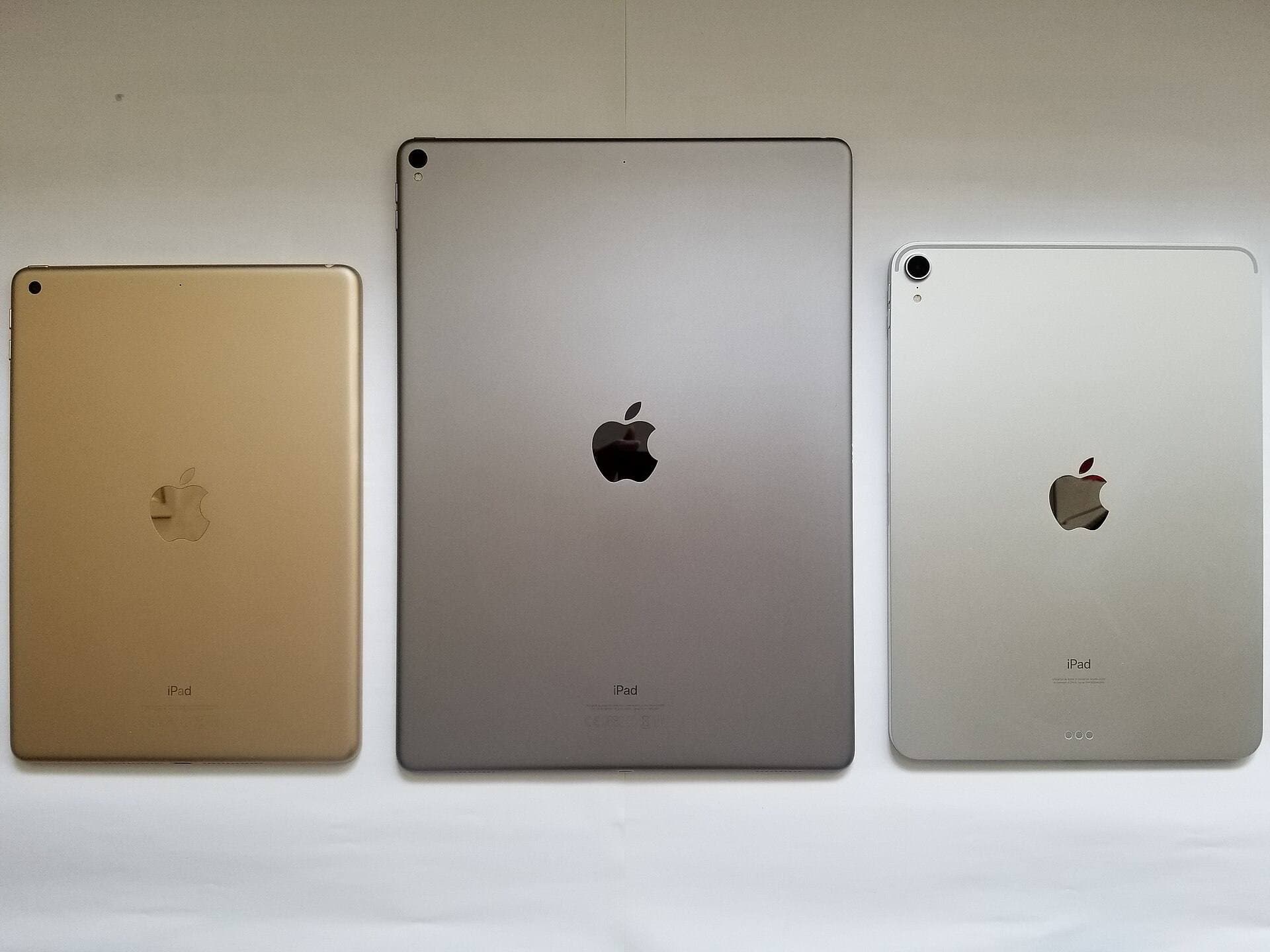
- iPad Pro models with Thunderbolt or USB4 can reach up to 40 Gbps. [2]
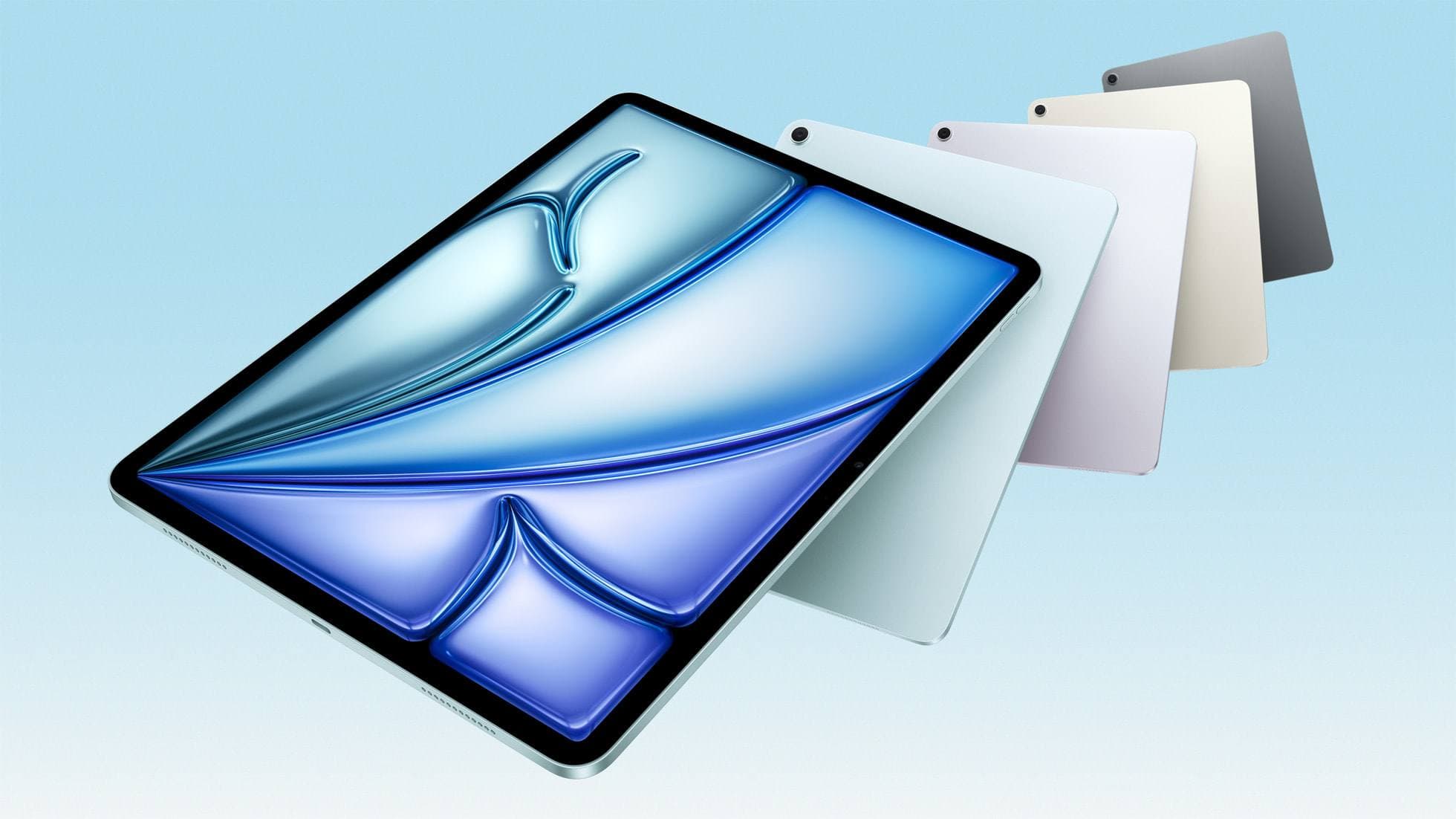
- iPad Air USB-C supports USB 3 up to 10 Gbps. [3]
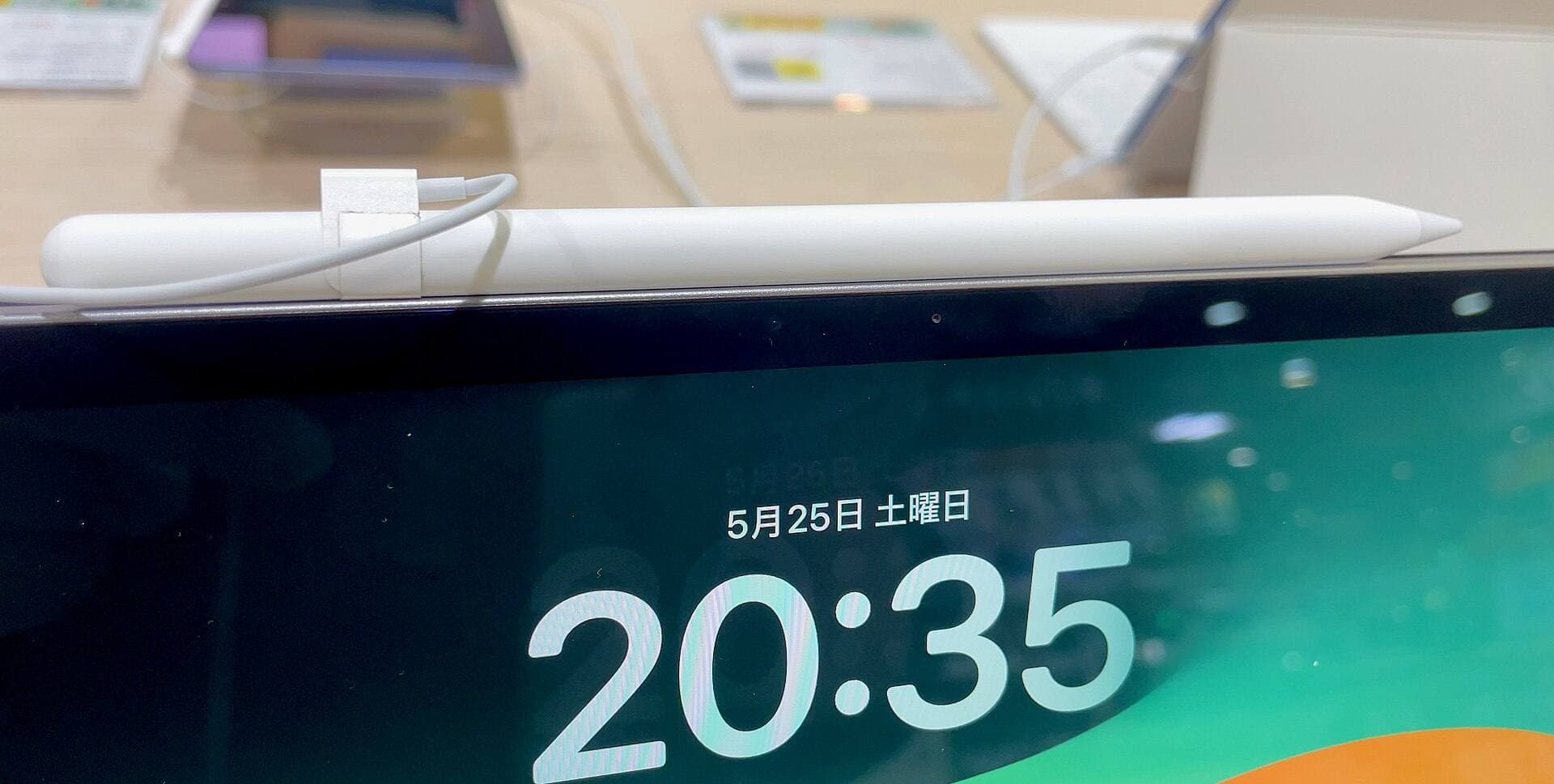
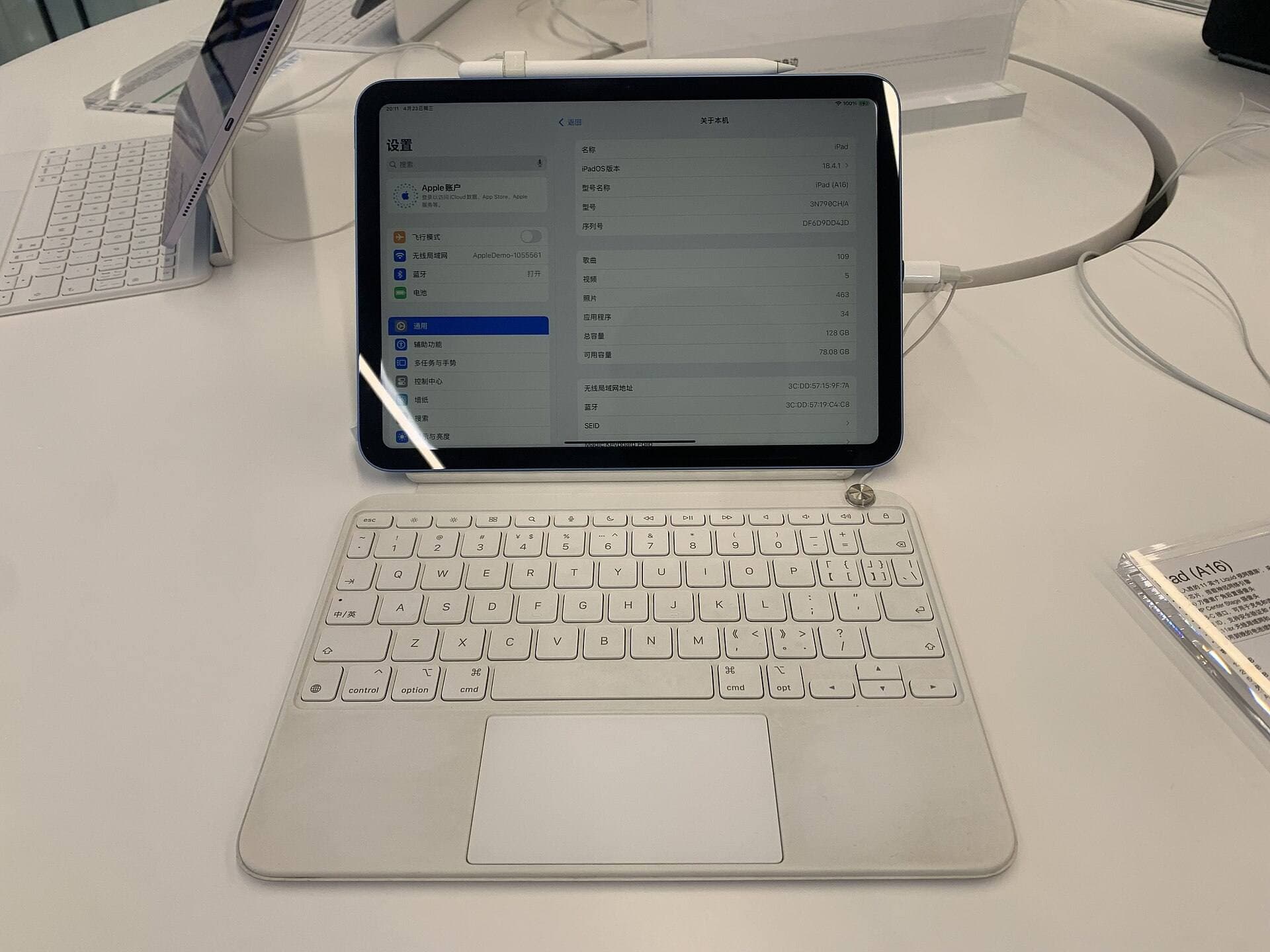
- The base iPad (A16) uses USB 2.0 data speeds up to 480 Mb/s even though the connector is USB-C. [4]
Practical takeaway: buy for reliability and workflow first. A fast SSD does not help much on USB 2, but it can still be a dependable backup target.
File systems that actually work in Files
Apple lists the supported formats for external storage on iPad: APFS, APFS (encrypted), macOS Extended (HFS+), exFAT, FAT32, and FAT. [1]
For artists, three of those matter.
exFAT is the default choice
Use exFAT if you want the SSD to work with iPad, Windows, and Mac without extra steps.
Why it is the safe default:
- Supported by iPadOS and Files
- No 4 GB per file limit like FAT32
- Cross platform read and write
APFS is a good choice for iPad plus Mac only
Use APFS if you only use iPad and Mac, and you want to keep the drive in Apple's ecosystem.
APFS (encrypted) is listed as supported on iPad. [1] In practice, encrypted external volumes can be more temperamental across different enclosures and OS versions, so test your exact setup before trusting it as your only copy.
Avoid FAT32 unless you are sure your files are small
FAT32 works but the file size limit can break big exports, long time lapse videos, and some PSD workflows.
You can reformat a drive on iPad, but only on USB-C iPads
On iPads with USB-C, Files can erase and reformat an external drive. Long press the drive under Locations, tap Erase, then choose APFS, ExFAT, or MS-DOS (FAT). [5]
Two notes that matter:
- Erase wipes the drive.
- If you need to fix partitions or remove vendor software partitions, do it on a Mac or PC for a clean single partition layout.
What actually works in the Files app
Works: copying a few large files
Files is most reliable when you copy a small number of big files. For iPad artists, that usually means:
- .procreate exports
- PSD exports
- High resolution PNG or TIFF exports
- A single zip archive per project
If you have a folder full of tiny assets, compress it first, then copy the zip. This reduces the chance of partial copies.
Works: Procreate exports to Files
Procreate stores artwork locally on your iPad. Procreate warns it can be lost if the app is deleted, storage is overwritten, or you lose access to the iPad, and recommends regularly exporting your artwork. [6]
The cleanest backup format is .procreate because it keeps layers and settings.
Works: renaming, organizing, and formatting in the sidebar
In Files, you can rename a connected drive, erase it, and get info by long pressing the drive name under Locations. [5]
A folder structure that stays usable:
-
ArtBackup
-
2026
-
2026-02
-
project-name
- procreate
- exports
-
-
-
Keep it boring. Boring makes restores faster.
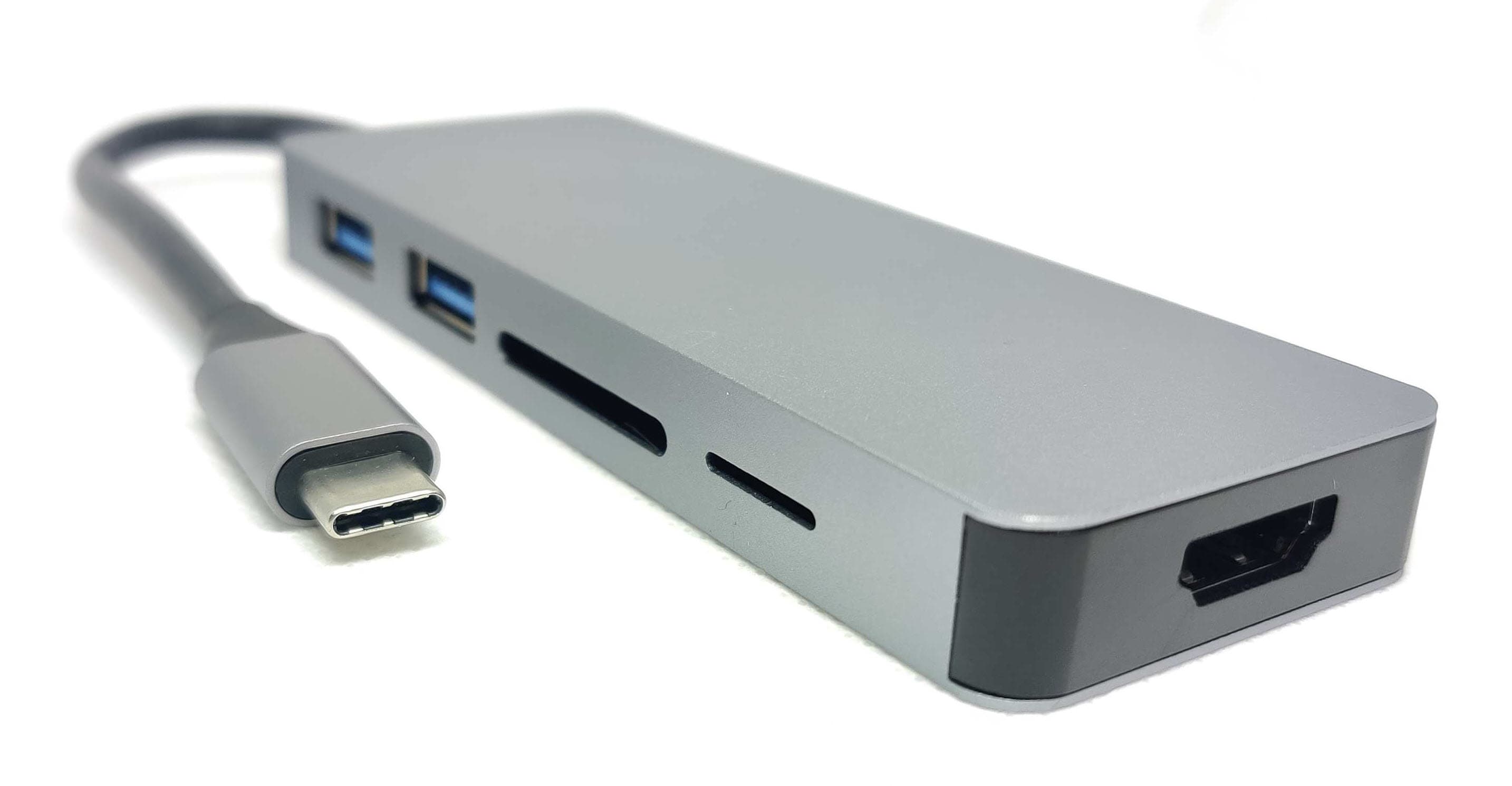
Works: powered hubs when you need charging and storage
Apple notes that external hard drives often require external power, and suggests a powered USB hub (or the Lightning to USB 3 Camera Adapter with power for Lightning iPads). [1]
Even with SSDs, a powered hub can prevent disconnects caused by borderline power and loose cables.
What fails in Files, and how to avoid it
Fails: more than one partition
Apple is explicit: the drive must have only a single data partition. [1]
Common causes:
- The drive ships with a separate setup partition.
- The drive was partitioned for multiple workflows.
- Some security tools create extra volumes.
Fix: reformat as one partition.
Fails: unsupported formats like NTFS
Many drives sold for Windows ship as NTFS. Apple does not list NTFS as a supported external format for iPad, so a drive can appear fine on a PC but not show up in Files. [1]
Fix: reformat to exFAT or APFS.
Risky: long copies with the screen sleeping
Files does not always handle long folder copies gracefully if the iPad sleeps, the cable moves, or the hub power drops. You can reduce risk by:
- Keeping Files open during big transfers
- Plugging the iPad into power
- Copying fewer, larger files (or zip archives)
Risky: drives with known disconnect issues
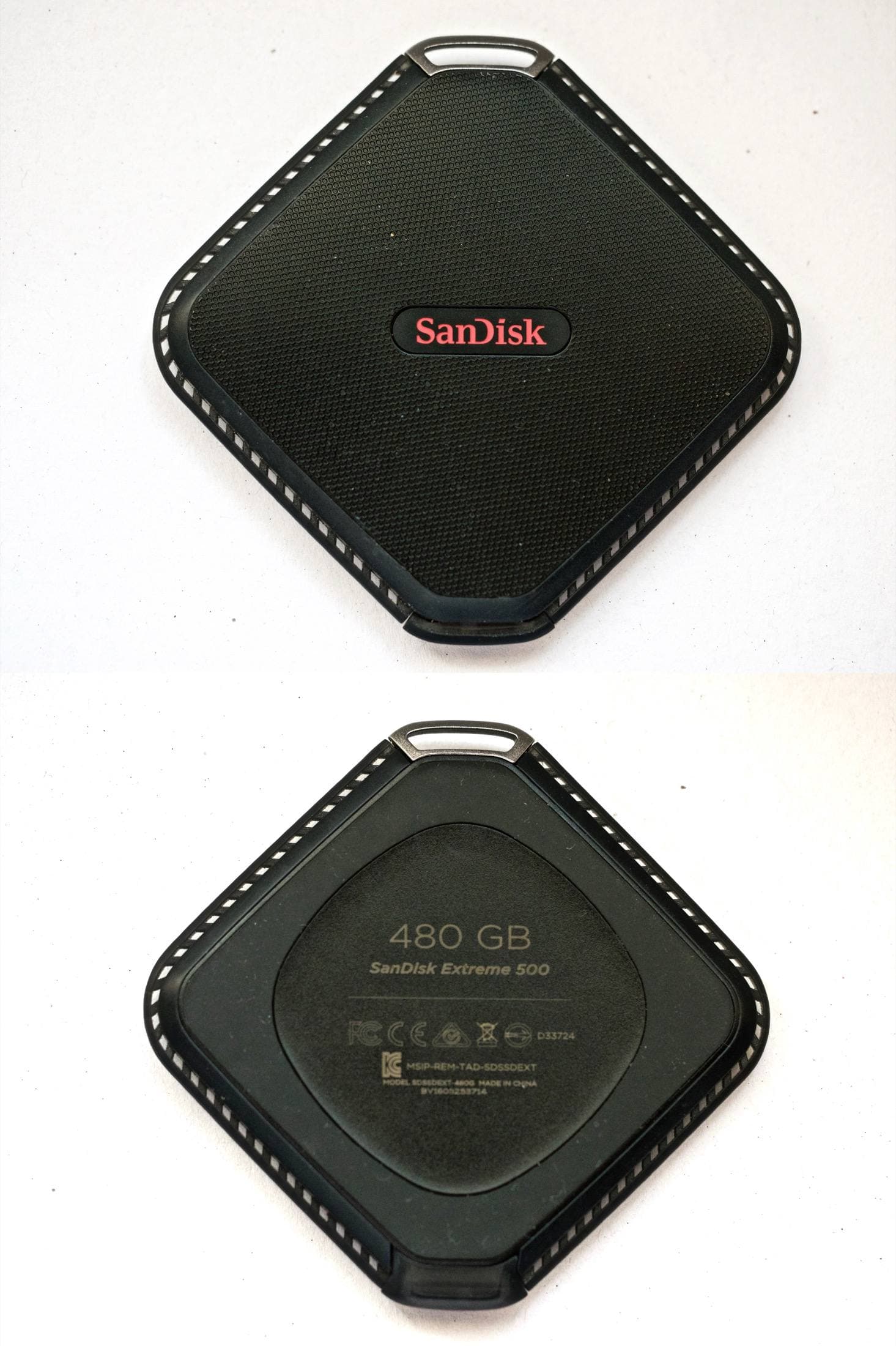
Some portable SSD families have had firmware problems that cause unexpected disconnects. SanDisk posted a notice about a firmware issue affecting specific SanDisk and WD portable SSD models and provided a firmware update path. [7]
If you already own one of those models, treat it as "needs verification" before using it as a primary backup drive.
What to look for in an SSD for iPad art backups
Cable and connector
Prefer a drive that includes a USB-C to USB-C cable. Every adapter is another failure point.
The right speed tier
- USB 3.2 Gen 2 (10 Gbps) is the sweet spot for iPad Air and for most iPad Pro backup workflows.
- USB 3.2 Gen 2x2 (20 Gbps) only pays off if your iPad and accessories can actually use it, and your workflow is large file heavy.
Durability and friction
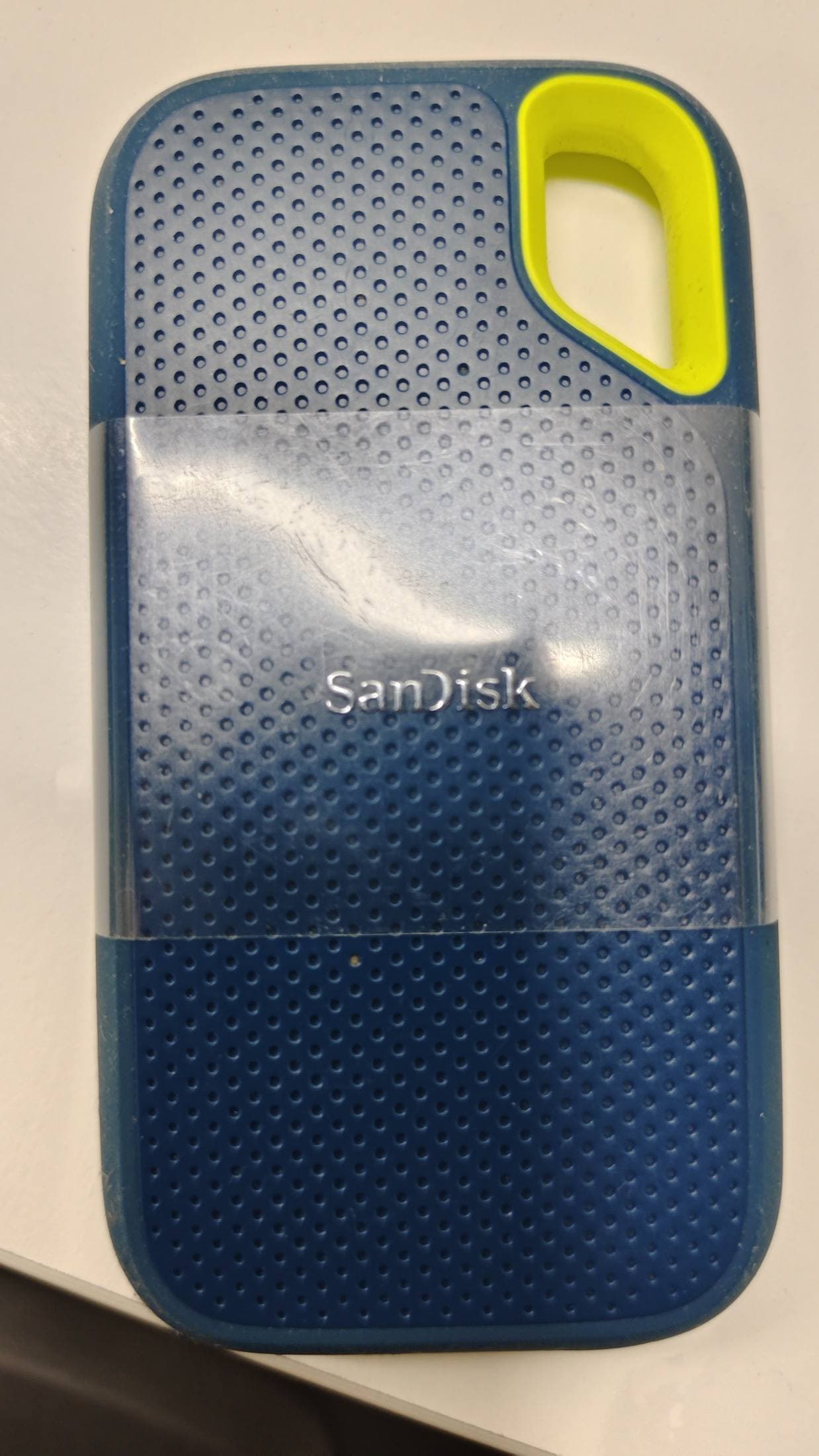
If you are going to toss the SSD into the same bag as your Pencil, buy one that is physically protected and does not overheat easily.
A backup routine you will actually do
Buying an SSD is not a backup. The routine is the backup.
The simplest 3 copy setup for iPad artists
- Working copy: inside the app on your iPad
- Local copy: external SSD
- Offsite copy: cloud or a device backup
Apple supports both iCloud backups and computer backups, and frames them as alternatives you can use together. [8]
Step 1: create a staging folder on the iPad
In Files, create:
On My iPad -> ArtBackup_Staging
This removes pressure to plug in the SSD every day.
Step 2: Procreate routine
Daily or after a serious session (quick)
- Procreate Gallery -> Select
- Pick the canvases you worked on
- Share -> Procreate
- Save to Files -> ArtBackup_Staging -> 2026-02 -> project-name
Weekly (deeper)
- Export your current WIP stack in Procreate format to the SSD's ArtBackup folder.
Monthly (archive)
-
Export finished pieces as:
- .procreate for editable source
- PNG or TIFF for a universal flattened copy
-
Copy the monthly folder to your offsite storage.
Step 3: copy staging to SSD with Copy, not Move
When the SSD is connected:
- Files -> On My iPad -> ArtBackup_Staging
- Select the newest folders -> Copy
- Files -> SSD -> ArtBackup -> 2026 -> 2026-02 -> Paste
Copy is safer than Move. You can delete staging later after you confirm the SSD copy.
Step 4: offsite options that fit iPad life
Option A: a cloud folder in Files Cloud services like iCloud Drive and Dropbox can appear as Locations in Files, and you can copy your archive folder there. [5]
Option C: a NAS or file server on your network If you have a home NAS, you can add it in Files using Connect to Server and copy your archive folder there. Apple documents the Connect to Server flow inside Files, including guest or registered user access. [5]
Treat this as convenient storage, not magic. Network copies can fail if Wi-Fi drops, and Files does not do an automatic integrity check. Test a restore occasionally.
Option B: device backups for disaster recovery A device backup is useful when the iPad is lost or damaged, but it is not a substitute for having your art exported and organized. Apple explains what iCloud and computer backups include and exclude. [8]
Make your backups verifiable
A backup that you never test is a guess. You do not need a perfect verification system, but you do need a quick habit.
After a big copy to SSD:
- Open a few files directly from the SSD in Files.
- Check that file sizes look reasonable in Get Info.
- For Procreate, reimport one .procreate file into a throwaway test stack once in a while.
If you use zip archives, add the date to the filename, for example 2026-02-21_projectname.zip. It makes it obvious what is newest, and it avoids accidental overwrites when you are copying in a hurry.
Also decide what you will do if the SSD is lost. If you cannot tolerate that risk, keep the SSD unimportant by making sure the offsite copy is up to date.
SSD picks that map to real iPad artist workflows
All three of these are portable SSDs with USB-C workflows that fit iPad use. Specs below are from the manufacturers.
- Samsung Portable SSD T7 Shield: USB 3.2 Gen 2 (10 Gbps). [9]
- Crucial X9 Pro: USB 3.2 Gen 2 (10 Gb/s), rated up to 1050 MB/s. [10]
- Samsung Portable SSD T9: USB 3.2 Gen 2x2 (20 Gbps). [11]
If you only buy one, pick a 2 TB 10 Gbps class SSD and put your effort into the routine.
Quick troubleshooting when the SSD does not show up
- Unplug and replug, then open Files -> Browse and tap Browse again to refresh Locations. [1]
- Check power and hub setup. Powered hubs solve many disconnects. [1]
- Confirm single partition and a supported format. [1]
- Swap the cable.
If it still fails, reformat the SSD as exFAT with a single partition.
Summary
A reliable iPad backup setup is straightforward:
- Use an SSD that connects cleanly over USB-C and stays connected.
- Format it to a Files compatible format, usually exFAT.
- Export source art files regularly, especially from Procreate.
- Keep an offsite copy for disaster recovery.
Do it once, then repeat it.
Sources
- Apple iPad User Guide: Connect external storage devices to iPad. [1]
- Apple iPad User Guide: Transfer files from iPad to a storage device, a server, or the cloud. [5]
- Apple Support: Backup methods for iPhone or iPad. [8]
- Apple iPad Pro Technical Specifications (Thunderbolt or USB4 port capability). [2]
- Apple iPad Air Technical Specifications (USB 3 up to 10 Gbps). [3]
- Apple Support: iPad (A16) Tech Specs (USB 2.0 up to 480 Mb/s). [4]
- Procreate Help Center: How to back up your Procreate artwork. [6]
- SanDisk Forums: Notice on firmware issue causing unexpected disconnects for certain portable SSD models. [7]
- Samsung Semiconductor: Samsung Portable SSD T7 Shield datasheet. [9]
- Crucial: X9 Pro Portable SSD product page and specs. [10]
- Samsung Semiconductor: Samsung Portable SSD T9 datasheet. [11]
Sources
Recommended gear
Samsung T7 Portable SSD
amazon.comOne of the safest SSD buys for iPad creators. Fast, stable, and easy to trust for backup routines.
Pro: Fast and reliable backup drive
Con: Extra cable to carry
Choose capacity (1TB/2TB) based on project size.
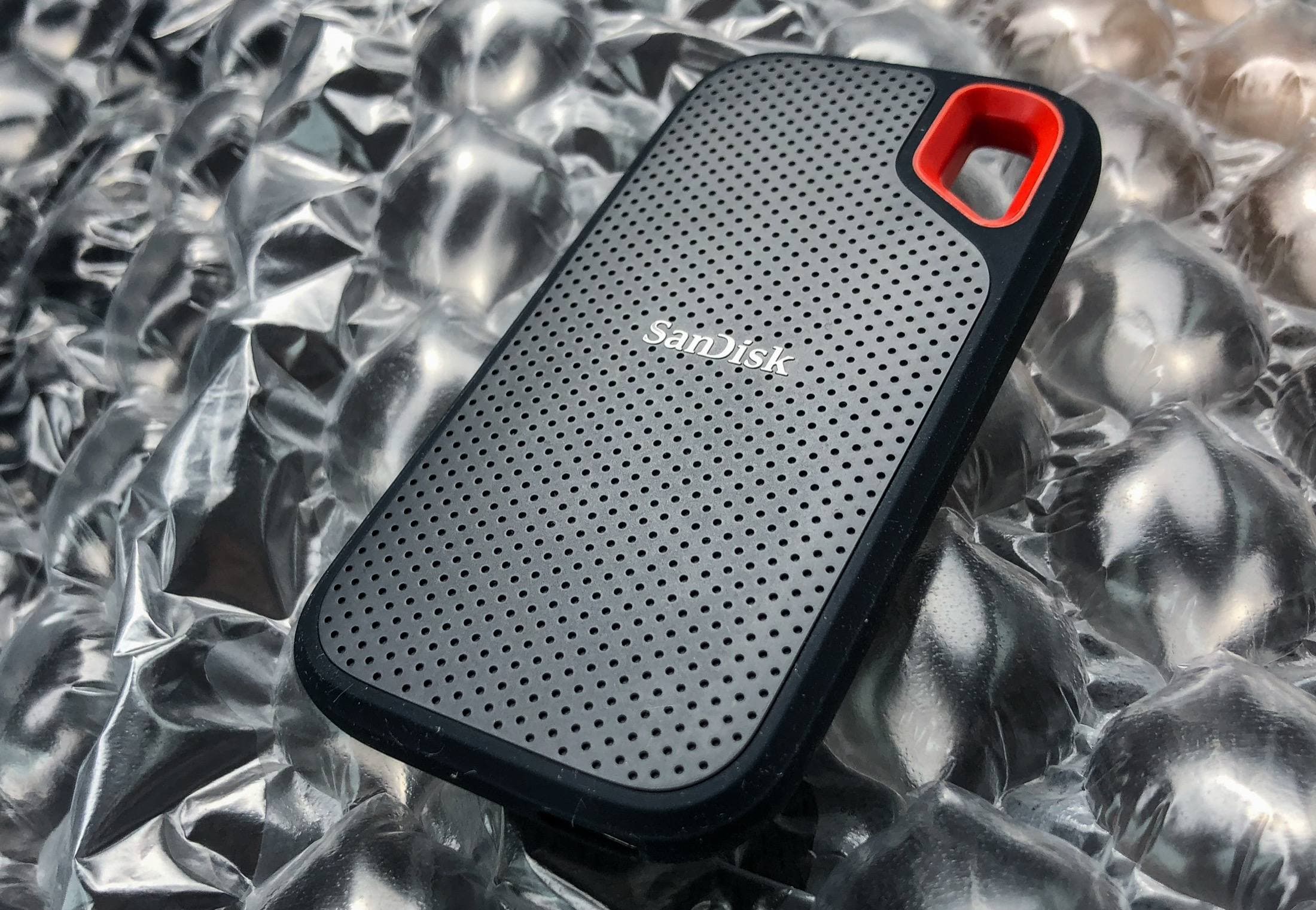
SanDisk Extreme Portable SSD
amazon.comPro: Rugged and compact
Con: Can run hot under heavy copy
Good for large Procreate backup workflows.
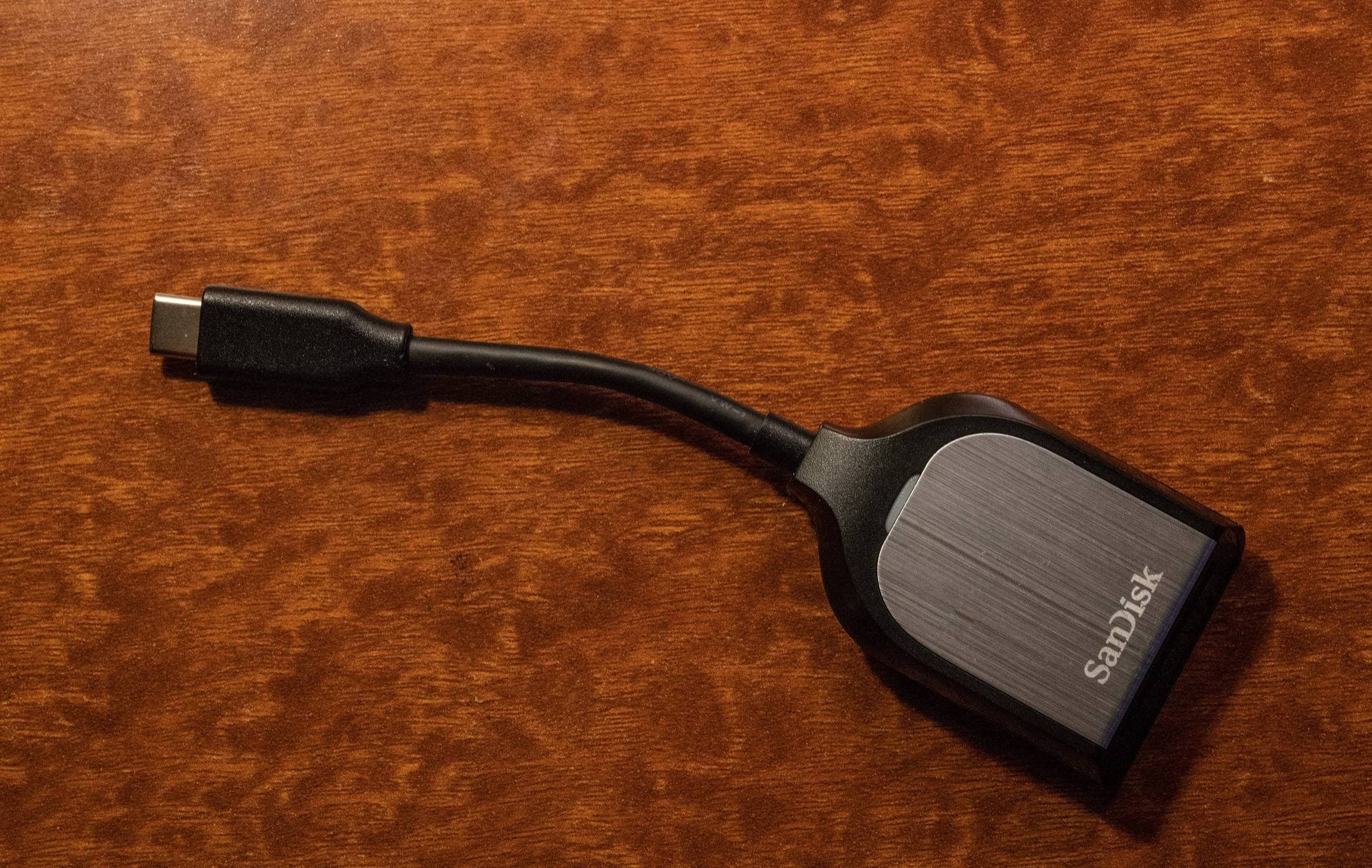
SanDisk Extreme PRO USB-C SD Reader
amazon.comPro: Reliable UHS-II import performance
Con: Single format focus
Best when your iPad supports USB 3 or faster host speeds.
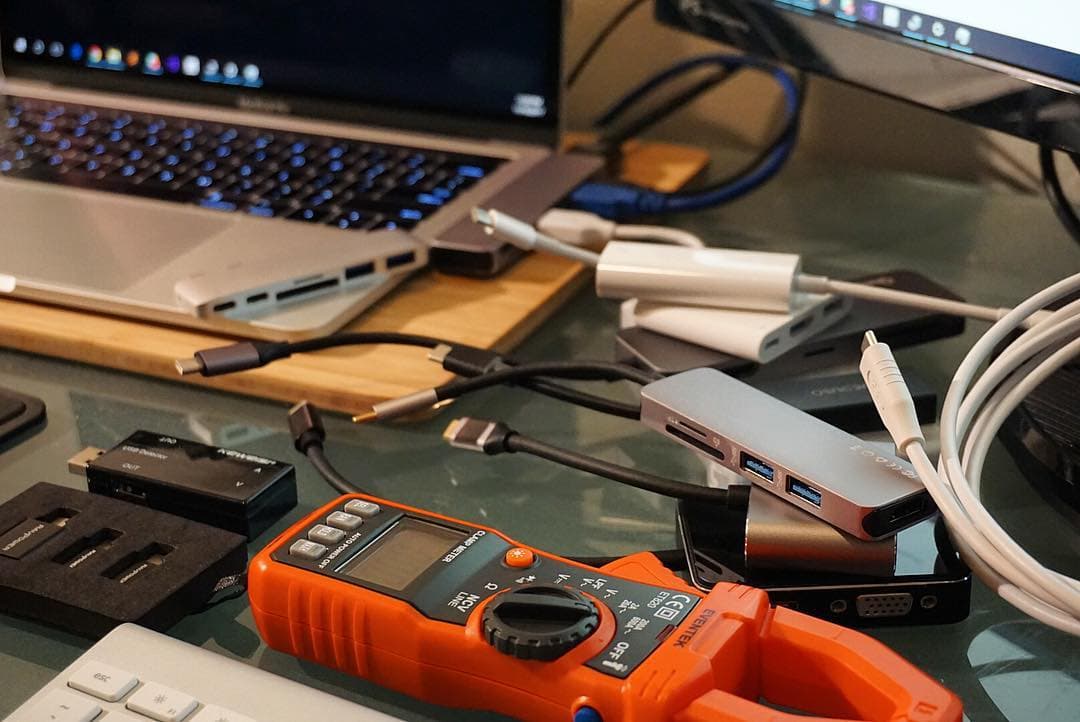
Anker 341 USB-C Hub (7-in-1)
amazon.comA strong everyday port hub for iPad workflows. Good value and layout, with expected bandwidth limits.
Pro: Solid all-around port mix for iPad setups
Con: Not Thunderbolt bandwidth
Check host power pass-through and display output before buying.
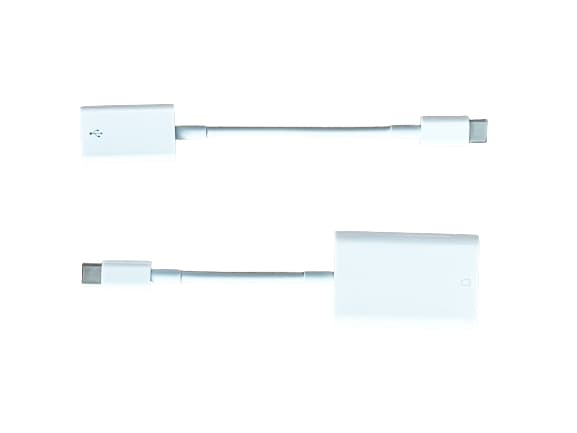
Apple USB-C to SD Card Reader
apple.comPro: Strong compatibility with iPadOS import flow
Con: No built-in microSD slot
Simple and stable option for SD workflows on iPad.
Related buying picks
More in this collectionBuyer guide
Best SD and microSD Card Readers for iPad Creators (2026)
Card reader speed on iPad depends on card bus, reader bus, and iPad port limits. Buy for your actual ingest workflow, not label hype.
Buyer guide
Best SSD and Card Reader Kit for iPad Creators (2026)
This BOFU buyer guide pairs one reliable SSD with one reader path so imports, backups, and exports stay fast and predictable.
Buyer guide
Portable iPad Keyboard Travel Kit (2026): Write, Sketch, Pack Fast
How to build a portable iPad writing and sketch kit for cafes and transit, including keyboard format choices, setup flow, and compatibility checks.
Buyer guide
Travel Charging Setup for iPad Artists (2026): One-Bag Power Kit
A travel charging setup works when charger, power bank, and cables have fixed roles and you run the same simple routine at airports, hotels, and cafes.