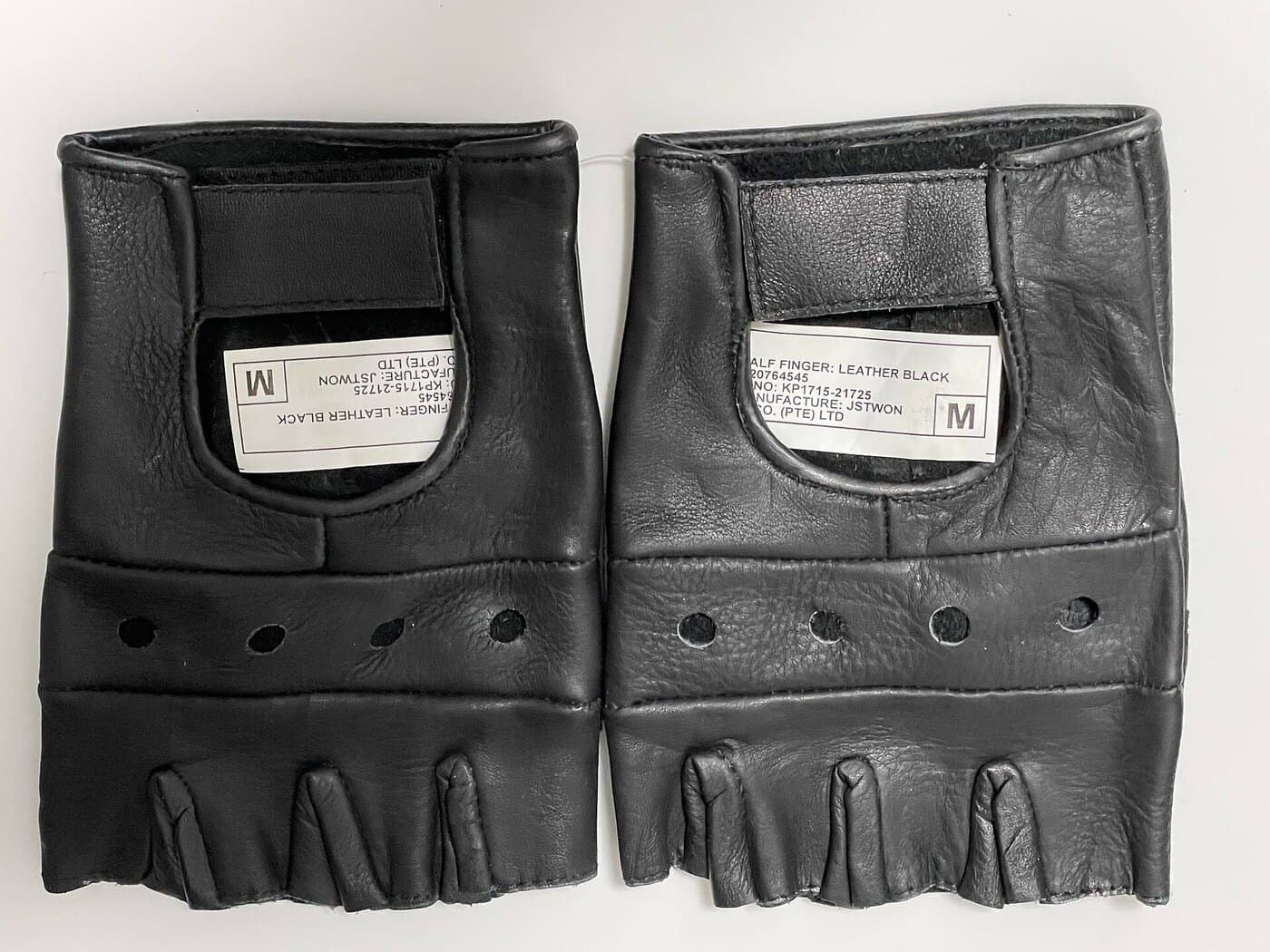
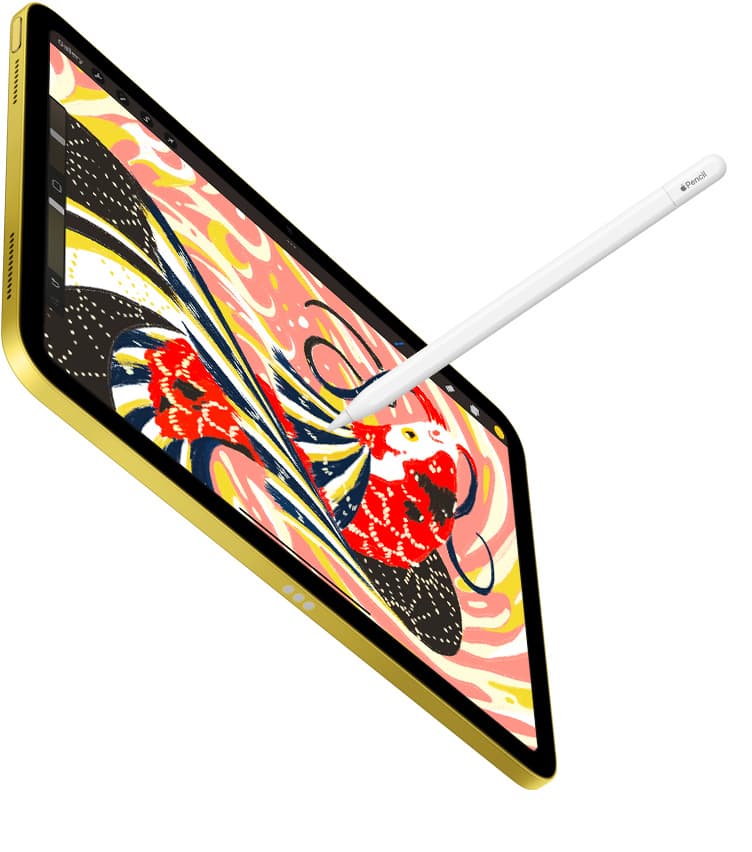
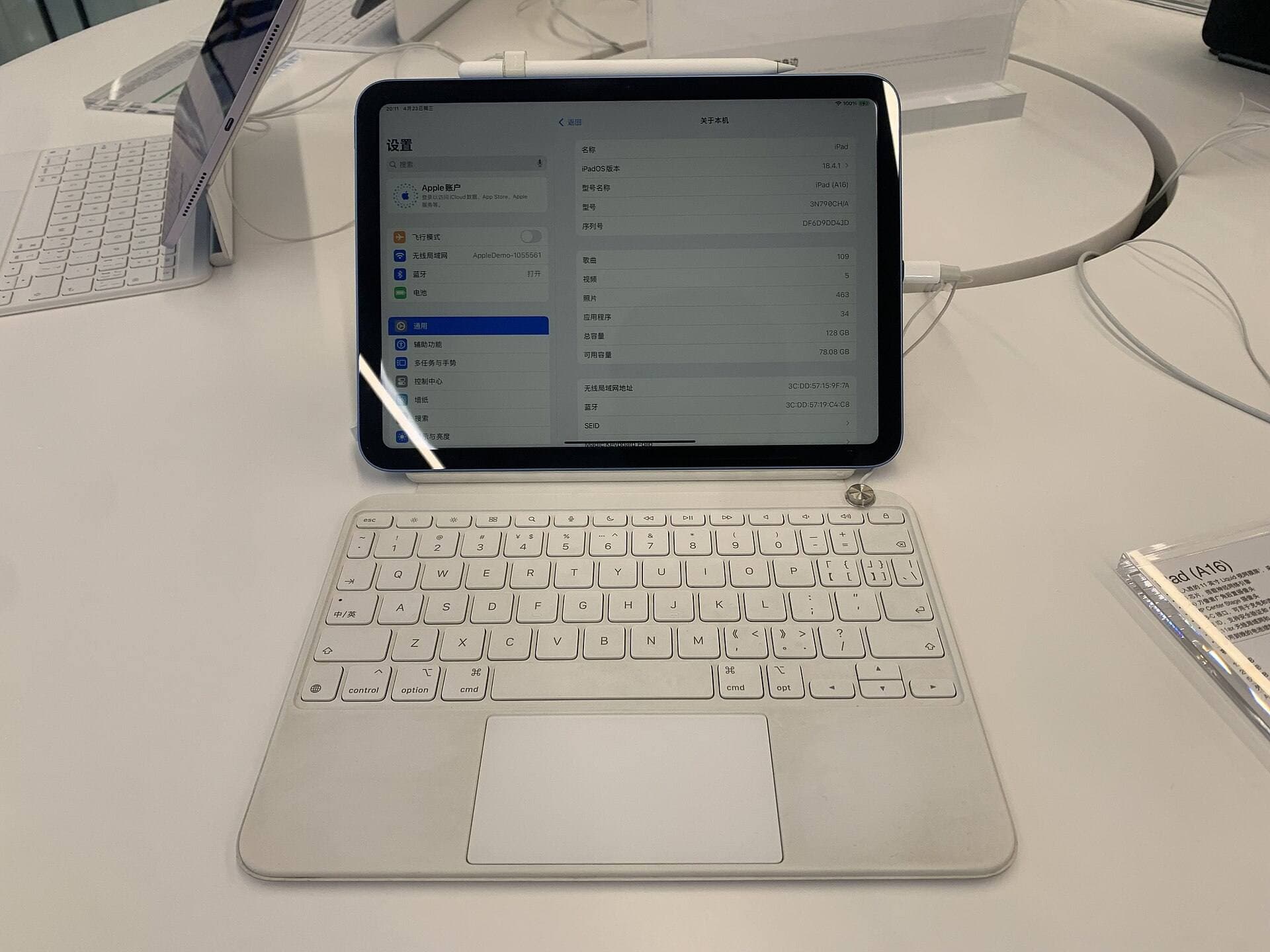
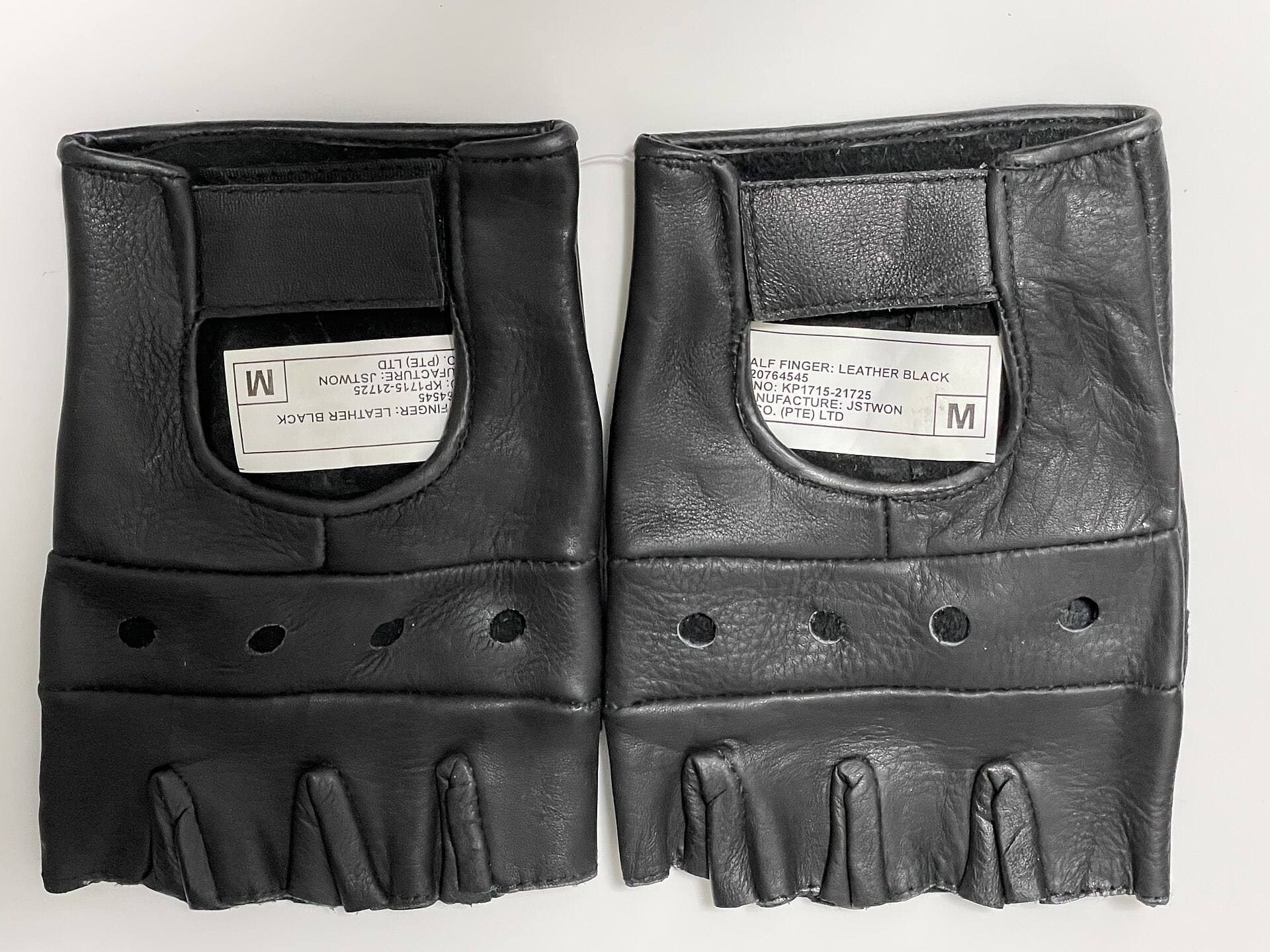
There’s a very specific moment in every digital artist’s life where you see the glove: a black little half-glove that covers the pinky side of the hand like it’s trying to be subtle about being a product category.
Then you hear the lore.
- “It fixes palm rejection.”
- “It makes you draw smoother.”
- “It’s only for sweaty hands.”
- “Real artists don’t need it.”
- “Everyone needs it.”
Here’s the honest, slightly ruthless truth: a drawing glove is not a palm-rejection upgrade. It’s a comfort-and-consistency upgrade that sometimes looks like it solved palm rejection, because a bunch of “palm rejection problems” are actually friction problems, gesture problems, or your device not knowing what a pen is.
Let’s separate the myths from the mechanics, and then make a clean call on whether you should bother.
What “palm rejection” actually means (and why the glove gets credit)
Palm rejection is the system’s ability to recognize the stylus tip as the real input and ignore your hand resting on the screen. Clip Studio defines it simply: it recognizes only the stylus tip and doesn’t recognize the hand touching the screen. [1]
Apple literally lists “support for palm rejection” as a core Apple Pencil feature. [2]
So why does the glove show up in the palm rejection conversation at all?
Because people experience “palm rejection” as a vibe: “My hand is on the screen, and everything is calm.” When that calm breaks, random zooms, stray marks, canvas pan, the glove becomes a tempting scapegoat or miracle.
But real palm rejection lives in a stack:
- Hardware can tell pen vs touch
- OS/driver decides what wins when both happen
- App decides what finger touches do (draw vs gesture vs nothing)
A glove mostly lives outside that stack. It’s physical. It changes what your hand does on the surface. It does not rewrite input rules.
The harsh reset: a glove does not “increase palm rejection”
Wacom, arguably the company with the most moral authority on pen displays, answers this as directly as possible:
“No. The Wacom Drawing Glove will not affect how touch or palm rejection performs on the display.” [3]
That line should be printed on half the product listings online.
So if a glove isn’t palm rejection… what is it?
What a drawing glove actually does
1) It standardizes glide (the underrated superpower)
Your hand doesn’t glide consistently on glass.
It glides differently depending on:
- humidity
- sweat
- skin oils
- screen protectors (especially matte “paper” textures)
- pressure and angle
A glove gives you a consistent “sled” surface so your hand movement feels predictable. This is why even people with perfect palm rejection still wear one.
2) It reduces fingerprints and oily haze
Less skin-on-screen contact = less grime and fewer “why does my canvas look foggy?” moments mid-session.
3) It sometimes reduces accidental touch
On pure capacitive touch screens, fabric usually doesn’t register like skin (unless it’s conductive or damp). That can reduce stray touches.
But here’s the catch: on pen displays and many tablets, the glove is not the authority. The device’s touch system is.
That’s why you’ll find even mainstream buying guides admitting the glove doesn’t necessarily prevent accidental touchscreen touches. [4]
Rejection issues explained: why palm rejection fails in real life
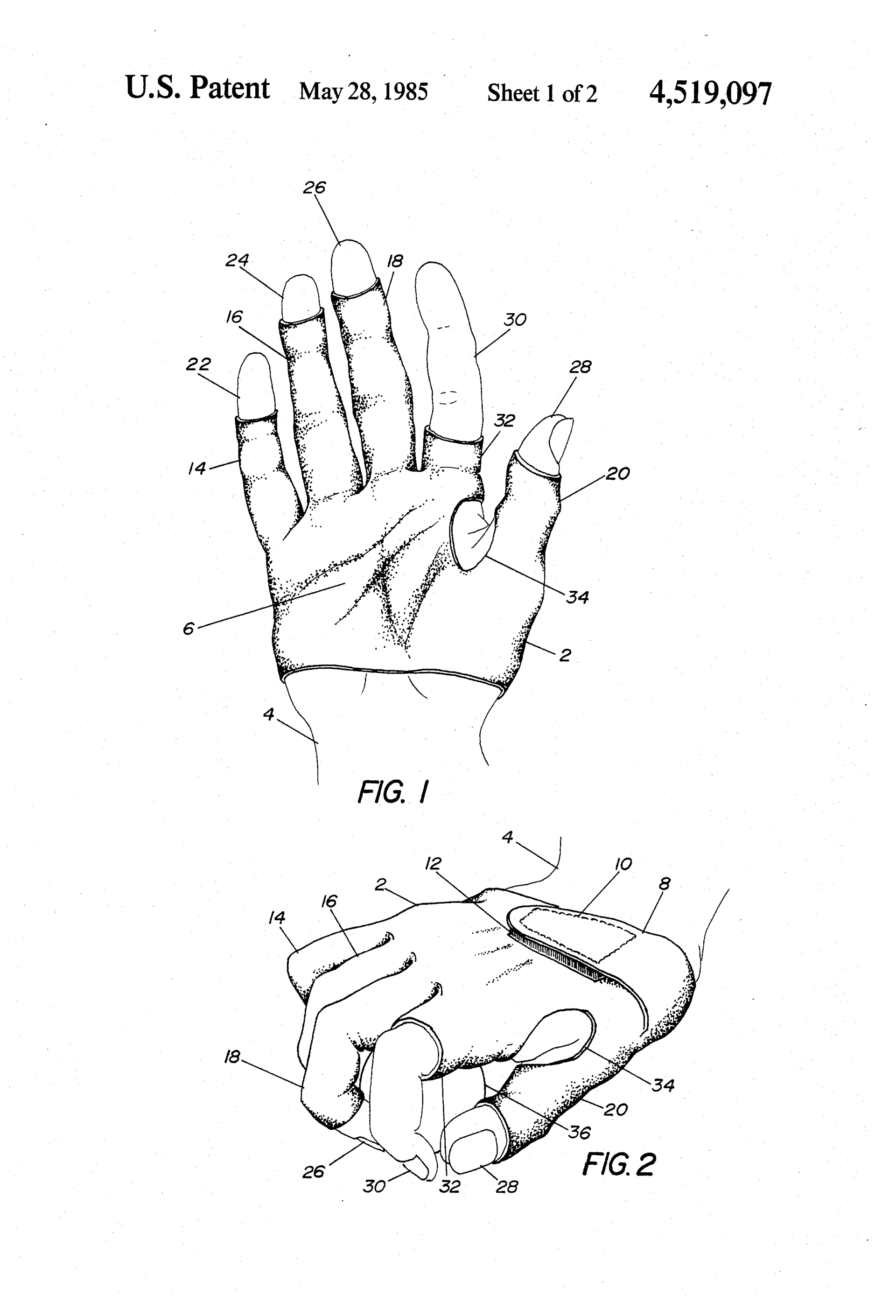
If your palm is “breaking through,” it’s almost always one of these.
1) You’re using a stylus the device treats like a finger
If you’re using a basic capacitive stylus (rubber tip, works on any phone), the screen sees “finger.” There’s no separate pen signal for the OS to prioritize. A glove cannot invent pen input.
This is the single most common “I tried everything” problem.
2) Touch is only disabled when the pen is close enough
Some devices that support both pen and touch will disengage touch only when the pen tip/eraser is within proximity range. Wacom explicitly notes this behavior on some models. [5]
Translation: If your palm lands before your pen is “present,” touch can still fire first. That looks like palm rejection “failing,” but it’s really timing + proximity logic.
3) Your app still allows finger actions while drawing
A lot of apps intentionally keep touch gestures active (pan/zoom/rotate) while you draw with the pen. That’s usually great, until your palm becomes an accidental gesture.
This is why “palm rejection problems” often disappear when you change one setting:
Procreate: Disable Touch actions Procreate’s handbook spells it out: toggling this on makes finger touches only invoke gesture shortcuts; you won’t paint/smudge/erase with fingers anymore. [6]
And Procreate Pocket even exposes “Palm Support™” levels (Standard/Fine/Off) and describes it as ignoring your hand and registering deliberate brushstrokes. [7]
In other words: before you buy fabric, check whether your app can simply stop treating your hand as an input device.
4) Windows needs an OS-level decision: “ignore touch” or “disable touch”
On Windows tablets/2-in-1s, you often have two routes:
- Tell Windows to ignore touch while using pen (varies by device/Windows version; many devices surface this in Pen & Windows Ink settings)
- Disable the touchscreen device entirely when drawing
Microsoft’s own support docs show how to enable/disable a touchscreen via Device Manager (HID-compliant touch screen). [8]
And Microsoft’s documentation about Pen & Windows Ink even references the existence of the “Ignore touch input when I’m using my pen” option (and how OEMs can hide it). [9]
This is why Windows “palm rejection” can feel inconsistent: the experience is the sum of hardware + drivers + OS settings + app settings.
5) You’re not dealing with rejection, you’re dealing with friction + sweat
This is the sneaky one.
Your device may be rejecting your palm perfectly, but your hand is:
- sticking to the glass
- dragging on a textured protector
- squeaking
- leaving micro smears that change how the pen feels
A glove “fixes palm rejection” in these cases the way better shoes “fix bad running form.” It doesn’t fix the mechanism, it fixes the experience.
So… do you need a drawing glove?
You should buy one if…
- Your hand drags/sticks/squeaks on glass (especially with matte protectors).
- You draw for long sessions and feel friction fatigue in your wrist/hand.
- Your screen becomes a fingerprint crime scene.
- You want one consistent feel across devices (iPad + Cintiq + Windows tablet).
- You also work on paper and want a true “smudge guard” effect.
Traditional smudge-guard gloves are explicitly sold to prevent moisture/oils causing paper bleed or ink skipping, while keeping fingers uncovered for dexterity. [10]
You should not buy one (yet) if…
- You’re trying to fix random zoom/undo/canvas movement. That’s usually settings and input rules, not fabric.
- You’re using a stylus your device treats like a finger. Get an actual active pen compatible with your device.
- You love the feel of skin friction anchoring your hand. A glove can feel too slippery, like drawing on ice.
Here’s the blunt version:
Buying a glove to solve broken palm rejection is like buying sunglasses to fix a flickering lightbulb. It changes what you perceive, but it doesn’t fix what’s happening.
A fast diagnostic: rejection problem or glide problem?
It’s a rejection/gesture problem if:
- your canvas moves when your palm touches down
- you get random zooms/rotations/undos
- it happens even when the screen is clean and your hand is dry
Fix: app settings first (pen-only modes / disable touch actions), then OS settings (ignore touch while pen, etc.).
It’s a glide/comfort problem if:
- your hand sticks or squeaks
- you keep wiping the screen mid-session
- it gets worse over time in warm/humid conditions
Fix: a glove is genuinely a good solution.
What to look for in a glove (don’t overpay, but don’t buy misery)
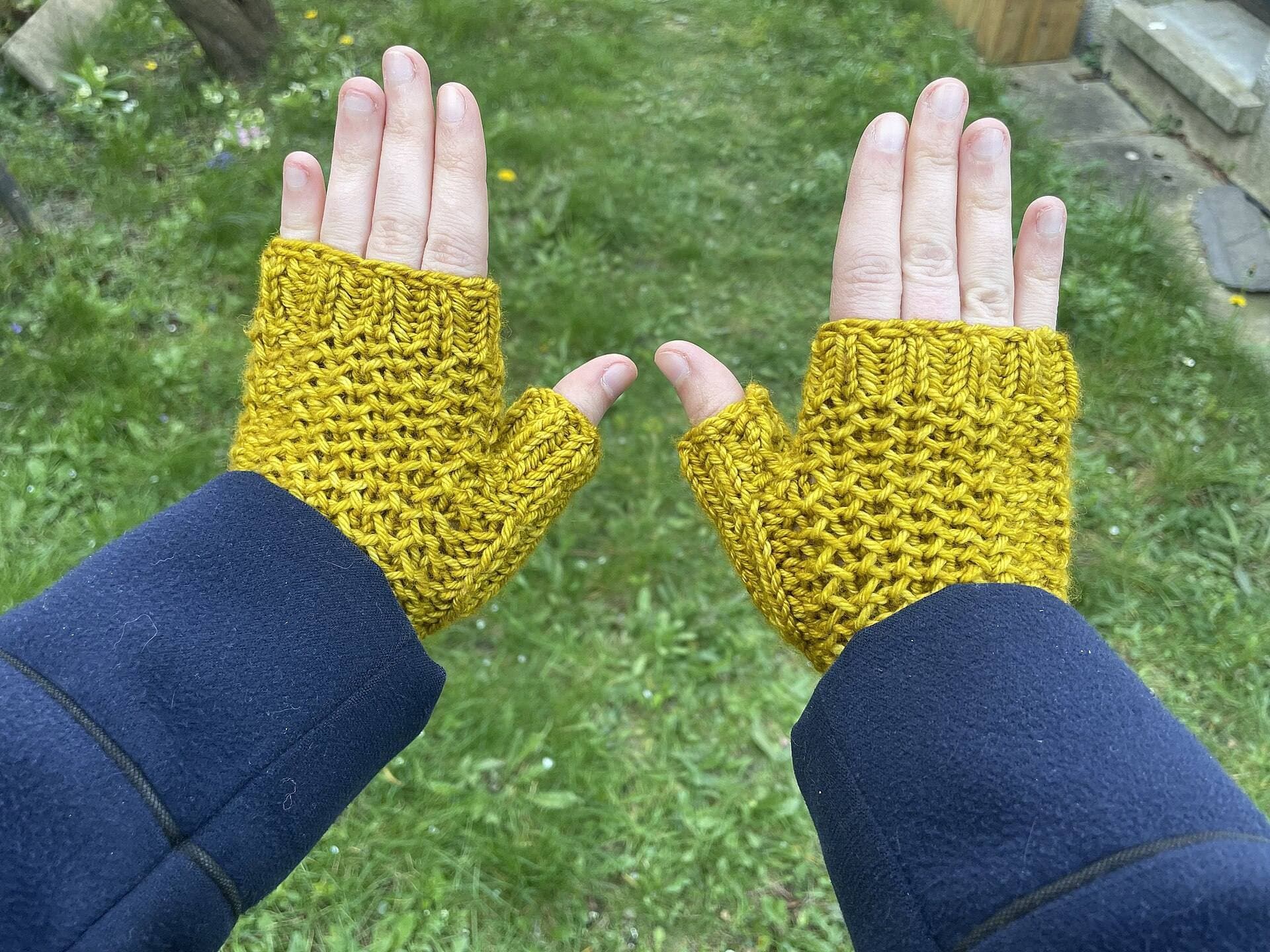
Drawing gloves are simple. The details still matter.
- Material: stretchy synthetics (lycra/spandex/nylon blends) are common because they’re breathable and glide well. [4]
- Seams: seams under the pinky edge can become a constant irritant during long sessions. Many “good” gloves brag about seam placement for a reason. [4]
- Size options: “one size fits all” often means “fits most, annoys some.” Multiple sizes are a quality signal. [4]
- Washability: you’ll sweat into it. If it’s annoying to wash, you won’t wash it.
And yes: if you use touch gestures constantly, you’ll want a two-finger glove that leaves enough finger area uncovered so you can still pinch-zoom without feeling like you’re wearing a sock puppet.
The actual verdict
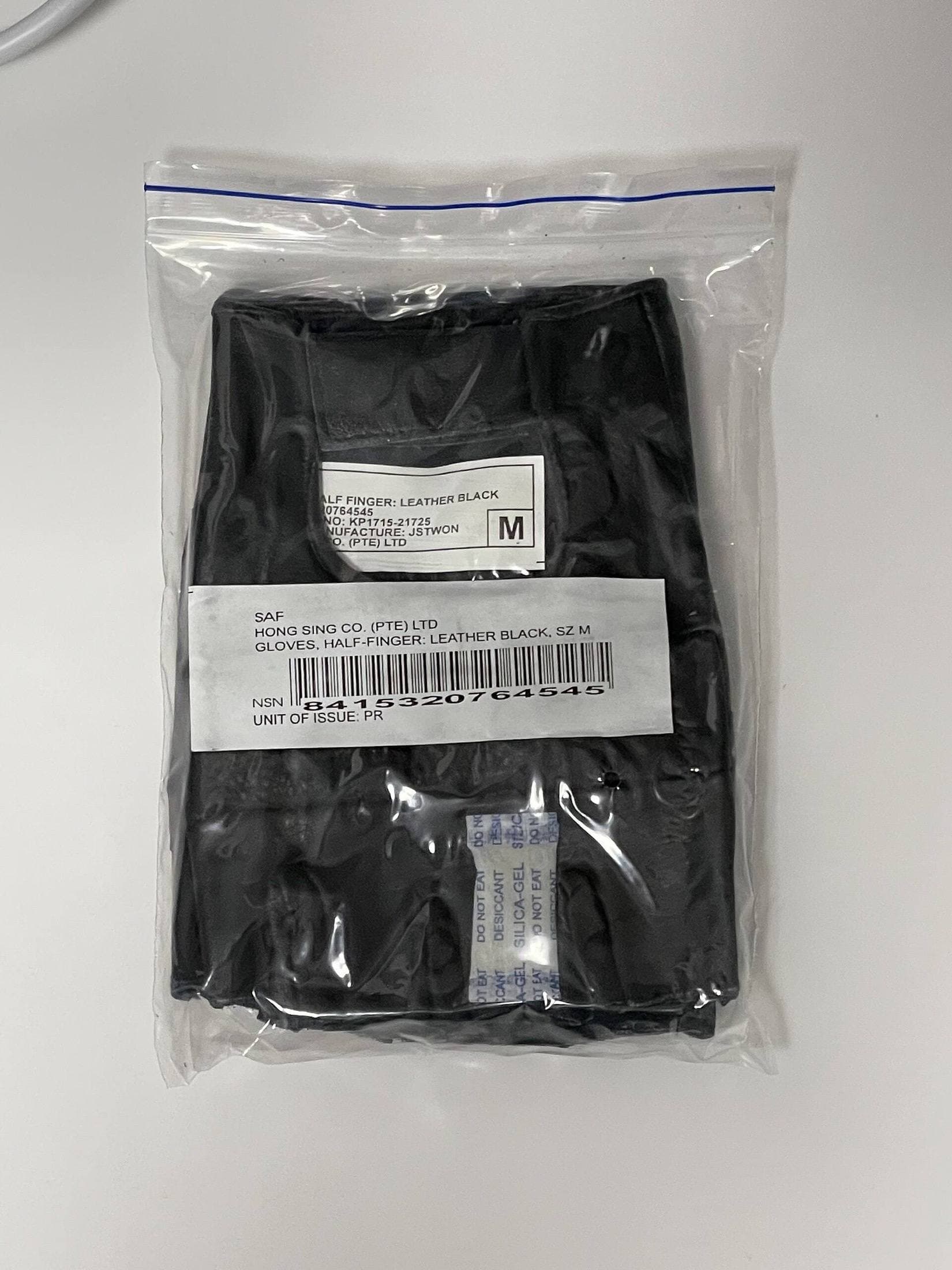
If you’re on a modern, well-supported pen setup (Apple Pencil + iPad, recent Samsung S Pen tablets, a properly configured Wacom display), a glove is not a requirement.
But it can still be the difference between:
- “I can draw here,” and
- “I can draw here for 4 hours and not notice my hand once.”
And if your setup is misbehaving, treat the glove as the finishing touch, not the fix. Fix the rejection stack first (pen → OS/driver → app), then decide if you want the comfort upgrade.
Sources
Recommended gear
Parblo Drawing Glove
amazon.comPro: Improves glide on glass
Con: Does not fix software rejection
Apple Pencil Pro
amazon.comThe best Apple stylus for serious digital art workflows. Expensive, but the control upgrades are real.
Pro: Best brush-control and hover workflow
Con: Highest price in the lineup
Works only with newer iPad models. Check compatibility.
Apple Pencil (USB-C)
amazon.comA practical low-cost Apple stylus with broad compatibility, but limited for advanced art control.
Pro: Lowest official Apple Pencil cost
Con: No pressure sensitivity for brush work
Compatible with many recent iPads. No pressure support.
Apple Pencil (2nd generation)
amazon.comStill a strong stylus on compatible iPads. Good pressure control, but compatibility is the main trap.
Pro: Pressure support without Pro pricing
Con: Not compatible with newest Pro-only iPads
Only for iPads that support 2nd generation pairing.
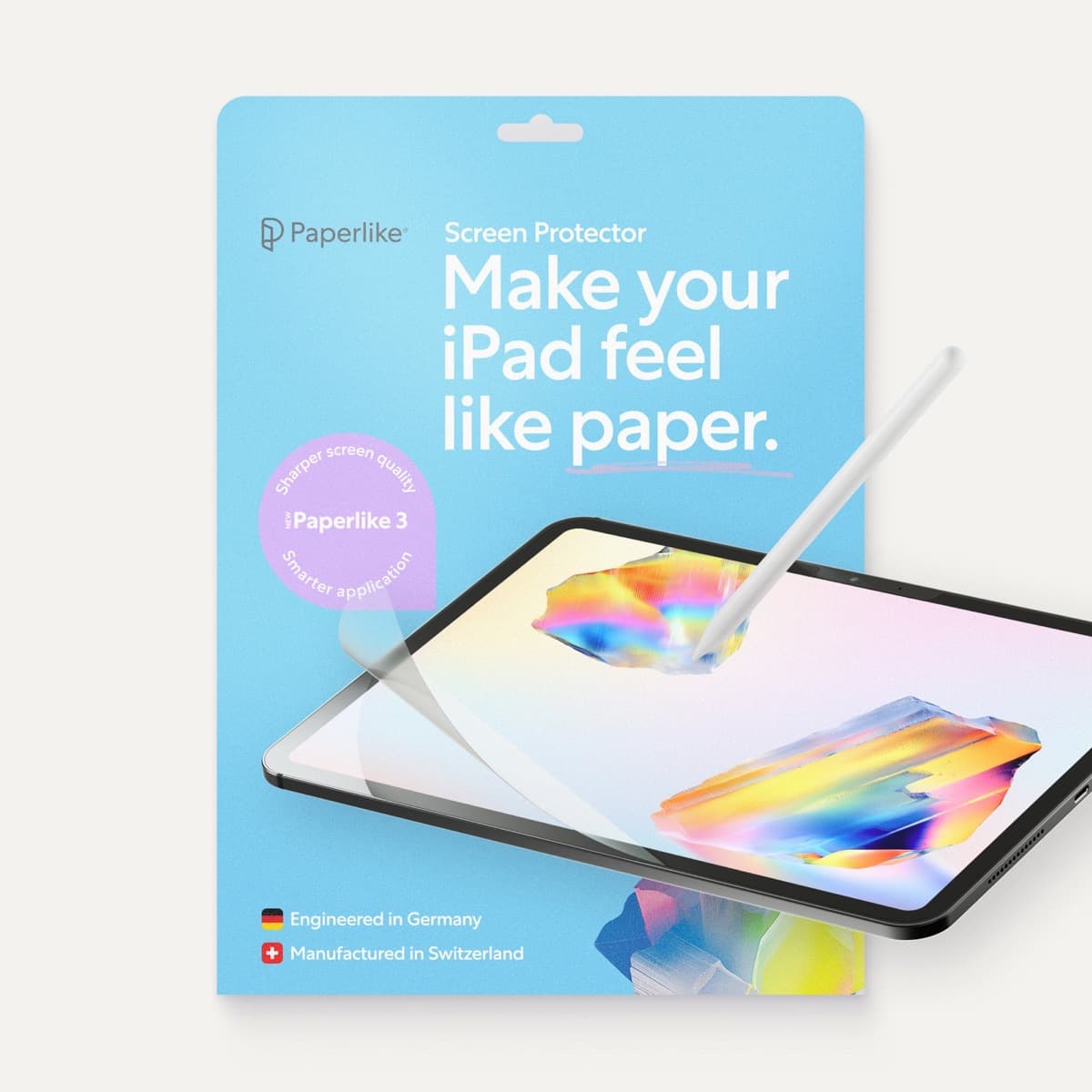
Paperlike 3 (11-inch, 2-pack)
amazon.comA strong surface-feel upgrade for drawing control. Clarity tradeoff is real and should be expected.
Pro: Adds controlled paper-feel friction
Con: Slightly reduces perceived display sharpness
11-inch fit only. Confirm generation before checkout.
Related buying picks
More in this collectionBuyer guide
Is the Apple Pencil USB-C enough for Procreate?
The Apple Pencil (USB-C) functions in Procreate, but the lack of pressure sensitivity makes it a poor fit for expressive brushwork.
Buyer guide
Apple Pencil for comic inking: Complete buyer guide
Choose the right Apple Pencil for digital comic inking based on line weight control, tablet compatibility, and glass friction.
Buyer guide
Apple Pencil Compatibility Guide (2026): Which iPad Works With Which Pencil?
Compatibility decides the right Apple Pencil before features do. This guide maps current and older iPads to the Pencil models that actually work.
Comparison
Apple Pencil Pro vs Apple Pencil USB-C in 2026: Which Should You Buy?
Most artists should choose Apple Pencil Pro only when pressure control and hover are central to their workflow, not by default.