If you need a dedicated iPad app for professional vector art, choose Affinity Designer 2 for iPad for a complete node-editing workspace, or choose Adobe Illustrator: Graphic Art if your files feed directly into existing Adobe projects [1], [2]. If you want an unconstrained vector canvas for conceptual drawing rather than logo construction, choose Concepts [3]. Linearity Curve Graphic Design is the right choice if you need a dedicated vector layout environment across iPad and iPhone [4]. Skip Procreate for vector tasks, because Procreate is an iPad-only raster painting application without vector path tools [5].
Vector drawing on iPadOS divides into two distinct creative categories. The first category covers precise graphic design, typography, and bezier curve construction. The second category covers expressive freehand inking where each stroke is captured as a resizable vector path. Choosing the right software depends entirely on whether you need rigid geometric vectors or natural brush strokes that scale without pixelation [1], [3].
Dedicated vector suites: Affinity Designer 2 versus Adobe Illustrator
Affinity Designer 2 for iPad is built by Serif (Europe) Ltd. and is listed in the Graphics & Design category on the App Store [1]. The listing describes the app as bringing the power and precision of the desktop version into a touch-focused creative experience [1]. With a rating of 4.7 out of 5 across more than 4,700 App Store reviews, it targets creators who require comprehensive vector pen tools, precise geometry, and detailed vector masking directly on a tablet [1]. You should choose Affinity Designer 2 if you want deep desktop-grade vector capabilities on iPadOS without being locked into a subscription workflow [1].
Adobe Illustrator: Graphic Art is developed by Adobe Inc. as a free download with in-app purchases, carrying a 4.5 rating from over 38,000 App Store ratings [2]. Adobe positions the software to create logos, illustrations, graphics, and more on mobile hardware [2]. It integrates directly with Adobe Creative Cloud storage, which makes it ideal for designers who constantly pass vector assets back and forth between iPadOS and desktop Illustrator workspaces [2]. You should pick Illustrator on iPad if your existing production pipeline already relies on Adobe services, but you can skip it if you prefer working outside the Adobe cloud system [2].
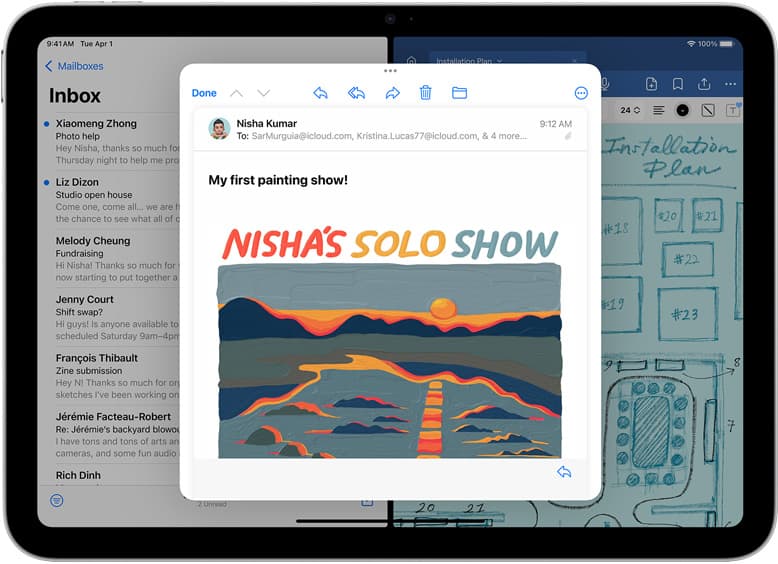
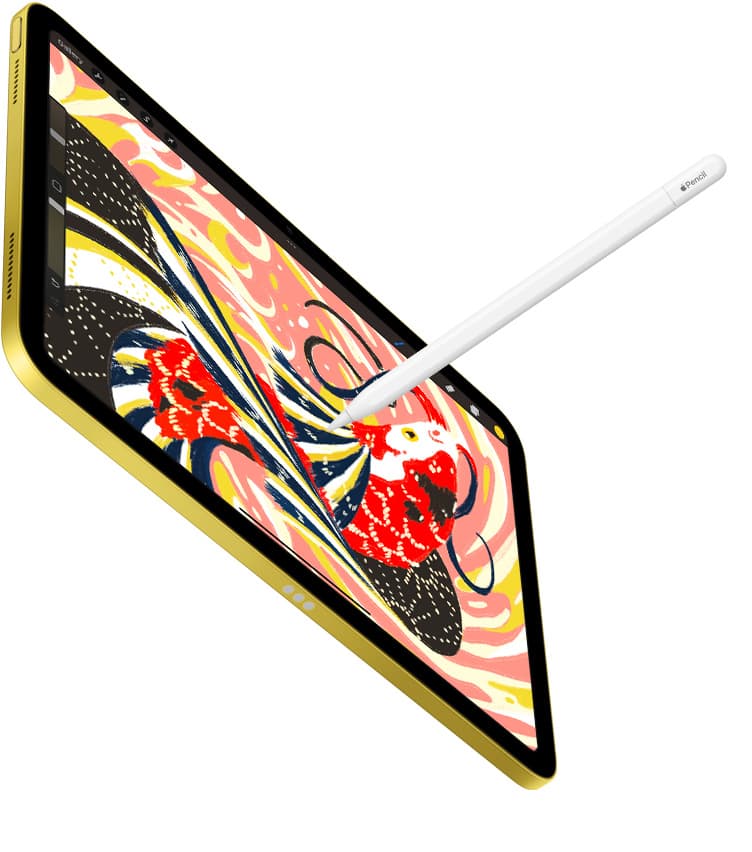
Both apps support precise stylus input, which allows you to plot anchor points and manipulate bezier handles accurately with an Apple Pencil [1], [2], [6]. Affinity Designer 2 focuses on giving you an extensive design suite that rivals its desktop counterpart, while Adobe Illustrator on iPad is streamlined around core vector creation tools tailored for quick mobile production [1], [2].
Free-form vector sketching with Concepts
Concepts is developed by TopHatch, Inc. and is categorized under Graphics & Design on the App Store with a 4.7 rating across more than 26,000 reviews [3]. The app listing describes Concepts as a flexible vector-based sketchbook where you can take your ideas from concept to reality [3]. Unlike structured graphic design software that requires constant manual anchor point manipulation, Concepts treats your Apple Pencil strokes as natural drawing marks while storing every line as editable vector data [3], [6].
This architecture makes Concepts the standout choice for architects, product designers, and visual note-takers [3]. You can sketch freely without worrying about fixed canvas boundaries or pixel resolution limits [3]. You can select strokes after drawing them, change their smoothing, adjust stroke thickness, or shift their color palette entirely [3]. If you want a traditional vector pen tool to cut out logos with exact mathematical angles, you should skip Concepts and pick Affinity Designer 2 instead [1], [3]. Buy into Concepts when your primary goal is loose ideation that retains infinite scalability [3].
Precision graphic design with Linearity Curve
Linearity Curve Graphic Design, developed by Linearity GmbH, is a free download in the Graphics & Design category on the App Store, maintaining a 4.5 rating from over 14,000 user reviews [4]. The listing identifies it as professional vector art and graphic design software on iPad and iPhone [4]. It focuses on marketing graphics, icon design, vector lettering, and UI layout tasks [4].
Linearity Curve works well for visual creators who need dedicated vector tools on both a phone and a tablet without switching platforms [4]. The interface emphasizes fast curve manipulation, shape builder functions, and clean layer organization for digital graphics [4]. You should choose Linearity Curve if you want a dedicated vector layout tool that spans multiple Apple mobile screens [4]. However, designers who demand full multi-discipline print production controls and advanced vector export options will find a deeper toolset inside Affinity Designer 2 [1], [4].
When to consider Clip Studio Paint or Procreate
Procreate is one of the most widely used drawing apps on iPad, holding a dominant position in the Graphics & Design category [5]. However, Procreate is strictly an iPad-only raster painting application [5]. Its engine creates raster canvases where layer limits are strictly tied to device memory and canvas dimensions [5]. You can't export scalable SVG vector files or edit bezier curves inside Procreate [5]. If you require scalable logos or print assets that retain sharp edges at any size, skip Procreate [5].
Clip Studio Paint offers a practical middle ground for artists who want traditional inking with vector flexibility [5]. While Clip Studio Paint uses a subscription or update plan model on iPadOS rather than a single upfront license, it features dedicated vector layers alongside its raster illustration and comic tools. On a Clip Studio Paint vector layer, your brush marks preserve vector path data, which lets you pinch lines, adjust stroke width, and erase intersecting vector marks cleanly with specialized vector erasers. Choose Clip Studio Paint if you create comics, manga, or detailed character art and need vector lines combined with painterly raster color fills [5].
Hardware pairing: Apple Pencil and iPad selection
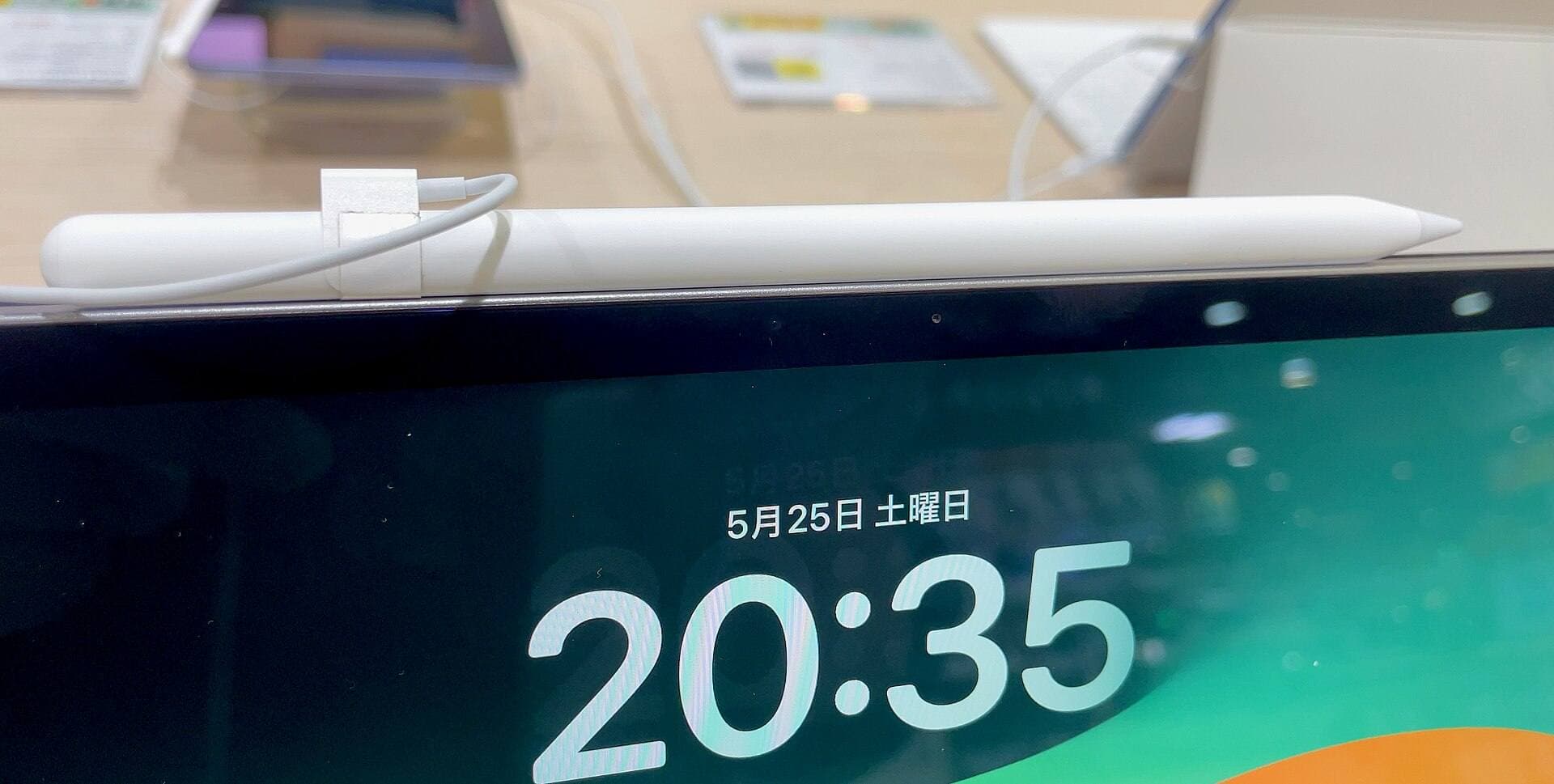
Your choice of iPad and stylus directly influences how comfortable vector plotting feels during long drawing sessions [6], [7]. The Apple Pencil Pro includes advanced input capabilities like squeeze, barrel roll, haptics, hover, tilt, and pressure sensitivity [6]. The squeeze gesture allows supported apps to pull up contextual menus or switch tools quickly without reaching across the display [6]. Barrel roll utilizes an internal gyroscope so you can rotate shaped vector brushes as you sketch [6].
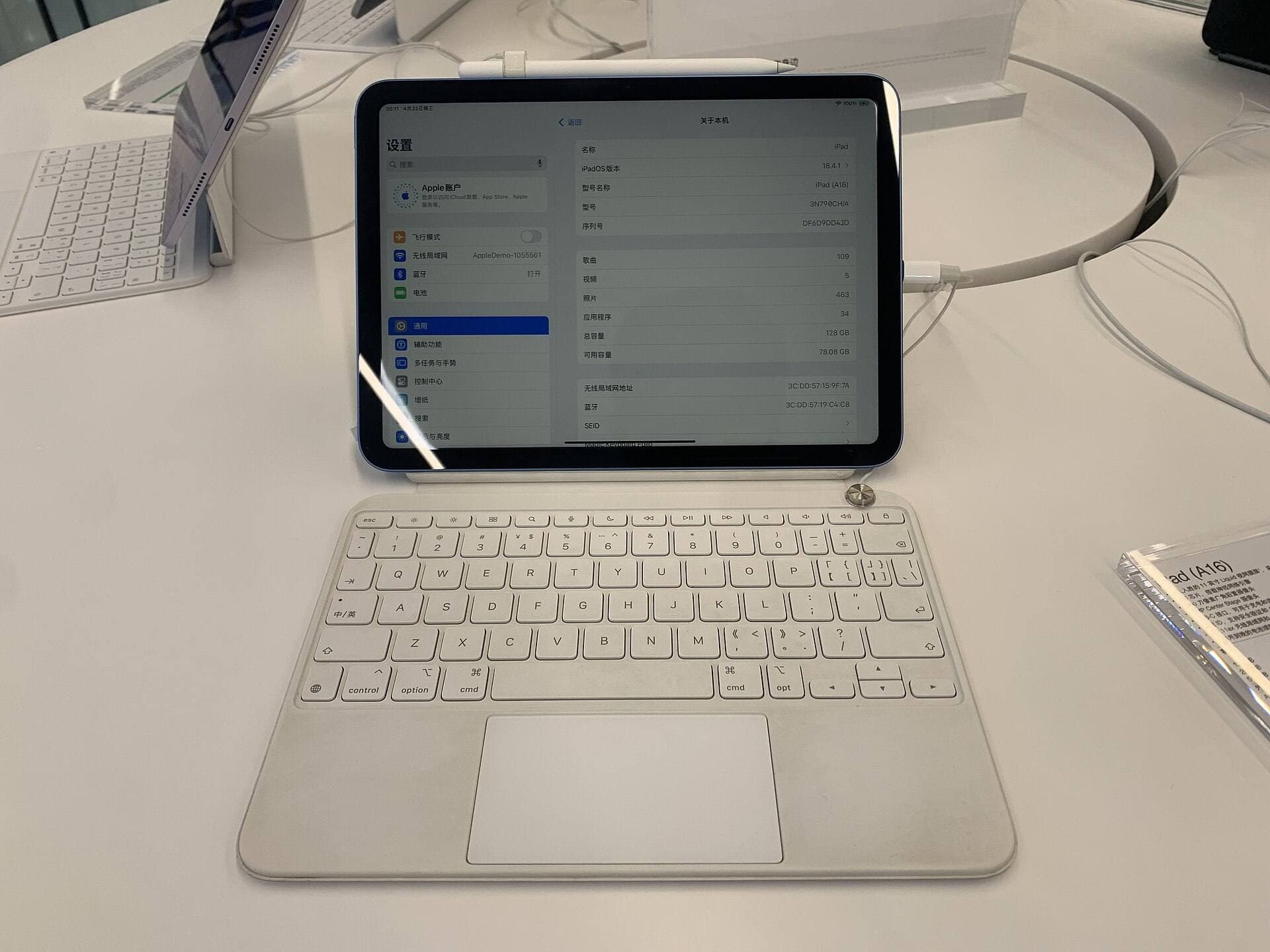
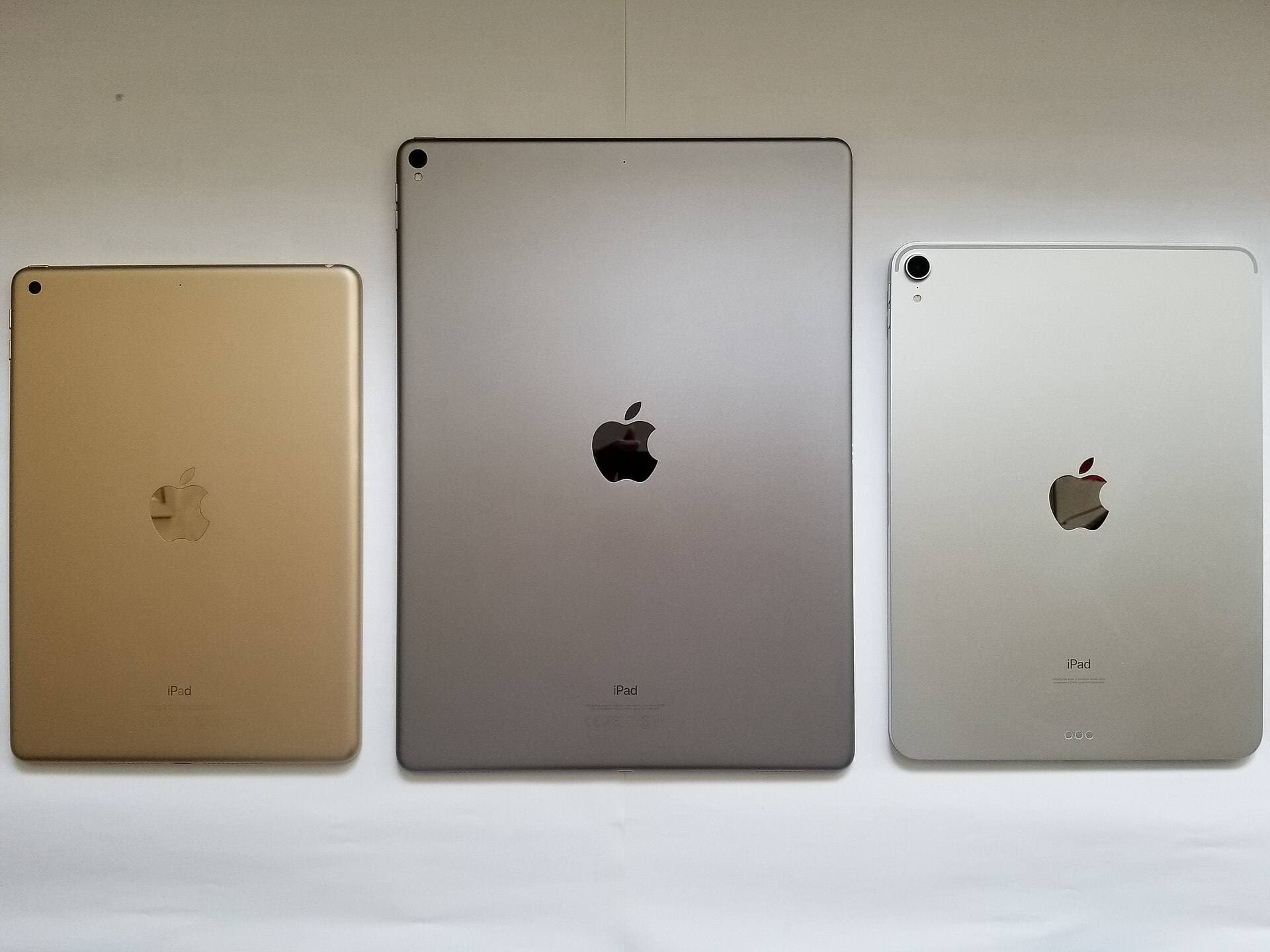
Apple Pencil Pro compatibility requires newer iPad models, such as the iPad Air (M4) or the M4 generation iPad Pro [6], [7]. The iPad Air (M4) provides access to the M4 chip and Apple Pencil Pro features while retaining a 60Hz display panel [6], [7]. If you work with older iPad hardware, make sure to check Apple Pencil compatibility tables before purchasing an accessory, as Apple Pencil (2nd generation) and Apple Pencil Pro work on separate hardware generations [6], [7]. Pairing a pressure-sensitive Apple Pencil with a compatible iPad provides precise control when adjusting vector nodes and pressure-mapped brush weights [1], [6], [7].
Bottom line
If you want the most capable stand-alone vector suite on an iPad, download Affinity Designer 2 for iPad [1]. It delivers full desktop-level curve editing, shape tools, and export versatility without forcing you into an ongoing monthly payment [1]. If your projects are already deeply tied to Creative Cloud libraries, Adobe Illustrator: Graphic Art is the natural choice for seamless desktop handoff [2]. Choose Concepts if you prefer freehand vector sketching on an infinite canvas, and select Linearity Curve if you want streamlined vector graphic design across iPad and iPhone [3], [4]. Skip Procreate for vector production, and choose Clip Studio Paint if you need vector inking tools inside a dedicated comic and illustration workflow [5].
Sources
[1] https://apps.apple.com/us/app/id1616833418 [2] https://apps.apple.com/us/app/id1018784575 [3] https://apps.apple.com/us/app/id560586497 [4] https://apps.apple.com/us/app/id1219074514 [5] https://apps.apple.com/us/app/procreate/id425073498 [6] https://www.apple.com/apple-pencil/ [7] https://support.apple.com/en-us/108937
Recommended gear
Clip Studio Paint
apps.apple.comPro: Deep comics, vector, ruler, and animation toolset
Con: iPad plan model is less simple than Procreate
Procreate
apps.apple.comPro: One-time purchase
Con: iPad-only
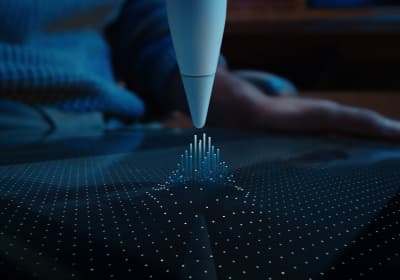
Apple Pencil Pro
amazon.comThe best Apple stylus for serious digital art workflows. Expensive, but the control upgrades are real.
Pro: Best brush-control and hover workflow
Con: Highest price in the lineup
Works only with newer iPad models. Check compatibility.
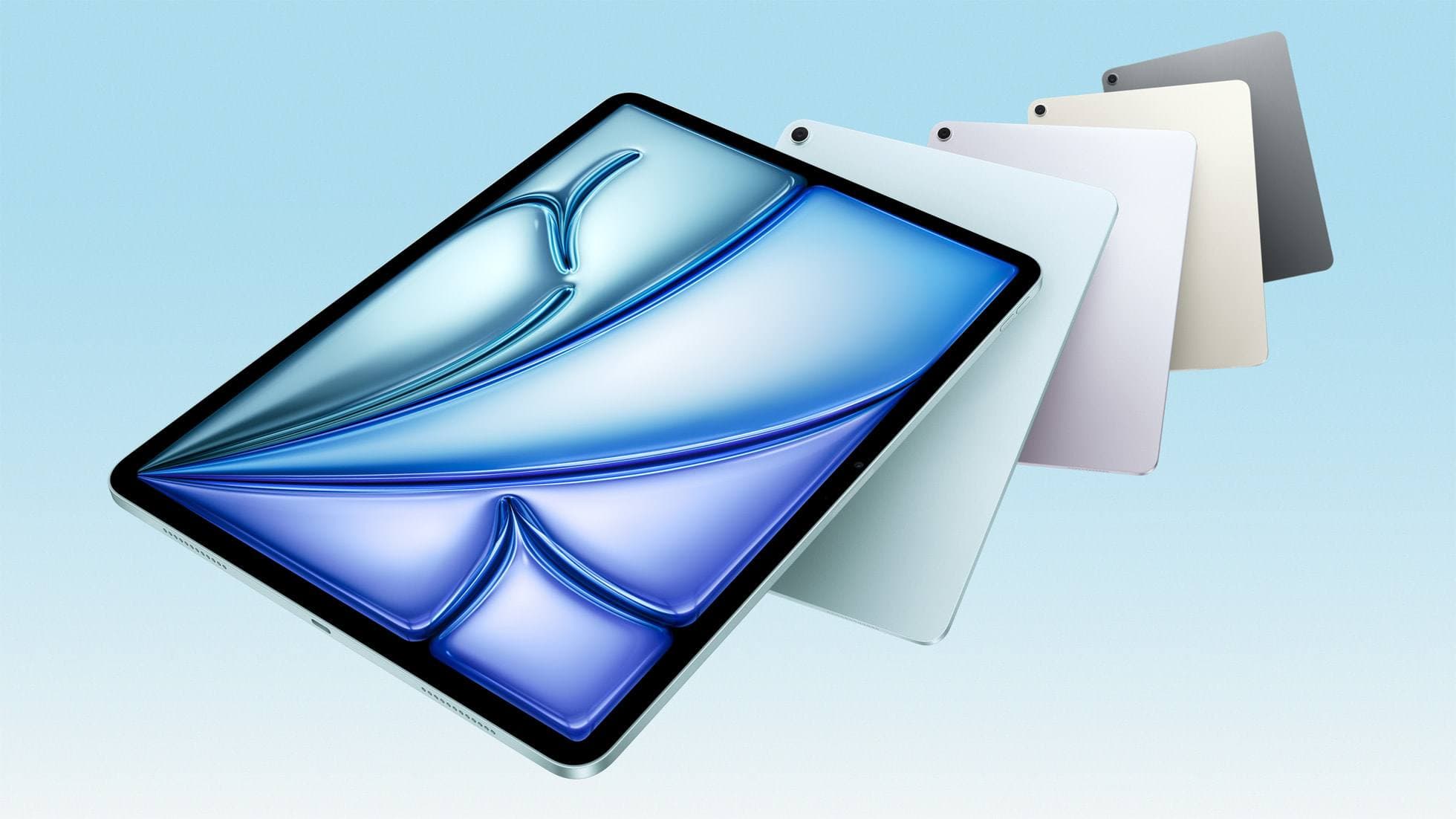
iPad Air (M4)
apple.comThe clean current Air recommendation for most serious hobby artists. Stronger buy logic than old-stock M3 when pricing is close.
Pro: Best current balance of price, headroom, and Pencil support
Con: Still 60Hz
Current Air lineup. Choose size, storage, and keyboard path before checkout.
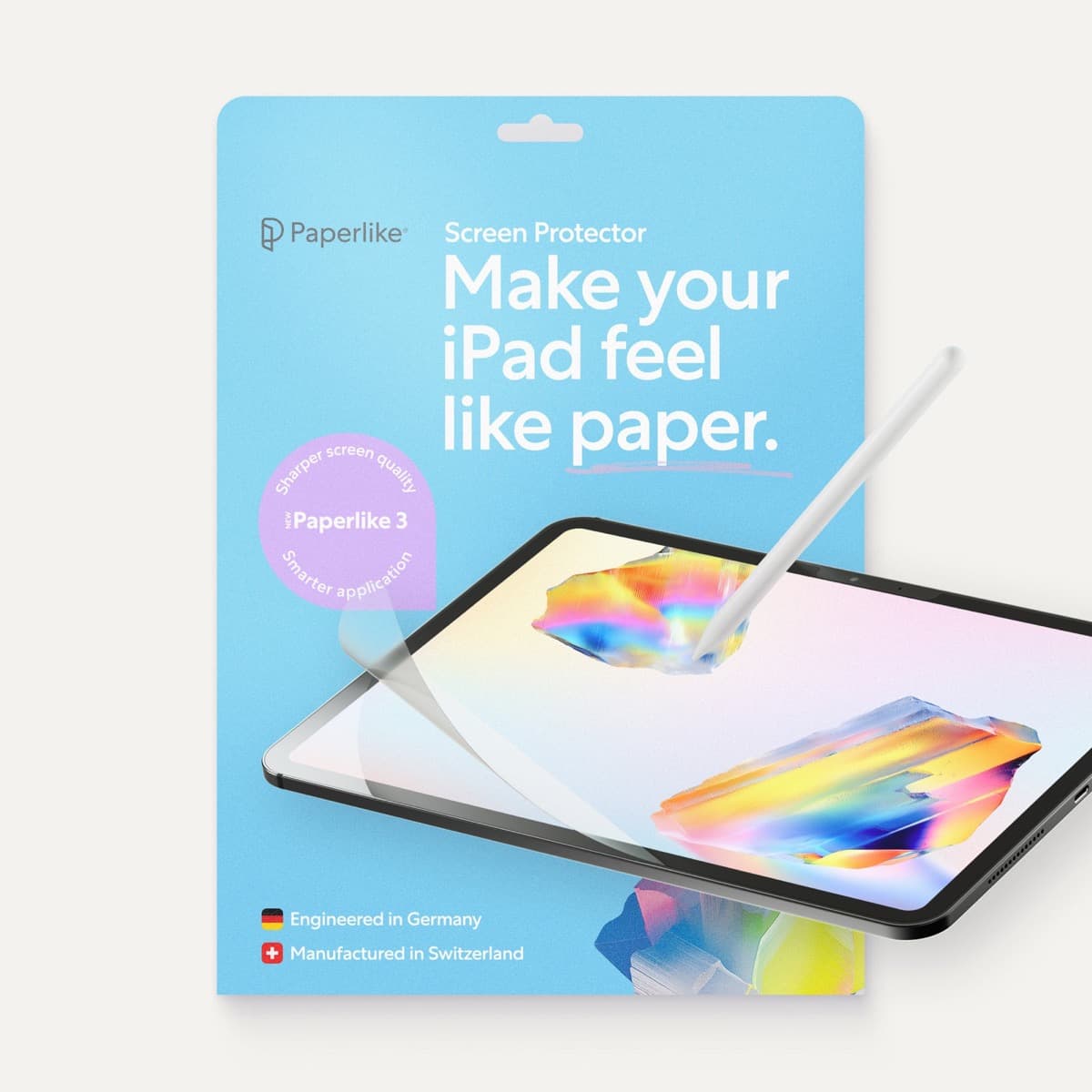
Paperlike 3 (11-inch, 2-pack)
amazon.comA strong surface-feel upgrade for drawing control. Clarity tradeoff is real and should be expected.
Pro: Adds controlled paper-feel friction
Con: Slightly reduces perceived display sharpness
11-inch fit only. Confirm generation before checkout.
Related buying picks
More in this collectionBuyer guide
Best iPad app for comics: Clip Studio Paint vs Procreate and alternatives
Clip Studio Paint is the best overall iPad app for multi-page comics and paneling, while Procreate remains the top one-time purchase for standalone illustration.
Buyer guide
Best iPad app for drawing anime: Clip Studio Paint versus Procreate
Pick Clip Studio Paint for dedicated manga and anime production toolsets, or choose Procreate for a streamlined one-time purchase on iPad.
Buyer guide
Best free iPad app for 3D modeling
Shapr 3D offers the most functional free download for CAD and 3D printing on iPad, while paid options like Nomad Sculpt target organic sculpting.
Buyer guide
Best coloring app for iPad kids: guided pages or open digital canvas
Choose Lake for structured coloring books or step up to Procreate when older kids outgrow premade templates.