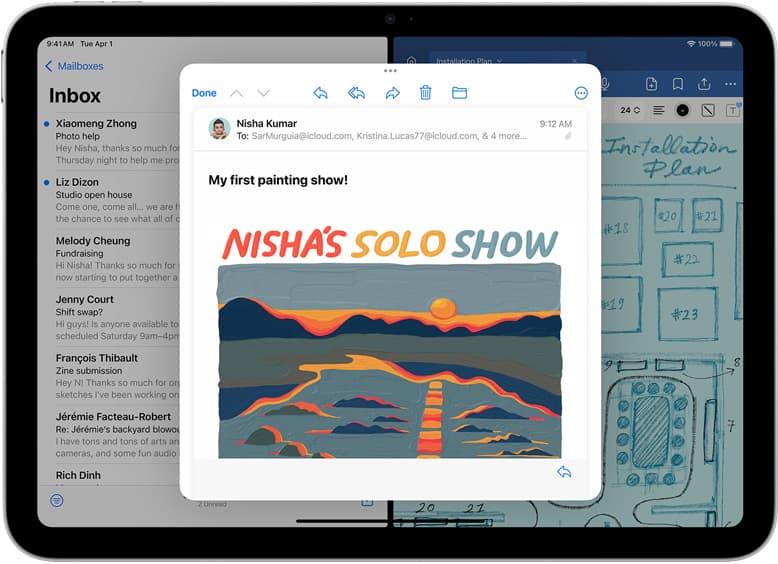
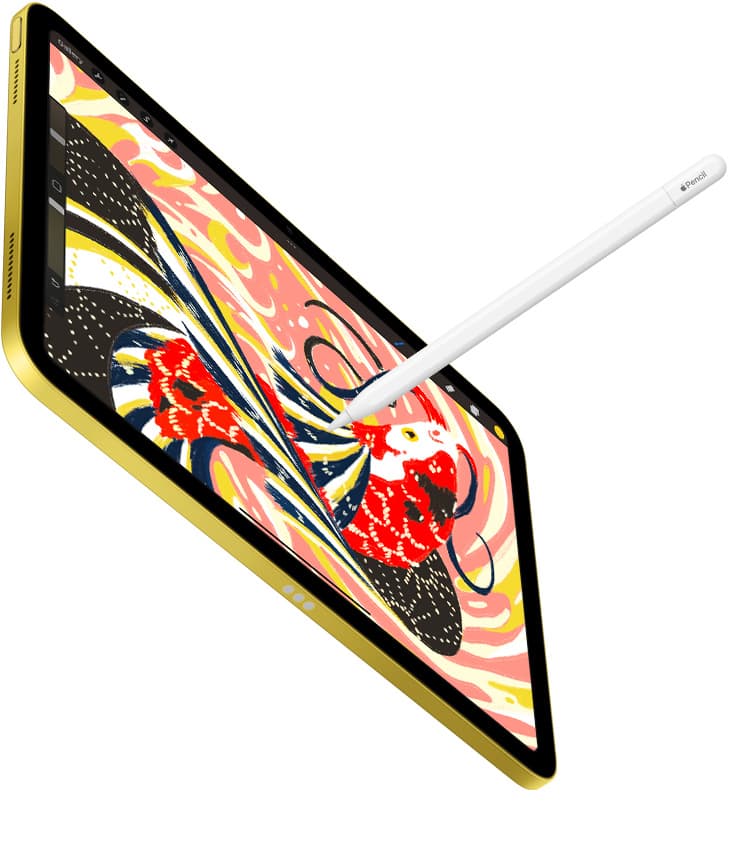
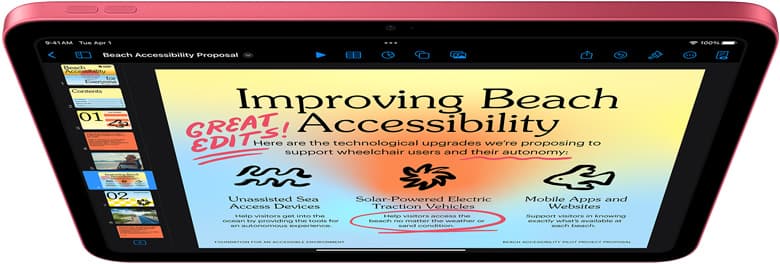
If you want the best iPad app for figure drawing practice, buy Procreate [1]. It delivers an uncluttered drawing surface, reliable pencil response, and a one-time purchase model that avoids monthly overhead [1]. You can clear sheets instantly, run quick warm-up gesture drills, and sketch without desktop menu clutter getting in your way [1]. Choose Clip Studio Paint instead only if your anatomy studies require specialized perspective grids, 3D pose references, or direct project transfer into multi-page comic layouts [2].
Figure drawing demands quick line work, rapid resets between timed poses, and an interface that does not break your concentration [1]. A good practice setup lets you switch between 30-second gestures, five-minute structural studies, and thirty-minute rendered poses without friction [1], [2]. Below is how the leading options compare for lifedrawing and anatomy drills, along with the hardware pairings that fit them best.
Choosing between one-time pricing and deep desktop toolsets
For most artists doing timed figure sessions, Procreate provides the cleanest environment [1]. Savage Interactive lists Procreate as a paid app in the Graphics & Design category on the App Store [1]. Because it is designed exclusively for iPad, its controls sit neatly around the canvas, keeping the center clear for rapid gesture strokes [1]. Furthermore, Procreate ties your layer count directly to the amount of memory on your iPad, which means setting up a modest practice canvas yields hundreds of layers for rapid pose sketching without clearing old files [3]. If you want an app you purchase once and open every morning for warm-ups, Procreate is the standard recommendation [1].
Clip Studio Paint approaches practice from a studio perspective [2]. Developed by Celsys, Clip Studio Paint is offered as a free download with a 30-day trial in the App Store, followed by subscription plans [2]. It ports the full desktop software layout to iPadOS [2]. That density means you get deep toolsets including vector layers, detailed symmetry guides, and specialized rulers, but the screen holds far more palettes and menus [2]. Choose Clip Studio Paint if your practice involves anatomical drafting for sequential art, where you need to check figures across multi-page comic sheets or use vector lines that you can manipulate later [2]. Skip it if you just want to draw gesture poses from reference without navigating complex workspace docks [1], [2].
Why quick gesture practice favors minimalist sketching apps
When doing timed figure poses, complex software can get in the way of rapid mark-making [1], [4]. Sketchbook, published by Sketchbook, Inc., is a free download that strips away heavy studio management in favor of immediate drawing tools [4]. It offers a clean UI where pencils, markers, and erasers stay within quick reach [4]. Artists who want to treat their iPad like a lightweight newsprint pad for daily 60-second gesture drills will find Sketchbook easy to use without spending money up front [4]. Skip it if you need advanced color grading, custom brush architecture, or high-volume layer stacks for full rendered portfolio pieces [3], [4].
Adobe Fresco presents another capable option for anatomy practice, distributed by Adobe as a free download in the Graphics & Design section [5]. Fresco combines vector brushes with raster pens and live watercolor or oil simulation [5]. If your figure practice emphasizes broad tonal washes, blocking in muscle masses with painterly strokes, or loose dynamic line work, Fresco gives you natural media feel without requiring paid add-ons [5]. However, if you prefer complete offline independence and an iPad-first workflow uncoupled from Creative Cloud ecosystems, Procreate remains a cleaner choice [1], [5].
Similarly, Infinite Painter from Sean Brakefield offers a dedicated drawing engine designed specifically for iPad and iPhone [8]. Available as a free download with in-app options, it focuses heavily on realistic pencil textures, canvas rotation, and smooth blending [8]. It serves figure artists who want traditional charcoal and graphite aesthetics during anatomy studies [8]. Still, Procreate holds broader community brush support and simpler project management for long-term practice libraries [1], [8].
When vector engines and infinite canvases serve anatomy studies
Not all figure drawing involves isolated poses on standard pages [6], [7]. Concepts by TopHatch is a flexible vector-based sketchbook app available as a free download [7]. Instead of bounding your drawings inside fixed pixel dimensions, Concepts gives you an infinite canvas [7]. This makes it uniquely suited for long study sessions where you want to draw dozens of progressive hand studies, facial angles, or torso breakdowns across a single continuous board [7]. You can zoom out to review your entire morning of practice or zoom in on an elbow joint without pixel degradation [7]. Skip Concepts if you rely on traditional pixel blending or realistic graphite smudge effects, because its vector core handles marks differently than a raster engine [1], [7].
For artists who practice figure construction for animation or manga, ibis Paint X provides another alternative [6]. Published by ibis inc. as a free download, it includes animation tools, screentones, and comprehensive brush sets tailored for stylized figure drawing [6]. While its ad-supported model can distract during timed lifedrawing sessions, it gives aspiring illustrators deep functional tools without mandatory purchases [6]. Even so, for distraction-free timed model sessions, Procreate's lack of ads and uncluttered display make it far more peaceful to use [1], [6].
Hardware pairings that make figure practice feel natural
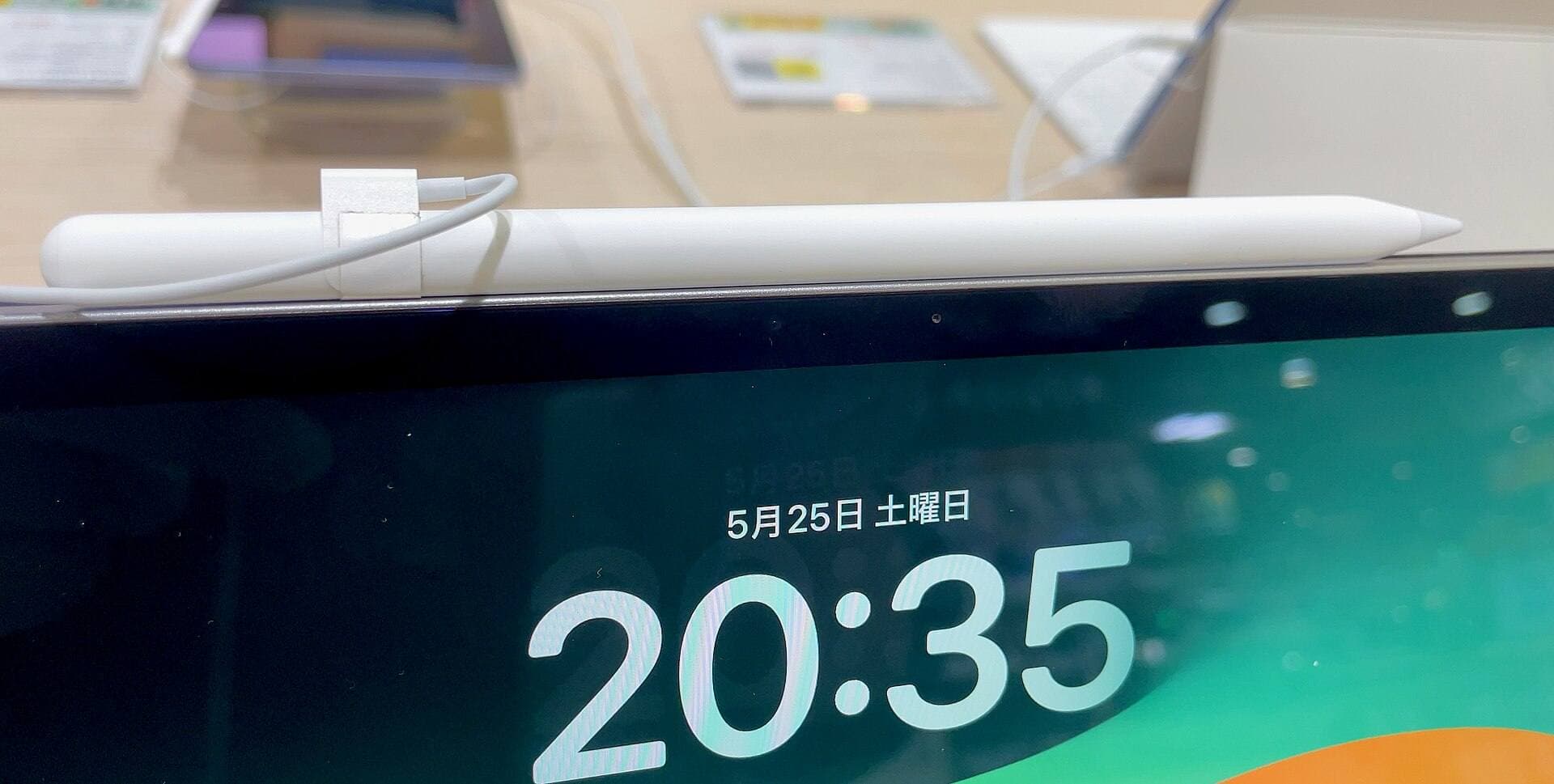
Your software choice works only as well as the stylus and tablet you pair with it [9], [10]. For figure drawing, having hardware tilt and pressure sensitivity is critical because it allows you to shade with the side of the pencil tip and lay down thin structural guidelines before pressing hard for final contour lines [9]. Apple Pencil Pro offers pressure sensitivity, tilt sensitivity, haptic feedback, a squeeze sensor, barrel roll, and hover support on supported hardware [9]. Barrel roll lets you rotate shaped calligraphy or flat-edge sketching brushes by twisting the barrel between your fingers, mirroring real conte crayons or flat graphite sticks [9].
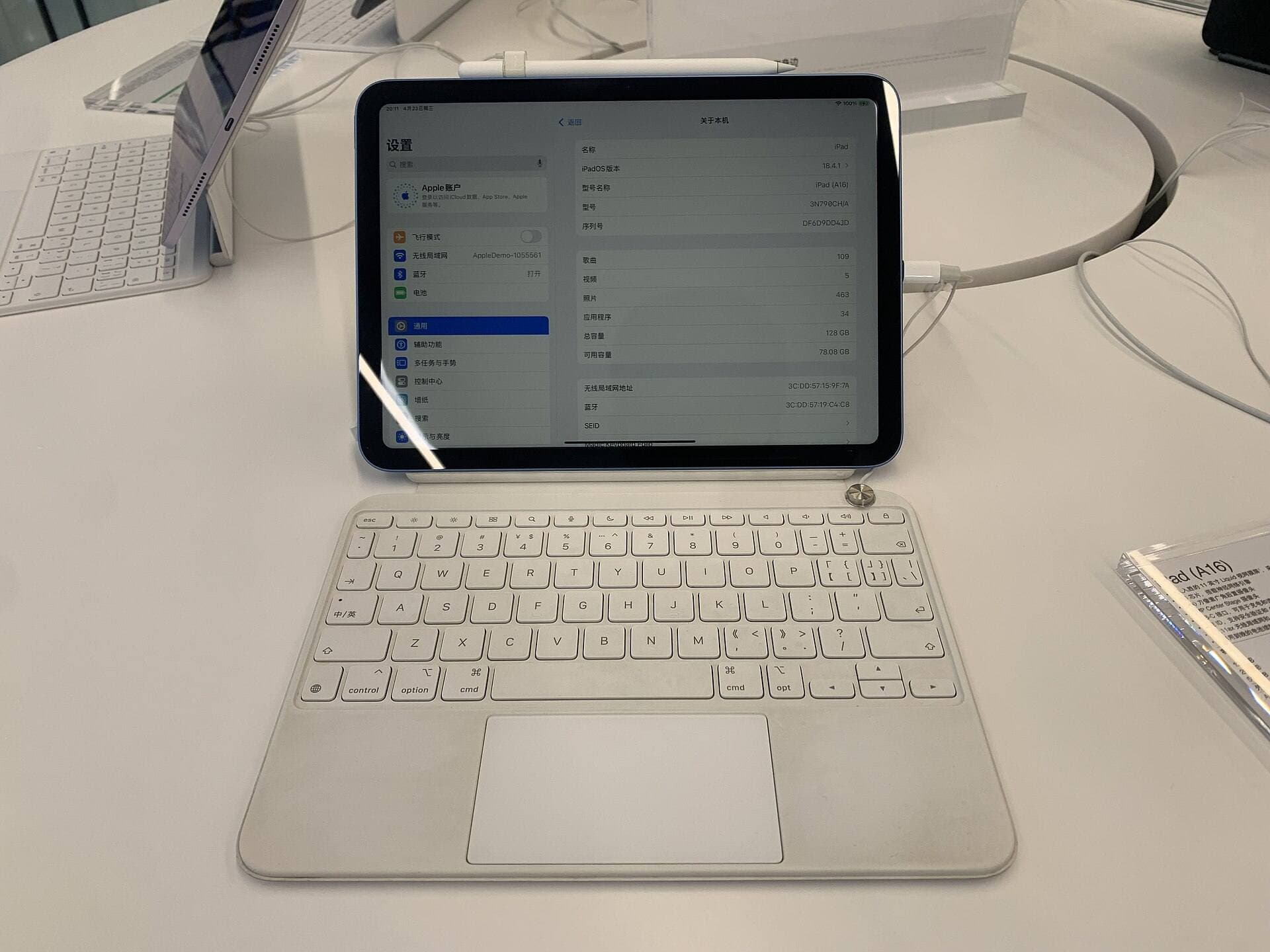
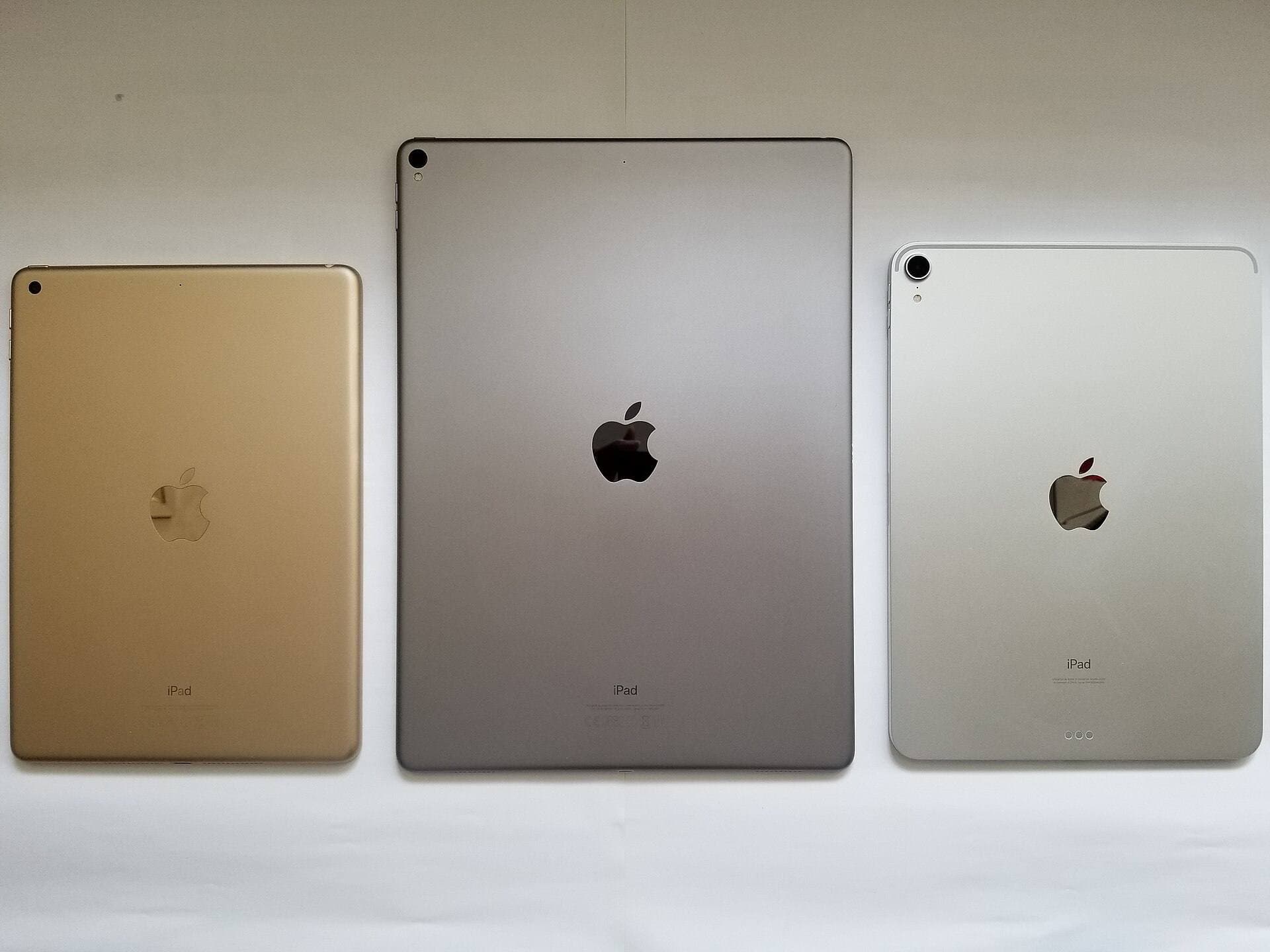
Check compatibility carefully before buying accessories [9], [10]. Apple Pencil Pro pairs only with newer models such as the iPad Air with M4 chip or modern iPad Pro models [9], [10], [11]. The iPad Air M4 gives artists a powerful canvas with full Apple Pencil Pro compatibility without requiring the cost of a Pro-tier tablet [10], [11]. If you practice figure drawing on an iPad Air M4, you get hover preview to see your brush size before making a mark, plus squeeze tool switching to toggle between pencil and eraser instantly [9], [11]. If your current tablet already supports the second-generation Apple Pencil or first-generation Pencil, keep your current iPad, because basic pressure and tilt sensitivity remain fully functional in Procreate and Clip Studio Paint across older hardware [1], [2], [10].
Bottom line
For the vast majority of artists, Procreate is the definitive iPad app to buy for figure drawing practice [1]. Its one-time purchase structure, responsive interface, and high layer capacity allow you to focus entirely on anatomy, proportions, and rhythm without subscription barriers [1], [3]. Buy Clip Studio Paint instead if your figure practice directly supports multi-page graphic novels, vector ink work, or studio production pipelines [2]. If you want a completely free sketchbook for simple warm-up lines, install Sketchbook [4], and pair your chosen app with an iPad Air M4 and Apple Pencil Pro if you want advanced tilt, squeeze, and barrel-roll brush control [9], [11].
Sources
[1] https://apps.apple.com/us/app/id425073498 [2] https://apps.apple.com/us/app/id1262985592 [3] https://help.procreate.com/articles/zlexav-ipad-compatibility [4] https://apps.apple.com/us/app/id883738213 [5] https://apps.apple.com/us/app/id1458660369 [6] https://apps.apple.com/us/app/id450722833 [7] https://apps.apple.com/us/app/id560586497 [8] https://apps.apple.com/us/app/id1146543227 [9] https://www.apple.com/apple-pencil/ [10] https://support.apple.com/en-us/108937 [11] https://www.apple.com/ipad/compare/
Recommended gear
Procreate
apps.apple.comPro: One-time purchase
Con: iPad-only
Clip Studio Paint
apps.apple.comPro: Deep comics, vector, ruler, and animation toolset
Con: iPad plan model is less simple than Procreate
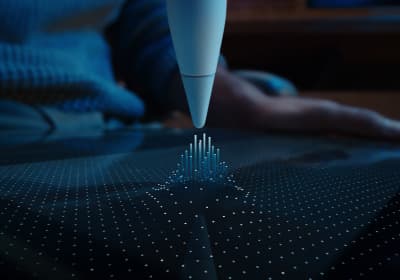
Apple Pencil Pro
amazon.comThe best Apple stylus for serious digital art workflows. Expensive, but the control upgrades are real.
Pro: Best brush-control and hover workflow
Con: Highest price in the lineup
Works only with newer iPad models. Check compatibility.
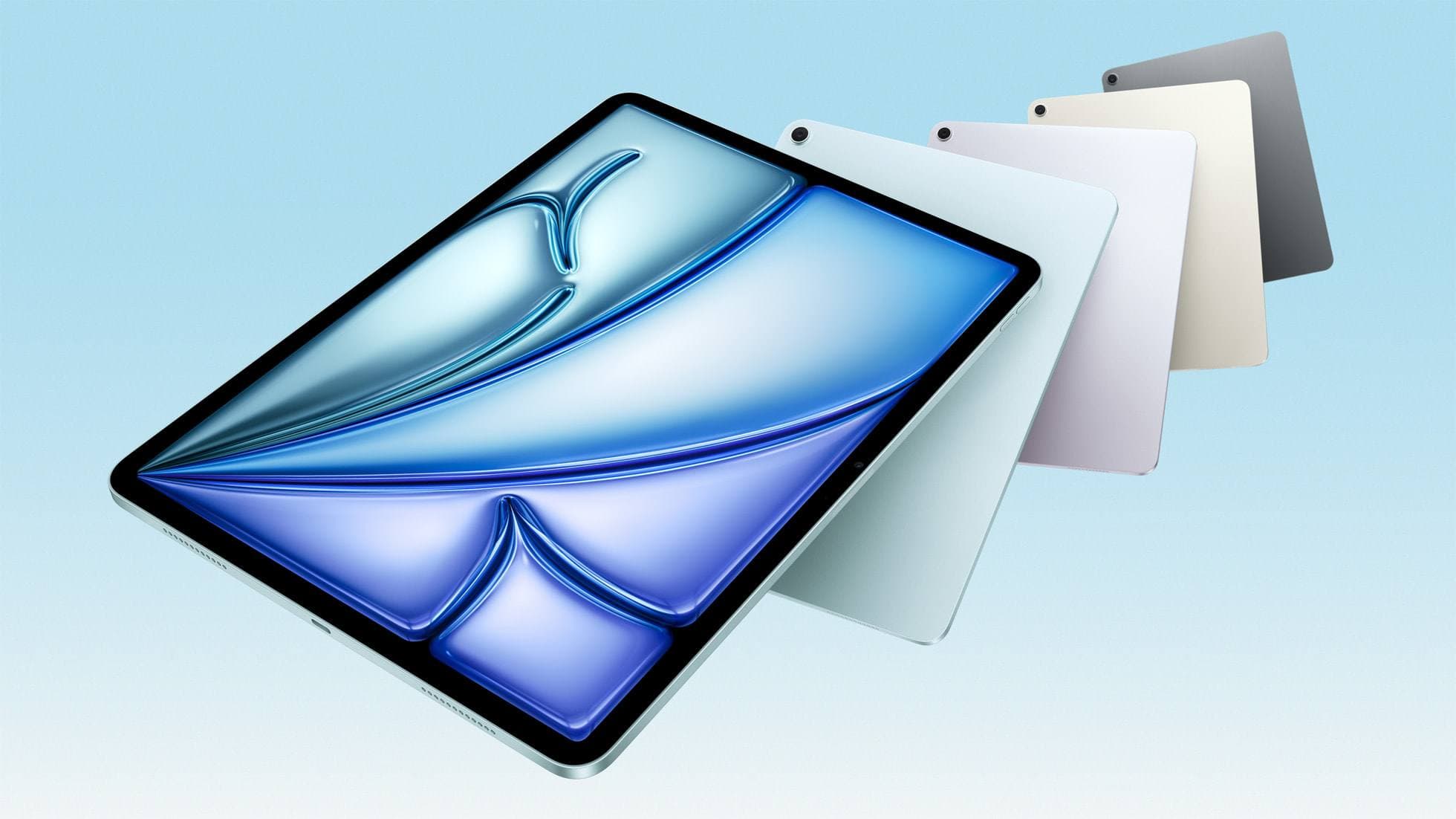
iPad Air (M4)
apple.comThe clean current Air recommendation for most serious hobby artists. Stronger buy logic than old-stock M3 when pricing is close.
Pro: Best current balance of price, headroom, and Pencil support
Con: Still 60Hz
Current Air lineup. Choose size, storage, and keyboard path before checkout.
Related buying picks
More in this collectionBuyer guide
Best Procreate alternatives for iPad
Compare top iPad drawing apps to decide whether Clip Studio Paint, Fresco, or another tool fits your workflow better than Procreate.
Buyer guide
Best iPad app for manga: Clip Studio Paint versus Procreate and free alternatives
Clip Studio Paint is the best overall iPad app for serialized manga and multi-page comics, while Procreate remains the top one-time purchase for single illustrations.
Buyer guide
What is the best app for illustration on iPad?
Procreate leads for standalone tablet raster painting, while Clip Studio Paint offers deeper multi-page tools and desktop parity.
Buyer guide
Best iPad app for embroidery design
Procreate is the top iPad app for drawing embroidery patterns, while Clip Studio Paint and Concepts offer distinct vector and ruler alternatives.