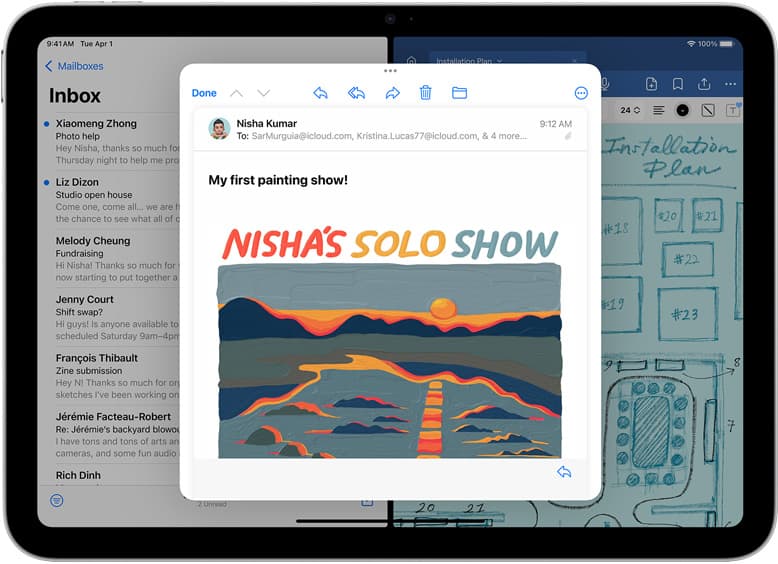
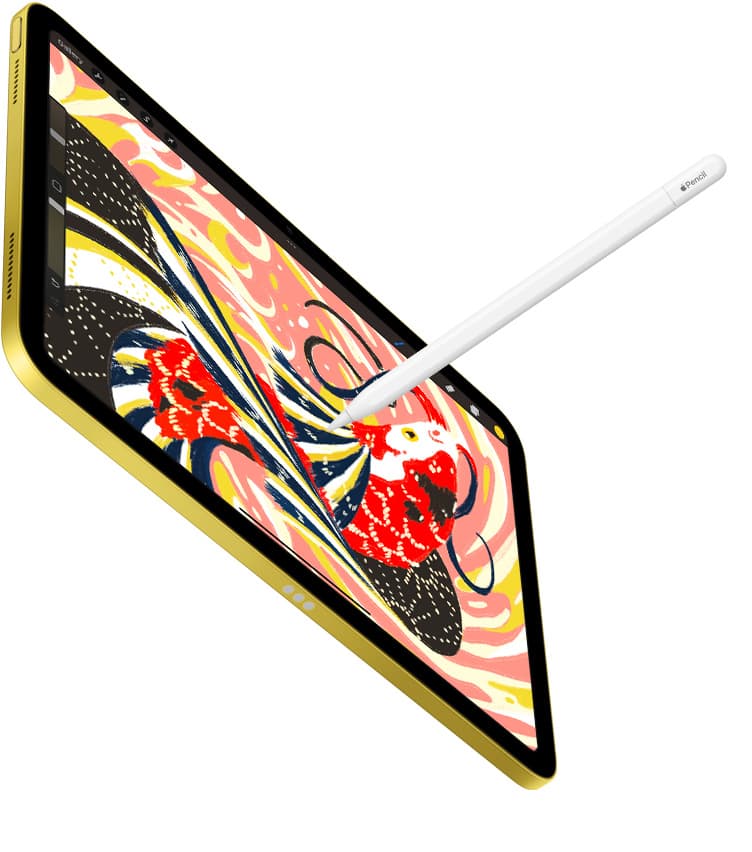
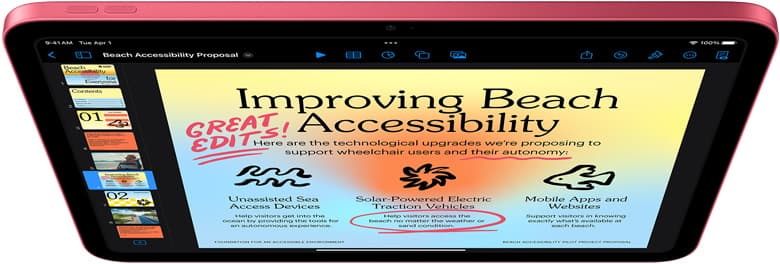
Buy Procreate if you want traditional pen feel, brush dynamics, and immediate stroke feedback on an iPad [1]. It's a paid download under Graphics & Design built specifically for iPadOS [1]. Letterers who need infinitely scalable outlines for logos, vinyl cutting, or large-format signage should choose a vector tool like Affinity Designer 2 for iPad or Linearity Curve Graphic Design instead [2], [3]. If you already own an iPad that runs Procreate, keep your current tablet and invest your budget into stylus precision rather than new hardware [4], [5].
Calligraphy depends entirely on stroke weight modulation, entry angles, and steady hairline control [6]. The software layer dictates whether your strokes behave like liquid ink on paper or mathematically computed paths that you edit after the fact [1], [3].
Procreate for expressive brush lettering and flourishing
Procreate stands as the primary choice for hand letterers who emulate pointed pens, flat nibs, and flexible brush markers [1]. The software is distributed as a paid purchase from Savage Interactive Pty Ltd and sits in the Graphics & Design category [1]. Because Procreate treats drawing as a raster engine, every variation in Apple Pencil pressure creates instant width and opacity changes [1], [6].
Calligraphers benefit from Procreate because it permits granular configuration of pressure curves and stroke stabilization within its brush engine [1], [7]. You can tune streamline settings to smooth out hand jitter without losing the rapid thin-to-thick transitions required for Copperplate or modern script [7]. The app also supports specific Apple Pencil gestures, allowing quick switching between drawing and erasing tools [7].
Who should buy Procreate: Calligraphers creating raster illustrations, prints, social media lettering, and custom artwork where textured edges matter [1].
Who should skip Procreate: Anyone who must deliver scalable vector paths to sign makers, embroidery machines, or brand identity clients without manual tracing [1], [3]. In addition, Procreate limits maximum layer counts according to the physical RAM installed in your iPad model and the pixel dimensions of your canvas [4].
Adobe Fresco for live ink dynamics
Adobe Fresco: Draw & Paint App provides an alternative raster and vector workspace from Adobe Inc., available as a free download [8]. It holds an App Store rating of 4.7 out of 5 stars in the Graphics & Design category [8]. Its key utility for calligraphy rests in combining raster brushes with vector inking in a single project file [8].
For traditional lettering artists, Fresco offers dynamic live brushes that simulate wet watercolor and oil paints alongside standard pixel tools [8]. When working on watercolor lettering or blended flourishing, the wet pigment continues to bleed across paper textures on the digital page [8]. Because Fresco also includes dedicated vector brushes, you can write calligraphic headers that preserve sharp vector contours without switching software environments [8].
Who should choose Adobe Fresco: Artists who want expressive media bleeding behind their flourished titles or those who prefer working within the Adobe ecosystem across multiple devices [8].
Who should skip Adobe Fresco: Letterers who want a focused, single-purchase tool designed strictly around the iPad without cloud account integration [1], [8].
Affinity Designer 2 for production vector lettering
Affinity Designer 2 for iPad, developed by Serif (Europe) Ltd., is a vector and raster design suite distributed as a free download with in-app purchases [2]. It adapts desktop vector editing into a touch-focused interface and carries a 4.7-star rating on the App Store [2]. It's built for lettering artists who produce commercial logos, merchandise, and architectural lettering [2].
When writing calligraphy in a vector app, your paths are recorded as mathematical nodes rather than pixels [2]. Affinity Designer 2 lets you draw strokes with pressure dynamics and then tweak the individual Bézier nodes afterward [2], [6]. If an entry hairline or oval loop on an uppercase letter is slightly uneven, you can drag the vector handle into correct alignment without rewriting the whole word [2].
Who should choose Affinity Designer 2: Letterers who deliver final artwork to corporate clients, print shops, or packaging manufacturers where infinite resolution is non-negotiable [2].
Who should skip Affinity Designer 2: Beginners who want simple digital ink that mimics traditional paper without managing stroke nodes, bounding boxes, or complex export menus [1], [2].
Linearity Curve and Concepts for specialized vector paths
Linearity Curve Graphic Design by Linearity GmbH is an alternative vector application that provides graphic design tools for iPad and iPhone [3]. It carries a 4.5-star rating on the App Store and functions as a dedicated vector design environment [3]. Linearity Curve suits letterers who draft vector monograms or convert rough hand-lettered sketches into precise vector paths for digital layouts [3].
Concepts by TopHatch, Inc. approaches vector strokes from a different angle [9]. Listed as a flexible vector-based sketchbook with a 4.7-star rating, Concepts records every freehand stroke as a vector path on an infinite canvas [9]. For calligraphy students practicing repetitive drills, majuscules, and script alphabets, an infinite canvas removes the friction of managing canvas dimensions or page borders [9]. You can zoom across miles of practice sheets and export selected segments as clean vector geometry [9].
Who should choose Linearity Curve or Concepts: Calligraphers doing structured layout work, grid-based typography, or infinite drill practices [3], [9].
Who should skip them: Calligraphers who rely on realistic brush grain, dry-brush dry-out effects, and pixel-based blending [1], [8].
Hardware pairing considerations for digital calligraphy
Software selection must align with the physical input capabilities of your stylus and tablet [6]. Traditional calligraphy requires continuous feedback between hand pressure, stylus angle, and surface resistance [6].
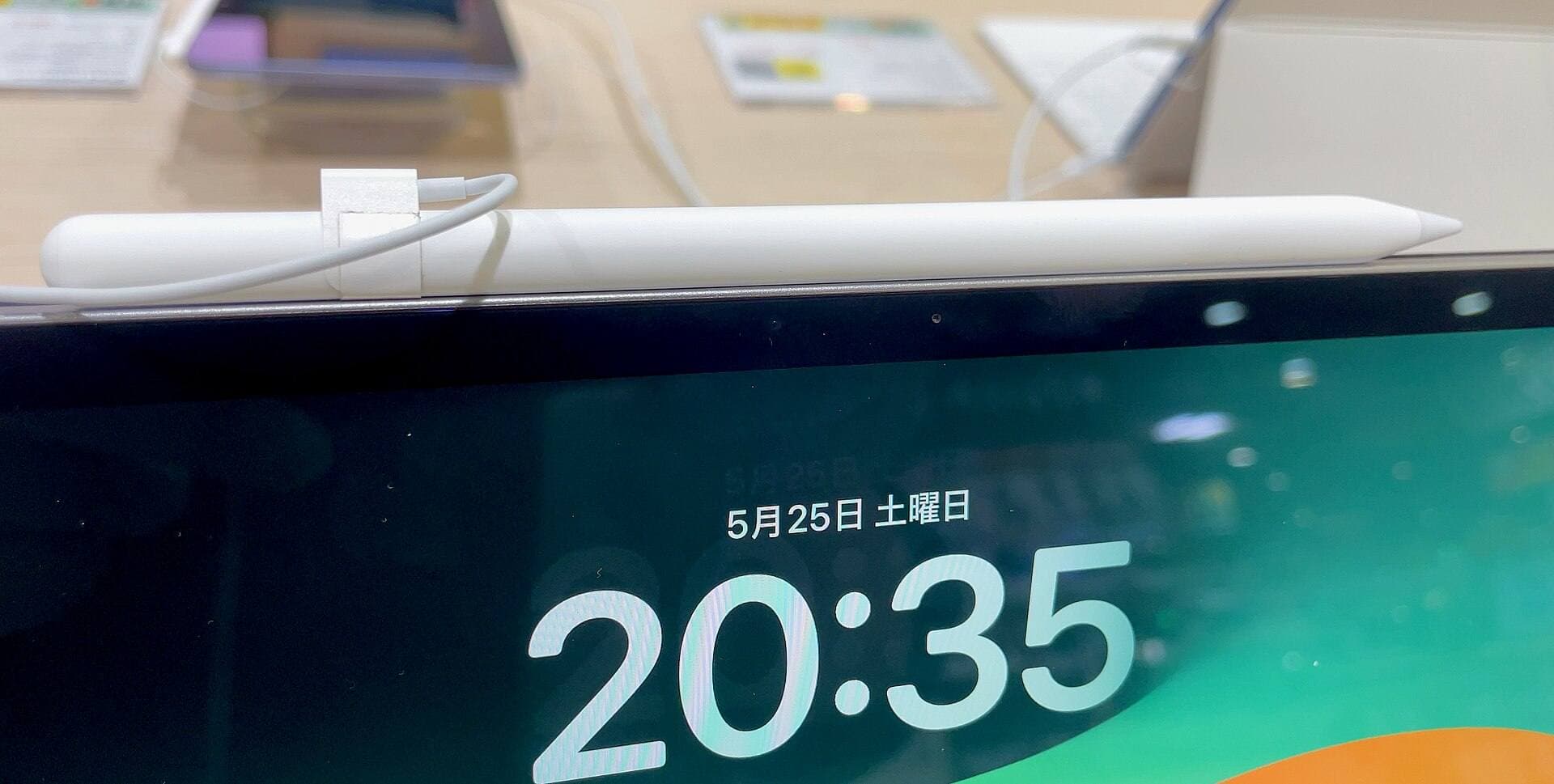
Apple Pencil models offer different functional capabilities across the iPad range [5], [6]. The Apple Pencil Pro supports tilt, pressure sensitivity, hover, squeeze, barrel roll, and haptic feedback [6]. Barrel roll allows the software to track stylus rotation along its central axis, which is directly applicable to broad-edge calligraphy nibs that change stroke thickness based on physical orientation [6]. Squeeze allows artists to open tool palettes or trigger quick actions directly at their fingertips [6].
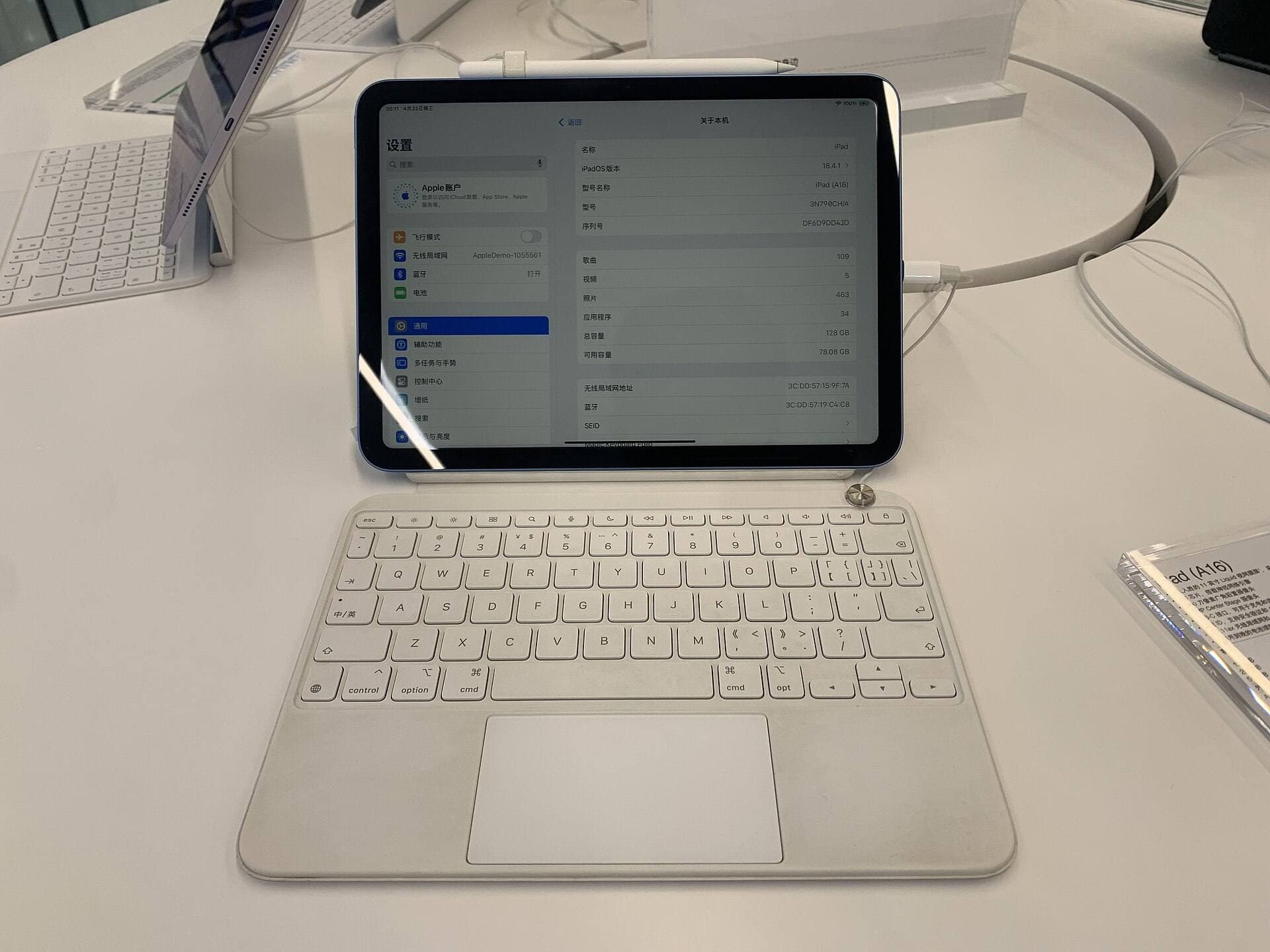
However, the Apple Pencil Pro pairs only with supported modern iPads, including current iPad Air and iPad Pro models [5]. If you pair an iPad Air (M4) with an Apple Pencil Pro, you obtain the full complement of barrel roll, squeeze, and low-latency tracking for calligraphy [5], [6]. If your existing tablet uses the first-generation Apple Pencil or Apple Pencil (USB-C), check your hardware features carefully, as Apple Pencil (USB-C) omits pressure sensitivity entirely, making it unusable for dynamic calligraphy [5], [6].
Layer capacity also varies across hardware [4]. Procreate dynamically allocates maximum layer counts based on available system RAM and canvas pixel dimensions [4]. If you plan to letter high-resolution posters with complex flourishes, a tablet with greater memory provides wider layer headroom [4].
Bottom line
For most artists, Procreate remains the clear primary choice for iPad calligraphy due to its dedicated brush engine, granular pressure mapping, and simple workflow [1], [7]. Add Affinity Designer 2 for iPad only when your letterforms require commercial vector output, node-level stroke adjustment, or infinite enlargement [2]. Before buying any accessory, confirm that your iPad hardware pairs with a stylus that supports true pressure sensitivity, such as the Apple Pencil Pro or Apple Pencil (2nd generation), to ensure your digital nibs respond accurately to every stroke [5], [6].
Sources
[1] https://apps.apple.com/us/app/id425073498 [2] https://apps.apple.com/us/app/id1616833418 [3] https://apps.apple.com/us/app/id1219074514 [4] https://help.procreate.com/articles/zlexav-ipad-compatibility [5] https://support.apple.com/en-us/108937 [6] https://www.apple.com/apple-pencil/ [7] https://help.procreate.com/procreate/handbook/5.2/interface-gestures/pencil [8] https://apps.apple.com/us/app/id1458660369 [9] https://apps.apple.com/us/app/id560586497
Recommended gear
Procreate
apps.apple.comPro: One-time purchase
Con: iPad-only
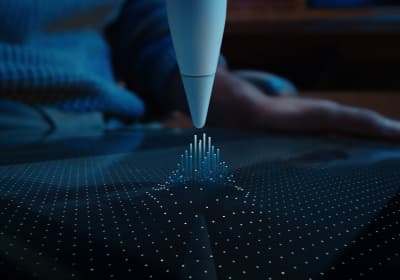
Apple Pencil Pro
amazon.comThe best Apple stylus for serious digital art workflows. Expensive, but the control upgrades are real.
Pro: Best brush-control and hover workflow
Con: Highest price in the lineup
Works only with newer iPad models. Check compatibility.
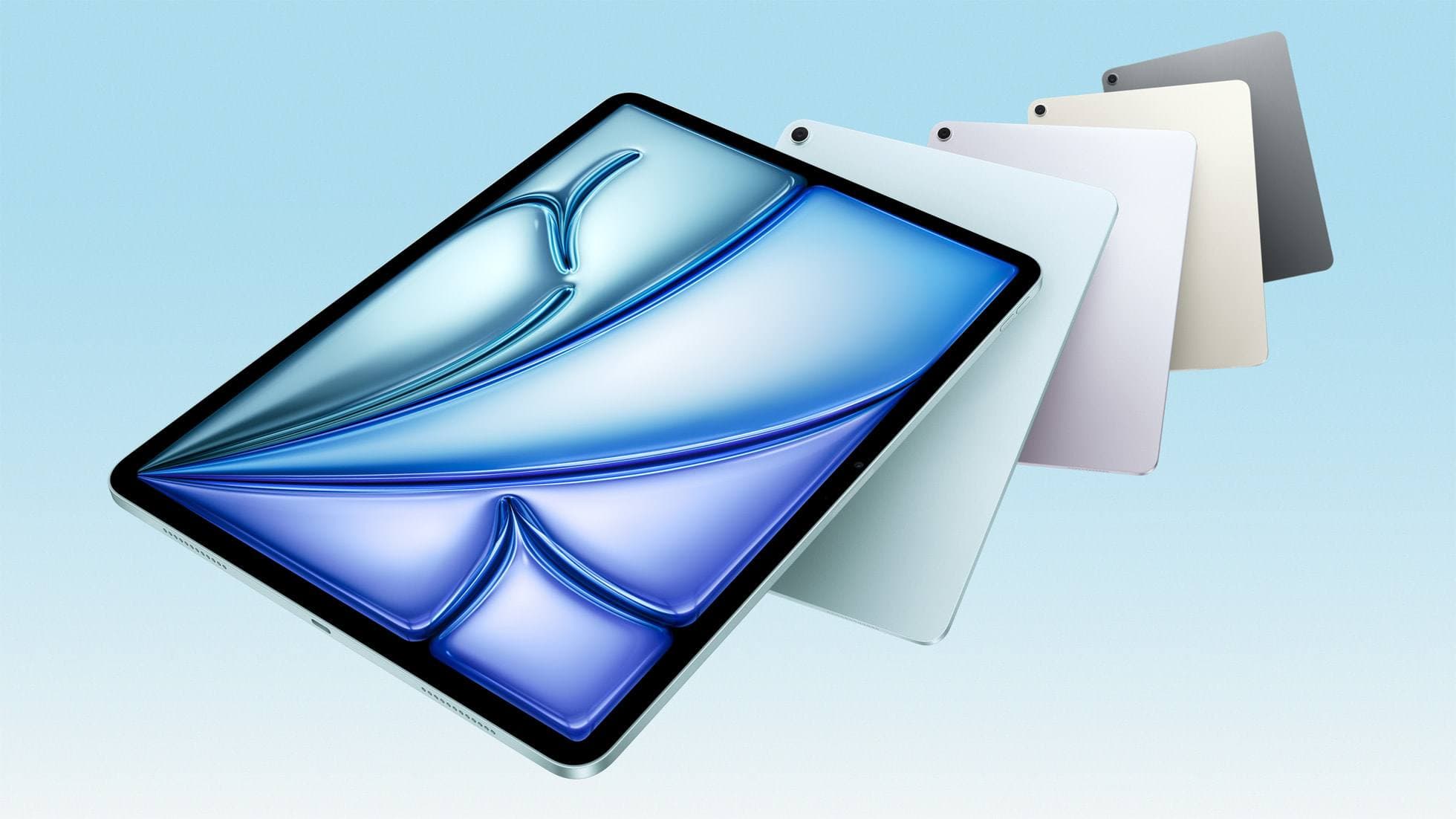
iPad Air (M4)
apple.comThe clean current Air recommendation for most serious hobby artists. Stronger buy logic than old-stock M3 when pricing is close.
Pro: Best current balance of price, headroom, and Pencil support
Con: Still 60Hz
Current Air lineup. Choose size, storage, and keyboard path before checkout.
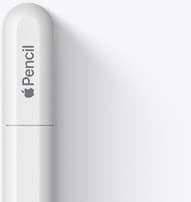
Apple Pencil (USB-C)
amazon.comA practical low-cost Apple stylus with broad compatibility, but limited for advanced art control.
Pro: Lowest official Apple Pencil cost
Con: No pressure sensitivity for brush work
Compatible with many recent iPads. No pressure support.
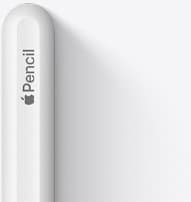
Apple Pencil (2nd generation)
amazon.comStill a strong stylus on compatible iPads. Good pressure control, but compatibility is the main trap.
Pro: Pressure support without Pro pricing
Con: Not compatible with newest Pro-only iPads
Only for iPads that support 2nd generation pairing.
Related buying picks
More in this collectionBuyer guide
What is the best handwriting app for iPad?
Choose between flexible vector canvases and traditional raster stroke engines based on how you organize your handwriting and notes.
Buyer guide
Best iPad app for drawing anime: Clip Studio Paint versus Procreate
Pick Clip Studio Paint for dedicated manga and anime production toolsets, or choose Procreate for a streamlined one-time purchase on iPad.
Buyer guide
Best coloring app for iPad kids: guided pages or open digital canvas
Choose Lake for structured coloring books or step up to Procreate when older kids outgrow premade templates.
Buyer guide
Best iPad drawing app for beginners
Procreate remains the best first drawing app to buy on iPad, while free options like Sketchbook and Adobe Fresco let you start without upfront costs.