If you want the best balance of drawing features and cost, buy the iPad Air (M4) with an Apple Pencil Pro [1], [3]. It gives you modern hardware headroom and advanced stylus tools like squeeze and barrel roll without paying for flagship hardware [2]. Pick the iPad Pro (M5) only if you require a ProMotion screen and Apple's highest tier display [1]. Choose the iPad (A16) if you want the lowest total kit cost for everyday drawing, and grab the iPad mini (A17 Pro) if working on the go matters more than having a broad canvas [1], [3]. If your current iPad still handles your layer counts in Procreate, you can skip upgrading completely [4].
Matching your illustration workflow to the right iPad tier
Choosing the right iPad comes down to matching your art tools, storage needs, and drawing posture to the hardware lineup [1]. Every artist doesn't need top-of-the-line silicon, but choosing the wrong tier can lock you out of specific physical stylus gestures or limit your digital canvas sizes [2], [4].
The iPad Air (M4) works as the most balanced pick for most illustrators who want modern stylus capabilities [1], [3]. It supports the Apple Pencil Pro, which brings squeeze gestures, haptic response, and barrel roll into compatible apps [2], [3]. You should buy the iPad Air (M4) if you create client illustrations, comic panels, or concept work and want Apple Pencil Pro features without the expense of an iPad Pro [1], [2]. You should skip it if you cannot work without a high refresh rate display or if you need the lowest possible entry price [1].
The iPad Pro (M5) represents the top end of Apple's tablet lineup [1]. It is the right purchase for illustrators whose weekly workload justifies paying for the best display tech and Apple's ProMotion screen [1]. The ProMotion display delivers higher refresh rates, giving responsive visual tracking while inking or sketching [1]. You should skip the iPad Pro (M5) if your illustration projects consist of standard resolution social media art, personal sketchbook studies, or casual drawing where the price premium outweighs the hardware benefits [1], [4].
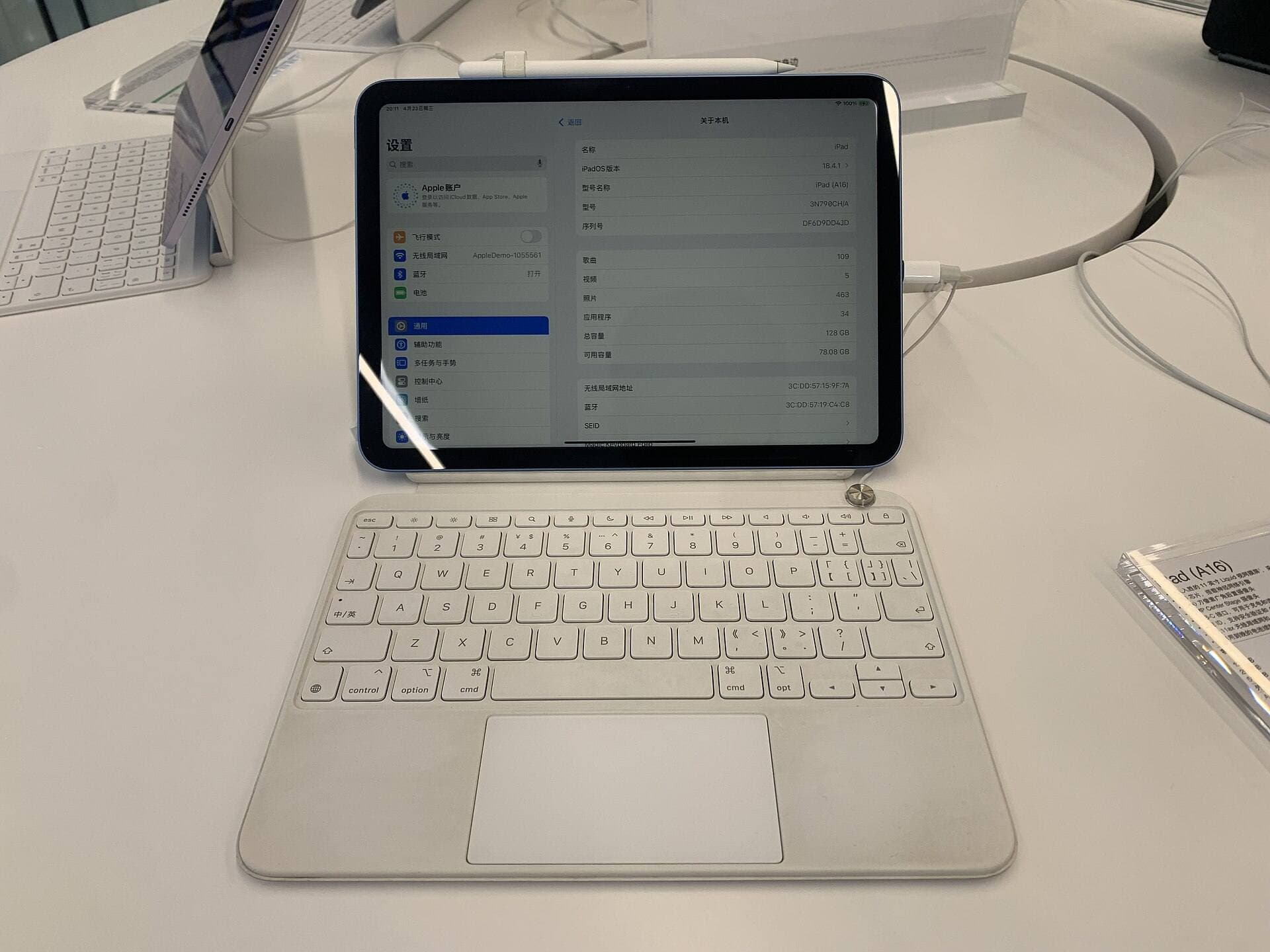
The iPad (A16, 11th gen) targets artists who want an approachable entry point [1]. It is the model to buy when total kit cost matters more than stylus shortcuts or maximum layer counts [1], [4]. However, you should skip it if you rely on Apple Pencil Pro gestures like barrel roll or squeeze, as the base iPad pairs with different stylus hardware [2], [3]. Meanwhile, the iPad mini (A17 Pro) fits artists who travel constantly or sketch in tight spaces [1]. You should buy the iPad mini (A17 Pro) if portability is your top priority, but skip it if you regularly complete multi-character scenes or dense graphic designs that demand extensive canvas real estate [1], [4].
Apple Pencil compatibility and drawing input tools
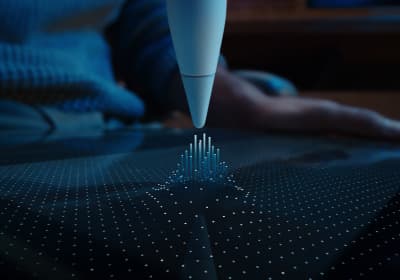
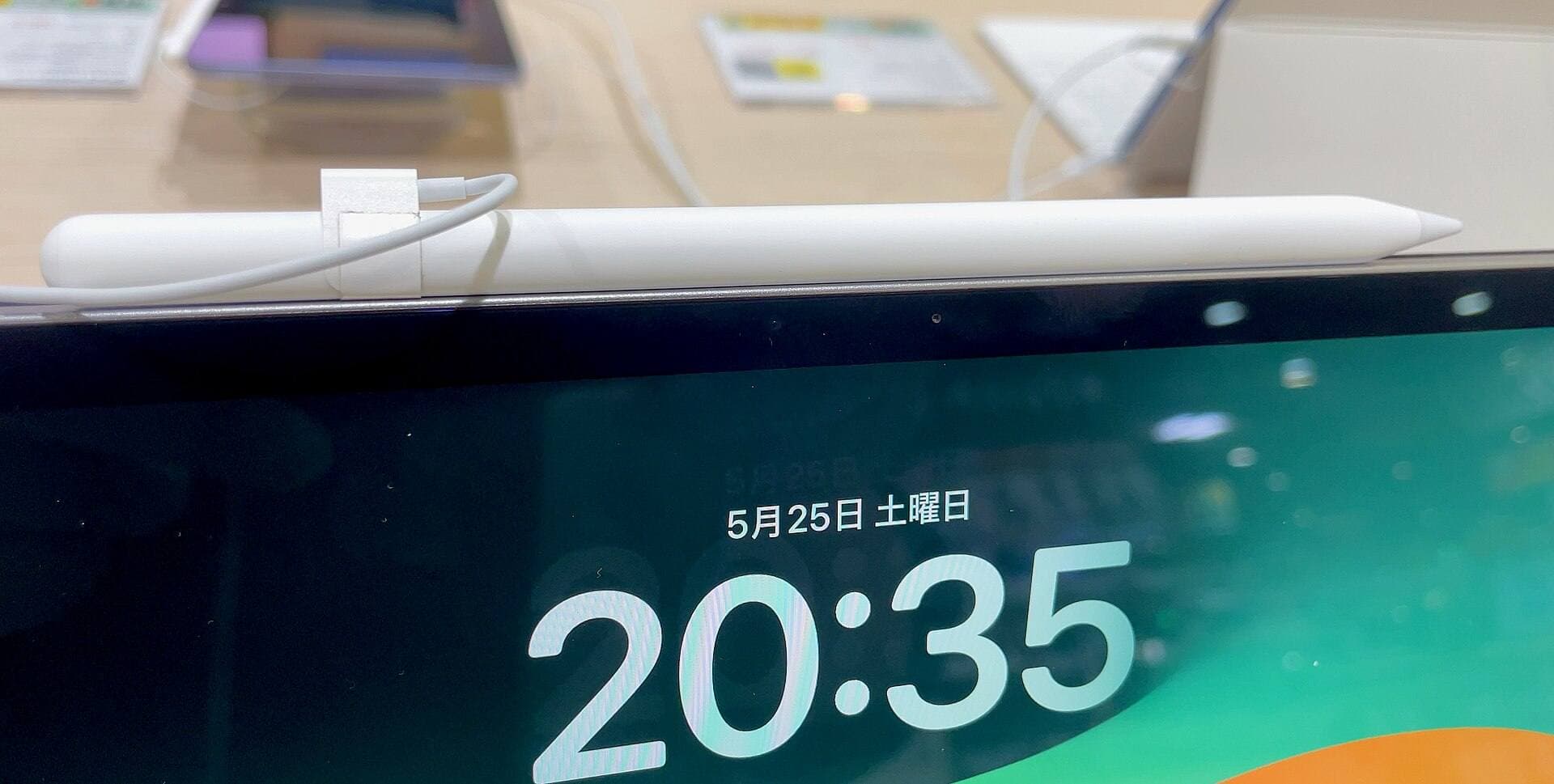
Stylus compatibility separates the current iPad lineup into two distinct experiences [1], [3]. The Apple Pencil Pro pairs with the iPad Air (M4), iPad Pro (M5), and iPad mini (A17 Pro) [3]. This stylus introduces a built-in sensor in the barrel that detects squeeze gestures, along with a gyroscopic sensor that enables barrel roll [2]. It also includes haptic feedback to confirm tool selections and supports hover, tilt, and pressure sensitivity [2].
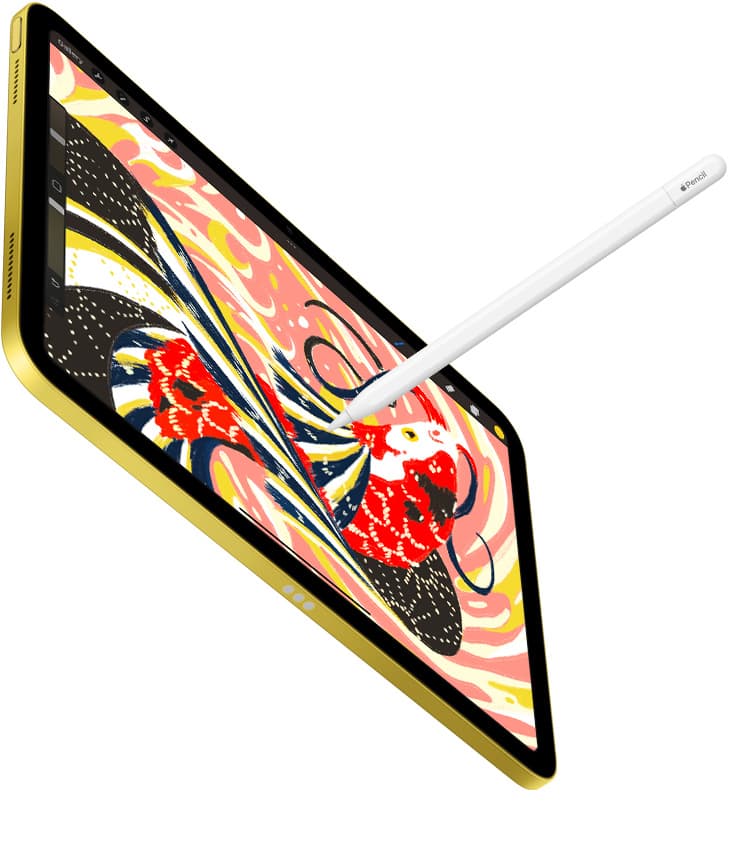
In contrast, the standard iPad (A16) does not support the Apple Pencil Pro [1], [3]. Depending on the specific Apple Pencil paired with the base model, you miss out on features like barrel roll, squeeze, and haptic feedback [2], [3]. For illustrators who rely on dynamic brush orientation or quick tool swaps directly from the stylus barrel, this distinction is decisive [2]. If your workflow depends on rotating calligraphy pens, patterned brushes, or angled flat markers, picking an iPad tier that supports the Apple Pencil Pro saves manual steps inside the app interface [2], [5].
Creative applications like Procreate are designed to make direct use of Apple Pencil hardware capabilities [4], [5]. In Procreate, you can adjust digital brushes to react to pressure and tilt variations, letting you vary line opacity and weight in real time [2], [5]. Stylus hover also allows previewing brush marks, size adjustments, and color selections before the tip contacts the glass on supported models [2], [5]. If these physical input tools are central to your illustration speed, locking in an iPad Air (M4) or iPad Pro (M5) ensures you have access to Apple's full stylus feature set [1], [2], [3].
Canvas dimensions, layer limits, and memory
Beyond stylus interactions, device memory determines how large your artwork can scale within dedicated drawing applications [4]. In Procreate, maximum layer limits are not arbitrary; they are tied directly to the hardware memory of your iPad and the pixel dimensions of your active canvas [4]. A canvas configured for high-resolution print requires significantly more system memory per layer than a canvas created for web display [4].
When you choose an iPad tier with more advanced processor architecture and higher base memory like the iPad Air (M4) or iPad Pro (M5), the operating system provides greater memory headroom for creative tasks [1], [4]. This headroom allows Procreate to grant higher layer limits on large canvases [4]. If you frequently produce detailed client work with separate layers for rough sketches, line art, flat colors, ambient occlusion, and lighting, hitting a hard layer ceiling can force you to merge layers early [4].
This memory relationship is also why many artists can happily keep their current setup [4]. If your present iPad allows you to finish your typical illustration files without bumping into layer limits, buying a new tablet won't fundamentally transform your finished art [4]. Upgrading becomes a practical necessity only when your physical canvas requirements expand or when your active projects regularly reach the layer cap enforced by your device's memory [1], [4].
Display refresh rates and screen size tradeoffs
Display specifications shape how you interact with your canvas every day [1]. The iPad Pro (M5) features Apple's ProMotion technology, which provides refresh rates up to 120Hz [1]. This faster screen refresh creates immediate visual feedback as you pull quick strokes across the glass [1]. By comparison, the iPad Air (M4), iPad (A16), and iPad mini (A17 Pro) use standard 60Hz displays [1]. While millions of professional illustrations have been drawn on 60Hz panels, artists who sketch with rapid, loose strokes often appreciate the fluid tracking of ProMotion [1].
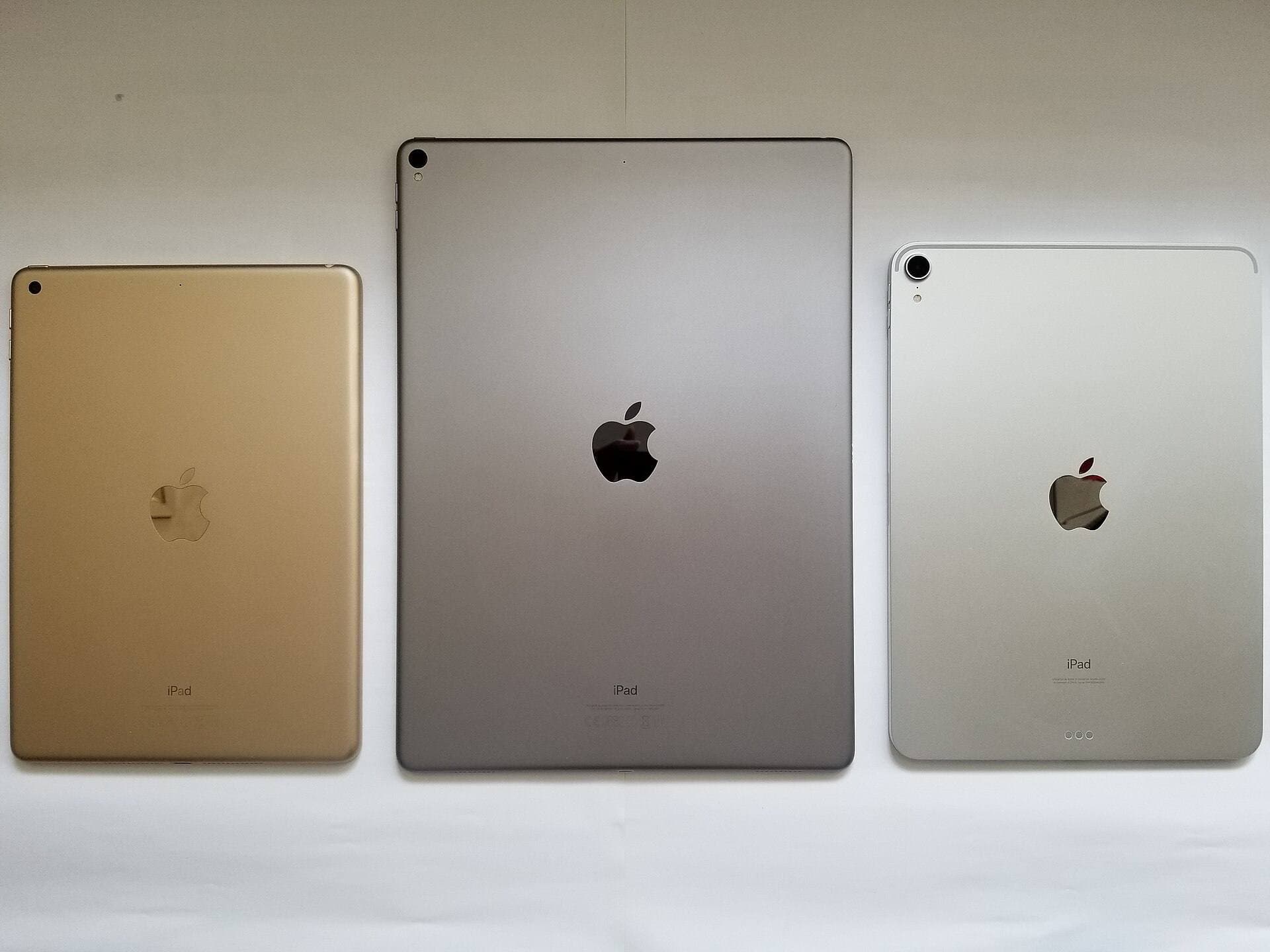
Physical screen dimensions also impose clear practical boundaries [1]. Apple offers the iPad Air (M4) and iPad Pro (M5) in both 11-inch and 13-inch display sizes [1]. A 13-inch display provides substantial room for drawing while keeping interface panels, color palettes, and reference images visible on screen [1], [5]. However, larger screens make the device heavier and harder to hold in one hand while sketching on a sofa or during a commute [1]. The 11-inch form factor strikes a balance between usable drawing area and mobility, while the 8.3-inch iPad mini (A17 Pro) functions best as a digital pocket sketchbook [1].
Bottom line
Buying an iPad for illustration work comes down to balancing stylus features, display preferences, and total budget [1], [2]. The iPad Air (M4) is the best overall recommendation for most digital artists, delivering Apple Pencil Pro support, strong silicon headroom, and multiple display sizes without the high cost of flagship hardware [1], [2], [3]. Step up to the iPad Pro (M5) if you require the ProMotion display and top-tier panel performance for demanding weekly workloads [1]. Choose the iPad (A16) if you want an affordable entry point for everyday drawing, or pick the iPad mini (A17 Pro) if portability comes before canvas size [1], [3]. If your present tablet already accommodates your layer counts and canvas sizes in Procreate, keep what you have and continue making art [4].
Sources
[1] https://www.apple.com/ipad/compare/ [2] https://www.apple.com/apple-pencil/ [3] https://support.apple.com/en-us/108937 [4] https://help.procreate.com/articles/zlexav-ipad-compatibility [5] https://apps.apple.com/us/app/procreate/id425073498
Recommended gear
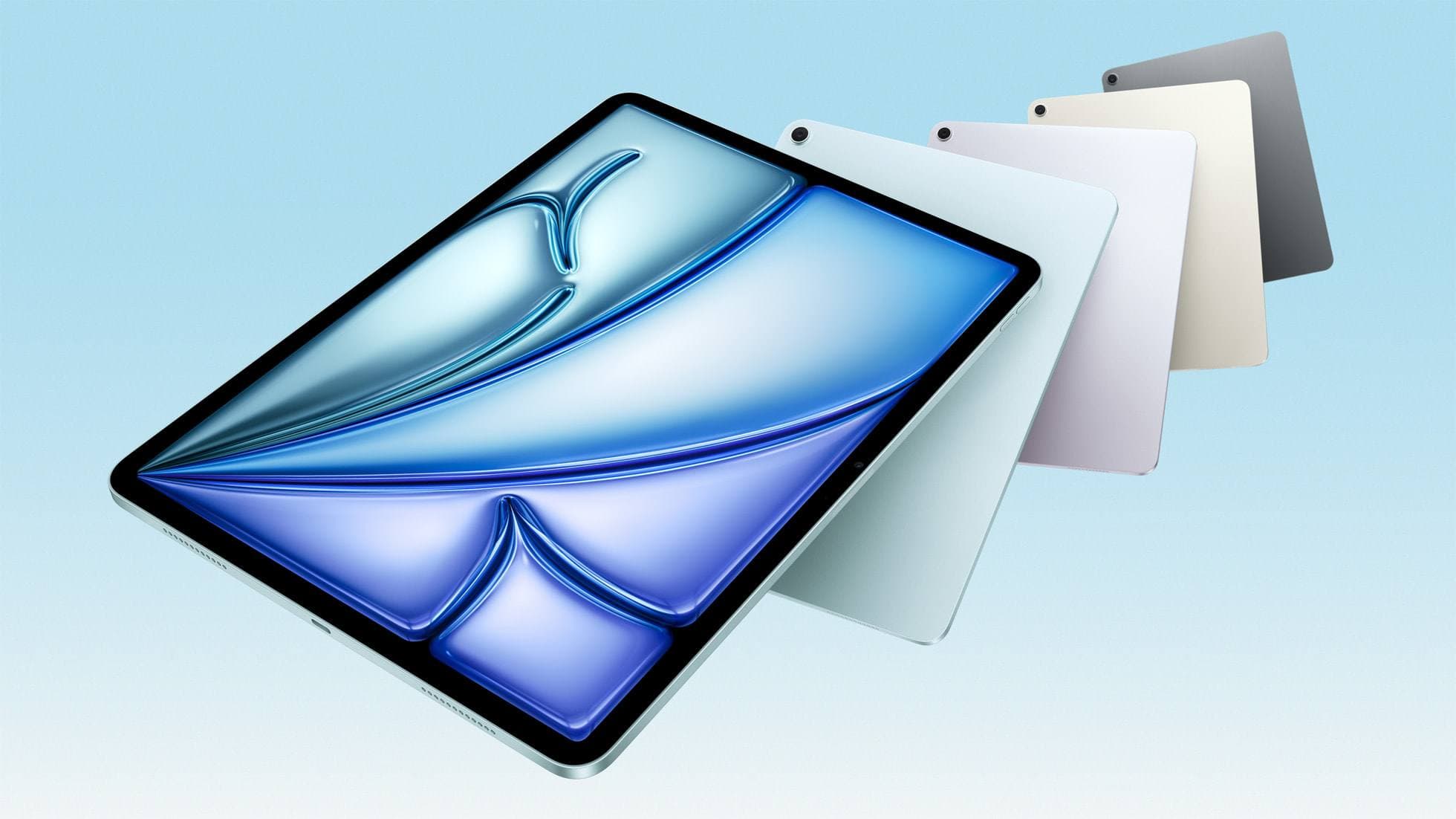
iPad Air (M4)
apple.comThe clean current Air recommendation for most serious hobby artists. Stronger buy logic than old-stock M3 when pricing is close.
Pro: Best current balance of price, headroom, and Pencil support
Con: Still 60Hz
Current Air lineup. Choose size, storage, and keyboard path before checkout.
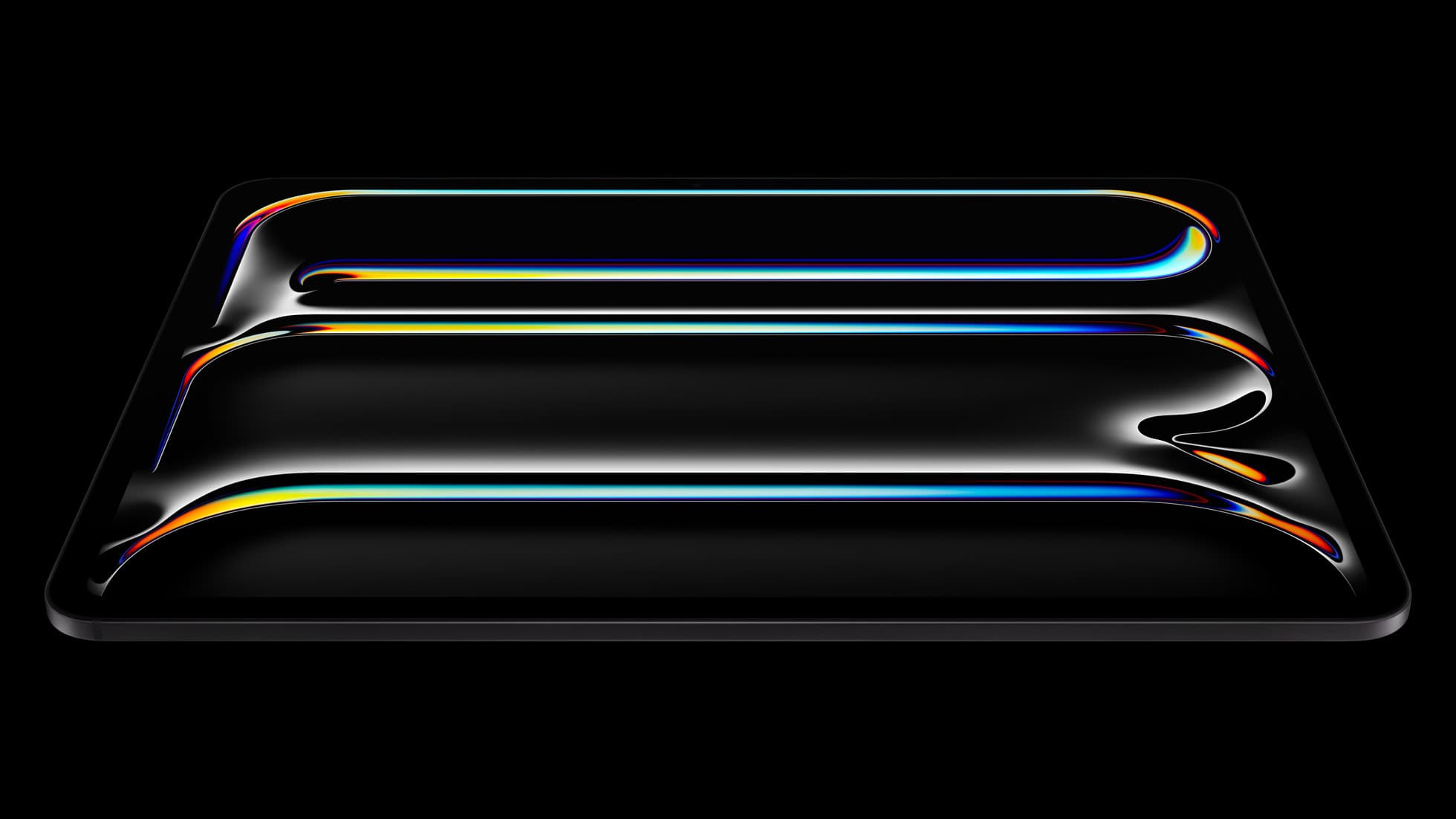
iPad Pro (M5)
amazon.comThe best iPad for drawing feel and premium workflow comfort, but many buyers still overpay for it.
Pro: Best iPad display and ProMotion feel
Con: Highest price in the lineup
Search opens with iPad Pro terms. Check year, chip, and screen size.
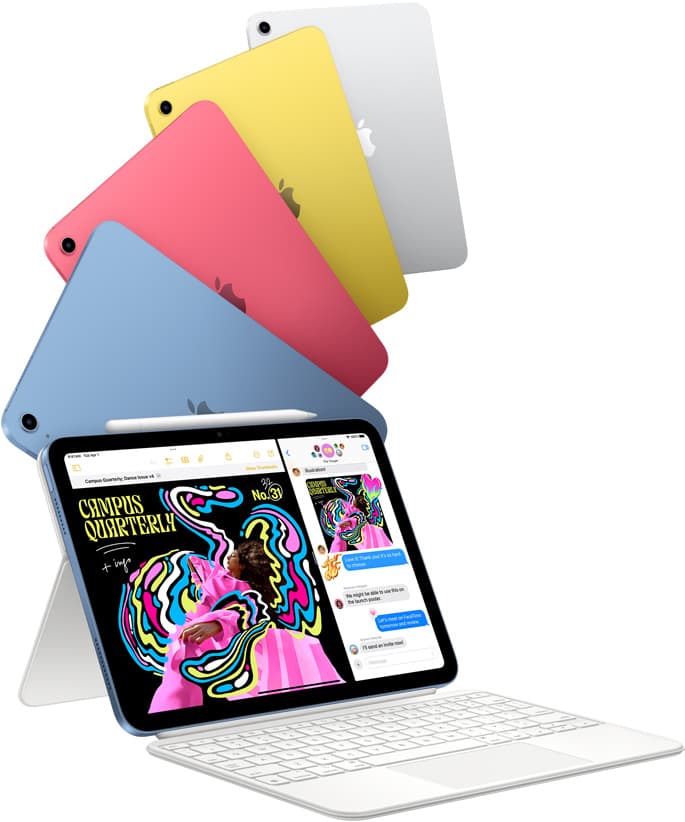
iPad (A16, 11th gen)
amazon.comThe best entry iPad for most artists on a budget. It is not premium, but it is very hard to beat on value.
Pro: Best value iPad right now
Con: No ProMotion display
Search opens with the exact model keywords. Verify size and storage before checkout.
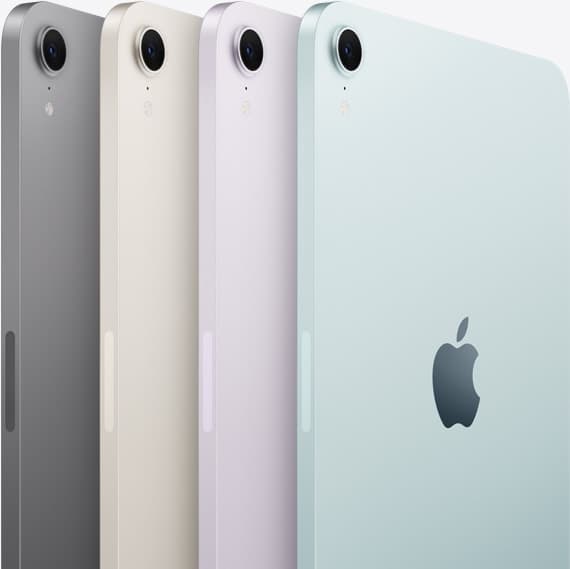
iPad mini (A17 Pro)
amazon.comThe most portable real iPad for drawing. It wins on mobility and loses on workspace.
Pro: Most portable drawing iPad
Con: Small canvas for detailed work
Search opens with iPad mini A17 Pro terms. Verify model number before buying.
Related buying picks
More in this collectionComparison
iPad vs Samsung tablet for drawing: which setup to choose
Choose an iPad if your art workflow relies on Procreate and Apple Pencil tools, and pick the iPad Air for the best balance of features.
Buyer guide
The best iPad for urban sketching and field drawing
Choose between the ultra-portable iPad mini and the sketchbook-sized iPad Air for drawing on the go.
Buyer guide
Best iPad for art college: how to choose your studio tablet
The iPad Air (M4) is the best tablet for art college because it supports the Apple Pencil Pro without the expense of the iPad Pro.
Buyer guide
What's the best iPad for artists?
iPad Air with the M4 chip hits the best balance of stylus features and price for most digital artists.