






If you want an iPad to plan nail art designs, build client flash sheets, and sketch custom sets, buy the iPad Air (M4) [1]. It supports Apple Pencil Pro, giving you barrel roll and squeeze tools for brush control without forcing you to pay for an expensive display upgrade [2], [3]. If your manicure desk is cramped or you travel to house calls, choose the iPad mini (A17 Pro) instead for its smaller footprint [1]. Pick the entry level iPad (A16, 11th gen) only if keeping your total kit cost down matters most [1]. Skip the iPad Pro (M5) unless you already run heavy daily digital illustration projects that require ProMotion [1].
Nail art requires precision planning on a compact canvas, but the hardware demands of mapping out five or ten nails are modest compared to full scale animation or high resolution print production [4]. The right purchase comes down to table space, stylus features, and how you share ideas with clients.
Matching screen size to your nail tech station
Manicure tables fill up quickly with lamps, dust collectors, e-files, and polish racks. Adding a tablet into that physical layout means you have to consider actual device dimensions rather than just buying the biggest display available [1]. An iPad that takes up half your working surface quickly becomes an obstacle during appointments.
Apple offers display sizes ranging from 8.3 inches on the iPad mini up to 13 inches on the iPad Air and iPad Pro [1]. For sketching a set of five press-on nails or mapping out a French tip variation, an 11-inch screen provides plenty of room to lay out hand templates side by side [1]. The 11-inch iPad Air sits comfortably on an armrest shelf or next to an acrylic organizer without crowding your sanitation trays [1].
The 8.3-inch iPad mini fits into tight corners and is easy to hold in one hand while showing color schemes to a client across the table [1]. You lose some drawing area, which means you will zoom in and out more often when drawing small line work, but the portability is hard to beat if you carry your kit between different salon suites [1].
At the larger end, 13-inch displays are great for drafting full portfolios, but they take up substantial desk space [1]. Unless your station includes a dedicated side cart or wall mount, a 13-inch iPad is often too large for an active nail station [1].
Apple Pencil tools for tiny line work
Drawing nail art digitally mimics using thin striper brushes, dotting tools, and ombré sponges. Stylus features directly influence how natural that line work feels in drawing apps [2]. Not every iPad works with every Apple Pencil model, so your choice of tablet dictates your stylus options [3].
The Apple Pencil Pro is compatible with the iPad Air (M4), iPad mini (A17 Pro), and iPad Pro (M5) [2], [3]. It includes a gyroscope that enables barrel roll, allowing you to rotate shaped brushes simply by rolling the pencil in your fingers [2]. This tool works well for changing the angle of flat gel brush strokes or calligraphy lines on a nail template [2]. It also includes squeeze detection, which opens tool palettes right at the pencil tip, and haptic feedback that confirms gestures [2]. Both the Pencil Pro and Apple Pencil (2nd generation) include pressure sensitivity and tilt detection [2].
The base iPad (A16, 11th gen) does not support Apple Pencil Pro [3]. Instead, it pairs with the Apple Pencil (USB-C) or Apple Pencil (1st generation) [3]. The Apple Pencil (USB-C) offers tilt sensitivity, magnetic attachment for storage, and low latency, but it lacks pressure sensitivity [2]. If your sketching method relies on varying line thickness by pressing harder, the missing pressure sensitivity on the USB-C pencil can feel restrictive [2]. For artists who just want to block out color blocks, chrome placement, and basic charms, the USB-C pencil handles line placement without issue [2].
Apple Pencil hover is available on devices with M-series chips as well as the iPad mini (A17 Pro) when using the Apple Pencil Pro [2], [3]. Hover shows a preview mark before your stylus touches the glass, which helps when aligning fine lines, tiny stars, or small gems on a nail outline [2].
Layer limits and drawing app requirements
Most nail artists sketch in dedicated creative apps like Procreate [5]. Procreate runs on iPadOS and supports Apple Pencil inputs for sketching, coloring, and sharing designs [5].
In Procreate, layer limits depend directly on your iPad model's available system RAM and the pixel dimensions of your canvas [4]. Because a set of ten nails does not require enormous poster dimensions, standard canvas sizes like 2048 by 2048 pixels yield dozens of layers even on entry level hardware [4]. That gives you ample layers to separate your base color, French guidelines, hand painted characters, glitter overlays, and top coat shine [4].
If you prefer organizing entire client appointments on a single wide canvas with multiple hand poses, higher RAM devices provide higher maximum layer caps [4]. The iPad Air (M4) and iPad Pro (M5) offer ample memory capacity for large multi-layer canvases [1], [4]. Even the iPad mini (A17 Pro) handles typical salon sketch templates without hitting restrictive layer ceilings [1], [4]. Storage capacity starts at 128GB on the iPad Air and iPad mini, which offers plenty of space for hundreds of design files, reference photos, and client consultations [1].
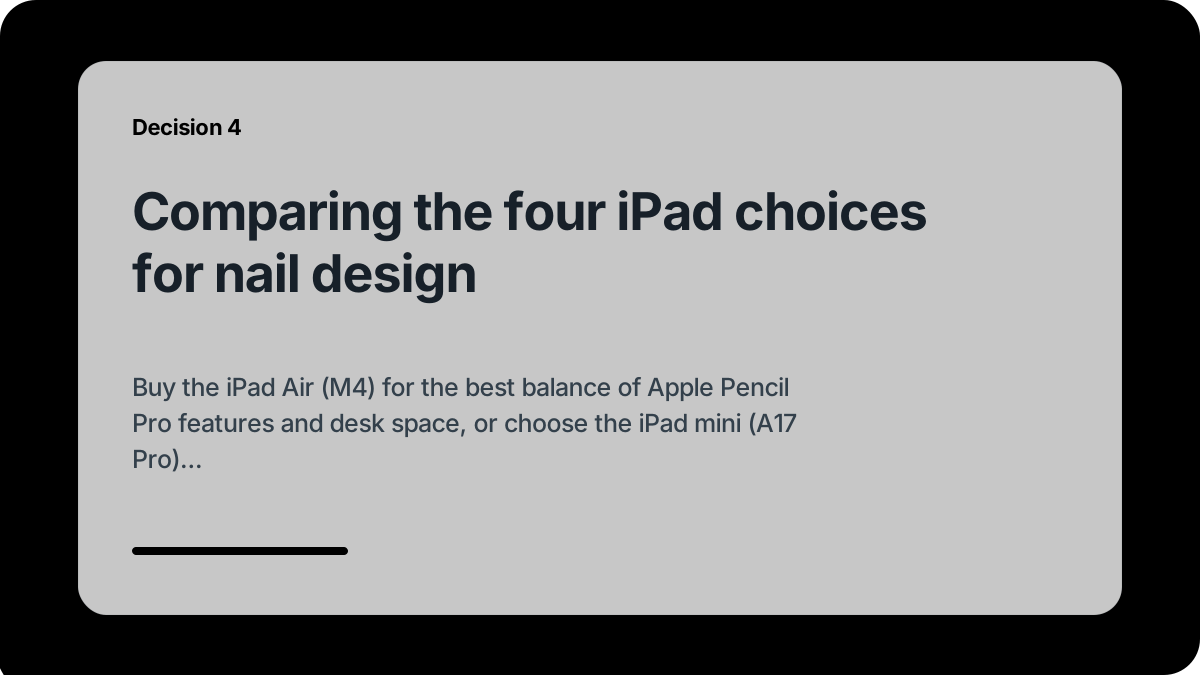
Comparing the four iPad choices for nail design
The iPad Air (M4) is the best overall choice for most nail technicians [1]. It gives you support for Apple Pencil Pro with barrel roll, squeeze, and hover features [2], [3]. It comes in both 11-inch and 13-inch sizes with 128GB of base storage [1]. While its display runs at a standard 60Hz refresh rate rather than 120Hz ProMotion, that difference does not hinder sketching nail sets or showing photos to clients [1].
The iPad mini (A17 Pro) is the top choice if table space is your main problem [1]. Its 8.3-inch Liquid Retina display supports Apple Pencil Pro, giving you full access to barrel roll, haptics, and pressure sensitivity in a handheld size [1], [2], [3]. The smaller canvas requires more pinch-to-zoom navigation, but it tucks away neatly next to your curing lamps [1].
The iPad (A16, 11th gen) is the value option for nail techs who want a digital intake and consultation screen without spending extra [1]. It handles Procreate and general salon management tools easily [4], [5]. However, because it does not support Apple Pencil Pro, you must choose between an Apple Pencil (USB-C) without pressure sensitivity or older stylus adapters [2], [3].
The iPad Pro (M5) provides the Ultra Retina XDR display with ProMotion technology up to 120Hz [1]. While the screen response is smooth, paying for top tier processing power and advanced display hardware is unnecessary if your primary goal is drawing nail art [1]. Skip the Pro unless you also produce complex 3D modeling, commercial video editing, or heavy graphic design work outside the salon [1].
Bottom line
For most nail artists, the iPad Air (M4) strikes the ideal balance between screen size, modern stylus capability, and salon usability [1]. It lets you use the Apple Pencil Pro to sketch fine details with barrel roll and pressure control without forcing you into the expensive iPad Pro bracket [1], [2], [3]. Choose the iPad mini (A17 Pro) if your workstation is extremely tight [1]. Pick the entry level iPad (A16, 11th gen) if you only need basic layout sketching on a strict budget [1]. Skip the iPad Pro (M5) because standard nail design workflows do not require its premium display hardware [1].
Sources
[1] https://www.apple.com/ipad/compare/ [2] https://www.apple.com/apple-pencil/ [3] https://support.apple.com/en-us/108937 [4] https://help.procreate.com/articles/zlexav-ipad-compatibility [5] https://apps.apple.com/us/app/procreate/id425073498
Recommended gear

iPad Air (M4)
apple.comThe clean current Air recommendation for most serious hobby artists. Stronger buy logic than old-stock M3 when pricing is close.
Pro: Best current balance of price, headroom, and Pencil support
Con: Still 60Hz
Current Air lineup. Choose size, storage, and keyboard path before checkout.
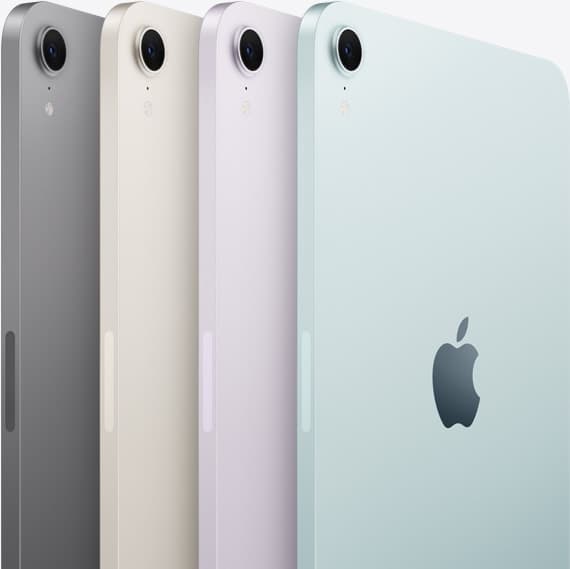
iPad mini (A17 Pro)
amazon.comThe most portable real iPad for drawing. It wins on mobility and loses on workspace.
Pro: Most portable drawing iPad
Con: Small canvas for detailed work
Search opens with iPad mini A17 Pro terms. Verify model number before buying.
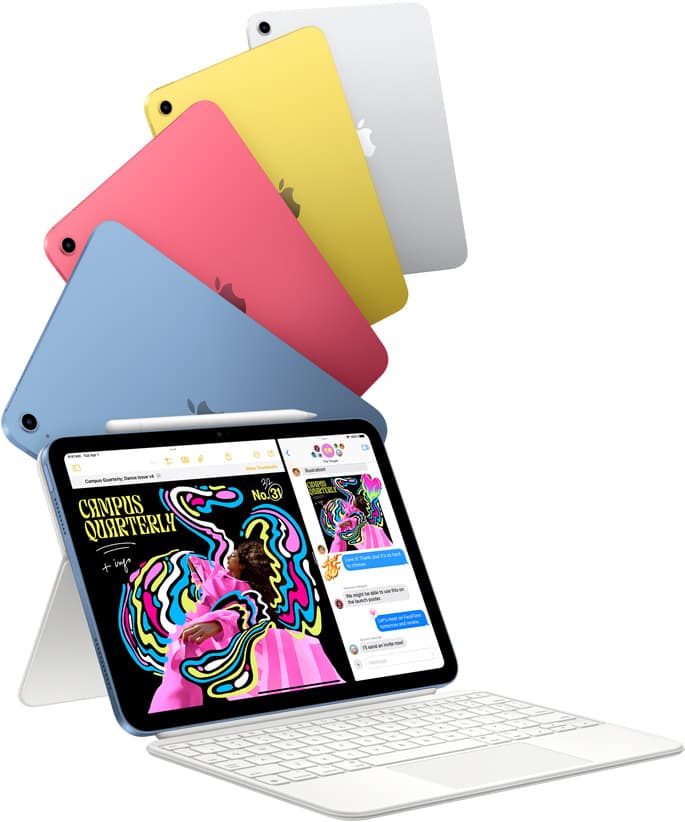
iPad (A16, 11th gen)
amazon.comThe best entry iPad for most artists on a budget. It is not premium, but it is very hard to beat on value.
Pro: Best value iPad right now
Con: No ProMotion display
Search opens with the exact model keywords. Verify size and storage before checkout.
iPad Pro (M5)
amazon.comThe best iPad for drawing feel and premium workflow comfort, but many buyers still overpay for it.
Pro: Best iPad display and ProMotion feel
Con: Highest price in the lineup
Search opens with iPad Pro terms. Check year, chip, and screen size.
Related buying picks
More in this collectionBuyer guide
Is iPad 10th gen good for Procreate?
The iPad 10th gen handles Procreate well for everyday digital art, but stylus pairing limits and base hardware shape how far you can push large files.
Buyer guide
How to choose the best iPad for illustration work
Find the best iPad for your illustration workflow based on Apple Pencil Pro compatibility, screen size, Procreate layer limits, and display feel.
Buyer guide
Best iPad for digital painting: Which model should you buy?
Choose the right iPad for digital painting based on screen space, Apple Pencil features, and layer capacity.
Buyer guide
Best iPad for digital art beginners
Get the iPad Air (M4) if you want the Apple Pencil Pro toolset, or pick the base iPad (A16) if you want a capable digital sketchpad at the lowest entry cost.