





If your exported artwork looks pixelated, soft, or fuzzy when you post it online or view it on a computer, keep your current iPad and fix your canvas pixel dimensions first [1]. Blurry exports happen when you build art on a small canvas or upscale low-resolution layers, not because Procreate compresses files secretly [1]. However, if your artwork demands thousands of pixels in both directions and your hardware restricts you to just a handful of usable layers, buy the iPad Air (M4) for more memory headroom, or choose the iPad (A16) if basic resolution and standard sketch layers meet your budget [2], [5].
Canvas pixel dimensions versus display scaling
Procreate is a raster graphics application, meaning every brush stroke is stored as fixed pixels rather than scalable math equations [1]. When you select a preset canvas like screen size, Procreate creates an image matched exactly to the screen dimensions of your specific iPad model [1], [5]. If you draw on a 1080p or basic screen-sized canvas and then zoom in, export to a high-density computer monitor, or print, the image must stretch existing pixels, creating visible softness or blur [1].
Many artists confuse physical dimensions and dots per inch (DPI) with raw pixel measurements. Procreate uses DPI strictly as a print calculation tag [1]. If your file has only 1,000 by 1,000 pixels, changing the setting from 72 DPI to 300 DPI does not add a single pixel of detail [1]. It simply changes how large the file prints on physical paper [1]. For digital sharing on websites and social feeds, total pixel width and height are the only numbers that determine sharpness [1].
To prevent blurry exports, create your artwork at the actual output size or larger from the beginning [1]. If you want a detailed illustration that holds up on 4K displays, configure your custom canvas to at least 3840 by 2160 pixels [1]. Drawing large from the start ensures that downsampling for web delivery keeps your lines crisp rather than stretching them [1].
Transform tools within the app can also introduce softness if you aren't careful [1]. Scaling up an inked character or rotating small linework forces Procreate to interpolate pixels, which softens hard edges [1]. Choosing nearest neighbor interpolation preserves sharp pixel edges for pixel art, while bicubic or bilinear smoothing blends pixels to reduce jagged artifacts [1]. If you scale a small sketch up to fill a large canvas, re-ink the lines at final size to restore clean clarity [1].
Why hardware memory limits your canvas resolution
Increasing your canvas pixel dimensions directly affects your layer count because Procreate links layer availability directly to total system memory [2]. The app manages memory strictly so you don't encounter sudden session termination during drawing sessions [2]. When you open a 2048 by 2048 pixel canvas on a device with limited memory, you might get dozens of layers [2]. If you increase that canvas to 6000 by 6000 pixels for commercial illustration, your available layer count drops steeply [2].
This design creates a direct tradeoff between export sharpness and workflow complexity [2]. Artists on entry-level hardware often keep their canvases small so they can preserve 20 or 30 layers for coloring, shading, sketches, and adjustments [2]. Doing so solves the layer problem but causes the final export to look blurry on larger screens [1], [2].
Upgrading to an iPad with more unified memory allows you to build high-pixel canvases without sacrificing the layers you need for production art [2], [5]. If you find yourself merging layers constantly or creating small canvases just to stay within Procreate's hardware boundaries, your workflow has outgrown your iPad's memory allocation [2].
Choosing between iPad Air and the base iPad for large canvases
If you need a new tablet to support larger canvases and crisper exports, compare the iPad Air (M4) against the entry-level iPad (A16) [5]. The iPad (A16) uses Apple's mainstream mobile chip and is the best default when total setup cost matters most [5]. It runs Procreate capably for sketching, hobbyist art, and social media illustrations at standard pixel dimensions [1], [5]. But because it carries a base hardware profile, its maximum layer counts on large canvases remain tighter than premium models [2], [5].
Buy the iPad (A16) if you work with fewer layers, primarily create art for standard phone screens, or want a budget-friendly device [5]. Skip it if you need large print canvases or multi-layer commercial workflows, where you will quickly bump into layer limitations [2].
Buy the iPad Air (M4) if you want Apple Pencil Pro support alongside the M4 chip's memory headroom without stepping up to Pro pricing [3], [5]. The M4 platform provides the memory bandwidth and capacity needed to run wide pixel dimensions while keeping an ample layer stack available in Procreate [2], [5]. It features a 60Hz display, but its compatibility with the Apple Pencil Pro brings hardware tools like squeeze, barrel roll, haptics, and hover that are unavailable on base iPads [4], [5].
Skip the iPad Air (M4) if your existing tablet already gives you enough layers on high-resolution canvases [2], [5]. Buying a faster iPad will not fix blurry exports on its own if you continue setting your canvas to low pixel counts [1], [2].
Pencil compatibility and detail precision
Your stylus does not directly change export resolution, but it dictates how accurately you place fine detail on high-resolution canvases [4]. The Apple Pencil Pro pairs with the iPad Air (M4), offering barrel roll for brush rotation, squeeze gestures for tool switching, hover previews, and haptic feedback [3], [4]. These hardware features give you fine line placement across dense pixel grids [4].
By contrast, the iPad (A16) pairs with the Apple Pencil (USB-C) and the first-generation Apple Pencil [3]. The Apple Pencil (USB-C) provides tilt sensitivity and magnetic storage, but lacks pressure sensitivity [4]. Drawing on high-resolution canvases without pressure sensitivity means line width must be adjusted through sliders rather than hand pressure [4]. If pressure response is essential to your drawing style, verify your pencil compatibility before picking your tablet [3], [4].
Export formats and viewing compression
Even with a high-resolution canvas, choosing the wrong export setting or sharing method can ruin image sharpness [1]. Procreate lets you export flat artwork in formats including PNG, JPEG, TIFF, and PDF [1]. For digital sharing, PNG is generally preferred because it uses lossless compression that avoids compression artifacts around crisp line art [1].
Exporting as a standard JPEG applies lossy compression, which discards subtle color transitions and creates visual fuzziness around high-contrast edges [1]. If you must use JPEG for file size limits, ensure you export at maximum quality [1].
External viewing platforms also cause blurry art [1]. Social media feeds automatically compress images that exceed their internal size or file dimension thresholds [1]. If you upload a massive 8000 by 8000 pixel file, the host platform downsamples the image aggressively, leading to severe softening [1]. To avoid this, export two versions of your work from Procreate: one master file at full resolution in PNG format for archiving or printing, and one scaled copy sized to the exact dimensions of your target social platform [1].
Bottom line
Blurry Procreate exports are almost always caused by low canvas pixel dimensions or platform downscaling rather than tablet bugs [1]. Check your canvas settings and build new files with enough pixels to match your final display medium [1]. If your current hardware limits your layer count when you increase canvas dimensions, buy the iPad Air (M4) for higher memory ceilings and Apple Pencil Pro support [2], [4], [5]. Choose the iPad (A16) if you want a reliable entry point on a budget and don't need dozens of layers on massive canvases [2], [5].
Sources
[1] https://apps.apple.com/us/app/procreate/id425073498 [2] https://help.procreate.com/articles/zlexav-ipad-compatibility [3] https://support.apple.com/en-us/108937 [4] https://www.apple.com/apple-pencil/ [5] https://www.apple.com/ipad/compare/
Recommended gear
Procreate
apps.apple.comPro: One-time purchase
Con: iPad-only

iPad Air (M4)
apple.comThe clean current Air recommendation for most serious hobby artists. Stronger buy logic than old-stock M3 when pricing is close.
Pro: Best current balance of price, headroom, and Pencil support
Con: Still 60Hz
Current Air lineup. Choose size, storage, and keyboard path before checkout.
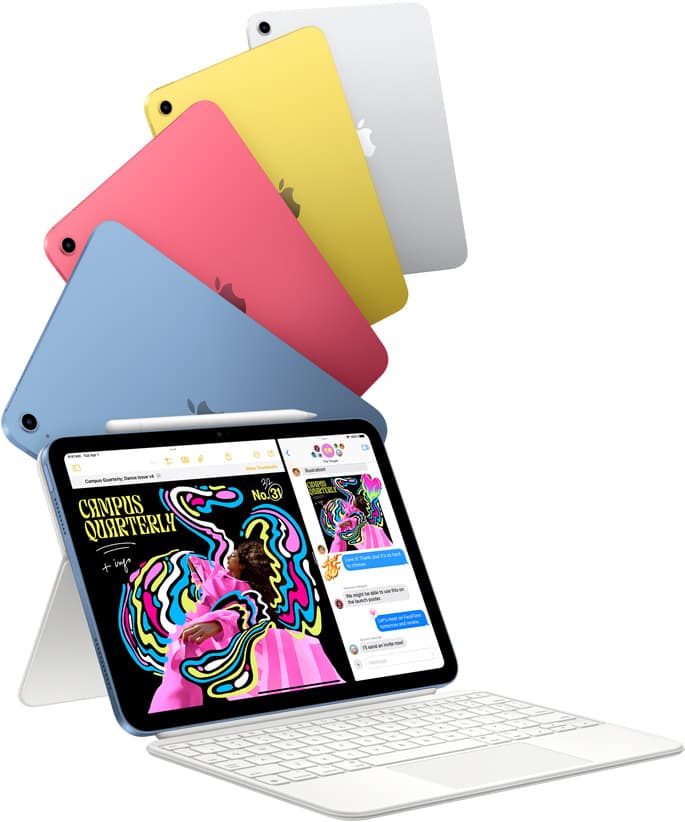
iPad (A16, 11th gen)
amazon.comThe best entry iPad for most artists on a budget. It is not premium, but it is very hard to beat on value.
Pro: Best value iPad right now
Con: No ProMotion display
Search opens with the exact model keywords. Verify size and storage before checkout.

Apple Pencil Pro
amazon.comThe best Apple stylus for serious digital art workflows. Expensive, but the control upgrades are real.
Pro: Best brush-control and hover workflow
Con: Highest price in the lineup
Works only with newer iPad models. Check compatibility.
Related buying picks
More in this collectionBuyer guide
Best iPad app for sketching over photos: top picks and tradeoffs
Compare Procreate, Clip Studio Paint, and top free-to-download alternatives to choose the right iPad app for sketching and tracing over photos.
Buyer guide
Best coloring app for iPad with Apple Pencil
Choose Lake for structured coloring book pages or Procreate to color custom line art with full layer control.
Buyer guide
Best iPad drawing app for kids with Apple Pencil
Compare Procreate, Sketchbook, Adobe Fresco, and Clip Studio Paint to choose the best Apple Pencil drawing app for your child.
Buyer guide
Best iPad app for children's book illustration
Compare Procreate, Clip Studio Paint, and top sketching tools to pick the right iPad app for children's book artwork.