






If you're starting out in digital art, buy the iPad Air (M4) for the best overall feature balance, or buy the iPad (A16) if minimizing total cost is your priority [1]. Skip the iPad Pro (M5), because beginners don't need its premium price to learn digital drawing [1]. The iPad mini (A17 Pro) suits portable sketching, but its compact screen restricts drawing space [1]. The iPad Air (M4) hits the sweet spot by pairing with the Apple Pencil Pro for squeeze, barrel roll, and haptics without Pro pricing [2], [3].
Why stylus compatibility dictates your tablet choice
The most critical decision when choosing a tablet isn't chassis finish or camera hardware. It's which stylus connects to the screen [1], [3]. Apple organizes its tablets into distinct tiers that support specific Apple Pencil models [1], [3]. Checking compatibility first prevents pairing surprises or missing features you expect [3].
The base iPad (A16) pairs with the Apple Pencil (USB-C) and the first-generation Apple Pencil [3]. The Apple Pencil (USB-C) features tilt sensitivity and magnetic storage, but lacks pressure sensitivity [2]. If you want pressure sensitivity on the base iPad, you must use the first-generation Apple Pencil with an adapter, which complicates charging [2], [3].
The iPad Air (M4), iPad mini (A17 Pro), and iPad Pro (M5) support the Apple Pencil Pro and Apple Pencil (USB-C) [1], [3]. The Apple Pencil Pro brings pressure sensitivity, tilt, magnetic pairing, wireless charging, squeeze shortcuts, barrel roll, and haptics [2], [3]. Having native pressure sensitivity and wireless magnetic charging makes daily practice much simpler [2], [3].
The best overall pick for beginners: iPad Air (M4)
For most beginners, the iPad Air (M4) offers the ideal balance of hardware headroom and creative utility [1]. It runs Apple's M4 chip and supports current creative software like Procreate [1], [4], [5]. Support for the Apple Pencil Pro gives you squeeze shortcuts and barrel roll rotation for shaped digital brushes [2], [3].
Screen size options include 11-inch and 13-inch displays [1]. The 11-inch model provides ample drawing room while remaining easy to pack [1]. It leaves space for palettes and menus without crowding your canvas [1], [5].
The trade-off on the iPad Air (M4) is its 60Hz display rather than 120Hz ProMotion [1]. Still, 60Hz remains completely practical for line work and coloring [1]. Who should buy it: beginners who want pressure sensitivity, magnetic charging, and hardware room to grow [1], [2], [3]. Who should skip it: shoppers on a strict budget who just want basic note taking and casual doodling [1].
The best budget pick: iPad (A16)
If you want to try digital art without a large expense, the iPad (A16) is the best entry point [1]. It features an A16 Bionic chip and a 10.9-inch screen, providing nearly the same visible area as the 11-inch iPad Air [1]. It runs iPadOS and creative tools like Procreate from the App Store [1], [4], [5].
The primary compromise involves stylus options [1], [3]. Paired with the Apple Pencil (USB-C), you don't get pressure sensitivity [2], [3]. You can still sketch clean linework, use tilt for shading, and adjust brush opacity manually [2], [5]. For flat graphics and lettering, that setup works well [2].
To get pressure sensitivity on the iPad (A16), you must pair a first-generation Apple Pencil using a USB-C adapter [2], [3]. Managing that adapter is less convenient than snapping a stylus to the tablet's magnetic edge [2], [3]. Who should buy it: budget-focused artists starting out [1]. Who should skip it: illustrators who insist on wireless magnetic charging and pressure sensitivity together [2], [3].
When to consider the iPad mini or iPad Pro
The iPad mini (A17 Pro) and iPad Pro (M5) sit at opposite ends of the lineup [1]. The iPad mini has an 8.3-inch display and supports the Apple Pencil Pro, giving you pressure sensitivity and barrel roll in a pocketable build [1], [2], [3]. However, its compact screen feels tight once tool palettes are open [1], [5]. Buy it for drawing while commuting; skip it if it's your primary desk canvas [1].
The iPad Pro (M5) includes an Ultra Retina XDR OLED display, 120Hz ProMotion, and Pencil hover [1], [2]. These features are impressive, but the tablet carries premium pricing [1]. Beginners don't need an OLED screen or M5 power to learn color theory and drawing fundamentals [1], [4]. Buy the iPad Pro (M5) only if you have a generous budget for high-refresh hardware; otherwise, skip it [1].
Memory, storage, and layer counts in drawing apps
Device memory directly impacts your canvas limits in raster illustration software [4]. In Procreate, maximum layer counts depend on tablet memory and pixel resolution [4], [5]. Detailed, high-resolution canvases require more memory to support multiple layers [4].
The iPad Air (M4) and iPad Pro (M5) feature M-series chips that allow higher layer counts on large canvases than entry-level hardware [1], [4]. The iPad (A16) handles standard dimensions easily, but hits layer limits sooner on high-resolution projects [1], [4].
For storage, consider your file habits before picking a capacity [1], [4]. High-resolution artwork and time-lapse recordings consume local space over time [1], [5]. Check your expected canvas dimensions and project volume before choosing a storage tier [1], [4].
Bottom line
For most beginners, the iPad Air (M4) is the recommended pick because it combines balanced screen sizing with Apple Pencil Pro support [1], [2], [3]. You get pressure sensitivity, squeeze tools, barrel roll, and magnetic charging without paying for a Pro tablet [1], [2]. If keeping costs low is your top goal, choose the iPad (A16) with the Apple Pencil (USB-C) and accept manual line weight adjustments [1], [2], [3]. Skip the iPad Pro (M5) unless you specifically demand a 120Hz OLED screen [1].
Sources
[1] https://www.apple.com/ipad/compare/ [2] https://www.apple.com/apple-pencil/ [3] https://support.apple.com/en-us/108937 [4] https://help.procreate.com/articles/zlexav-ipad-compatibility [5] https://apps.apple.com/us/app/procreate/id425073498
Recommended gear

iPad Air (M4)
apple.comThe clean current Air recommendation for most serious hobby artists. Stronger buy logic than old-stock M3 when pricing is close.
Pro: Best current balance of price, headroom, and Pencil support
Con: Still 60Hz
Current Air lineup. Choose size, storage, and keyboard path before checkout.
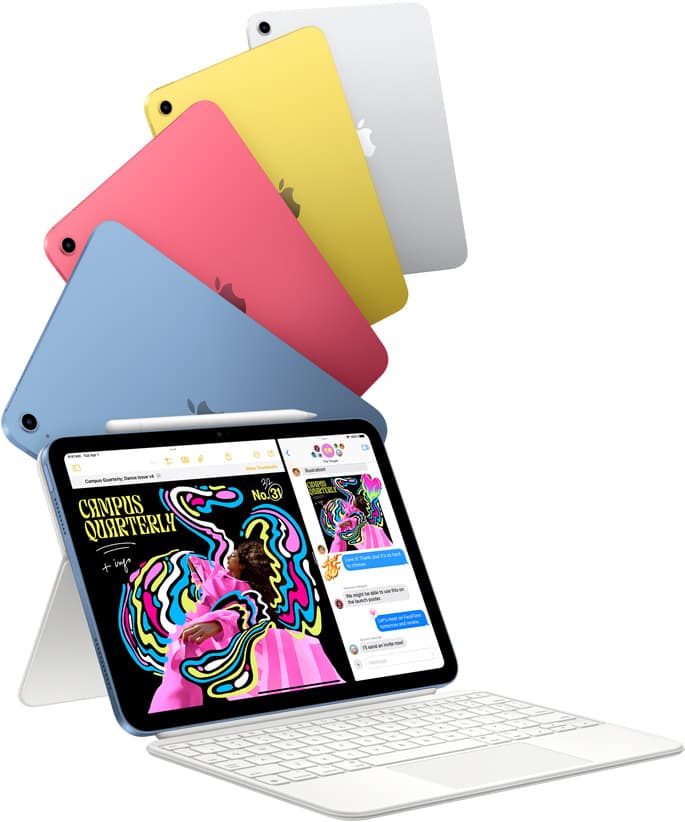
iPad (A16, 11th gen)
amazon.comThe best entry iPad for most artists on a budget. It is not premium, but it is very hard to beat on value.
Pro: Best value iPad right now
Con: No ProMotion display
Search opens with the exact model keywords. Verify size and storage before checkout.
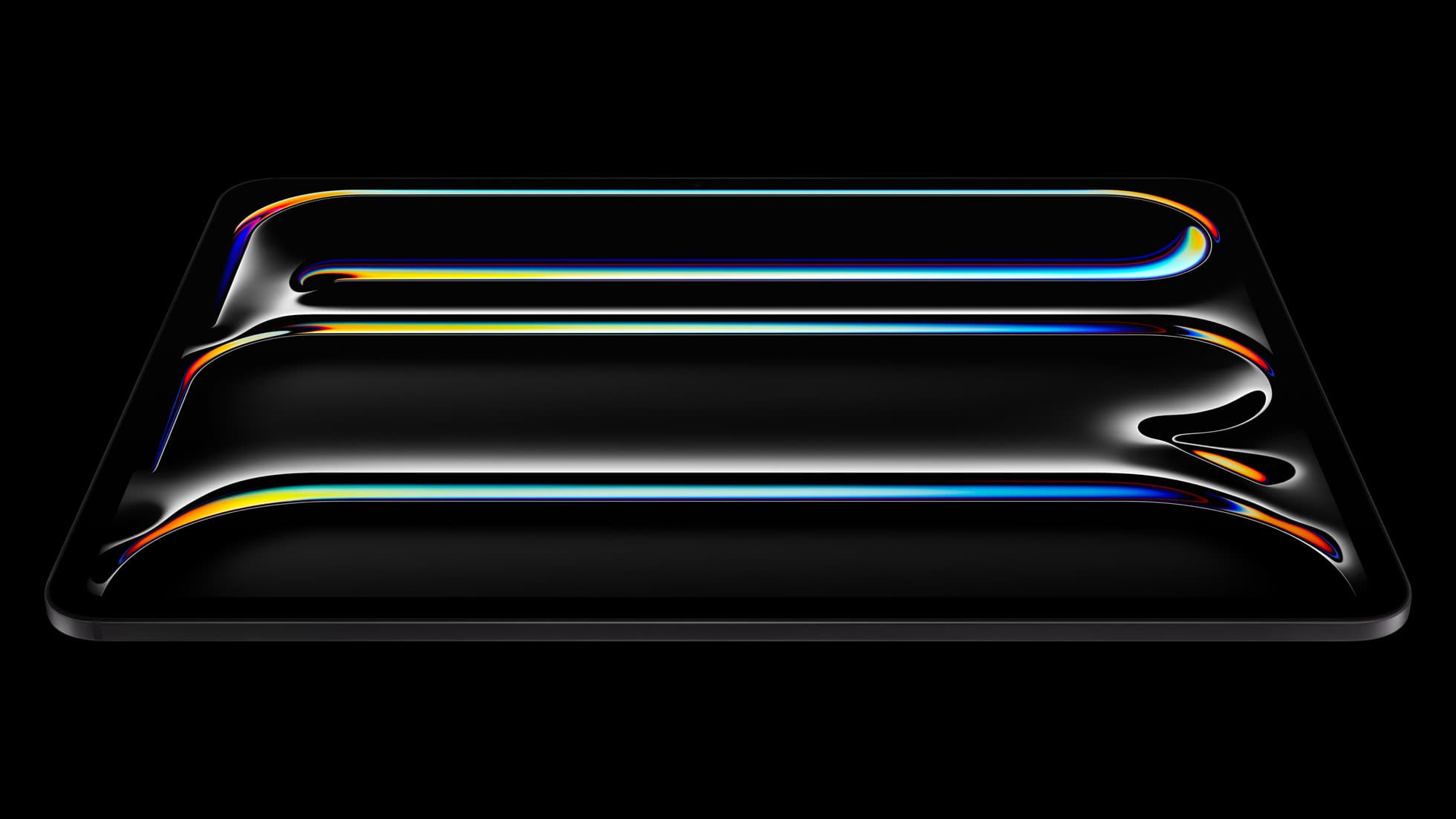
iPad Pro (M5)
amazon.comThe best iPad for drawing feel and premium workflow comfort, but many buyers still overpay for it.
Pro: Best iPad display and ProMotion feel
Con: Highest price in the lineup
Search opens with iPad Pro terms. Check year, chip, and screen size.
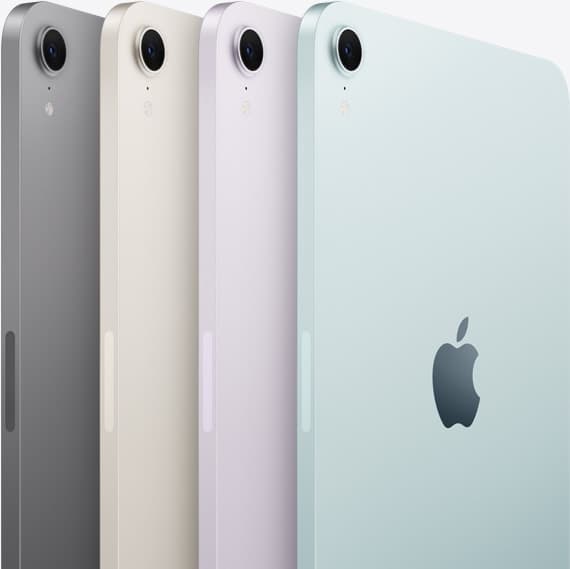
iPad mini (A17 Pro)
amazon.comThe most portable real iPad for drawing. It wins on mobility and loses on workspace.
Pro: Most portable drawing iPad
Con: Small canvas for detailed work
Search opens with iPad mini A17 Pro terms. Verify model number before buying.
Related buying picks
More in this collectionBuyer guide
Is iPad 10th gen good for Procreate?
The iPad 10th gen handles Procreate well for everyday digital art, but stylus pairing limits and base hardware shape how far you can push large files.
Buyer guide
Best iPad for storyboard artists: our buyer guide
Choose the right iPad for storyboarding based on screen size, Apple Pencil Pro features, and canvas layer limits.
Buyer guide
Best iPad for medical illustration
Choose the right iPad and Apple Pencil setup for medical illustration based on stylus precision, canvas size, and layer limits.
Comparison
iPad vs Samsung tablet for drawing: which setup to choose
Choose an iPad if your art workflow relies on Procreate and Apple Pencil tools, and pick the iPad Air for the best balance of features.