






If you want an iPad for digital painting right now, choose the iPad Air (M4) [1]. It pairs with the Apple Pencil Pro, giving you squeeze gestures, barrel roll, and haptic feedback without the expense of an iPad Pro [1], [2]. Buy the iPad Pro (M5) if you want a ProMotion screen or work across large canvas projects [1], [3]. Skip both and pick the iPad (A16) if you want a sketchbook tablet at the lowest entry price [1].
Digital painting places clear demands on tablet hardware. You need enough physical screen area to rest your hand, a stylus that handles pressure sensitivity, and enough device memory so software won't cap your layer limits prematurely [1], [2], [4]. Apple currently sells four iPad lines with different hardware trade-offs [1].
Apple Pencil compatibility and drawing features
The stylus you pair with your tablet defines how your digital painting workflow feels [2]. Apple makes multiple styluses, but they don't share the same drawing capabilities across every tablet [1], [2]. Checking compatibility is the primary technical hurdle before picking your hardware [1], [3].
The Apple Pencil Pro works with the iPad Air (M4), iPad Pro (M5), and iPad mini (A17 Pro) [1], [3]. This stylus includes pressure sensitivity, tilt detection, barrel roll orientation, squeeze shortcuts, and haptic feedback [2]. It also charges and pairs wirelessly through a magnetic connection [2], [3]. In apps like Procreate, rotating the barrel changes brush orientation as you paint, while squeezing the body brings up palettes or tool switchers [2], [5].
In contrast, the mainstream iPad (A16) doesn't support the Apple Pencil Pro [1], [3]. It supports the Apple Pencil (USB-C) and the first-generation Apple Pencil [1], [3]. The Apple Pencil (USB-C) charges with a cable and attaches magnetically, but it lacks pressure sensitivity [2]. It supports only tilt detection and Apple Pencil hover on compatible hardware [2]. Painting without pressure sensitivity means adjusting brush opacity and size through manual sliders on your screen [2], [5].
If you want natural line weight variation based on how hard you press your hand down, pairing a tablet with a pressure-sensitive stylus is essential [2]. That single requirement makes the iPad Air (M4), iPad Pro (M5), and iPad mini (A17 Pro) far more capable for painting workflows than the base iPad (A16) [1], [2].
Screen size and workspace comfort
Canvas area dictates how much space you have for artwork once tool palettes, layer menus, and brush pickers occupy the screen [5]. Apple offers display options across four sizes: 8.3 inches, 10.9 or 11 inches, and 13 inches [1].
The iPad mini (A17 Pro) features an 8.3-inch display [1]. It fits easily into small bags and is a digital pocket notebook [1]. However, when you open painting apps like Procreate, interface controls take up a noticeable portion of the display [1], [5]. You'll spend more time zooming in and panning around your canvas to complete details [5]. It suits painters who prioritize portability over drawing room [1].
The iPad (A16) and the 11-inch versions of the iPad Air (M4) and iPad Pro (M5) provide a balanced middle ground [1]. An 11-inch screen allows you to keep basic tools open on one edge while maintaining ample space for brushwork [1], [5]. It rests comfortably in your lap or on a desk stand without feeling cumbersome [1].
The 13-inch configurations on the iPad Air (M4) and iPad Pro (M5) provide the largest drawing surface [1]. A 13-inch display lets you paint broad strokes from the shoulder rather than just your wrist [1]. It leaves plenty of border room for color wheels and layer panels without crowding your active canvas [1], [5]. For extended desk painting sessions, the 13-inch size offers obvious benefits [1].
Device memory and layer limits in Procreate
One technical reality that surprises new digital painters is how system memory directly limits your artwork [4]. In raster painting apps like Procreate, the maximum number of layers you can create on a canvas depends on the physical memory of the iPad and the pixel dimensions of your document [4].
Every layer requires dedicated memory space [4]. If you create a large canvas intended for physical printing, a device with less memory might restrict you to only a few layers [4]. For paintings that use separate layers for rough sketches, line art, flat colors, shading, and backgrounds, running out of layers interrupts your workflow [4], [5].
Apple equips the iPad Pro (M5) and iPad Air (M4) with higher amounts of system memory across their base storage tiers compared to the base iPad (A16) [1]. According to Procreate's documentation, iPads with more memory allow significantly higher layer caps at matching canvas resolutions [4]. If your digital painting habits rely on non-destructive multi-layer stacks, stepping up to an iPad Air or iPad Pro is a practical choice [1], [4].
Storage capacity also influences how long your setup lasts [1]. Digital painting documents, high-resolution exports, and timelapse recordings consume local drive space quickly [5]. Choosing adequate internal storage keeps you from having to offload project files to external drives every week [1], [5].
Display refresh rates and ProMotion
The display hardware itself differs substantially across the current catalog [1]. The defining visual difference between the iPad Pro (M5) and other iPads is Apple's ProMotion technology [1].
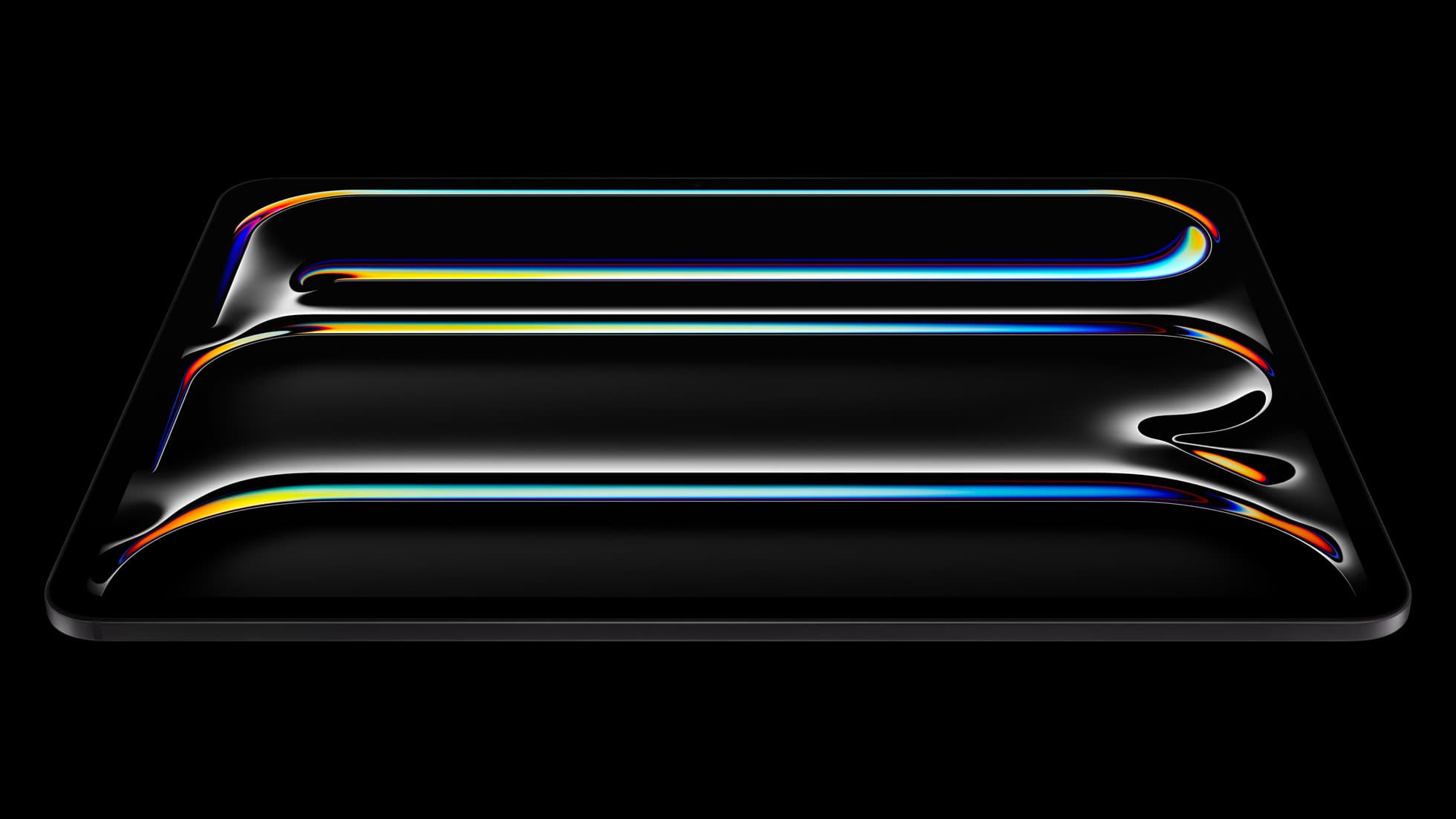
The iPad Pro (M5) features an Ultra Retina XDR display with ProMotion, which provides adaptive refresh rates up to 120Hz [1]. The iPad Air (M4), iPad (A16), and iPad mini (A17 Pro) feature standard 60Hz displays [1]. When you drag a stylus quickly across a 120Hz display, the stroke tracks closer to the physical tip because the screen refreshes twice as frequently [1].
While ProMotion provides a fluid drawing experience, a 60Hz display doesn't prevent you from making detailed paintings [1], [5]. Thousands of illustrators produce work daily on 60Hz screens like the iPad Air [1]. If your budget allows for the iPad Pro (M5), the 120Hz refresh rate and Ultra Retina XDR display are welcome benefits [1]. But for controlling costs, the 60Hz screen on the iPad Air (M4) remains fully capable [1].
Bottom line
For most people buying a tablet for digital painting, the iPad Air (M4) is the best choice [1]. It supports the Apple Pencil Pro with pressure sensitivity, barrel roll, and haptic feedback, while offering system memory for healthy layer limits without Pro pricing [1], [2], [4]. Choose the 11-inch model for portability or the 13-inch model for maximum drawing space [1].
Buy the iPad Pro (M5) if you want ProMotion and the Ultra Retina XDR screen [1]. Pick the iPad mini (A17 Pro) if portability matters most and you don't mind a compact canvas [1]. Skip the iPad (A16) unless total kit cost is your only priority, since it lacks Apple Pencil Pro support and pressure sensitivity [1], [2], [3].
Sources
[1] https://www.apple.com/ipad/compare/ [2] https://www.apple.com/apple-pencil/ [3] https://support.apple.com/en-us/108937 [4] https://help.procreate.com/articles/zlexav-ipad-compatibility [5] https://apps.apple.com/us/app/procreate/id425073498
Recommended gear

iPad Air (M4)
apple.comThe clean current Air recommendation for most serious hobby artists. Stronger buy logic than old-stock M3 when pricing is close.
Pro: Best current balance of price, headroom, and Pencil support
Con: Still 60Hz
Current Air lineup. Choose size, storage, and keyboard path before checkout.
iPad Pro (M5)
amazon.comThe best iPad for drawing feel and premium workflow comfort, but many buyers still overpay for it.
Pro: Best iPad display and ProMotion feel
Con: Highest price in the lineup
Search opens with iPad Pro terms. Check year, chip, and screen size.
iPad (A16, 11th gen)
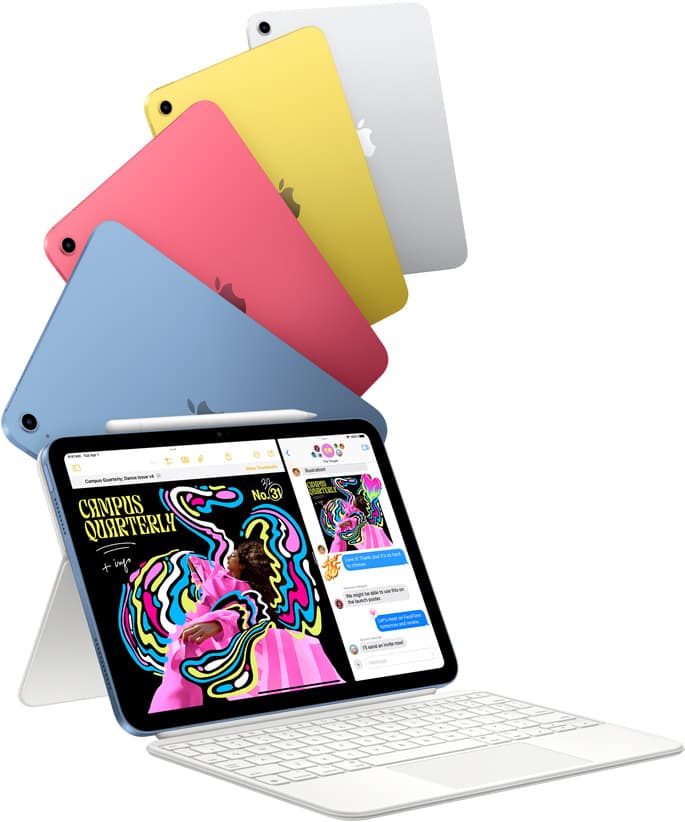
amazon.comThe best entry iPad for most artists on a budget. It is not premium, but it is very hard to beat on value.
Pro: Best value iPad right now
Con: No ProMotion display
Search opens with the exact model keywords. Verify size and storage before checkout.
iPad mini (A17 Pro)
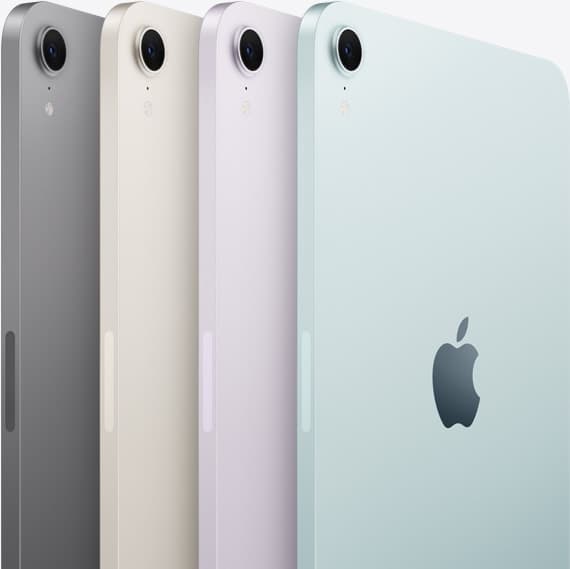
amazon.comThe most portable real iPad for drawing. It wins on mobility and loses on workspace.
Pro: Most portable drawing iPad
Con: Small canvas for detailed work
Search opens with iPad mini A17 Pro terms. Verify model number before buying.
Related buying picks
More in this collectionBuyer guide
Is iPad 10th gen good for Procreate?
The iPad 10th gen handles Procreate well for everyday digital art, but stylus pairing limits and base hardware shape how far you can push large files.
Buyer guide
How to choose the best iPad for illustration work
Find the best iPad for your illustration workflow based on Apple Pencil Pro compatibility, screen size, Procreate layer limits, and display feel.
Buyer guide
Best iPad for logo design
Choose the iPad Air with the M4 chip for the best mix of vector precision, Apple Pencil Pro support, and balanced pricing.
Buyer guide
Best iPad for digital art beginners
Get the iPad Air (M4) if you want the Apple Pencil Pro toolset, or pick the base iPad (A16) if you want a capable digital sketchpad at the lowest entry cost.