If you want the most direct path to digital watercolor on an iPad, buy Procreate [1]. It's sold as a paid app in the Graphics and Design category and remains the standard recommendation for standalone studio work [1]. If you don't want to spend money right away, download Adobe Fresco instead, which is listed as a free download drawing and painting app [2]. Artists who want deep cross-platform support across iOS and macOS can test Artstudio Pro [3], while illustrators looking for alternative sketching platforms can inspect Infinite Painter [4] or ibis Paint X [5].
Digital watercolor depends heavily on how an app handles canvas texture, stroke transparency, and hardware input. Your iPad model and stylus choice set the boundaries for how those apps behave in your hands [6], [7]. Here is how the leading apps compare so you can buy the right tool for your desk.
Why Procreate remains the standard one-time purchase
Procreate stands out in the App Store because it avoids subscriptions [1]. Savage Interactive lists Procreate as a paid app designed specifically for iPad, earning a 4.4 rating across more than 50,000 user reviews [1]. It gives you a complete painting workspace without an ongoing monthly charge [1]. For traditional painters who want to pay once and focus entirely on building a personal brush catalog, that business model simplifies your software budget.
Under the hood, Procreate ties your working document limits directly to your tablet hardware [8]. Procreate documentation states that canvas dimensions and maximum layer counts depend on the amount of device memory your specific iPad carries [8]. If you work on small watercolor studies, older hardware handles basic layers easily [8]. If you plan to build complex illustrations with separate paper textures, masking layers, and multiple glazes, an iPad with more memory allows higher layer ceilings at print resolutions [8]. Skip Procreate only if you don't own an iPad, as the software is strictly iPad-focused and doesn't run on non-Apple tablets [1].
Free watercolor options with Adobe Fresco and ibis Paint X
If you prefer not to commit money before testing your digital workflow, Adobe Fresco is a prominent alternative [2]. Adobe lists Fresco in the Graphics and Design category as a free download described as a free, professional drawing and painting app made for everyone [2]. With over 61,000 reviews and a 4.7 rating, Fresco provides a full creative canvas without requiring an upfront purchase on day one [2]. It suits artists who want to explore digital wet media on an existing iPad without adding software expenses [2].
Another free entry is ibis Paint X [5]. The listing positions it as a free download for everyone who wants to draw and animate without pressure, supported by more than 299,000 ratings [5]. While ibis Paint X offers broad sketching and social sharing tools, its interface is heavily geared toward mobile illustration and animation rather than traditional fine art simulation [5]. Choose Adobe Fresco over ibis Paint X if your main priority is expressive painting brushwork [2], [5]. Download ibis Paint X if you also want integrated animation and community sharing features alongside your digital sketches [5].
Standalone contenders: Artstudio Pro and Infinite Painter
Artists seeking alternatives outside the most common names have capable options in Artstudio Pro and Infinite Painter [3], [4]. Artstudio Pro is listed as a free download by developer Sylwester Los, holding a 4.6 rating [3]. The listing describes it as a powerful painting and photo editing app available across both iOS and macOS [3]. That dual-platform footprint makes Artstudio Pro a strong pick if you move projects between an iPad and a Mac desktop workstation [3]. You should skip it if you strictly paint on an iPad and prefer an interface built entirely around touch gestures [1], [3].
Infinite Painter, created by Sean Brakefield, is also offered as a free download in the Graphics and Design section [4]. It carries a 4.1 rating from over 10,000 reviews and presents itself as an app created for both iPad and iPhone sketching and painting [4]. Its mobile-friendly layout works well for artists who alternate between phone sketching on the go and tablet painting at home [4]. However, if your focus is dedicated tablet painting with large layer stacks, Procreate's tablet-focused memory scaling offers clearer layer guidelines for production art [1], [8].
Matching Apple Pencil hardware to your watercolor style
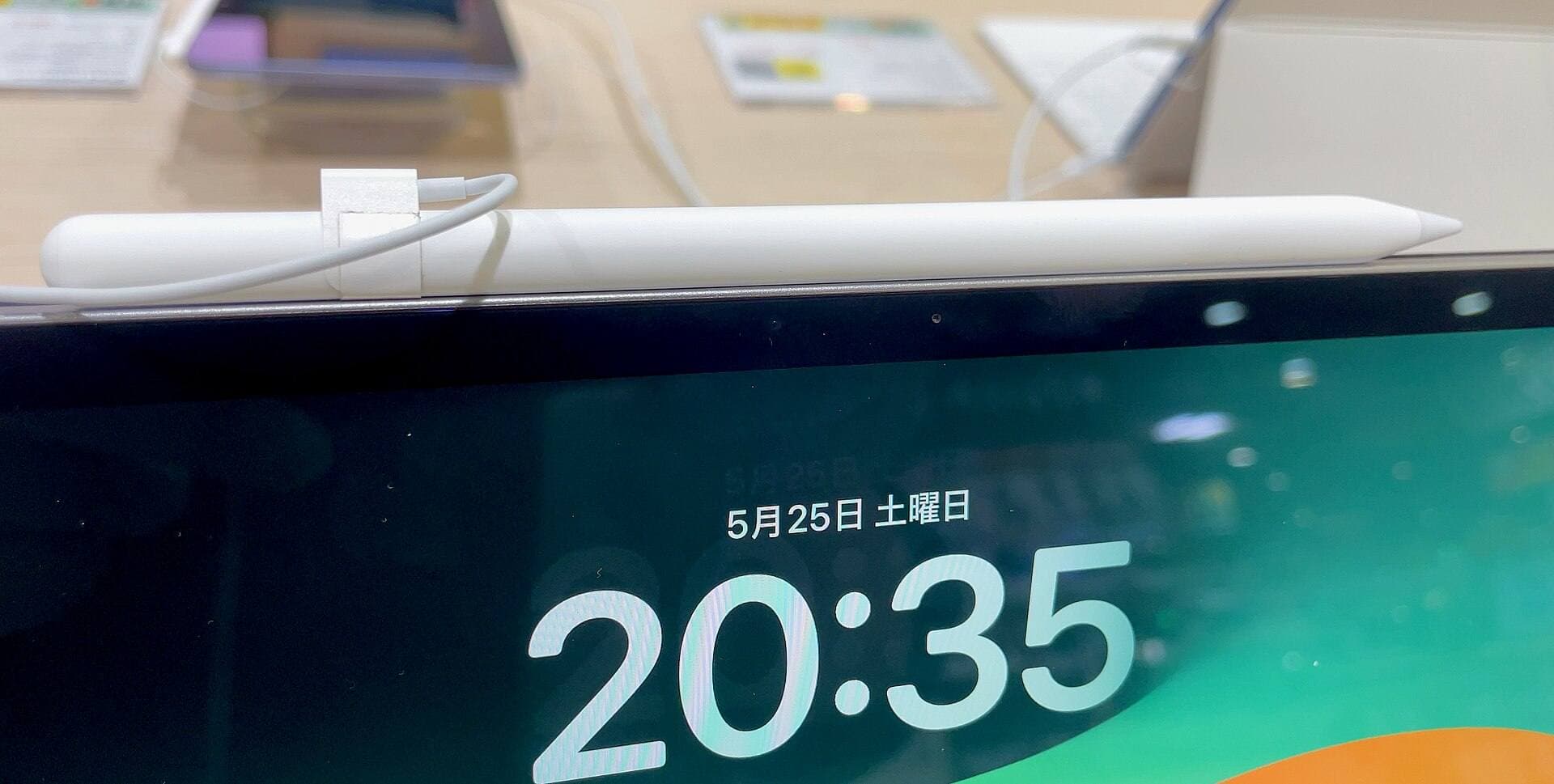
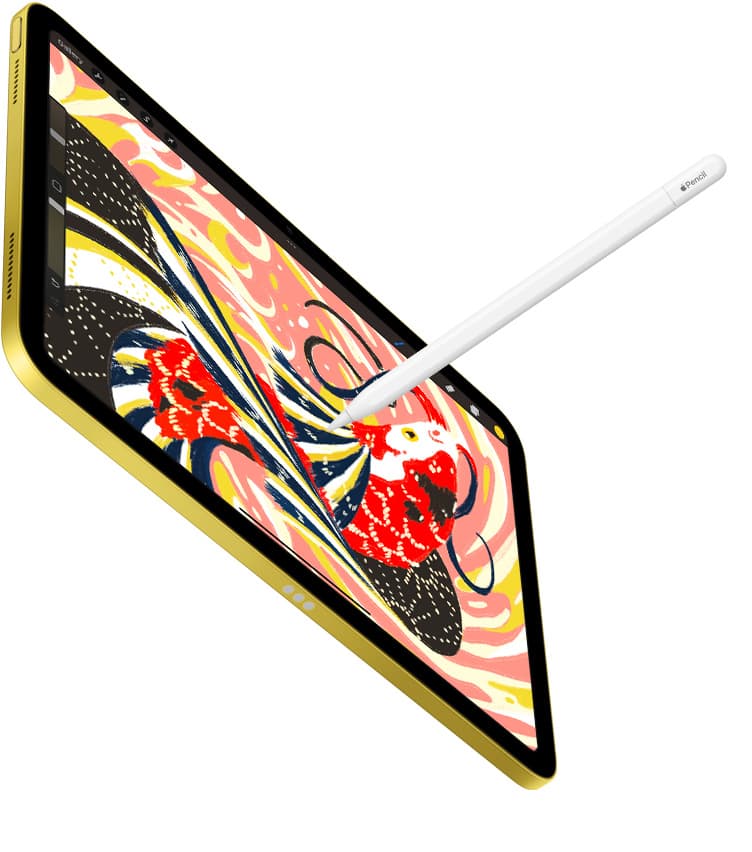
Your app choice only covers half of the digital watercolor experience. The physical stylus determines how you apply washes, glazes, and fine detail [7]. Apple currently sells multiple Pencil models with distinct feature tiers [7]. The flagship Apple Pencil Pro includes pressure sensitivity, tilt detection, hover, a squeeze sensor, barrel roll, and haptic feedback [7]. The standard Apple Pencil with USB-C, by contrast, includes tilt sensitivity but omits pressure sensitivity, squeeze, barrel roll, and haptic feedback [7].
Pressure sensitivity is vital for watercolor painting because it dictates how much pigment and water flow onto the virtual sheet [7]. If you buy an Apple Pencil with USB-C, you lose pressure variation entirely [7]. That forces you to adjust brush opacity and diameter manually using software sliders on every mark [7]. For serious watercolor studies, choose an Apple Pencil model that explicitly features pressure sensitivity, such as the Apple Pencil Pro or Apple Pencil 2nd generation, depending on your iPad pairing [6], [7]. Barrel roll on the Apple Pencil Pro also lets you rotate shaped flat brushes and mop brushes as you pull a stroke across the screen [7].
Choosing the right iPad hardware for painting
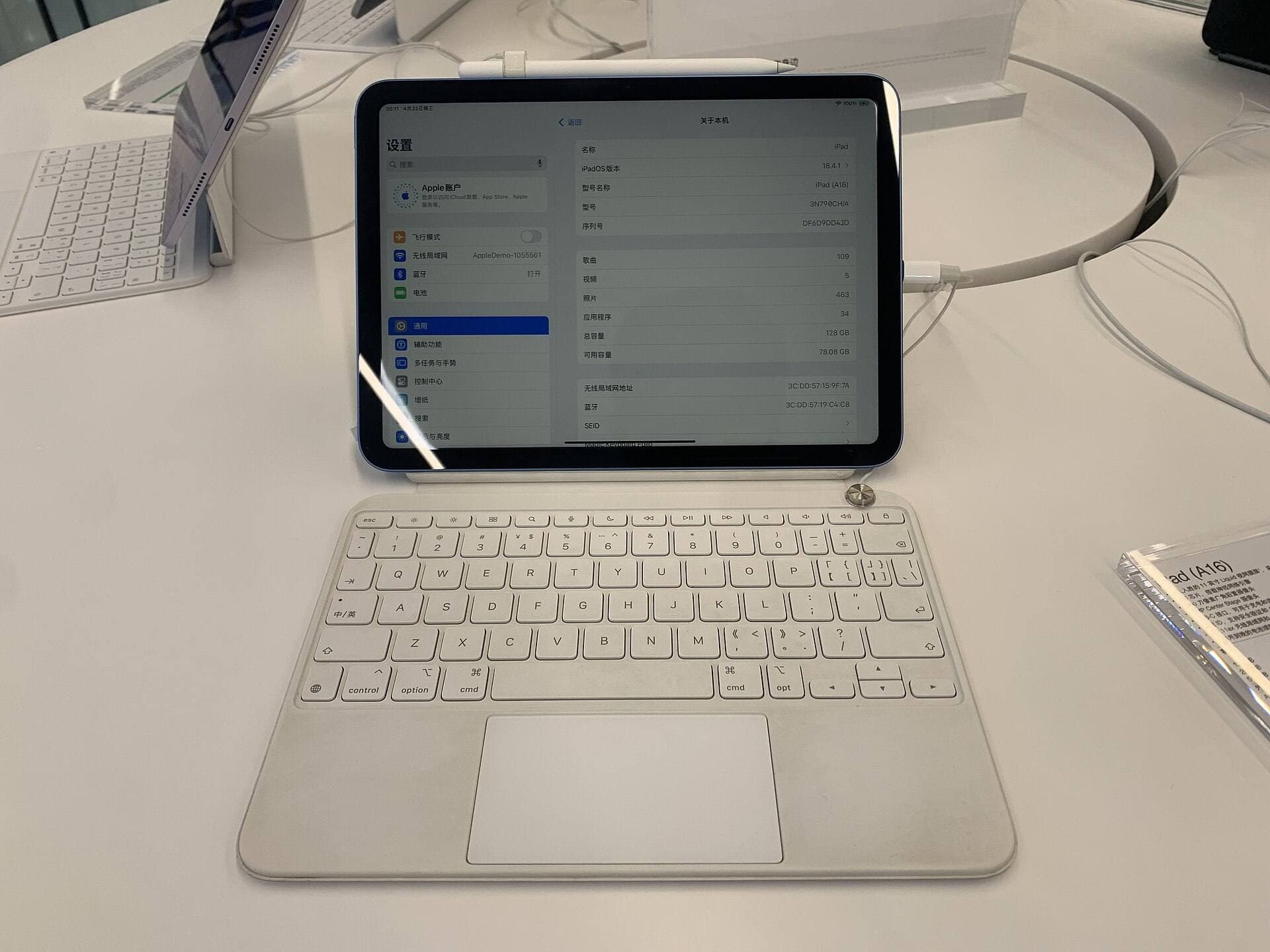
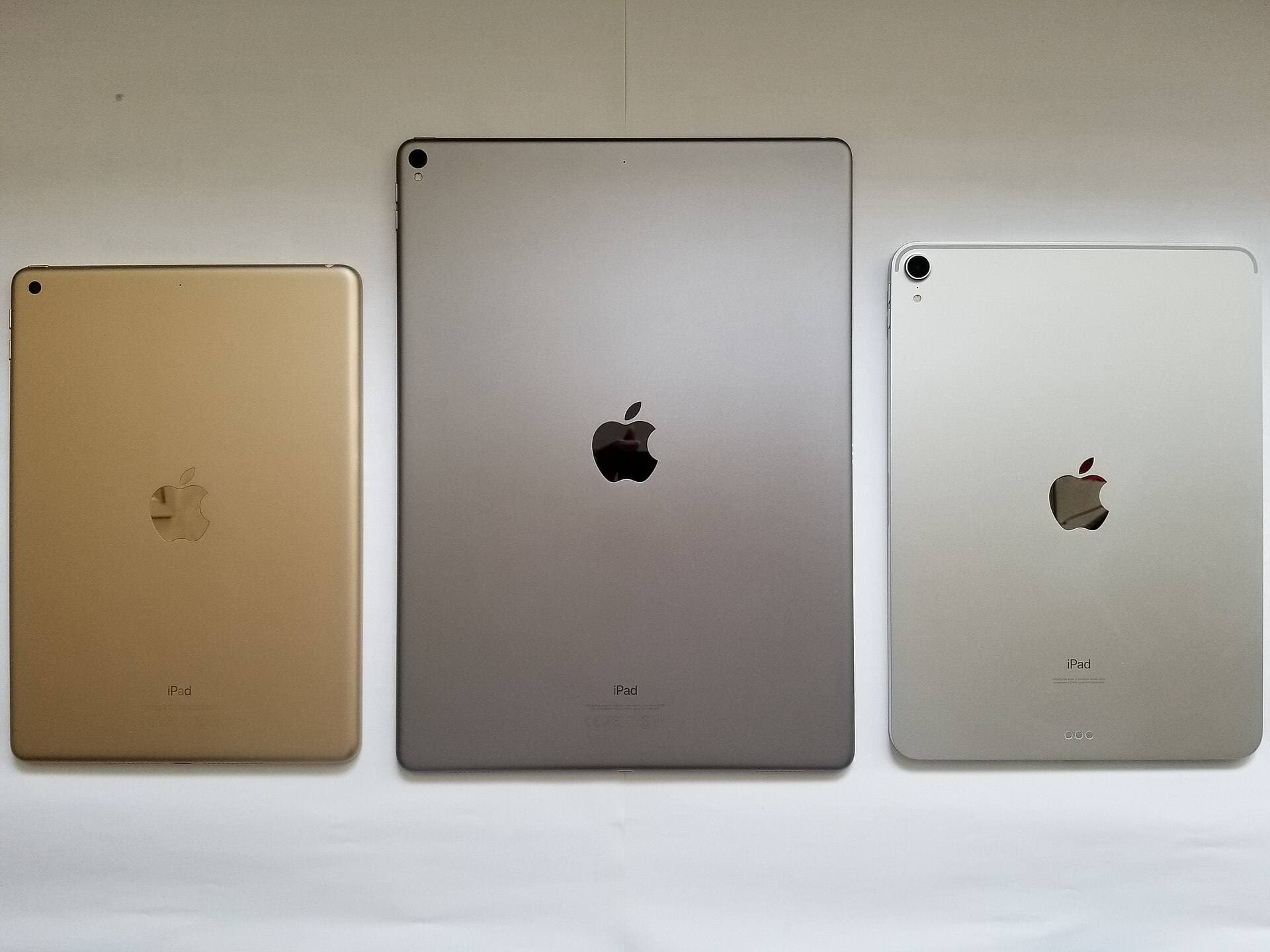
Hardware compatibility dictates which stylus and app configuration you can actually use [6]. Apple's support documentation shows that the Apple Pencil Pro pairs exclusively with specific recent hardware, including the iPad Air M4 and iPad Pro M4 models [6], [9]. Older iPads, such as previous iPad Air or standard iPad models, pair with the Apple Pencil 1st generation, Apple Pencil 2nd generation, or Apple Pencil with USB-C depending on their connector type and magnetic edge [6].
If you're purchasing a new tablet today, the iPad Air M4 delivers a practical balance of power and modern accessory support [9]. Apple's comparison data confirms that the iPad Air M4 comes in 11-inch and 13-inch liquid retina display sizes, runs the M4 chip, and supports the Apple Pencil Pro [6], [9]. Choosing the 13-inch iPad Air gives you expanded physical space for wide watercolor washes and palette panels without stepping up to the higher price of an iPad Pro [9]. Buy the iPad Air M4 if you want Apple Pencil Pro features like barrel roll and squeeze while keeping your hardware spend grounded [6], [7], [9]. Stick with your current iPad if it already supports a pressure-sensitive Apple Pencil and runs your preferred drawing app [1], [6], [7].
Bottom line
For most painters, Procreate remains the best software purchase for iPad watercolor because it delivers a dedicated tablet engine under a straightforward one-time purchase model [1]. You avoid monthly software charges, and your layer capacity scales directly with your iPad hardware memory [1], [8]. If you prefer a free starting point, download Adobe Fresco to begin painting immediately without paying upfront fees [2]. Pair either app with an iPad Air M4 and Apple Pencil Pro if you're buying a complete new kit: that pairing gives you pressure sensitivity, tilt, and barrel roll [6], [7], [9].
Sources
[1] https://apps.apple.com/us/app/id425073498 [2] https://apps.apple.com/us/app/id1458660369 [3] https://apps.apple.com/us/app/id1244142051 [4] https://apps.apple.com/us/app/id1146543227 [5] https://apps.apple.com/us/app/id450722833 [6] https://support.apple.com/en-us/108937 [7] https://www.apple.com/apple-pencil/ [8] https://help.procreate.com/articles/zlexav-ipad-compatibility [9] https://www.apple.com/ipad/compare/
Recommended gear
Procreate
apps.apple.comPro: One-time purchase
Con: iPad-only
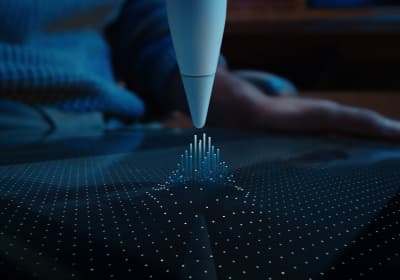
Apple Pencil Pro
amazon.comThe best Apple stylus for serious digital art workflows. Expensive, but the control upgrades are real.
Pro: Best brush-control and hover workflow
Con: Highest price in the lineup
Works only with newer iPad models. Check compatibility.
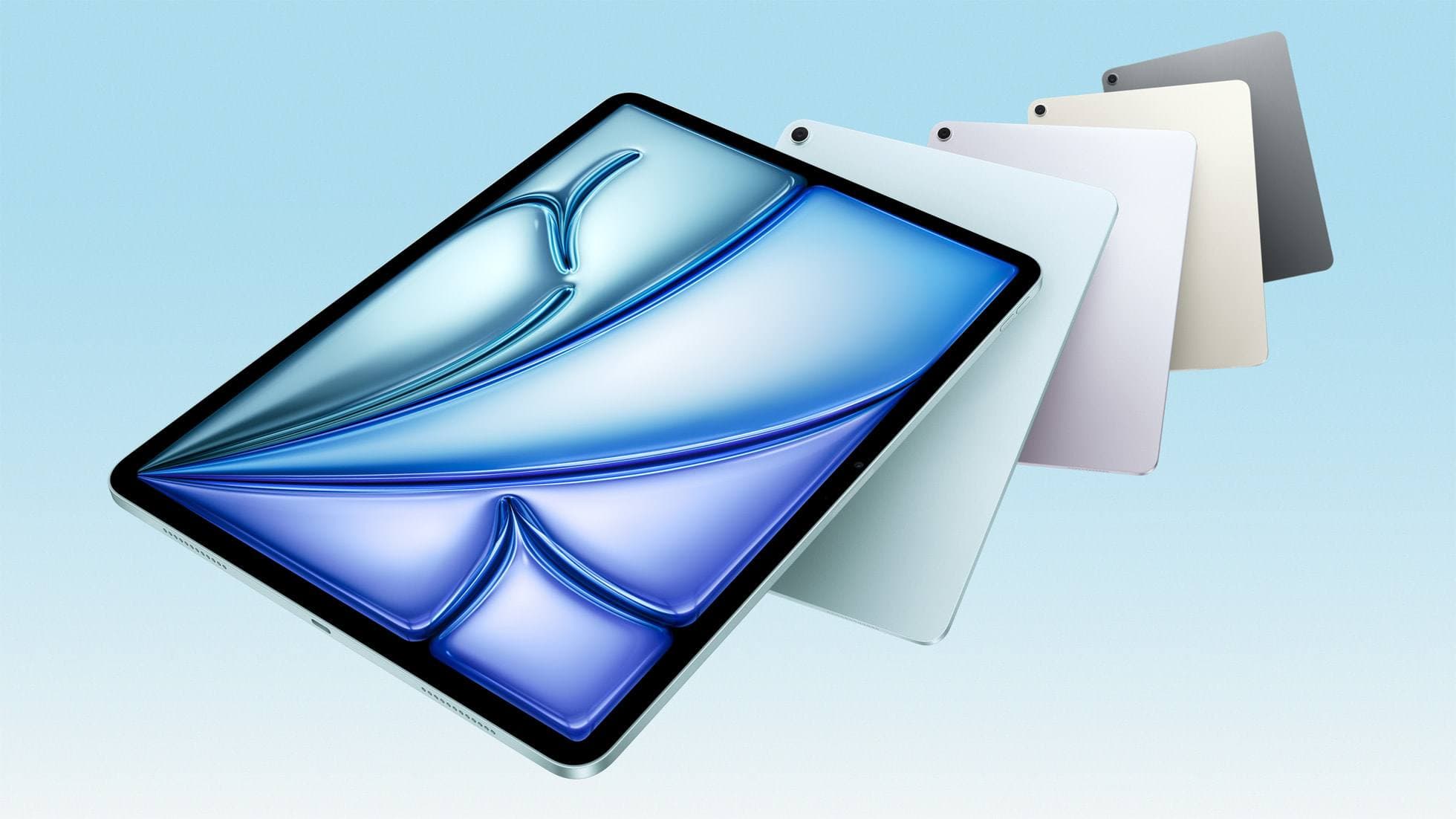
iPad Air (M4)
apple.comThe clean current Air recommendation for most serious hobby artists. Stronger buy logic than old-stock M3 when pricing is close.
Pro: Best current balance of price, headroom, and Pencil support
Con: Still 60Hz
Current Air lineup. Choose size, storage, and keyboard path before checkout.
Apple Pencil (USB-C)
amazon.comA practical low-cost Apple stylus with broad compatibility, but limited for advanced art control.
Pro: Lowest official Apple Pencil cost
Con: No pressure sensitivity for brush work
Compatible with many recent iPads. No pressure support.
Apple Pencil (2nd generation)
amazon.comStill a strong stylus on compatible iPads. Good pressure control, but compatibility is the main trap.
Pro: Pressure support without Pro pricing
Con: Not compatible with newest Pro-only iPads
Only for iPads that support 2nd generation pairing.
Related buying picks
More in this collectionBuyer guide
Best iPad app for oil painting: Top choices compared
Compare Procreate, Adobe Fresco, and other leading iPad apps to choose the best digital oil painting workflow for your stylus and budget.
Buyer guide
Best coloring app for iPad kids: guided pages or open digital canvas
Choose Lake for structured coloring books or step up to Procreate when older kids outgrow premade templates.
Buyer guide
Best iPad app for pixel art: dedicated tools compared to Procreate
Choose dedicated pixel editors like Pixquare, Pixel Studio, or Pixaki over general illustration software for low-resolution iPad art.
Buyer guide
Best iPad app for comics: Clip Studio Paint vs Procreate and alternatives
Clip Studio Paint is the best overall iPad app for multi-page comics and paneling, while Procreate remains the top one-time purchase for standalone illustration.