





If you are buying an Apple Pencil for figure drawing, buy Apple Pencil Pro if your iPad supports it, or keep Apple Pencil (2nd generation) if you use a previous generation iPad [1], [2]. Skip Apple Pencil (USB-C) for life drawing because Apple built it without pressure sensitivity [1]. In figure drawing, line weight communicates weight, anatomy, tension, and overlap in a single continuous gesture stroke [3]. A stylus without pressure sensitivity turns every charcoal or pencil stroke into a monoline mark [1]. If your current iPad pairs with Apple Pencil (2nd generation), you don't need to upgrade your tablet just to practice figure work [2].
Pressure sensitivity and line taper for gesture work
Gesture drawing relies on rapid changes in hand pressure to record anatomy and balance [3]. When you block in the sweep of a spine or the angle of a pelvis, you push into the glass to thicken the mark and pull back to thin it out [3]. Apple Pencil Pro and Apple Pencil (2nd generation) both include built-in pressure sensitivity that translates your physical effort directly to stroke opacity and thickness [1]. Apple Pencil (USB-C) leaves that sensor out, offering tilt detection but strictly fixed pressure [1].
That omission breaks standard digital gesture workflows [1]. With Apple Pencil (USB-C), changing stroke width requires pausing to manually resize your digital brush slider or tilting the stylus flat against the screen [1], [3]. While tilt can lay down wide shading strokes on supported brushes, it can't deliver tapering contour lines while holding the stylus at an upright angle [1], [3]. For thirty-second and one-minute poses where every second counts, having to stop to resize a brush disrupts your focus [3].
Both Apple Pencil Pro and Apple Pencil (2nd generation) capture subtle shifts in pressure without interrupting your stroke rhythm [1]. They allow you to shift from a faint construction line to a dark structural accent without lifting your hand from the glass [3]. If your main goal is studying human form, pressure sensitivity is a mandatory requirement rather than an optional luxury [1].
Barrel roll and tool switching during quick poses
Beyond basic pressure, Apple Pencil Pro adds hardware sensors that alter brush handling during life drawing sessions [1]. One of these additions is barrel roll, which uses an internal gyroscope to track rotation as you spin the stylus between your fingers [1], [3]. When paired with shaped digital brushes like flat chiseled markers, calligraphy pens, or flat charcoal sticks, rotating the barrel changes the orientation of the brush stamp on the canvas [1], [3].
This rotation mirrors the behavior of traditional conte crayons and flat graphite blocks [1]. In a traditional studio, artists roll a rectangular stick of charcoal between their thumb and forefinger to alternate between a razor-sharp edge and a broad wash [3]. Apple Pencil (2nd generation) and Apple Pencil (USB-C) cannot detect barrel rotation [1]. On those styluses, the brush footprint remains fixed unless you rotate your entire wrist or twist the tablet itself [1], [3].
Apple Pencil Pro also introduces a squeeze gesture backed by haptic feedback [1], [3]. Squeezing the barrel brings up an on-screen tool palette or context menu directly under your drawing hand, letting you switch brushes, select an eraser, or alter colors without reaching across the interface [1], [3]. Apple Pencil (2nd generation) offers a double-tap surface instead, which toggles between your current tool and the eraser [1], [2]. Double-tap is effective for basic corrections, but it lacks the tactile vibration and expanded tool palette triggered by the squeeze sensor on Apple Pencil Pro [1], [3]. Apple Pencil (USB-C) features neither squeeze nor double tap, requiring manual taps on software interface buttons for every tool switch [1].
Screen friction and controlling your stroke
Drawing on bare iPad glass presents unique physical challenges during rapid gesture practice [4]. Bare glass has minimal surface resistance, which can cause the hard plastic tip of an Apple Pencil to slide unexpectedly during vigorous, sweeping strokes [1], [4]. When you're trying to catch an accurate anatomical contour in a two-minute pose, uncontrolled sliding can lead to wobbly lines and lost proportions [4].
Adding a textured screen protector like Paperlike 3 introduces micro-bead friction that replicates the tactile tooth of sketch paper [4]. This resistance gives you greater physical braking power when your pencil tip changes direction sharply [4]. Many artists find that added friction helps them commit to firm, descriptive strokes without overshooting their target points [4].
However, textured screen films come with visual trade-offs [4]. The matte coating refracts light, slightly reducing perceived display sharpness and muting the pure contrast of the iPad screen [4]. If you use your iPad strictly for sketching and line studies, the added tactile grip is often worth the loss in glass clarity [4]. If you also rely on your tablet for detailed photo editing or high-contrast color grading, you should weigh whether that diffused screen surface interferes with your visual review [4].
Hardware compatibility across iPad generations
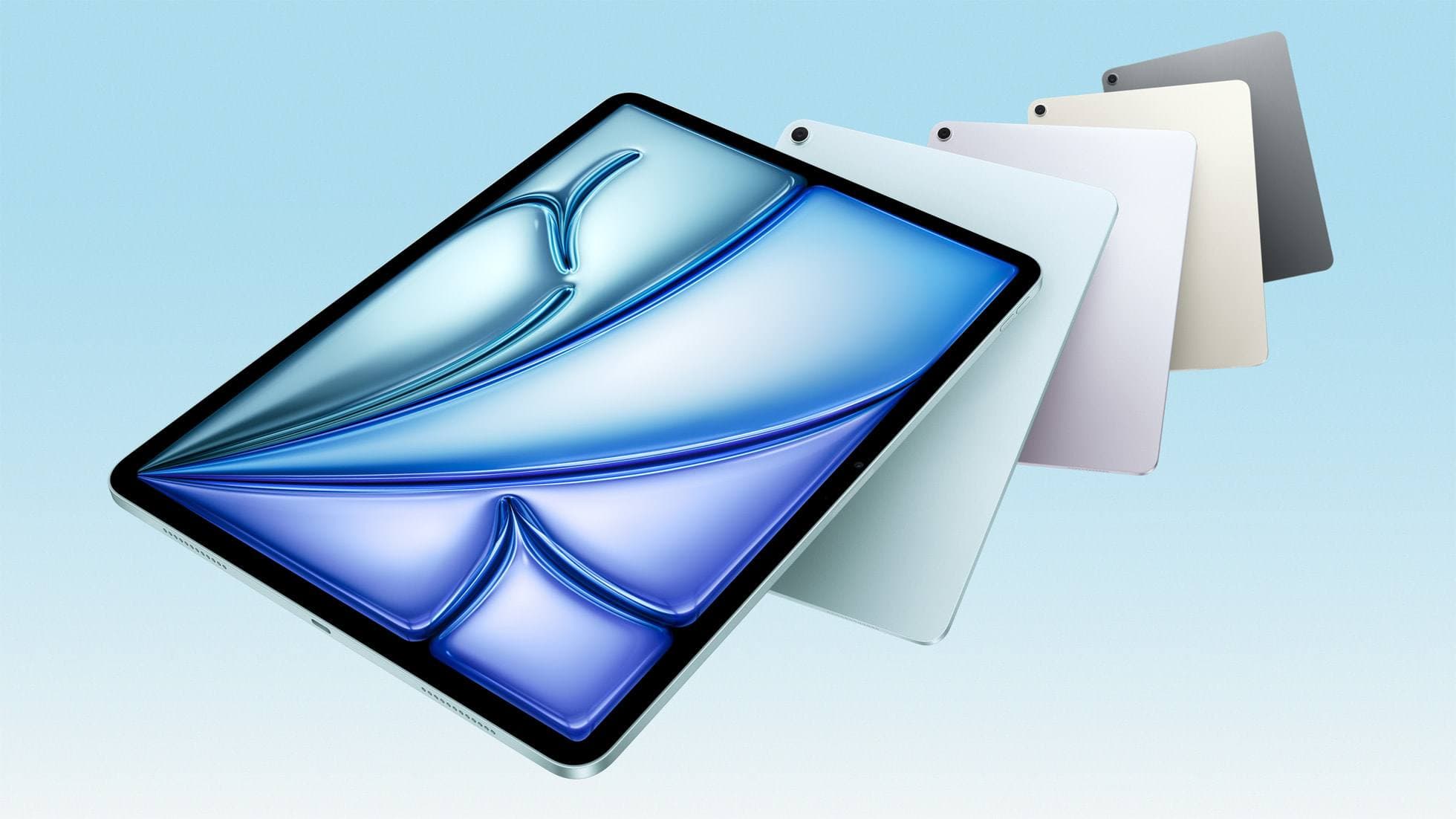
Before choosing an Apple Pencil, you must verify your specific iPad model because compatibility is strictly divided by hardware generation [2]. Apple Pencil Pro works exclusively with recent models, including iPad Pro models with M4 chips and iPad Air models with M2 chips [1], [2]. It won't pair or charge with older iPad Pro, iPad Air, or iPad mini tablets [2].
Apple Pencil (2nd generation) pairs and charges magnetically on a specific bracket of earlier hardware [1], [2]. It supports iPad Pro 12.9-inch from the 3rd through 6th generations, iPad Pro 11-inch from the 1st through 4th generations, iPad Air from the 4th and 5th generations, and iPad mini 6th generation [2]. If you currently own any of those tablets, Apple Pencil (2nd generation) gives you the pressure sensitivity and tilt you need for figure drawing [1], [2]. Buying a new M4 tablet solely to access Apple Pencil Pro is unnecessary if your current setup already supports the 2nd generation stylus [1], [2].
Apple Pencil (USB-C) pairs with almost all USB-C iPad models, including standard baseline iPads, iPad Air, and iPad Pro [2]. While it attaches magnetically to the side of many iPads for storage, it doesn't charge wirelessly and must be plugged in with a cable [1], [2]. Its wide compatibility makes it an accessible choice for general note-taking, but its lack of pressure sensitivity makes it ill-suited for serious figure drawing [1], [2].
Bottom line
For figure drawing and life studies, pressure sensitivity is non-negotiable [1]. That requirement immediately eliminates Apple Pencil (USB-C) from consideration [1]. If your current tablet supports Apple Pencil (2nd generation), keep that pairing; it provides excellent pressure response, reliable tilt detection, and efficient double-tap tool swapping without requiring a new tablet purchase [1], [2]. If you already own an M4 iPad Pro or M2 iPad Air, buy Apple Pencil Pro to take advantage of barrel roll, squeeze palettes, and haptic feedback alongside industry-standard pressure tracking [1], [2], [3]. If slippery glass hinders your control during fast gestures, add Paperlike 3 to gain the necessary drawing resistance [4].
Sources
[1] https://www.apple.com/apple-pencil/ [2] https://support.apple.com/en-us/108937 [3] https://support.apple.com/guide/ipad/draw-with-apple-pencil-ipadc55b6c7a/ipados [4] https://paperlike.com/products/paperlike-for-ipad
Recommended gear

Apple Pencil Pro
amazon.comThe best Apple stylus for serious digital art workflows. Expensive, but the control upgrades are real.
Pro: Best brush-control and hover workflow
Con: Highest price in the lineup
Works only with newer iPad models. Check compatibility.
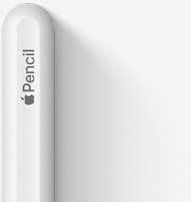
Apple Pencil (2nd generation)
amazon.comStill a strong stylus on compatible iPads. Good pressure control, but compatibility is the main trap.
Pro: Pressure support without Pro pricing
Con: Not compatible with newest Pro-only iPads
Only for iPads that support 2nd generation pairing.
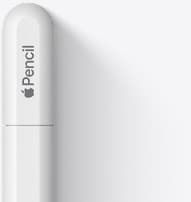
Apple Pencil (USB-C)
amazon.comA practical low-cost Apple stylus with broad compatibility, but limited for advanced art control.
Pro: Lowest official Apple Pencil cost
Con: No pressure sensitivity for brush work
Compatible with many recent iPads. No pressure support.
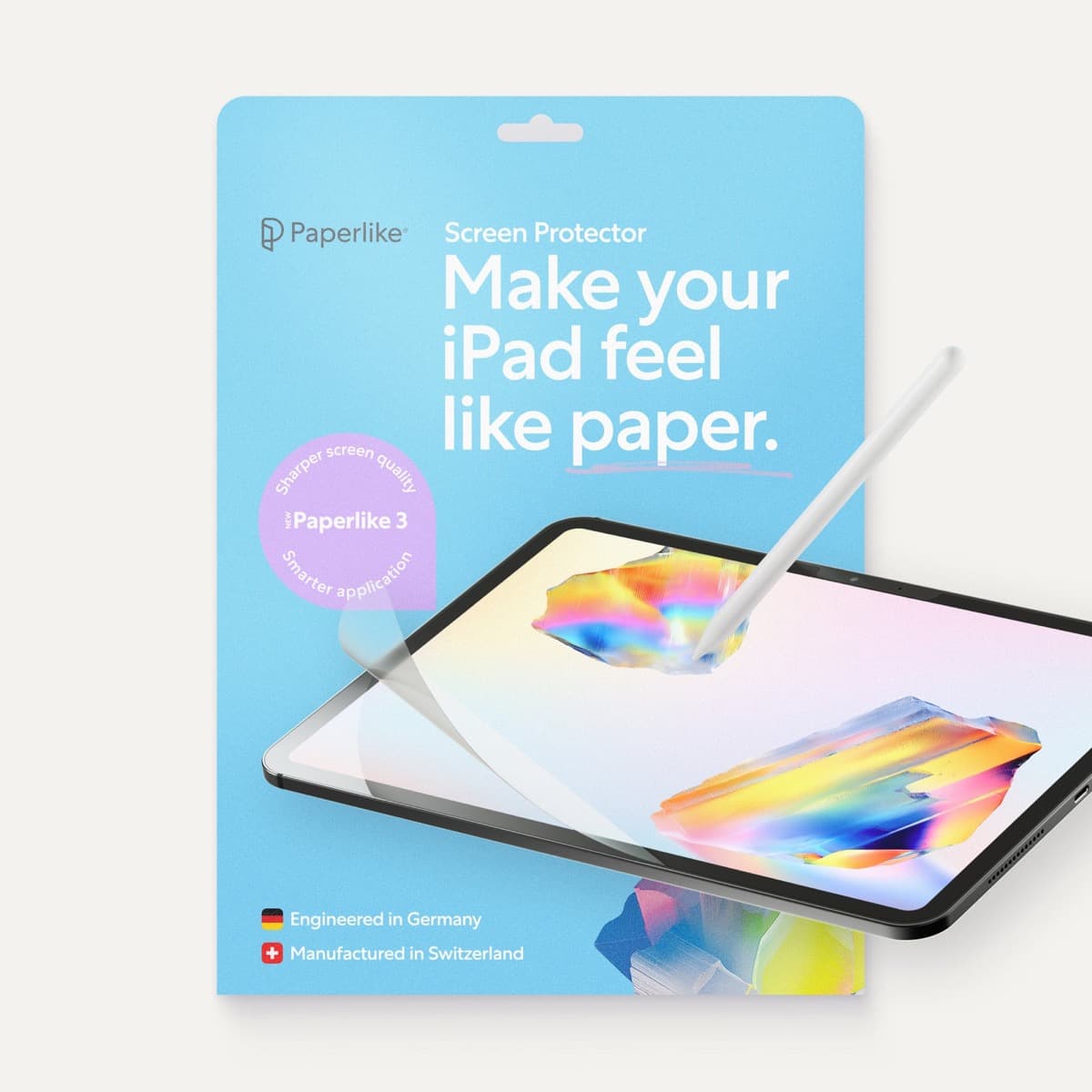
Paperlike 3 (11-inch, 2-pack)
amazon.comA strong surface-feel upgrade for drawing control. Clarity tradeoff is real and should be expected.
Pro: Adds controlled paper-feel friction
Con: Slightly reduces perceived display sharpness
11-inch fit only. Confirm generation before checkout.
Related buying picks
More in this collectionBuyer guide
Best Apple Pencil for urban sketching: what to buy and what to skip
Choose the Apple Pencil that matches your sketching style and iPad model without paying for extra features you won't use outdoors.
Buyer guide
Best Apple Pencil for digital planning: How to choose
Choose the right Apple Pencil for digital planning based on your iPad model, handwriting habits, and shortcut preferences.
Buyer guide
Is the Apple Pencil USB-C enough for Procreate?
The Apple Pencil (USB-C) functions in Procreate, but the lack of pressure sensitivity makes it a poor fit for expressive brushwork.
Buyer guide
Best Apple Pencil for fashion illustration: Stylus guide for designers
Choose the right Apple Pencil for fashion illustration based on pressure sensitivity, barrel roll, iPad compatibility, and screen texture.