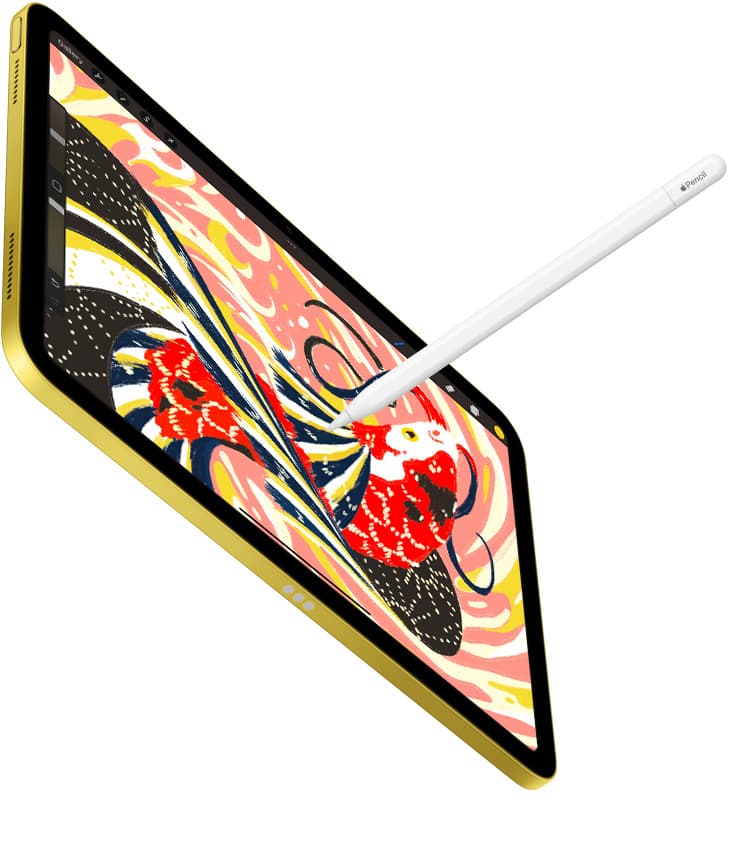
If you're buying a stylus for medical illustration, buy the Apple Pencil Pro if your iPad supports it, or choose the Apple Pencil (2nd generation) for earlier compatible hardware [1], [2]. You should skip the Apple Pencil (USB-C) entirely for anatomical rendering because it lacks pressure sensitivity [1]. Medical diagrams require nuanced line weights to convey tissue layers, vascular pathways, and anatomical depth [4]. The Apple Pencil Pro provides pressure sensitivity, barrel roll, squeeze gestures, and haptic feedback, while the 2nd generation model delivers solid pressure response and double-tap tool toggles [1]. Your choice rests on your host tablet's pairing specifications, not marketing gimmicks [2], [3].
Pressure sensitivity separates clinical sketching from anatomical rendering
In medical illustration, conveying cellular depth, organ contours, and surgical planes requires precise control over brush size and opacity. Apple's product lineup splits styluses into distinct tiers based on input capabilities [1]. Both the Apple Pencil Pro and the Apple Pencil (2nd generation) include pressure sensitivity, which alters line weight and stroke opacity depending on how firmly you press against the glass [1]. In contrast, the Apple Pencil (USB-C) omits pressure sensitivity, offering only tilt detection and basic digital stroke capture [1].
Because the USB-C model cannot register downward pressure, you can only alter stroke weight through tilt or manual slider adjustments in your drawing software [1], [6]. That limitation makes it impractical for rendering continuous vascular cross-sections or nuanced muscle striations where line weight must taper naturally [4]. The Apple Pencil (USB-C) functions reliably for annotating surgical charts, filling diagnostic forms, or outlining rough schematic diagrams [1], [4]. For finished scientific visualization, however, pressure sensitivity remains non-negotiable [1].
Drawing applications like Procreate rely directly on hardware-reported pressure values to manage brush mechanics and streamline stroke tapering [5], [6]. When you configure custom anatomical brushes, the pressure response curve allows you to define gradual opacity transitions for histological stains or dense connective tissues [6]. Without pressure data, the software applies a uniform opacity across the entire stroke path [1], [6]. Artists creating scientific publication plates will find the lack of pressure in the USB-C version severely limiting [1].
Barrel roll and squeeze shortcuts in Apple Pencil Pro
For artists working on compatible newer iPads, the Apple Pencil Pro adds specialized sensors that extend brush manipulation beyond standard pressure [1], [2]. The hardware includes a built-in gyroscope that enables barrel roll, allowing the user to rotate the barrel to spin shaped brushes in real time [1], [4]. In anatomical illustration, non-circular brushes are standard for laying down cellular membranes, calligraphic linework, and feathered muscle fibers [4]. Rotating the pen barrel changes the orientation of asymmetrical brushes instantly without opening brush properties menus [1], [4].
Another addition is the squeeze sensor located near the lower grip of the Apple Pencil Pro [1], [4]. When you press the sides of the stylus, it activates a haptic pulse and opens an on-screen palette or shortcut action [1], [4]. Apple Pencil hover also previews your stroke location, tool size, and orientation before the tip makes contact with the screen surface [1], [4]. Hover works on supported iPad displays to show the exact perimeter of complex digital brushes [1], [3].
The Apple Pencil (2nd generation) does not support barrel roll, squeeze sensors, or haptic feedback [1]. It does, however, support hover on certain compatible iPad models, as well as a double-tap gesture on the flat edge to switch between tools or toggle the eraser [1], [4], [6]. For medical drafts that rely primarily on alternating between an inking pen and an eraser mask, the 2nd generation pencil provides all necessary core tools [1], [6]. The Pro model simply expands immediate tool adjustments directly from the stylus barrel [1].
Matching your stylus to iPad hardware compatibility
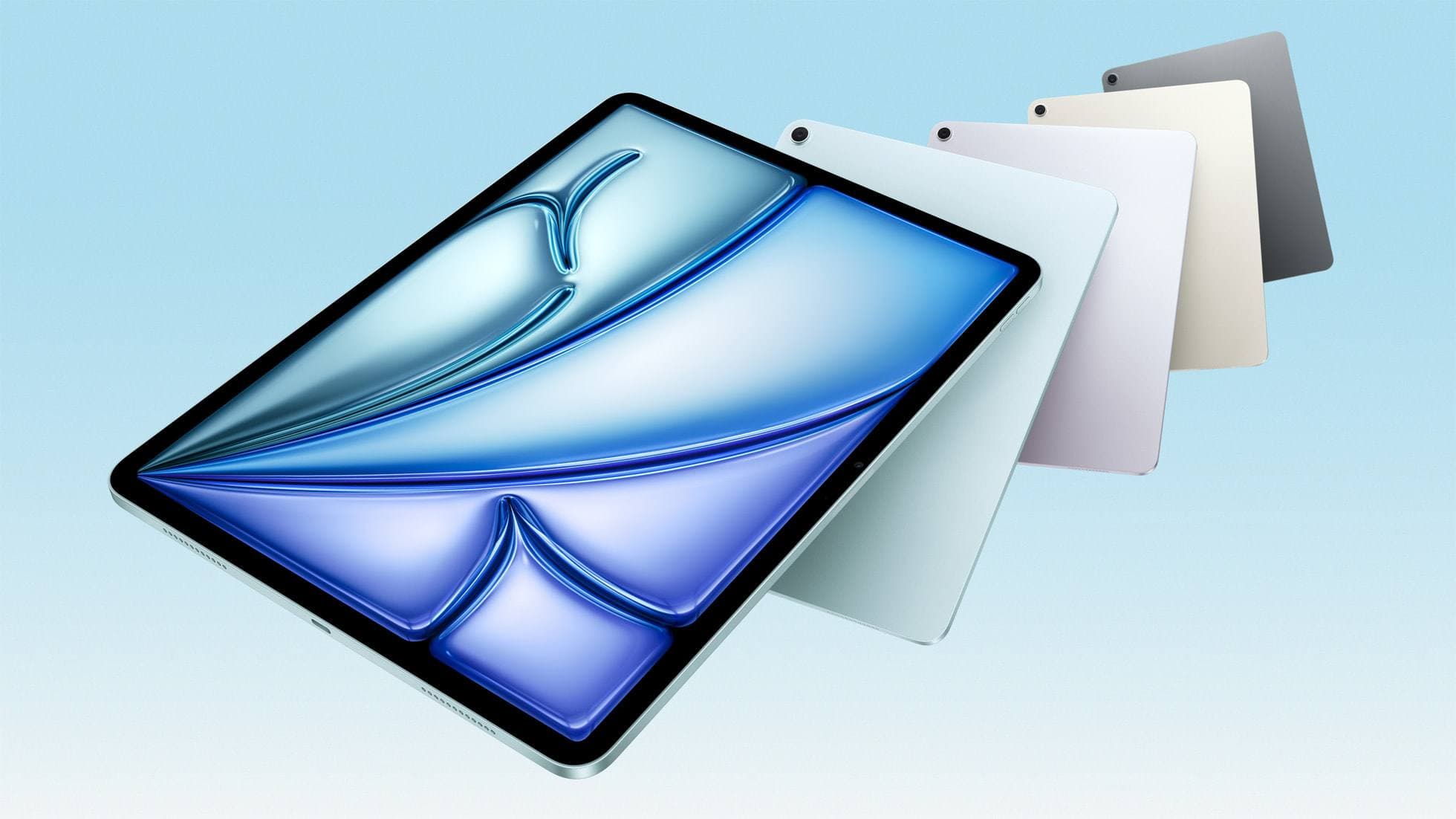
You cannot pick an Apple Pencil based solely on its feature list; you must match it directly to the exact generation of your iPad [2], [3]. Apple designs its styluses with mutually exclusive pairing protocols [2]. The Apple Pencil Pro pairs and charges magnetically only with newer hardware, including iPad Pro models with the M4 chip and iPad Air models with the M2 chip [1], [2], [3]. It will not pair or charge on older iPad Pro or iPad Air units [2].
Conversely, the Apple Pencil (2nd generation) pairs and charges magnetically with supported previous-generation tablets, including 11-inch iPad Pro models from the 1st through 4th generations, 12.9-inch iPad Pro models from the 3rd through 6th generations, and iPad Air models from the 4th and 5th generations [2]. If you work on an M2 iPad Pro or an M1 iPad Air, the Apple Pencil (2nd generation) is your primary option for pressure-sensitive work [1], [2]. It will not function on an M4 iPad Pro or M2 iPad Air [2], [3].
The Apple Pencil (USB-C) pairs and charges via a physical USB-C cable and is compatible with all iPad models featuring a USB-C port [1], [2]. While it connects across both older and newer tablets, its lack of pressure sensitivity makes it a downgrade for serious illustration tasks regardless of host hardware [1], [2]. If you already own an iPad that pairs with the Apple Pencil (2nd generation), upgrading your entire tablet just to access the Apple Pencil Pro is unnecessary unless your projects specifically require barrel roll or greater device memory for large layer counts [1], [3], [5]. Procreate layer maximums depend heavily on device RAM, which varies across iPad models [5].
Surface resistance and the role of textured screen protectors
Drawing fine surgical lines on bare display glass can feel slippery, which presents challenges for controlled linework [7]. The high-gloss glass used on standard iPad screens offers minimal physical friction [3], [7]. To gain tactile control when detailing vascular structures or delicate neuroanatomy, many artists add a matte screen protector such as Paperlike [7].
Paperlike uses surface texturing to introduce mechanical resistance beneath the pencil tip, mimicking the tactile feedback of drawing on paper [7]. This added friction helps stabilize intentional hand movements during fine scientific linework [7]. However, matte screen protectors introduce an optical tradeoff by slightly softening display clarity and scattering light across high-resolution panels [7].
If your primary work involves evaluating microscopic reference photographs or verifying clinical color accuracy, keep in mind that textured surface coatings affect display refraction [3], [7]. The physical texture also alters the tactile slide of the Apple Pencil nib [7]. Medical illustrators who produce long, continuous contour lines often prefer the friction, whereas those who rely on maximum visual sharpness for photo reproduction may prefer drawing directly on bare glass [3], [7].
Bottom line
For medical illustrators, pressure sensitivity is the definitive hardware requirement [1]. The Apple Pencil Pro stands as the top recommendation for anyone using compatible newer iPad hardware, providing barrel roll, squeeze triggers, haptics, and complete pressure control [1], [2]. If your current setup centers on an earlier supported iPad Pro or iPad Air, the Apple Pencil (2nd generation) remains a dependable, fully capable choice with identical pressure fidelity [1], [2]. Skip the Apple Pencil (USB-C), as its lack of pressure sensitivity prevents the natural line variation necessary for scientific figures [1]. If smooth glass hinders your line control, adding a textured protector like Paperlike will provide physical resistance at the expense of slight optical diffusion [7].
Sources
[1] https://www.apple.com/apple-pencil/ [2] https://support.apple.com/en-us/108937 [3] https://www.apple.com/ipad/compare/ [4] https://support.apple.com/guide/ipad/draw-with-apple-pencil-ipadc55b6c7a/ipados [5] https://help.procreate.com/articles/zlexav-ipad-compatibility [6] https://help.procreate.com/procreate/handbook/5.2/interface-gestures/pencil [7] https://paperlike.com/products/paperlike-for-ipad
Recommended gear
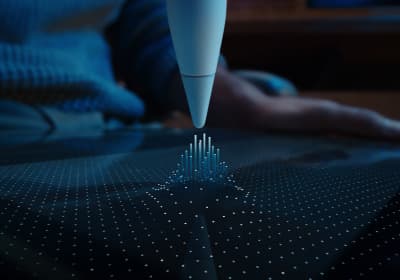
Apple Pencil Pro
amazon.comThe best Apple stylus for serious digital art workflows. Expensive, but the control upgrades are real.
Pro: Best brush-control and hover workflow
Con: Highest price in the lineup
Works only with newer iPad models. Check compatibility.
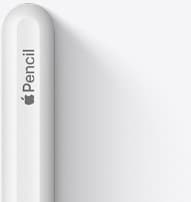
Apple Pencil (2nd generation)
amazon.comStill a strong stylus on compatible iPads. Good pressure control, but compatibility is the main trap.
Pro: Pressure support without Pro pricing
Con: Not compatible with newest Pro-only iPads
Only for iPads that support 2nd generation pairing.
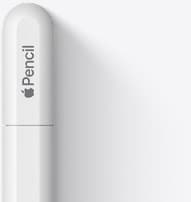
Apple Pencil (USB-C)
amazon.comA practical low-cost Apple stylus with broad compatibility, but limited for advanced art control.
Pro: Lowest official Apple Pencil cost
Con: No pressure sensitivity for brush work
Compatible with many recent iPads. No pressure support.
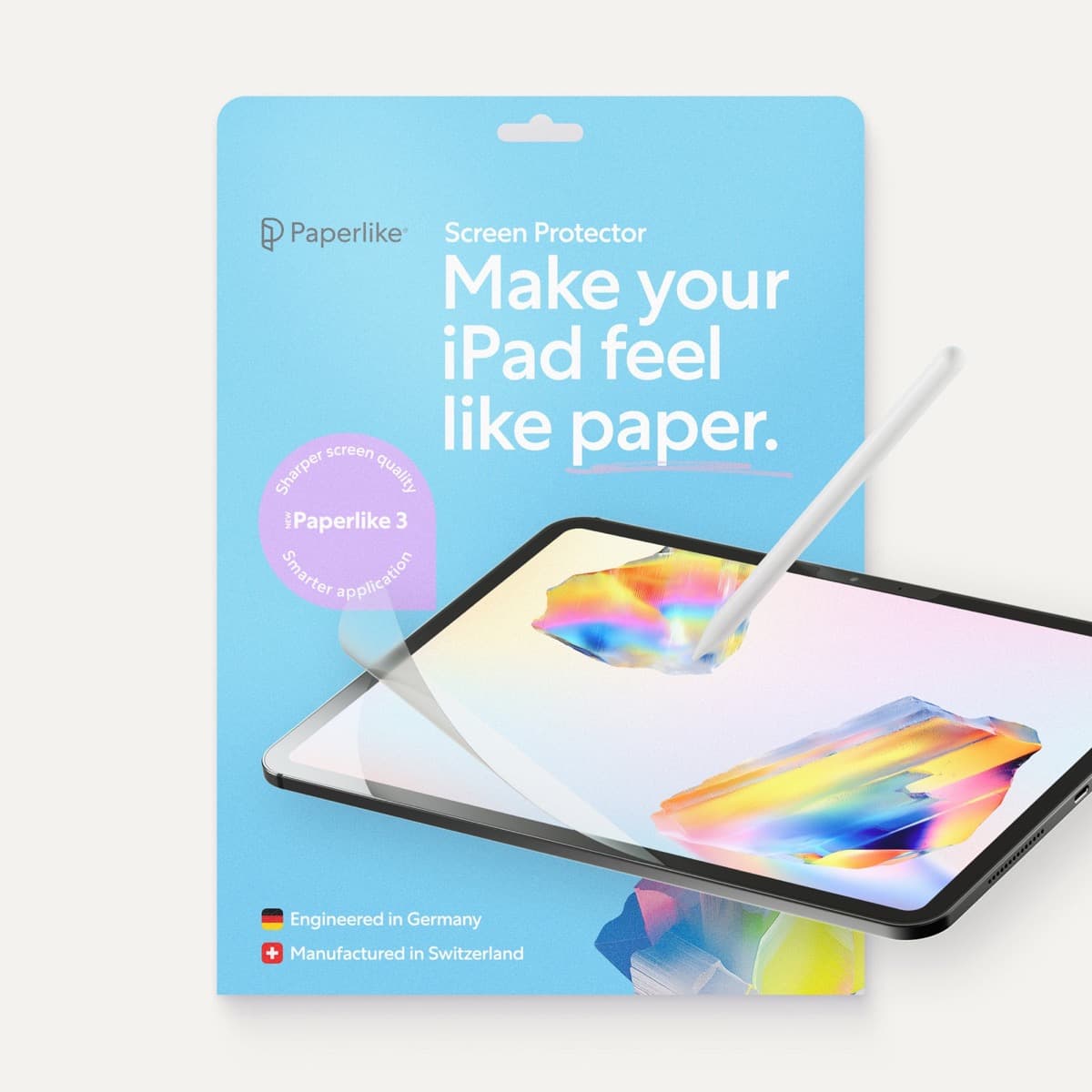
Paperlike 3 (11-inch, 2-pack)
amazon.comA strong surface-feel upgrade for drawing control. Clarity tradeoff is real and should be expected.
Pro: Adds controlled paper-feel friction
Con: Slightly reduces perceived display sharpness
11-inch fit only. Confirm generation before checkout.
Related buying picks
More in this collectionBuyer guide
Best Apple Pencil for figure drawing: how to choose your stylus
Figure drawing demands reliable pressure sensitivity and stroke control, making Apple Pencil Pro or Apple Pencil 2nd generation the right choice over the USB-C model.
Buyer guide
Best Apple Pencil for portrait drawing: choosing the right stylus
Portrait artists need pressure sensitivity for tonal rendering, making Apple Pencil Pro or Apple Pencil 2nd generation the right choice over the entry model.
Buyer guide
Apple Pencil for watercolor painting: which stylus to choose
Choose an Apple Pencil with pressure sensitivity for digital watercolor, and avoid flat styluses that cannot modulate pigment wash.
Buyer guide
Choosing the best Apple Pencil for anime drawing
Anime line art demands pressure sensitivity, making Apple Pencil Pro or the 2nd generation model essential over the USB-C option.