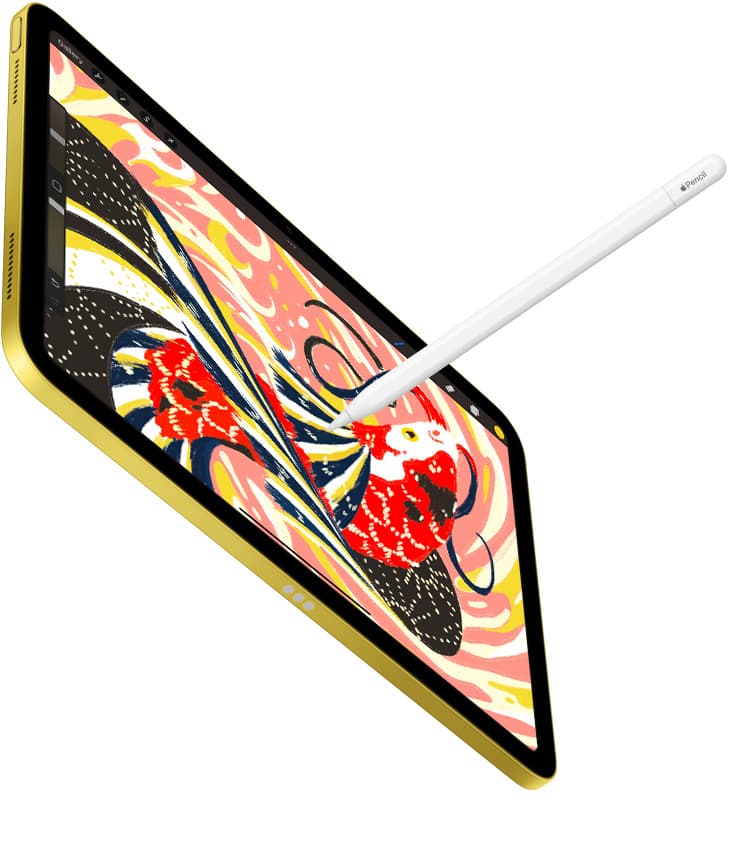
If your Apple Pencil makes jagged lines, don't rush out to buy a new tablet or stylus. Keep your existing Apple Pencil and iPad while you inspect the nib, clean the glass, and adjust stroke stabilization settings inside your drawing apps [6], [7]. Buy a textured Paperlike screen protector if smooth glass causes hand drift that shows up as jagged line wobble [8]. You should only replace your hardware with an Apple Pencil (2nd generation) or Apple Pencil Pro if your stylus has physical sensor damage or lacks the pressure sensitivity your iPad model supports [2], [3].
Diagonal line wobble is a common frustration for digital artists and handwriting users alike [6]. When you draw a slow diagonal stroke across an iPad screen, you might see tiny stair-step ripples instead of a clean, straight edge [6], [7]. Understanding where this distortion comes from will save you time and keep you from spending money on unnecessary replacements [2], [3].
Why your Apple Pencil makes jagged or jittery lines
Jagged marks happen for three main reasons: hardware contact issues, software engine processing, and the physical interaction between plastic and glass [6], [8]. The Apple Pencil uses high-frequency sensors to track location, angle, and tilt relative to the iPad display grid [2], [6]. When you move the stylus across the glass very slowly, the sensor interpolation can register slight diagonal stepping between touch grid points [6].
Hand tremor also looks worse on an iPad than on traditional paper [8]. A bare iPad display uses smooth glass, which offers almost zero mechanical resistance against the hard tip of an Apple Pencil [2], [8]. Without tactile friction, tiny involuntary hand vibrations pass directly into the digitizer, producing jittery strokes [6], [8].
Your app's brush engine can also cause erratic line behavior if its settings aren't matched to your drawing speed [5], [7]. In apps like Procreate, a brush that lacks stroke smoothing will record every single micro-movement of your hand [7]. If pressure sensitivity is active, minor changes in your grip can cause sudden width fluctuations that read as jagged or broken edges [2], [7].
Hardware checks for tips, glass, and charging
Before you change any software preferences, run through essential physical checks on your stylus and tablet [6]. The most common culprit behind skipping or jagged strokes is a loose Apple Pencil tip [2], [6]. The tip unscrews for replacement, and even a quarter-turn of looseness can disrupt the electrical signal between the internal sensor and the screen surface [2], [6]. Gently twist the tip clockwise to verify it's securely seated against the pencil base [2].
Next, examine the plastic tip for uneven wear or exposed metal [2]. Over months of drawing, the outer material of the nib wears down [2], [8]. If the inner metal core begins contacting the display directly, tracking becomes erratic and you risk scratching the iPad screen [2], [6]. Replacing a worn tip restores uniform contact with the glass [2].
Electrical interference can also cause lines to wobble or break unexpectedly [6]. If your iPad is plugged into an ungrounded or low-quality third-party wall adapter while you draw, stray electrical noise can transfer across the digitizer [6]. Unplug your iPad from the charger and sketch on battery power to see if the jitter disappears immediately [6]. Similarly, clean your screen with a dry microfiber cloth to remove oils, moisture, or dust that can briefly interrupt touch input [6].
Software settings and brush stabilization fixes
Once you confirm your hardware is sound, look at your software canvas and brush parameters [4], [7]. Digital art apps include dedicated stabilization systems specifically designed to smooth out diagonal sensor jitter and natural hand shake [5], [7]. In Procreate, you can adjust these controls across individual brushes or globally for your whole workspace [7].
Open Procreate and navigate to the Brush Studio for the inking or sketch tool you're using [5], [7]. Inside the Stabilization tab, you will find settings for StreamLine, Stabilization, and Motion Filtering [7]. Increasing StreamLine pulls the drawn stroke behind the tip of your Apple Pencil, smoothing out micro-jitters without changing the fundamental shape of your line [7]. Adding a small amount of Stabilization or Motion Filtering helps eliminate stubborn stair-stepping on slow strokes [7].
If you prefer global control across every tool in Procreate, open the Actions menu, choose Prefs, and tap Pressure and Smoothing [7]. Here you can apply global Motion Filtering and Stabilization that work consistently across all brushes [7]. Keep in mind that setting stabilization too high can make the pencil stroke feel detached from your physical drawing speed, so increase the slider in small increments until the jagged edges vanish [7]. Also ensure your canvas dimensions match your project needs without exceeding recommended layer boundaries for your iPad model's memory [4].
When to add friction or replace your stylus
If software stabilization doesn't solve your wobble, physical friction is often the missing piece [8]. Drawing directly on smooth glass feels slippery, making consistent line weight difficult to maintain [2], [8]. A Paperlike screen protector adds a textured matte surface to your iPad display [8]. This textured coating gives the Apple Pencil tip controlled drag similar to a traditional sketchbook page, stabilizing your strokes naturally without relying entirely on software smoothing [8].
Paperlike makes model-specific screen films, including versions sized for 11-inch iPads, so verify your exact iPad generation before buying [1], [8]. While adding a matte film slightly lowers perceived display sharpness, it provides the physical grip needed to stop hand-wobble at the root [8]. Digital illustrators and lettering artists who struggle with slick glass should buy Paperlike before considering costly hardware swaps [8].
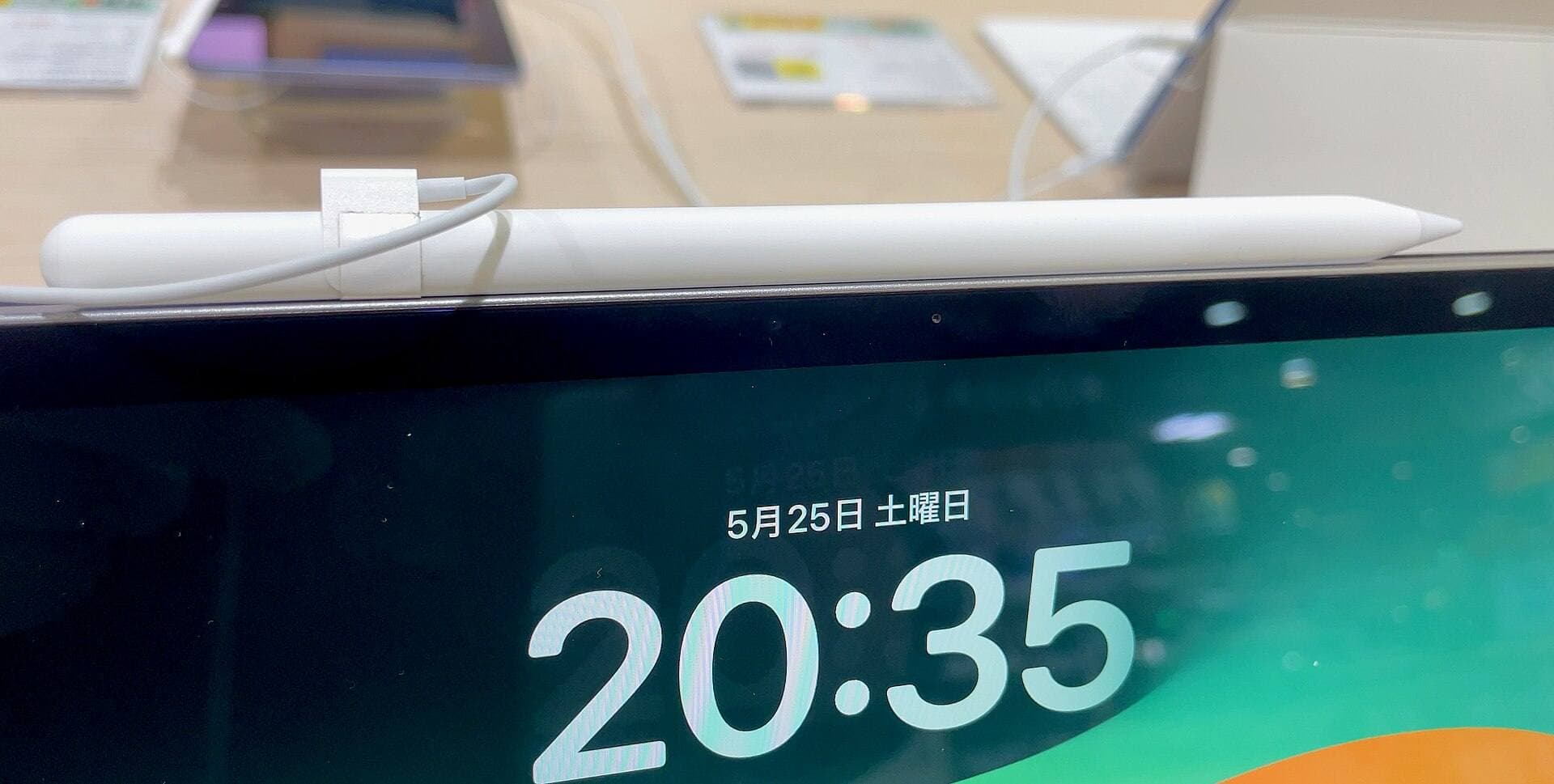
Only look at replacing your stylus if you encounter unresolvable hardware limitations or physical sensor defects [2], [3]. If you currently use the Apple Pencil (USB-C), you don't have pressure sensitivity [2]. The Apple Pencil (USB-C) supports tilt and low latency, but it cannot vary line thickness based on how hard you press [2]. If your workflow demands dynamic brush weights and you own a compatible tablet, upgrading to the Apple Pencil (2nd generation) or Apple Pencil Pro restores pressure-sensitive control [2], [3].
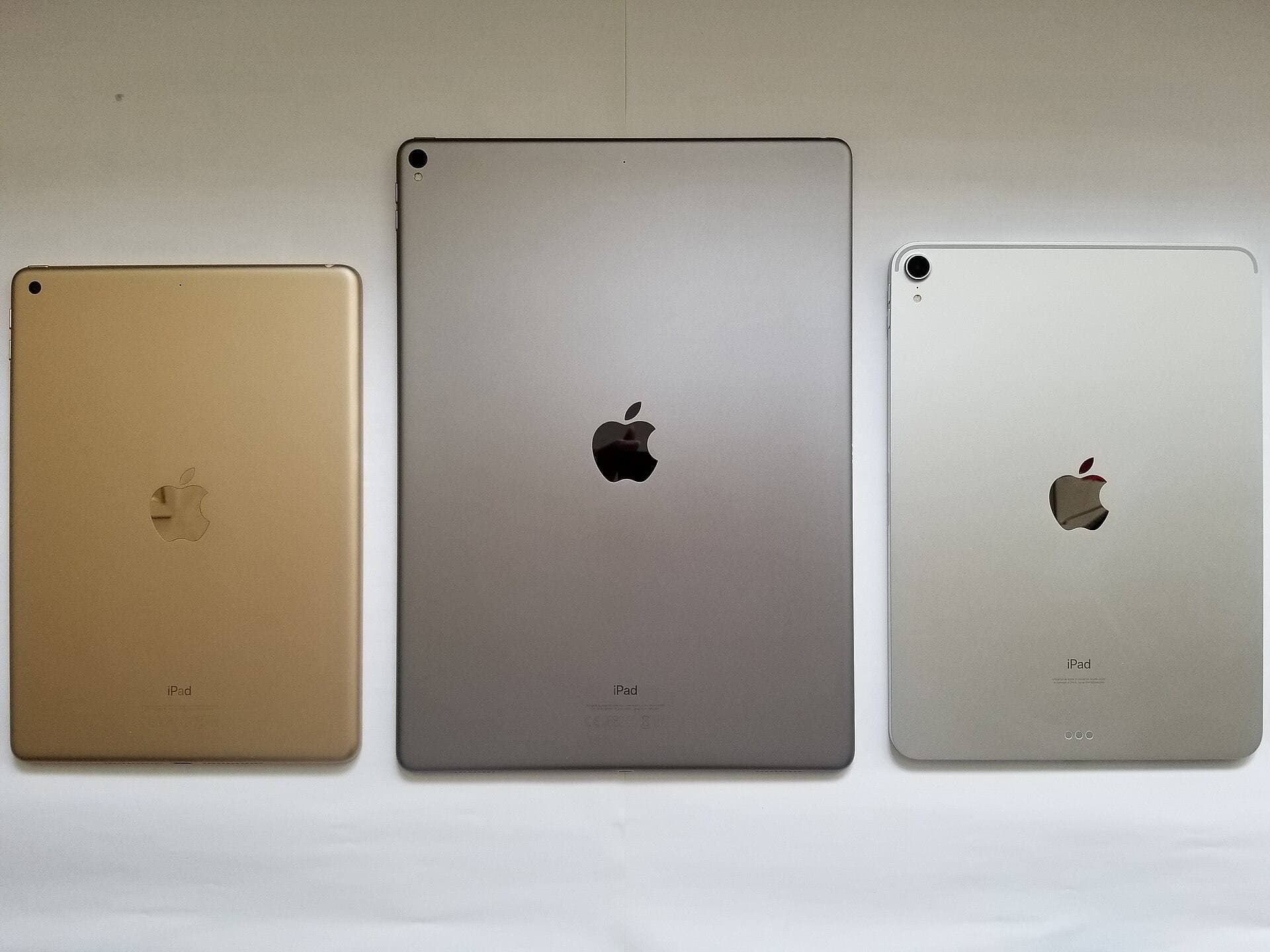
Before buying an upgraded stylus, double-check compatibility with your iPad model [1], [3]. The Apple Pencil Pro works exclusively with newer iPad models, offering features like barrel roll, squeeze gestures, and haptic feedback [2], [3]. The Apple Pencil (2nd generation) works with specific previous-generation iPad Pro, iPad Air, and iPad mini models that support magnetic pairing and charging [1], [3]. Don't buy a stylus upgrade until you verify your iPad model in Apple's compatibility chart [1], [3].
Bottom line
Jagged lines on an iPad almost never mean you need a brand-new tablet [1], [6]. You should keep your current setup and start by tightening the Apple Pencil tip, cleaning your screen, and unplugging third-party charging cables [2], [6]. Next, dial in StreamLine and Motion Filtering inside your drawing app to eliminate slow diagonal jitter [7].
If your lines remain unsteady because your hand slips across bare glass, buy the Paperlike screen protector to gain physical drawing resistance [8]. Skip stylus upgrades unless your existing unit has an internal hardware failure, or you are moving from an Apple Pencil (USB-C) to a pressure-capable Apple Pencil (2nd generation) or Apple Pencil Pro that matches your iPad [2], [3].
Sources
[1] https://www.apple.com/ipad/compare/ [2] https://www.apple.com/apple-pencil/ [3] https://support.apple.com/en-us/108937 [4] https://help.procreate.com/articles/zlexav-ipad-compatibility [5] https://apps.apple.com/us/app/procreate/id425073498 [6] https://support.apple.com/guide/ipad/draw-with-apple-pencil-ipadc55b6c7a/ipados [7] https://help.procreate.com/procreate/handbook/5.2/interface-gestures/pencil [8] https://paperlike.com/products/paperlike-for-ipad
Recommended gear
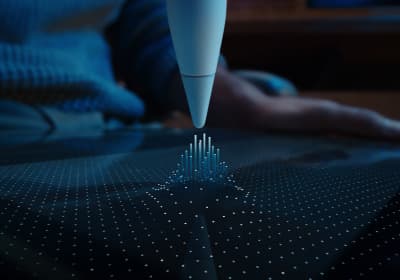
Apple Pencil Pro
amazon.comThe best Apple stylus for serious digital art workflows. Expensive, but the control upgrades are real.
Pro: Best brush-control and hover workflow
Con: Highest price in the lineup
Works only with newer iPad models. Check compatibility.
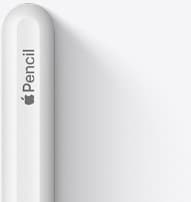
Apple Pencil (2nd generation)
amazon.comStill a strong stylus on compatible iPads. Good pressure control, but compatibility is the main trap.
Pro: Pressure support without Pro pricing
Con: Not compatible with newest Pro-only iPads
Only for iPads that support 2nd generation pairing.
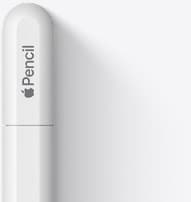
Apple Pencil (USB-C)
amazon.comA practical low-cost Apple stylus with broad compatibility, but limited for advanced art control.
Pro: Lowest official Apple Pencil cost
Con: No pressure sensitivity for brush work
Compatible with many recent iPads. No pressure support.
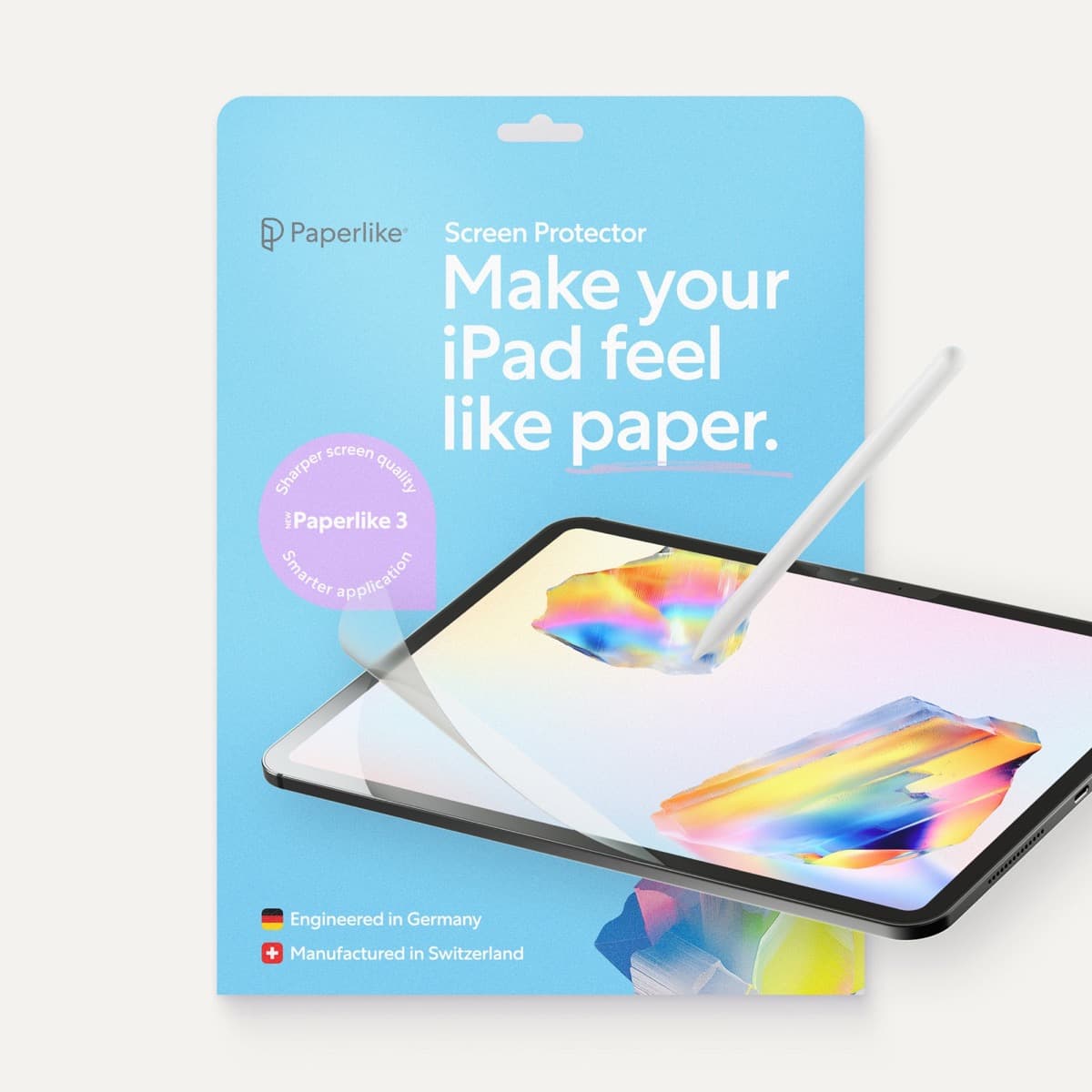
Paperlike 3 (11-inch, 2-pack)
amazon.comA strong surface-feel upgrade for drawing control. Clarity tradeoff is real and should be expected.
Pro: Adds controlled paper-feel friction
Con: Slightly reduces perceived display sharpness
11-inch fit only. Confirm generation before checkout.
Related buying picks
More in this collectionBuyer guide
Best Apple Pencil for urban sketching: what to buy and what to skip
Choose the Apple Pencil that matches your sketching style and iPad model without paying for extra features you won't use outdoors.
Buyer guide
Best Apple Pencil for fashion illustration: Stylus guide for designers
Choose the right Apple Pencil for fashion illustration based on pressure sensitivity, barrel roll, iPad compatibility, and screen texture.
Buyer guide
Best Apple Pencil for portrait drawing: choosing the right stylus
Portrait artists need pressure sensitivity for tonal rendering, making Apple Pencil Pro or Apple Pencil 2nd generation the right choice over the entry model.
Buyer guide
Choosing the best Apple Pencil for medical illustration
Medical illustrators need pressure sensitivity and precise hardware compatibility, making the Apple Pencil Pro or 2nd generation pencil essential over the USB-C model.