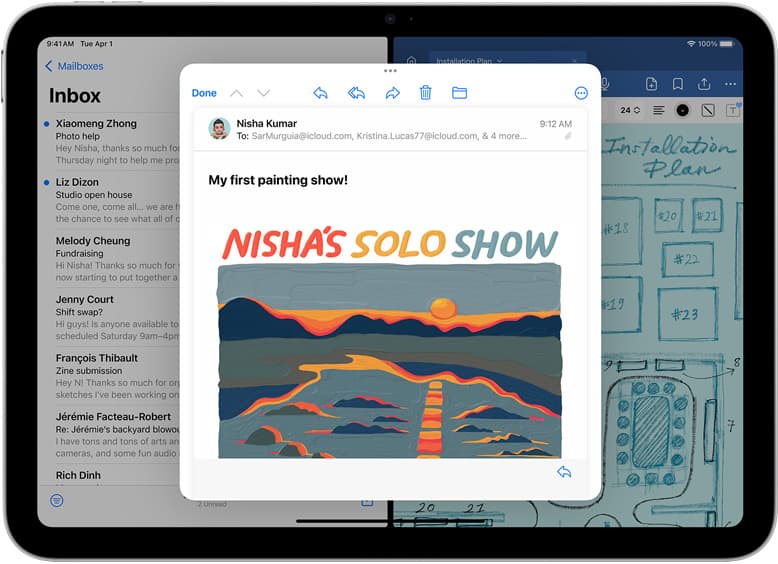
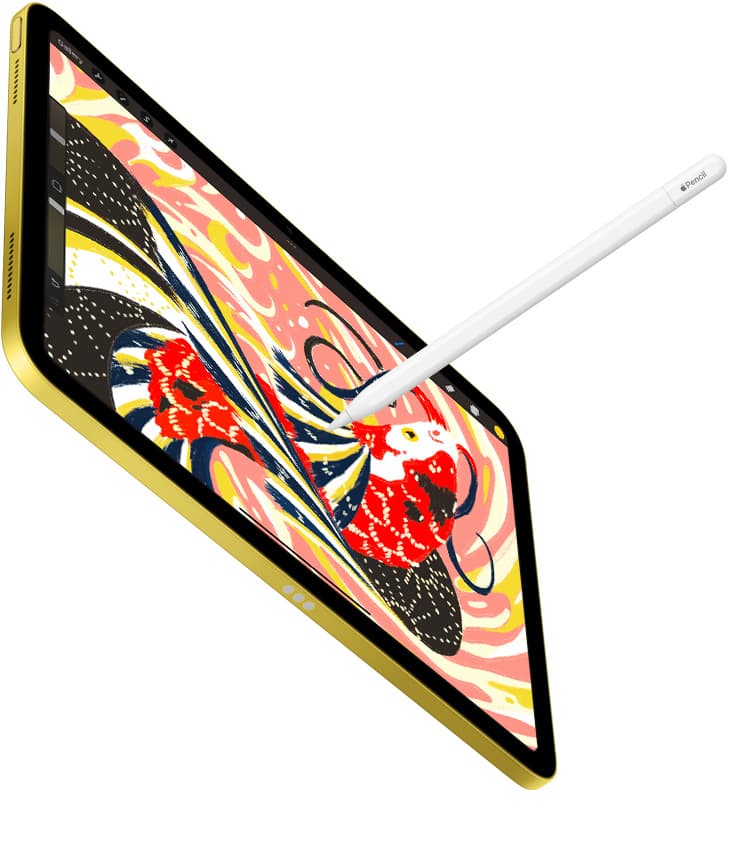
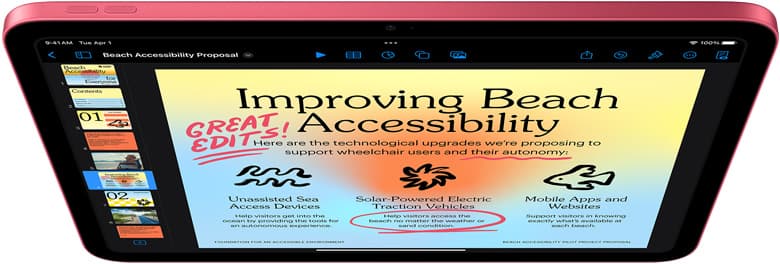
A first iPad art setup should get you creating immediately, not researching for weeks.
If your total budget is under $900, the best strategy is a strong base stack with predictable charging and a clear upgrade path. Most beginners lose money by overbuying premium hardware before they know their real bottlenecks. This guide gives a practical starter kit that balances cost, reliability, and growth.
The best under-$900 starter kit
For most new artists, this bundle is the highest-value starting point:
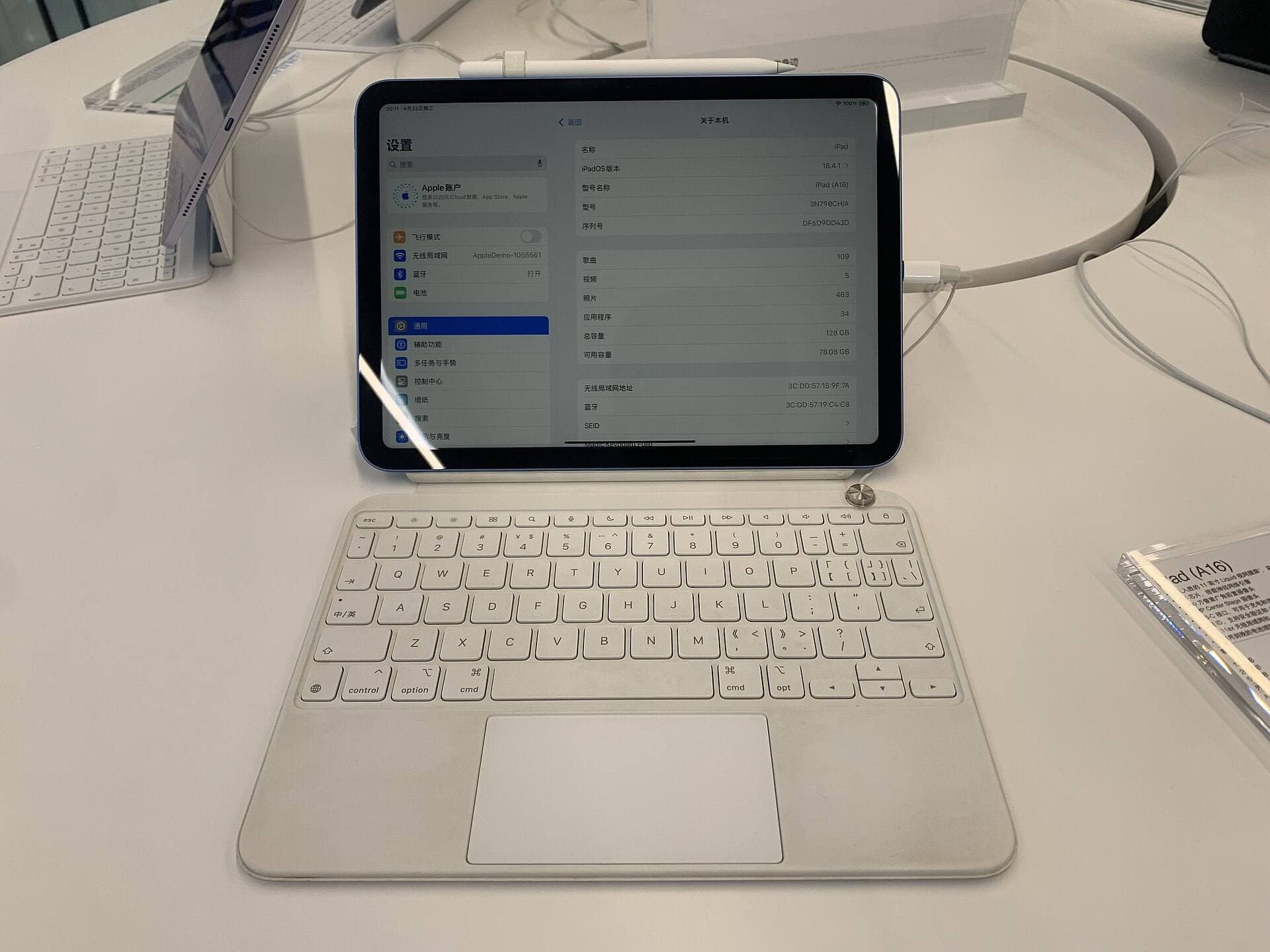
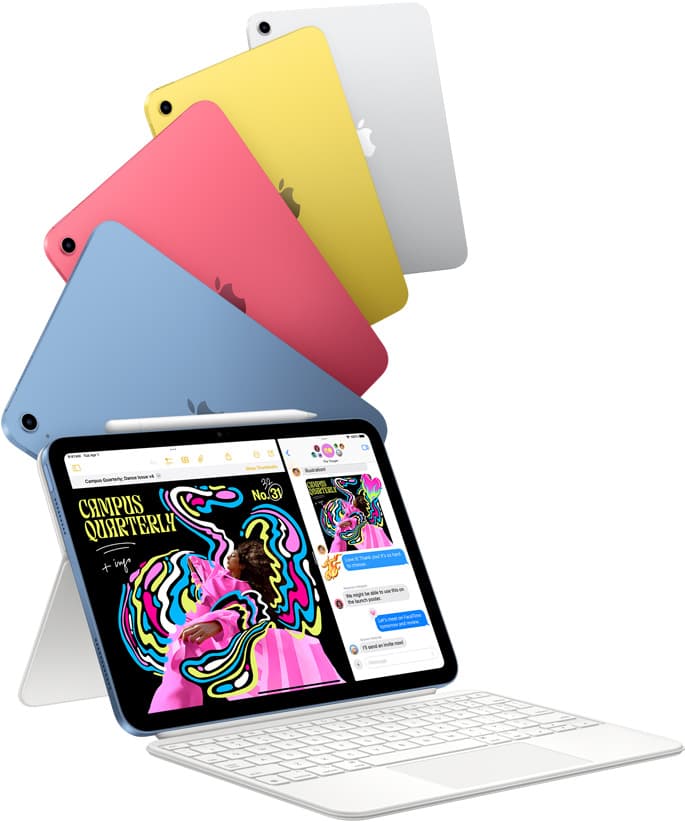
- iPad (A16, 11th gen) as your core device.
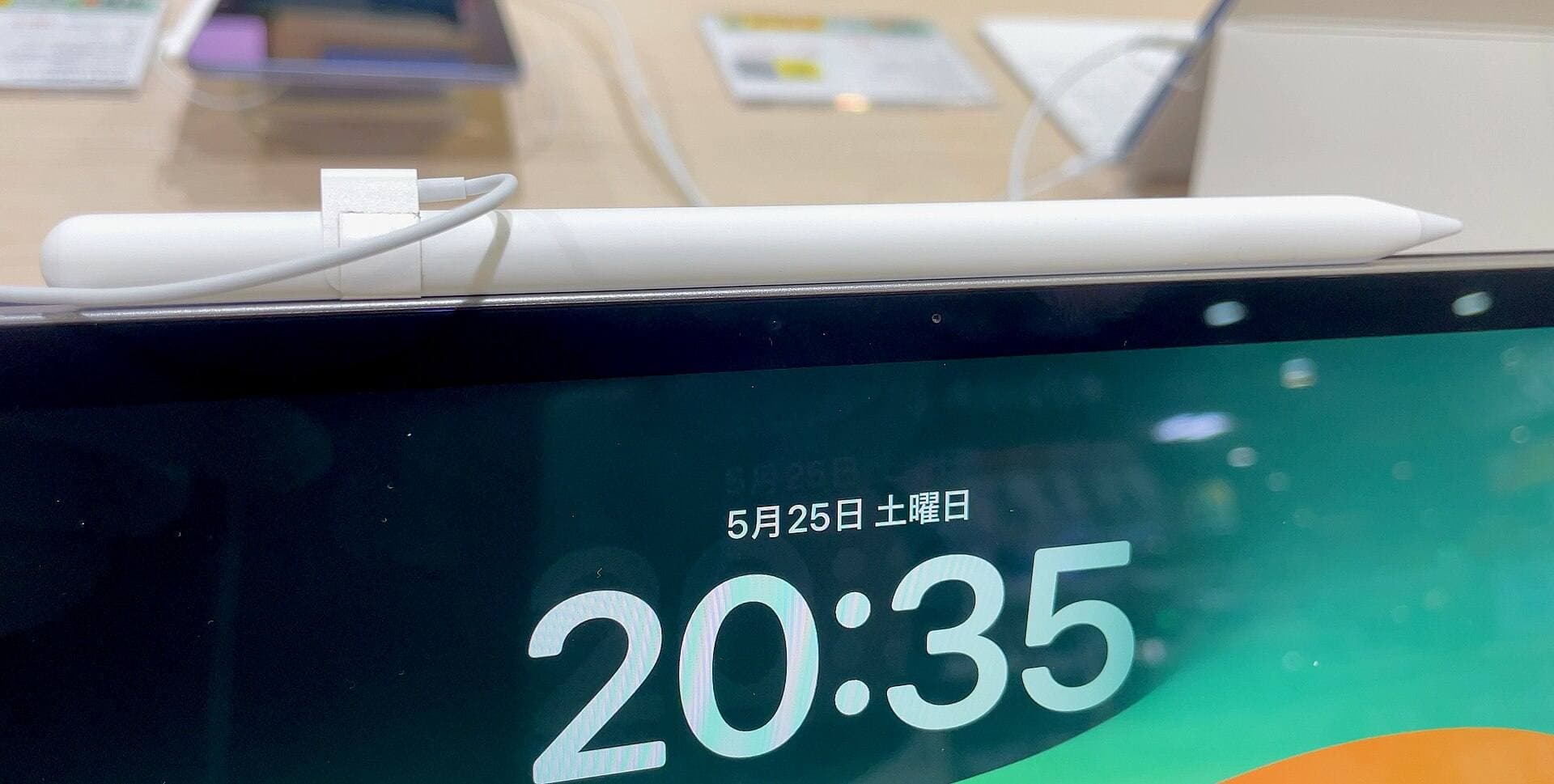
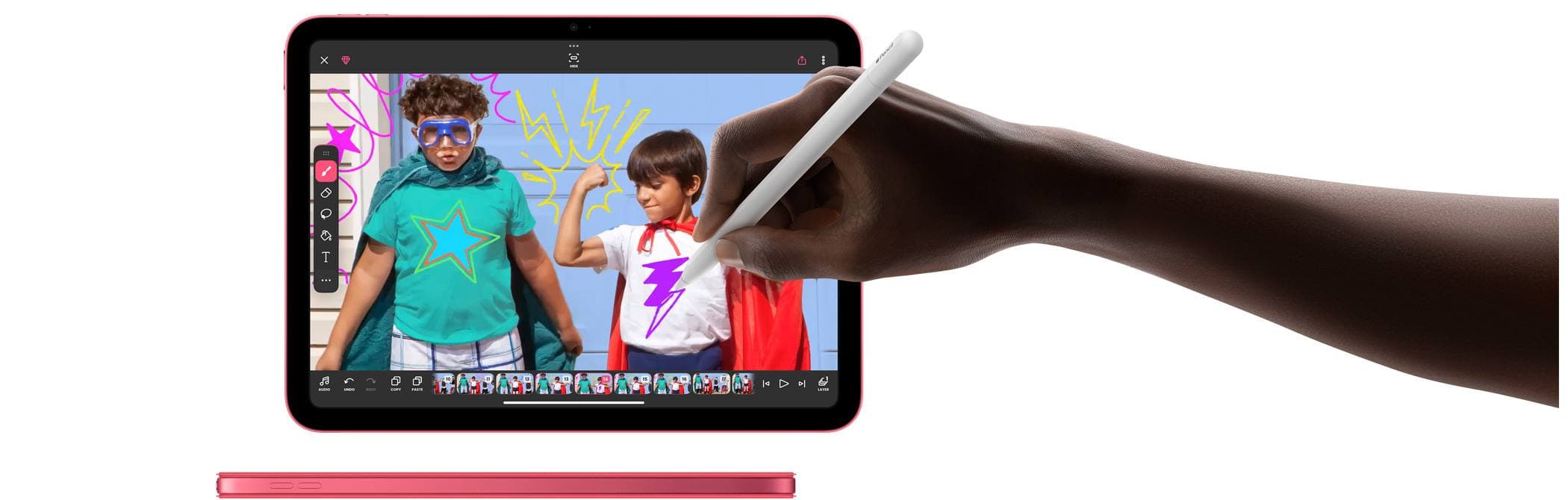
- Apple Pencil (USB-C) as your input tool.
- Anker 736 Nano II 100W or equivalent reliable USB-C charger.
This combination keeps purchase risk low while delivering enough performance to learn, publish, and build consistent habits.
Why this stack wins for beginners
It solves the three problems that stop early momentum:
- no reliable drawing surface,
- no stylus for precision,
- unstable charging behavior.
You do not need a premium tier on day one. You need a setup that stays ready every day.
Cost control principles before checkout
1) Buy by weekly use, not spec fear
If you are not yet hitting heavy layer counts or advanced rendering limits, you are unlikely to benefit from a top-tier tablet immediately.
2) Protect budget for workflow stability
A reliable charger and known-good cable often improve day-to-day productivity more than chasing top-end specs.
3) Keep upgrade path intentional
The right first bundle should make future upgrades easy, not urgent.
Role of each item in the starter kit
iPad A16: foundation and value
This is your canvas, planner, and export device. The value play is that it gets core work done while leaving room in budget for essentials.
Use storage choice based on your workflow:
- lighter sketch and study workflow: entry storage can work,
- heavy reference libraries and frequent exports: prioritize more storage.
Apple Pencil USB-C: easiest low-risk entry
For beginners, the USB-C Pencil often gives the fastest path to stable input with lower cost than premium Pencil tiers.
Before buying, verify model compatibility on Apple resources.[1][2]
Reliable charger: silent productivity multiplier
Charging reliability is often ignored until it breaks sessions. A trustworthy USB-C charger helps avoid interruptions, especially when iPad and phone are both in your daily flow.
Suggested buy order
Step 1: iPad first
This anchors your budget and device generation.
Step 2: Pencil second
Without a proper stylus, your drawing workflow remains constrained.
Step 3: charger third
Complete the kit with stable power so sessions are predictable.
If you already own a quality charger, keep it and allocate savings toward storage or learning resources.
What to skip in your first 60 days
Skipping the wrong purchases is part of the strategy.
Delay these until your workflow proves need:
- premium keyboard case,
- expensive niche adapters,
- multiple accessory experiments at once,
- high-cost tablet upgrade without measured bottleneck.
This protects budget and keeps learning curve clean.
30-day starter workflow plan
Week 1: setup and baseline
Install drawing apps, set brush defaults, and run short daily sessions.
Goal: build consistency, not optimize gear.
Week 2: file discipline
Create one folder system for projects, exports, and references.
Goal: prevent storage chaos early.
Week 3: power and session reliability
Lock charging routine and cable habit so you never start sessions at low battery.
Goal: reduce interruption frequency.
Week 4: constraint review
Identify only real repeating bottlenecks, such as storage pressure or app lag.
Goal: decide if any upgrade is justified.
When to upgrade from this starter kit
Upgrade only when a constraint is measurable and recurring.
Upgrade signal: storage pressure
You are constantly deleting files or juggling exports.
Upgrade signal: performance bottleneck
Large canvases and layer-heavy projects lag repeatedly.
Upgrade signal: display workspace
You lose time to constant zooming/panning due to workspace limits.
Upgrade signal: input features
You can clearly explain which Pencil feature is missing and how it affects finished work.
If you cannot point to repeated friction, keep the starter stack and invest in reps.
Common mistakes that waste starter budgets
Mistake 1: buying a premium tablet before building habits
Early outcomes are usually limited by routine and skill, not raw device tier.
Mistake 2: ignoring compatibility checks
Always confirm Pencil and iPad compatibility on official references before purchase.[2]
Mistake 3: underestimating charging and cables
Power instability creates avoidable session failures.
Mistake 4: upgrading multiple things at once
You lose signal about what actually improved your workflow.
Setup templates by user type
Absolute beginner
- iPad A16
- Pencil USB-C
- existing reliable charger if available
Best for lowest risk and fastest start.
Beginner with longer sessions
- iPad A16
- Pencil USB-C
- dedicated high-quality USB-C charger
Best for consistency and fewer charging interruptions.
Beginner planning frequent travel
- same core stack
- add one durable cable and compact pouch
Best for keeping routine consistent outside home.
Final buying checklist
Before you purchase, confirm:
- Exact iPad model and storage selection.
- Pencil compatibility for that model.
- Charger availability and cable plan.
- Total cart cost remains below your cap.
- You are not adding accessories without a clear reason.
If all five checks pass, you are ready.
Bottom line
A profitable first setup is the one that makes you create more often, not the one with the flashiest spec sheet.
Under $900, the iPad A16 + Apple Pencil USB-C + reliable charger stack is the best starter kit for most new artists. It keeps cost controlled, removes core friction, and gives you a clear upgrade path once real workflow constraints appear.
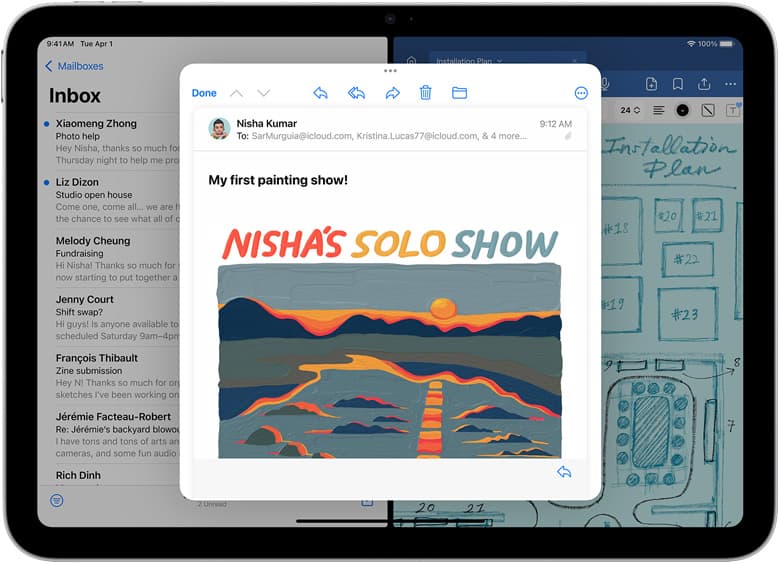
Product visuals
Sources
Recommended gear
iPad (A16, 11th gen)
amazon.comThe best entry iPad for most artists on a budget. It is not premium, but it is very hard to beat on value.
Pro: Best value iPad right now
Con: No ProMotion display
Search opens with the exact model keywords. Verify size and storage before checkout.
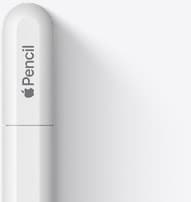
Apple Pencil (USB-C)
amazon.comA practical low-cost Apple stylus with broad compatibility, but limited for advanced art control.
Pro: Lowest official Apple Pencil cost
Con: No pressure sensitivity for brush work
Compatible with many recent iPads. No pressure support.
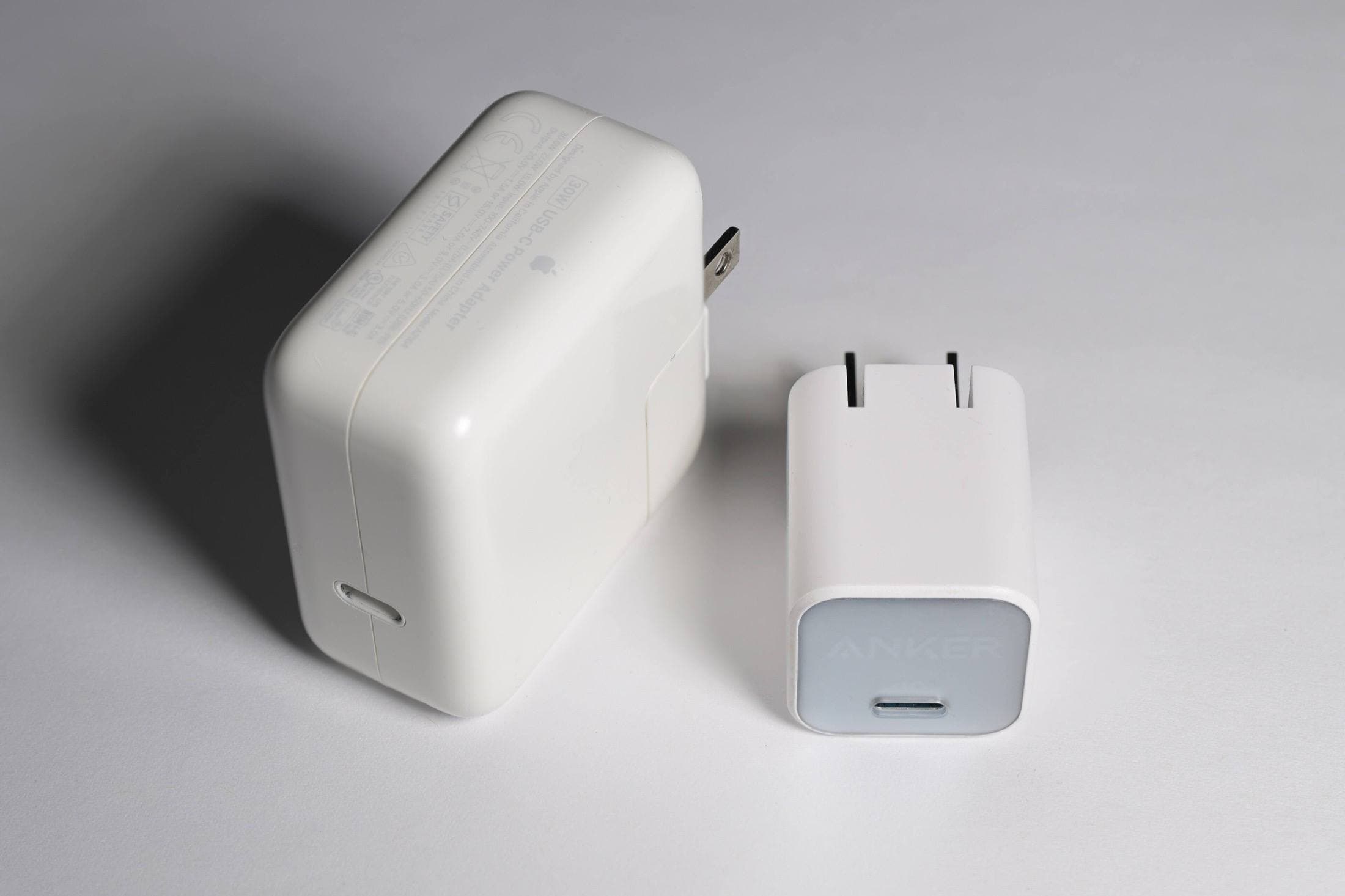
Anker 736 Charger (Nano II 100W)
amazon.comA practical multi-device charging brick for iPad workflows. Great utility, with expected port-sharing tradeoffs.
Pro: Strong multi-device travel charging profile
Con: Larger than compact 65W bricks
Check per-port split table before buying, not only max total wattage.
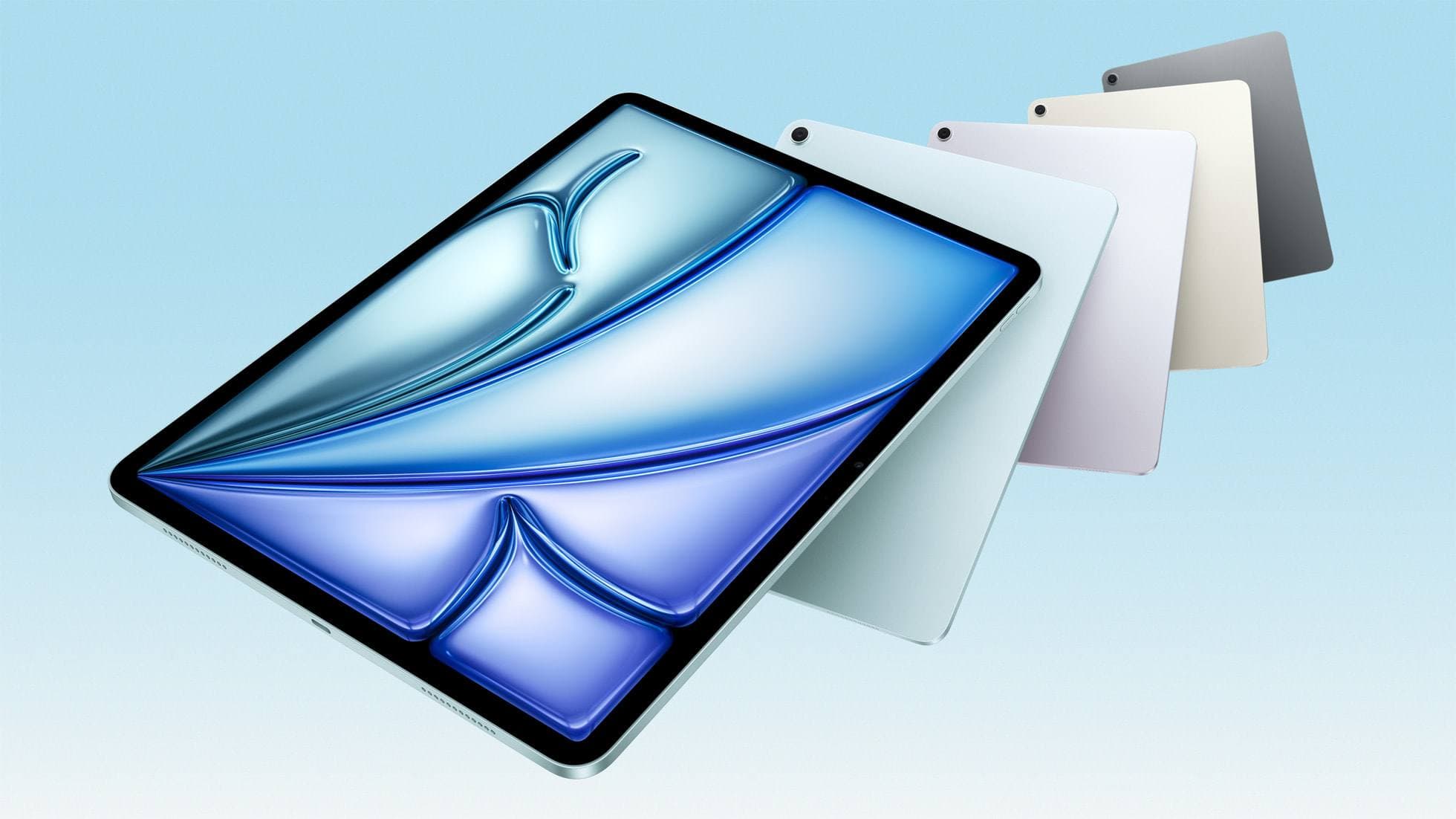
iPad Air (M4)
apple.comThe clean current Air recommendation for most serious hobby artists. Stronger buy logic than old-stock M3 when pricing is close.
Pro: Best current balance of price, headroom, and Pencil support
Con: Still 60Hz
Current Air lineup. Choose size, storage, and keyboard path before checkout.
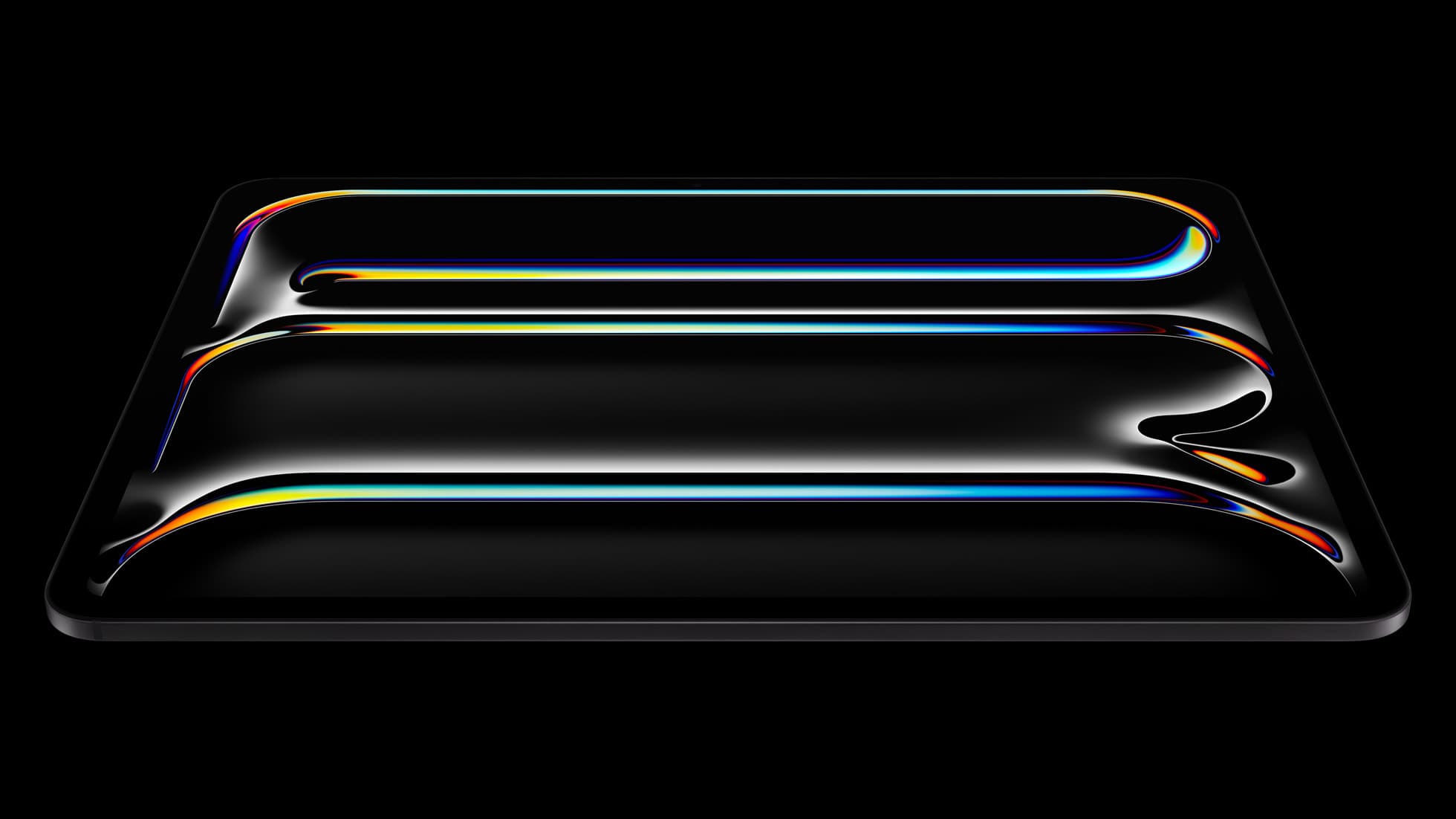
iPad Pro (M5)
amazon.comThe best iPad for drawing feel and premium workflow comfort, but many buyers still overpay for it.
Pro: Best iPad display and ProMotion feel
Con: Highest price in the lineup
Search opens with iPad Pro terms. Check year, chip, and screen size.
Related buying picks
More in this collectionBuyer guide
Best iPad Deals for Digital Artists (March 2026): What to Buy and What to Skip
The best iPad deal is not the lowest sticker price. Use this guide to pick the right iPad and Apple Pencil combo for real drawing workflows without overpaying.
Buyer guide
iPad Buying Timing in 2026: Buy Now or Wait?
An evidence-first timing guide for iPad artists: when to buy immediately, when to wait for announcements, and how to avoid compatibility regret.
Buyer guide
Best iPad mini Accessory Bundle for Drawing (2026)
iPad mini is strongest when you keep the setup light. This buyer guide picks three pieces that add utility without killing portability.
Buyer guide
Best USB-C Chargers for iPad Artists (2026): Wattage, Heat, and Real Speed
For iPad artists, charger quality matters more than max wattage marketing. Buy by single-port output, heat behavior, and split-power rules.