If you're heading to art college, buy the iPad Air (M4) paired with the Apple Pencil Pro as your primary studio setup [1], [3]. It gives you modern stylus tools like barrel roll and squeeze while staying below the cost of the flagship Pro tier [1], [2]. If you have a strict budget and need to keep your total spending down, choose the base iPad (A16) [1]. Skip the iPad Pro (M5) unless you specifically require its ProMotion display feel and premium panel hardware for advanced digital workflows [1].
Art school coursework pushes digital sketchbooks, concept rendering, printmaking layouts, and life drawing into rapid rotation [5]. Because you'll carry your hardware between lecture halls, print labs, and shared studio benches, your tablet needs to balance physical screen area with practical transport [1]. At the same time, hardware specs dictate which styluses you can use and how your digital painting software handles heavy project files [2], [4].
Choosing the right tablet for art school assignments
Selecting a tablet for foundation year studio courses involves finding the right intersection between stylus features and device memory [1], [4]. Most art school syllabi demand a mix of raster drawing, vector illustration, and digital layout [5]. Different iPad models use different processors and display technologies across Apple's lineup [1].
For students who need a balanced hardware profile, the iPad Air (M4) provides access to the M4 chip alongside current stylus capabilities [1], [2]. It supports the Apple Pencil Pro, which brings hardware tools that earlier base styluses do not offer [2], [3]. If you want a dependable setup that handles standard studio projects across four years of school, the iPad Air hits that sweet spot [1].
On the other hand, the base iPad (A16) serves students whose main priority is getting an active digital canvas at the lowest hardware tier [1]. It pairs with compatible styluses like the Apple Pencil (USB-C) or first-generation Pencil depending on the specific model configuration [1], [3]. You should skip the base iPad if your core studio electives depend on hardware squeeze gestures or barrel roll rotation [2], [3].
Why Apple Pencil support dictates your creative options
Your stylus model matters just as much as the iPad itself when you work on drawing assignments [2]. Apple offers distinct pencil models across its hardware catalog, and compatibility depends strictly on which iPad model you buy [1], [3]. Knowing which features accompany each pairing prevents costly mistakes before classes begin [3].
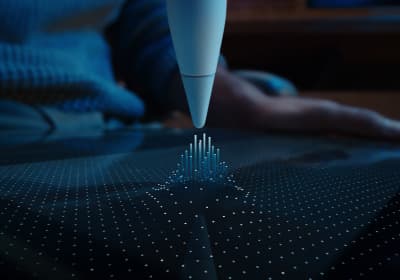
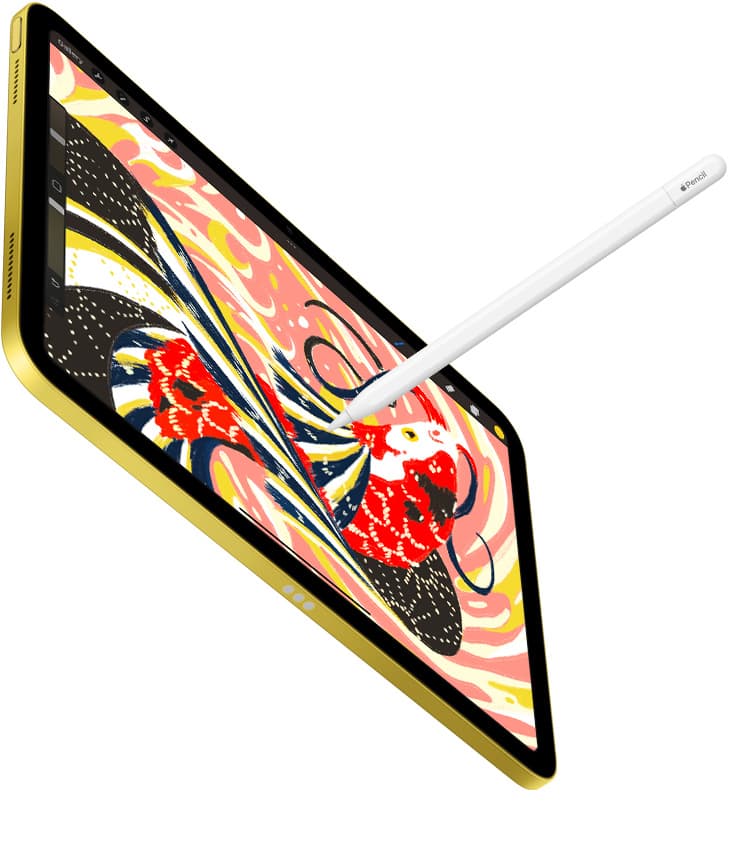
Apple Pencil Pro works exclusively with compatible models like the iPad Air (M4) and iPad Pro (M5) [1], [3]. This stylus features tool squeeze sensors, barrel roll orientation detection, haptic feedback, and hover capabilities on compatible displays [2]. For illustration majors and character designers, barrel roll lets you rotate shaped brush tips naturally as you turn the stylus barrel [2].
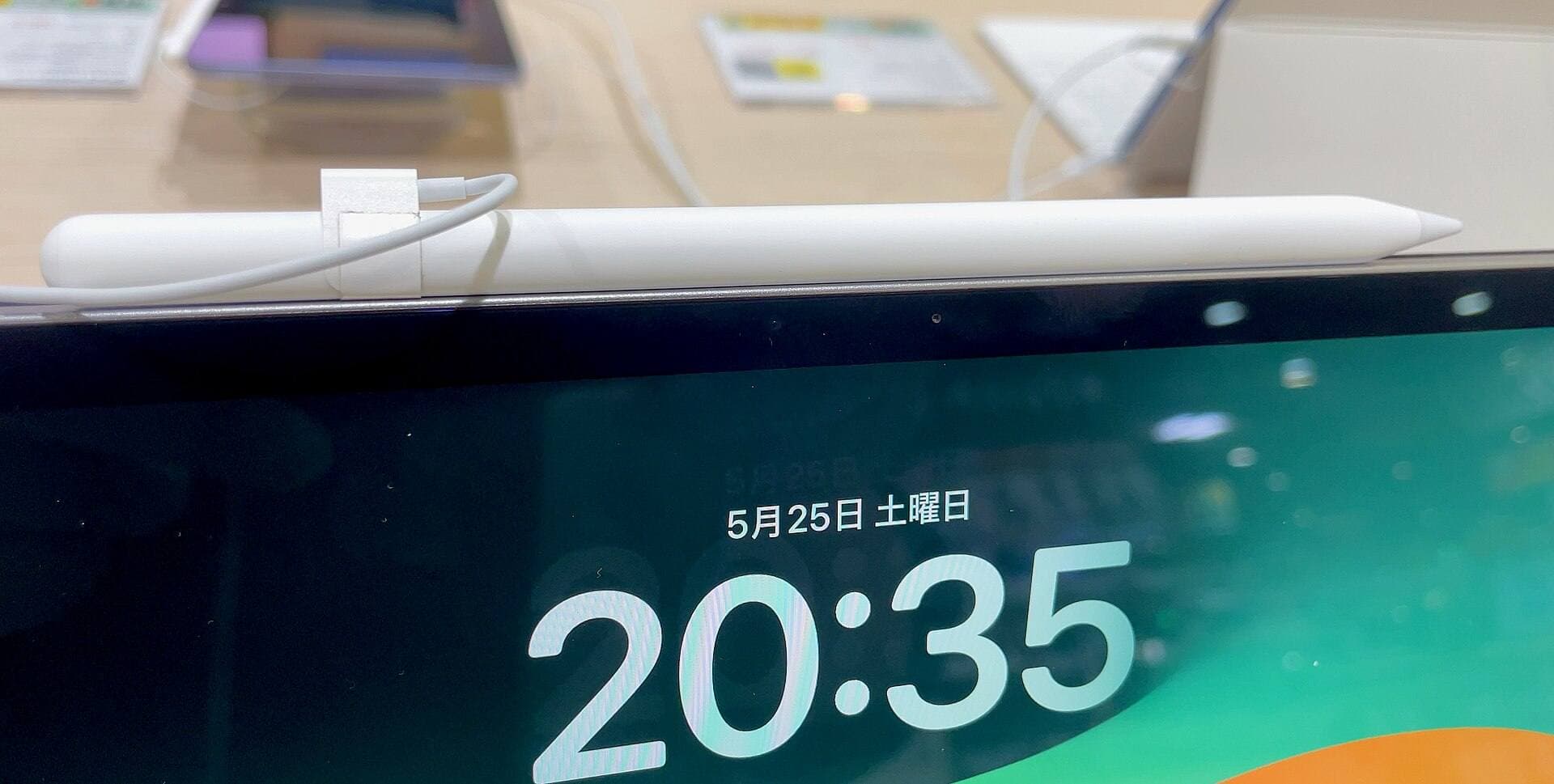
In contrast, styluses like the Apple Pencil (USB-C) offer tilt sensitivity and magnetic attachment for storage, but they lack pressure sensitivity [2]. Pressure sensitivity remains a standard requirement for expressive line weight in traditional media emulation and dynamic inking [2]. If your studio professors expect pressure-driven brush dynamics, pairing an iPad with a stylus that supports pressure sensitivity is mandatory [2].
Double tap shortcuts also change how quickly you switch between brushes and erasers during timed figure drawing sessions [2]. The Apple Pencil Pro includes both double tap and squeeze sensor shortcuts with haptic feedback to confirm your input [2]. Base styluses lack these tactile tools, forcing you to tap on-screen menus with your free hand [2].
Canvas size, memory, and layer limits in digital art apps
Studio projects often require working at print resolutions with dozens of layered elements [4], [5]. In raster illustration apps like Procreate, the maximum number of layers you can create on a canvas is directly tied to the total available memory of your iPad model [4].
When you build large canvases for print posters or multi-panel comics, memory constraints determine how freely you can separate colors, line art, and background elements [4]. As canvas dimensions increase in pixel count or physical print size, the available layer limit decreases to fit within device memory thresholds [4]. Choosing an iPad with an M-series chip ensures your hardware aligns with modern memory configurations listed in Apple's device specs [1], [4].
Students planning to focus on detailed editorial illustration, high-resolution prints, or layered concept art will feel these layer boundaries quickly [4]. The iPad Air (M4) and iPad Pro (M5) provide the memory profiles necessary to maintain usable layer counts on large digital canvases [1], [4]. If you choose an entry-level iPad with lower baseline memory, you'll need to flatten layers more frequently or work at smaller pixel dimensions [4].
Display size and portability across campus studios
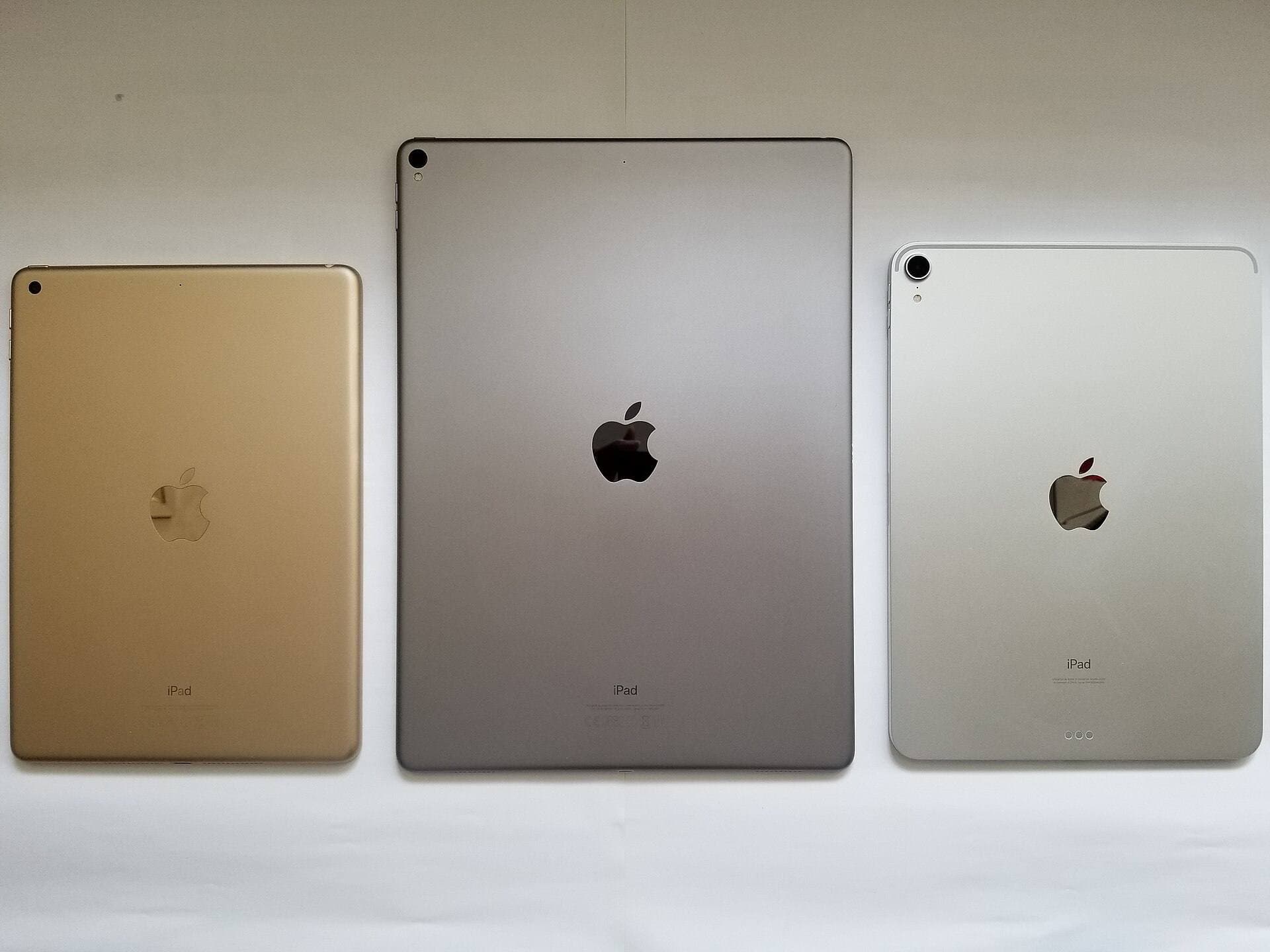
Living in shared dorm rooms and moving between campus studios requires careful thought about device size [1]. The 11-inch form factor shared by the iPad Air and iPad Pro fits easily into standard backpacks and sits comfortably on crowded lecture hall desks [1]. It provides enough drawing area for gestural sketching without feeling unwieldy during campus transit [1].
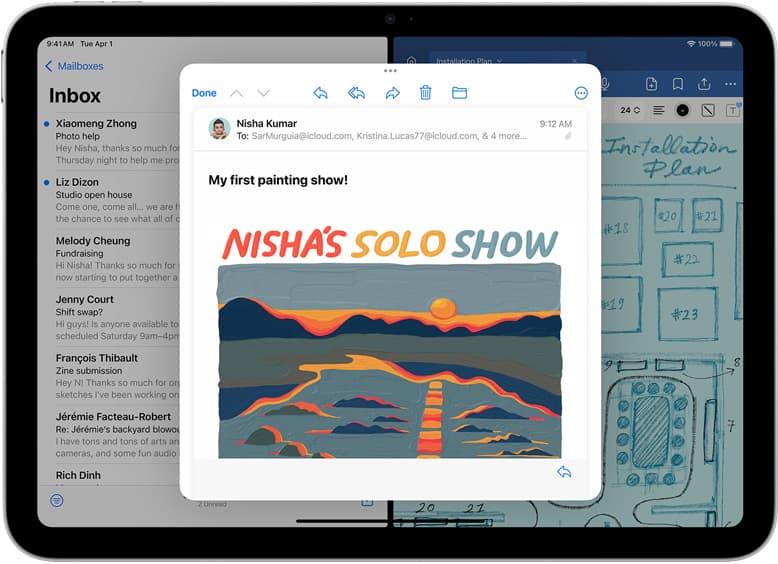
However, students who focus heavily on large-format digital painting, fine art printmaking, or complex typography often benefit from stepping up to a 13-inch display [1]. A 13-inch iPad Air or iPad Pro offers expanded workspace for dual-app split views and wide canvas margins [1]. The tradeoff comes in added footprint and carry weight when you pack your bag for long studio days [1].
Meanwhile, the iPad mini (A17 Pro) remains an option for artists who prioritize maximum portability over working area [1]. While it supports the Apple Pencil Pro and its advanced gesture features, the compact display restricts the physical area available for full-arm drawing motions [1], [2]. Buy the iPad mini if you need a pocket sketchbook for thumbnail ideas, but skip it as your primary studio workstation [1].
Storage options and studio accessories
Choosing your internal storage capacity before checkout is vital because iPad storage cannot be upgraded internally after purchase [1]. Digital illustration files, time-lapse video recordings, reference photo libraries, and design software consume internal storage steadily over four years of study [1], [5].
Starting with a baseline storage tier like 128GB or 256GB on the iPad Air allows you to keep your active semester assignments directly on your device [1]. The iPad Pro offers configurations reaching into multiple terabytes for students working with massive high-resolution project libraries [1]. For most college coursework, moderate internal storage paired with cloud backups or external drives connected over the USB-C port provides a sensible balance [1].
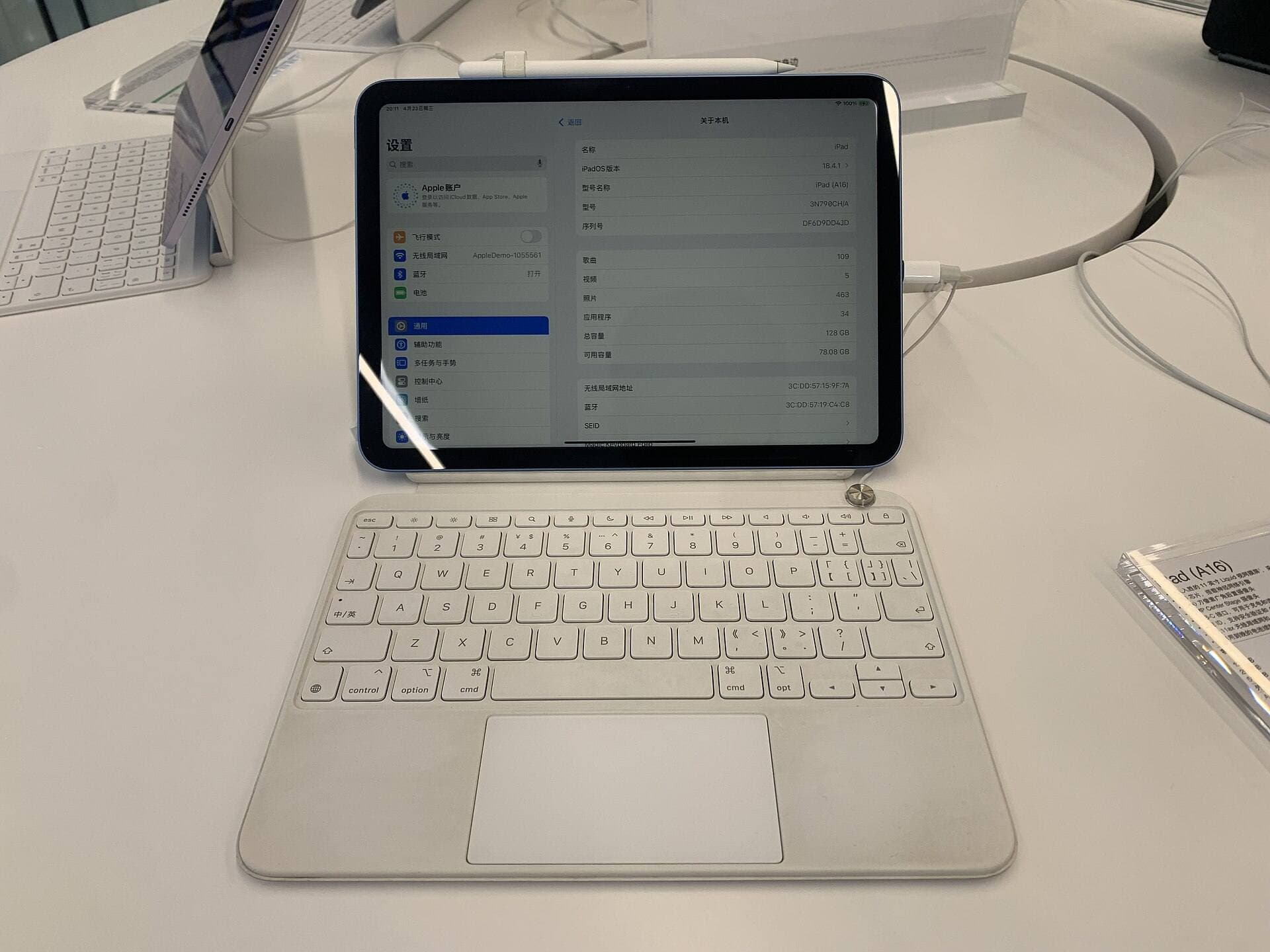
Your choice of accessories also influences daily studio work [1], [2]. While the Apple Pencil is non-negotiable for drawing majors, a protective folio or keyboard folio helps keep your tablet propped at comfortable drawing angles during studio critiques [1]. Investing in the right stylus pairing from the first semester ensures you won't need to replace hardware halfway through your degree [2], [3].
Bottom line
For the vast majority of art college students, the iPad Air (M4) is the best tablet to buy [1]. It delivers full compatibility with the Apple Pencil Pro, giving you squeeze gestures, barrel roll control, and pressure responsiveness without paying the higher price of the iPad Pro [1], [2], [3].
Choose the base iPad (A16) if your budget is strictly constrained and you need a basic digital sketchbook for general education art requirements [1]. Choose the iPad Pro (M5) only if you specifically want its ProMotion display and top-end screen technology for intensive studio courses [1]. Skip the iPad mini (A17 Pro) as your primary college tablet because its small screen restricts large studio canvases [1].
Sources
[1] https://www.apple.com/ipad/compare/ [2] https://www.apple.com/apple-pencil/ [3] https://support.apple.com/en-us/108937 [4] https://help.procreate.com/articles/zlexav-ipad-compatibility [5] https://apps.apple.com/us/app/procreate/id425073498
Recommended gear
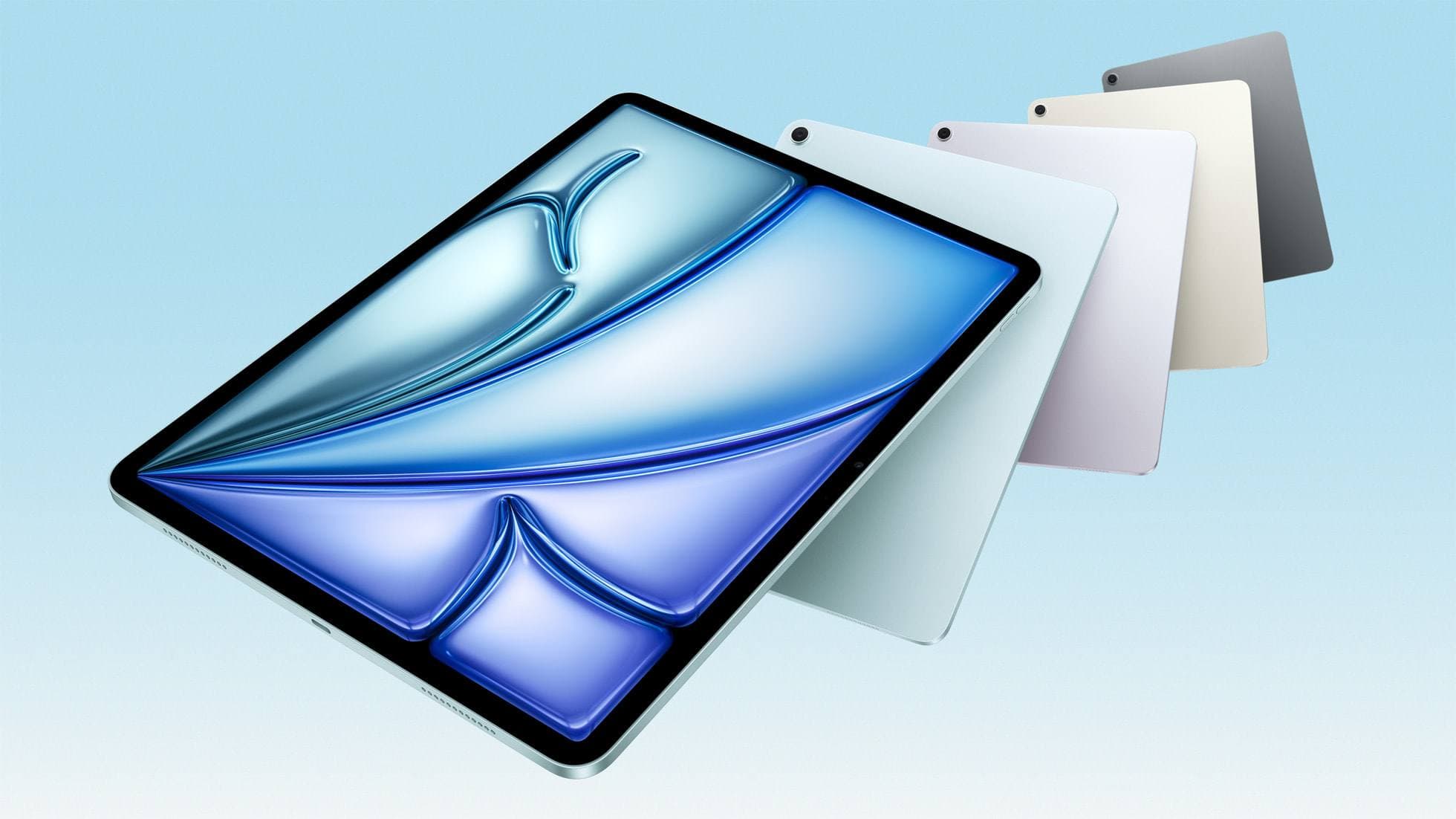
iPad Air (M4)
apple.comThe clean current Air recommendation for most serious hobby artists. Stronger buy logic than old-stock M3 when pricing is close.
Pro: Best current balance of price, headroom, and Pencil support
Con: Still 60Hz
Current Air lineup. Choose size, storage, and keyboard path before checkout.
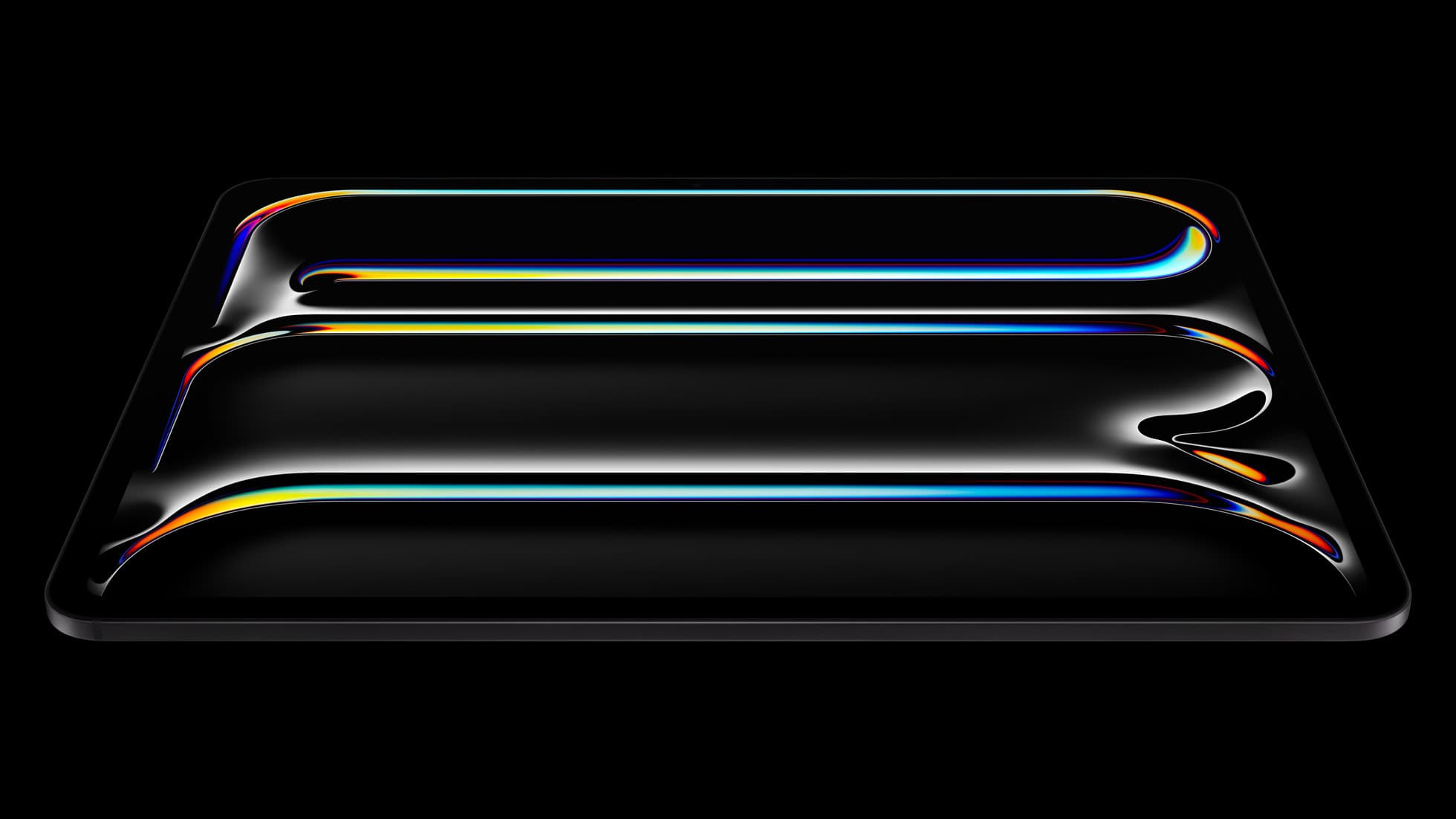
iPad Pro (M5)
amazon.comThe best iPad for drawing feel and premium workflow comfort, but many buyers still overpay for it.
Pro: Best iPad display and ProMotion feel
Con: Highest price in the lineup
Search opens with iPad Pro terms. Check year, chip, and screen size.
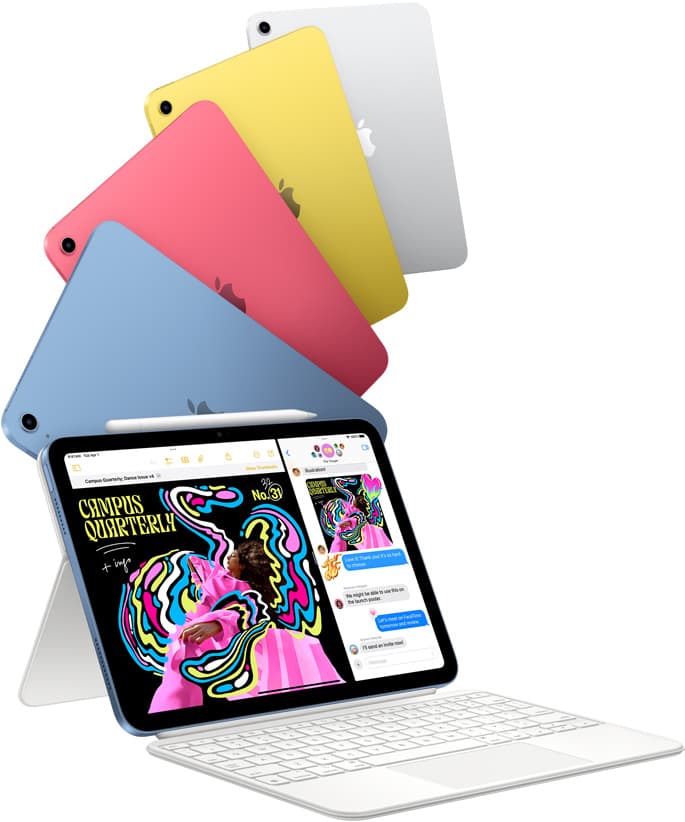
iPad (A16, 11th gen)
amazon.comThe best entry iPad for most artists on a budget. It is not premium, but it is very hard to beat on value.
Pro: Best value iPad right now
Con: No ProMotion display
Search opens with the exact model keywords. Verify size and storage before checkout.
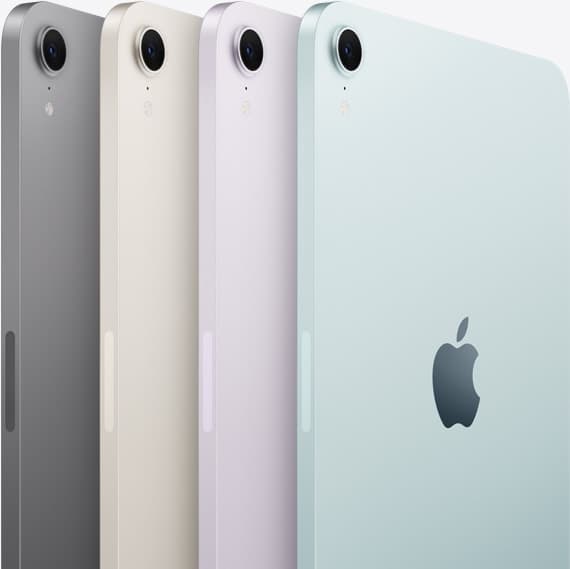
iPad mini (A17 Pro)
amazon.comThe most portable real iPad for drawing. It wins on mobility and loses on workspace.
Pro: Most portable drawing iPad
Con: Small canvas for detailed work
Search opens with iPad mini A17 Pro terms. Verify model number before buying.
Related buying picks
More in this collectionComparison
iPad vs Samsung tablet for drawing: which setup to choose
Choose an iPad if your art workflow relies on Procreate and Apple Pencil tools, and pick the iPad Air for the best balance of features.
Buyer guide
The best iPad for urban sketching and field drawing
Choose between the ultra-portable iPad mini and the sketchbook-sized iPad Air for drawing on the go.
Buyer guide
How to choose the best iPad for illustration work
Find the best iPad for your illustration workflow based on Apple Pencil Pro compatibility, screen size, Procreate layer limits, and display feel.
Buyer guide
What's the best iPad for artists?
iPad Air with the M4 chip hits the best balance of stylus features and price for most digital artists.