If you're buying a tablet for sketching boards, buy the iPad Air (M4) [1]. It supports Apple Pencil Pro features like barrel roll and squeeze while avoiding the premium cost of the Pro line [1], [2]. If you want Apple's ProMotion display, choose the iPad Pro (M5) instead [1]. Artists with strict budgets should buy the base iPad (A16, 11th gen), but anyone who needs Apple Pencil Pro tools should skip it [1], [3]. Skip the iPad mini (A17 Pro) for primary board work because its smaller screen cramps wide cinematic frames [1].
Matching canvas area to storyboard aspect ratios
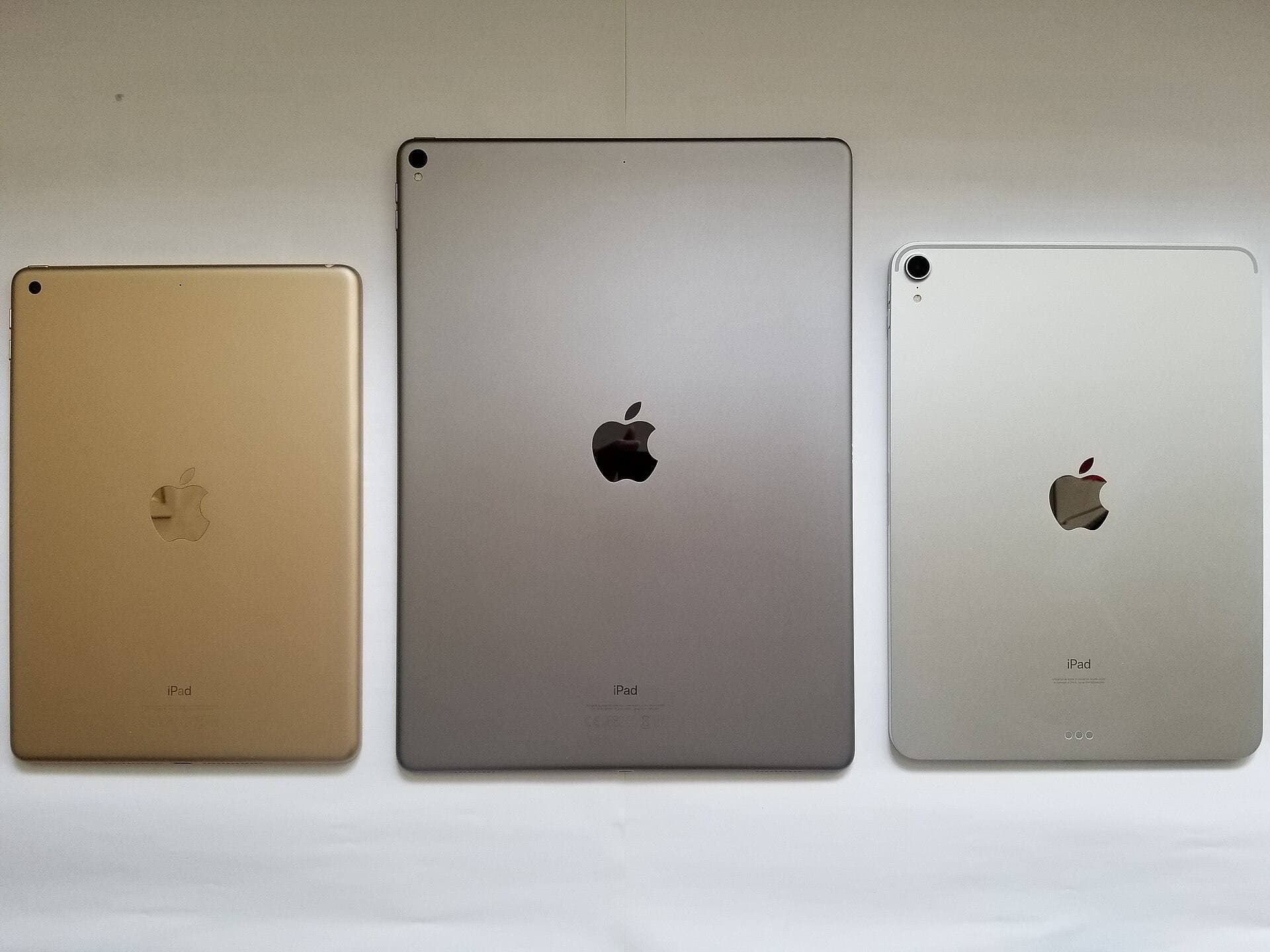
Storyboards rely heavily on horizontal staging, ranging from standard 16:9 widescreen frames to wider anamorphic compositions. The iPad lineup spans multiple physical screen sizes, including 8.3 inches on iPad mini, 10.9 or 11 inches on standard and midsize models, and 13 inches on the larger iPad Air and iPad Pro options [1]. A 13-inch display gives you more active workspace when you draw wide frames alongside action notes, dialogue scripts, and thumbnail sequences [1].
If you work with multi-panel pages or stacked animatic frames, screen area directly changes how often you zoom in and out. The base iPad (A16, 11th gen) and 11-inch iPad Air provide enough screen space for quick sketching on location or during production meetings [1]. However, boarding long sequences on an 8.3-inch display like the iPad mini (A17 Pro) leaves very little room for script margins and tool palettes [1]. That makes the iPad mini best as an ultra-portable rough sketching notepad rather than your main board production hub [1].
Display technology also separates these screens. The iPad Pro (M5) uses Apple's Ultra Retina XDR tandem OLED display and includes ProMotion technology with adaptive refresh rates up to 120Hz [1]. In contrast, the iPad Air (M4) and iPad (A16) feature Liquid Retina displays that refresh at standard 60Hz [1]. If smooth line tracking during fast drafting strokes is your absolute top priority, the ProMotion panel on the iPad Pro is the only option that delivers 120Hz [1].
Apple Pencil features that matter for storyboarding
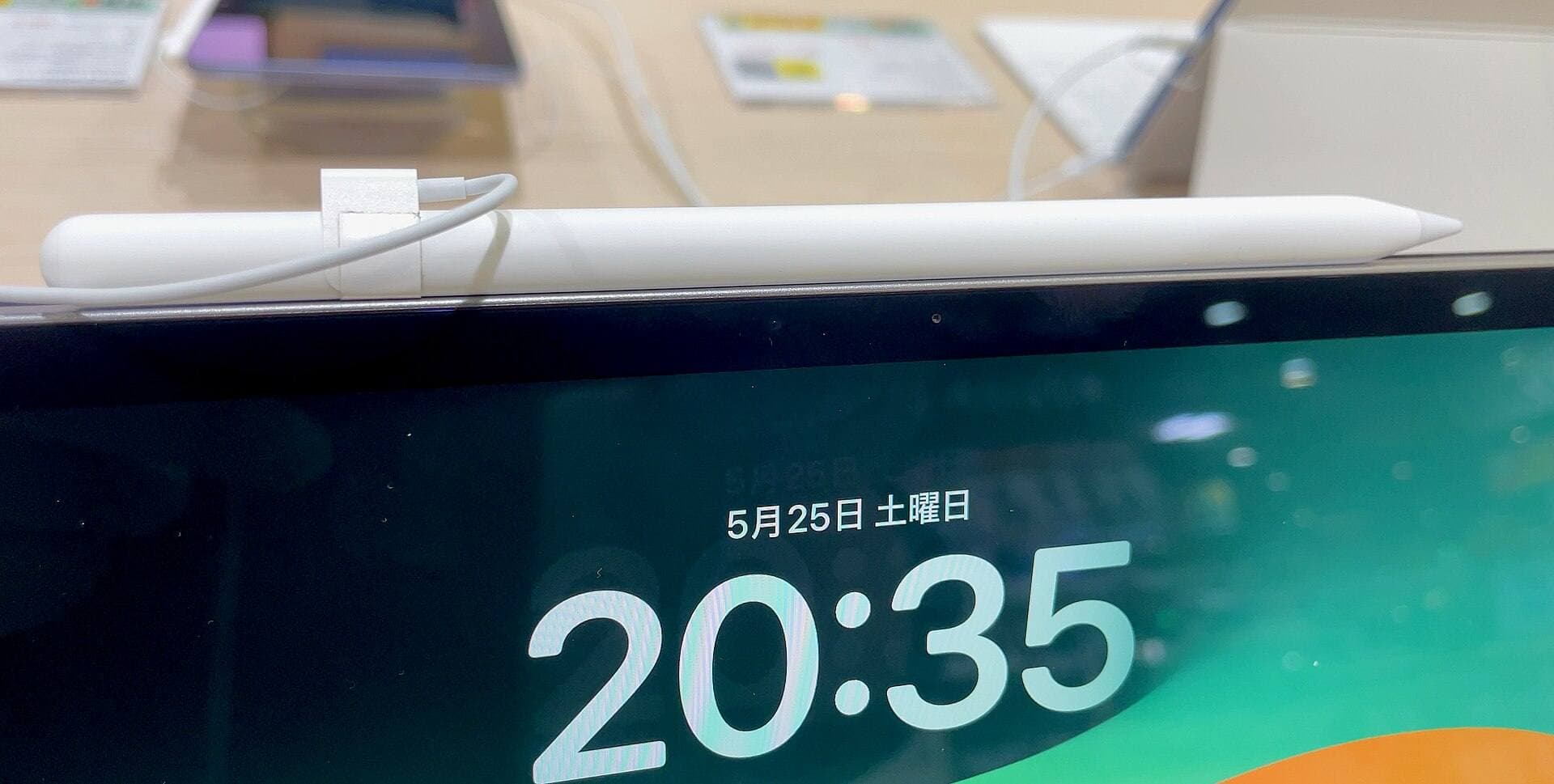
A storyboard artist lives by rapid linework, quick gesture sketching, and precise tone blocking. Apple offers multiple stylus choices, but hardware compatibility divides them sharply across the tablet catalog [2], [3]. The iPad Air (M4), iPad Pro (M5), and iPad mini (A17 Pro) support Apple Pencil Pro [3]. The base iPad (A16) does not work with Apple Pencil Pro, pairing instead with Apple Pencil (USB-C) or Apple Pencil (1st generation) [3].
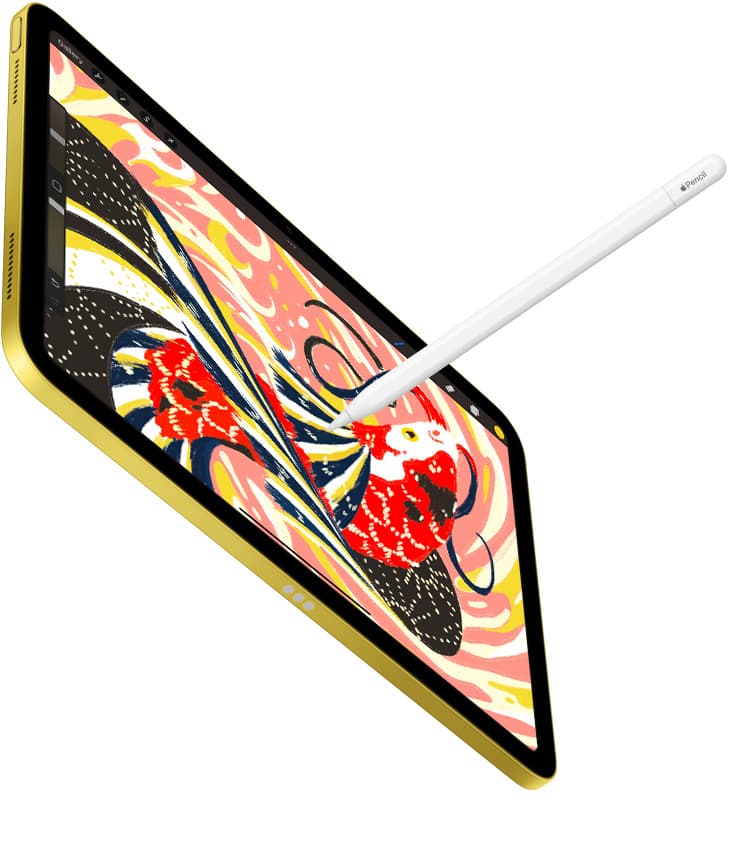
The Apple Pencil Pro introduces specific input tools that speed up standard sketching workflows [2]. It includes a squeeze gesture that opens tool palettes without reaching for screen menus, and haptic feedback that confirms selections directly under your fingers [2]. It also features barrel roll, which uses an internal gyroscope so you can rotate shaped chisel tips, calligraphic pens, or directional brush marks simply by rolling the stylus barrel [2].
Hover support is another core distinction across the lineup [2]. Both the iPad Pro (M5) and iPad Air (M4) support Apple Pencil hover, letting you preview brush size, cursor position, and color opacity before your stylus touches the glass [1], [2]. While Apple Pencil (USB-C) offers hover on supported M-series and A-series models, it lacks pressure sensitivity entirely [2]. If you rely on varying line weight to indicate depth, foreground separation, or character weight in storyboard panels, you should skip the Apple Pencil (USB-C) and choose an Apple Pencil model with pressure sensitivity [2].
Memory, layers, and multi-panel project files
Storyboarding in raster drawing apps requires careful attention to document limits. In Procreate, maximum layer counts depend directly on your canvas dimensions and the total available system memory on your iPad [4], [5]. When you set up multi-panel boards, sequential animatic frames, or high-resolution delivery files, each additional layer consumes allocated RAM [4].
Apple fits the iPad Air (M4) and iPad Pro (M5) with higher memory capacities than baseline iPads, giving drawing applications larger memory pools [1], [4]. The iPad Pro (M5) offers storage tiers reaching up to 1TB or 2TB, which Apple equips with 16GB of unified memory, while lower capacities come with 8GB [1]. The iPad Air (M4) comes with 8GB of unified memory across its storage configurations [1]. This extra memory directly expands your layer caps in Procreate compared to entry-level devices with less system RAM [1], [4].
If your workflow involves building entire scenes in a single canvas using Procreate's Animation Assist feature, hitting a strict layer ceiling forces you to merge sketches early or split projects into separate files [4], [5]. Choosing an iPad with more RAM ensures higher layer headroom on large canvases [4]. For artists who simply draw clean line frames one panel at a time and export them to dedicated editing software, standard layer allocations on the base iPad (A16) will handle basic frame requirements [1], [4].
Choosing between iPad Air, iPad Pro, and base iPad
The iPad Air (M4) is the best overall choice for most storyboard artists [1]. It pairs with Apple Pencil Pro, supports Apple Pencil hover, and runs on Apple's desktop-class M4 processor with 8GB of memory [1], [2]. You can buy it in either an 11-inch or 13-inch display size [1]. The 13-inch Air provides the expansive canvas needed for full-page storyboard grids without requiring you to pay Pro-tier prices [1]. You should skip the iPad Air only if you demand a 120Hz ProMotion screen or high-end tandem OLED contrast [1].
The iPad Pro (M5) is the right purchase if you want the highest hardware specifications Apple offers [1]. It delivers ProMotion, an Ultra Retina XDR display, Apple Pencil Pro support, and optional 16GB memory on 1TB and 2TB models [1], [2]. If you spend all day drawing detailed animatics and desire the visual fluidity of a 120Hz refresh rate, buy the iPad Pro [1]. However, if your boards are primarily rough gestures, structural line art, and basic tonal thumbnails, the Pro's extra cost is unnecessary [1].
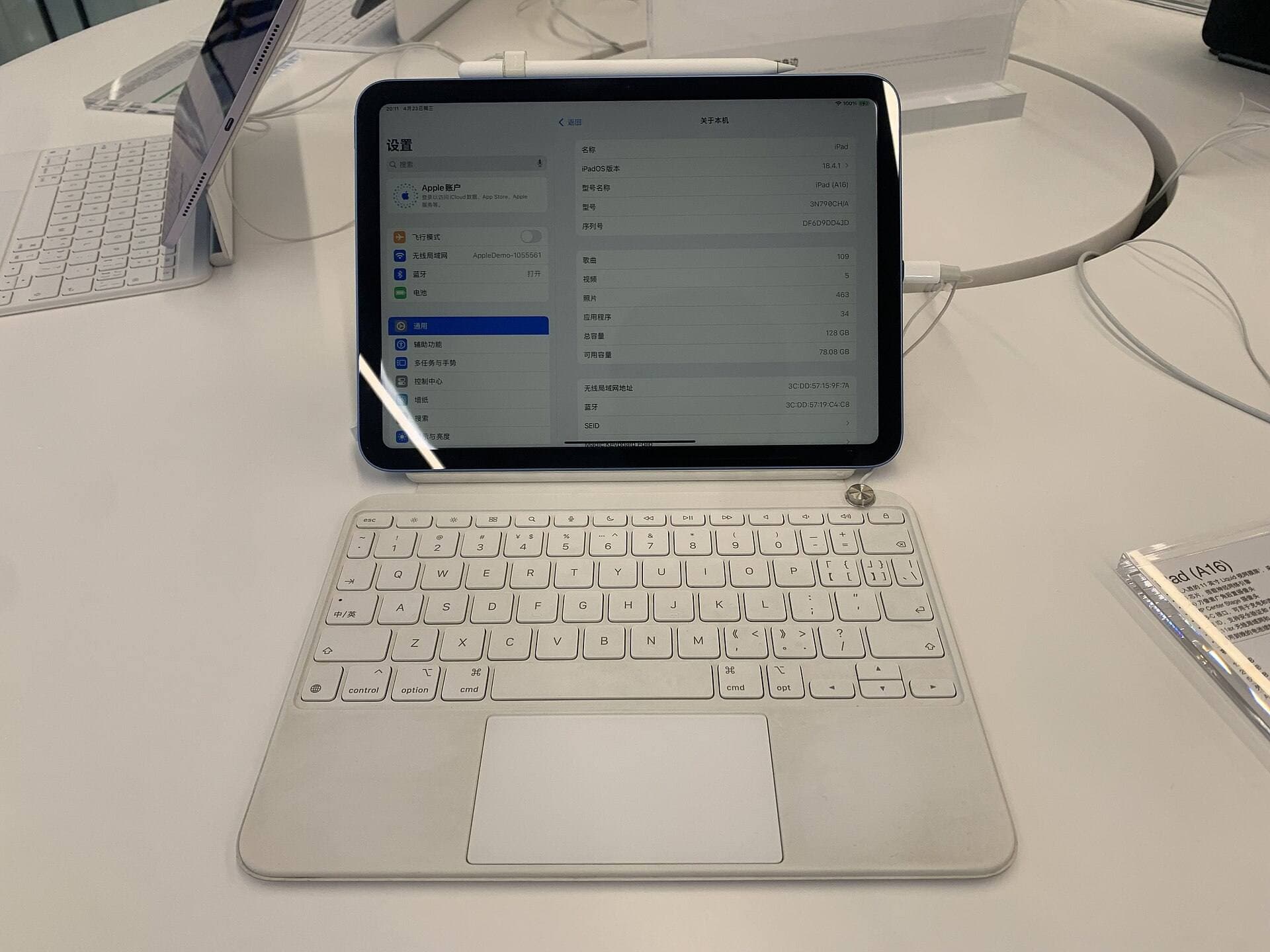
The iPad (A16, 11th gen) is the budget pick for students or artists starting out [1]. It handles basic sketching and runs standard digital art applications smoothly [1], [5]. But you should skip the base iPad if you want Apple Pencil Pro features like barrel roll, squeeze, and haptic feedback, because the A16 model only supports Apple Pencil (USB-C) and Apple Pencil (1st generation) [2], [3].
The iPad mini (A17 Pro) fills a specific niche for artists who travel frequently [1]. It supports Apple Pencil Pro and Apple Pencil hover in an ultra-compact body [1], [2], [3]. Buy the mini if you need a digital sketchbook for fast location scouting or thumbnailing on public transit [1]. Skip it if you need to review wide 16:9 boards alongside dialogue scripts, as the 8.3-inch screen feels cramped for multi-panel workflows [1].
Bottom line
For storyboard work, balance screen area and Apple Pencil capabilities against your budget. Buy the iPad Air (M4) in the 13-inch size for the strongest combination of display room, memory headroom, and Apple Pencil Pro support [1], [2], [4]. Choose the iPad Pro (M5) if you require a 120Hz ProMotion display and tandem OLED visuals [1]. Buy the base iPad (A16) only if staying within a tight budget is your primary goal [1]. Skip the iPad mini (A17 Pro) unless ultra-compact portability matters more than canvas room [1].
Sources
[1] https://www.apple.com/ipad/compare/ [2] https://www.apple.com/apple-pencil/ [3] https://support.apple.com/en-us/108937 [4] https://help.procreate.com/articles/zlexav-ipad-compatibility [5] https://apps.apple.com/us/app/procreate/id425073498
Recommended gear
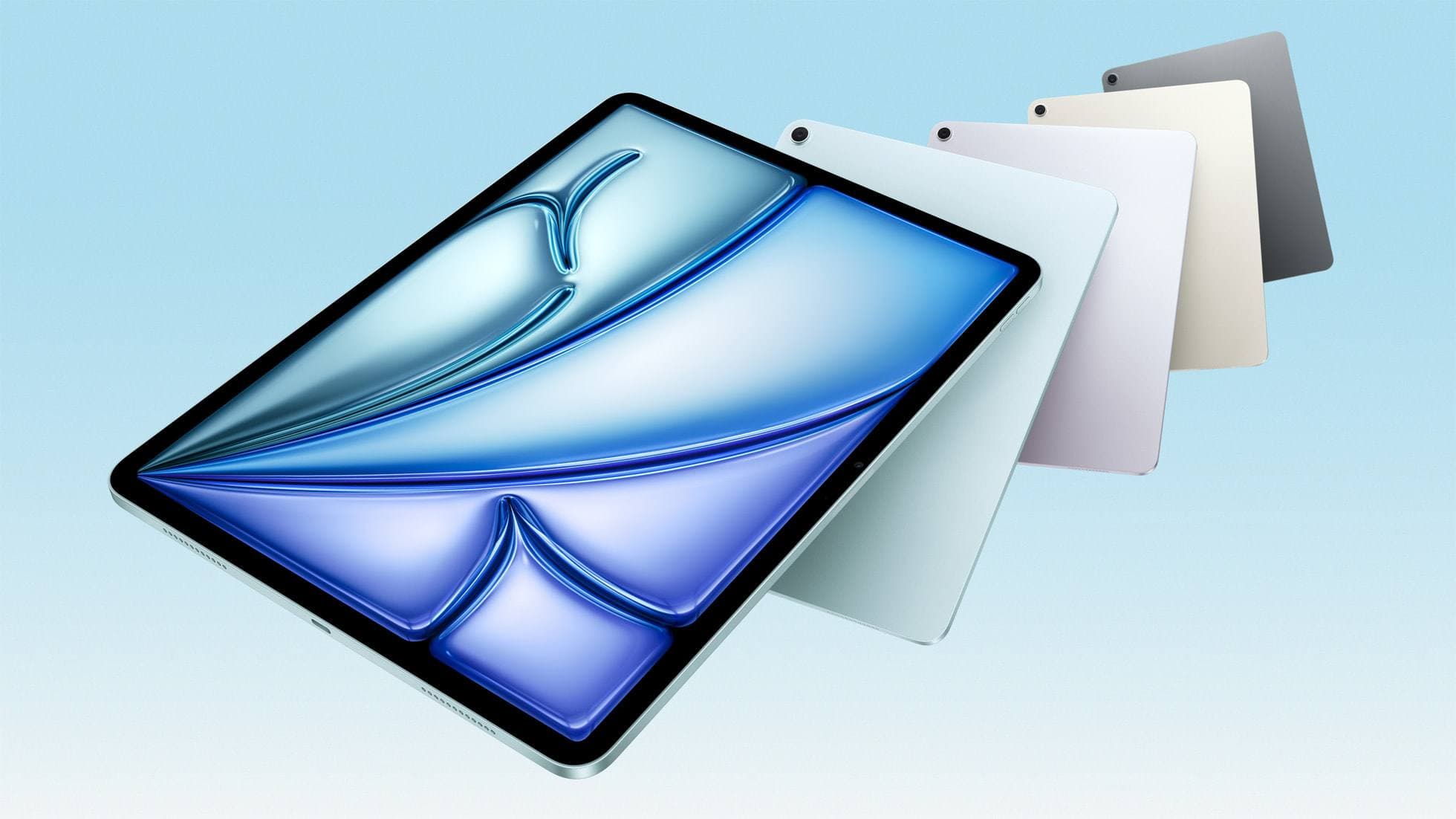
iPad Air (M4)
apple.comThe clean current Air recommendation for most serious hobby artists. Stronger buy logic than old-stock M3 when pricing is close.
Pro: Best current balance of price, headroom, and Pencil support
Con: Still 60Hz
Current Air lineup. Choose size, storage, and keyboard path before checkout.
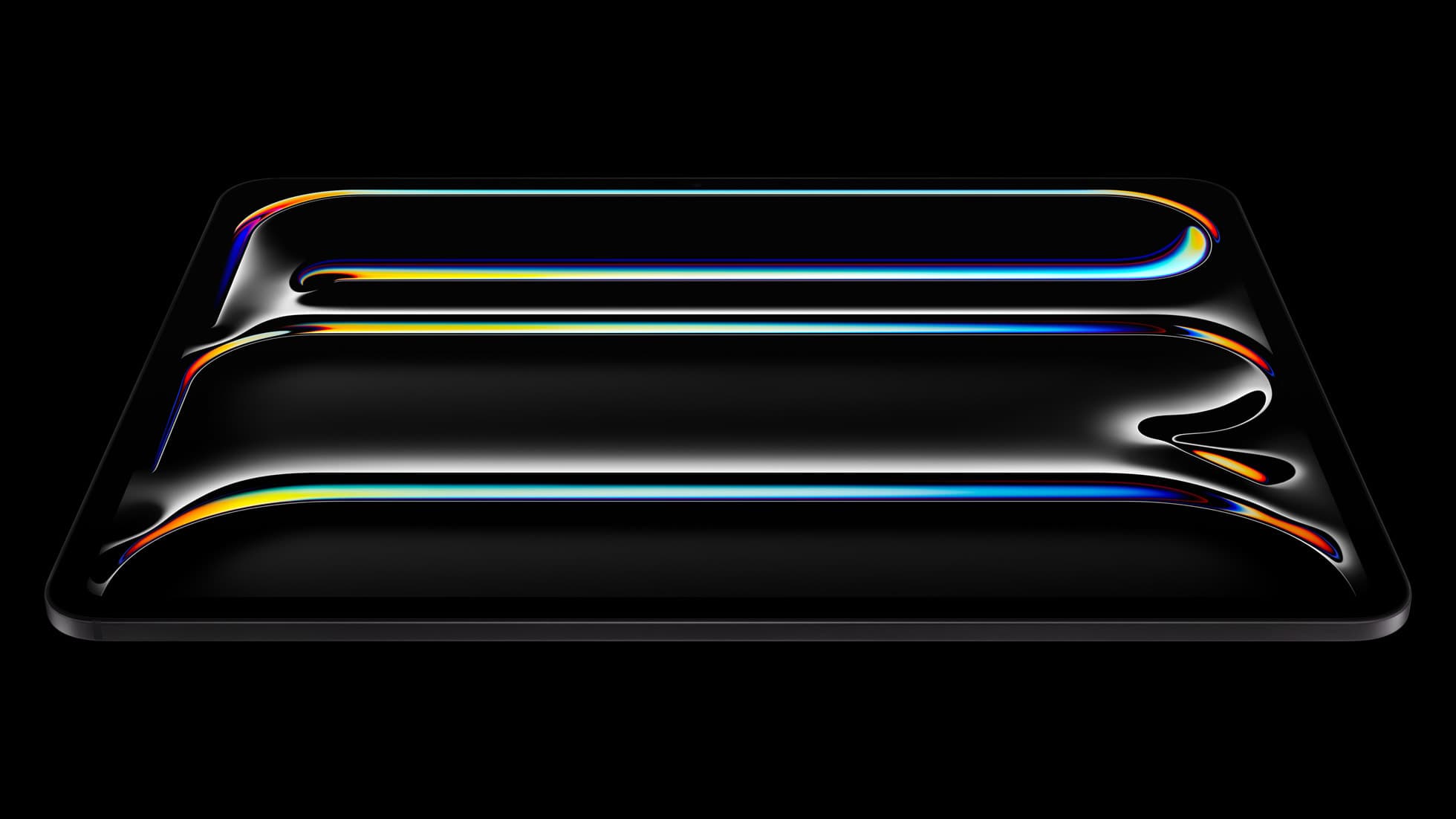
iPad Pro (M5)
amazon.comThe best iPad for drawing feel and premium workflow comfort, but many buyers still overpay for it.
Pro: Best iPad display and ProMotion feel
Con: Highest price in the lineup
Search opens with iPad Pro terms. Check year, chip, and screen size.
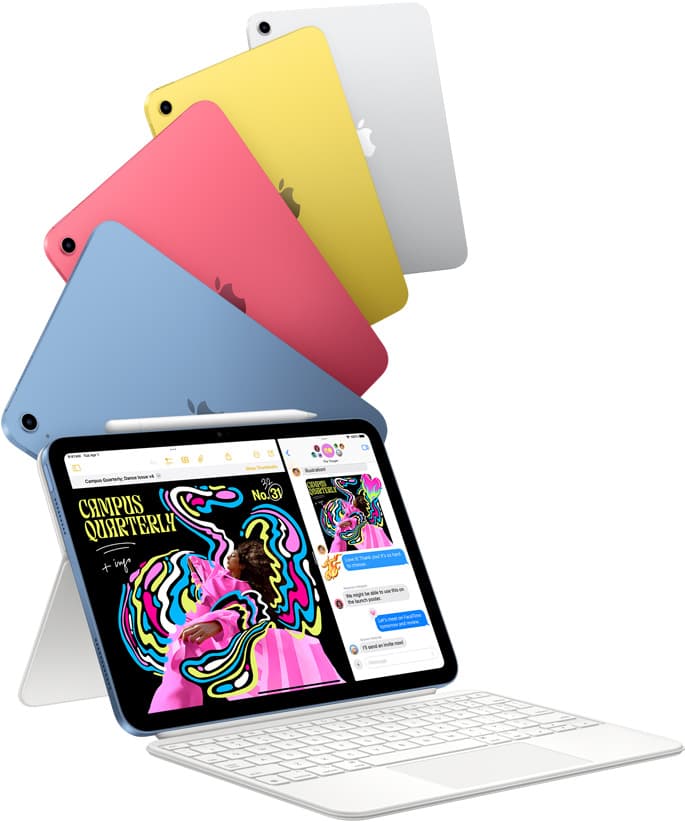
iPad (A16, 11th gen)
amazon.comThe best entry iPad for most artists on a budget. It is not premium, but it is very hard to beat on value.
Pro: Best value iPad right now
Con: No ProMotion display
Search opens with the exact model keywords. Verify size and storage before checkout.
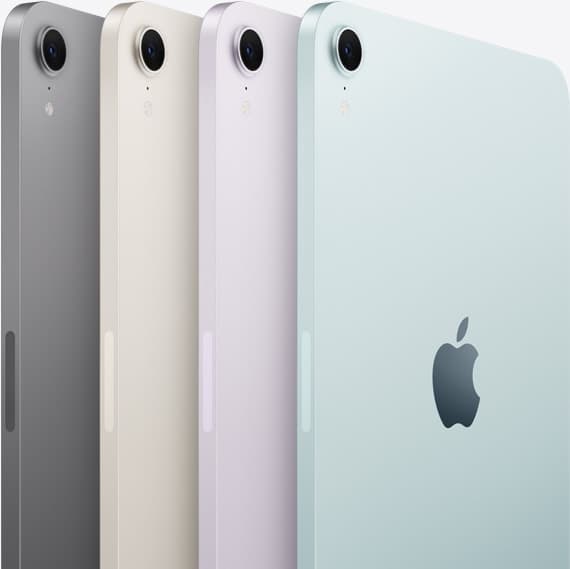
iPad mini (A17 Pro)
amazon.comThe most portable real iPad for drawing. It wins on mobility and loses on workspace.
Pro: Most portable drawing iPad
Con: Small canvas for detailed work
Search opens with iPad mini A17 Pro terms. Verify model number before buying.
Related buying picks
More in this collectionBuyer guide
Is iPad 10th gen good for Procreate?
The iPad 10th gen handles Procreate well for everyday digital art, but stylus pairing limits and base hardware shape how far you can push large files.
Buyer guide
Best iPad for medical illustration
Choose the right iPad and Apple Pencil setup for medical illustration based on stylus precision, canvas size, and layer limits.
Comparison
iPad vs Samsung tablet for drawing: which setup to choose
Choose an iPad if your art workflow relies on Procreate and Apple Pencil tools, and pick the iPad Air for the best balance of features.
Buyer guide
The best iPad for urban sketching and field drawing
Choose between the ultra-portable iPad mini and the sketchbook-sized iPad Air for drawing on the go.