
Quick verdict: which iPad fits medical illustration
Buy the iPad Air (M4) if you want the best balance of Apple Pencil Pro support, processing headroom, and value for detailed anatomical work [1], [3]. Skip the standard iPad (A16) if you need pressure sensitivity or advanced pencil gestures, because it relies on styluses that omit pressure sensitivity or advanced tool switching [2], [3]. Choose the iPad Pro (M5) only if you need a ProMotion display and the largest available digital canvas for dense biological structures [1]. For most medical illustrators and healthcare visualizers, the iPad Air (M4) delivers the core toolset required without forcing you into Pro pricing [1].
Why Apple Pencil Pro tools matter for anatomical drawing
Medical illustration requires exact rendering of tissues, vessels, and complex anatomical structures. Apple outlines specific toolsets across its stylus lineup, differentiating models by pressure sensitivity, tilt, barrel roll, squeeze, and haptic feedback [2]. The Apple Pencil Pro includes squeeze gestures for switching tool palettes, barrel roll for rotating shaped brushes, and haptic feedback to confirm tool selections [2]. It also supports Apple Pencil hover, allowing you to preview brush marks before touching the screen surface [2].
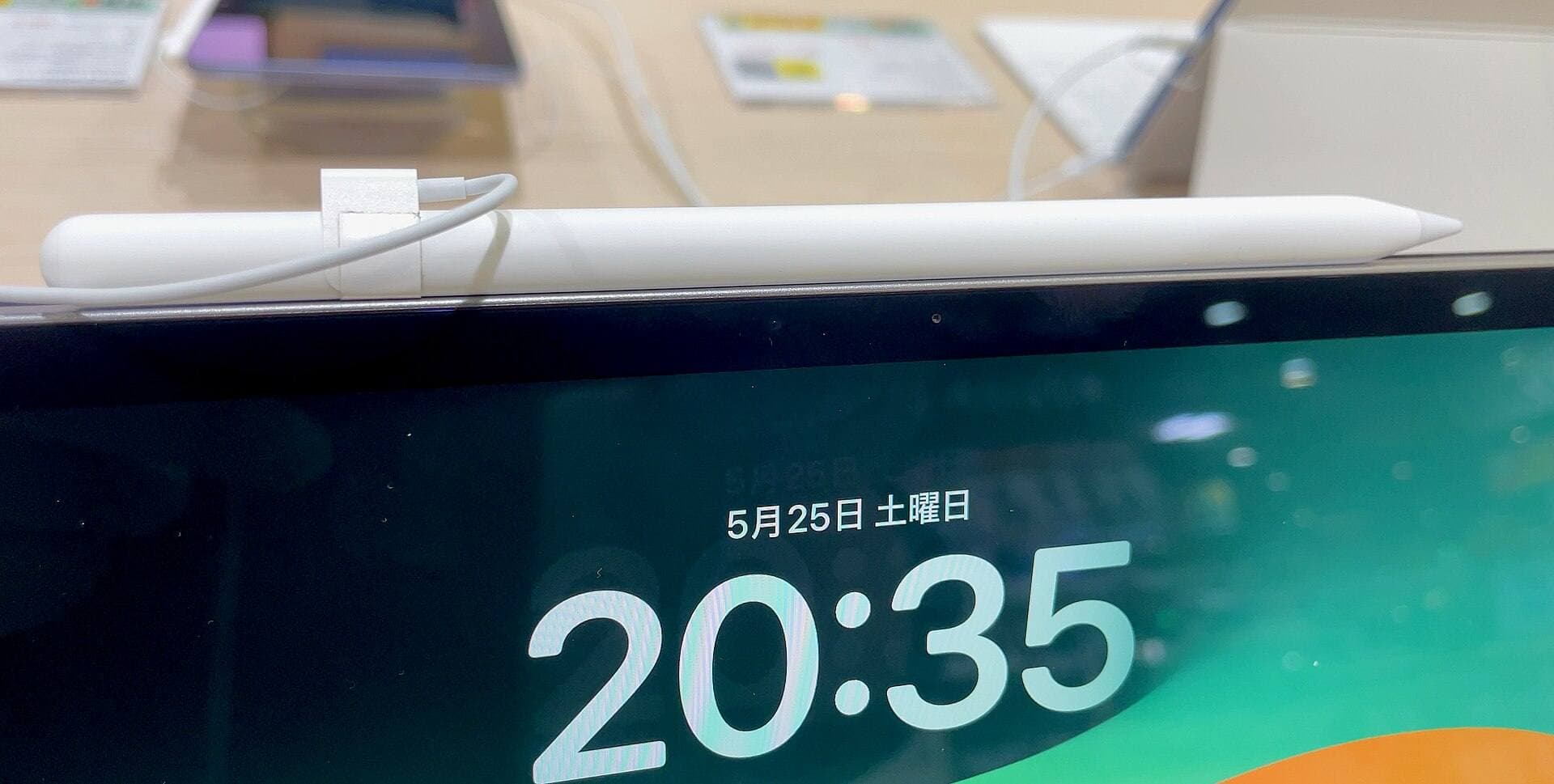
In contrast, basic styluses such as the Apple Pencil (USB-C) offer tilt detection and hover on select iPads, but they do not feature pressure sensitivity, squeeze, barrel roll, or magnetic pairing [2]. For rendering smooth gradients in muscular cross-sections or controlling tapering linework on cellular diagrams, pressure sensitivity remains a foundational capability [2]. If you choose an iPad that only supports the USB-C pencil, you lose built-in pressure modulation [2], [3]. The iPad Air (M4) and iPad Pro (M5) pair directly with the Apple Pencil Pro, giving illustrators access to the complete set of Apple drawing inputs [1], [3].
Canvas size, layer limits, and memory in medical workflows
Medical illustration projects are rarely simple single-layer sketches. They frequently incorporate background reference plates, structural outlines, flat tone passes, vascular overlays, and annotations. Drawing applications like Procreate tie their maximum layer counts directly to available device memory and the pixel dimensions of your canvas [4]. As documented by Procreate, working at higher print-ready resolutions on devices with less system memory reduces the number of usable layers [4].
Because anatomical projects often require separate layers for skeletal, muscular, and lymphatic systems, memory capacity directly limits your file structure [4]. When you build a large print canvas, an iPad with greater hardware memory allows more simultaneous layers before hitting the application ceiling [4]. The Apple comparison catalog shows that storage tiers and hardware chips differ across the lineup, with the M-series iPads providing the highest processing and memory specifications [1]. Verifying your canvas resolution and target print dimension before starting ensures you don't run into hard layer limits in the middle of a rendering pass [4], [5].
Display differences and screen space for reference materials
Working on medical subjects typically involves displaying photographic references, histology slides, or radiographic scans next to your active illustration. The iPad Pro (M5) features Apple's ProMotion display technology and offers the premium screen tier in the catalog [1]. ProMotion provides an adaptive refresh rate up to 120Hz, whereas the iPad Air (M4) remains a 60Hz display [1]. Illustrators who prioritize the fluid feel of active screen refreshes will notice the difference during rapid pen movements across wide screens [1].
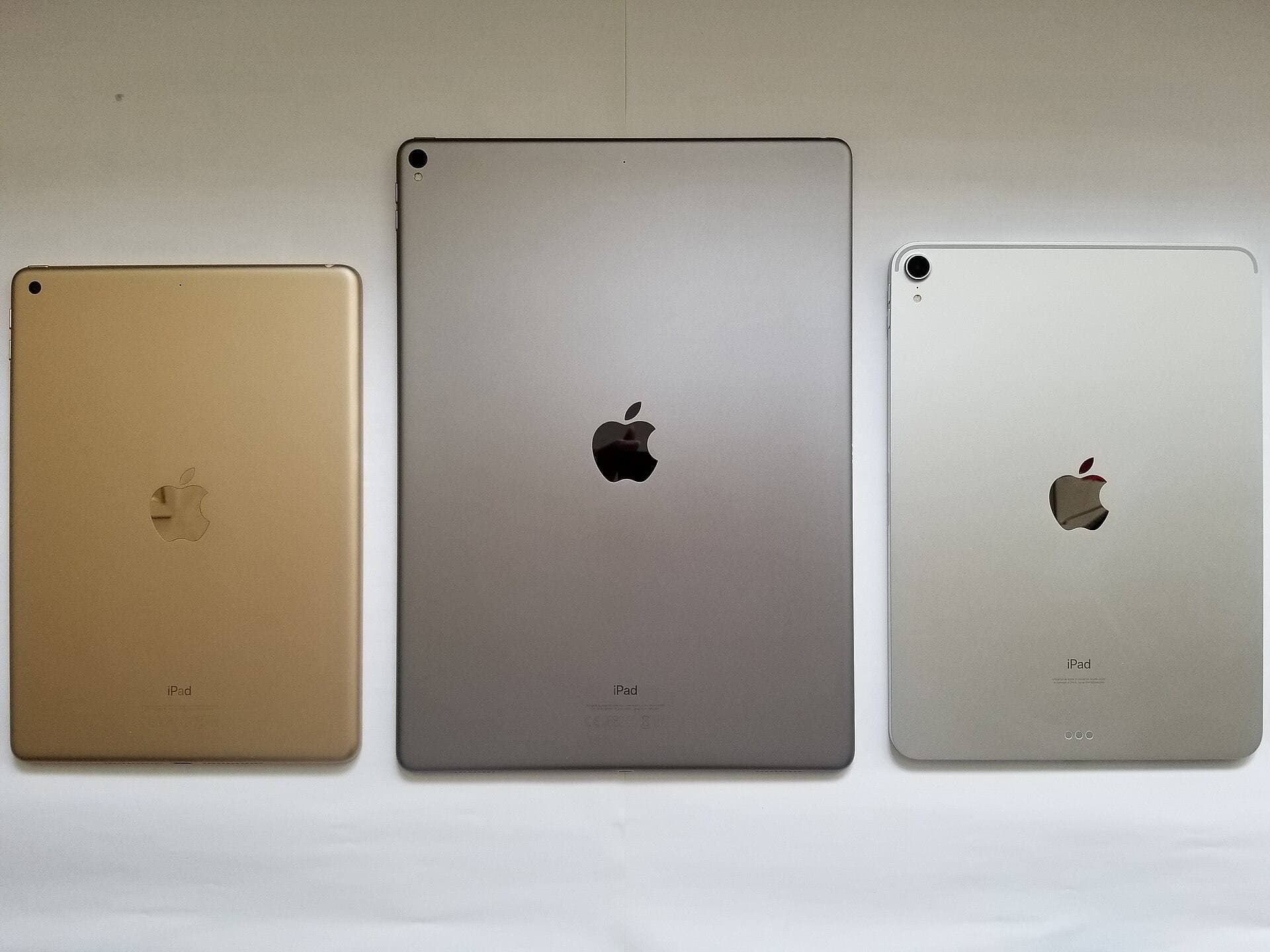
Screen dimension also dictates how much workspace remains when using multitasking views. Apple's hardware specifications highlight multiple display sizes across the product family, ranging from the compact 8.3-inch iPad mini up to 13-inch displays on the Air and Pro lines [1]. If you frequently split your workspace between an anatomical reference atlas and an active drawing canvas in Procreate [5], a larger 11-inch or 13-inch screen preserves workable canvas dimensions [1]. On an 8.3-inch display, splitting the workspace leaves a very restricted area for detailed pen strokes [1].
Comparing the iPad Air, iPad Pro, and entry models
The iPad Air (M4) stands as the primary recommendation for scientific visualizers who want modern stylus capabilities without paying premium hardware sums [1]. It supports the Apple Pencil Pro, including hover and squeeze functionality, while delivering M4 processing power [1], [2], [3]. The primary compromise is its standard 60Hz refresh rate rather than ProMotion [1].
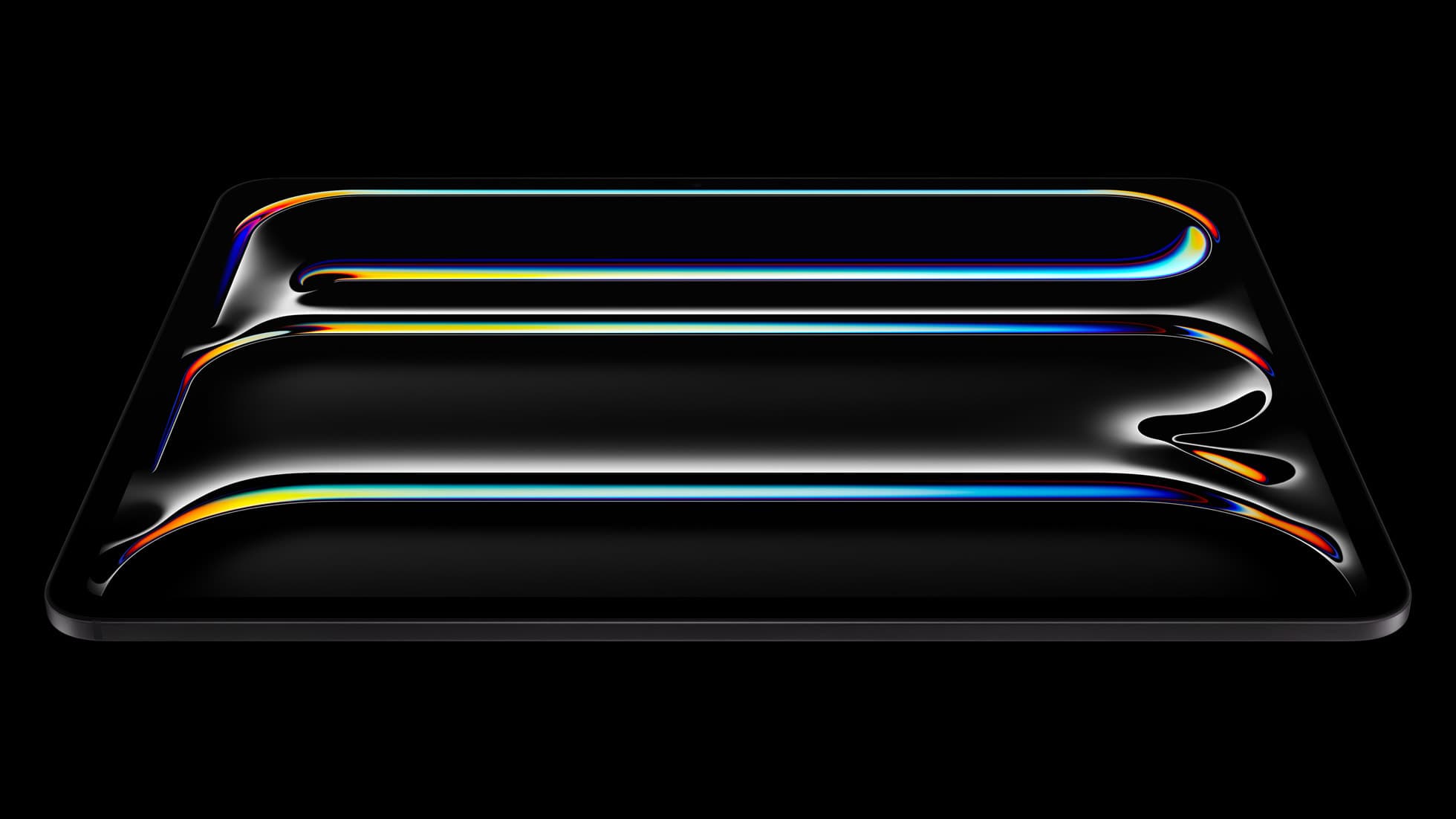
The iPad Pro (M5) sits at the top of Apple's tablet hierarchy [1]. It includes the ProMotion display alongside Apple Pencil Pro compatibility, making it the top option if you want the most responsive visual feedback and top-tier display hardware [1], [2], [3]. However, it comes with the highest entry cost in the tablet catalog [1].
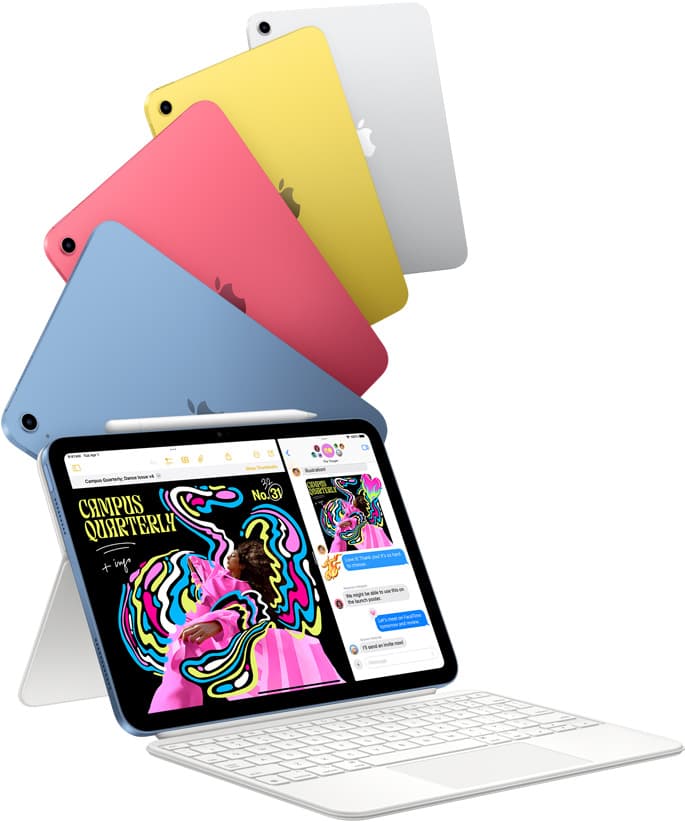
The iPad (A16, 11th gen) provides an affordable entry point to the tablet lineup, but it carries distinct limitations for technical art [1]. It pairs with the Apple Pencil (USB-C) or earlier generation styluses depending on model generation, lacking the Apple Pencil Pro feature set entirely [2], [3]. Without pressure sensitivity on the USB-C model, creating variable-width line work and subtle anatomical shading requires manual brush adjustments [2].
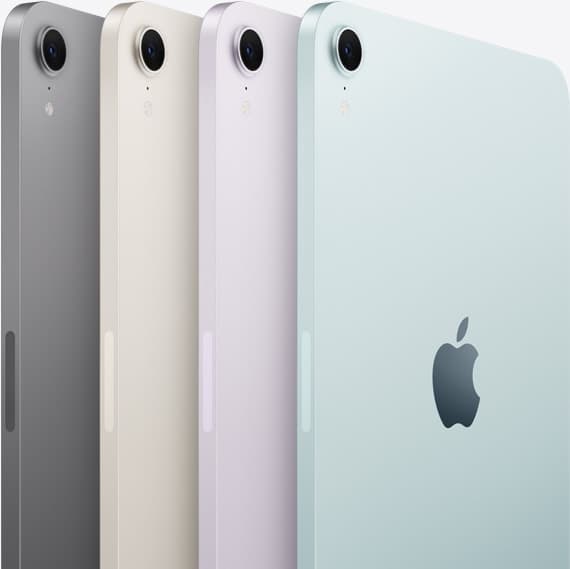
The iPad mini (A17 Pro) offers extreme portability and supports the Apple Pencil Pro, including squeeze, barrel roll, and hover [1], [2], [3]. While it delivers modern stylus inputs, its small 8.3-inch canvas constrains detailed line work and multi-panel medical plates [1].
Who should buy each model and who should skip
Buy the iPad Air (M4) if you need a dependable digital workstation with Apple Pencil Pro features, solid memory headroom, and a standard display [1], [2], [3]. It is the sensible pick for students, clinical illustrators, and researchers who need full drawing versatility without luxury display features [1]. Skip the iPad Air if your workflow specifically demands the smoother 120Hz refresh rate of a ProMotion screen [1].
Buy the iPad Pro (M5) if you produce daily commercial publications, require the highest display specifications Apple produces, and value ProMotion screen feedback [1]. Skip the iPad Pro if you are balancing a strict budget, as the iPad Air covers the same Apple Pencil Pro drawing tools on identical canvas dimensions [1], [2], [3].
Buy the iPad mini (A17 Pro) if you need a secondary sketchpad to carry through clinical rounds, surgical suites, or mobile conferences [1], [3]. Skip the iPad mini if it will be your sole drawing tablet, because the compact screen limits your ability to view complex anatomical references alongside active artwork [1].
Skip the iPad (A16) for serious medical illustration unless budget constraints prevent any other choice [1]. The lack of Apple Pencil Pro support and absence of pressure sensitivity on the Apple Pencil (USB-C) make technical rendering and tonal modeling far more cumbersome [2], [3].
Bottom line
For medical illustration, the iPad Air (M4) represents the most sensible balance of price, processing capability, and Apple Pencil Pro compatibility [1], [3]. It gives you essential stylus functions like pressure sensitivity, barrel roll, and squeeze without forcing you to buy the premium iPad Pro (M5) [1], [2]. If you spend long studio hours on print-resolution projects and want a ProMotion screen, step up to the iPad Pro (M5) [1]. Otherwise, pair the iPad Air (M4) with an Apple Pencil Pro to get the precise control your anatomical illustrations require [1], [2], [3].
Sources
[1] https://www.apple.com/ipad/compare/ [2] https://www.apple.com/apple-pencil/ [3] https://support.apple.com/en-us/108937 [4] https://help.procreate.com/articles/zlexav-ipad-compatibility [5] https://apps.apple.com/us/app/procreate/id425073498
Recommended gear
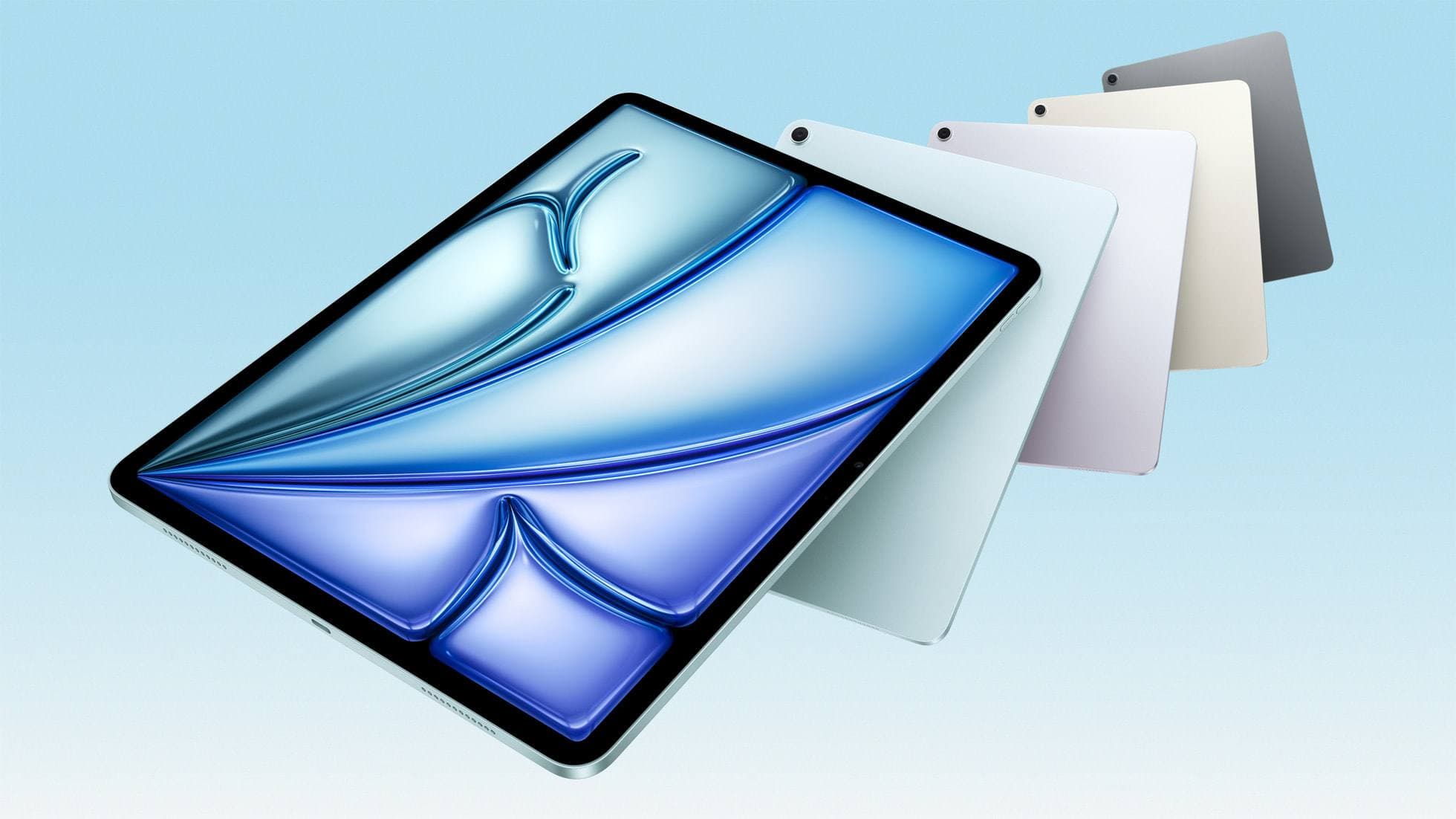
iPad Air (M4)
apple.comThe clean current Air recommendation for most serious hobby artists. Stronger buy logic than old-stock M3 when pricing is close.
Pro: Best current balance of price, headroom, and Pencil support
Con: Still 60Hz
Current Air lineup. Choose size, storage, and keyboard path before checkout.
iPad Pro (M5)
amazon.comThe best iPad for drawing feel and premium workflow comfort, but many buyers still overpay for it.
Pro: Best iPad display and ProMotion feel
Con: Highest price in the lineup
Search opens with iPad Pro terms. Check year, chip, and screen size.
iPad (A16, 11th gen)
amazon.comThe best entry iPad for most artists on a budget. It is not premium, but it is very hard to beat on value.
Pro: Best value iPad right now
Con: No ProMotion display
Search opens with the exact model keywords. Verify size and storage before checkout.
iPad mini (A17 Pro)
amazon.comThe most portable real iPad for drawing. It wins on mobility and loses on workspace.
Pro: Most portable drawing iPad
Con: Small canvas for detailed work
Search opens with iPad mini A17 Pro terms. Verify model number before buying.
Related buying picks
More in this collectionBuyer guide
Is iPad 10th gen good for Procreate?
The iPad 10th gen handles Procreate well for everyday digital art, but stylus pairing limits and base hardware shape how far you can push large files.
Buyer guide
Best iPad for storyboard artists: our buyer guide
Choose the right iPad for storyboarding based on screen size, Apple Pencil Pro features, and canvas layer limits.
Comparison
iPad vs Samsung tablet for drawing: which setup to choose
Choose an iPad if your art workflow relies on Procreate and Apple Pencil tools, and pick the iPad Air for the best balance of features.
Buyer guide
The best iPad for urban sketching and field drawing
Choose between the ultra-portable iPad mini and the sketchbook-sized iPad Air for drawing on the go.