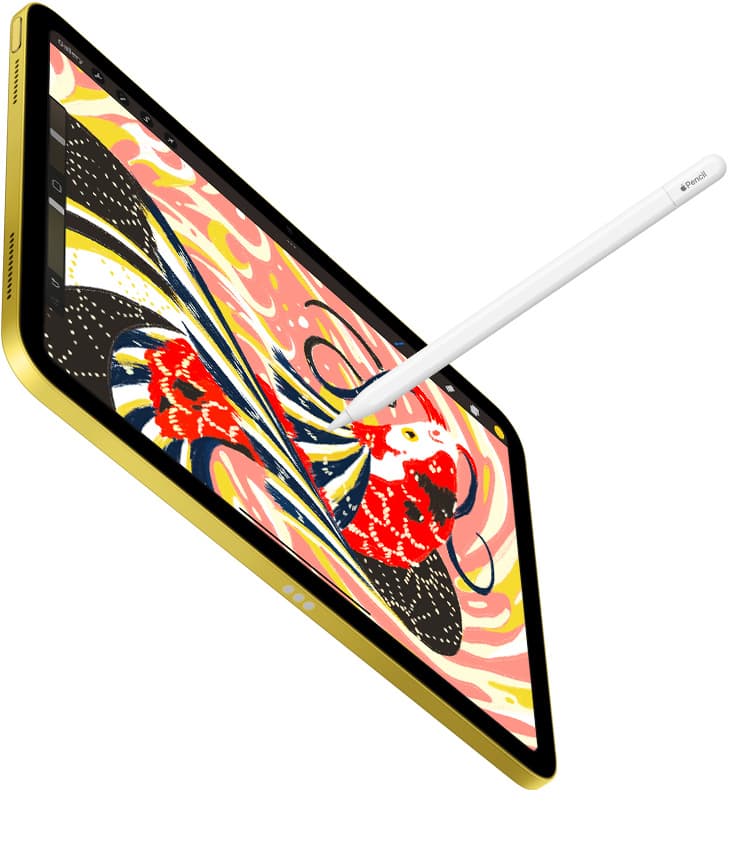
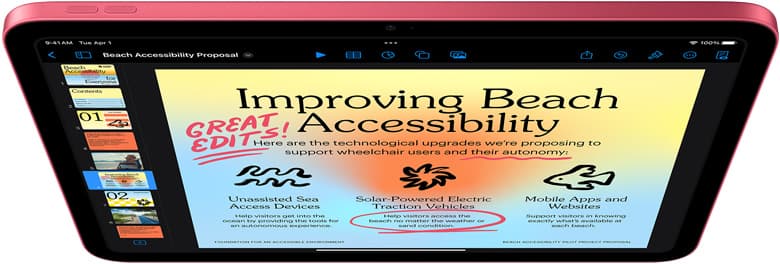
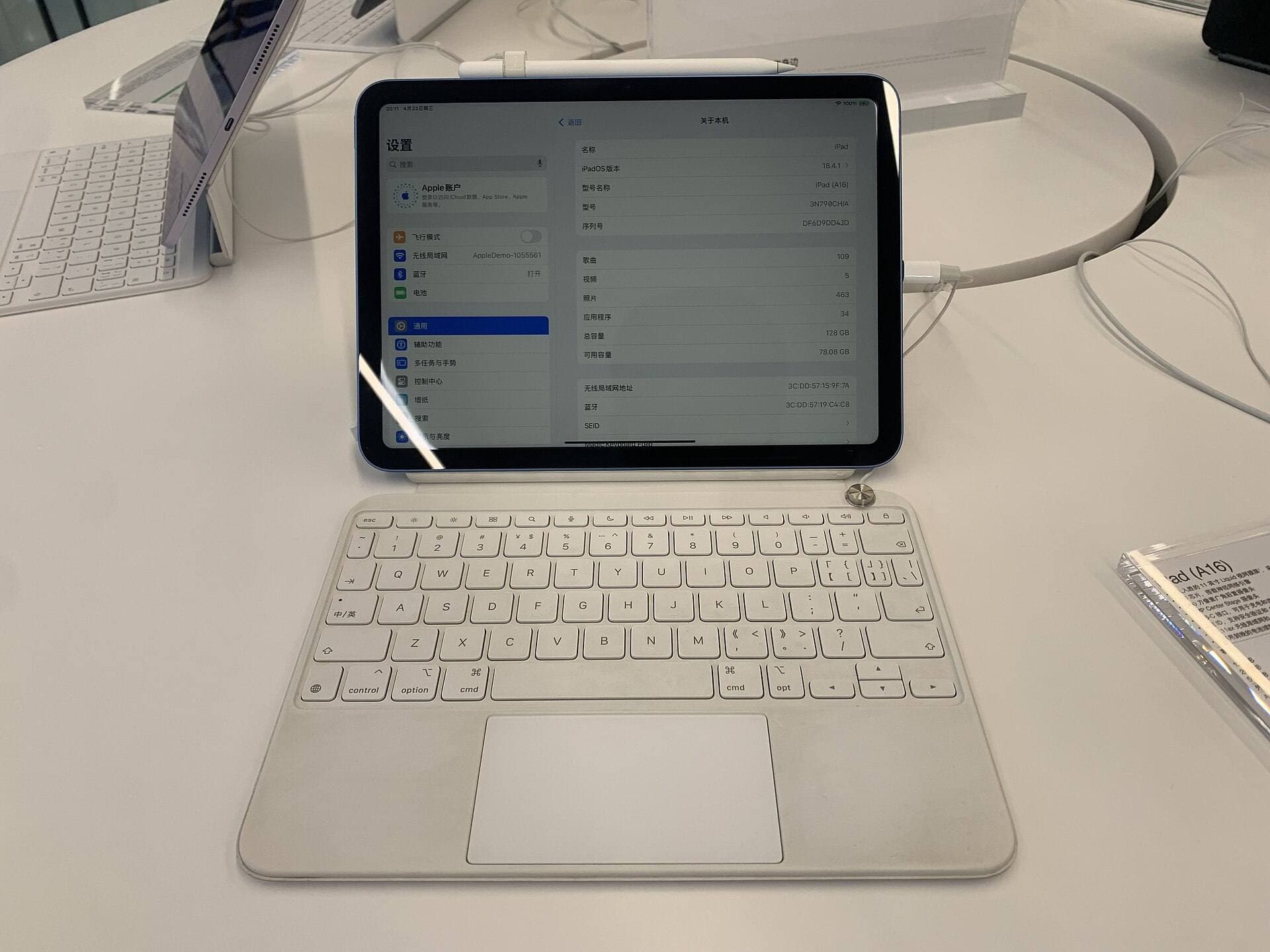
If you are choosing between an iPad and a Samsung tablet for drawing, buy the iPad. The primary reason comes down to the software ecosystem and specialized hardware integration. Dedicated drawing applications like Procreate are built strictly for iPadOS and do not exist on Android tablets [4], [5]. For most illustrators, the iPad Air (M4) paired with Apple Pencil Pro offers the ideal balance of drawing performance, input tools, and longevity [1], [2]. If you already rely on Android workflows or refuse to enter the Apple ecosystem, skip the iPad. But if your goal is access to mainstream digital illustration tools, an iPad is the stronger purchase [4], [5].
App ecosystems and the draw of Procreate
Software availability is often the deciding factor when comparing an iPad to other tablet platforms. The iPad platform hosts Procreate, which is distributed exclusively through the Apple App Store for iPadOS [5]. Because Procreate is not available on Android or Samsung devices, buying a Samsung tablet immediately removes that option from your toolbox [5]. Artists who want to follow standard community tutorials, download specialized brush sets, or share native project files often center their entire workflow on Procreate [4], [5].
In addition to Procreate, the iPadOS catalog offers a wide range of dedicated art tools that take advantage of Apple Pencil hardware features [2], [5]. When you purchase an iPad, you gain access to an established library of illustration, vector, and animation software built to utilize Apple stylus interactions [2], [5]. If you choose a non-Apple tablet, you must rely on Android alternatives. While Android has capable drawing apps, it lacks the specific software ecosystem that makes the iPad the standard choice for independent illustrators [4], [5].
Canvas handling is also tied directly to hardware configuration in iPadOS illustration apps [4]. In Procreate, maximum canvas dimensions and layer limits are governed directly by the memory available on your specific iPad model [4]. Apple lists different memory and processor tiers across its lineup, from the entry A-series chips to the M-series chips [1]. Choosing an iPad with greater hardware headroom allows Procreate to grant higher layer counts on large canvases, which is critical for complex digital paintings [1], [4].
Apple Pencil hardware and stylus controls
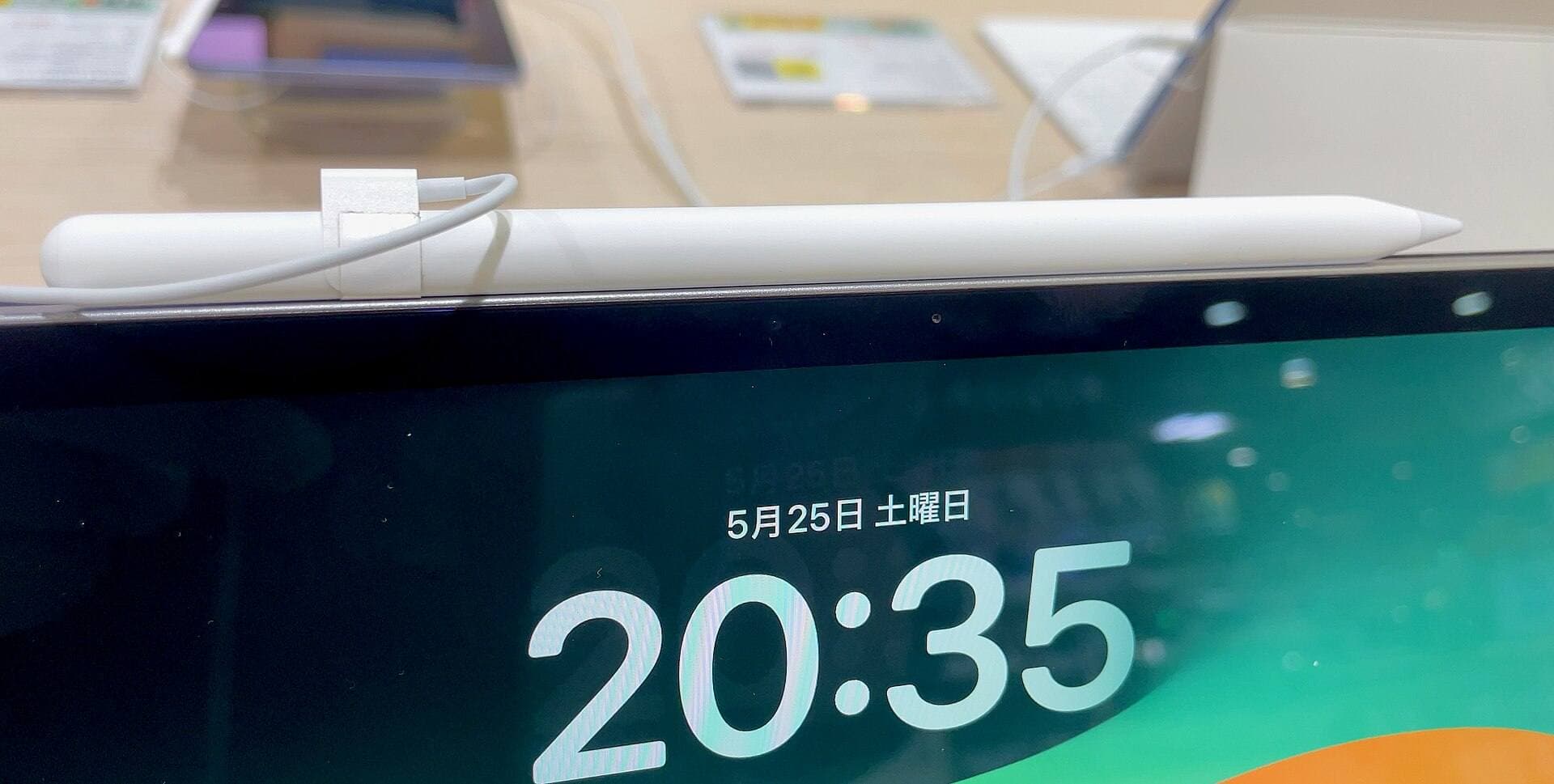
The drawing experience on an iPad is defined by the Apple Pencil pairing [2], [3]. Different iPad models support different generations of the stylus, which affects the drawing tools available under your hand [1], [3]. The Apple Pencil Pro, compatible with the iPad Air (M4) and iPad Pro (M5), includes advanced hardware sensors that change how you interact with a digital canvas [1], [2], [3].
Among these features is the squeeze gesture, which lets you bring up tool palettes or trigger shortcuts by applying pressure to the barrel [2]. Apple Pencil Pro also includes barrel roll, utilizing a gyroscope so you can rotate shaped brush tips as you twist the stylus [2]. Built-in haptic feedback provides tactile pulses when you trigger gestures or snap objects into place [2]. It also supports standard pressure sensitivity, tilt detection, and Apple Pencil hover, giving you a live preview of your brush mark before it touches the glass [1], [2].
By contrast, baseline styluses omit many of these controls [2]. The Apple Pencil (USB-C), which pairs with the entry-level iPad (A16), supports tilt and hover on compatible screens, but it lacks pressure sensitivity, squeeze, barrel roll, and haptic feedback [1], [2], [3]. If you want your physical hand pressure to dictate line weight and opacity naturally, you must verify that your chosen iPad and Pencil combination supports pressure sensitivity [1], [2]. This makes the step up to an Apple Pencil Pro compatible model worthwhile for serious illustrators [1], [2], [3].
Canvas memory and layer handling across iPads
When evaluating an iPad against other tablets, device memory dictates how far you can push your art projects [1], [4]. Layer limitations can disrupt your process if you create detailed commercial illustrations, print-ready files, or multi-frame animations [4]. Procreate dynamically calculates your layer limits based on the canvas pixel dimensions and the physical RAM of the iPad [4].
Entry-level iPads with lower RAM provide fewer layers when working at high resolutions, such as 300 DPI canvas sizes meant for physical prints [1], [4]. If you work with dozens of sketch, ink, color, and adjustment layers, an entry model may force you to merge layers frequently to free up memory [4]. iPads equipped with M-series processors, such as the iPad Air (M4) and iPad Pro (M5), provide larger memory configurations that expand layer limits significantly [1], [4].
Storage capacity also plays an important role when managing digital art files [1]. Apple offers storage options starting from 64GB or 128GB on basic configurations and reaching up to multiple terabytes on Pro tiers [1]. Because layered illustration files, time-lapse recordings, and brush libraries consume local drive space, picking the right storage tier before checkout ensures you do not run out of room during active projects [1], [5].
Choosing the right iPad model for your drawing desk
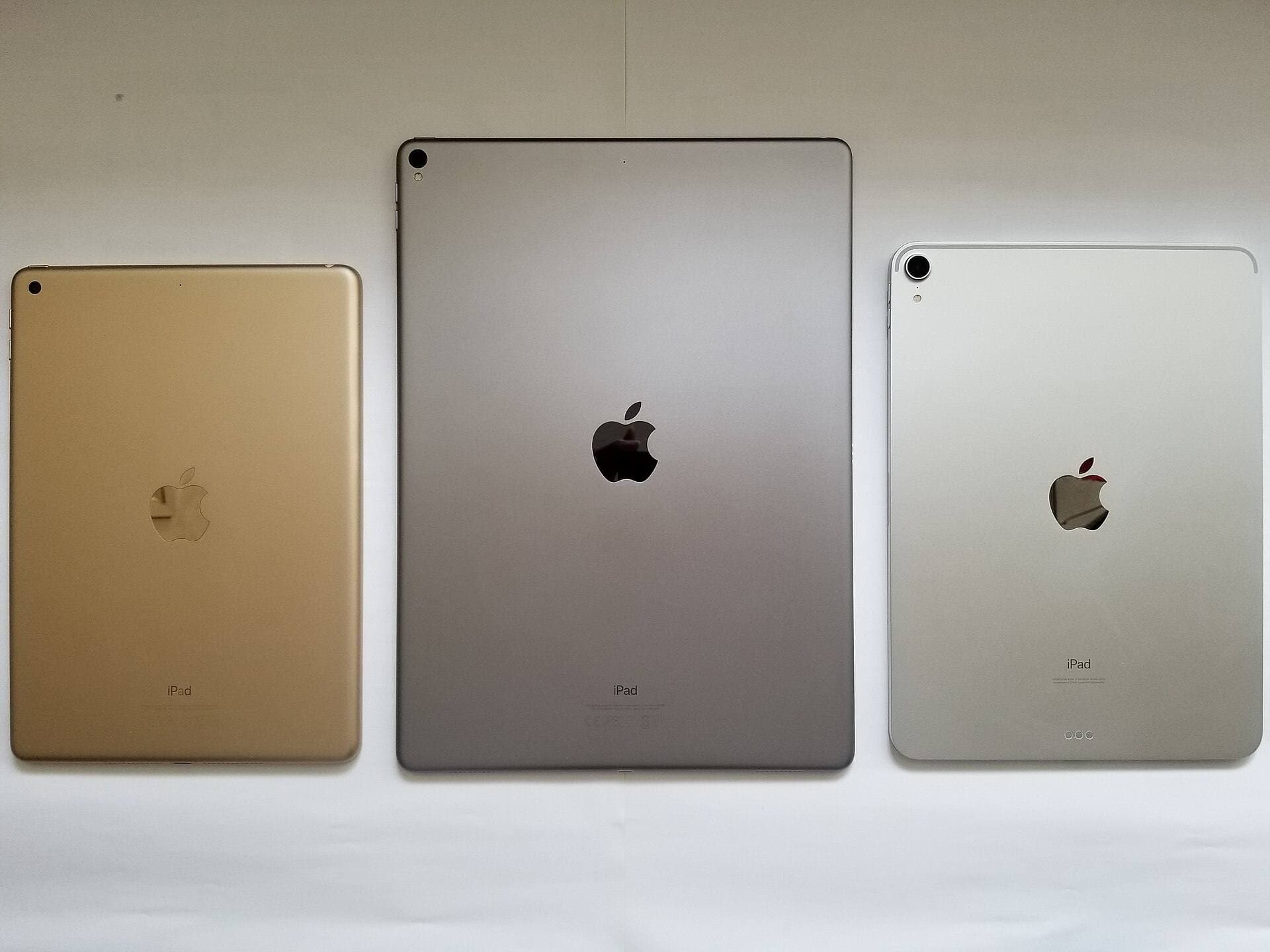
Once you decide on an iPad over an alternative tablet, you must choose the specific model that fits your budget and artistic needs [1]. Apple maintains distinct tiers, ranging from standard consumer tablets to high-end professional hardware [1].
The iPad Air (M4) represents the best middle ground for most artists [1]. It supports the Apple Pencil Pro, giving you access to pressure sensitivity, barrel roll, squeeze shortcuts, and haptics without paying for top-tier hardware [1], [2]. While the iPad Air display remains capped at a 60Hz refresh rate, its M4 chip provides substantial headroom for running Procreate projects with generous layer limits [1], [4]. Artists looking for a modern, full-featured drawing tablet should buy the iPad Air (M4) [1].
The iPad (A16, 11th gen) is the best choice when kit cost is your primary concern [1]. It lets you access iPadOS and the Procreate app at the lowest entry point [1], [5]. However, its stylus pairing options are more restricted [1], [3]. When paired with the Apple Pencil (USB-C), it does not support pressure sensitivity, which alters how you lay down ink and paint marks [2], [3]. Buy the iPad (A16) if you only need a digital sketchbook or value overall affordability over fine pressure control [1], [2].
The iPad Pro (M5) is designed for artists who demand the highest display specifications [1]. It features Apple's ProMotion display technology, which supports refresh rates up to 120Hz for fluid visual tracking as the Pencil moves across the screen [1]. It also provides the highest performance and largest storage tiers in the lineup [1]. Skip the iPad Pro if you simply want a casual drawing surface, but buy it if your daily workload justifies paying for the best screen technology and maximum memory headroom [1], [4].
Bottom line
Choosing an iPad over a Samsung tablet resolves the digital drawing question by giving you access to Procreate and Apple Pencil Pro controls [1], [2], [5]. While Android tablets have their own hardware merits, they cannot run the iPadOS art applications that many illustrators depend on [4], [5]. For the vast majority of artists, buying the iPad Air (M4) paired with the Apple Pencil Pro delivers the best combination of input precision, layer capacity, and value [1], [2], [4].
Sources
[1] https://www.apple.com/ipad/compare/ [2] https://www.apple.com/apple-pencil/ [3] https://support.apple.com/en-us/108937 [4] https://help.procreate.com/articles/zlexav-ipad-compatibility [5] https://apps.apple.com/us/app/procreate/id425073498
Recommended gear
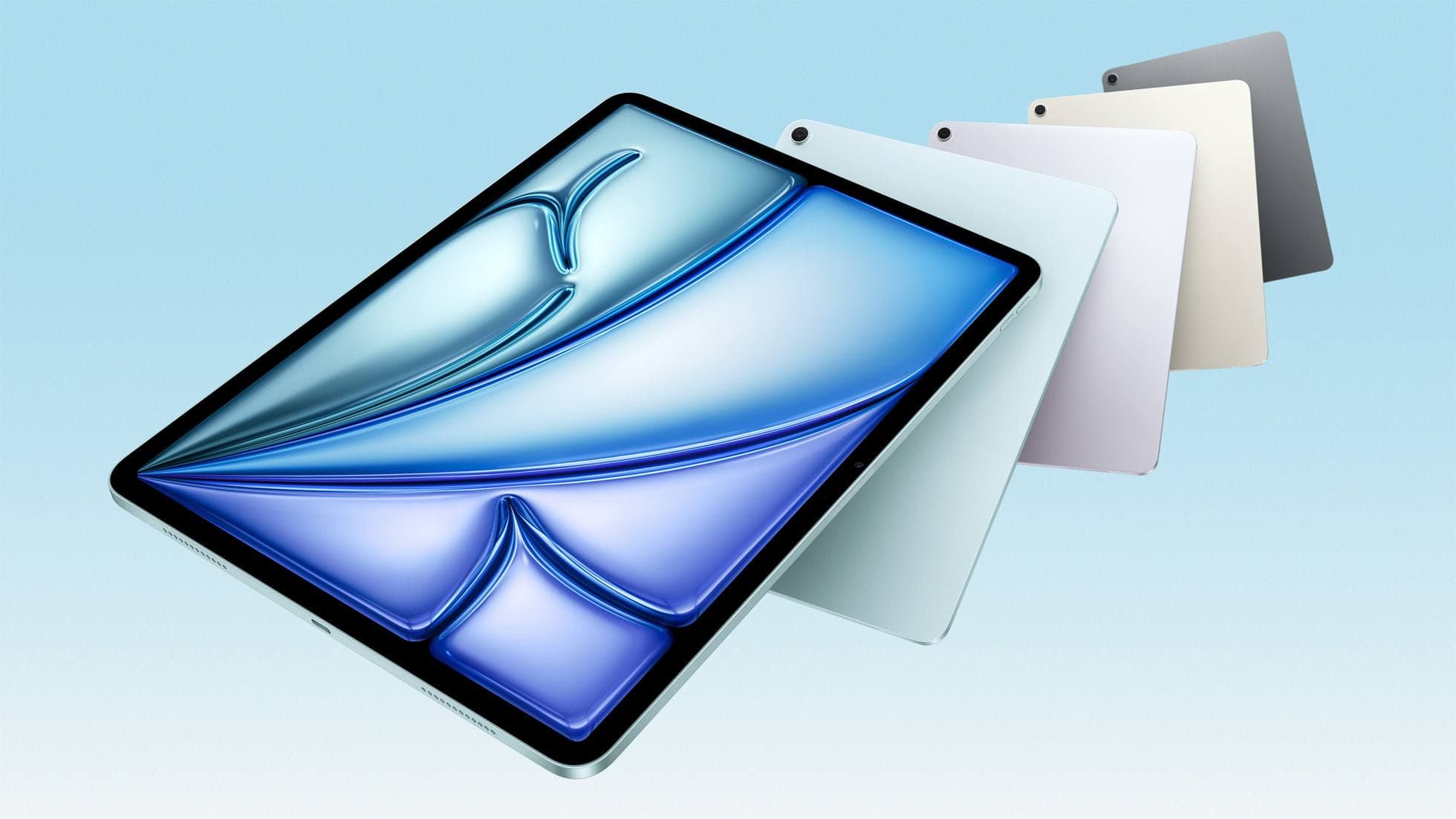
iPad Air (M4)
apple.comThe clean current Air recommendation for most serious hobby artists. Stronger buy logic than old-stock M3 when pricing is close.
Pro: Best current balance of price, headroom, and Pencil support
Con: Still 60Hz
Current Air lineup. Choose size, storage, and keyboard path before checkout.
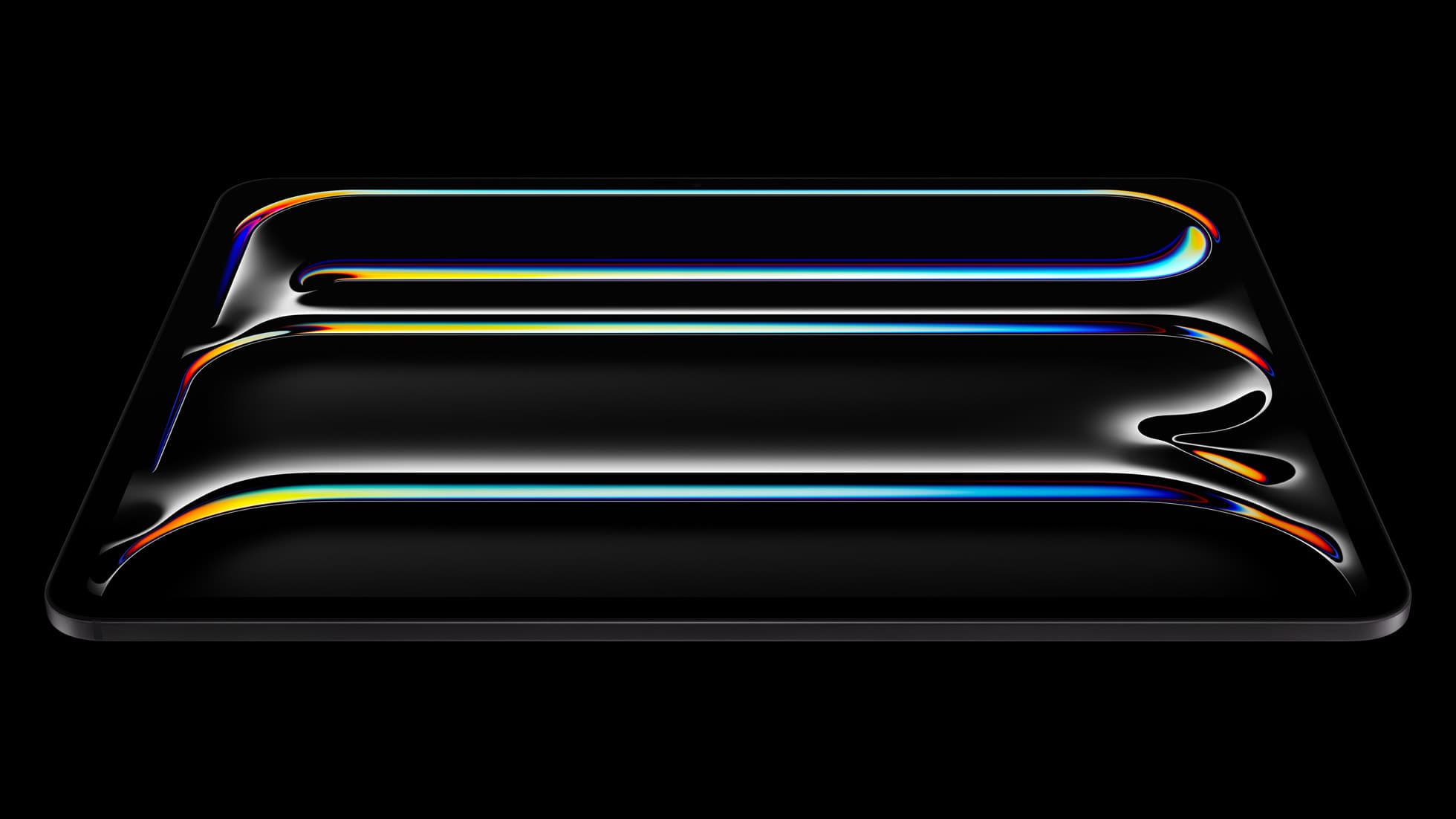
iPad Pro (M5)
amazon.comThe best iPad for drawing feel and premium workflow comfort, but many buyers still overpay for it.
Pro: Best iPad display and ProMotion feel
Con: Highest price in the lineup
Search opens with iPad Pro terms. Check year, chip, and screen size.
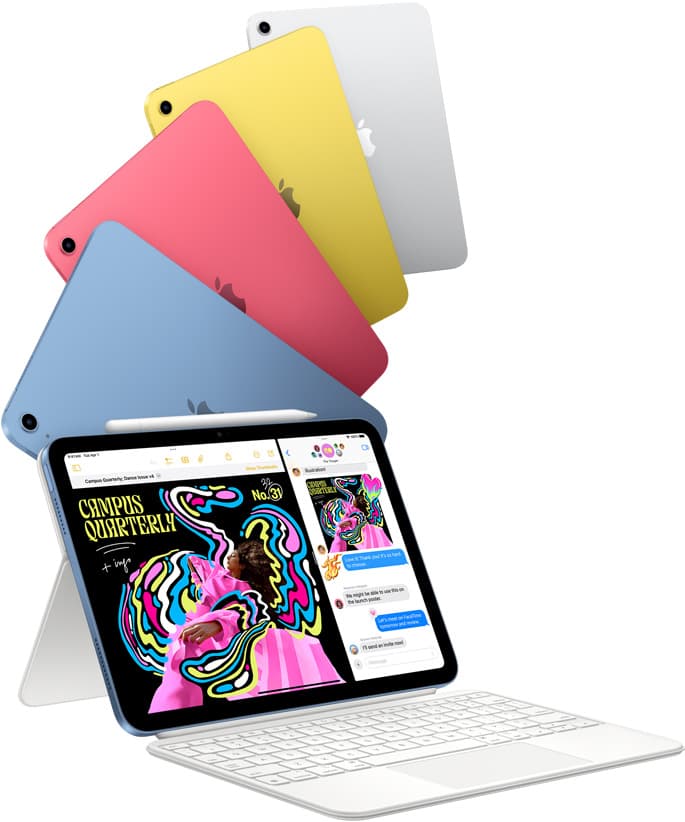
iPad (A16, 11th gen)
amazon.comThe best entry iPad for most artists on a budget. It is not premium, but it is very hard to beat on value.
Pro: Best value iPad right now
Con: No ProMotion display
Search opens with the exact model keywords. Verify size and storage before checkout.
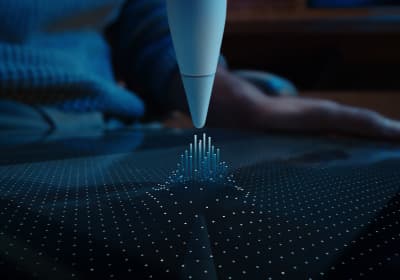
Apple Pencil Pro
amazon.comThe best Apple stylus for serious digital art workflows. Expensive, but the control upgrades are real.
Pro: Best brush-control and hover workflow
Con: Highest price in the lineup
Works only with newer iPad models. Check compatibility.
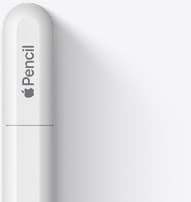
Apple Pencil (USB-C)
amazon.comA practical low-cost Apple stylus with broad compatibility, but limited for advanced art control.
Pro: Lowest official Apple Pencil cost
Con: No pressure sensitivity for brush work
Compatible with many recent iPads. No pressure support.
Related buying picks
More in this collectionComparison
iPad vs pen display for illustration: how to choose your drawing setup
Compare standalone iPad mobility against tethered pen displays to pick the right digital drawing tool for your illustration workflow.
Comparison
iPad vs MacBook for digital art: Which setup should you buy?
Choose an iPad if direct stylus drawing matters most, or stick with a MacBook if your art pipeline demands desktop desktop file management and external tablet hardware.
Buyer guide
The best iPad for urban sketching and field drawing
Choose between the ultra-portable iPad mini and the sketchbook-sized iPad Air for drawing on the go.
Buyer guide
How to choose the best iPad for illustration work
Find the best iPad for your illustration workflow based on Apple Pencil Pro compatibility, screen size, Procreate layer limits, and display feel.