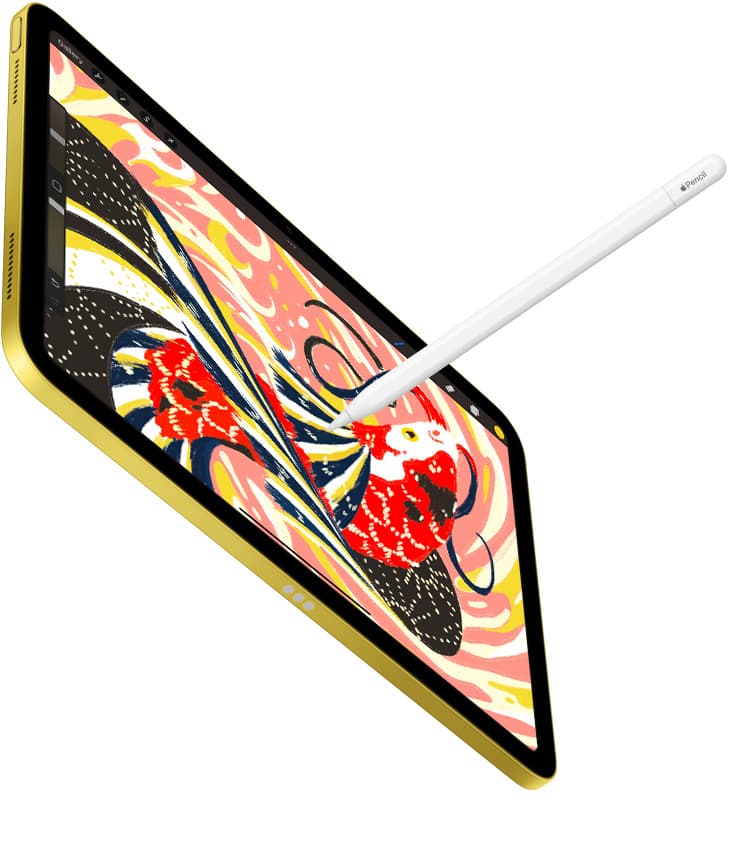
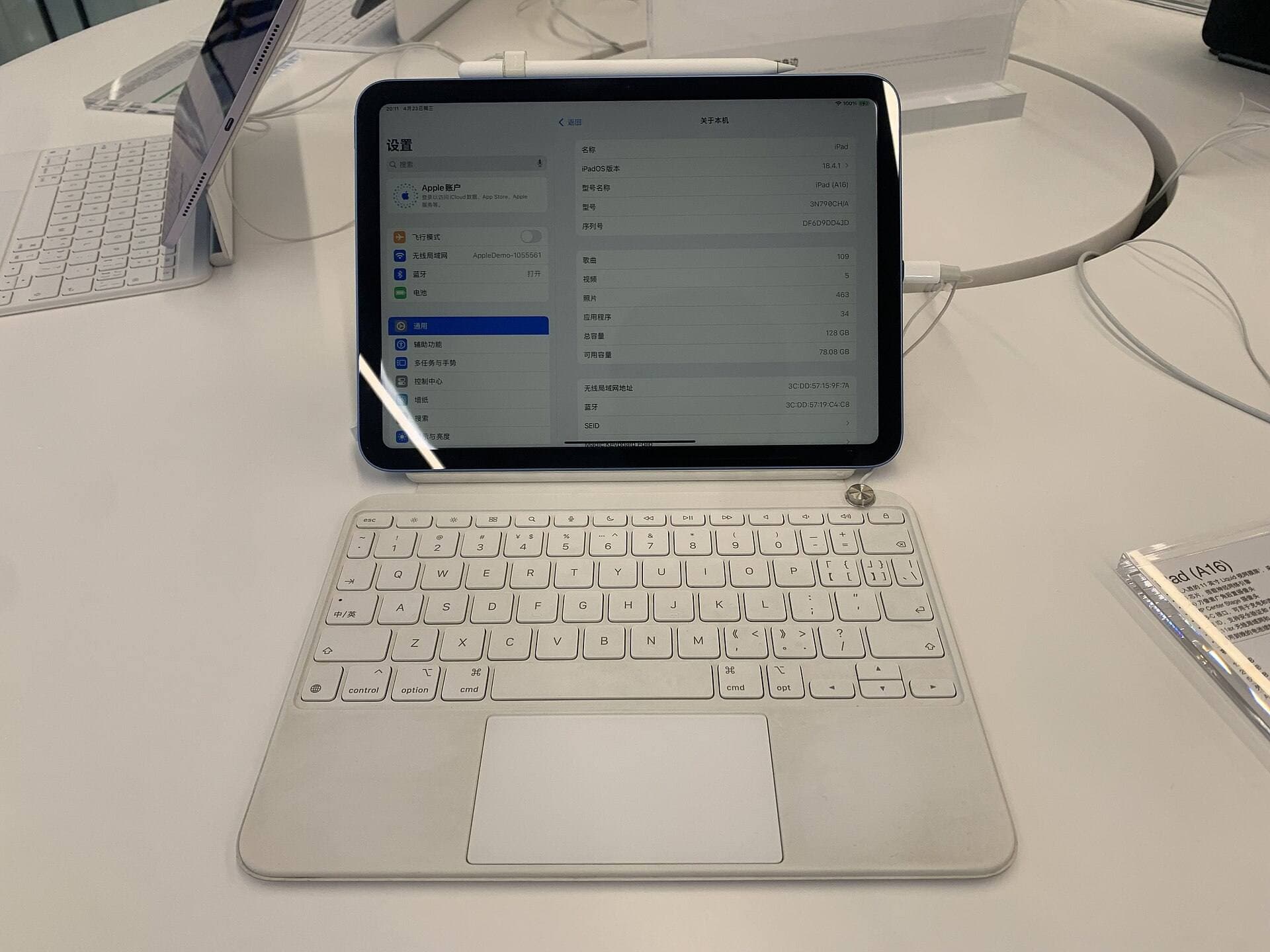
When your Apple Pencil begins throwing random lines, diagonal streaks, or stray dots across the canvas, keep your current stylus and check your physical setup first [1], [2]. Most stray line issues stem from a loose tip, static interference while charging, or worn screen covers rather than internal hardware failure [2], [3]. If basic physical adjustments do not solve erratic strokes across different tools, you will need to replace the stylus [2], [4]. Do not rush to buy a new Apple Pencil Pro or Apple Pencil (2nd generation) until you rule out dirty surfaces, damaged nibs, and app touch settings [2], [4], [5].
Check the tip and physical screen surface
The most frequent cause of erratic lines or sudden straight streaks is a nib that has loosened during daily drawing [2], [6]. The Apple Pencil uses a tiny sensor assembly beneath the tip, and even a quarter turn of slack interrupts contact [2], [6]. Gently twist the nib clockwise to confirm it sits flush against the stylus barrel [2], [6]. If the tip shows flat spots, rough edges, or visible internal metal, it will drag unevenly and break contact on the glass [2], [6].
Surface contamination also produces erratic tracing [2], [6]. Finger oils, moisture, and fine dust create electrical resistance on capacitive touch digitizers [2], [6]. Wipe your glass thoroughly with a clean microfiber cloth [6]. If you use a textured sheet like Paperlike 3 to add controlled paper friction, verify whether air pockets, deep scratches, or lifted edges sit along your stroke path [2], [7]. While textured covers create tactile drag, damaged films cause the stylus to lose continuous contact [2], [7].
Rule out charging interference and touch gestures
Third-party chargers and ungrounded electrical outlets are common culprits behind sudden straight diagonal lines [2], [6]. When your iPad connects to an unshielded power adapter, stray electrical noise feeds directly into the digitizer [2], [6]. This noise tricks the iPad into registering phantom touch points between your hand and the Pencil tip [2], [6]. Disconnect your charging cable completely and test drawing on battery power alone [2], [6]. If the stray marks vanish immediately, your power adapter is the problem, not your Apple Pencil [2], [6].
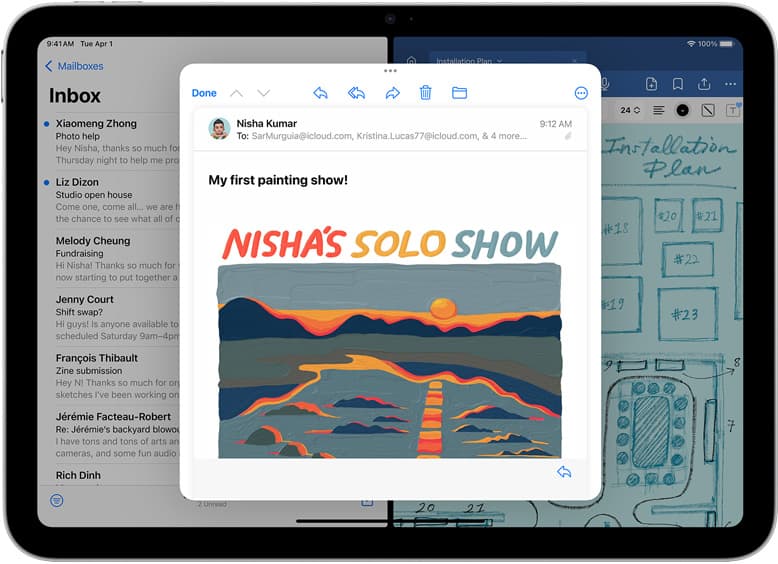
Palm rejection failure also generates what looks like erratic stylus drawing [5], [6]. When resting your hand, the iPad might mistake the heel of your palm for drawing input [5], [6]. In drawing applications like Procreate, interface controls let you adjust how touch interacts with the canvas [5], [8]. Open your gesture controls to ensure touch is reserved for interface gestures rather than raw brush marks [5], [8]. This separation ensures only the active stylus tip produces actual strokes [5], [8].
Understand hardware compatibility and pressure features
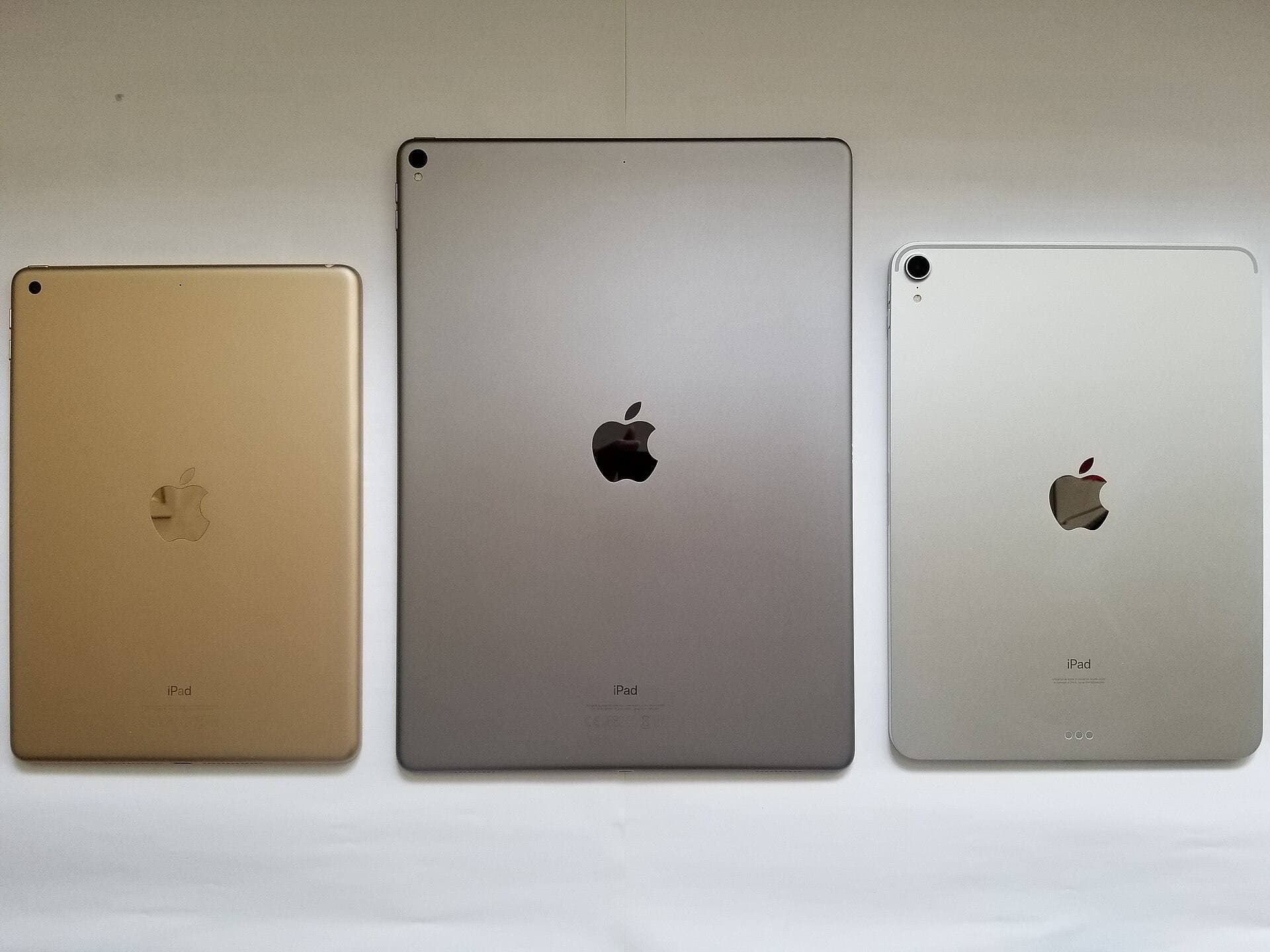
If physical fixes fail, your stylus may have internal transducer damage [2], [4]. Before you buy a replacement, check your exact iPad model to confirm which Apple Pencil generation it supports [1], [4]. Apple splits stylus compatibility strictly across product generations [1], [4]. Purchasing the wrong model leaves you with an unpairable accessory [1], [4].
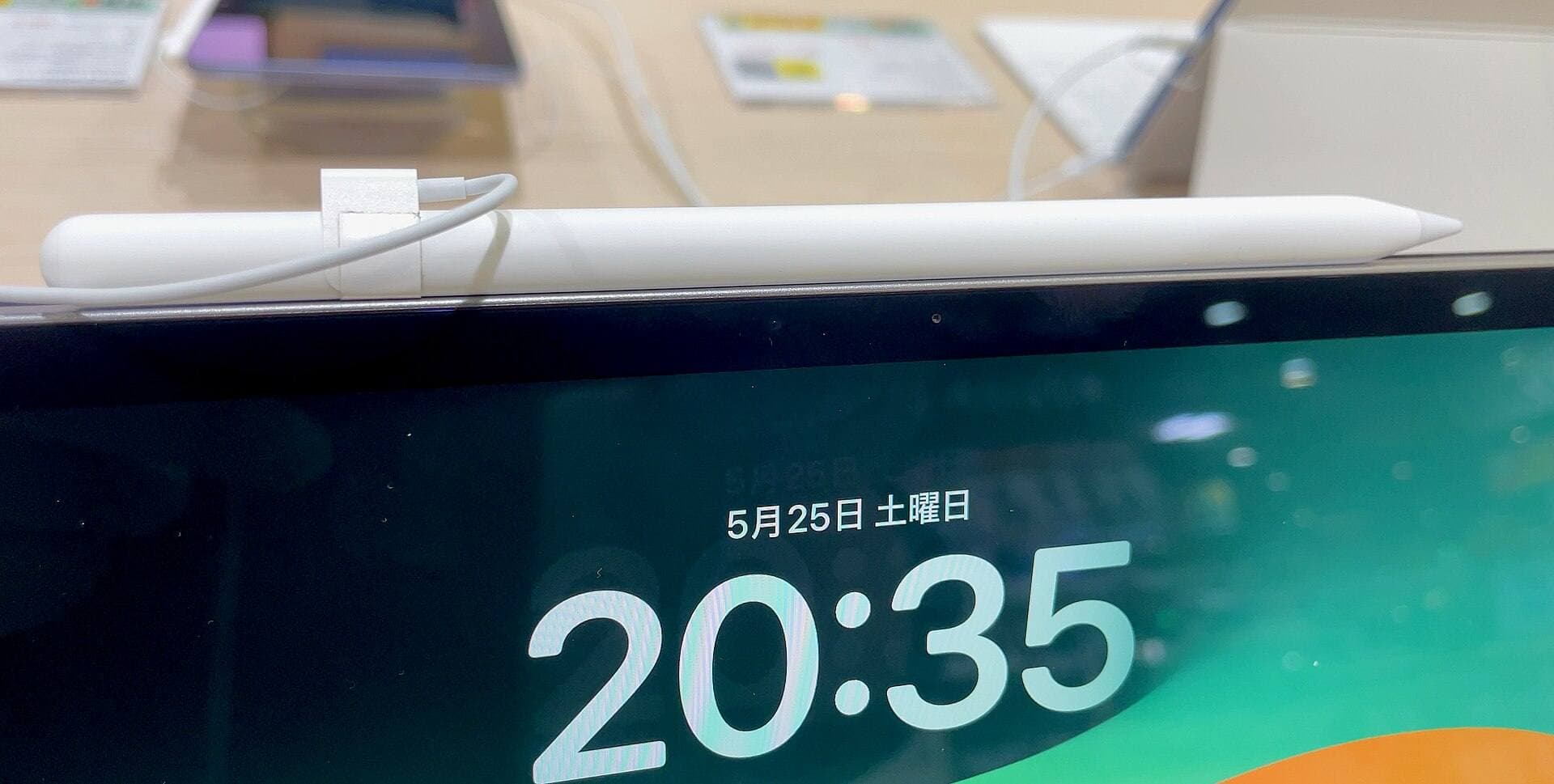
The Apple Pencil (2nd generation) pairs and charges magnetically on compatible iPads, featuring pressure sensitivity and double-tap tool switching [2], [4]. It works only with specific supported models, including older iPad Pro units and compatible iPad Air generations [1], [4]. If you own one of these devices, the 2nd generation stylus remains the correct choice if you require pressure sensitivity for varied line weight [2], [4]. Artists who do not need pressure modulation can choose the Apple Pencil (USB-C), which pairs with modern iPads using a slide-out port and costs less, but lacks pressure support entirely [2], [4].
If you use the latest iPad Pro or iPad Air hardware, Apple Pencil Pro is the dedicated choice [1], [4]. It adds advanced sensors including squeeze gestures, haptic feedback, and barrel roll for shaped brush profiles, along with Apple Pencil hover [2], [6]. However, it does not work on older hardware [1], [4]. Always match the stylus to your iPad before purchasing a replacement to fix drawing bugs [1], [4].
Isolate software glitches in Procreate and iPadOS
Software settings can create artificial line jumps that look like broken hardware [5], [8]. In Procreate, brush stabilization features like Streamline and Motion Filtering smooth out hand tremors [8]. When these values are pushed to extreme levels or conflict with rapid strokes, the brush engine can snap lines directly between distant points [5], [8]. Test standard brushes in the basic Apple Notes app first [2], [6]. If your Apple Pencil draws cleanly in Notes but creates jumping lines in your drawing app, your stylus hardware is perfectly fine [2], [6].
Try resetting your Bluetooth connection to clear transient communication bugs [4], [6]. Unpair your stylus in iPadOS Settings, restart your iPad, and attach the Pencil to re-pair [4], [6]. For an Apple Pencil (2nd generation) or Apple Pencil Pro, snap it to the magnetic connector [4], [6]. For an Apple Pencil (USB-C), connect the pairing cable directly [4], [6]. Re-pairing forces iPadOS to rebuild the hardware calibration profile for touch and tilt recognition [2], [6].
Choose your replacement path
When your stylus drops strokes across all apps, on battery power, with a clean tip and bare screen, the internal sensor is worn or damaged [2], [4]. If you work primarily on digital illustration and your iPad supports it, buy the Apple Pencil (2nd generation) for complete pressure response without paying for unsupported Pro sensors [2], [4]. Choose the Apple Pencil Pro only if you own the newest compatible iPad models and want squeeze controls and barrel roll features [2], [4].
Skip both pressure-sensitive styluses and buy the Apple Pencil (USB-C) if your primary tasks are note-taking, technical drafting, or basic PDF markup [2], [4]. It offers pixel accuracy and tilt sensitivity while eliminating costly features you will not use [2], [4]. If you find the slick glass surface is what causes your hand to slip and create unintentional marks, adding Paperlike 3 can provide the tactile control you need without replacing your stylus [2], [7].
Bottom line
Random lines and phantom marks are rarely unfixable hardware defects [2], [6]. Keep your current Apple Pencil until you tighten the tip, unplug third-party charging cables, and disable touch painting in your app settings [2], [5], [6]. If the hardware still fails on a clean display, buy the Apple Pencil (2nd generation) for older magnetic iPads, or step up to the Apple Pencil Pro if your newer iPad supports it [1], [4].
Sources
[1] https://www.apple.com/ipad/compare/ [2] https://www.apple.com/apple-pencil/ [3] https://help.procreate.com/articles/zlexav-ipad-compatibility [4] https://support.apple.com/en-us/108937 [5] https://apps.apple.com/us/app/procreate/id425073498 [6] https://support.apple.com/guide/ipad/draw-with-apple-pencil-ipadc55b6c7a/ipados [7] https://paperlike.com/products/paperlike-for-ipad [8] https://help.procreate.com/procreate/handbook/5.2/interface-gestures/pencil
Recommended gear
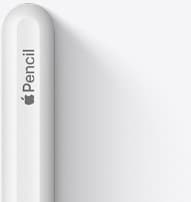
Apple Pencil (2nd generation)
amazon.comStill a strong stylus on compatible iPads. Good pressure control, but compatibility is the main trap.
Pro: Pressure support without Pro pricing
Con: Not compatible with newest Pro-only iPads
Only for iPads that support 2nd generation pairing.
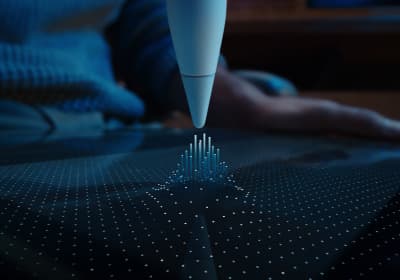
Apple Pencil Pro
amazon.comThe best Apple stylus for serious digital art workflows. Expensive, but the control upgrades are real.
Pro: Best brush-control and hover workflow
Con: Highest price in the lineup
Works only with newer iPad models. Check compatibility.
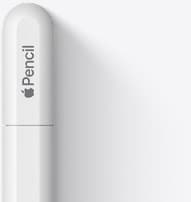
Apple Pencil (USB-C)
amazon.comA practical low-cost Apple stylus with broad compatibility, but limited for advanced art control.
Pro: Lowest official Apple Pencil cost
Con: No pressure sensitivity for brush work
Compatible with many recent iPads. No pressure support.
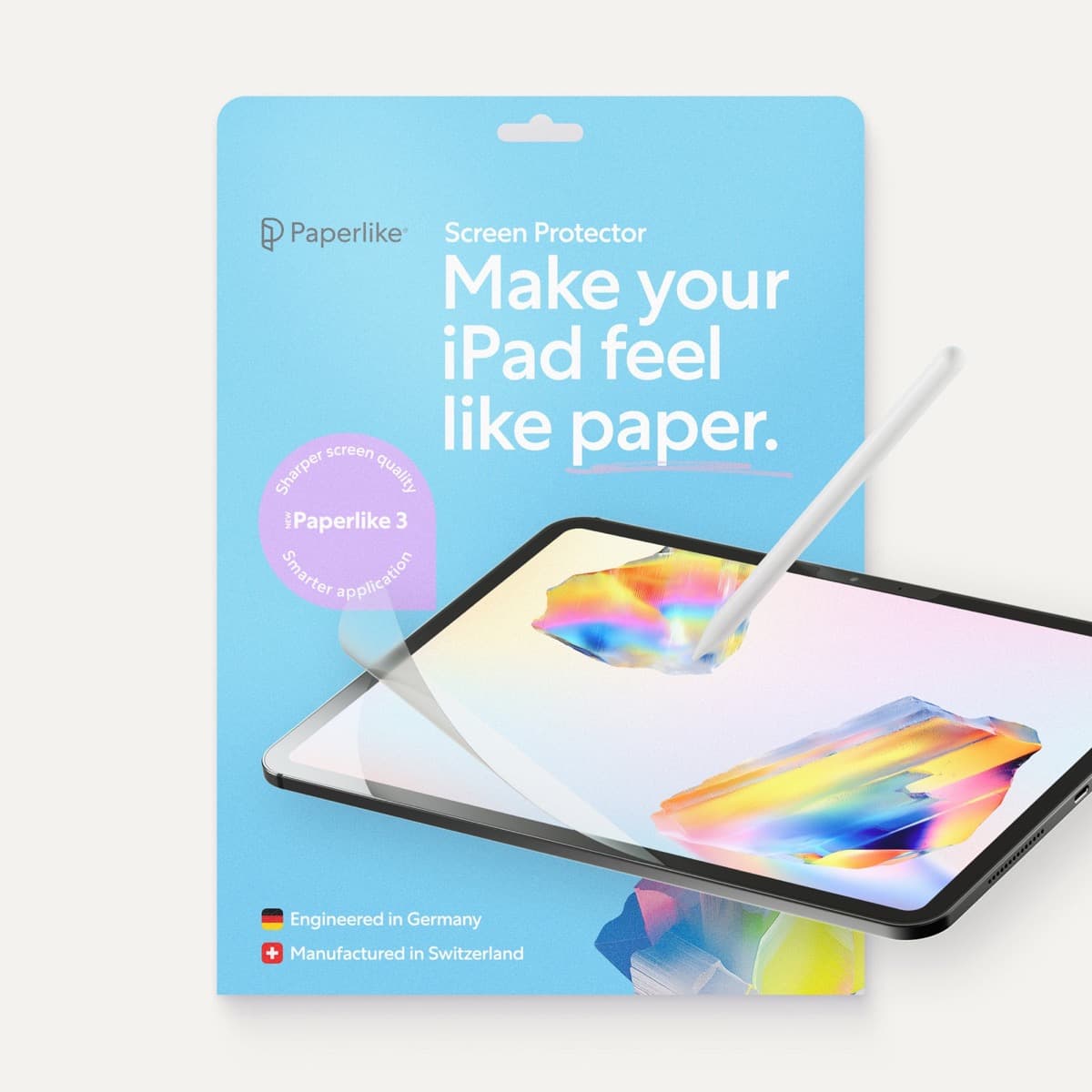
Paperlike 3 (11-inch, 2-pack)
amazon.comA strong surface-feel upgrade for drawing control. Clarity tradeoff is real and should be expected.
Pro: Adds controlled paper-feel friction
Con: Slightly reduces perceived display sharpness
11-inch fit only. Confirm generation before checkout.
Related buying picks
More in this collectionBuyer guide
Best Apple Pencil for portrait drawing: choosing the right stylus
Portrait artists need pressure sensitivity for tonal rendering, making Apple Pencil Pro or Apple Pencil 2nd generation the right choice over the entry model.
Buyer guide
Choosing the best Apple Pencil for medical illustration
Medical illustrators need pressure sensitivity and precise hardware compatibility, making the Apple Pencil Pro or 2nd generation pencil essential over the USB-C model.
Buyer guide
Best Apple Pencil for figure drawing: how to choose your stylus
Figure drawing demands reliable pressure sensitivity and stroke control, making Apple Pencil Pro or Apple Pencil 2nd generation the right choice over the USB-C model.
Buyer guide
Apple Pencil for watercolor painting: which stylus to choose
Choose an Apple Pencil with pressure sensitivity for digital watercolor, and avoid flat styluses that cannot modulate pigment wash.