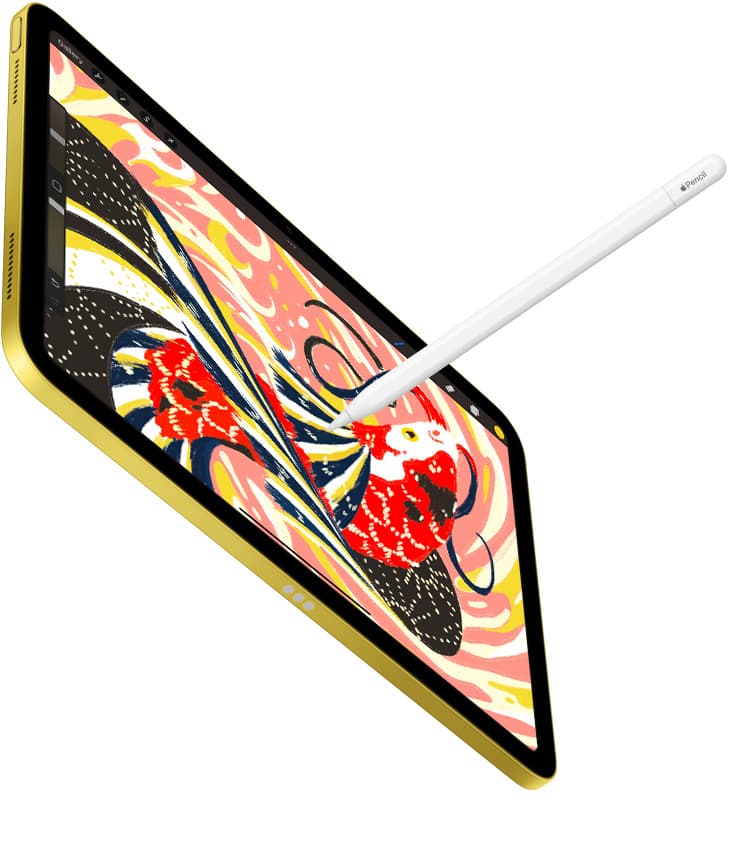
If you want to draw portraits on an iPad, skip the Apple Pencil (USB-C) and buy the stylus that matches your iPad hardware: choose the Apple Pencil Pro for recent hardware or the Apple Pencil (2nd generation) for older supported models [1], [2]. Portraiture depends directly on pressure sensitivity to blend values, soften skin transitions, and control edge hardness in software like Procreate [1], [4]. The Apple Pencil (USB-C) lacks pressure sensitivity entirely, so it forces you to adjust brush opacity manually with sliders rather than your hand [1]. If your iPad supports the Apple Pencil Pro, that model gives you squeeze tools and barrel roll for angled brush tips, while the 2nd generation model remains the ideal pressure-sensitive choice for earlier devices [1], [2], [3].
Why pressure sensitivity matters for portrait shading
Drawing a face requires constant, micro-level control over value gradations. When you paint a cheekbone, a forehead plane, or the soft falloff of light beneath a jawline, your brush tip needs to respond to variations in physical contact. Apple Pencil Pro and Apple Pencil (2nd generation) both include pressure sensitivity, translating physical force into opacity, stroke size, or pigment load depending on your brush setup [1], [4]. That allows you to feather edges naturally in drawing apps without interrupting your stroke to manipulate software sliders [3], [4].
In contrast, the Apple Pencil (USB-C) includes tilt sensitivity but omits pressure sensitivity [1]. Tilt sensitivity lets you tilt the stylus sideways to shade broad swaths like graphite on paper, which Apple explicitly lists for sketching [1], [3]. However, without pressure data, every mark applied at a given angle produces an identical level of application regardless of how softly or firmly you touch the glass [1]. For portrait painters, this limitation turns delicate skin blending into a stepped, tedious process. You can still sketch outlines, but building three-dimensional form becomes far more demanding [1], [3].
Choosing between Apple Pencil Pro and Apple Pencil 2nd generation
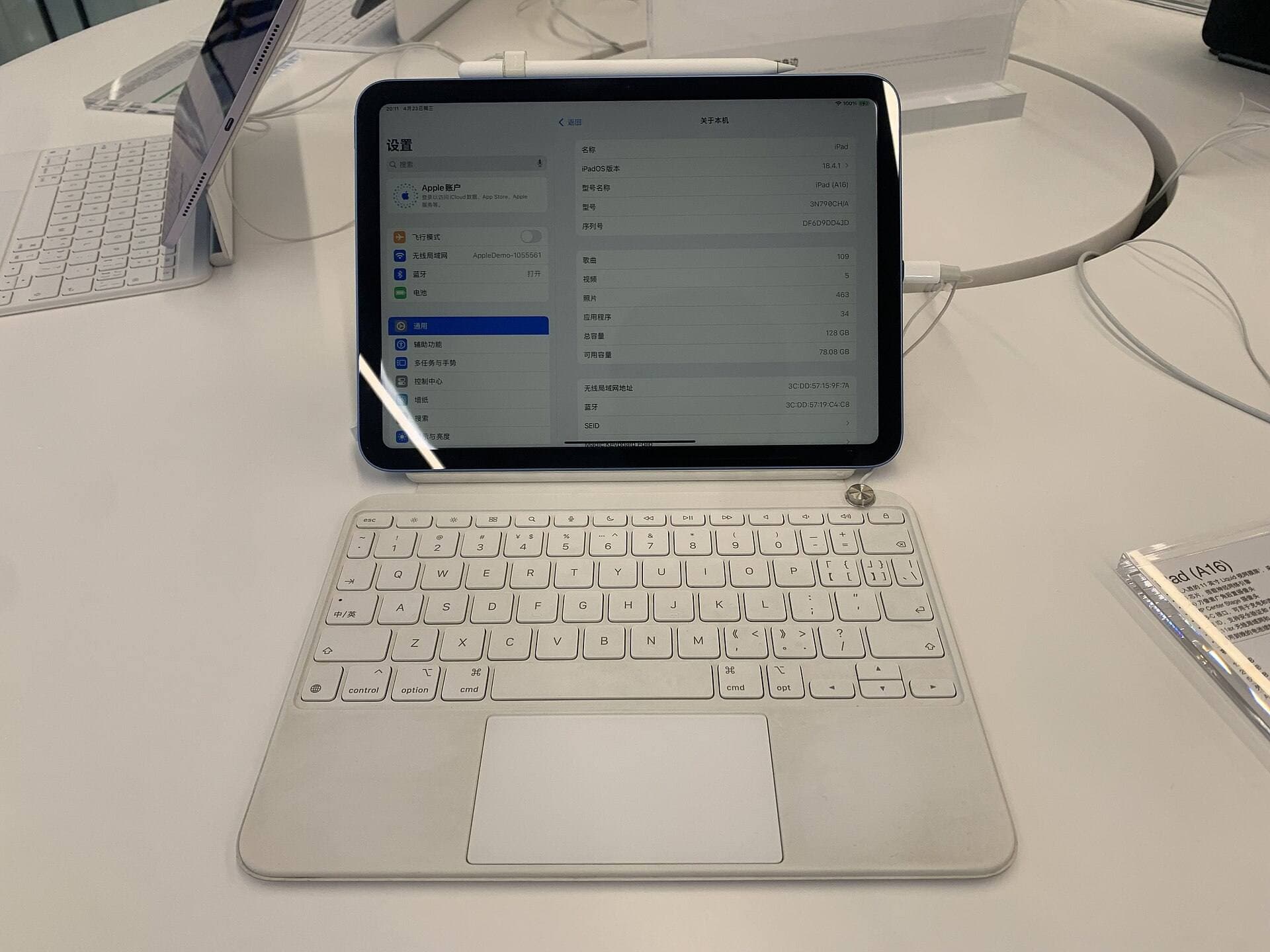
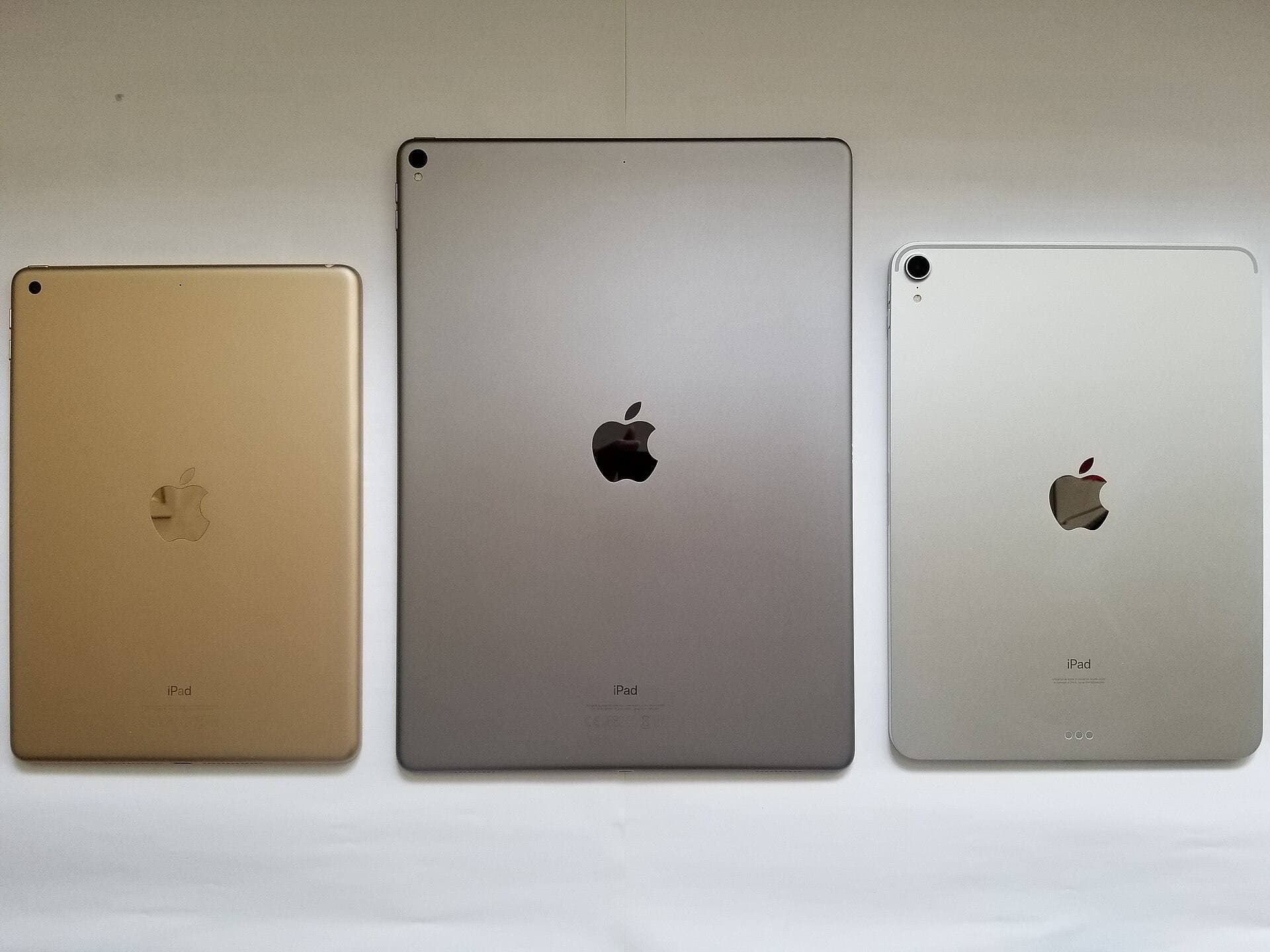
Your iPad model dictates whether you should purchase the Apple Pencil Pro or the Apple Pencil (2nd generation), because Apple does not allow them to cross-pair across hardware generations [2]. The Apple Pencil Pro works exclusively with specific recent iPads, while the 2nd generation stylus pairs only with earlier compatible models [1], [2]. If you already own an iPad that uses the 2nd generation model, keeping that setup gives you reliable pressure sensitivity, tilt control, and double-tap gesture switching between tools without needing to upgrade your tablet [1], [2], [4].
For artists buying a new tablet system that supports the Apple Pencil Pro, the upgraded hardware adds several features specifically useful for painting facial features [1], [2]. The Apple Pencil Pro includes a gyroscope that enables barrel roll, allowing the stylus to rotate shaped brushes as you roll the barrel between your fingers [1], [3]. In portraiture, this lets you turn flat calligraphy brushes, hair-strand textures, or chisel-tip blenders dynamically without lifting the tip [1], [3]. The Pro model also adds a squeeze gesture with haptic feedback, letting you open palettes or change brush settings directly at your fingertips [1], [3].
Double tap remains available on the 2nd generation pencil, letting you swap to your eraser or secondary tool quickly [1], [4]. But if you want physical rotation of asymmetric brushes and tactile squeeze shortcuts, the Apple Pencil Pro is the superior option, provided your iPad hardware accepts it [1], [2], [3].
When Apple Pencil USB-C falls short for portrait work
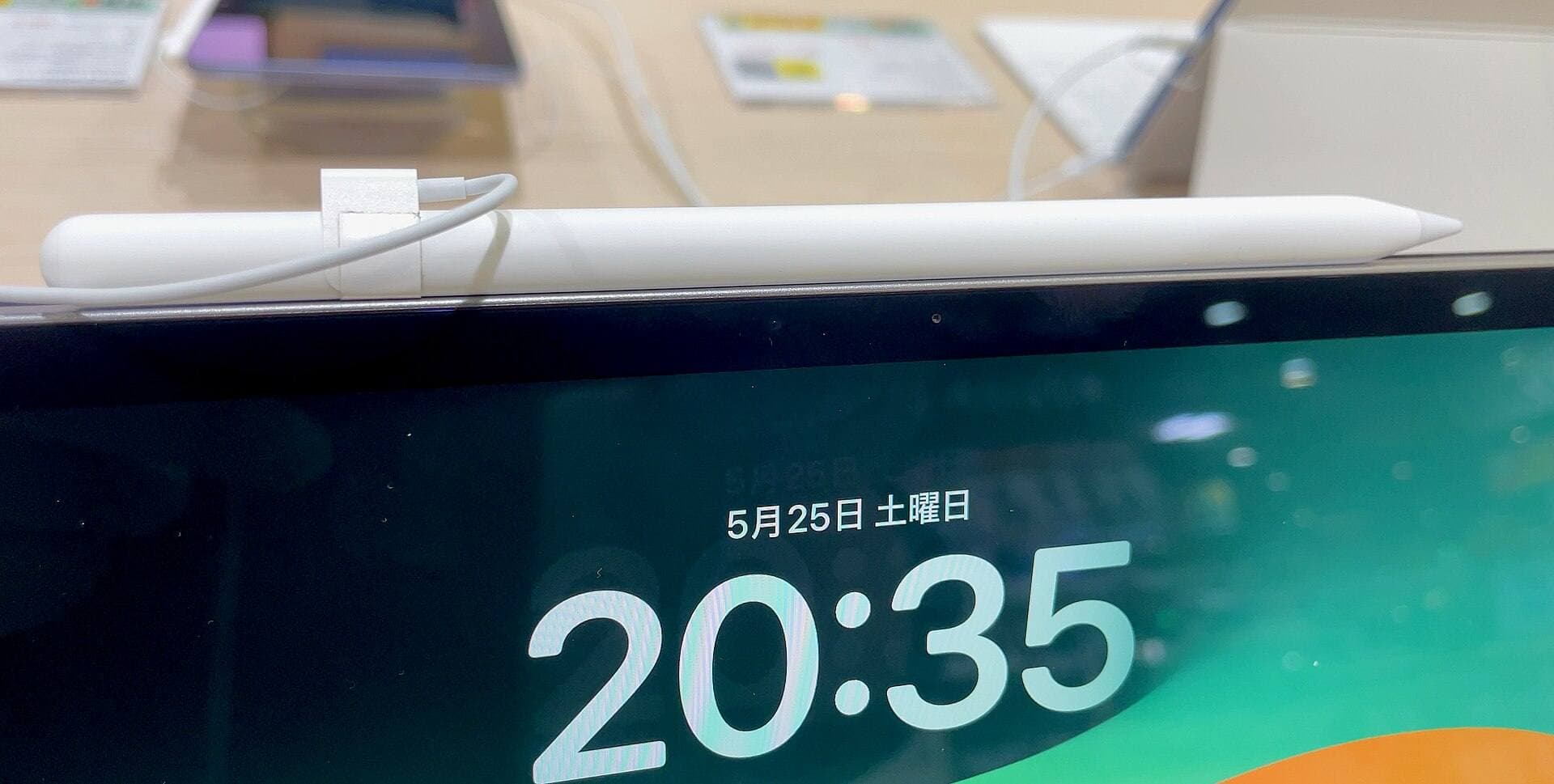
The Apple Pencil (USB-C) was designed as a lower-cost option compatible with multiple iPad models that feature USB-C ports [1], [2]. It supports Apple Pencil hover on compatible iPad screens, tilt detection, and magnetic storage [1], [3]. These features make it adequate for basic note-taking, architectural line work, or technical drafting where constant stroke weight is preferred [1], [3].
For portrait artists, however, buying the USB-C model is generally a false economy [1]. In a digital portrait, varying your touch determines whether an eye socket recedes into shadow or appears flat. Because the USB-C version cannot register downward force, creating gradual transitions requires stacking multiple low-opacity strokes or manually blurring marks with software smudge tools [1], [4]. It turns dynamic digital painting into an artificial, mechanical exercise. Anyone serious about rendering anatomical forms, drapery, or facial likenesses should skip the USB-C model entirely and choose a pressure-capable stylus [1].
Hover features for precision alignment
Both the Apple Pencil Pro and Apple Pencil (2nd generation) support Apple Pencil hover when paired with supported iPad models, as does the USB-C model [1], [2]. Apple Pencil hover detects the stylus tip up to 12 mm above the display surface, projecting a preview of your brush footprint before you make contact [1], [3]. In portrait drawing, hover allows you to see the exact size, orientation, and angle of your brush mark before painting [1], [3].
This preview is especially valuable when painting delicate areas such as eyelashes, iris catchlights, and sharp lip contours [3]. When you use shaped brushes with barrel roll on the Apple Pencil Pro, hover shows the virtual brush tip turning in real time as you rotate the barrel above the screen [1], [3]. This eliminates guesswork, reducing the need to undo misplaced strokes when placing tiny, high-contrast highlights [3], [4].
Adding surface texture with Paperlike screen protectors
Drawing directly on smooth iPad glass can feel slick, which some portrait artists find challenging when executing controlled cross-hatching or fine linear details. The Paperlike screen protector applies a matte surface designed to add textured friction that mimics the feel of paper under your stylus tip [5]. This extra drag can provide tactile resistance for artists transitioning from traditional pencil rendering to digital portraiture [5].
There is an optical tradeoff to consider before applying a textured protector to your iPad [5]. Matte surface textures introduce slight grain and disperse light, which can subtly reduce the perceived sharpness and contrast of the screen beneath [5]. If your portrait workflow relies on inspecting razor-sharp microscopic details or checking color values without surface diffusion, bare glass provides an unaltered image. But if line stability and traditional drawing resistance matter most to your hand, adding a Paperlike overlay to your Apple Pencil setup provides an effective tactile bridge [5].
Bottom line
For digital portrait drawing, your stylus choice begins and ends with pressure sensitivity [1]. Do not buy the Apple Pencil (USB-C) for portrait work, because its lack of pressure response severely limits your ability to shade and render complex forms naturally [1]. Instead, choose your stylus strictly based on your tablet compatibility: buy the Apple Pencil Pro if you use a newer supported iPad to gain barrel roll and squeeze tools, or keep and buy the Apple Pencil (2nd generation) if your iPad pairs with that model [1], [2], [3]. If you want traditional friction against the glass to steady your strokes, pair your pressure-sensitive stylus with a Paperlike screen protector [1], [5].
Sources
[1] https://www.apple.com/apple-pencil/ [2] https://support.apple.com/en-us/108937 [3] https://support.apple.com/guide/ipad/draw-with-apple-pencil-ipadc55b6c7a/ipados [4] https://help.procreate.com/procreate/handbook/5.2/interface-gestures/pencil [5] https://paperlike.com/products/paperlike-for-ipad
Recommended gear
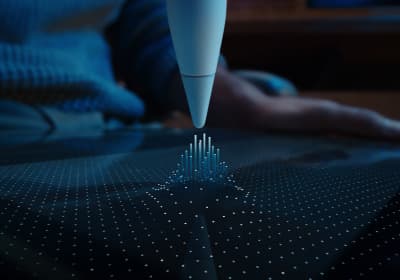
Apple Pencil Pro
amazon.comThe best Apple stylus for serious digital art workflows. Expensive, but the control upgrades are real.
Pro: Best brush-control and hover workflow
Con: Highest price in the lineup
Works only with newer iPad models. Check compatibility.
Apple Pencil (2nd generation)
amazon.comStill a strong stylus on compatible iPads. Good pressure control, but compatibility is the main trap.
Pro: Pressure support without Pro pricing
Con: Not compatible with newest Pro-only iPads
Only for iPads that support 2nd generation pairing.
Apple Pencil (USB-C)
amazon.comA practical low-cost Apple stylus with broad compatibility, but limited for advanced art control.
Pro: Lowest official Apple Pencil cost
Con: No pressure sensitivity for brush work
Compatible with many recent iPads. No pressure support.
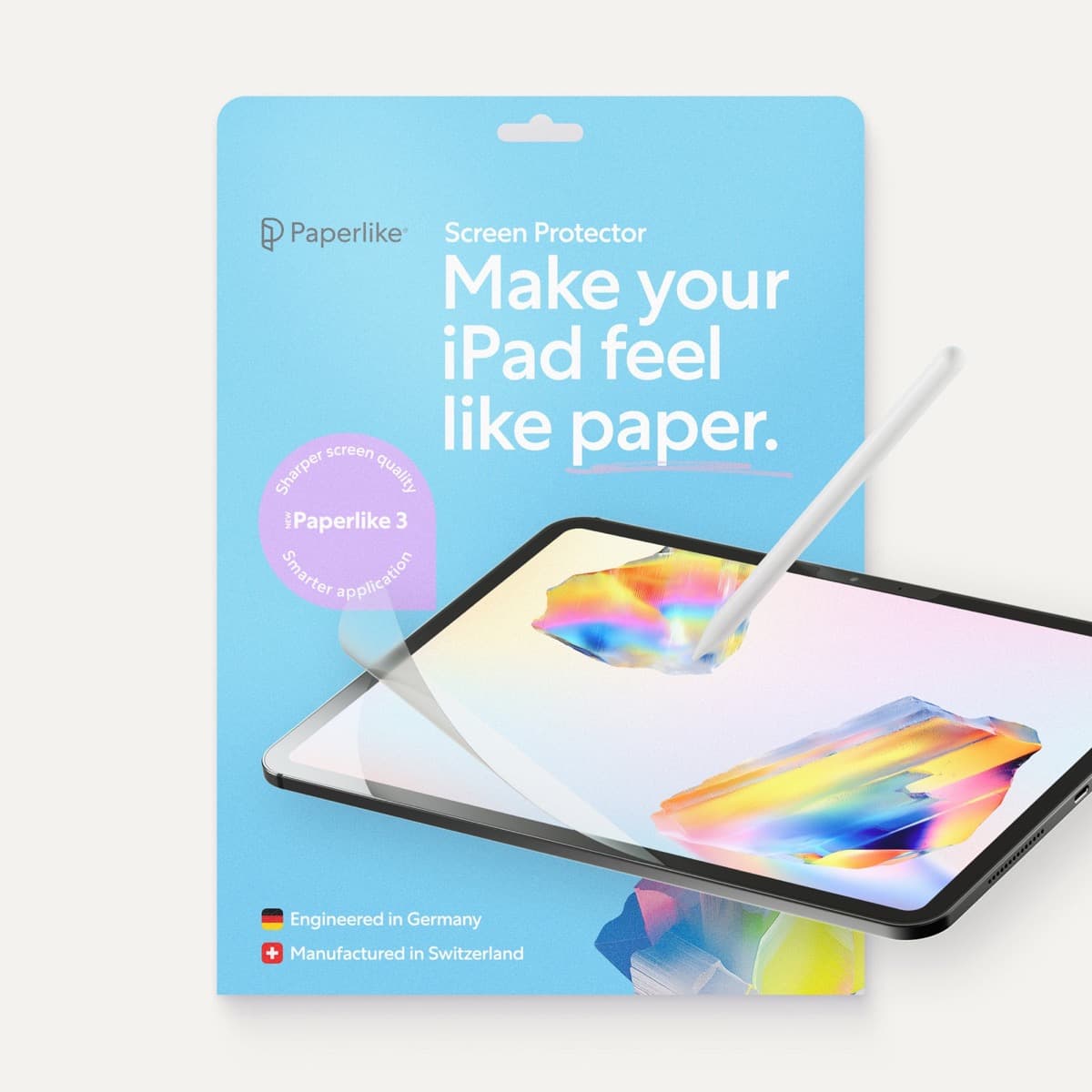
Paperlike 3 (11-inch, 2-pack)
amazon.comA strong surface-feel upgrade for drawing control. Clarity tradeoff is real and should be expected.
Pro: Adds controlled paper-feel friction
Con: Slightly reduces perceived display sharpness
11-inch fit only. Confirm generation before checkout.
Related buying picks
More in this collectionBuyer guide
Choosing the best Apple Pencil for medical illustration
Medical illustrators need pressure sensitivity and precise hardware compatibility, making the Apple Pencil Pro or 2nd generation pencil essential over the USB-C model.
Buyer guide
Best Apple Pencil for urban sketching: what to buy and what to skip
Choose the Apple Pencil that matches your sketching style and iPad model without paying for extra features you won't use outdoors.
Buyer guide
Best Apple Pencil for figure drawing: how to choose your stylus
Figure drawing demands reliable pressure sensitivity and stroke control, making Apple Pencil Pro or Apple Pencil 2nd generation the right choice over the USB-C model.
Buyer guide
Apple Pencil for watercolor painting: which stylus to choose
Choose an Apple Pencil with pressure sensitivity for digital watercolor, and avoid flat styluses that cannot modulate pigment wash.