If you are starting out with digital illustration on an iPad, buy Procreate [1]. It is sold as a paid app without recurring subscription tiers, making it the most sensible first purchase for anyone setting up a creative tablet [1]. If you do not want to spend money right away, download Sketchbook or Adobe Fresco first [2], [3]. Both give you capable free drawing toolsets that let you learn basic mark-making before you commit to paid software [2], [3]. Skip complex multi-platform studio suites until you know your regular illustration habits demand their specialized toolsets [4].
Starting out in digital art often feels confusing because desktop software and tablet apps take very different approaches to canvas navigation, brush settings, and pricing structures. Some programs charge monthly fees, others require desktop accounts, and others keep their toolsets simple and touch-focused [1], [4]. Understanding what fits your actual drawing routine will keep you from paying for features you do not need.
Why Procreate remains the default pick for new artists
Procreate by Savage Interactive Pty Ltd holds a 4.4 out of 5 rating across more than 50,000 App Store reviews, listed under the Graphics and Design category [1]. The storefront positions it as a leading creative application built specifically for iPad, and that dedicated focus shows up across its interface [1]. The controls stay minimal, tucking color palettes, brush libraries, and layer stacks into clean corner menus so your screen stays focused on your canvas [1].
For a beginner, purchasing Procreate means you get a complete toolset in one transaction [1]. You do not have to monitor active trial periods or wonder if an export button will be locked behind a monthly paywall [1]. Its brush engine provides pencils, inks, charcoals, and painting media right out of the box, letting you experiment with varied styles without downloading extra packs [1].
Device memory directly shapes your working limits in Procreate [5]. The app calculates layer caps based on your iPad model's available RAM and the pixel dimensions of your canvas [5]. On base hardware, high-resolution canvases have tighter layer ceilings, while iPads with more system memory allow higher layer counts on identical dimensions [5]. For a beginner working at standard social media or print sizes, these allocations provide ample room to sketch, ink, and shade cleanly without immediate memory bottlenecks [5].
Free alternatives to test your drawing habits first
If you prefer not to purchase an app before touching a stylus to glass, several free applications provide complete sketching foundations [2], [3], [6]. Sketchbook by Sketchbook, Inc. is a free download holding a 4.8 out of 5 rating from over 220,000 App Store ratings [2]. The app describes its toolset as taking you from quick sketches to fully finished artwork [2]. Its interface presents simple tool pucks and minimal brush menus that do not distract new artists who simply want to draw lines and practice hand-eye coordination [2].
Adobe Fresco: Draw and Paint App by Adobe Inc. is another free download in the Graphics and Design category, carrying a 4.7 rating across more than 61,000 reviews [3]. Adobe describes it as a free, professional drawing and painting application made for everyone [3]. Fresco excels if you want to experiment with watercolor washes and oil mixes alongside regular pixel brushes, giving you organic color blending without added software charges [3].
Another widely used option is ibis Paint X by ibis inc., which has earned a 4.7 rating across nearly 300,000 ratings [6]. The listing states it is designed for creators who want to draw and animate without pressure [6]. It includes extensive screentone, filter, and comic preparation tools, though its interface is significantly busier than Sketchbook or Procreate, which can introduce friction for true beginners [1], [2], [6].
When Clip Studio Paint makes sense instead
Clip Studio Paint by CELSYS, Inc. is rated 4.7 out of 5 from over 14,000 ratings on the App Store [4]. The app offers a free download that includes a 30-day trial period, after which users rely on ongoing plan options to keep working on iPad [4]. Unlike Procreate, Clip Studio Paint is not a one-time purchase on iPadOS [1], [4].
Clip Studio Paint caters to creators focused on comics, manga, frame layout, and multi-page illustration [4]. It features dedicated panel splitters, vector line layers, perspective rulers, and desktop file interchange [4]. If you already run Clip Studio Paint on a desktop computer or intend to produce full serialized comic chapters with repeating speech bubbles and panel borders, starting with its iPad edition creates seamless continuity [4].
However, beginners who simply want to learn digital sketching, line work, and basic color rendering should usually skip Clip Studio Paint at the beginning [1], [4]. Its desktop-derived menus, extensive sub-tool panels, and ongoing subscription costs introduce unnecessary complexity when you are still finding your footing with digital brushes [1], [4].
Hardware pairings that actually matter for beginners
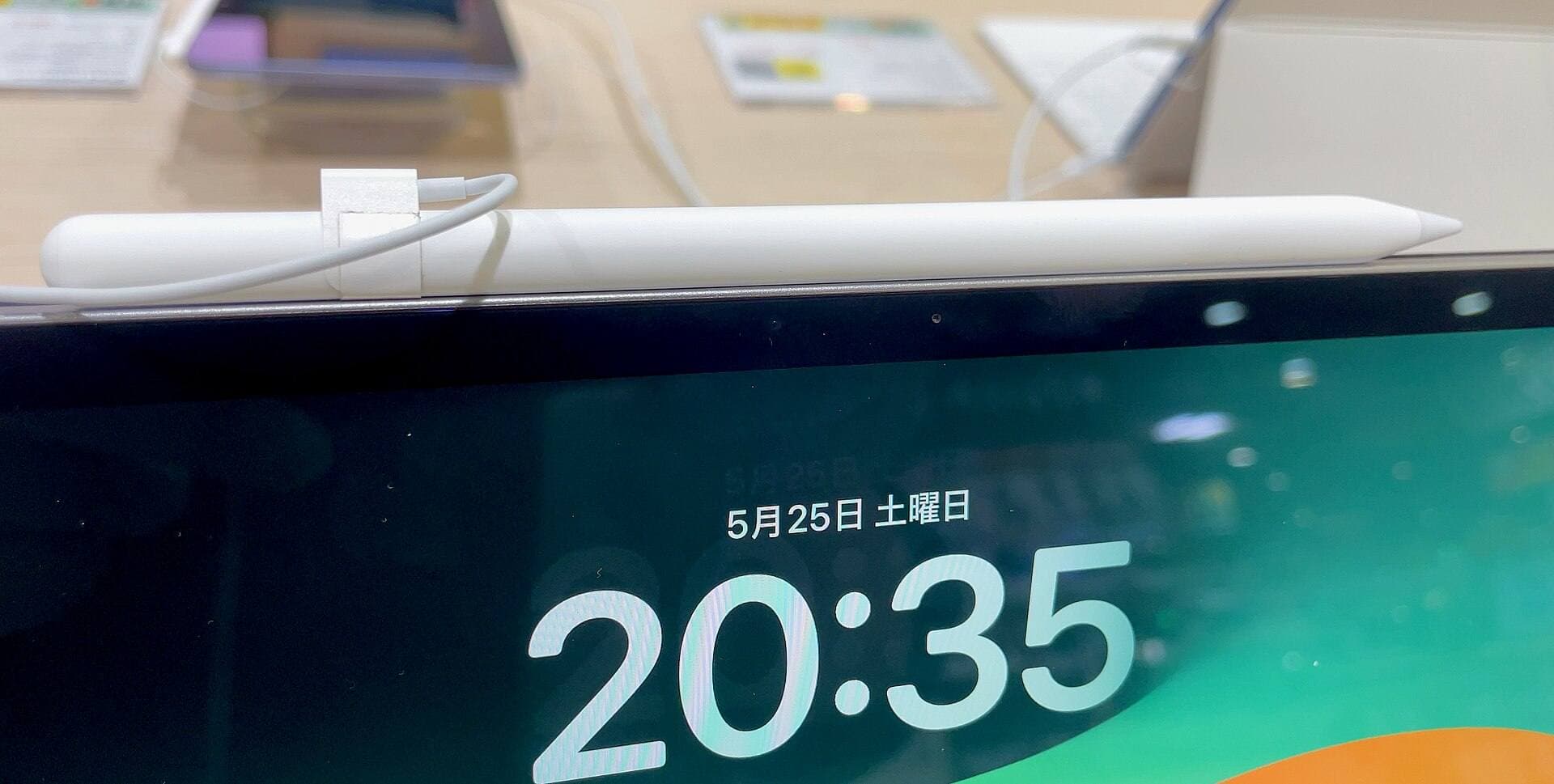
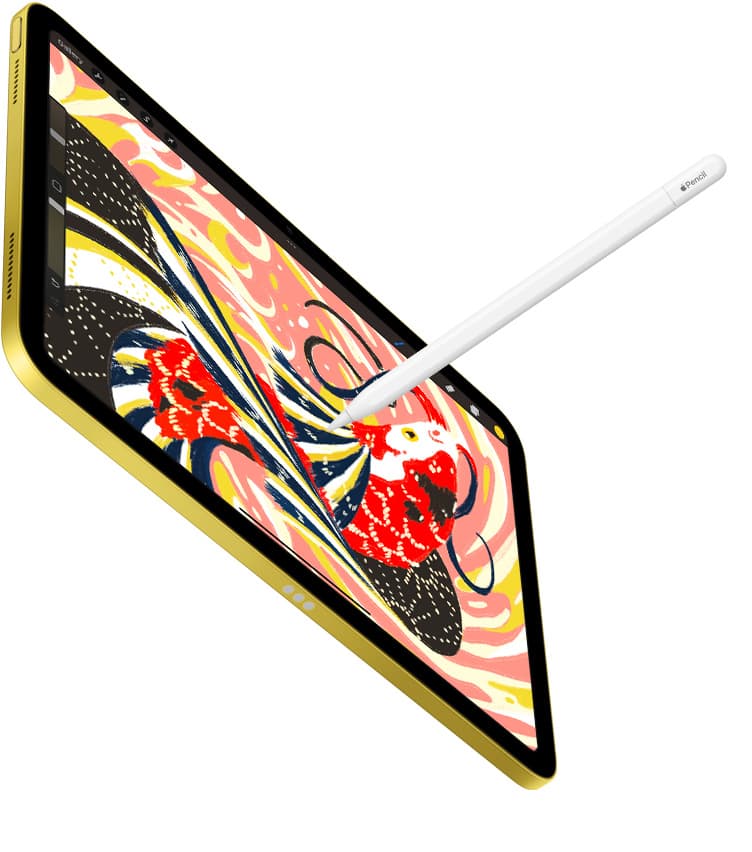
Software is only half of your drawing experience, because your stylus and tablet determine how natural your brush strokes feel [7], [8]. Current Apple hardware splits its stylus lineup between the entry USB-C model and the Apple Pencil Pro [7], [8]. If your tablet supports the Apple Pencil Pro, you gain pressure sensitivity, tilt control, barrel roll, squeeze shortcuts, and haptic feedback [7]. If you use the Apple Pencil (USB-C), you retain tilt detection and magnetic storage, but you do not get pressure sensitivity [7].
For digital painting and sketching, pressure sensitivity lets you vary line thickness and opacity naturally by pressing harder on the screen [7]. A beginner using a pencil without pressure sensitivity will need to manually change brush sliders constantly to mimic varying line weights [7]. Because of this, picking a setup that includes pressure sensitivity dramatically eases the learning curve [7].
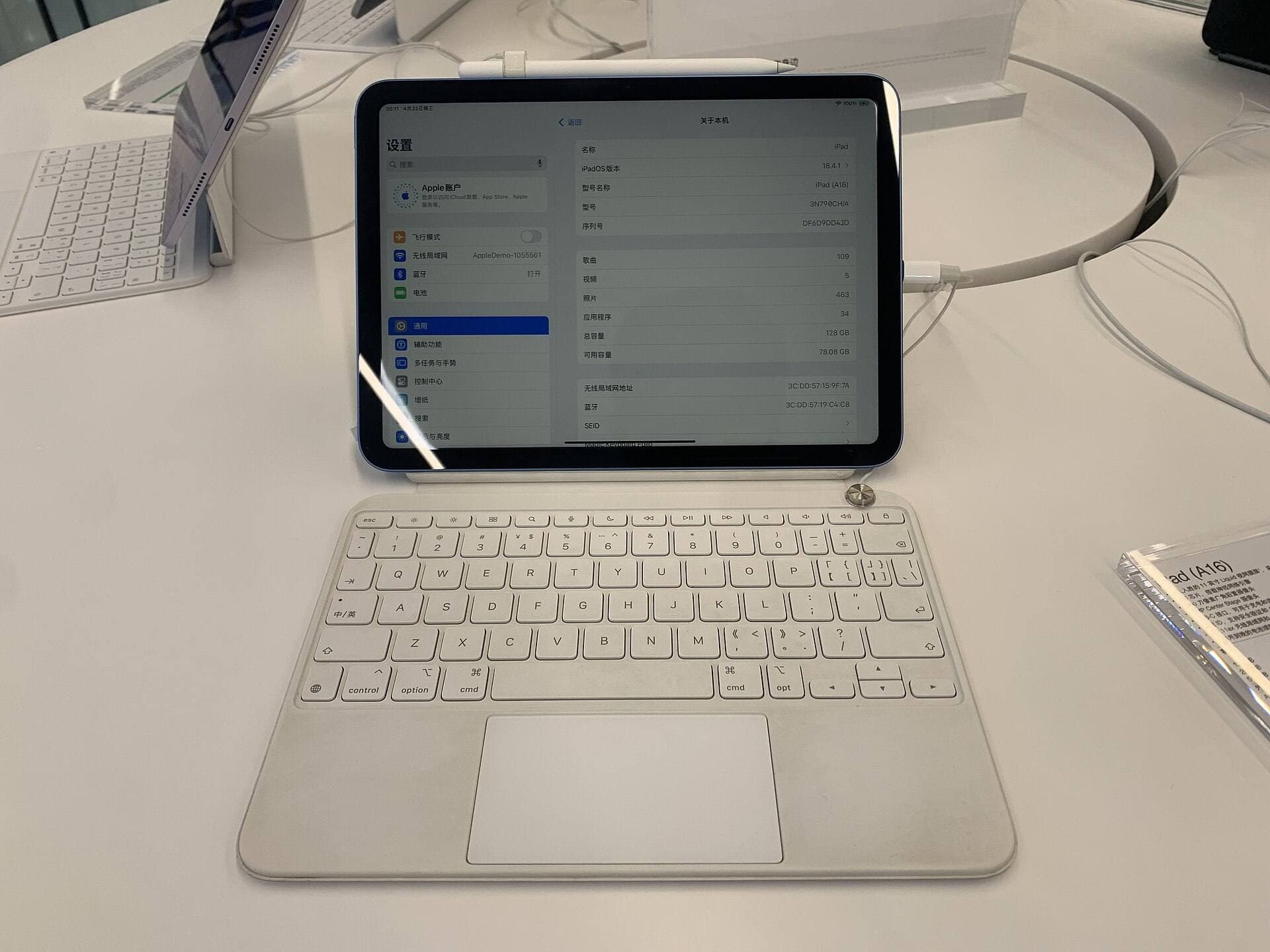
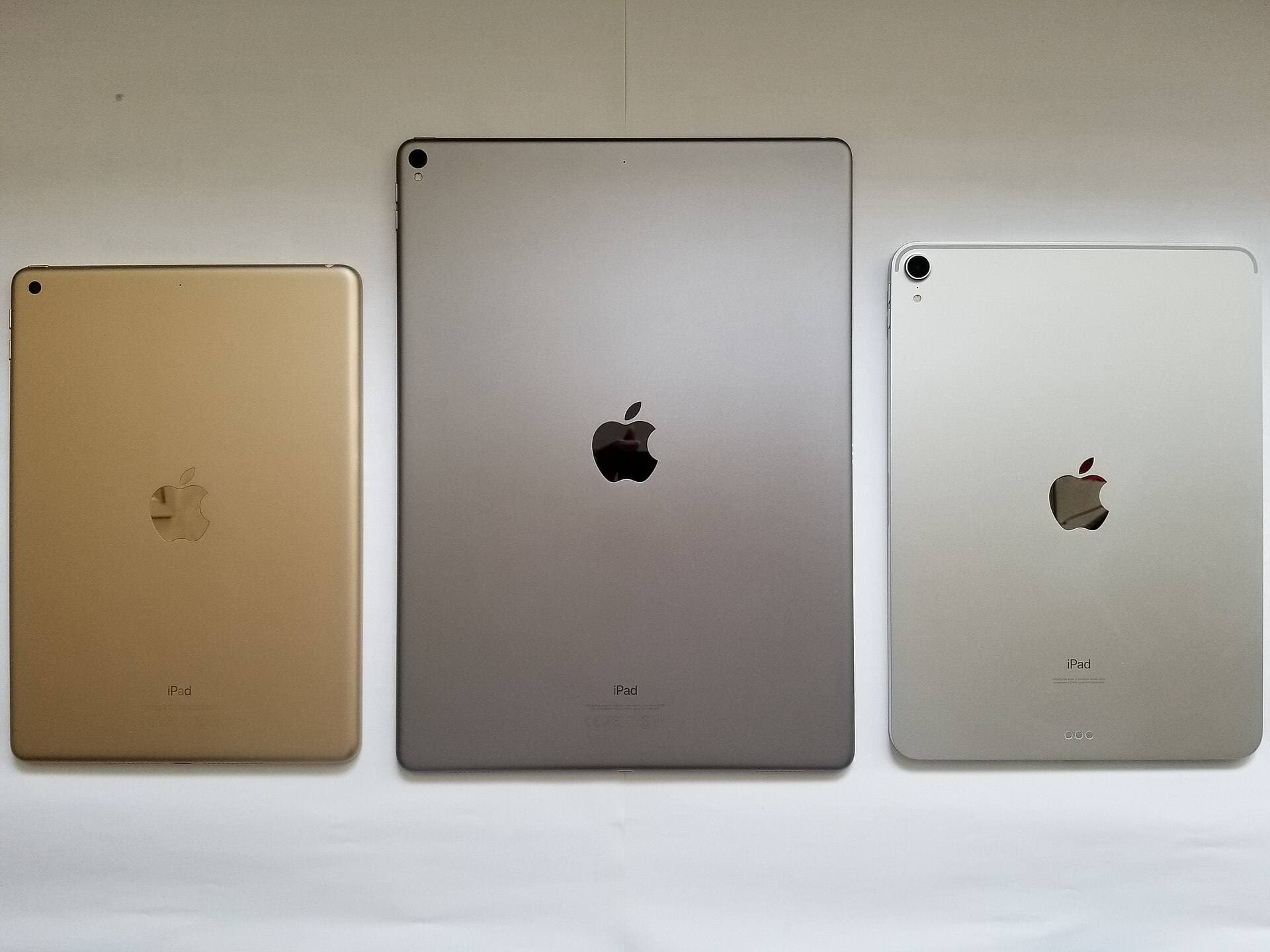
If you are purchasing a tablet today alongside your software, the iPad Air (M4) pairs directly with the Apple Pencil Pro and Apple Pencil (USB-C) [8], [9]. It delivers a modern display and fast processing headroom while keeping overall hardware spending below the flagship Pro lineup [8], [9]. Even so, you do not need the newest hardware to start [5], [9]. Older base iPads running compatible versions of iPadOS still support Procreate and handle standard layer counts reliably [1], [5].
Bottom line
For most beginners, Procreate is the smartest purchase because its one-time payment delivers a complete, intuitive workspace built strictly for iPad without subscription interruptions [1]. If you want to verify your commitment to drawing before spending any money, install Sketchbook to practice basic sketches at zero cost [2]. Skip Clip Studio Paint until your projects specifically require multi-page comic layouts or vector inking [4]. Pair your software choice with an Apple Pencil model that supports pressure sensitivity so your strokes respond naturally to your hand [7].
Sources
[1] https://apps.apple.com/us/app/id425073498 [2] https://apps.apple.com/us/app/id883738213 [3] https://apps.apple.com/us/app/id1458660369 [4] https://apps.apple.com/us/app/id1262985592 [5] https://help.procreate.com/articles/zlexav-ipad-compatibility [6] https://apps.apple.com/us/app/id450722833 [7] https://www.apple.com/apple-pencil/ [8] https://support.apple.com/en-us/108937 [9] https://www.apple.com/ipad/compare/
Recommended gear
Procreate
apps.apple.comPro: One-time purchase
Con: iPad-only
Clip Studio Paint
apps.apple.comPro: Deep comics, vector, ruler, and animation toolset
Con: iPad plan model is less simple than Procreate
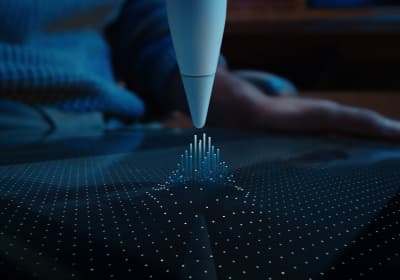
Apple Pencil Pro
amazon.comThe best Apple stylus for serious digital art workflows. Expensive, but the control upgrades are real.
Pro: Best brush-control and hover workflow
Con: Highest price in the lineup
Works only with newer iPad models. Check compatibility.
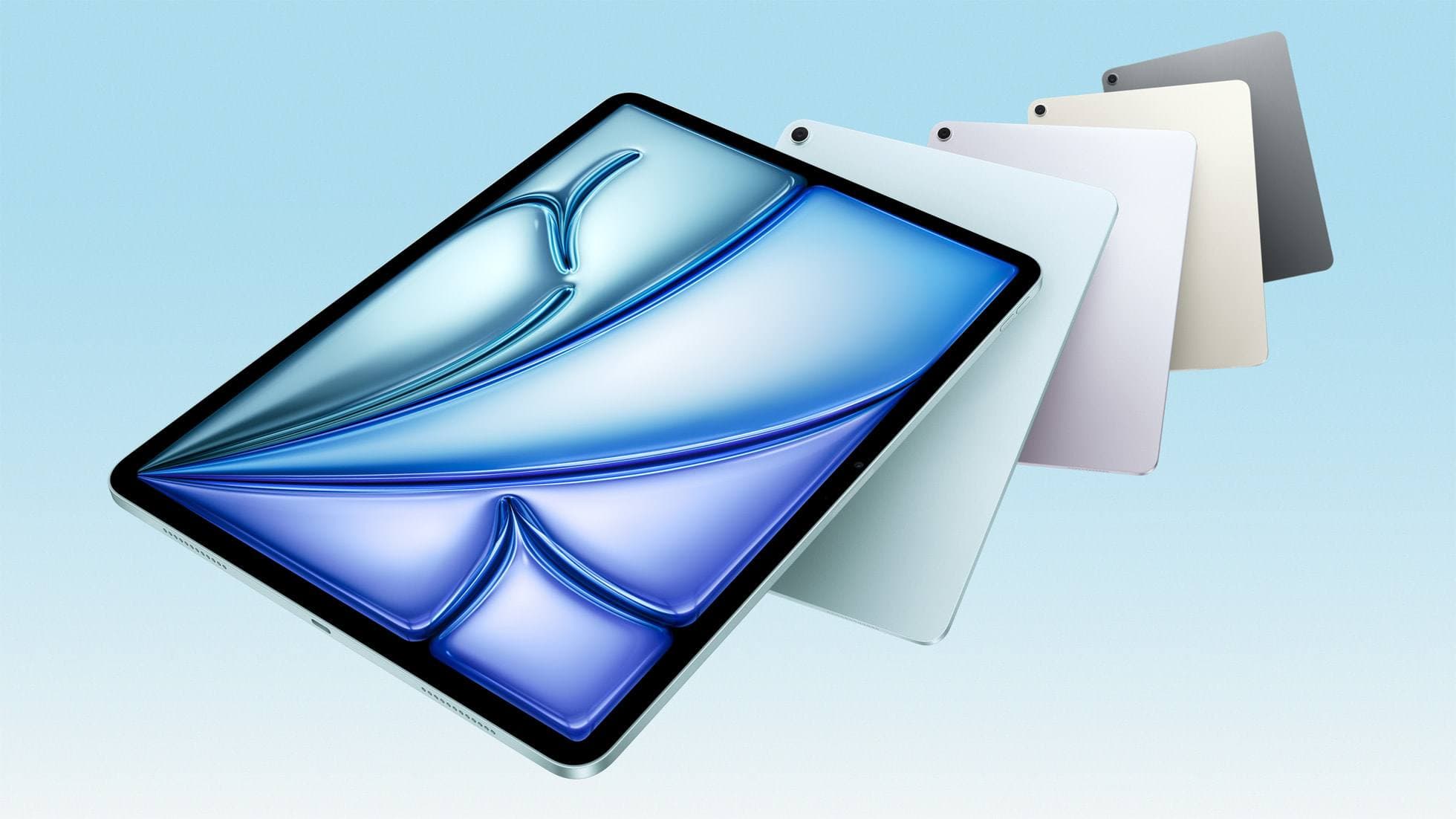
iPad Air (M4)
apple.comThe clean current Air recommendation for most serious hobby artists. Stronger buy logic than old-stock M3 when pricing is close.
Pro: Best current balance of price, headroom, and Pencil support
Con: Still 60Hz
Current Air lineup. Choose size, storage, and keyboard path before checkout.
Related buying picks
More in this collectionBuyer guide
What is the best handwriting app for iPad?
Choose between flexible vector canvases and traditional raster stroke engines based on how you organize your handwriting and notes.
Buyer guide
Best iPad app for drawing anime: Clip Studio Paint versus Procreate
Pick Clip Studio Paint for dedicated manga and anime production toolsets, or choose Procreate for a streamlined one-time purchase on iPad.
Buyer guide
Best iPad app for manga: Clip Studio Paint versus Procreate and free alternatives
Clip Studio Paint is the best overall iPad app for serialized manga and multi-page comics, while Procreate remains the top one-time purchase for single illustrations.
Buyer guide
Best Procreate alternatives for iPad
Compare top iPad drawing apps to decide whether Clip Studio Paint, Fresco, or another tool fits your workflow better than Procreate.