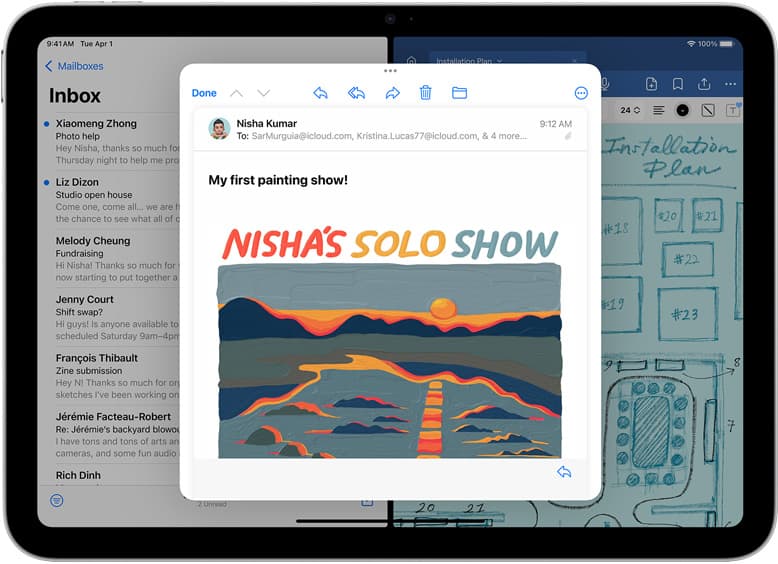
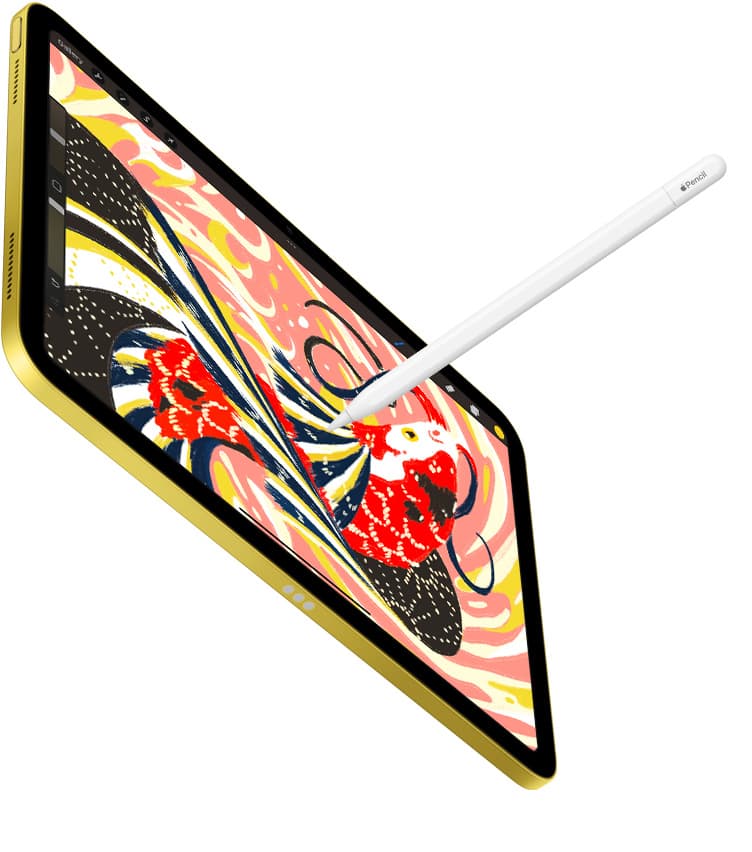
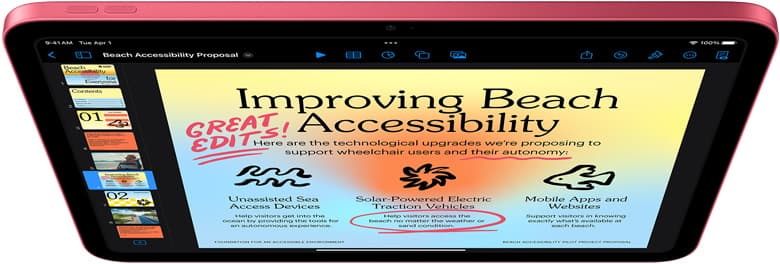
Buy the iPad Air (M4) if you want Apple Pencil Pro support without paying the premium for an iPad Pro [1], [3]. It gives you hardware features like squeeze, barrel roll, and haptic feedback while keeping your upfront cost lower than the flagship tablet [1], [2]. If total kit cost is your primary concern, choose the base iPad (A16) instead, but remember it limits your stylus options [1], [3]. If you plan to animate scenes or create detailed multi-layer illustrations, the iPad Air hits the best practical balance between hardware capability and hardware cost in Apple's current lineup [1], [4].
Why the iPad Air fits animation and illustration
When you build an animation or illustration workflow around an iPad, your tablet acts as your digital sketchpad, drawing table, and rendering box all at once. The iPad Air (M4) sits in Apple's lineup as the step-up choice above the mainstream iPad, pairing an M4 processor with modern display size options [1]. Because creative apps demand hardware headroom to handle complex project files, choosing an M-series tablet gives you access to a platform that Apple actively supports with modern accessory pairings [1], [3].
Drawing and animating on iPad hardware often centers on dedicated software. Procreate is available as an iPad-only application via a one-time purchase model [5]. Because you don't need an ongoing subscription to access the software, your hardware selection forms the bulk of your initial investment [5]. Procreate documents show that hardware configurations directly impact project constraints, meaning the tablet you select dictates the physical limits of your workspace [4].
Choosing the iPad Air gives you an ecosystem designed around modern creative input [1]. While older iPad models relied on earlier stylus generations, the iPad Air (M4) pairs directly with the latest input hardware [1], [3]. This makes it an appealing midpoint for illustrators who need advanced stylus input but don't want to purchase an iPad Pro [1], [3].
Apple Pencil Pro compatibility and control features
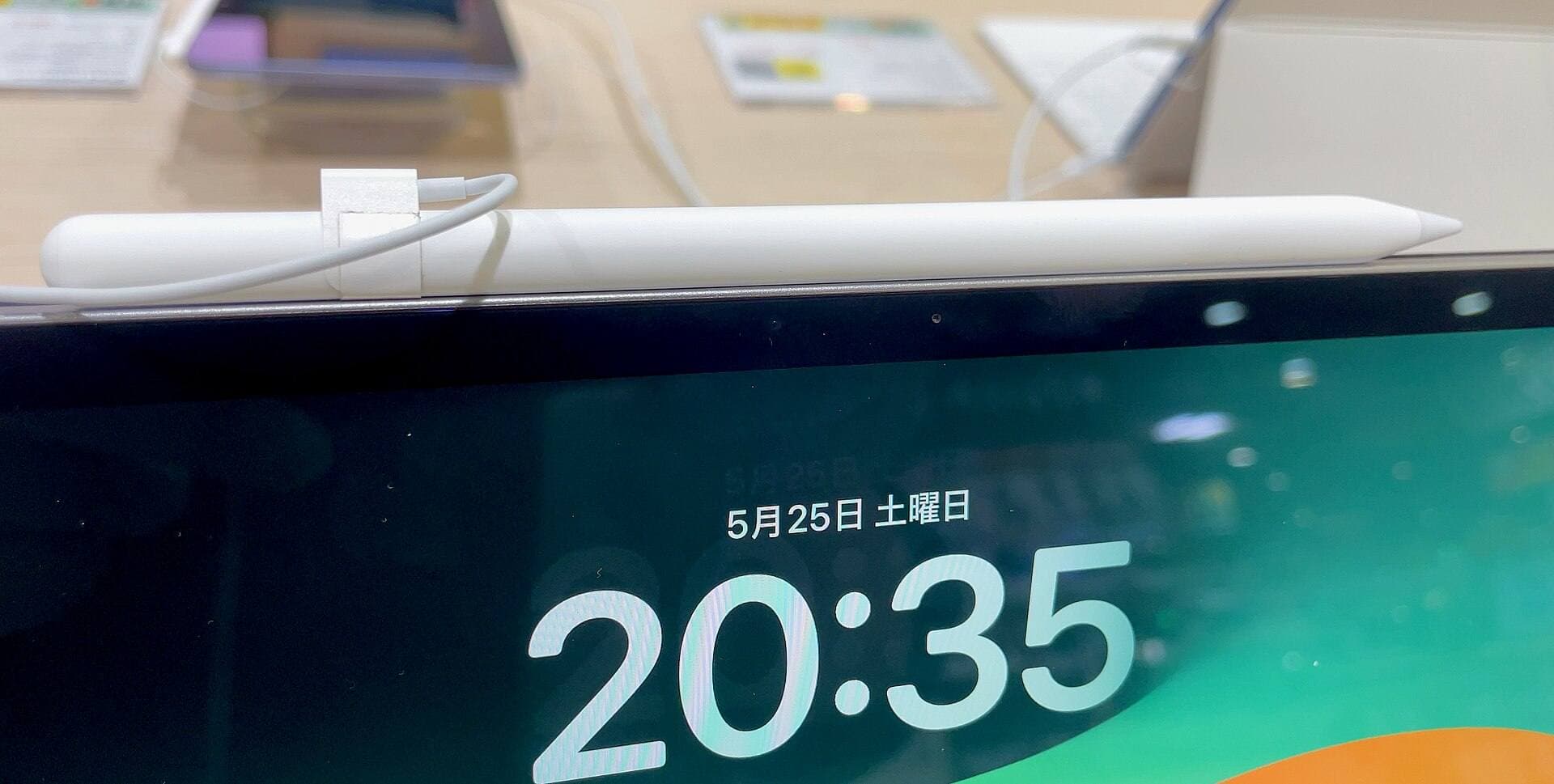
Stylus behavior is often the deciding factor when choosing between iPad tiers. The iPad Air (M4) supports the Apple Pencil Pro, which introduces several hardware controls that earlier styluses lack [1], [2]. According to Apple's specifications, the Apple Pencil Pro features a squeeze sensor in the barrel, a built-in gyroscope for barrel roll, haptic feedback, and Apple Pencil hover [2]. It also includes standard features like tilt sensitivity, pressure sensitivity, magnetic pairing, and wireless charging [2].
These physical features change how you interact with creative tools on screen. Barrel roll uses the internal gyroscope to let you rotate shaped brushes simply by rolling the stylus between your fingers [2]. The squeeze gesture detects finger pressure along the lower barrel to open custom tool menus or switch brushes without tapping an on-screen icon [2]. Haptic feedback provides a small vibration pulse to confirm actions when you squeeze or double-tap the stylus body [2].
Access to these features depends strictly on your tablet model. Official support documentation confirms that the Apple Pencil Pro pairs only with select recent iPads, including the iPad Air (M4) [3]. The entry-level iPad (A16) doesn't support the Apple Pencil Pro [3]. If you decide to buy the base iPad, you can't use barrel roll, squeeze gestures, or wireless magnetic charging, because that tablet pairs with alternative stylus hardware instead [1], [2], [3].
Memory, canvas sizing, and animation layer headroom
Digital art applications handle files differently than basic photo viewers or word processors. In Procreate, your canvas limits are determined directly by the amount of working memory available in the tablet and the pixel dimensions of your project [4]. When you create an animation or an detailed illustration, each moving frame or visual element consumes a layer within your document [4].
Because Procreate caps layer counts based on device memory and canvas size, hardware specifications create a real boundary for animators [4]. If you create a high-resolution canvas on an older device or an iPad with lower hardware allocations, the software reduces your total available layer count to prevent system overextension [4]. For animation work, where individual frames require independent layer space, a higher layer cap gives you room to build longer sequences or keep background elements separated from character movement [4].
Storage capacity is another key hardware choice when configuring the iPad Air. Apple offers the iPad Air (M4) in multiple storage tiers, giving you the ability to select your internal drive size before checkout [1]. Animation files, frame exports, and high-resolution time-lapses consume local storage quickly, so selecting an appropriate tier helps prevent running out of local device space when archiving large projects [1], [5].
Comparing the iPad Air to the base iPad
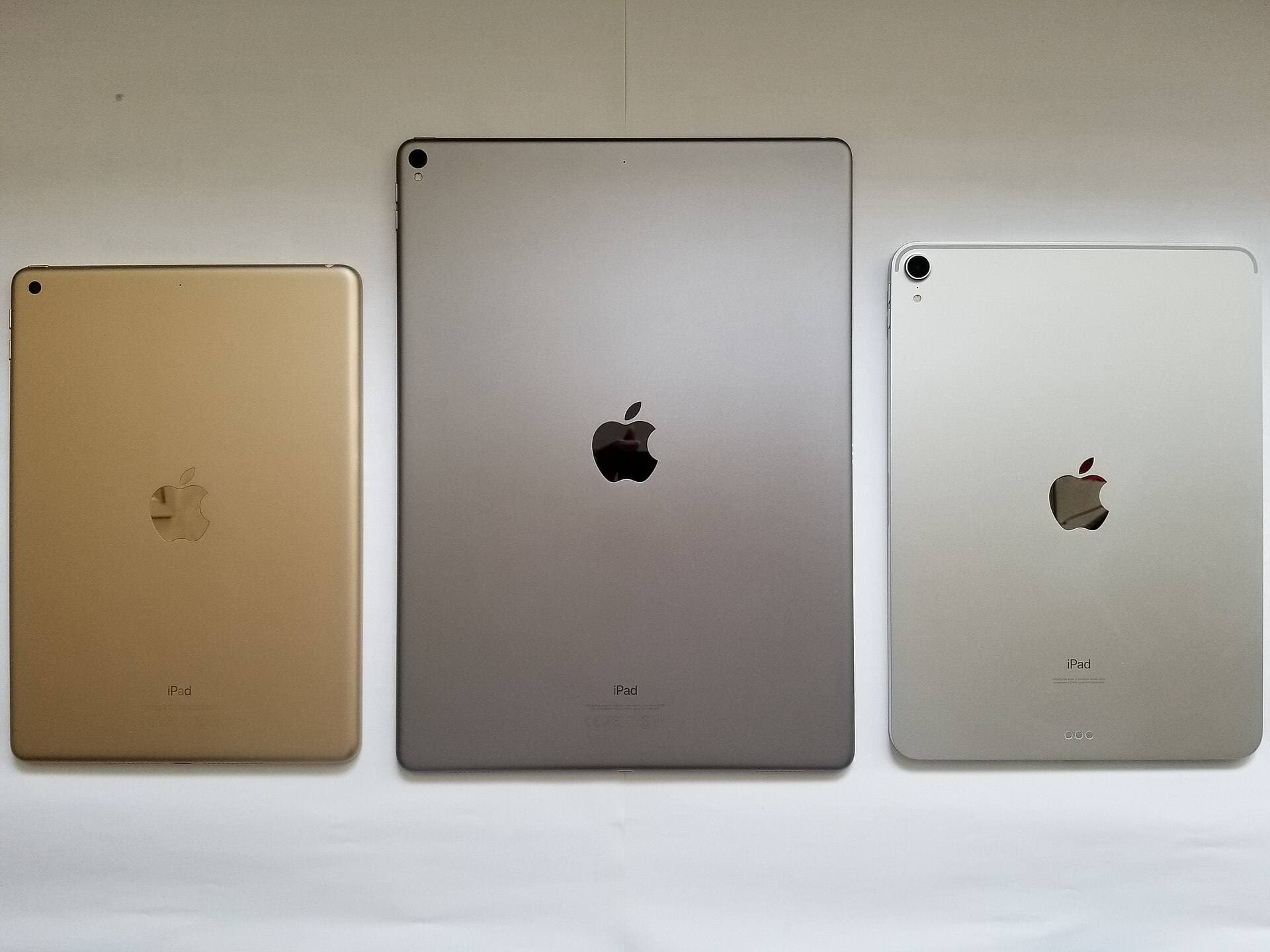
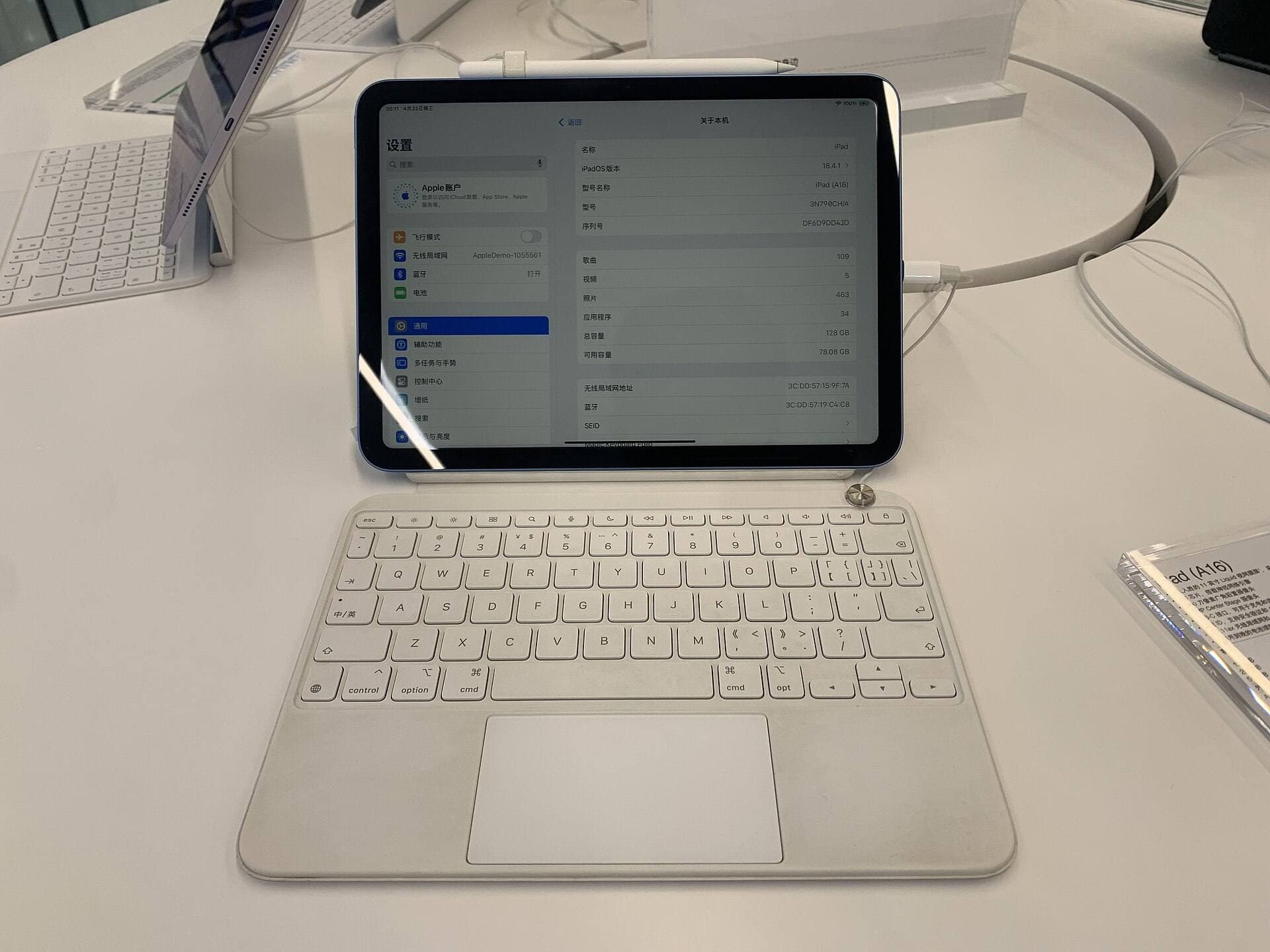
If you want to spend less, the iPad (A16) represents Apple's entry-level standard tablet [1]. The A16 model gives artists a capable way to run drawing apps and build illustrations on a budget [1], [5]. For hobbyists who draw casually or students learning basic animation principles, the base iPad provides a functional entry point without a large financial commitment [1], [4].
However, stepping down to the base iPad involves tangible hardware compromises. The iPad (A16) uses an A-series chip rather than an M-series processor, and it doesn't pair with the Apple Pencil Pro [1], [3]. You lose the squeeze sensor, barrel roll brush rotation, haptic confirmation, and magnetic wireless charging [2], [3]. Charging and pairing on the base model rely on different Apple Pencil connections, which can require separate charging setups depending on your chosen stylus [2], [3].
Display technology also marks a key boundary across Apple's entire tablet catalog. Both the iPad Air (M4) and the iPad (A16) feature standard 60Hz displays rather than higher refresh rates [1]. If you want ProMotion display technology, you have to look at the iPad Pro lineup [1]. That means screen fluidity remains identical between the base iPad and the iPad Air, so your decision between them centers on processing headroom, storage options, and Apple Pencil Pro support rather than panel refresh rate [1], [3].
Bottom line
If you want access to the Apple Pencil Pro's squeeze, barrel roll, and haptic feedback tools without paying for an iPad Pro, buy the iPad Air (M4) [1], [2], [3]. It gives you the necessary hardware foundation and accessory compatibility to tackle animation and illustration projects with ample headroom [1], [4]. You will miss out on a high-refresh display because the panel runs at standard 60Hz, but you gain full compatibility with Apple's flagship drawing stylus [1], [2].
Skip the iPad Air and choose the base iPad (A16) if you want the lowest upfront kit price and don't need advanced stylus features [1], [3]. The base model runs Procreate for basic drawing and animating, but it excludes you from the Apple Pencil Pro ecosystem [3], [5]. For animators who need generous layer allocations and tactile stylus control, the iPad Air remains the smart middle ground [1], [2], [4].
Sources
[1] https://www.apple.com/ipad/compare/ [2] https://www.apple.com/apple-pencil/ [3] https://support.apple.com/en-us/108937 [4] https://help.procreate.com/articles/zlexav-ipad-compatibility [5] https://apps.apple.com/us/app/procreate/id425073498
Recommended gear
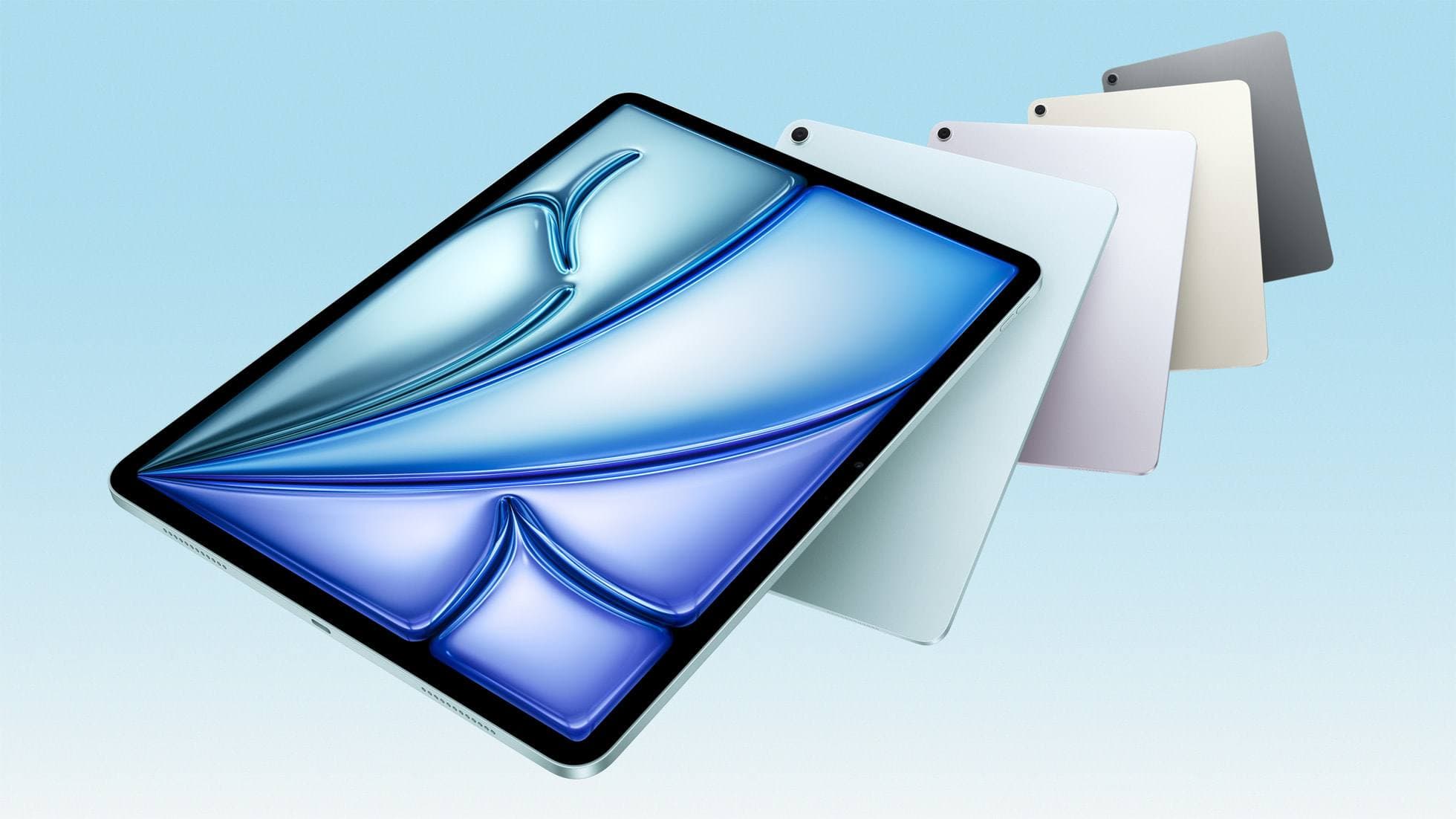
iPad Air (M4)
apple.comThe clean current Air recommendation for most serious hobby artists. Stronger buy logic than old-stock M3 when pricing is close.
Pro: Best current balance of price, headroom, and Pencil support
Con: Still 60Hz
Current Air lineup. Choose size, storage, and keyboard path before checkout.
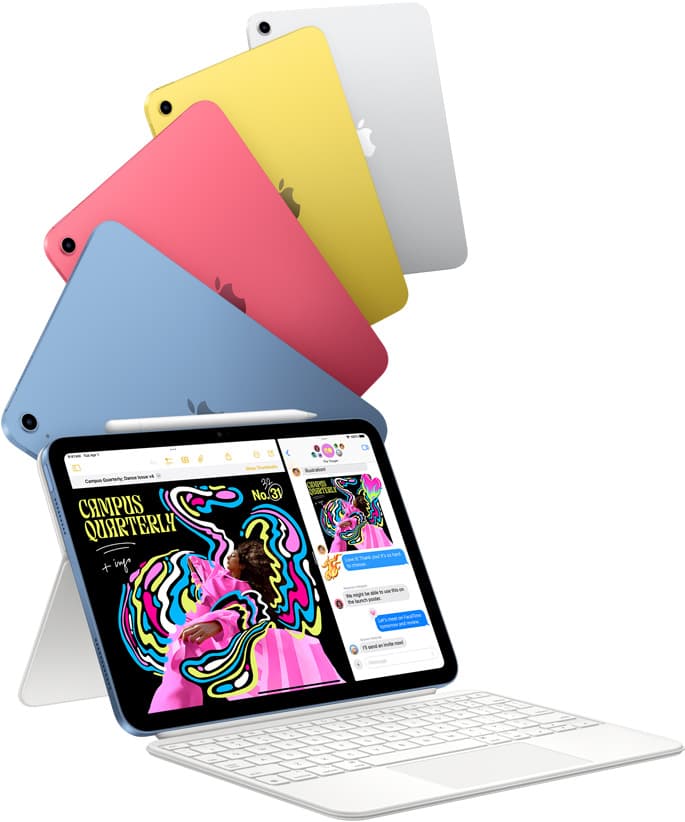
iPad (A16, 11th gen)
amazon.comThe best entry iPad for most artists on a budget. It is not premium, but it is very hard to beat on value.
Pro: Best value iPad right now
Con: No ProMotion display
Search opens with the exact model keywords. Verify size and storage before checkout.
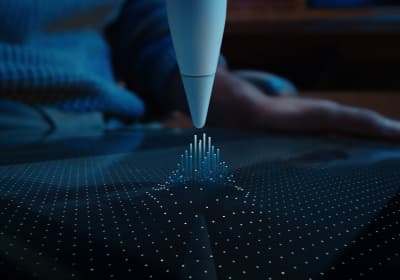
Apple Pencil Pro
amazon.comThe best Apple stylus for serious digital art workflows. Expensive, but the control upgrades are real.
Pro: Best brush-control and hover workflow
Con: Highest price in the lineup
Works only with newer iPad models. Check compatibility.
Procreate
apps.apple.comPro: One-time purchase
Con: iPad-only
Related buying picks
More in this collectionBuyer guide
What's the best iPad for artists?
iPad Air with the M4 chip hits the best balance of stylus features and price for most digital artists.
Comparison
iPad vs Android tablet for drawing: How to pick your art setup
Compare iPad and Android tablets for digital art to find the right stylus, app ecosystem, and hardware balance.
Buyer guide
Best iPad for photo editing and drawing
Choose the iPad Air (M4) for balanced drawing tool support, pick the iPad Pro (M5) for the top display, or use the base iPad (A16) to keep total setup costs down.
Buyer guide
Is a 64GB iPad enough for Procreate?
A 64GB iPad can run Procreate; decide whether it is enough by measuring your active canvases and the device storage already in use.