





If you are running into timeline stutter or brush delay, keep your current iPad before rushing out to buy fresh hardware. Most animation slowdown comes from heavy raster track density, high canvas dimensions, and background iPadOS memory limits rather than broken files [4]. You should keep your current setup if your projects run smoothly at standard resolutions and you only see friction during multi-track playback. You should buy the iPad Air (M4) if your workload frequently hits memory ceilings or if you need hardware pairing with the Apple Pencil Pro [1], [3]. If you want a basic sketchbook animation rig on a strict budget, choose the iPad (A16, 11th gen), but skip it if you plan to stack dozens of high-resolution layers [1], [4].
How project resolution and track count stress iPad memory
Animation projects consume memory differently than static illustration canvases do. When you create digital art in Procreate, the application ties maximum layer limits directly to the physical memory available on your iPad model [4]. In animation environments, each additional track, video clip, and frame draws on that same hardware pool [4]. If you set up an animation canvas at large print dimensions or ultra-high-definition video standards, your iPad allocates memory across every active frame [4].
When timeline tracks accumulate without caching, iPadOS must constantly juggle active frames in system memory [4]. This load can cause the timeline playhead to pause or brush strokes to register slowly as the operating system manages memory allocations [4]. Before you consider changing hardware, check your stage dimensions. Animating at screen resolution rather than massive print resolution keeps track overhead manageable [4].
If you find that your iPad cannot maintain smooth playback on complex timelines, consolidating raster tracks helps reduce the strain on system resources [4]. Flattening completed sequences or grouping elements into single layers frees up memory that the system can use for real-time rendering [4].
Stylus latency, hover states, and drawing input
Drawing friction often feels like application lag when it is actually an input configuration issue or hardware pairing mismatch. The Apple Pencil lineup interacts with iPadOS through dedicated touch digitizers, but different stylus models support different feature tiers [2]. For example, the Apple Pencil Pro includes barrel roll, squeeze gestures, haptic feedback, and hover on supported devices, while earlier styluses omit several of these sensor inputs [2].
If your pencil strokes feel delayed, confirm whether your specific iPad supports Apple Pencil hover [1], [2]. Hover allows the screen to detect the stylus tip before it touches the surface, giving you a real-time cursor preview [2]. On hardware that lacks hover or where background system processes throttle touch response, quick inking marks can appear to trail behind the stylus tip [1], [2].
Input lag can also be compounded by brush settings inside your illustration tools. High stabilization, motion filtering, or streamline settings intentionally smooth out strokes by averaging position data over time [7]. That deliberate algorithmic delay makes lines look silky, but artists often mistake it for system stutter [7]. Review your brush dynamics in the brush studio before diagnosing your iPad as underpowered [7].
iPad model differences and memory headroom
Your physical iPad model sets hard constraints on how many assets you can manipulate simultaneously. Apple segments its tablet lineup using different processor chips, display technologies, and memory structures [1]. For instance, entry-tier hardware like the iPad (A16, 11th gen) features an A-series chip and a 60Hz display, whereas the iPad Air (M4) runs on Apple's desktop-class M4 processor [1].
These processor distinctions determine how quickly your device executes background render passes and calculates brush stamps [1]. More importantly, device memory dictates the total ceiling for layers and assets in Procreate software [4]. An older entry-level tablet with limited RAM will impose lower layer thresholds, forcing you to budget frames conservatively [4].
Upgrading hardware is sensible when your daily production demands exceed what entry-tier silicon handles [1], [4]. The iPad Air (M4) provides a capable balance of processing power, storage configurations, and compatibility with the Apple Pencil Pro [1], [3]. However, the iPad Air still uses a 60Hz screen refresh rate [1]. If you expect 120Hz ProMotion fluidity, understand that neither the baseline iPad nor the iPad Air includes that display tier [1].
Software maintenance and background iPadOS processes
Even capable hardware can experience intermittent responsiveness hiccups if background tasks saturate system memory. Procreate relies on active system headroom to manage paint buffers and undo history [4], [6]. If your iPad internal storage is nearly full, iPadOS struggles to allocate temporary swap files, which leads to dropped frames and sluggish tool switching [4].
Restarting your iPad clears out active system caches and halts rogue background apps that may be consuming RAM [4], [6]. Animators who keep numerous apps open simultaneously or leave cloud backup synchronizations running in the background often see timeline performance degrade over extended sessions [6].
Keeping your software updated is equally important. Procreate delivers regular patches and maintenance updates through the App Store to resolve known tool behavior quirks and optimize hardware utilization [5]. Running outdated app builds on modern iPadOS versions can introduce compatibility mismatches that manifest as sluggish canvas behavior [4], [5].
How to structure projects to maintain timeline performance
Adopting disciplined project habits solves many timeline issues without requiring a single dollar spent on new electronics. First, establish project canvases at the exact output resolution you need rather than working at excessive dimensional overkill [4]. An animation destined for web video does not require sixty layers of 300 DPI print-scale data [4].
Second, keep your content segmented across separate project files [4], [7]. If you are building a long-form animated narrative, break scenes down into individual sequences rather than compiling an entire short film inside one timeline [7]. This approach prevents project files from ballooning to sizes that exceed system memory capacity [4], [6].
Third, rely on static Procreate files to draft character sheets, backgrounds, and detailed color palettes before importing them into animation tracks [4], [7]. The standard Procreate app allows artists to take full advantage of layer tools, custom brush engines, and one-time software purchase pricing [4], [5], [7]. By importing flattened artwork into your timeline as modular assets, your animation playback remains responsive across every playback cycle [4].
Bottom line
Do not replace your tablet until you have tested your timeline with lower canvas dimensions, streamlined tracks, and fresh iPadOS reboots [4], [6]. Most stutter in animation apps stems from physical RAM limits on large projects rather than device failure [4]. Keep your current iPad if simple timeline hygiene restores smooth playback on your daily projects [4].
If your animation goals consistently push past your device layer thresholds, buying the iPad Air (M4) is the logical step up [1], [4]. It delivers the processing power of the M4 chip and pairs with the Apple Pencil Pro for advanced sensor inputs like barrel roll and squeeze [1], [2], [3]. If overall kit price is your top concern and you only produce lightweight animations, choose the iPad (A16, 11th gen), but skip it if you require Apple Pencil Pro compatibility or massive canvas ceilings [1], [3], [4].
Sources
[1] https://www.apple.com/ipad/compare/ [2] https://www.apple.com/apple-pencil/ [3] https://support.apple.com/en-us/108937 [4] https://help.procreate.com/articles/zlexav-ipad-compatibility [5] https://apps.apple.com/us/app/procreate/id425073498 [6] https://help.procreate.com/articles/dbgjal-procreate-faq [7] https://help.procreate.com/procreate/handbook
Recommended gear

iPad Air (M4)
apple.comThe clean current Air recommendation for most serious hobby artists. Stronger buy logic than old-stock M3 when pricing is close.
Pro: Best current balance of price, headroom, and Pencil support
Con: Still 60Hz
Current Air lineup. Choose size, storage, and keyboard path before checkout.
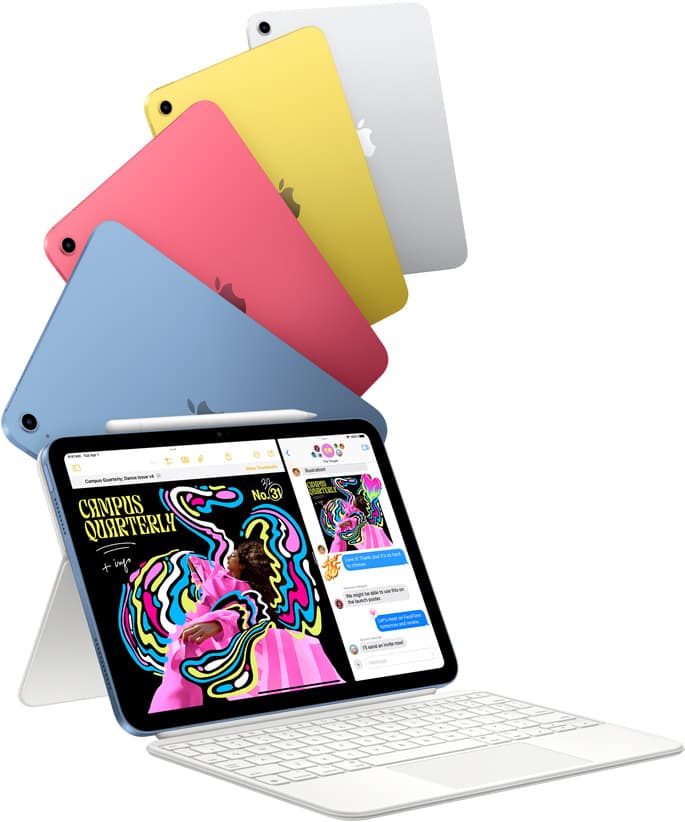
iPad (A16, 11th gen)
amazon.comThe best entry iPad for most artists on a budget. It is not premium, but it is very hard to beat on value.
Pro: Best value iPad right now
Con: No ProMotion display
Search opens with the exact model keywords. Verify size and storage before checkout.
Procreate
apps.apple.comPro: One-time purchase
Con: iPad-only

Apple Pencil Pro
amazon.comThe best Apple stylus for serious digital art workflows. Expensive, but the control upgrades are real.
Pro: Best brush-control and hover workflow
Con: Highest price in the lineup
Works only with newer iPad models. Check compatibility.
Related buying picks
More in this collectionBuyer guide
Best iPad app for sketching over photos: top picks and tradeoffs
Compare Procreate, Clip Studio Paint, and top free-to-download alternatives to choose the right iPad app for sketching and tracing over photos.
Buyer guide
Best coloring app for iPad with Apple Pencil
Choose Lake for structured coloring book pages or Procreate to color custom line art with full layer control.
Buyer guide
Best iOS app for graphic design: Choosing between vector and raster tools
Choose Affinity Designer 2 or Adobe Illustrator for vector graphic design on iPadOS, and keep Procreate primarily for raster drawing.
Buyer guide
Best iPad drawing app for beginners
Procreate remains the best first drawing app to buy on iPad, while free options like Sketchbook and Adobe Fresco let you start without upfront costs.