






If you create comics, buy the iPad Air (M4). It provides Apple Pencil Pro support, strong processing headroom for layered files, and comfortable screen sizes without charging top-tier prices. Choose the iPad Pro (M5) only if you ink comics full-time and demand a high-refresh ProMotion screen for rapid inking lines. Skip the standard iPad (A16) if you run heavy Clip Studio Paint projects with dozens of layers, though it remains a viable budget starter. Skip the iPad mini (A17 Pro) unless pocket-sized sketching outweighs screen space for panel layouts. For most comic creators, the iPad Air (M4) hits the exact balance of performance and value [1].
Screen size and workspace for multi-panel comic pages
Comic pages demand far more visual space than standalone illustrations. When you build a standard comic or manga page, your screen must display panel borders, dialogue balloons, character art, background details, and user interface panels all at once. If you work in Clip Studio Paint, your screen hosts toolbars for pens, layer stacks, sub-tool selectors, and navigator windows alongside your canvas [3].
On smaller displays, tool palettes consume valuable drawing room. The iPad mini (A17 Pro) is the most portable option in the catalog, but a comic page and its app controls must share that smaller display [1], [3]. It can work as a thumbnailing pad or an on-the-go script reader. Choose it only after confirming that its canvas size suits your actual page-layout routine.
The 11-inch form factor, found on the base iPad (A16), iPad Air (M4), and iPad Pro (M5), provides a practical middle ground. You can draw comfortably while resting the tablet on your lap or on a desk stand. However, artists who draw complex, multi-panel western comics or dense manga pages frequently prefer larger options [1]. The larger display variants available in the Air and Pro families give you enough screen space to view an entire page layout at actual print size while keeping essential tool palettes visible. If your budget allows, a larger screen reduces wrist strain and minimizes the time spent zooming in to ink tiny details.
Apple Pencil support and inking precision
Inking comics requires line control, smooth tapering, and predictable pressure response. The choice of iPad directly controls which stylus models you can use, altering how you draw lines and interact with your software [1], [2].
The iPad Air (M4) and iPad Pro (M5) support the Apple Pencil Pro [2]. This stylus introduces barrel roll and squeeze gestures. Barrel roll allows digital brushes to rotate as you twist the pencil in your fingers, mimicking flat calligraphy nibs and chisel-tip markers often used for lettering and bold comic inks. The squeeze gesture summons context menus directly at your nib, letting you swap between inkers, erasers, and selection tools without lifting your hand away from your panel [2]. The magnetic charging and pairing on the side of the tablet ensure the stylus is charged whenever you sit down to work [2].
In contrast, the entry-level iPad (A16) relies on standard stylus options that lack the advanced sensor suite of the Apple Pencil Pro [2]. Inking on a display without ProMotion also means drawing at a standard 60Hz refresh rate. Both the iPad Air (M4) and iPad (A16) operate at 60Hz [1]. For many comic illustrators, 60Hz is fully usable for clean inks and color flats. However, fast inking strokes can exhibit a slight tracking delay behind the tip of the pencil. The iPad Pro (M5) incorporates ProMotion technology, refreshing up to 120Hz [1]. This faster refresh rate shortens visual latency, making the stroke appear directly beneath the stylus point as you pull fast contour lines and hatch marks.
App demands: Clip Studio Paint, Procreate, and layer counts
Comic workflows place heavy demands on tablet memory and processing chips. Many comic artists rely on Clip Studio Paint because it provides specialized comic tools: panel splitting frames, perspective rulers, speech bubble generators, screentones, and multi-page project management [3], [5]. Others prefer Procreate for its minimalist user interface and textured painting brushes [4].
The applications expose different project constraints, which makes your intended canvas a better guide than broad performance labels. Procreate publishes maximum canvas and layer information by device, with layer availability tied to canvas dimensions and device resources [4]. Build one representative comic page with your usual pencils, inks, colors, lettering, and effects, then compare that need with Procreate's current table before selecting an iPad [4].
Clip Studio Paint's official pages describe illustration, comic, animation, and 3D-reference tools on iPad [3], [5]. If those tools define your workflow, compare the app's current requirements with the exact iPad and storage tier you are considering. The sources do not promise a particular save time or project ceiling, so a real project test is the safest way to separate the baseline iPad, Air, and Pro for your work [1], [3], [5].
Comparing the lineup for comic creators
Selecting the right tool comes down to balancing your working methods against the model and display differences Apple lists [1].
Buy the iPad Air (M4) if you want the definitive sweet spot. It provides compatibility with the Apple Pencil Pro, giving you squeeze and barrel roll features for dynamic inking [2]. The M4 processor delivers high-level processing power for heavy files in Clip Studio Paint and ample layer overhead in Procreate [1], [4]. You miss out on the 120Hz ProMotion display of the Pro line, but for comic pencils, inks, flats, and lettering, 60Hz remains completely serviceable.
Buy the iPad Pro (M5) if you want the ProMotion display and a side-by-side drawing test shows that the difference matters to your inking [1]. Skip the Pro if you are on a modest budget and do not have a feature-specific reason to move above the Air. Professional status by itself is not a hardware requirement.
Buy the iPad (A16) if you are starting your first webcomic or drawing casually and want to keep initial expenses down. Check current Procreate and Clip Studio Paint compatibility before purchase, because app availability does not establish a guaranteed project ceiling [3], [4]. Skip this model if Apple Pencil Pro support is a requirement [1], [2].
Buy the iPad mini (A17 Pro) solely if you prioritize mobility above all else. It is an excellent secondary notebook for sketching character designs, writing scripts, and laying out quick thumbnails on a bus or train. Skip it as your primary workstation because working inside comic panels on an 8.3-inch screen is exhausting over long drawing sessions [1].
Bottom line
The iPad Air (M4) is the best overall iPad for comic artists. It gives you the Apple Pencil Pro toolset, enough processing headroom for multi-layered comic files, and a clean workflow without the premium price of the flagship line [1], [2]. Invest in the iPad Pro (M5) only if 120Hz ProMotion is essential for your high-speed inking style, or stick to the base iPad (A16) if budget constraints take precedence [1].
Sources
[1] https://www.apple.com/ipad/compare/ [2] https://support.apple.com/en-us/108937 [3] https://apps.apple.com/us/app/clip-studio-paint/id1262985592 [4] https://help.procreate.com/articles/zlexav-ipad-compatibility [5] https://www.clipstudio.net/en/
Recommended gear

iPad Air (M4)
apple.comThe clean current Air recommendation for most serious hobby artists. Stronger buy logic than old-stock M3 when pricing is close.
Pro: Best current balance of price, headroom, and Pencil support
Con: Still 60Hz
Current Air lineup. Choose size, storage, and keyboard path before checkout.
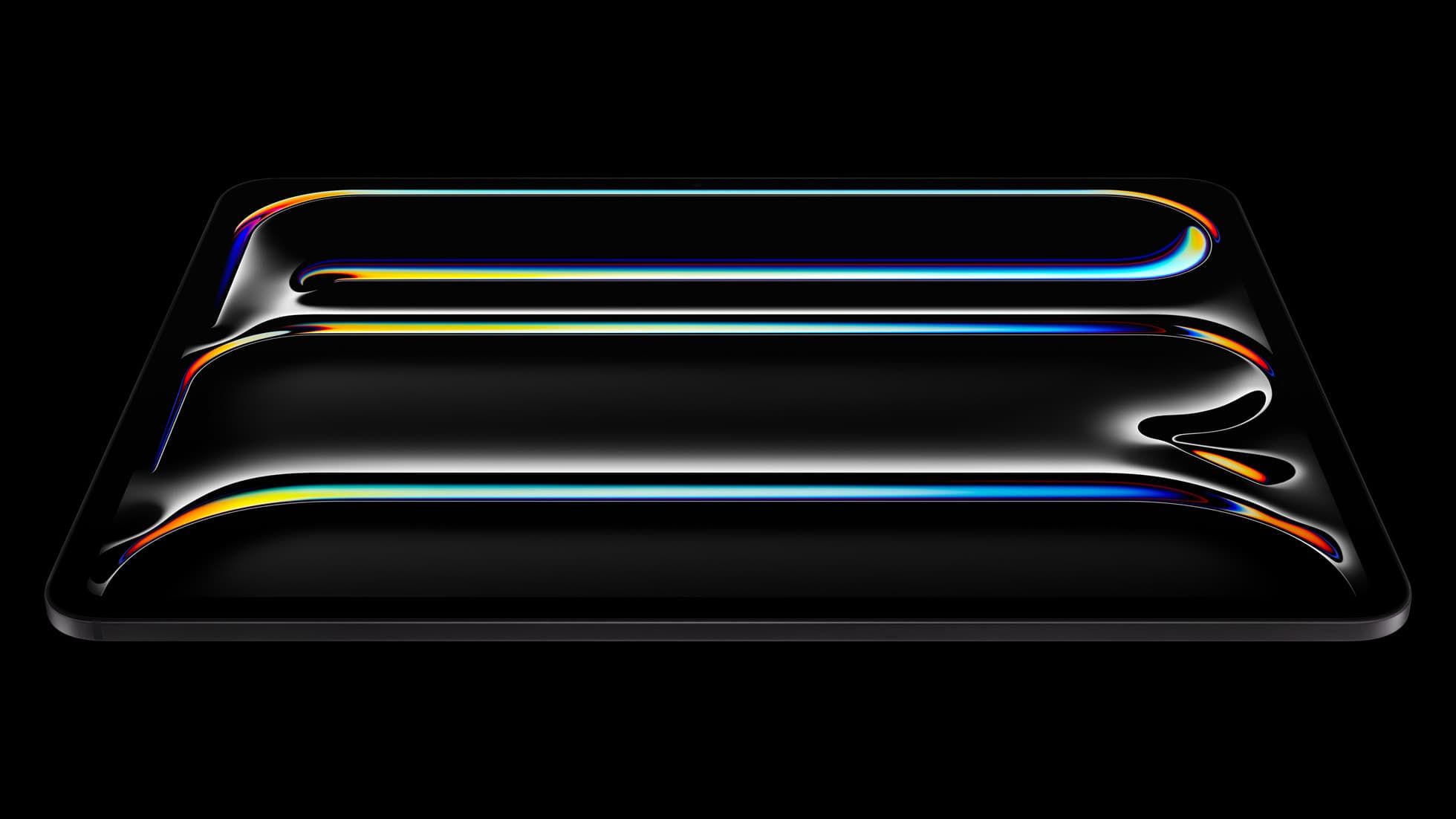
iPad Pro (M5)
amazon.comThe best iPad for drawing feel and premium workflow comfort, but many buyers still overpay for it.
Pro: Best iPad display and ProMotion feel
Con: Highest price in the lineup
Search opens with iPad Pro terms. Check year, chip, and screen size.
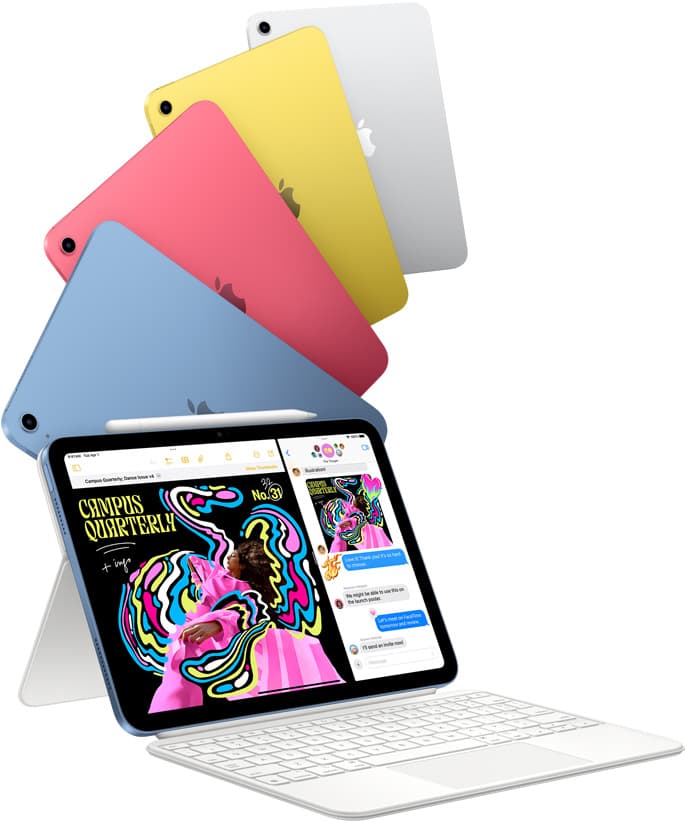
iPad (A16, 11th gen)
amazon.comThe best entry iPad for most artists on a budget. It is not premium, but it is very hard to beat on value.
Pro: Best value iPad right now
Con: No ProMotion display
Search opens with the exact model keywords. Verify size and storage before checkout.
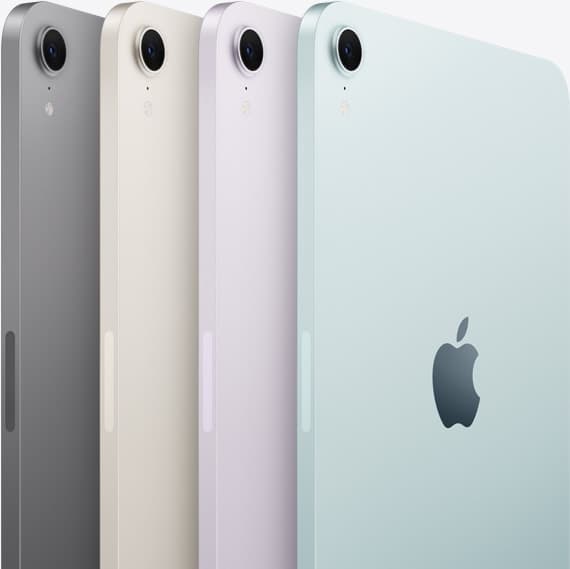
iPad mini (A17 Pro)
amazon.comThe most portable real iPad for drawing. It wins on mobility and loses on workspace.
Pro: Most portable drawing iPad
Con: Small canvas for detailed work
Search opens with iPad mini A17 Pro terms. Verify model number before buying.
Related buying picks
More in this collectionComparison
iPad vs pen display for illustration: how to choose your drawing setup
Compare standalone iPad mobility against tethered pen displays to pick the right digital drawing tool for your illustration workflow.
Buyer guide
Best drawing tablet for webtoon artists: iPad picks and pen setups
Compare the best iPad options for webtoon creation based on screen size, Apple Pencil support, and layer capacity.
Comparison
iPad vs Wacom Intuos for photo editing
Choose between an iPad screen tablet and a Wacom Intuos pen tablet based on whether you edit directly on glass or at a desktop monitor.
Buyer guide
Best drawing tablet for pixel art: Which iPad fits your grid workflow?
The iPad (A16) is the best drawing tablet for pixel art because low-resolution sprite grids do not need expensive workstation processors.