





If you want a single answer right away, buy the iPad Air (M4) if you want direct pen-on-glass retouching and a standalone portable device [1], [2]. Choose a Wacom Intuos pen tablet if you already rely on a calibrated desktop monitor and prefer looking straight ahead while your hand moves on a separate desk surface [6]. The iPad puts your editing software, screen, and stylus into one battery-powered unit [1], [2]. A Wacom Intuos pen tablet requires a host computer because it does not have a display of its own [6].
For many photographers, that split in physical layout dictates the entire editing routine. Retouching on an iPad means your hand sits directly over the image, using touch or stylus controls [1], [2]. Working on a Wacom Intuos tablet separates the control surface on your desk from the display on your desk or laptop [6]. Both approaches give you pressure-sensitive pen input, but they handle daily editing in fundamentally different ways [2], [6].
Direct display retouching versus screenless input
The most obvious mechanical distinction between an iPad and a Wacom Intuos tablet is where your eyes focus while you work. When you retouch photos on an iPad, your pen touches the pixels directly on the glass display [1], [2]. Stylus tools like Apple Pencil Pro support pressure sensitivity, tilt detection, barrel roll, and squeeze gestures to adjust brush behaviors directly on the panel [2]. If you use apps like Procreate alongside your photo workflow, that direct interaction lets you paint layer masks and clean up textures with direct hand-eye alignment [4], [5].
With a Wacom Intuos pen tablet, the tablet surface is completely opaque and has no built-in screen [6]. You look up at your computer monitor while your hand glides across the active area of the tablet [6]. That setup keeps your hand from blocking any part of the image on screen. It also lets you use whatever monitor size or calibration hardware you already run on your main editing desk, without being limited to mobile panel sizes [1], [6].
Hardware mobility and workstation requirements
An iPad functions as a complete, standalone computer with its own chip, display, operating system, and rechargeable battery [1]. Models like the iPad Air (M4) and iPad Pro (M5) carry desktop-class Apple silicon, giving you local processing for heavy files without plugging into an external tower or laptop [1]. You can load your photo catalog, edit adjustments, and apply spot corrections on a flight, on location, or from a couch [1]. Adding an Apple Pencil provides full stylus input without needing a desk space [2], [3].
In contrast, a Wacom Intuos tablet cannot do anything by itself [6]. It is an external input accessory designed to plug into a host computer running desktop operating systems [6]. Because it lacks an internal operating system, storage drive, or battery-driven display, it belongs strictly at a workstation where a computer is running [6]. For photographers who do all their culling and color grading at an established home studio desk, that requirement is normal rather than restrictive [6].
Stylus features and gesture controls
Stylus technology differs across both platforms, though both deliver pressure-sensitive control for masking, burning, and dodging [2], [6]. On Apple devices, Apple Pencil options range from standard USB-C pairing up to the Apple Pencil Pro, which pairs and charges magnetically on models like the iPad Air (M4) and iPad Pro (M5) [1], [2], [3]. Apple Pencil Pro adds hardware haptics, tool rotation through barrel roll, squeeze triggers, and hover preview on compatible iPads [2], [3]. Those features let you preview brush size and shape above the glass before laying down a stroke [2]. Mainstream hardware like the iPad (A16, 11th gen) supports the Apple Pencil (USB-C) or first-generation pencil hardware instead of Apple Pencil Pro [1], [3].
Wacom Intuos tablets rely on battery-free, cordless pens that draw power directly from the tablet surface using electromagnetic resonance [6]. These pens feature built-in side switches that map to clicks, modifier keys, or tool shortcuts in desktop photo applications [6]. The tablet body also includes physical ExpressKeys that can be mapped to undo, zoom, or brush sizing commands [6]. You do not need to recharge a Wacom pen, whereas an Apple Pencil requires periodic charging from the iPad or via a cable [2], [6].
Software ecosystems and storage flexibility
Software selection is another deciding factor between these two tools. An iPad runs iPadOS and uses applications distributed through the App Store, such as Procreate, Lightroom, and mobile editing tools [1], [5]. In apps like Procreate, layer limits and canvas dimensions depend directly on your iPad model's hardware memory [4]. iPads come with fixed internal storage options, ranging from base capacities up through higher tiers, which you cannot upgrade after purchase [1].
A Wacom Intuos tablet operates as an input device for desktop editing software running on your computer [6]. That means full access to traditional desktop applications, plug-in suites, and local disk configurations managed by your primary computer [6]. You are not constrained by mobile memory allocations or App Store sandbox rules [4], [6]. If your primary editing relies on specialized desktop utilities, file system scripts, or legacy plug-ins, the Wacom Intuos lets you use a pen without switching away from your current software environment [6].
Who should buy an iPad
An iPad is the right purchase for photographers who want an all-in-one editing machine that works independently from a desk [1]. If you want to draw adjustment masks, dodge and burn directly on your photo, or sketch ideas on the go, the iPad Air (M4) balances processing headroom with Apple Pencil Pro compatibility [1], [2], [3]. If you want a ProMotion display, the iPad Pro (M5) offers Apple's highest display specification in the tablet family [1]. For tighter budgets, the iPad (A16, 11th gen) provides a capable entry point for mobile editing with an Apple Pencil (USB-C) [1], [3].
Skip the iPad if you already have a multi-monitor editing setup and have no desire to edit away from your desk [1], [6]. An iPad requires adjusting to touch interfaces and mobile file management, which adds unnecessary complexity if your existing desktop software already handles your weekly jobs [1], [5].
Who should choose a Wacom Intuos
A Wacom Intuos tablet is the better choice for studio retouchers, commercial editors, and hobbyists who spend their editing hours seated at a computer monitor [6]. Because your hand rests flat on the desk without blocking the screen, you can inspect fine details on an expansive desktop display while making precise brush adjustments [6]. The battery-free pen requires no charging schedule, and the physical buttons on the pen and tablet frame give you rapid hardware shortcuts without touching a keyboard [6].
Skip the Wacom Intuos if you want to edit while traveling, in coffee shops, or away from a laptop or desktop tower [6]. Because it has no built-in screen or standalone operating system, it is not a self-contained photo tool [6].
Bottom line
If you want the freedom to retouch images directly on the screen without sitting at a dedicated computer desk, buy the iPad Air (M4) paired with an Apple Pencil Pro [1], [2], [3]. It gives you a complete, standalone editing platform with precision stylus tracking, tilt, squeeze, and hover controls in a single portable chassis [1], [2]. If your primary workflow is already anchored to a desktop computer with a dedicated monitor, skip the iPad and add a Wacom Intuos pen tablet to your existing workstation [6].
Sources
[1] https://www.apple.com/ipad/compare/ [2] https://www.apple.com/apple-pencil/ [3] https://support.apple.com/en-us/108937 [4] https://help.procreate.com/articles/zlexav-ipad-compatibility [5] https://apps.apple.com/us/app/procreate/id425073498 [6] https://www.wacom.com/en-us/products/pen-tablets
Recommended gear

iPad Air (M4)
apple.comThe clean current Air recommendation for most serious hobby artists. Stronger buy logic than old-stock M3 when pricing is close.
Pro: Best current balance of price, headroom, and Pencil support
Con: Still 60Hz
Current Air lineup. Choose size, storage, and keyboard path before checkout.
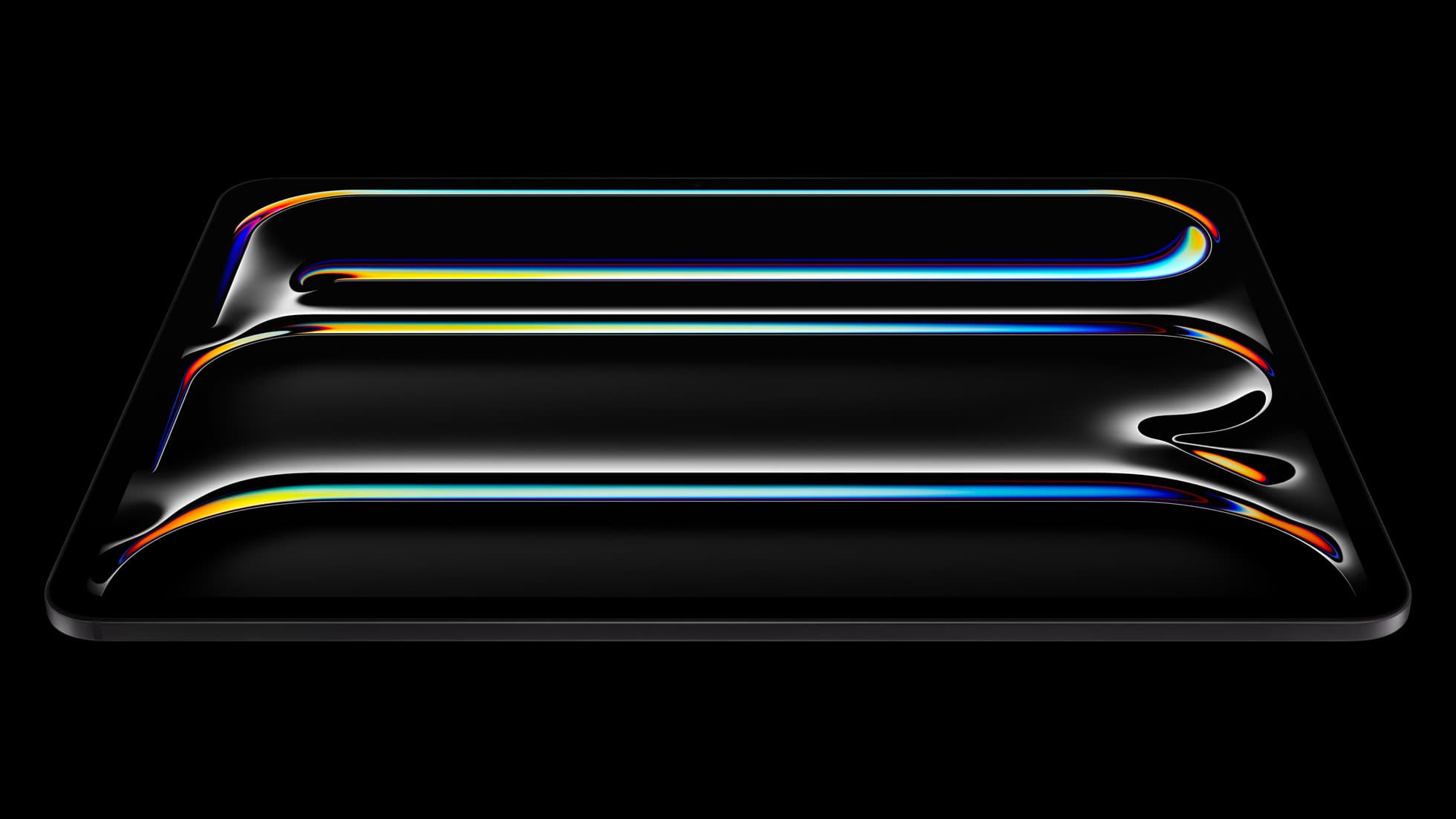
iPad Pro (M5)
amazon.comThe best iPad for drawing feel and premium workflow comfort, but many buyers still overpay for it.
Pro: Best iPad display and ProMotion feel
Con: Highest price in the lineup
Search opens with iPad Pro terms. Check year, chip, and screen size.
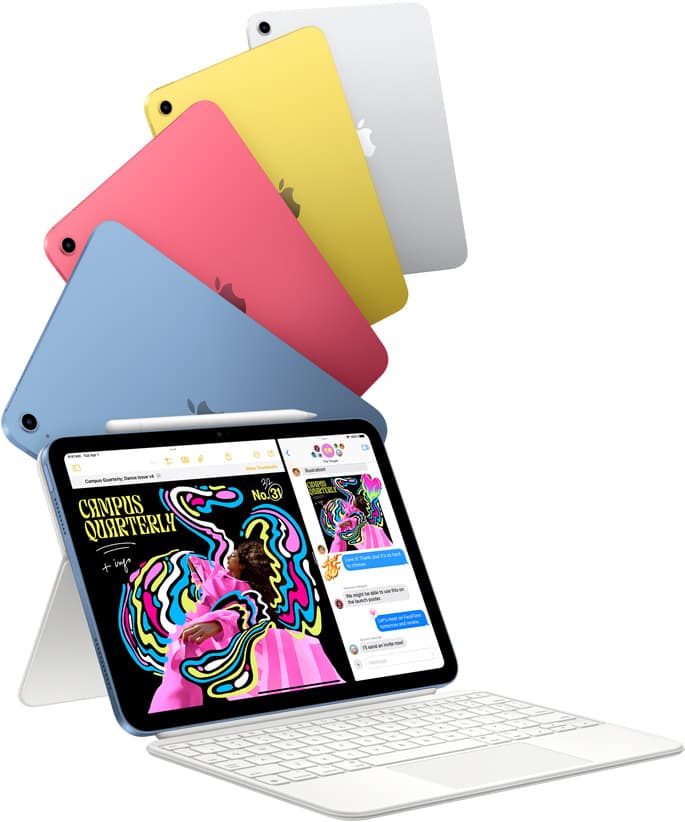
iPad (A16, 11th gen)
amazon.comThe best entry iPad for most artists on a budget. It is not premium, but it is very hard to beat on value.
Pro: Best value iPad right now
Con: No ProMotion display
Search opens with the exact model keywords. Verify size and storage before checkout.

Apple Pencil Pro
amazon.comThe best Apple stylus for serious digital art workflows. Expensive, but the control upgrades are real.
Pro: Best brush-control and hover workflow
Con: Highest price in the lineup
Works only with newer iPad models. Check compatibility.
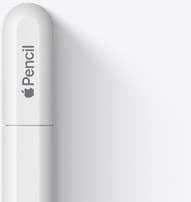
Apple Pencil (USB-C)
amazon.comA practical low-cost Apple stylus with broad compatibility, but limited for advanced art control.
Pro: Lowest official Apple Pencil cost
Con: No pressure sensitivity for brush work
Compatible with many recent iPads. No pressure support.
Related buying picks
More in this collectionBuyer guide
Best drawing tablet for webtoon artists: iPad picks and pen setups
Compare the best iPad options for webtoon creation based on screen size, Apple Pencil support, and layer capacity.
Buyer guide
Best drawing tablet for pixel art: Which iPad fits your grid workflow?
The iPad (A16) is the best drawing tablet for pixel art because low-resolution sprite grids do not need expensive workstation processors.
Comparison
iPad vs Samsung tablet for drawing: which setup to choose
Choose an iPad if your art workflow relies on Procreate and Apple Pencil tools, and pick the iPad Air for the best balance of features.
Comparison
iPad vs pen display for illustration: how to choose your drawing setup
Compare standalone iPad mobility against tethered pen displays to pick the right digital drawing tool for your illustration workflow.