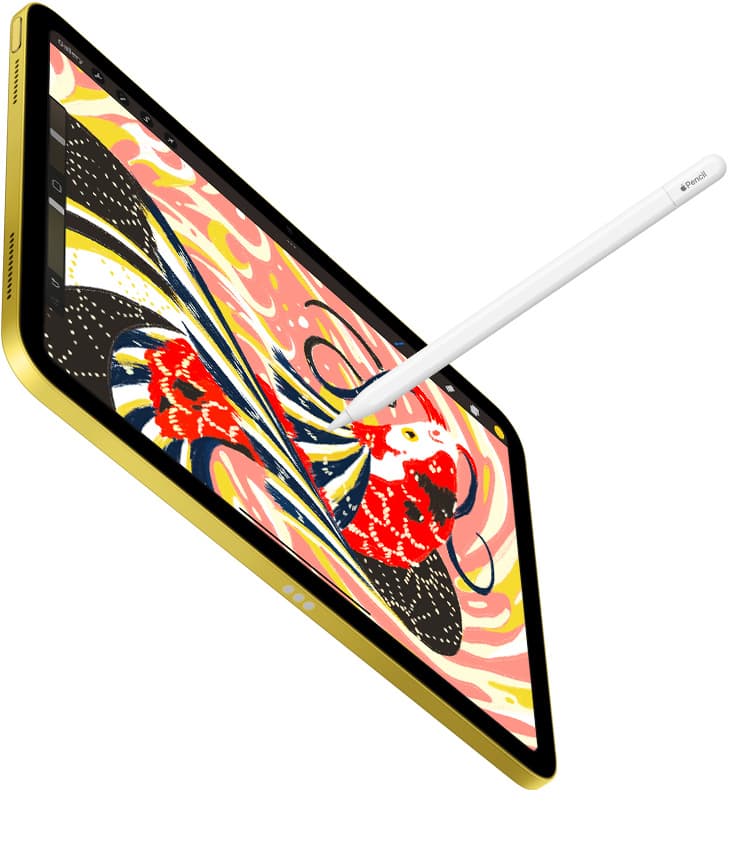
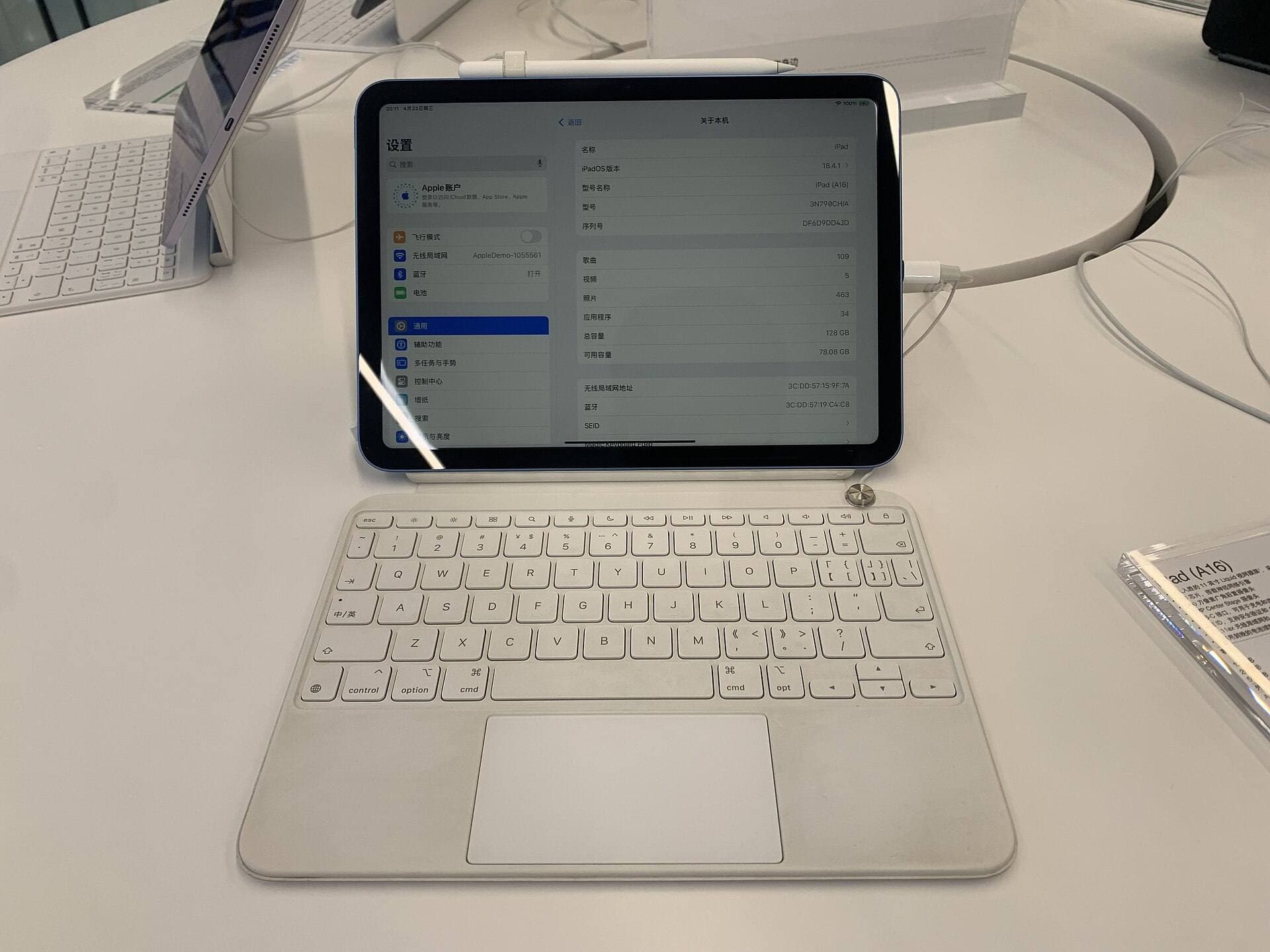
If you want a self-contained drawing device that works anywhere without connecting to a computer, buy an iPad such as the iPad Air (M4) [1], [3]. If you work primarily at an anchored desk and require full desktop applications on macOS or Windows, choose a dedicated pen display or pen tablet [6]. For most independent illustrators seeking a flexible digital sketchbook and painting studio, an iPad offers the best balance of standalone hardware and stylus support [1], [2].
Artists who already own a capable desktop computer and spend entire workdays seated at one workstation should skip the iPad and look at a dedicated pen display instead [6]. But if you draw on the couch, travel frequently, or want a single device for sketching, communication, and web browsing, an iPad remains the superior overall investment [1], [4].
Portable independence versus desktop tethering
The fundamental difference between an iPad and a pen display is computing independence. A pen display or pen tablet is an external monitor or peripheral that requires a host computer to operate [6]. You must tether it to a Mac or Windows PC to supply power, video signal, and software processing [6]. This means your drawing surface remains tied to your desk, your cables, and your computer setup [6].
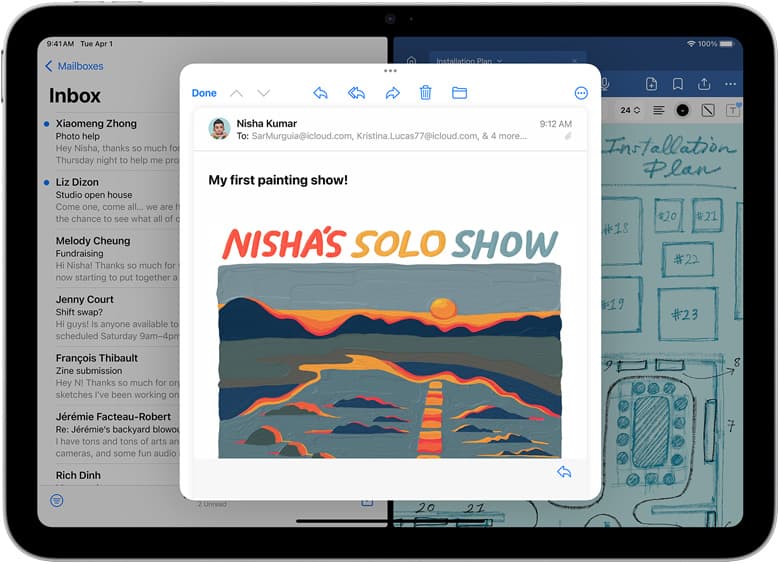
In contrast, an iPad houses its own display, processor, battery, and operating system in a single piece of glass and aluminum [1]. You don't need a host computer to sketch or finalize illustrations [1], [5]. You can start a piece in your studio, continue it on a train, and share it directly from the device [1], [4]. This portability changes how often you draw because picking up an iPad requires zero setup time compared to firing up a workstation and calibrating an external display [1], [6].
However, desktop pen displays still hold specific advantages for studio work. Because they mirror or extend a full desktop operating system, they run complex desktop creative suites without mobile operating system restrictions [6]. If your illustration pipeline relies on specialized desktop plugins, complex 3D texturing pipelines, or heavy file management tools, tethering to a PC or Mac remains essential [6].
Apple Pencil capabilities compared to dedicated styluses
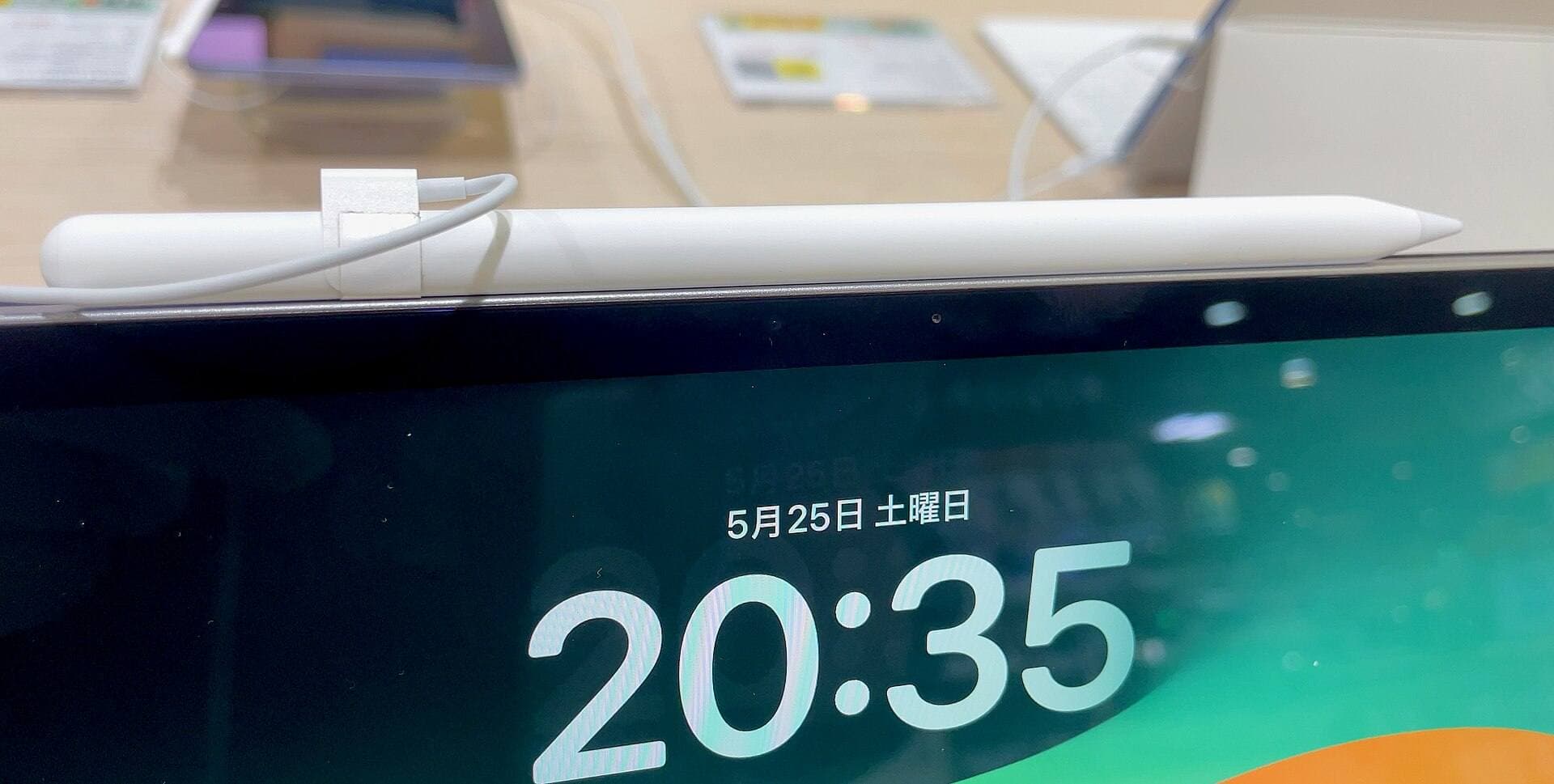
Stylus technology is central to any illustration workflow. Apple provides several stylus options across its tablet lineup, led by Apple Pencil Pro and Apple Pencil (USB-C) [2], [3]. The Apple Pencil Pro includes pressure sensitivity, tilt detection, low latency, barrel roll, squeeze gestures, and haptic feedback [2]. It also supports Apple Pencil hover on compatible iPad hardware [2]. These input features allow you to rotate brush orientation and trigger tool palettes directly from the barrel [2].
Dedicated pen displays and pen tablets also provide advanced styluses that offer pressure sensitivity, tilt recognition, and customizable shortcut buttons on the pen body [6]. Traditional graphics tablet styluses often use battery-free electromagnetic resonance technology, which means you never have to charge the pen itself [6]. Apple Pencil Pro charges magnetically when attached to the side of a compatible iPad, which keeps it charged as long as it stays docked to the tablet [2], [3].
If you choose a base iPad model like the iPad (A16, 11th gen), you must consider stylus limits carefully [1], [3]. That model pairs with the Apple Pencil (USB-C), which supports tilt and magnetically snaps to the tablet, but lacks pressure sensitivity, barrel roll, and squeeze gestures [2], [3]. Illustrators who rely heavily on pen pressure for dynamic line weights will find the Apple Pencil Pro on an iPad Air or iPad Pro far more capable [1], [2].
Canvas size, memory, and layer ceilings in drawing software
Software behavior differs noticeably between mobile drawing apps and desktop applications. On desktop computers paired with pen displays, available layer counts are governed primarily by your computer's total system RAM and storage scratch disks [6]. You can often create enormous canvases with dozens of layers without hitting artificial application ceilings [6].
On iPadOS, apps like Procreate operate within specific memory parameters dictated by hardware configurations [4], [5]. In Procreate, the maximum layer count you receive on any project is directly determined by your canvas resolution and the total RAM available on your specific iPad model [4]. A massive canvas size paired with an entry-level iPad with lower memory yields fewer usable layers than the same canvas on an iPad Pro with higher memory [1], [4].
For standard editorial illustration, web graphics, and sketchbook projects, modern iPad memory limits offer ample layers for everyday work [1], [4]. But if you regularly produce massive print illustrations requiring hundreds of distinct layers, desktop software running through a dedicated pen display provides far more headroom [4], [6].
Choosing the right iPad model for illustration
If you decide an iPad fits your illustration needs better than a tethered display, choosing the right model ensures you don't overspend or end up underpowered [1].
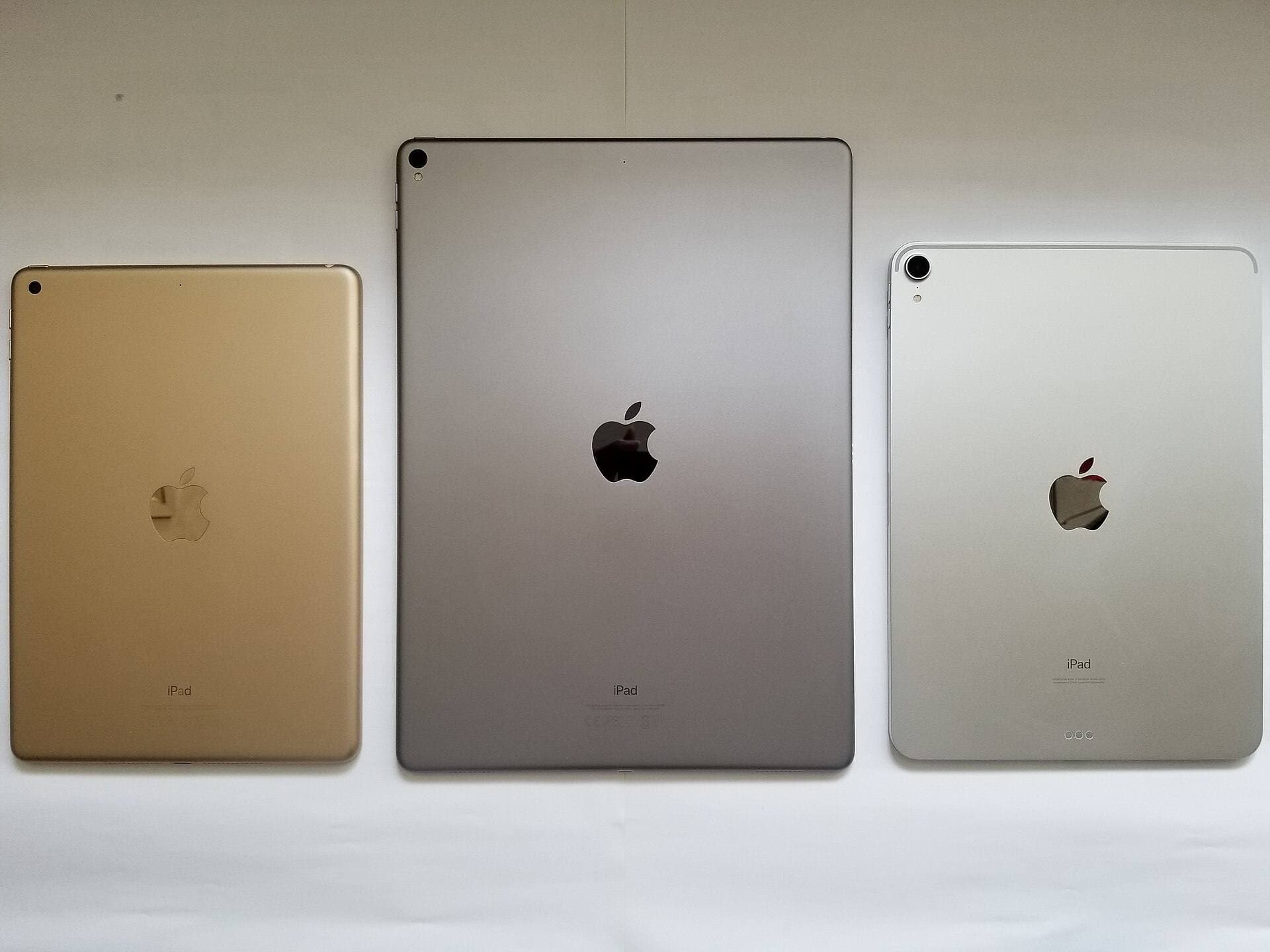
The iPad Air (M4) is the best overall recommendation for most digital artists [1], [3]. It supports the Apple Pencil Pro, giving you full access to pressure sensitivity, barrel roll, squeeze shortcuts, and magnetic wireless charging [2], [3]. While its screen runs at 60Hz rather than the smoother 120Hz found on Pro hardware, it provides modern Apple silicon performance and generous canvas layer limits without requiring a massive budget [1], [4]. Buy the iPad Air (M4) if you want modern drawing features and reliable multi-layer support [1], [3].
The iPad Pro (M5) is designed for artists who demand the highest display quality and smoothest stroke feel [1]. It features Apple's top-tier display technology, Apple Pencil Pro support, and ProMotion refresh rates up to 120Hz [1], [2]. This higher refresh rate makes stylus strokes appear immediately under the tip of the pencil [1], [2]. Buy the iPad Pro (M5) if you draw full-time, need maximum hardware headroom, and want the best screen available [1], [4]. Skip it if you don't need ProMotion and want to save money [1].
The iPad (A16, 11th gen) is the entry-level pick [1]. It delivers great overall value for casual sketching and vector design, but it does not support Apple Pencil Pro and lacks ProMotion [1], [3]. Because its compatible Apple Pencil (USB-C) lacks pressure sensitivity, serious painters and inking artists should skip this model and step up to the iPad Air [1], [2], [3].
Bottom line
If your illustration process requires an anchored desk setup, desktop-exclusive applications, and virtually unlimited layer counts without mobile memory constraints, buy a dedicated pen display [4], [6]. It turns your existing computer into an expansive digital canvas [6].
For artists who value mobility, clean desk setups, and the freedom to sketch anywhere, an iPad remains the best investment [1], [4]. If you're buying today, choose the iPad Air (M4) paired with the Apple Pencil Pro [1], [3]. It gives you professional-grade stylus features, dependable memory headroom, and full standalone independence at a balanced price point [1], [2], [4].
Sources
[1] https://www.apple.com/ipad/compare/ [2] https://www.apple.com/apple-pencil/ [3] https://support.apple.com/en-us/108937 [4] https://help.procreate.com/articles/zlexav-ipad-compatibility [5] https://apps.apple.com/us/app/procreate/id425073498 [6] https://www.wacom.com/en-us/products/pen-tablets
Recommended gear
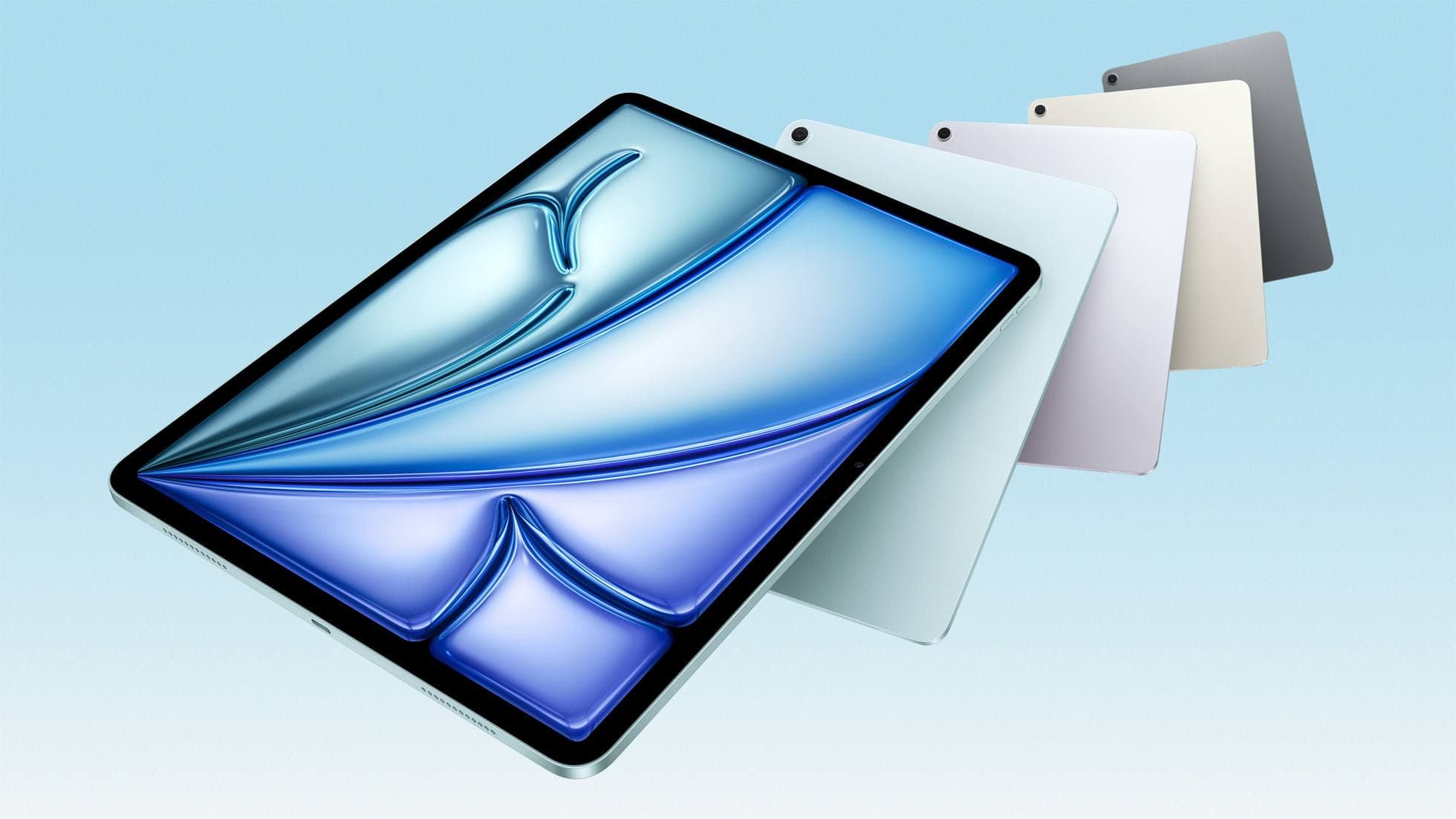
iPad Air (M4)
apple.comThe clean current Air recommendation for most serious hobby artists. Stronger buy logic than old-stock M3 when pricing is close.
Pro: Best current balance of price, headroom, and Pencil support
Con: Still 60Hz
Current Air lineup. Choose size, storage, and keyboard path before checkout.
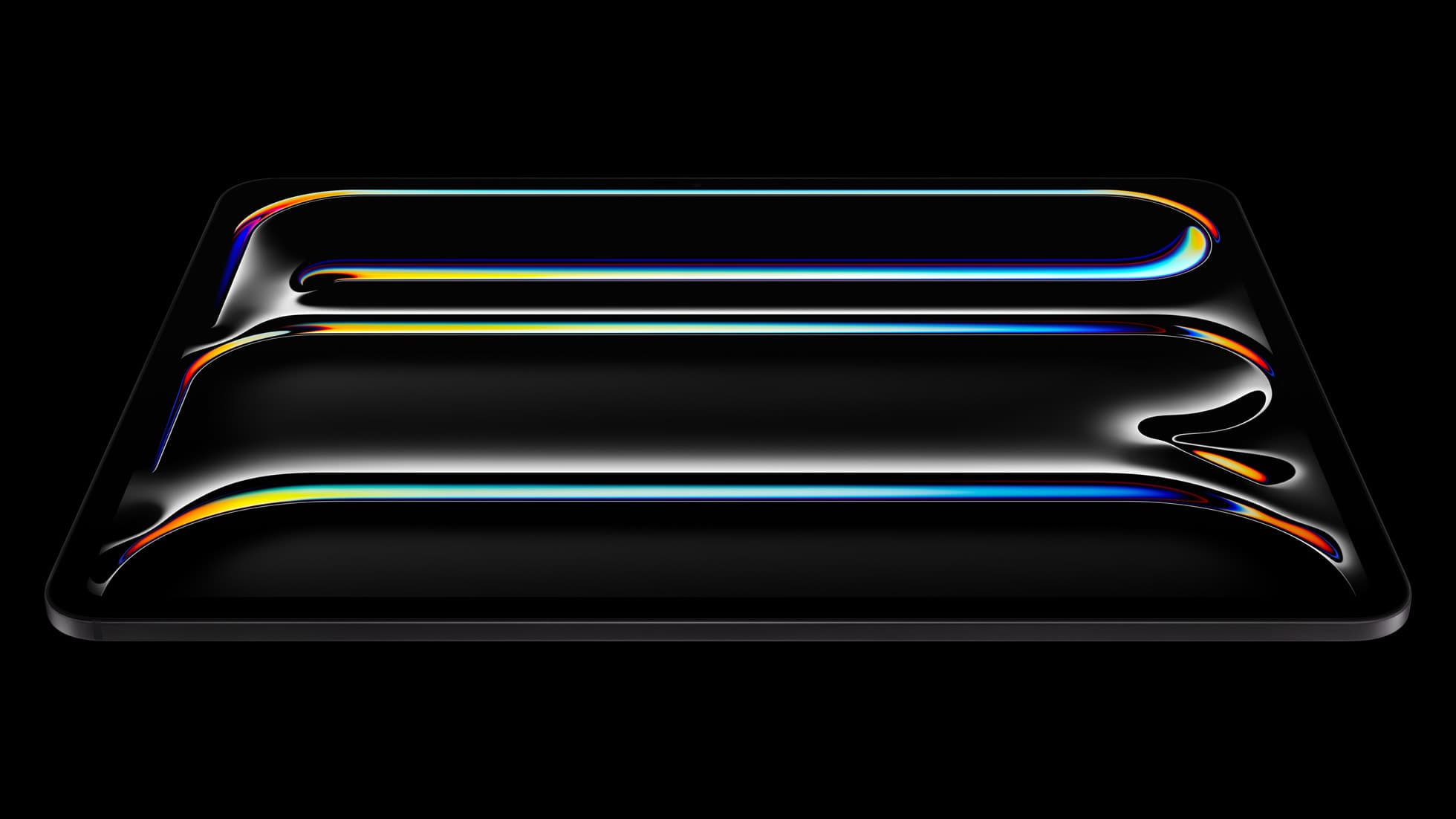
iPad Pro (M5)
amazon.comThe best iPad for drawing feel and premium workflow comfort, but many buyers still overpay for it.
Pro: Best iPad display and ProMotion feel
Con: Highest price in the lineup
Search opens with iPad Pro terms. Check year, chip, and screen size.
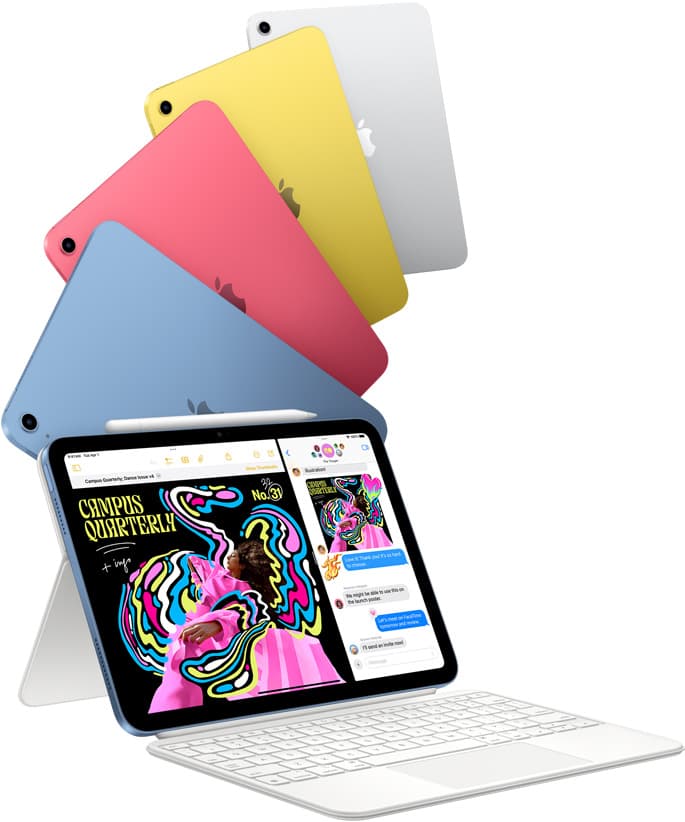
iPad (A16, 11th gen)
amazon.comThe best entry iPad for most artists on a budget. It is not premium, but it is very hard to beat on value.
Pro: Best value iPad right now
Con: No ProMotion display
Search opens with the exact model keywords. Verify size and storage before checkout.
Apple Pencil Pro
amazon.comThe best Apple stylus for serious digital art workflows. Expensive, but the control upgrades are real.
Pro: Best brush-control and hover workflow
Con: Highest price in the lineup
Works only with newer iPad models. Check compatibility.
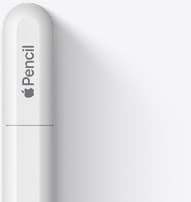
Apple Pencil (USB-C)
amazon.comA practical low-cost Apple stylus with broad compatibility, but limited for advanced art control.
Pro: Lowest official Apple Pencil cost
Con: No pressure sensitivity for brush work
Compatible with many recent iPads. No pressure support.
Related buying picks
More in this collectionComparison
iPad vs Samsung tablet for drawing: which setup to choose
Choose an iPad if your art workflow relies on Procreate and Apple Pencil tools, and pick the iPad Air for the best balance of features.
Comparison
iPad vs MacBook for digital art: Which setup should you buy?
Choose an iPad if direct stylus drawing matters most, or stick with a MacBook if your art pipeline demands desktop desktop file management and external tablet hardware.
Buyer guide
Best iPad for comic artists: Which model to choose for drawing comics
The iPad Air (M4) offers the ideal balance of Apple Pencil Pro features, processing power, and screen space for comic and manga creators.
Buyer guide
Best iPad for animation: How to choose your creative setup
Compare the best iPads for 2D animation, timeline performance, and stylus responsiveness to match your workflow and budget.