





A 64GB iPad can be enough to install and use Procreate, but skip that capacity when buying a new creative tablet unless your gallery will stay small. Apple provides per-app storage reporting, and Procreate projects remain local until you deliberately export or back them up [4], [5]. If you already own a 64GB iPad, keep it and build an archive routine that includes opening the copied file before deletion. If you are buying new, choose a current iPad storage option with more room so the art library does not compete as quickly with apps, downloads, and system data [1], [5].
How iPadOS and Procreate consume 64GB of storage
The advertised capacity is not the same as empty working space. Apple explains that the storage view includes apps and categories such as system data, and it provides recommendations for freeing space [5]. The amount varies by device, software version, installed apps, and usage, so a universal claim about how much remains on every 64GB iPad would be misleading [5].
The Procreate App Store listing separates the app from the artwork you create with it [4]. In practice, the storage decision must cover the app, brushes and imported assets, reference files, exports, and the editable canvases you keep. Check the iPad storage view after a representative week of work instead of relying on the download size alone [4], [5].
System data and downloads also share the same device capacity shown in Settings [5]. Apple does not give one permanent free-space threshold that applies to every future update, so the useful rule is operational: do not plan a 64GB art setup around keeping the device nearly full. Review the storage recommendations and offload completed work before space pressure becomes a recurring interruption [5].
Canvas sizes, layers, and timelapse file growth
Editable Procreate documents can retain layers and other project information that a flattened viewing copy does not [4]. Their size varies with the canvas and content, so there is no defensible universal file-size estimate for a typical illustration. Measure several of your own finished projects, then multiply by the number you expect to keep active. That personal sample is a stronger storage estimate than a generic number [4], [5].
Procreate includes time-lapse recording and export features [4]. If you use them, include those recordings in your storage test rather than assuming every canvas consumes the same amount. If you do not need a recording for a particular class of sketch, review the app's current canvas settings before starting that work [4].
Procreate documents canvas and layer limits separately from the iPad's storage screen [3], [7]. That distinction matters: buying more storage is not a promise of more layers on a given canvas. Check both the Procreate device table and the storage used by your own documents before choosing a capacity [3], [5], [7].
File management strategies for 64GB iPad owners
If you already own a 64GB iPad that handles your canvases, you do not need to replace it solely because of the capacity label. First inspect current storage use and Procreate's device guidance [3], [5], [7]. The practical challenge is maintaining a deliberate archive so finished work does not remain on the active device by default.
Treat local storage as an active desk rather than the only archive. When a project is finished, use Procreate's supported export options and move the file to a second location [4]. Apple documents compatible external storage through the Files app [6]. Open the copied file or otherwise verify the backup before deleting the local original.
Review time-lapse settings for casual practice files if you do not need a recording, and use Apple's storage screen to identify the categories actually consuming space [4], [5]. A supported external drive can be part of the archive, but neither Apple nor Procreate promises a universal transfer time. Verify the copy before removing local work [6].
Choosing the right iPad model and storage tier
If you are currently shopping for an iPad specifically for Procreate, buying a 64GB configuration is rarely wise. Apple's current comparison page shows the storage choices available in the present lineup [1]. Choose among them using the measured size of your own working library, not a generic estimate.
The baseline iPad (A16, 11th gen) is the cost-first option in the current catalog [1]. Select a storage tier that can hold your active canvases, reference library, other apps, and a working margin based on the storage view of a comparable device [1], [5].
For artists seeking advanced input features, the iPad Air (M4) is the standout mid-tier choice [1]. It supports Apple Pencil Pro, while the exact gesture behavior still depends on compatible software [1], [2]. Compare the Air's listed storage choices with the measured size of your own library. More capacity reduces how often you must archive, while Pencil compatibility is a separate decision [1], [2], [5].
How Procreate and Cricut Design Space consume local storage
Understanding your storage demands begins with how each application handles project files on iPadOS. Cricut Design Space is primarily a staging tool for cutting, scoring, and print-then-cut jobs [8]. The application allows users to upload outside image assets, including PNG, JPG, SVG, DXF, GIF, and BMP files [9]. While the uploaded vector and raster images themselves may only measure a few megabytes each, Design Space caches assets locally to display your canvas and prepare cutting paths [8], [9]. Over months of making decals, shirts, and paper crafts, cached project data quietly accumulates on your drive.
Procreate creates a substantially heavier footprint on local storage than Cricut Design Space does [3], [4]. As an iPad-exclusive illustration app available through the App Store, Procreate stores all native canvas files inside its own app sandbox on the device [3], [4]. High-resolution artwork built with dozens of layers can generate files ranging from several dozen megabytes to multiple gigabytes per piece [3]. Procreate also records time-lapse replays of your drawing strokes by default, which further increases the final size of each project saved directly to local storage [4].
Beyond application documents, iPadOS and system data occupy a persistent share of your drive that cannot be deleted [1]. On a 64GB tablet, the operating system and essential cached files often consume between 12GB and 20GB before you install a single third-party app [1]. When you subtract system overhead, your usable capacity is closer to 45GB. If you keep personal photos, music, streaming video downloads, and general productivity apps on the same machine, that pool shrinks further, leaving little margin for uncompressed Procreate files [1], [4].
Bottom line
A 64GB iPad can run Procreate when the model is supported, but it leaves less room for the local gallery and other device data [3], [5]. If you already own one, keep it when your representative canvases fit and open each archived copy before deleting the local original [4], [6], [7]. If you are shopping new, skip 64GB and choose a current higher-capacity configuration that matches your measured library, then decide separately whether Apple Pencil Pro support points you to the Air [1], [2], [5].
Sources
[1] https://www.apple.com/ipad/compare/ [2] https://support.apple.com/en-us/108937 [3] https://help.procreate.com/articles/zlexav-ipad-compatibility [4] https://apps.apple.com/us/app/procreate/id425073498 [5] https://support.apple.com/guide/ipad/check-storage-usage-ipadf1f1b3f3/ipados [6] https://support.apple.com/guide/ipad/connect-external-storage-devices-ipad75b7b23f/ipados [7] https://help.procreate.com/articles/dabqrn-maximum-canvas-size [8] https://help.cricut.com/hc/en-us/articles/360009556033-System-Requirements-Design-Space [9] https://help.cricut.com/hc/en-us/articles/360009556313-How-to-upload-images-into-Design-Space
Recommended gear

iPad Air (M4)
apple.comThe clean current Air recommendation for most serious hobby artists. Stronger buy logic than old-stock M3 when pricing is close.
Pro: Best current balance of price, headroom, and Pencil support
Con: Still 60Hz
Current Air lineup. Choose size, storage, and keyboard path before checkout.
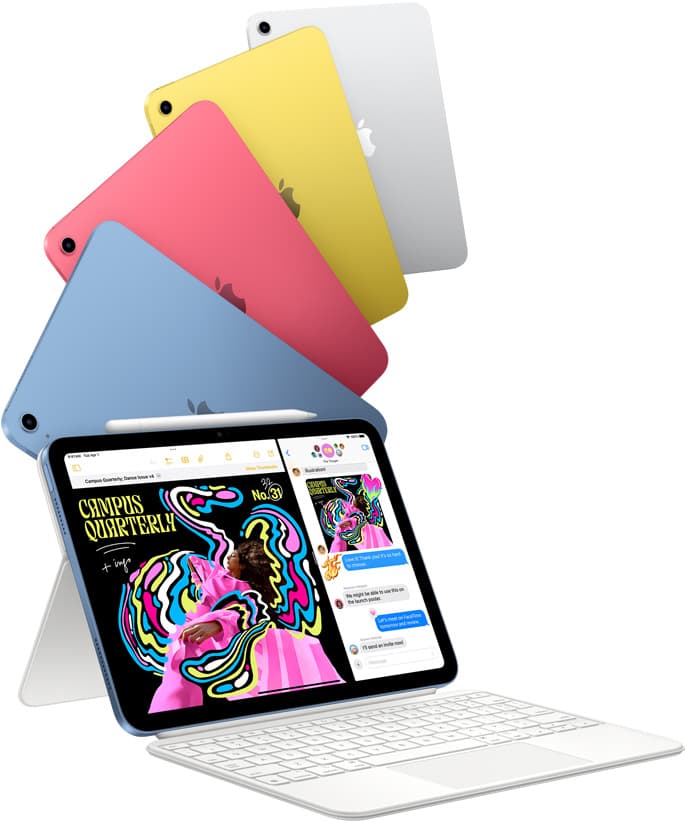
iPad (A16, 11th gen)
amazon.comThe best entry iPad for most artists on a budget. It is not premium, but it is very hard to beat on value.
Pro: Best value iPad right now
Con: No ProMotion display
Search opens with the exact model keywords. Verify size and storage before checkout.
Procreate
apps.apple.comPro: One-time purchase
Con: iPad-only

Apple Pencil Pro
amazon.comThe best Apple stylus for serious digital art workflows. Expensive, but the control upgrades are real.
Pro: Best brush-control and hover workflow
Con: Highest price in the lineup
Works only with newer iPad models. Check compatibility.
Related buying picks
More in this collectionBuyer guide
Best iPad for digital art beginners
Get the iPad Air (M4) if you want the Apple Pencil Pro toolset, or pick the base iPad (A16) if you want a capable digital sketchpad at the lowest entry cost.
Buyer guide
Best iPad for t shirt design
Pick the right iPad and Apple Pencil pairing for creating production-ready t-shirt graphics.
Buyer guide
Is iPad 10th gen good for Procreate?
The iPad 10th gen handles Procreate well for everyday digital art, but stylus pairing limits and base hardware shape how far you can push large files.
Buyer guide
Best iPad for storyboard artists: our buyer guide
Choose the right iPad for storyboarding based on screen size, Apple Pencil Pro features, and canvas layer limits.