
Best USB-C docks and hubs with Ethernet for stable iPad studio setups in 2026
Wired Ethernet is not about peak speed. It is about fewer variables: less interference, less roaming, and fewer surprise dropouts while you are uploading a time lapse, pulling reference images, syncing brushes, or moving large files to a NAS.
The downside is that iPad still gives you one port. A good dock or hub has to deliver three things at once: charging, Ethernet, and the ports you actually use (display, SSD, card reader, keyboard, audio).
Apple’s own USB-C support documentation explicitly lists hubs and docks and USB to Ethernet adapters as supported accessory categories for iPad models with USB-C. [1]
Start with the only thing that cannot be fixed later: your iPad’s port class
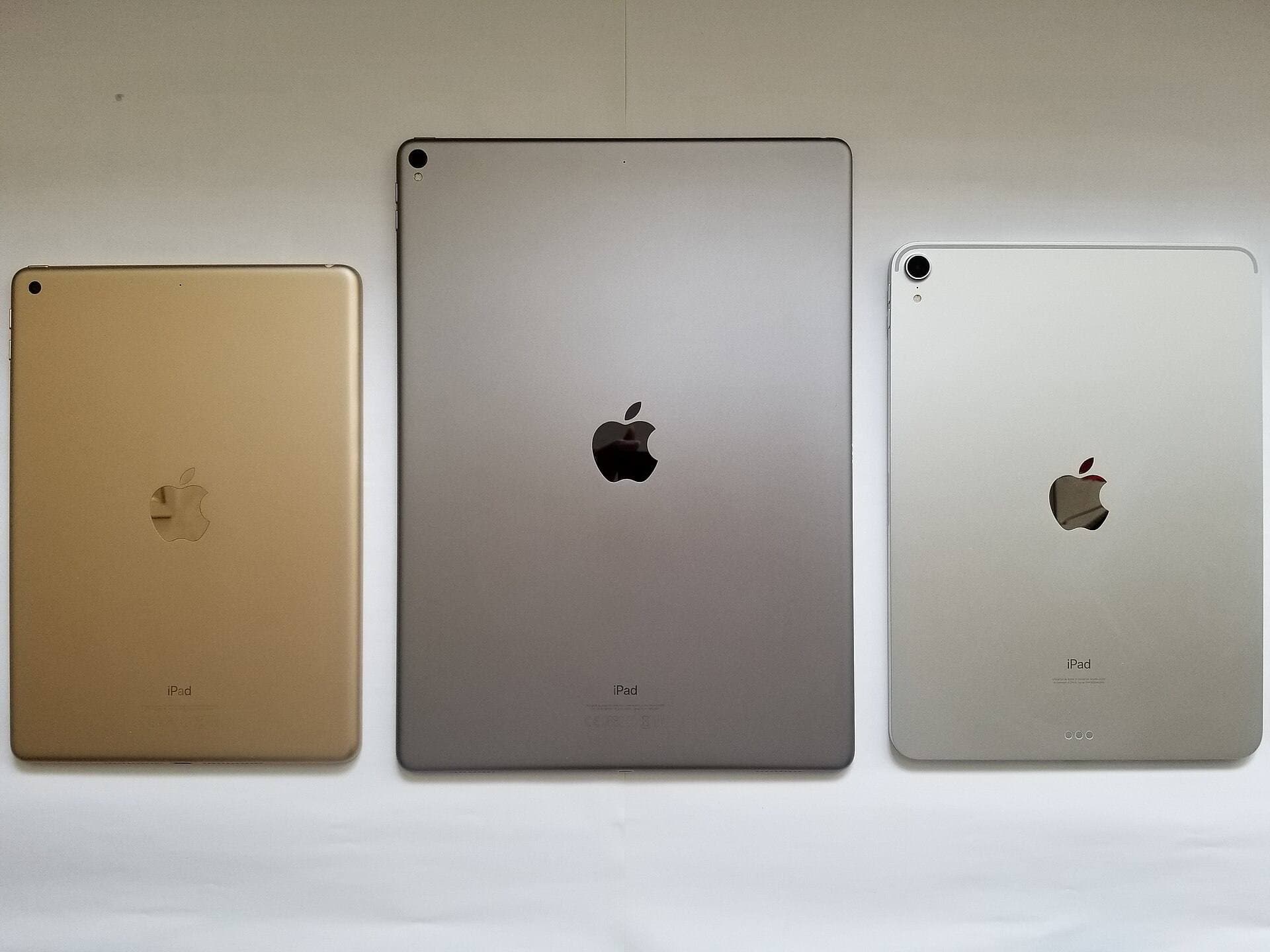
Many products say “USB-C compatible” and stop there. For iPad, the port class sets your real ceiling for Ethernet throughput, external storage speed, and how comfortable your setup feels under load.
iPad Pro: Thunderbolt and USB4
Recent iPad Pro specs list a Thunderbolt and USB4 port that supports Thunderbolt 3 and USB4 up to 40Gbps, plus USB 3 up to 10Gbps, and DisplayPort for video out. [2]
Practical impact:
- Thunderbolt 4 docks make sense and are less likely to bottleneck when you run Ethernet plus an SSD plus a display.
- Faster wired networking (2.5GbE) is more realistic, if the dock and the host both support it.
- External display support is strong on iPad Pro. Apple lists support for one external display up to 6K at 60Hz (or up to 4K at 120Hz) on iPad Pro. [2]
iPad Air and iPad mini: USB 3 over USB-C
Current iPad Air and iPad mini specs list a USB-C port that supports USB 3 up to 10Gbps and DisplayPort. [3]
Practical impact:
- Most USB-C hubs with gigabit Ethernet will behave as expected.
- Thunderbolt docks often work, but features can downshift. Treat “Thunderbolt” as a bonus, not a requirement.
- Apple lists support for one external display up to 6K at 60Hz on iPad Air and up to 4K at 60Hz on iPad mini. [3]
Base iPad (A16): USB 2 over USB-C
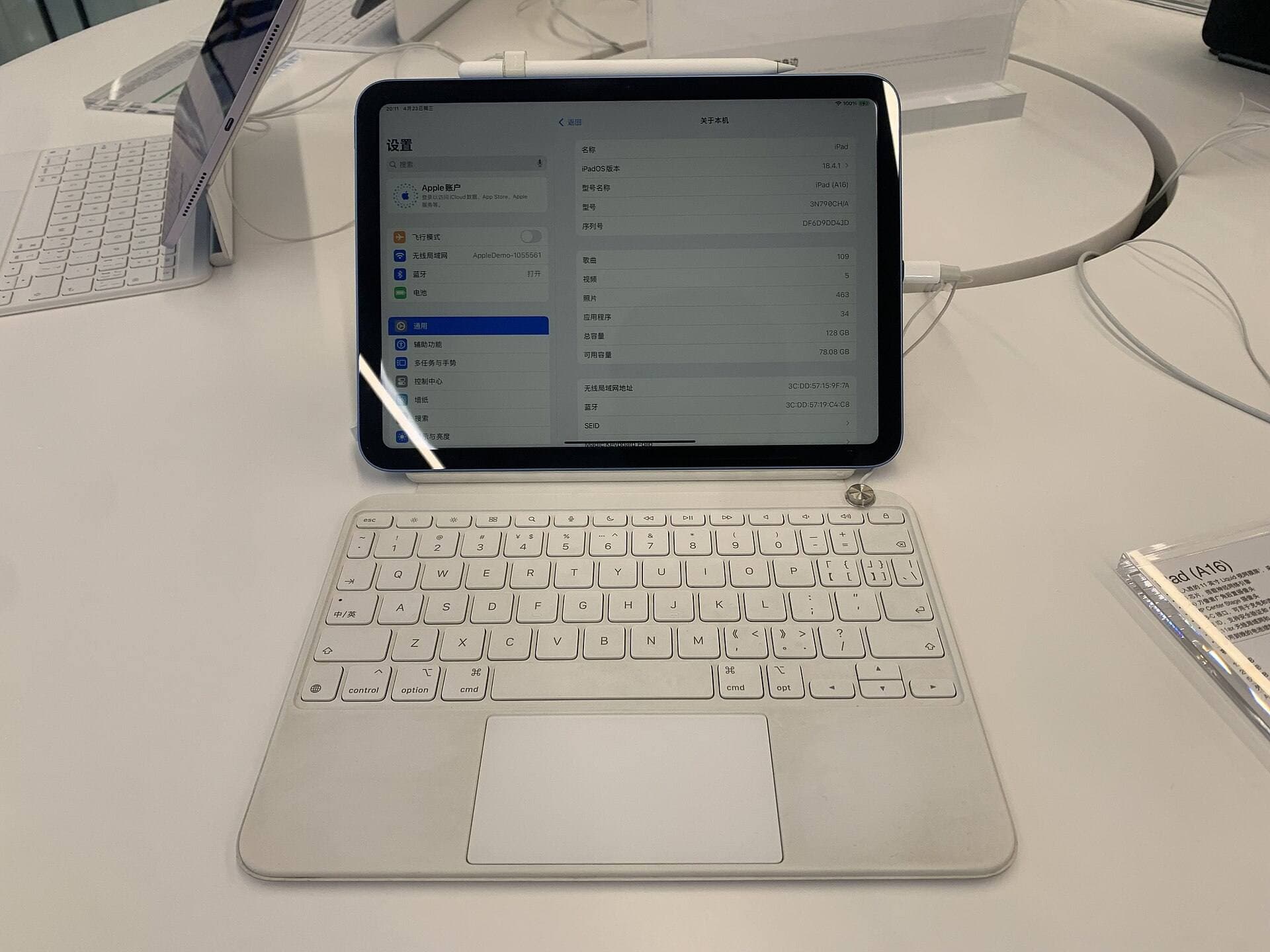
Some base iPad models list USB-C with USB 2.0 speeds (up to 480Mb/s). [4]
Practical impact:
- Ethernet still works and is still stable.
- You will not get full gigabit throughput because USB 2 becomes the cap.
What makes Ethernet on iPad “driverless” in practice
iPadOS does not want you installing vendor drivers for basic connectivity. The safest path is hardware that uses standard USB networking classes.
A concrete example: ASIX describes its AX88179A USB to gigabit Ethernet controller as supporting an iOS and iPadOS native CDC-NCM driver for driverless plug and play. [5]
You do not have to chase this specific chip. Use it as a mental model: if a product advertises driverless support on iPadOS, it is usually using a standards based approach like this.
Buying checklist for a stable iPad art desk
If your goal is stability, not bragging rights, these are the levers that matter.
1) Power delivery and power headroom
A hub that is underpowered will behave like a flaky cable: ports drop, Ethernet renegotiates, drives disconnect.
Apple notes you can use higher wattage USB-C power adapters with iPad. [1]
Practical targets:
- For compact hubs that take a USB-C charger: plan on a 60W to 100W PD charger so the hub and peripherals have headroom.
- For full docks: prefer a dock with its own power supply so the iPad is not asked to power everything.
2) Ethernet speed: gigabit first, 2.5GbE only when it is real
Gigabit Ethernet is enough for almost every iPad art workflow. 2.5GbE is nice if you routinely move large files to a wired NAS and you have an iPad Pro class port.
Also watch for conditional support. CalDigit’s TS4 includes a 2.5 gigabit Ethernet port but explicitly states that 2.5GbE is only supported on Thunderbolt based hosts. [6]
3) Port mix that matches how iPad artists actually work
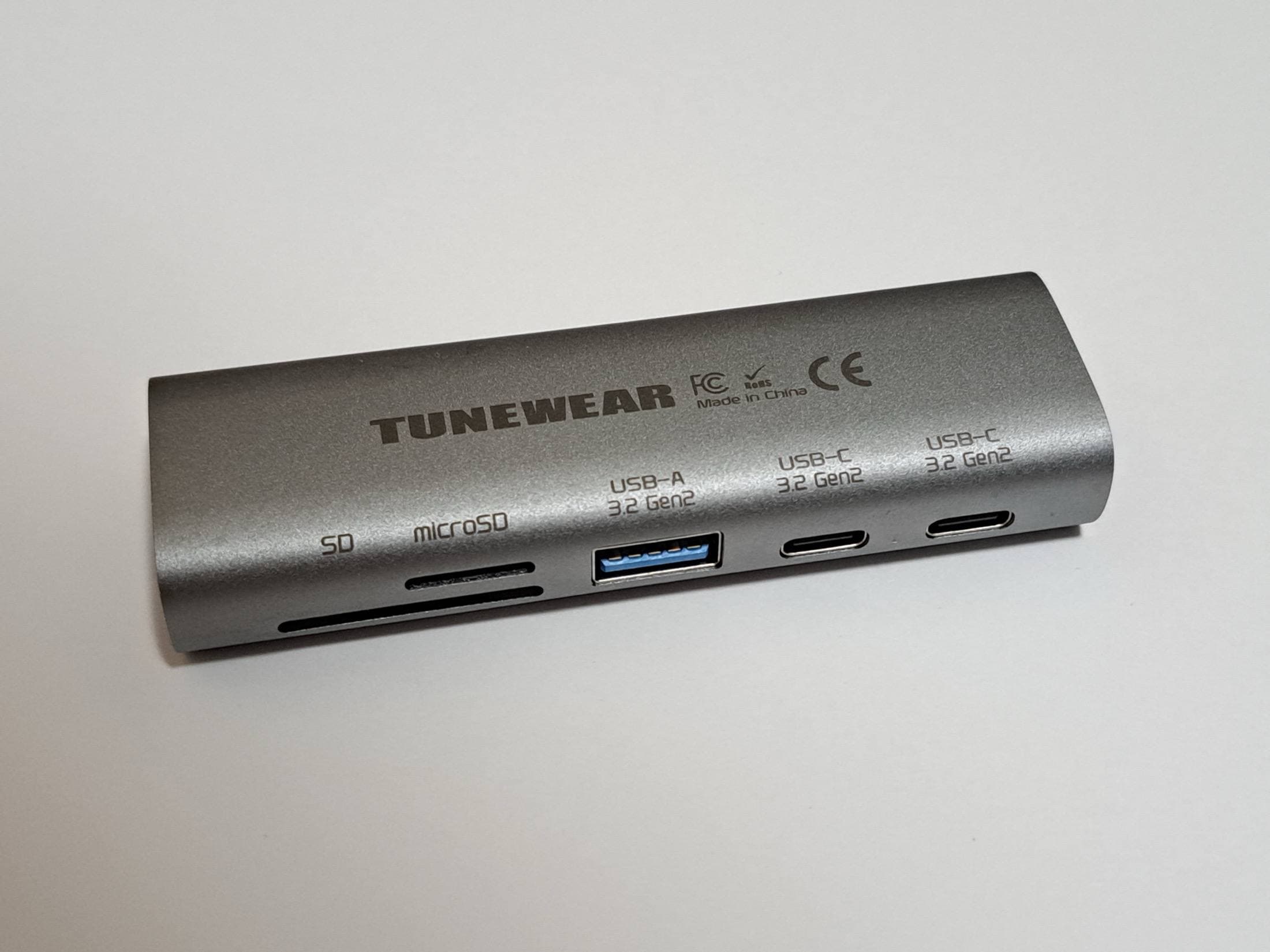
A practical minimum set:
- RJ45 Ethernet
- USB-C PD input (charging)
- HDMI or DisplayPort (if you use an external monitor)
- At least one USB-A for a keyboard receiver or audio interface
- One additional data port (USB-A or USB-C) for an SSD
SD and microSD are useful if you ingest photos or textures directly.
4) Display output that is native (DisplayPort Alt Mode)
Apple’s USB-C document explains that iPad uses the DisplayPort protocol to support USB-C displays and lists supported resolutions by model. [1]
If a dock’s main selling point is “triple displays,” it is usually built around driver based solutions aimed at laptops. That is not where you want to gamble for iPad.
5) Physical stability (the clumsy proof part)
This is where many “works fine” hubs fail in real studios:
- Integrated upstream cable: convenient, but it is the single failure point.
- Detachable upstream cable: easier to replace and easier to route cleanly.
- Weight and grip: heavier docks slide less when you plug in USB-A, Ethernet, or SD cards.
Two practical tactics that help more than people expect:
- Add strain relief. A short USB-C extension cable or a right angle USB-C adapter can turn a fragile bend into a gentle curve. Use it as a sacrificial part you can replace cheaply if it gets abused.
- Mount the hub. If your hub moves every time you insert an SD card, it is going to stress the iPad port. Adhesive cable clips or a simple bracket on the underside of the desk can remove that stress completely.
Common iPad hub mistakes (and how to avoid them)
These are the issues that repeatedly show up in iPad studio setups, even when the hub itself is not defective.
Confusing the PD port for a data port
Many hubs have a USB-C port labeled PD or charging. On most hubs it is power input only. If you plug an SSD into it, nothing happens. When you shop, read the port list carefully and make sure there is a separate USB-C data port (or enough USB-A ports) for storage.
Assuming every HDMI port will do 4K at 60Hz on iPad
iPad can output high resolutions, but the hub also needs to support the right DisplayPort Alt Mode version and HDMI conversion. Apple documents per model display behavior and supported external display resolutions. [1]
If external display reliability matters, pick a hub from a brand that publishes clear specs and has a straightforward return policy.
Buying a Thunderbolt dock for a non Thunderbolt iPad and expecting everything
Many Thunderbolt docks are backwards compatible with USB-C, but “compatible” can mean “reduced.” Sometimes Ethernet speed, downstream USB bandwidth, or display options change based on the host.
When a manufacturer spells this out, take it seriously. The TS4 explicitly warns that USB-C based computers or tablets will see reduced functionality. [6]
Best archetypes and what to buy in each
These three picks cover most real iPad studio setups: one fixed desk, one general hub, one travel dock.
Best desk dock for iPad Pro: CalDigit TS4
CalDigit’s TS4 is a Thunderbolt 4 dock with a deep port list: 2.5GbE Ethernet, multiple USB ports, SD and microSD, and DisplayPort. It also provides up to 98W of host charging. [6]
Why it works well for an iPad Pro desk:
- You get a powered “one cable” station: Ethernet, display, and peripherals can stay plugged in.
- Thunderbolt bandwidth reduces the chance that Ethernet, SSD, and display traffic step on each other.
Important limitation to understand up front:
- TS4 notes that full functionality depends on host capabilities and that USB-C based hosts will see reduced functionality, and it calls out 2.5GbE support as Thunderbolt host only. [6]
If you are on iPad Air or iPad mini, treat the TS4 as an expensive but still usable dock that may not deliver 2.5GbE.
Best compact hub for most iPad artists: Anker 555 USB-C Hub (8 in 1)
Anker’s 555 hub is an 8 in 1 design with Ethernet, HDMI, SD and microSD, two USB-A data ports, a USB-C data port, and USB-C PD input with up to 85W pass through. [7]
Why it is a good default:
- It covers the common iPad studio needs without forcing a full desk dock.
- It is small enough to mount or tuck under a stand.
Watch-outs:
- Power matters. The Amazon listing notes the hub requires power for operation and recommends a 100W PD charger and cable for adequate power. [8]
- The upstream cable is integrated. Plan for strain relief.
Best travel dock with Ethernet: OWC USB-C Travel Dock E
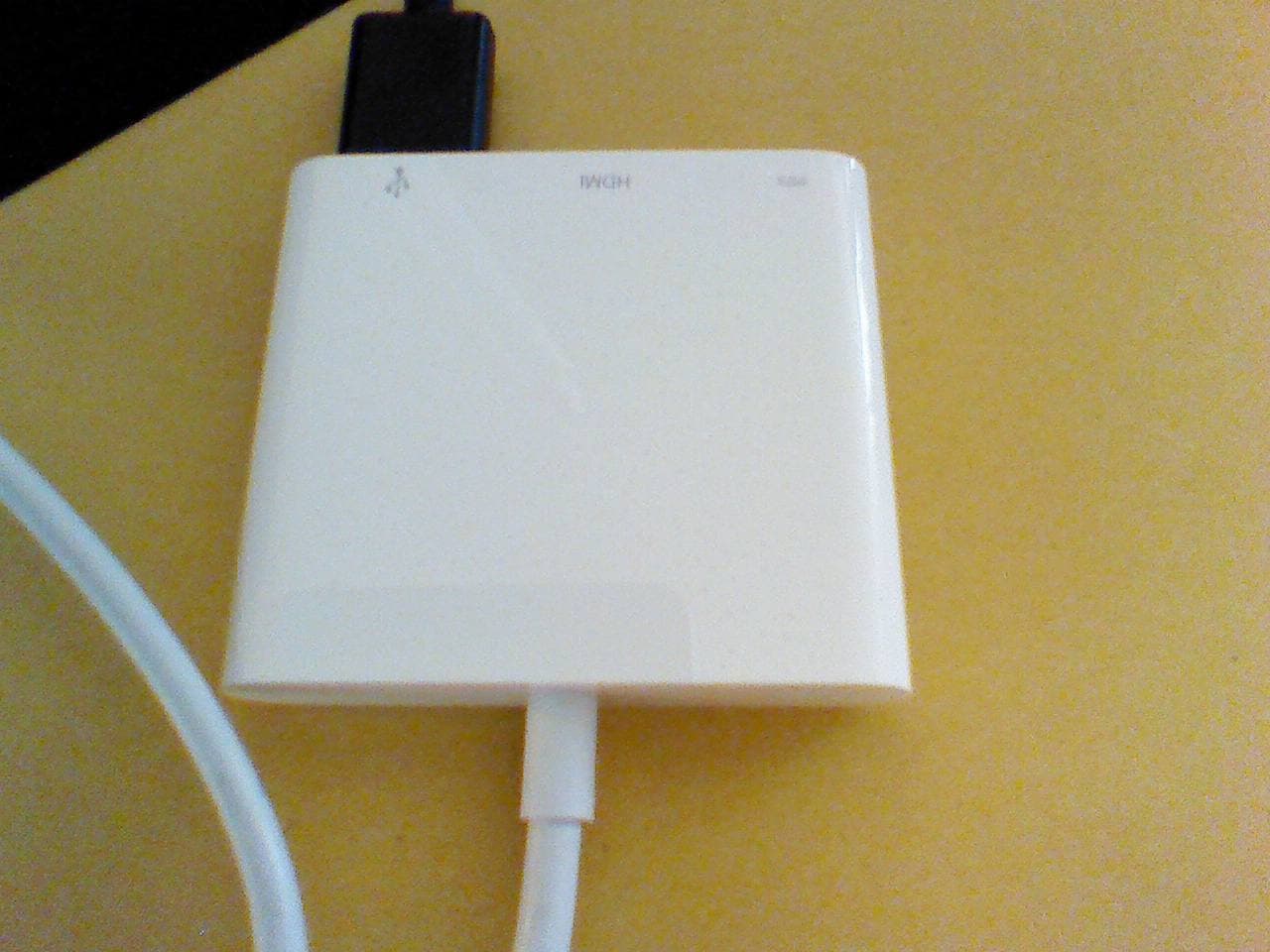
OWC’s Travel Dock E is a compact dock with an integrated USB-C cable, gigabit Ethernet, HDMI 2.0, SD card reader, USB-A ports, and a USB-C power pass-through port (up to 100W). [9]
Why it is useful:
- It is one small device that still includes Ethernet, which is rare in travel hubs.
- It supports bus powered use in a pinch, but it also supports power input for stability. [9]
A reliable wiring order for fewer disconnects
Most “random” dock problems are power order problems.
- Power the dock or hub first (dock power brick, or PD charger into the hub).
- Plug in Ethernet.
- Plug in storage and peripherals.
- Connect the hub to the iPad last.
If you are troubleshooting, temporarily turn off Wi-Fi so you can tell whether the iPad is really using Ethernet.
Fast troubleshooting
Ethernet not detected:
- Confirm the hub is powered.
- Swap Ethernet cable and switch port.
- Remove strain: test with the iPad flat and the hub supported.
Slow transfers:
- Check your iPad’s USB link class. USB 2 based iPads cannot reach gigabit speeds. [4]
- If you are using a Thunderbolt dock on a non Thunderbolt iPad, expect reduced functionality as described by the dock maker. [6]
Random drops:
- Replace the upstream cable if it is detachable, or add a short sacrificial extension if the hub’s cable is integrated.
- Use a higher quality PD charger and cable on bus powered hubs.
Bottom line
If you only change one thing in your setup, make it power. A properly powered dock with a clean upstream cable solves more “Ethernet is flaky” stories than any chipset debate.
Pick a dock that matches your iPad’s port class, power it with headroom, and you will get what you actually wanted: stable wired networking plus the ports you need to make art.
Sources (12)
- Apple Support: Charge and connect with the USB-C port on your iPad [1]
- Apple: iPad Pro technical specifications [2]
- Apple: iPad Air technical specifications [3]
- Apple: iPad mini technical specifications [12]
- Apple: iPad (A16) technical specifications [4]
- ASIX: AX88179A USB 3.2 Gen1 to gigabit Ethernet controller overview [5]
- CalDigit: TS4 Thunderbolt Station 4 product page [6]
- Anker: 555 USB-C Hub (8-in-1) product page [7]
- OWC: USB-C Travel Dock E product page [9]
- Amazon listing: CalDigit TS4 (ASIN B09GK8LBWS) [10]
- Amazon listing: Anker 555 USB-C Hub (ASIN B087QZVQJX) [8]
- Amazon listing: OWC USB-C Travel Dock E (ASIN B08W5CPH4R) [11]
Sources
Recommended gear
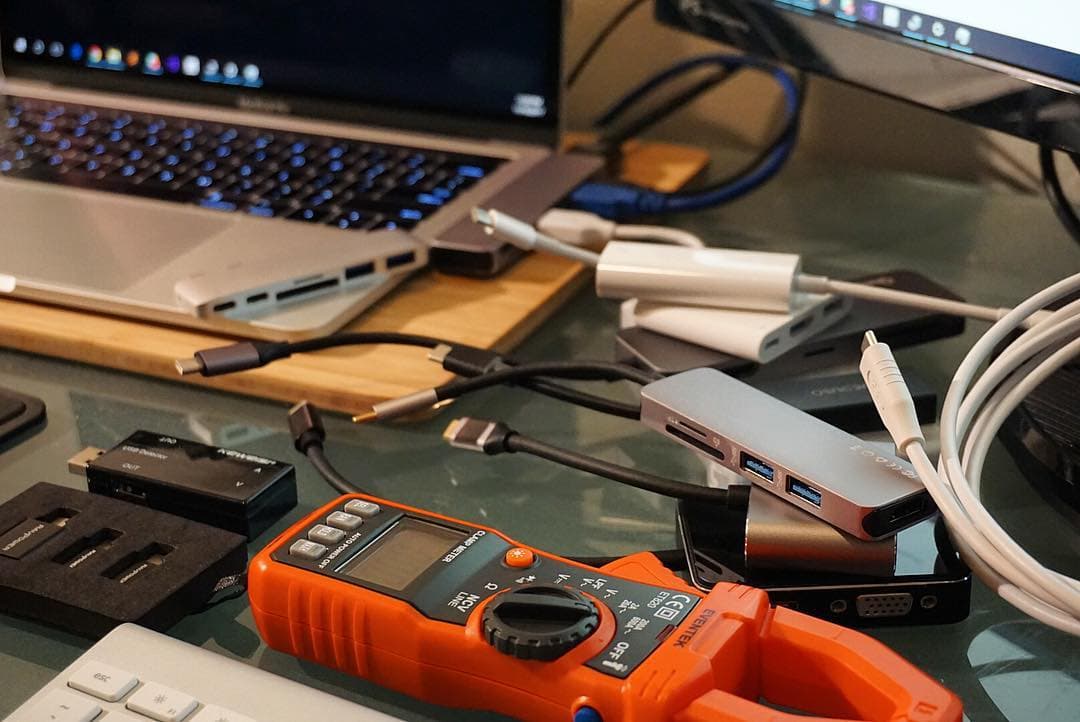
Anker 341 USB-C Hub (7-in-1)
amazon.comA strong everyday port hub for iPad workflows. Good value and layout, with expected bandwidth limits.
Pro: Solid all-around port mix for iPad setups
Con: Not Thunderbolt bandwidth
Check host power pass-through and display output before buying.
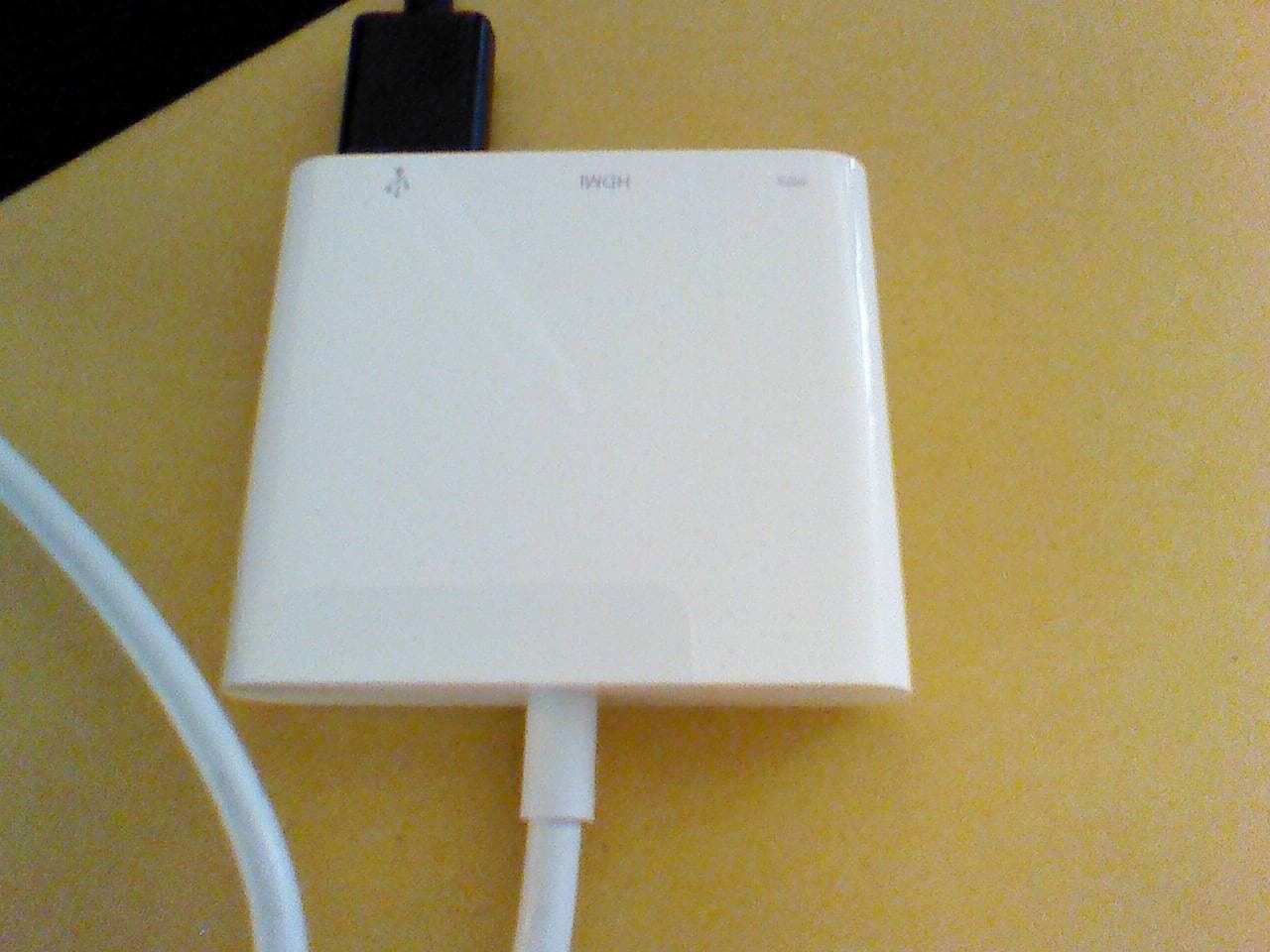
Apple USB-C Digital AV Multiport Adapter
apple.comPro: Reliable display output with Apple hardware
Con: Higher cost than generic adapters
Best fit when you need HDMI plus charging in one compact adapter.
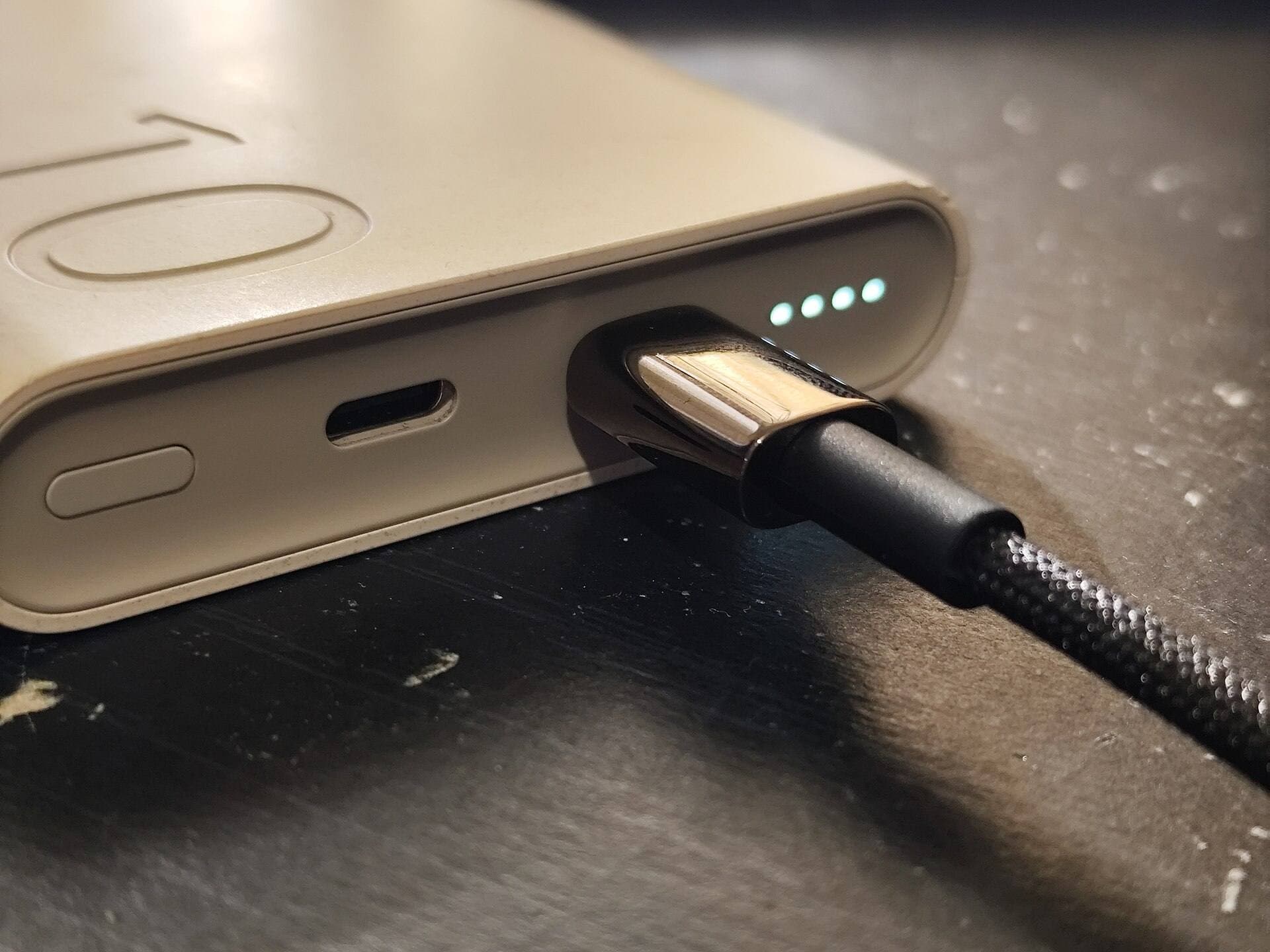
Anker USB-C to USB-C Cable (240W)
amazon.comPro: High power headroom for charging and dock use
Con: Not every 240W cable supports high data rates
Confirm required wattage and data speed before checkout.
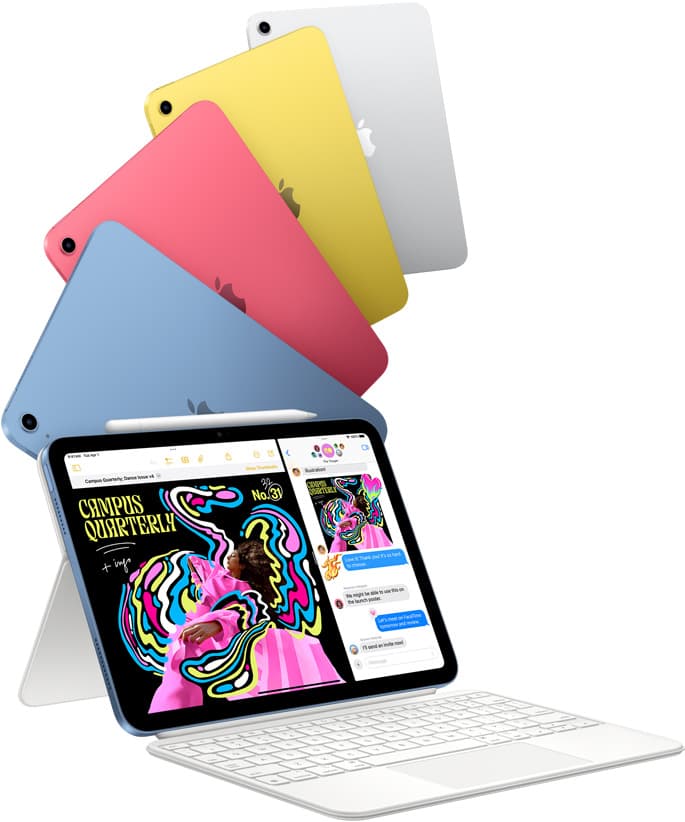
iPad (A16, 11th gen)
amazon.comThe best entry iPad for most artists on a budget. It is not premium, but it is very hard to beat on value.
Pro: Best value iPad right now
Con: No ProMotion display
Search opens with the exact model keywords. Verify size and storage before checkout.
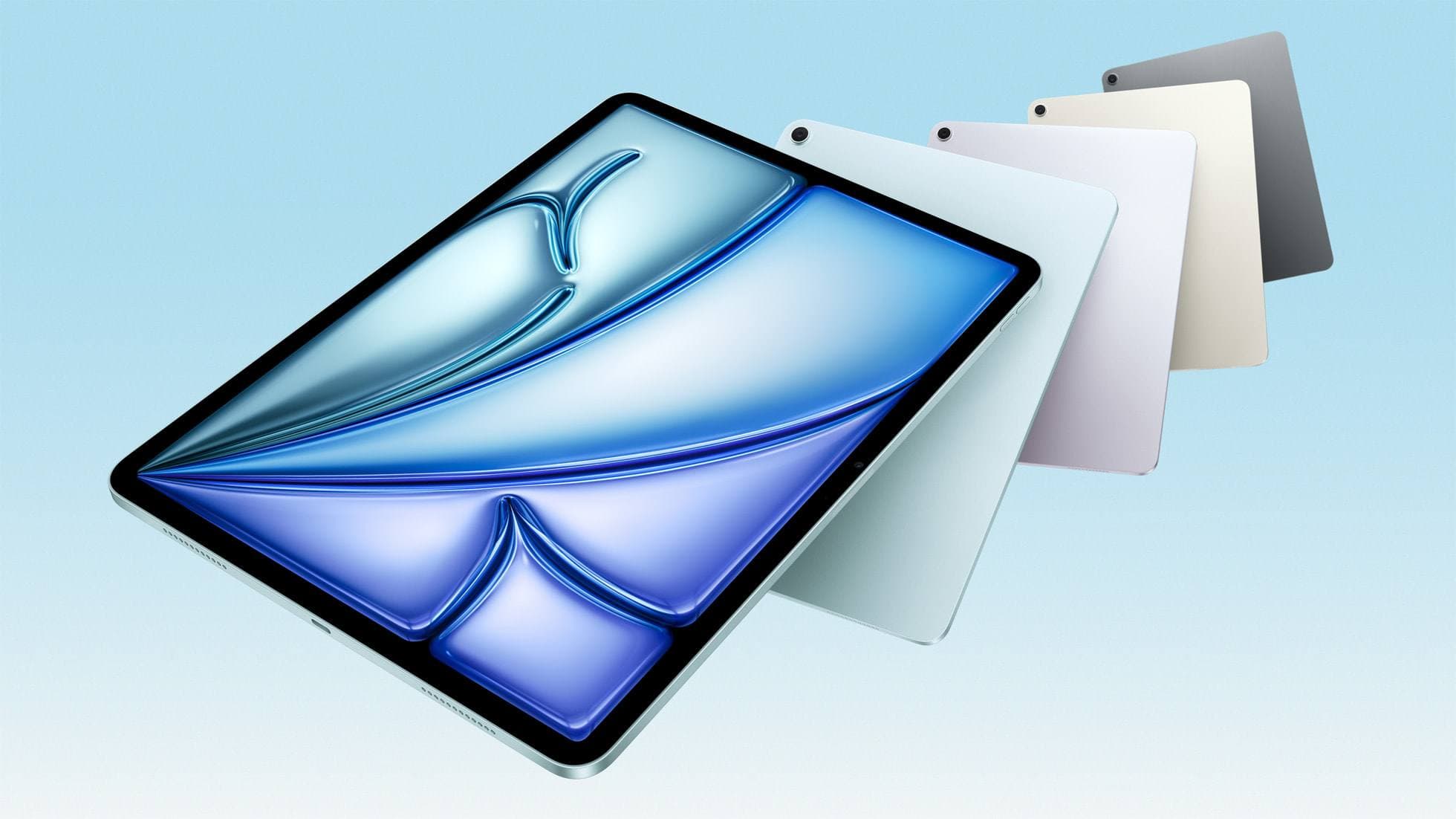
iPad Air (M4)
apple.comThe clean current Air recommendation for most serious hobby artists. Stronger buy logic than old-stock M3 when pricing is close.
Pro: Best current balance of price, headroom, and Pencil support
Con: Still 60Hz
Current Air lineup. Choose size, storage, and keyboard path before checkout.
Related buying picks
More in this collectionBuyer guide
Portable iPad Keyboard Travel Kit (2026): Write, Sketch, Pack Fast
How to build a portable iPad writing and sketch kit for cafes and transit, including keyboard format choices, setup flow, and compatibility checks.
Buyer guide
Travel Charging Setup for iPad Artists (2026): One-Bag Power Kit
A travel charging setup works when charger, power bank, and cables have fixed roles and you run the same simple routine at airports, hotels, and cafes.
Buyer guide
Best SD and microSD Card Readers for iPad Creators (2026)
Card reader speed on iPad depends on card bus, reader bus, and iPad port limits. Buy for your actual ingest workflow, not label hype.
Buyer guide
Best USB-C Cables for iPad Artists (2026): Charging, Transfer Speed, and Durability
Most USB-C cable problems come from buying by connector shape instead of charging and data requirements.