







If you need an iPad for interface sketches, user flow mapping, and wireframing, buy the iPad Air (M4) [1]. It pairs with Apple Pencil Pro, giving you squeeze gestures and haptic feedback without forcing you into premium Pro pricing [1], [2]. Step up to the iPad Pro (M5) only if you require the ProMotion display tier and the highest available hardware headroom [1]. Skip the base iPad (A16) if you want advanced stylus interactions, and skip the iPad mini (A17 Pro) if you need room for interface toolbars and multi-screen artboards [1], [3].
Why screen size and canvas space matter for interface design
Interface design relies on context, meaning you rarely work on a tiny isolated graphic [1]. You are usually laying out multi-step user onboarding flows, side-by-side modal variations, or entire responsive layout sheets [1]. Working on a constrained screen forces you to zoom and pan continuously just to see how your navigation bar aligns with your lower action buttons [1].
Apple's current lineup splits across several physical screen footprints [1]. The iPad mini (A17 Pro) features the smallest display in the current family, which makes it great for handheld notes but cramped when you place mobile screen frames next to design toolbars [1]. You spend more time hiding and restoring palettes than reviewing your overall screen hierarchy [1].
For most design tasks, the 11-inch and 13-inch display profiles found on the iPad Air and iPad Pro offer enough room to sketch layouts comfortably [1]. An 11-inch display gives you a balanced footprint for drawing wireframes at your desk or taking sketches into team meetings [1]. The larger 13-inch format lets you view interface artboards closer to their actual scale while keeping your tool menus visible [1]. If your weekly routine involves sketching responsive web breakpoints or large desktop layouts, the larger display saves you from constant repositioning [1].
Matching your stylus needs with Apple Pencil Pro
Your choice of iPad directly limits which Apple Pencil model you can use [3]. If you plan to sketch quick wireframes, draw flow charts, or annotate user research documents, stylus features shape your day-to-day workflow [2]. Apple separates its stylus line across standard input, USB-C utility, and advanced sensor capabilities [2], [3].
The Apple Pencil Pro works with the iPad Air (M4) and iPad Pro (M5), bringing hardware features that streamline drawing [1], [2], [3]. It includes a squeeze gesture that brings up software tool pickers directly at your pen tip [2]. That means you can change stroke weights or switch from an ink pen to an eraser without tapping across the screen to a floating toolbar [2]. The built-in haptic motor delivers a light pulse confirming the action, while barrel roll lets you rotate shaped brushes as you sketch [2]. It also includes Apple Pencil hover, showing you exact placement before your stroke touches the glass [2].
The entry-level iPad (A16) does not support Apple Pencil Pro [1], [3]. It pairs with Apple Pencil (USB-C) or the older first-generation Apple Pencil [3]. The USB-C model lacks pressure sensitivity, squeeze gestures, and barrel roll [2]. While pressure sensitivity is less critical for simple block wireframes, losing squeeze controls and hover leaves you with basic pen input [2]. If you want fluid gesture control while sketching user interfaces, buy an iPad that supports Apple Pencil Pro [2], [3].
Memory, chip headroom, and art app limits
Interface work on an iPad often begins in sketching and raster applications before moving to production software [4], [5]. In apps like Procreate, your hardware memory directly dictates how large your canvas can be and how many layers you can stack [4]. High-density mockups with separate layers for typography, background components, icons, and status bars consume layers rapidly [4].
Procreate sets hard limits on layer counts based on the available memory of your specific iPad model [4]. Devices with higher memory allocations allow significantly higher layer caps at matching canvas resolutions [4]. The iPad Air (M4) and iPad Pro (M5) feature Apple silicon chips designed with shared memory architectures that give apps generous headroom [1], [4]. That allows you to create high-resolution canvases for detailed iPad and tablet wireframes without running into rigid layer ceilings halfway through a project [4].
The base iPad (A16) uses older processor architecture and more modest hardware resources [1]. While it runs creative applications like Procreate according to system compatibility requirements, you will reach maximum layer counts much faster on complex, high-resolution canvases [1], [4], [5]. If you only sketch low-fidelity wireframes on single layers, this constraint will not stop you [4]. But if you organize user interfaces using distinct layer groups for states, alerts, and navigation bars, the memory headroom on M-series chips makes a clear practical difference [1], [4].
Choosing between iPad Air, Pro, and the base models
Choosing the right device comes down to balancing stylus features, display hardware, and price [1], [2]. Each iPad fulfills a distinct role in an interface design toolkit [1].
Buy the iPad Air (M4) if you want the strongest overall mix of value and modern capabilities [1]. It delivers full compatibility with Apple Pencil Pro, gives you fast M4 performance, and offers choices between 11-inch and 13-inch sizes [1], [3]. You get the squeeze gesture, haptics, and hover functionality without paying top-tier prices [1], [2]. The main trade-off is the screen refresh rate, as the Air retains a standard 60Hz display rather than Apple's smoother ProMotion technology [1]. For wireframing, diagramming, and UI notes, 60Hz is entirely sufficient [1].
Buy the iPad Pro (M5) if you want the best visual hardware Apple offers and refuse to compromise on display tech [1]. The Pro model includes ProMotion, giving you an adaptive refresh rate up to 120Hz [1]. Pencil strokes track closer to your physical movements on a 120Hz panel, which provides an exceptionally fluid drawing experience [1], [2]. You should skip the iPad Pro if you simply need a digital whiteboard or wireframe pad, because the premium cost is hard to justify for basic line sketches alone [1].
Skip the base iPad (A16) unless you have a strict budget limit [1]. It is the most affordable entry point into iPadOS, but its lack of Apple Pencil Pro compatibility and absence of ProMotion limit its usefulness for dedicated design work [1], [3]. Skip the iPad mini (A17 Pro) if this is your primary design tablet [1]. Although it supports Apple Pencil Pro, the compact screen makes side-by-side design reviews and detailed interface wireframing cramped over long sessions [1], [2].
Bottom line
For most UI and UX designers, the iPad Air (M4) hits the sweet spot [1]. It supports the Apple Pencil Pro, gives you access to modern squeeze and hover gestures, and provides the chip headroom needed to manage multi-layer canvas layouts [1], [2], [4]. Step up to the iPad Pro (M5) only if you require a ProMotion display, and skip the base iPad and iPad mini if you need a spacious, fully featured drawing setup [1], [3].
Sources
[1] https://www.apple.com/ipad/compare/ [2] https://www.apple.com/apple-pencil/ [3] https://support.apple.com/en-us/108937 [4] https://help.procreate.com/articles/zlexav-ipad-compatibility [5] https://apps.apple.com/us/app/procreate/id425073498
Recommended gear

iPad Air (M4)
apple.comThe clean current Air recommendation for most serious hobby artists. Stronger buy logic than old-stock M3 when pricing is close.
Pro: Best current balance of price, headroom, and Pencil support
Con: Still 60Hz
Current Air lineup. Choose size, storage, and keyboard path before checkout.
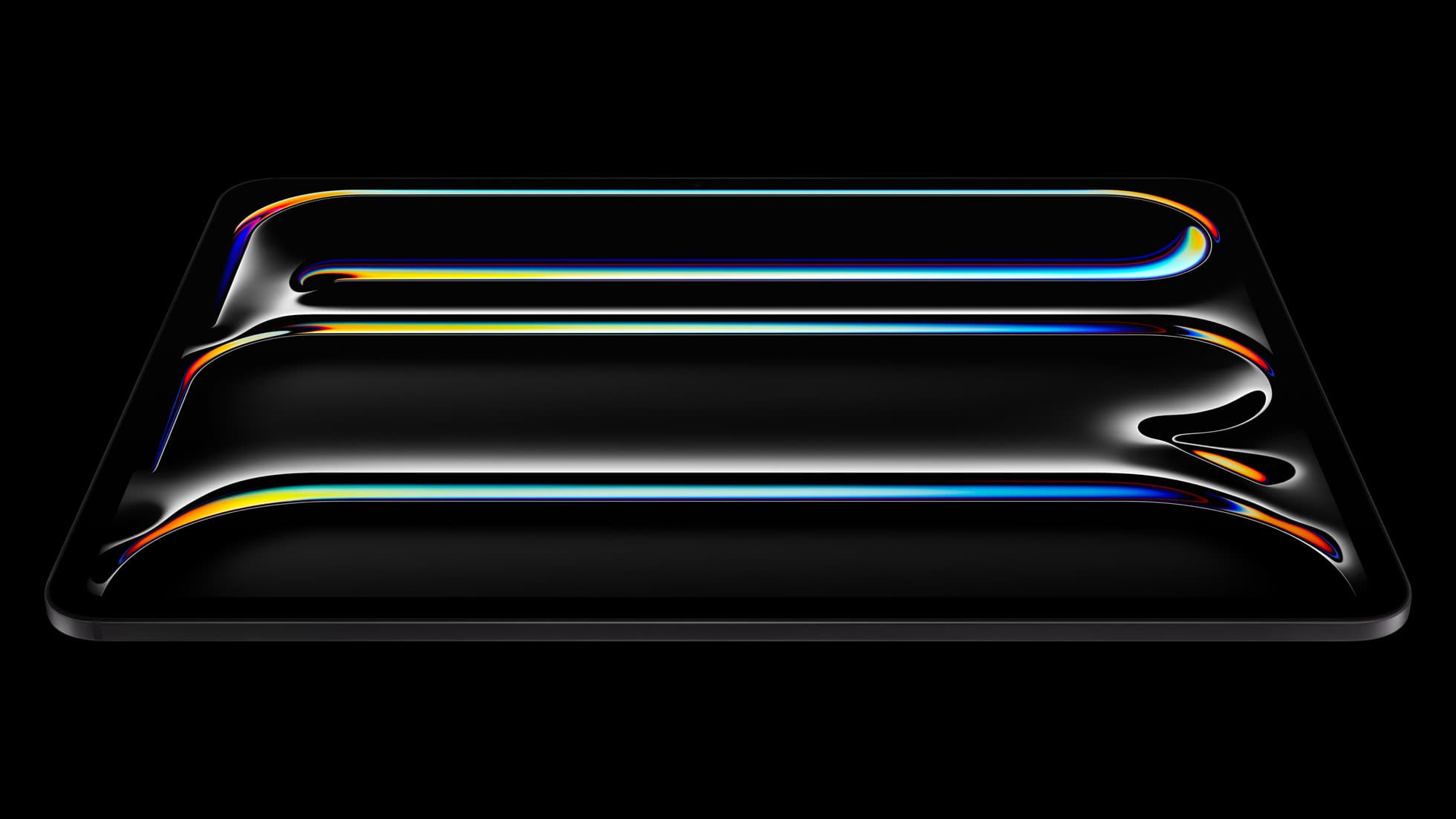
iPad Pro (M5)
amazon.comThe best iPad for drawing feel and premium workflow comfort, but many buyers still overpay for it.
Pro: Best iPad display and ProMotion feel
Con: Highest price in the lineup
Search opens with iPad Pro terms. Check year, chip, and screen size.
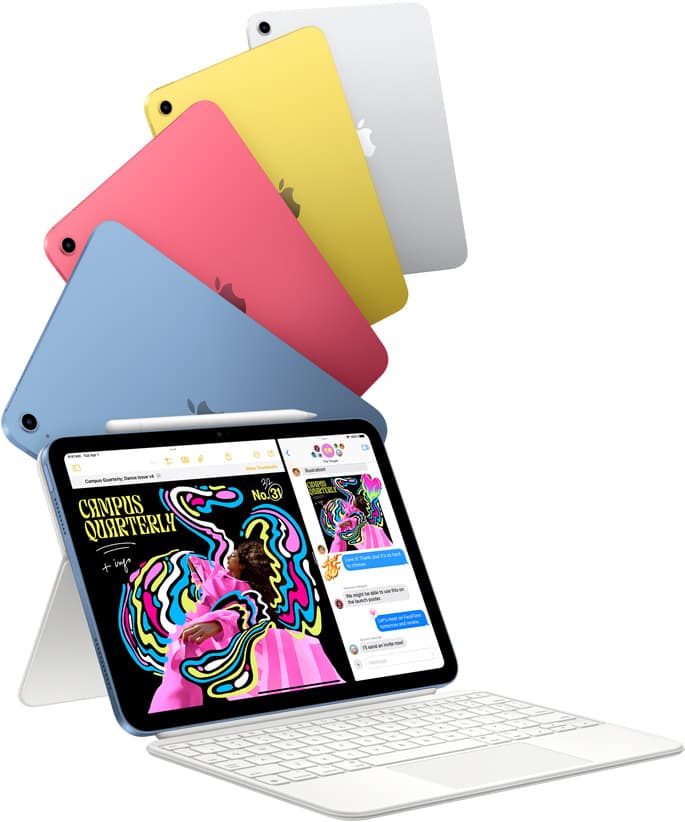
iPad (A16, 11th gen)
amazon.comThe best entry iPad for most artists on a budget. It is not premium, but it is very hard to beat on value.
Pro: Best value iPad right now
Con: No ProMotion display
Search opens with the exact model keywords. Verify size and storage before checkout.
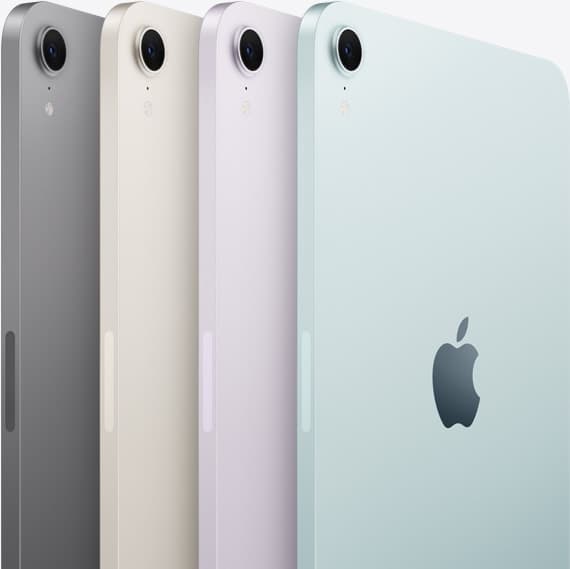
iPad mini (A17 Pro)
amazon.comThe most portable real iPad for drawing. It wins on mobility and loses on workspace.
Pro: Most portable drawing iPad
Con: Small canvas for detailed work
Search opens with iPad mini A17 Pro terms. Verify model number before buying.
Related buying picks
More in this collectionBuyer guide
Best iPad for kids art: what parents should buy
Buy the base iPad for young artists, choose the iPad Air for serious students needing pressure sensitivity, and skip the expensive iPad Pro.
Buyer guide
Best iPad for logo design
Choose the iPad Air with the M4 chip for the best mix of vector precision, Apple Pencil Pro support, and balanced pricing.
Buyer guide
Best iPad for digital painting: Which model should you buy?
Choose the right iPad for digital painting based on screen space, Apple Pencil features, and layer capacity.
Buyer guide
Best iPad for digital art beginners
Get the iPad Air (M4) if you want the Apple Pencil Pro toolset, or pick the base iPad (A16) if you want a capable digital sketchpad at the lowest entry cost.