





If you want to sketch on location with varied line weight and watercolor washes, buy the Apple Pencil Pro if your iPad supports it, or the Apple Pencil (2nd generation) if you have an older magnetic-charging iPad [1], [2]. Both deliver pressure sensitivity, which is vital for dynamic brushwork [2]. Skip the Apple Pencil (USB-C) for urban sketching unless your style relies solely on technical monoline pens, because it lacks pressure sensitivity entirely [2]. If drawing on bare glass feels too slick while sitting on a park bench, add Paperlike 3 to introduce controlled friction [8].
Why pressure sensitivity dictates your urban sketching setup
Urban sketching demands fast, expressive marks, from quick architectural perspective lines to thick ink outlines and broad washes. Stylus hardware plays a direct role here. The Apple Pencil Pro and the Apple Pencil (2nd generation) both feature pressure sensitivity, letting you modulate stroke thickness and opacity depending on how hard you press down [2]. That single capability turns digital brushes in apps like Procreate into realistic pens, markers, and watercolor brushes [2], [5].
In contrast, the Apple Pencil (USB-C) does not offer pressure sensitivity [2]. It does include tilt sensitivity, meaning you can angle the stylus to shade larger areas, but downward force will not alter your line weight or flow [2]. If you draw purely with fixed-width pens like fineliners or technical drafting markers, the USB-C model can work [2]. But for lively location sketching that mimics traditional ink pens and wash brushes, you'll feel limited immediately without pressure control [2].
Matching your pencil choice to your iPad hardware
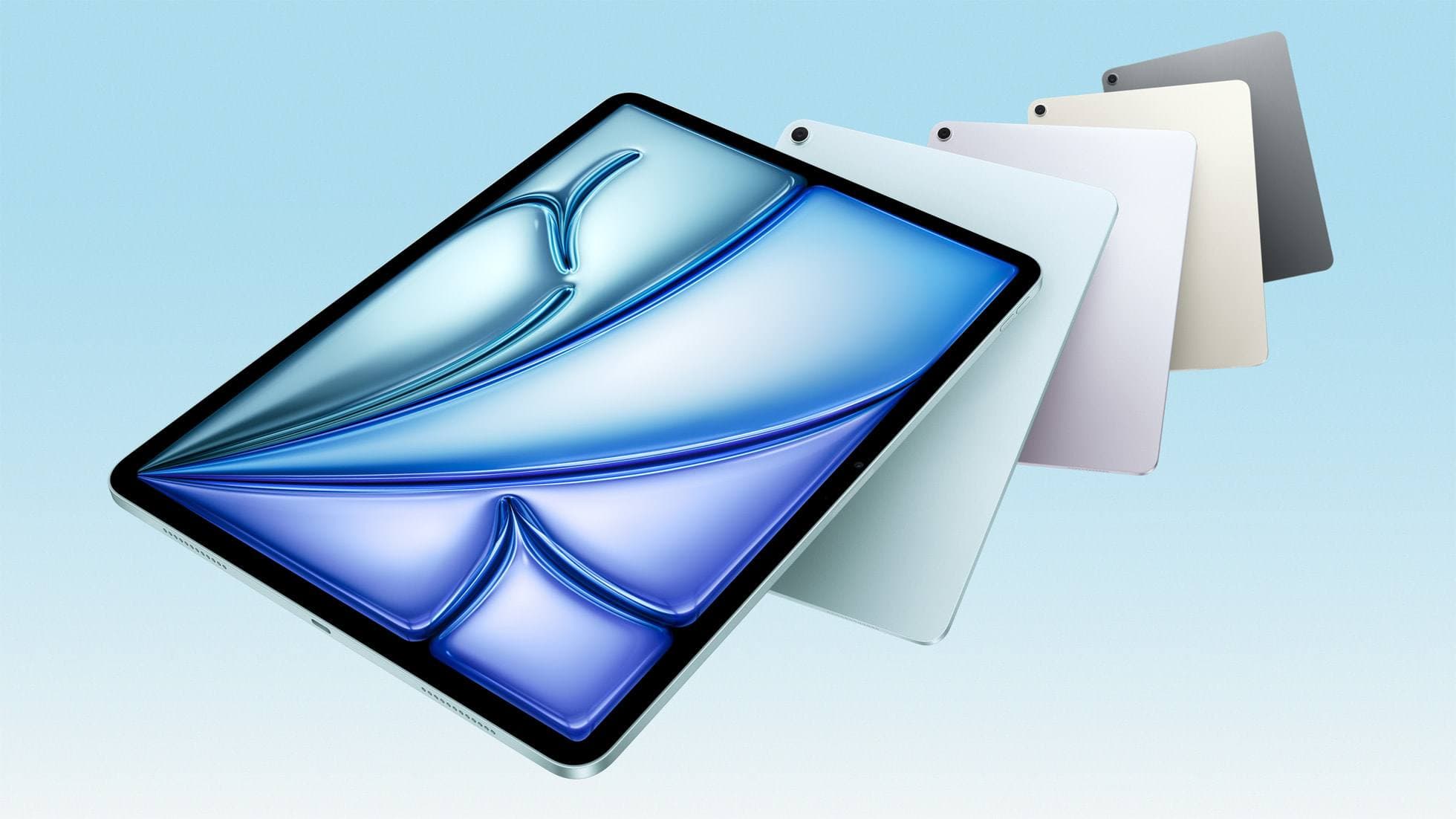
You cannot pick an Apple Pencil based on features alone; your iPad model strictly limits your choices [1], [3]. Apple distributes stylus features across three main modern hardware options, and they do not work interchangeably across all generations [1], [3].
The Apple Pencil Pro pairs only with designated newer iPad models, including compatible M4 and M2 releases [1], [3]. If your iPad is older, it simply won't pair or charge with the Apple Pencil Pro [1], [3].
The Apple Pencil (2nd generation) connects and charges magnetically along the flat edge of supported prior-generation iPad Pro, iPad Air, and iPad mini models [1], [3]. However, it does not work on the newest iPads designed exclusively around the Apple Pencil Pro [1], [3].
The Apple Pencil (USB-C) pairs and charges via a sliding USB-C port cap and works across many recent iPad models, including those with USB-C ports that otherwise take the 2nd generation or Pro pencils [2], [3]. But its lower cost comes with the removal of pressure sensitivity [2]. Before shopping, verify your exact tablet model on Apple's comparison charts to see which styluses pair with your hardware [1], [3].
Apple Pencil Pro versus Apple Pencil (2nd generation) on the street
If your iPad supports the Apple Pencil Pro, it adds three specific hardware features that aid rapid outdoor work: barrel roll, squeeze gestures, and haptic feedback [2], [6].
Barrel roll uses an internal gyroscope to detect when you rotate the stylus body [2], [6]. In compatible software like Procreate, rotating the barrel rotates shaped brushes and flat-edge markers dynamically, mirroring the behavior of a physical chisel tip or flat watercolor brush [2], [6], [7]. Squeeze gestures allow you to press the lower barrel to open tool palettes, switch tools, or perform context actions without reaching across the display [2], [6], [7]. Built-in haptics pulse lightly against your fingers to confirm the squeeze or double-tap action [2], [6].
The Apple Pencil (2nd generation) provides an excellent drawing foundation with pressure sensitivity, tilt detection, and a double-tap gesture area to toggle tools [2], [6], [7]. You don't get squeeze, barrel roll, or haptic feedback, but your core linework and shading behavior remain accurate and responsive [2], [6]. If you already own an iPad that pairs with the 2nd-generation stylus, there's no reason to buy a whole new tablet setup just to gain barrel roll for urban studies [1], [2].
Adding friction with matte screen protection
Urban sketching often takes place on unstable perches, such as transit seats, folding stools, or curbsides. Bare iPad displays use smooth glass, which offers minimal tactile resistance against the plastic tip of an Apple Pencil [2], [8]. Some sketchers find the slickness causes their hand to slip or drift during fast perspective lines.
Applying a textured protector like the Paperlike 3 adds physical tooth and resistance under the stylus tip [8]. Paperlike advertises this texture to recreate the feel of paper, giving you more resistance when laying down strokes outdoors [8]. The tradeoff is visual: matte textured films introduce mild light diffusion and slightly soften the pin-sharp clarity of your iPad display [8]. If you prioritize high-contrast screen clarity for finished painting, stay with glass; if you value tactile mechanical control when drawing rough architectural studies, a textured protector is worth installing [8].
Managing layers and canvases when working outdoors
Taking your iPad outdoors means planning your digital sketchbooks around hardware memory constraints. Procreate calculates canvas layer limits strictly based on available system RAM and canvas pixel dimensions [4]. If you create a massive canvas at high resolution, your layer budget shrinks quickly [4].
For quick street studies, keeping canvas sizes modest preserves plenty of layers for loose underdrawings, clean ink work, watercolor washes, and shadow layers [4]. Knowing your device's limits before you leave home ensures you don't run out of layers while sitting in front of a landmark [4].
Bottom line
For artists buying a new setup or upgrading their tablet, pair an Apple Pencil Pro with a compatible newer iPad to get pressure sensitivity, barrel roll, and fast squeeze tool switching [1], [2], [3]. If you currently draw on an iPad that uses the Apple Pencil (2nd generation), keep it; its pressure sensitivity and double-tap gesture handle urban sketching capably without requiring a tablet replacement [1], [2]. Skip the Apple Pencil (USB-C) for street sketching unless you only produce technical monoline drawings, because losing pressure sensitivity removes the expressive range essential for loose pen and wash art [2].
Sources
[1] https://www.apple.com/ipad/compare/ [2] https://www.apple.com/apple-pencil/ [3] https://support.apple.com/en-us/108937 [4] https://help.procreate.com/articles/zlexav-ipad-compatibility [5] https://apps.apple.com/us/app/procreate/id425073498 [6] https://support.apple.com/guide/ipad/draw-with-apple-pencil-ipadc55b6c7a/ipados [7] https://help.procreate.com/procreate/handbook/5.2/interface-gestures/pencil [8] https://paperlike.com/products/paperlike-for-ipad
Recommended gear

Apple Pencil Pro
amazon.comThe best Apple stylus for serious digital art workflows. Expensive, but the control upgrades are real.
Pro: Best brush-control and hover workflow
Con: Highest price in the lineup
Works only with newer iPad models. Check compatibility.
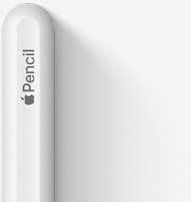
Apple Pencil (2nd generation)
amazon.comStill a strong stylus on compatible iPads. Good pressure control, but compatibility is the main trap.
Pro: Pressure support without Pro pricing
Con: Not compatible with newest Pro-only iPads
Only for iPads that support 2nd generation pairing.
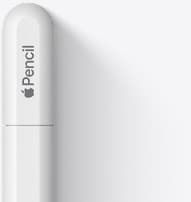
Apple Pencil (USB-C)
amazon.comA practical low-cost Apple stylus with broad compatibility, but limited for advanced art control.
Pro: Lowest official Apple Pencil cost
Con: No pressure sensitivity for brush work
Compatible with many recent iPads. No pressure support.
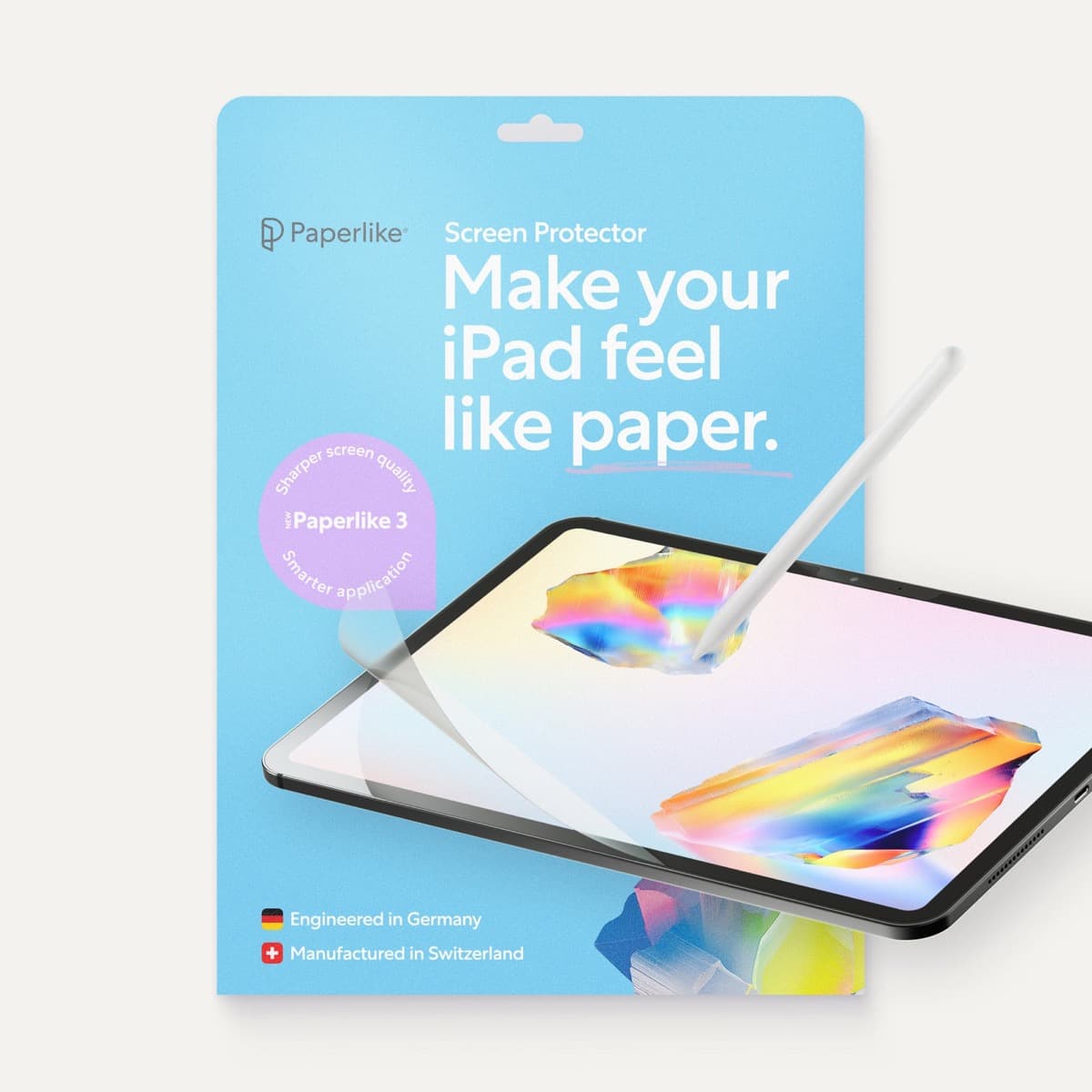
Paperlike 3 (11-inch, 2-pack)
amazon.comA strong surface-feel upgrade for drawing control. Clarity tradeoff is real and should be expected.
Pro: Adds controlled paper-feel friction
Con: Slightly reduces perceived display sharpness
11-inch fit only. Confirm generation before checkout.
Related buying picks
More in this collectionBuyer guide
Best Apple Pencil for fashion illustration: Stylus guide for designers
Choose the right Apple Pencil for fashion illustration based on pressure sensitivity, barrel roll, iPad compatibility, and screen texture.
Buyer guide
Best Apple Pencil for figure drawing: how to choose your stylus
Figure drawing demands reliable pressure sensitivity and stroke control, making Apple Pencil Pro or Apple Pencil 2nd generation the right choice over the USB-C model.
Buyer guide
Best Apple Pencil for lettering and calligraphy
Choose between Apple Pencil Pro, Apple Pencil 2, and Apple Pencil USB-C based on pressure sensitivity, barrel roll, and iPad compatibility.
Buyer guide
Is the Apple Pencil USB-C enough for Procreate?
The Apple Pencil (USB-C) functions in Procreate, but the lack of pressure sensitivity makes it a poor fit for expressive brushwork.